Searching for groups
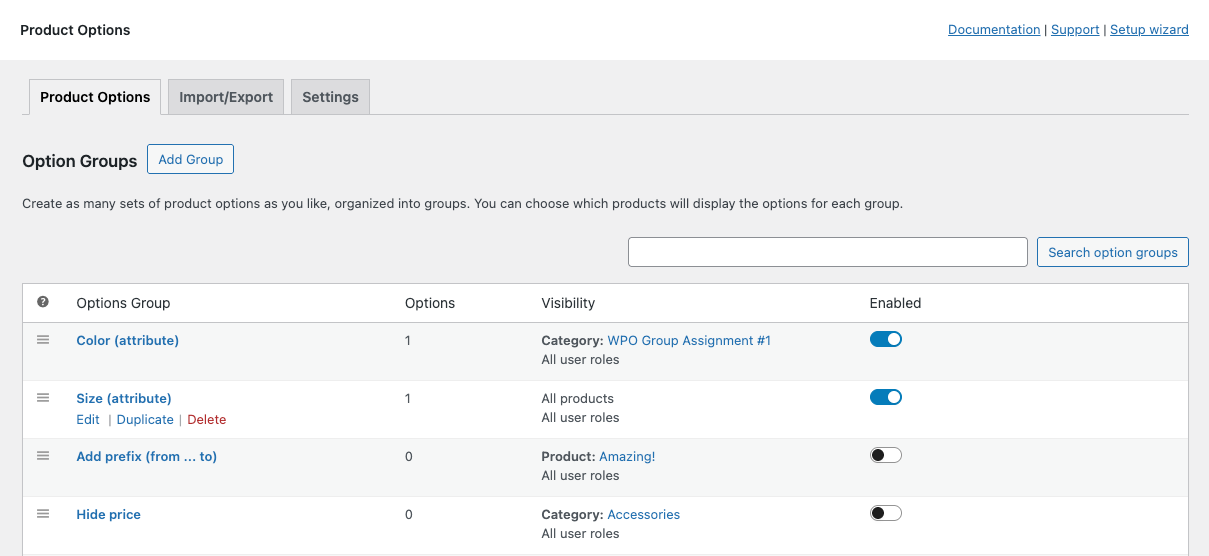
The management of custom product options in WooCommerce Product Options is centralized in the Option Groups list, accessible from the Products > Product Options menu. That list gives developers a comprehensive view of all the options added to products in the store, including the number of options each group has, the scope of the group in terms of products, categories and user roles it applies to, and the activation status.
When the catalog grows, shop managers may find themselves in a position to handle tens of groups, with tens of options and complex configurations of included or excluded products, categories and user roles. To help shop managers navigate potentially long lists of option groups, WooCommerce Product Options offers an advanced search form that uses several criteria to filter out the irrelevant groups and allow you to focus only on what you really want to focus. Let's go through all the criteria in the following section.
Search criteria
The search field accepts a series of criteria that can be easily entered as a property and a value separated by a colon. Value cannot contain any spaces. For example, entering name:test in the search field will display all the option groups the name of which contain the string test. Searches can be refined by adding more criteria, even using the same property multiple times. If you enter name:new name:test, all the option groups with a name that contains new AND test will be displayed.
Each criterion may have multiple alternative shorthands for both properties and values. This is just aimed at making it easier to remember each of them in the spelling you find more memorable.
All the possible criteria are listed below, along with all their shorthands.
- group name:
name:<value>or just<value>
Groups are filtered based on a string contained in their name. The search is case-insensitive. This is the only criterion that also works even if you write just the value without specifying thenameproperty. For example, enteringnew testcorresponds toname:new name:testand will match names likeNew test groupas well asTest group (new)andJust a new temporary test. - enable status:
is:on|offoris:enabled|disabledoris:active|inactive
Shows only the groups that are either enabled (on,enabledoractive) or disabled (off,disabledorinactive) - product inclusion:
products:<product-ID>orproduct:<product-ID>orp:<product-ID>
It shows only the groups that include the given product ID in the product inclusion list. For example,p:14will show only groups that include the product with ID14in the product inclusion list. Similarly,p:14 p:99will show only groups that include both products with ID14AND99in the product inclusion list. - category inclusion:
categories:<category-term-ID>orcategory:<category-term-ID>orc:<category-term-ID>
It shows only the groups that include the given product category term ID in the product inclusion list. For example,c:25will show only groups that include the product category term with ID25in the category inclusion list. Similarly,c:25 c:74will show only groups that include both category terms with ID25AND74in the category inclusion list. - user role inclusion:
roles:<role-slug>orrole:<role-slug>orr:<role-slug>
It shows only the groups that include the given product ID in the product inclusion list. For example,p:14will show only groups that include the product with ID14in the product inclusion list. Similarly,p:14 p:99will show only groups that include both products with ID14AND99in the product inclusion list. - product exclusion:
exclude_products:<product-ID>orexclude_product:<product-ID>orep:<product-ID>
It works similarly to product inclusion but considers the product exclusion list instead. - category exclusion:
exclude_categories:<category-term-ID>orexclude_category:<category-term-ID>orec:<category-term-ID>
It works similarly to category inclusion but considers the category exclusion list instead. - user role exclusion:
esclude_roles:<role-slug>orexclude_role:<role-slug>orer:<role-slug>
It works similarly to user role inclusion but considers the user role exclusion list instead. - option type:
has:<option-type>orincludes:<option-type>oroption:<option-type>
It displays only the groups that contain certain option types. For example, enteringhas:price_formulawill display only option groups that include at least one price formula. The provided value is going to be searched as part of the string specifying the option type. Therefore, searches likehas:formulaorhas:price_formulawill display the exact same groups. In that regard, you must be careful with entering a value that defines exactly what you are looking for. For example, if you are searching for groups that contain a Text Labels option type, you could enterhas:text_labelsorhas:labelbecause both searches uniquely match the option type you are looking for. On the contrary, enteringhas:textwill return groups with either Text Labels or Text inputs, which might not be what you are looking for. - apply (or affect):
apply:<product-ID>oraffect:<product-ID>ora:<product-ID>
This search criterion is more advanced than theproduct:<product-ID>one because the latter purely matches groups that include<product-ID>in the product inclusion list, but does not show all the groups applying to the given product ID. In fact, groups that apply globally across the store are displayed on the given product ID, but won't be returned in a search forp:<product-ID>because they don't explicitly list that product in the inclusion list. For example, a group may not apply to a product if the product belongs to a category that is listed in the exclusion list. This filter is particularly useful to list all the groups that are currently set to be displayed on any given product.
Examples
You can find some examples of valid criteria that could be entered in the search field.
test: all groups with a name that includestestnew test: all groups that include bothnewandtestanywhere in their namename:new name:test: same results as the previous oneis:on: all groups that are currently enabledname:new is:on: all enabled groups that includenewin their nameis:on p:20: all enabled groups that include the product with ID20in the inclusion list.is:on c:40 ep:20: all enabled groups that include the product category term with ID40, but exclude the product with ID20.is:on p:20 p:35: all enabled groups that include both the product with ID20and the product with ID35in the inclusion listis:off has:formula: all disabled groups that include a price formula optionis:on has:color has:file: all enabled groups that include a Color Swatches option AND a File Upload optiontest has:date is:on has:number a:25: all groups that are enabled, containtestin their name, have both aDateand aNumberoption and affect the product with ID25(the visibility, inclusion and exclusion rules make it appear on the product with ID25).metal tag has:file a:32 r:wholesale: all groups (enabled or not) that include bothmetalandtaganywhere in their name, include the File Upload option, apply to the product with ID32and are displayed to users with thewholesaleuser role.