Edit product options in the cart
WooCommerce Product Options lets customers edit the options on a product they have already added to the cart. Instead of removing the item and configuring it again from scratch, they can change their choices in a few clicks. This is especially useful for products with lots of options, where starting over is frustrating and can lead to abandoned carts.
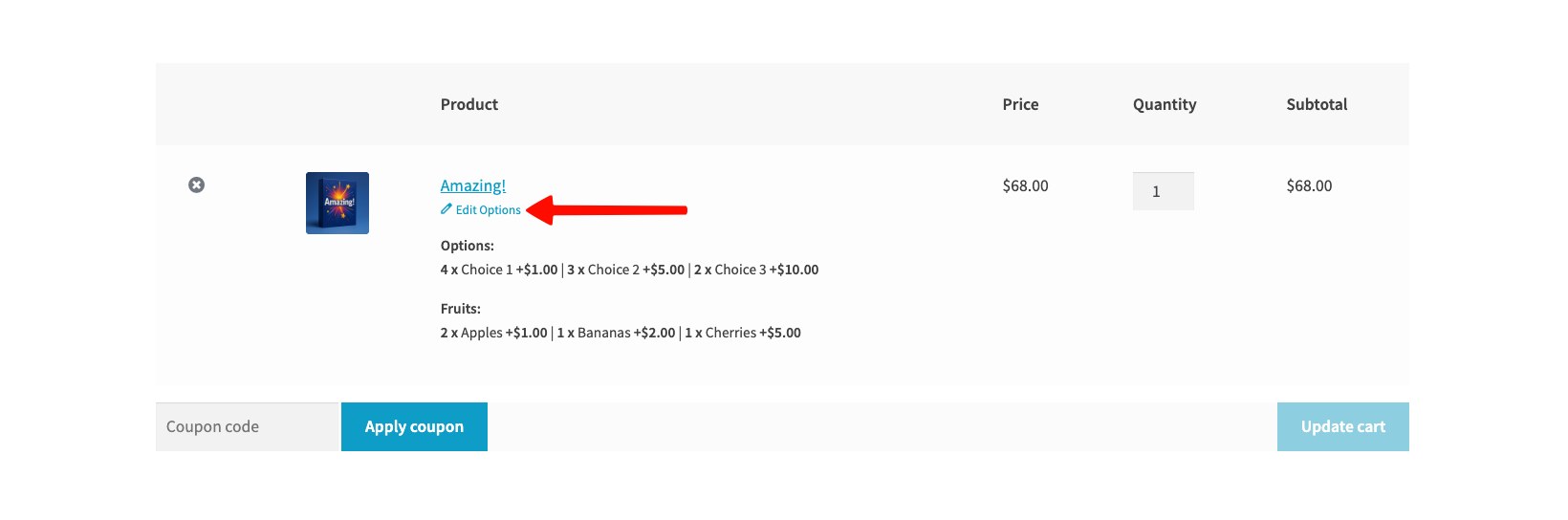
This works automatically. There is no setting to turn it on - as soon as a cart item has product options attached, an Edit Options link appears below it on the cart page.
How it works
- The customer adds a product with options to the cart in the usual way.
- On the cart page, an Edit Options link appears below each item that has options attached, along with a summary of the choices they made.
- Clicking the link takes the customer back to the product page with all their previous choices already filled in.
- The 'Add to cart' button changes to Update cart, so it is clear they are editing an existing item rather than adding a new one. A Cancel button appears next to it for customers who decide not to make any changes.
- When the customer clicks Update cart, their changes replace the original item and they are taken straight back to the cart.
Notes
- The Edit Options link only appears for cart items that have product options attached. Items without options are not affected. It also does not work for attributes displayed as product options.
- Editing the options updates the existing cart item, so its quantity and position in the cart stay the same.
- This does not work with the new Cart and Checkout blocks.
You might also like our guide to shareable cart links, which lets customers share a link to a cart with the product options already configured.
If searching the knowledge base hasn't answered your question, please contact support.