Searching the document library
Document Library Pro has a range of flexible search options which make it easy for people to find documents using a particular search term. Use it alone or with filters, in which people can refine the list of documents by selecting from a set of pre-defined filter options.
The plugin provides two types of document search:
- The search box which appears above the document library.
- A standalone search box, which you can insert anywhere on your site (either by adding a widget or shortcode).
Search box above the document library
By default, Document Library Pro displays libraries with a search box above the table or grid. This allows people to instantly narrow the library to documents matching a specific keyword or search term.
Document Library Pro also has options to change the position of the search box or hide it altogether.
Standalone search box
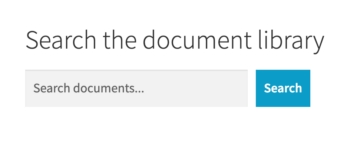
As well as being able to display a search box above the document library, you can use a widget or shortcode to add a 'Document search' box anywhere on your site (e.g. the homepage). This allows people to enter a search term before viewing the document library.
The styling of the document search is inherited from the default search box which comes from WordPress and your theme. You can change the styling using custom CSS.
A page called 'Document Search Results' is automatically created to display the results. You can change which page is used for the search results on the plugin settings page.
Widget
If your theme has a sidebar area then you can add the document search widget to it:
- Go to Appearance → Widgets (or the Customizer if you prefer to edit widgets there).
- Add the 'Document Library Pro: Search Box' widget to one of your sidebars.
- Add any or all of the following information:
- Title - The title to be displayed above the widget, e.g. "Search the Document Library".
- Placeholder - The watermark text which will appear inside the search field, e.g. "Search resources".
- Button Text - If required, then you can change the text which appears on the button.
Shortcode
The following shortcode will add a document search anywhere on your site:
[doc_search]
You can customize the shortcode using the placeholder and button_text parameters, for example: [doc_search placeholder="Search resources" button_text="Search Now"]
Search results page
Document Library Pro creates a page for displaying the search results. You can find this in the list of 'Pages' in the WordPress admin.
The document search results page uses the default template from your theme. This means that if your theme's default template has a sidebar then the same sidebar will appear on the document search results, otherwise it will be full-width.
The slug of this page is 'document-search' by default. If you like, then you can change the permalink/slug of this page to anything you like, e.g. 'resource-search'.
How the search works
Document Library Pro builds a search index of your documents in the background. When someone types into the search box, the plugin looks up their term in that index rather than scanning the page, which is why the search stays fast on large libraries and why every document is searched, not only the ones currently on screen.
The index covers:
- Every field in your library, including the title, content, excerpt, file name, file type, categories, tags, authors, custom fields and custom taxonomies. This applies whether or not the field is displayed as a column.
- The text inside your actual document files (Advanced plan only). See searching inside your documents, below.
The index is built automatically when you install the plugin and is kept up to date as you add, edit and remove documents. If search results ever look out of date, you can rebuild the index from the Document Library Pro section of your WordPress Tools → Site Health → Info page.
Note: Indexed search applies to the current document library frontend. If you are running in legacy mode, the search behaves as it did before version 4.0 and only searches the data loaded on the page.
Searching inside your documents
Document Library Pro reads the text inside the files you upload and adds it to the search index. This means someone can find a document by searching for a phrase that appears on page 12 of a PDF, even when nothing in the title, description or categories mentions it.
This happens automatically. There is nothing to enable and no separate search plugin to install.
Supported file types
The following file types are read:
- PDF -
pdf - Word -
docx,docm,dotx,dotm - Excel -
xlsx,xlsm,xltx,xltm,xlam - PowerPoint -
pptx,pptm,ppsx,ppsm,potx,potm,ppam,sldx,sldm - OpenDocument -
odt,ods,odp,odg,odc,odb,odf
Other file types, such as images, audio and video, are still listed and searchable by their own fields. They simply have no text for the plugin to read.
The older binary Office formats (doc, xls and ppt) are not supported. If you have these, re-save them in the modern equivalent format.
What cannot be read
- Scanned documents and image-only PDFs. The plugin reads the text layer of a file. A PDF that is really a photograph or scan of a page has no text layer, so there is nothing to index. Reading these would require optical character recognition, which the plugin does not perform.
- Password-protected or encrypted files.
- Files stored outside your Media Library, such as documents you are linking to by URL or syncing from cloud storage. Only files uploaded to your site can be read.
Checking that file indexing is working
Go to Tools → Site Health → Info and open the Document Library Pro section. You will see:
- File content indexing - whether the feature is ready.
- Failed file parses - the number of files that could not be read.
- PDF parser available, ZipArchive available and DOMDocument available - the server requirements. PDFs need the PDF parser; Office and OpenDocument files need ZipArchive and DOMDocument. If any of these say No, ask your host to enable the relevant PHP extension.
- Supported file extensions - the current list.
What the search can and cannot do
Partial words
The search matches from the start of a word. Searching for pol finds "policy", "policies" and "polling", because each of those words begins with those letters.
It does not match the middle or end of a word. Searching for quality will not find "Equality", and searching for ment will not find "document".
Multiple words
When someone types more than one word, all of the words must match. Searching for meeting agenda returns only the documents that match both "meeting" and "agenda", not everything that matches either one.
Phrases and search operators
Quotation marks, and the + and - operators, are not supported:
- Quotation marks do not perform an exact phrase search.
"meeting agenda"gives the same results asmeeting agenda, and word order is not taken into account. - A minus sign does not exclude a word.
meeting -minutesdoes not remove the documents containing "minutes". - A plus sign is not supported and will stop the search from returning results.
+policyreturns nothing, wherepolicyreturns matches.
If your users need this kind of query syntax, see advanced search, below.
Accents and special characters
The search treats accented and non-accented characters as interchangeable, so searching for "Zurich" will also match "Zürich". You do not need to enable anything for this.
Numbers, dates and reference codes
Numbers, dates and hyphenated terms such as reference codes are recognized as whole units when the index is built, so a document with the reference "HR-2026-014" can be found by searching for it.
Advanced search
The built-in search covers what most document libraries need, including searching inside the documents themselves. If you need finer control over search behavior, you can use Document Library Pro with the SearchWP plugin. This is worth considering if you need:
- Query syntax such as exact phrases in quotation marks, or including and excluding specific terms.
- Relevance weighting, so that a match in the title counts for more than a match in the body.
- Search analytics showing what your visitors are looking for.
- Control over exactly which fields are searchable and which are ignored.
- Synonyms and stemming, so that "invoices" also matches "invoicing".
- Text from scanned documents, which SearchWP can extract using a third-party service.
Please see the separate article about how to set this up.
Search term option
You can also choose to filter the contents of the document table or grid when it is first displayed. To do this, add the search_term option to your shortcode. E.g.
[doc_library search_term="policy"]
Notes:
- The search is case insensitive.
- Visitors can clear the search box to view the full library, including documents that do not match the keyword.
FAQ
Can I link to a pre-searched library?
Yes. There are a few ways to do this:
- Enable the Unique URLs option. The library then generates a unique URL reflecting its current search, filters, sorting and pagination. Apply the search you want on the front end, then copy the URL from your browser's address bar and link to it.
- Use the
search_termshortcode option described above. - Link to the standalone search results page with a search term in the URL, for example https://yourwebsite.com/document-search/?dlp_search=policy. If you have changed the slug of the search results page, update the URL to match.
Why can people not find a document I know is there?
Work through the following:
- Check that the search term matches the start of a word rather than the middle of one.
- If you are searching for text inside a file, confirm the file is one of the supported types and is not a scan.
- Check Tools → Site Health → Info for failed file parses.
- Rebuild the search index from the same Site Health section, then try again.
Does the search slow my site down?
No. Reading your files happens in the background, in batches, and the result is stored. Visitors searching the library are querying the stored index, not opening your documents.