Document library filters
The filters option in Document Library Pro allows you to display dropdown lists above the document library which allow users to filter (i.e. search) the documents by selecting an item from the list. This option is used to filter the documents in the library after they have loaded.
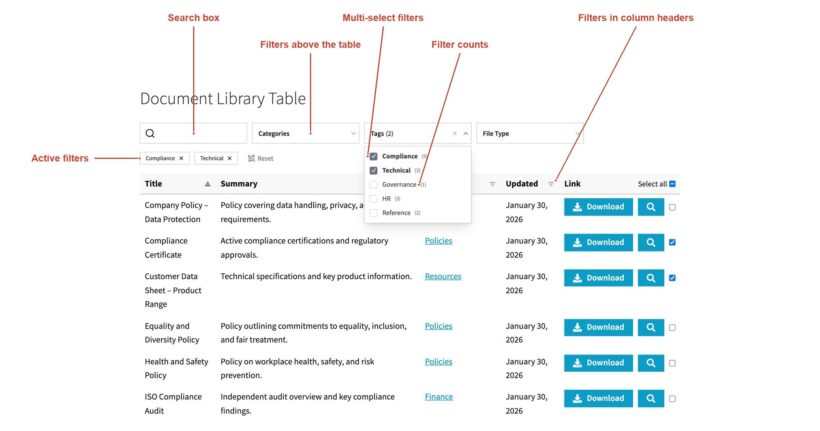
Available filters
You can create search filters for the following document library fields:
- Categories, by using the
doc_categoriesfilter - Tags, by using the
doc_tagsfilter - The document author, by using the
doc_authorfilter - The file type, by using the
file_typefilter - Custom taxonomies, by using a filter in this format
tax:taxonomy_name
You cannot show filters for custom fields.
How to add search filters
You can add search filters in the setup wizard or at Documents → Settings → Search in the WordPress dashboard.
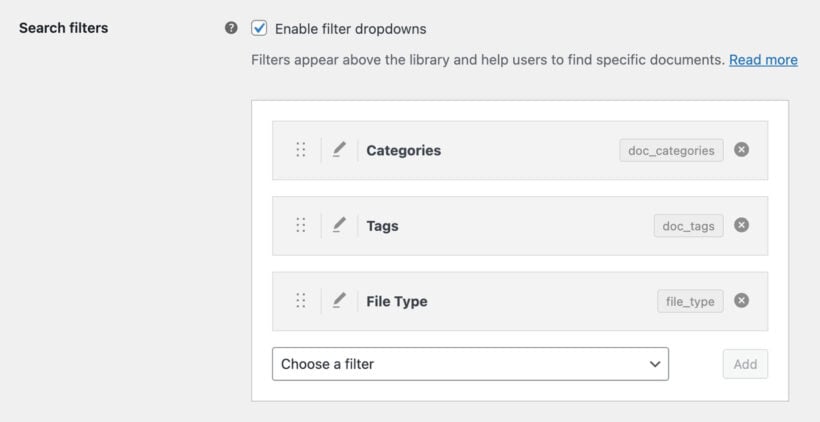
Once you have ticked "Enable filter dropdowns", a drag and drop filter builder will appear:
- Use the "Choose a filter" dropdown to select which filters you wish to add, for example categories, tags or a custom taxonomy.
- Use the pencil icon to edit the name of each filter.
- Drag and drop the dotted icons on the left to change the order of the filters (the filter at the top of the list will appear on the left - or on the right for right-to-left languages).
Using the shortcode
To enable filters via the shortcode use the filters option:
- To show filters based on the contents of the table, add
filters="true"to the shortcode. This will show all filterable fields as filters above the library. - To specify exactly which filters are shown, regardless of the fields displayed in the library, you can list the filters as a comma-separated list:
This example would show filters for categories and tags:
[doc_library content="title,doc_categories,doc_tags" filters="true"]
This example would show two filters - categories and my_taxonomy:
[doc_library filters="doc_categories,tax:my_taxonomy"]
Positioning the search filters
Go to Documents → Settings → Search and use the Filter locations option to choose where the filters appear. You can tick either or both:
- Display filter dropdowns above the table - the filters appear in a row above the library. If you have positioned the search box below the library, the filters will appear below the list of documents instead.
- Show filters in column headers - each filter appears as a dropdown inside the heading of its own column, which keeps the area above the library clear. This is useful when you have several filters and do not want a long row of dropdowns.
You can set the same options in the shortcode:
[doc_library filters_above="true" filters_columns="true"]
Showing filters in column headers is not available in legacy mode.
Multi-select filters
By default each filter accepts one value at a time. Enable Multi-select filters on the Search settings tab to let visitors choose several values from the same filter, for example two categories at once.
Multi-select filters are not available in legacy mode.
Active filters
Enable Active filters to display a summary of everything the visitor has currently applied, just above the library. Each one can be removed individually, which makes it much easier to work back out of a narrow selection without starting again.
Active filters are not available in legacy mode.
Filter counts
Enable Filter counts to show the number of matching documents next to each option in a filter, so people can see what is worth selecting before they click. The counts update as other filters are applied.
Filter counts are not available in legacy mode.
Searching within a filter
When a filter has more than 9 options, a search box appears inside the dropdown so that visitors can type to narrow the list. Filters with 9 options or fewer are short enough to scan, so no search box is added. This happens automatically and there is no setting to change it.
How to rename the filters
You can choose a custom heading (i.e. the placeholder) for each search filter by using the same colon notation as used to rename the fields in your document library. To do this, add a : (a colon) after the filter, followed by your chosen heading.
In this example we have 2 filters - doc_categories and tax:sector. We set a custom heading for both filters - "Region" for the doc_categories filter and "Location" for the custom taxonomy:
[doc_library filters="doc_categories:Region,tax:sector:Location"]
The heading for each search filter is set using the following logic:
- If you have added a name for the filter using the colon notation, this takes priority.
- If you don’t set a custom heading, but the filter also appears as a content field in the library, then renaming the field will also rename the filter.
- If neither of the above apply, the filter heading will come from WordPress itself (e.g. the name of the custom taxonomy).
Limitations
The filters do not support the folder view.
FAQ
Can I add filter widgets to the document library?
We have integrated Document Library Pro with the FacetWP plugin to allow you to add filter widgets to the document library. Please see our separate article about how to set this up.
Can I show the filters on their own before the loading the library?
Unfortunately not. The filters can only be appear above the document library. They are designed to refine the list of documents, and not to perform a filter before it first loads.
Can I list categories and sub-categories as separate filters?
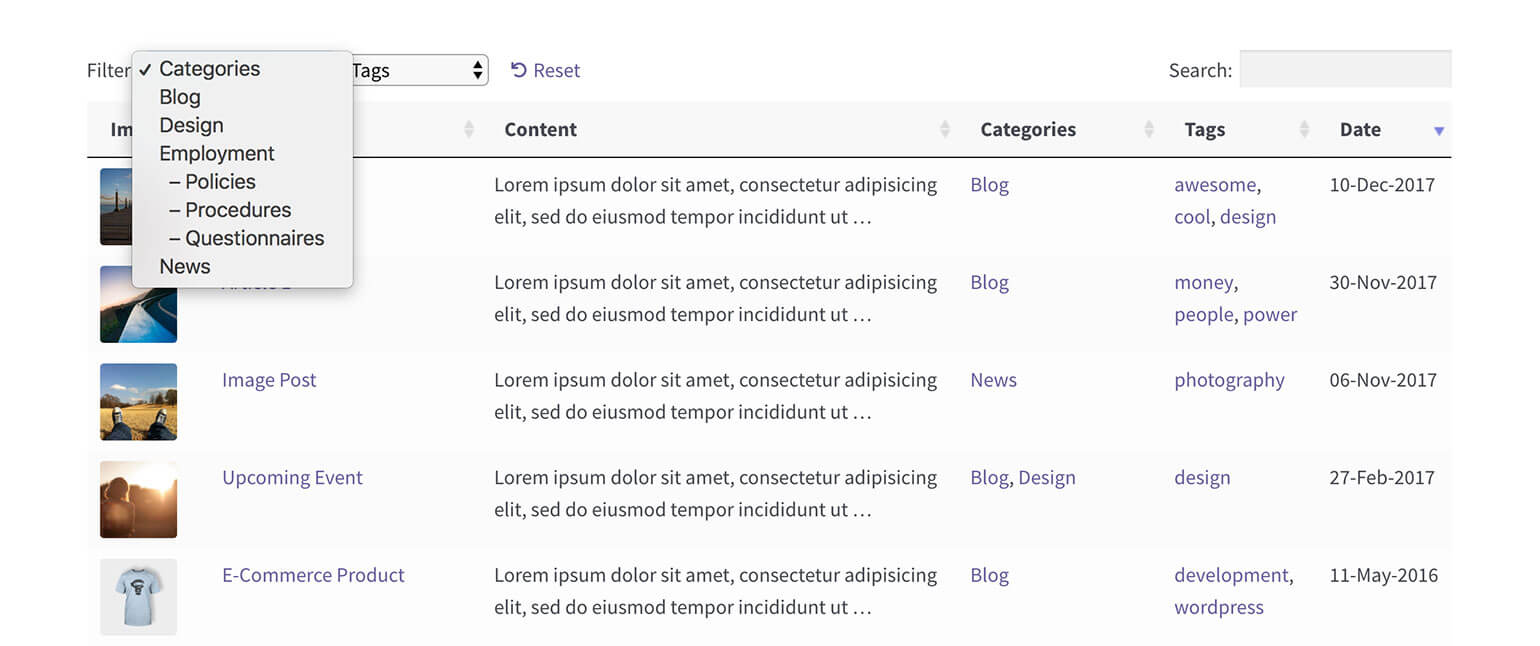
The list is nested and hierarchical so that you can see which are the parent categories and which are child categories.
Can I control the order of the dropdown items?
The filter dropdown lists are ordered alphabetically and there are no option to change them. If you have a developer, you can use the document_library_pro_search_filter_get_terms_args hook to override the order options passed to the get_terms function used to retrieve the list of filter items.
If you're using the filters to list something where alphabetical sorting isn't appropriate (e.g. dates), then you could add numbers before each item to control the order. For example, if you're using categories to filter by month, then you could name your categories '01 - January', '02 - February', and so on.
Can I filter by custom fields?
Document Library Pro doesn't currently provide a search filter for custom fields. If you need a filter for this data, we recommend you store this as a custom taxonomy instead, as this can be filtered.
Can I add checkbox filters?
There's no feature to add checkboxes to the filters. The dropdown filters are very flexible and you can add as many as you like, instead of using checkboxes.