Price formula display settings
WooCommerce Product Options lets you calculate prices automatically by adding a price formula field to your product options. By default, the result of each formula is added to the product price. But the plugin also offers more control over how the result of each formula is displayed and used. You can:
- Show the result on its own line above the total on the product page.
- Calculate a value without charging for it, such as an area, a weight or a number of hours.
- Display that value with a unit instead of a currency symbol.
- Choose whether the result appears in the cart, at the checkout and on the order.
Where to find the settings
- Go to Products → Product Options and edit the option group.
- Add or edit a Price Formula option.
- Enable the Advanced settings toggle.
- Use the Advanced display section, which is split into 'Product page' and 'Cart, checkout and order page'.
Product page
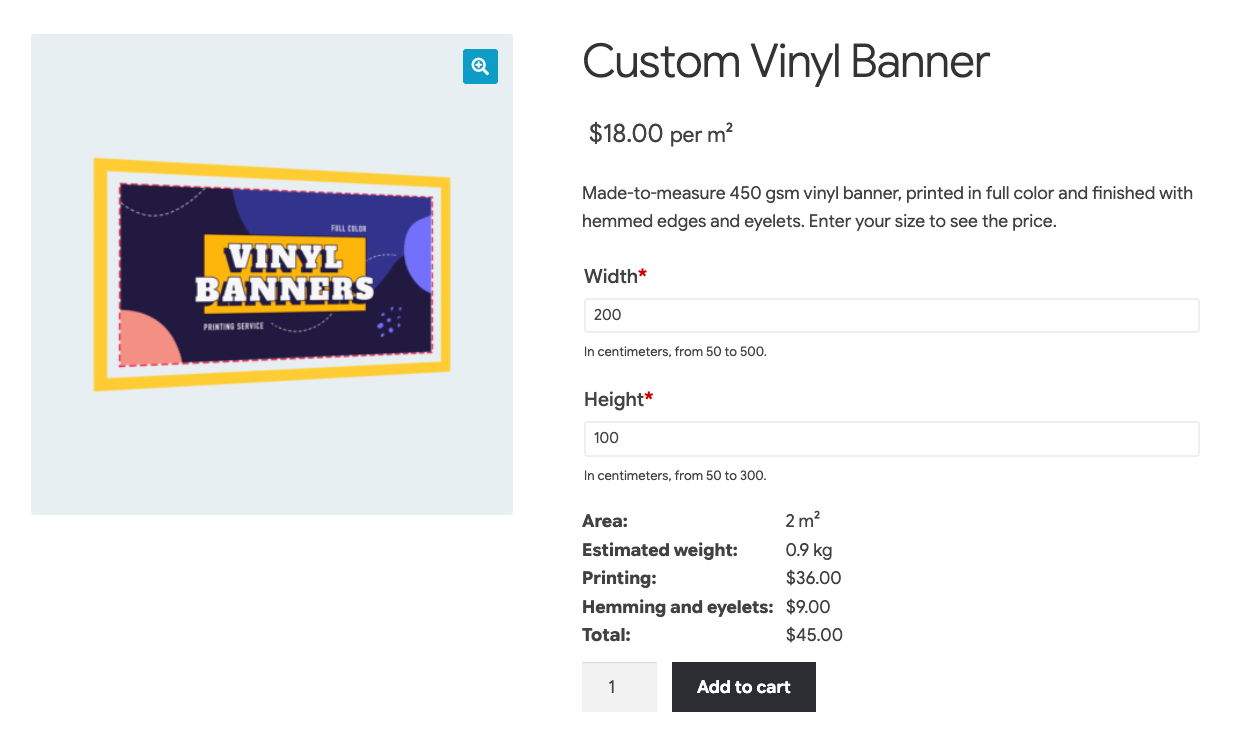
Display as a separate line before Totals
Tick this box to show the formula's result on its own line on the product page, directly above the total. The line is labelled with the option name and updates instantly as the customer changes their options.
If you enable this for more than one price formula, each one gets its own line, in the same order as the options in the group.
Add result to product price
This is ticked by default, which means that the result of the formula is added to the price that the customer pays.
Untick it if you want to calculate a value without charging for it. The formula still works in exactly the same way and you can still display its result, but it no longer affects the total.
Tip: This is useful for intermediate calculations. For example, if you sell made-to-measure banners then you might create two formulas:
- Area -
[Width] * [Height] / 10000, with 'Add result to product price' unticked. This shows the customer how many square meters they are ordering.- Price -
[Area] * [product_price], which charges for the area.
Unit
This setting only appears when 'Add result to product price' is unticked, otherwise the result is a price and its unit must be currency. Choose how the result is displayed:
- Currency - The result is displayed as a price in your store currency.
- Weight - The result is followed by your store's weight unit, e.g. "12 kg".
- Length - The result is followed by your store's dimension unit, e.g. "150 cm".
- Custom - Enter your own unit, such as "hours" or "m²".
Note: The weight and dimension units are the ones selected under WooCommerce → Settings → Products → General.
Cart, checkout and order page
By default, the result of a price formula is listed with the product's other options after the customer adds it to the cart. Use these checkboxes to choose where it appears:
- Show in cart - Display the result under the product on the cart page.
- Show in checkout - Display the result in the order summary at the checkout.
- Show in order, emails, and thank-you page - Display the result on the order confirmation page, in the order emails, and on the order in the WordPress admin.
For example, you might hide an 'Area' formula from the customer on the product page and in the cart, but keep it on the order so that your team knows what size to produce.
Note: These checkboxes only control where the result is displayed. They don't change the price. If 'Add result to product price' is ticked then the customer is still charged for the result, even if you hide it everywhere.
Developer notes
Developers can change these settings programmatically using the wc_product_options_get_price_formula_advanced_display_setting filter. For example, you can hide a formula's result for specific user roles or products. You can read more about that filter here.