How to export documents
You can export your Document Library Pro documents using the export tool that is built into WordPress. You might want to do this if you are moving documents from one website to another.
The WordPress export tool is not that reliable when it comes to exporting media files associated with documents. In fact, we have seen this issue with posts, pages and other custom post types. The "Download media files" box presented during the export doesn't usually work.
How to export all your documents
To export your documents correctly, we recommend the following process:
- Go to Tools → Export in the WordPress Dashboard.
- Export all media files by selecting the Media option:

- In your new site, go to Tools → Import, run the importer and select the file that was downloaded during the export of the media files.
- Now repeat this process for the Documents. Go to Tools → Export, select the Documents radio button and download the export file. Then in your new site, go to Tools → Import and import this second file.
This process will migrate both the documents and their files, while keeping them correctly linked together on the new site.
How to export documents from specific categories
For category-only exports, use CirculationDesk Export Tool for Document Library. On Tools → Export Documents, select the category folders you want in the zip.
If you need a spreadsheet of document data instead of the files, use WP All Export to export documents with their categories. This will export all the documents, including a document categories column listing all the categories for each document. You can then use a spreadsheet tool like Excel or Google Sheets to remove the documents from the categories you don't want.
WP All Export uses different terminology to Document Library Pro, so here is the terminology you need:
- Post type - The post type you need to export is
dlp_document. - Taxonomy - The taxonomy you need to include in the export is called 'Document categories' or
dlp_document.
Download document files and data as a zip
For an offline copy, use CirculationDesk Export Tool for Document Library. It is free on wordpress.org and works with Document Library Pro and Document Library Lite. A Document Library customer built it with Barn2's approval. Support comes from the plugin's author.
- Install and activate it from Plugins → Add New.
- Go to Tools → Export Documents (administrators only).
- Choose options:
- Choose which document statuses to include: Published, private, draft, pending or scheduled.
- Pick which categories get a folder in the zip.
- Put documents with several categories into each of their category folders.
- Name files by original file name or title.
- Click Build archive. The plugin builds the export in batches so large libraries don't time out.
- Click Download .zip.
Inside the zip, the document files are sorted by category folder. The zip also includes a CSV file (spreadsheet) listing each document's details, file details, external URLs and custom fields.
Use the WordPress export/import steps above for moving documents to another site. You cannot import the zip with Tools → Import.
Edit document data without exporting it
If the reason for exporting is to change document data and put it back, Setary removes the round trip. It shows your documents and their categories as a spreadsheet, so you can edit the cells, save, and update the site.
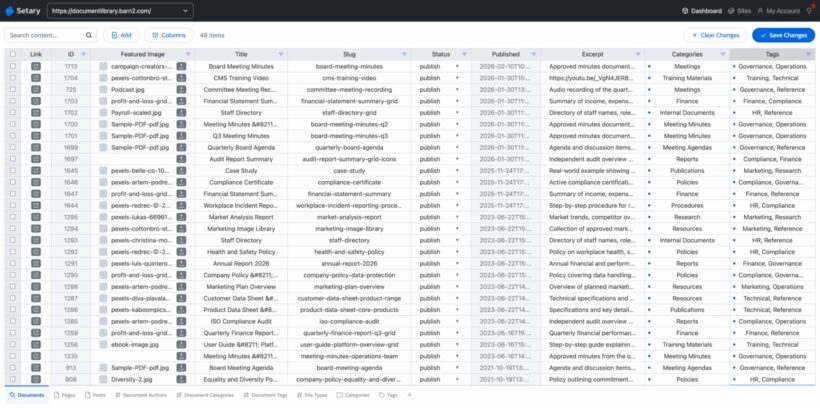
This is not the right tool if you are exporting for a backup or migrating documents to a different site. In those cases, use the WordPress export tool or WP All Export instead.