WooCommerce quantity discounts: setup guide and best plugins


Quantity discounts encourage customers to purchase more products, increasing both customer loyalty and revenue for your online store.
Offering discounts when customers buy in larger quantities is one of the most effective ways to increase your average order value. Below, I'll walk through everything you need to know about implementing WooCommerce quantity discounts that drive sales.
WooCommerce quantity discounts are automatic price reductions that apply when customers purchase multiple units or reach specific order values. These discounts can be calculated at the product level (applying to individual items) or at the cart level (applying to the entire order total).
WooCommerce does not include native quantity discount functionality. While the platform includes basic coupons with minimum quantity settings, these coupons require manual customer entry and do not display tiered pricing on product pages.
You'll need a plugin to add quantity discount functionality to your store. These plugins provide discount rules, automatic application at checkout, and pricing tables that display on product pages. The right plugin automatically applies discounts without requiring coupon codes, making the shopping experience smoother for your customers.
In a hurry? Get started with WooCommerce Discount Manager, our top recommendation. This all-in-one discount plugin lets you create various types of quantity discount offers including volume bundles, tiered pricing, buy x get y free deals, and role-based pricing. It includes features like discount scheduling, priority controls, and promotional notices to maximize your revenue.
Quick verdict: the best quantity discount plugins
Short on time? Here's the quick answer:
- Best overallWooCommerce Discount Manager covers every quantity discount type with the most flexible rules.
- Best free optionDiscount Rules for WooCommerce from Flycart has a genuinely useful free version for basic discounts.
- Best on a budgetQuantity Based Discounts & Pricing focuses purely on tiered pricing tables at $49 a year.
Here's what this guide covers:
- How quantity discounts work from a customer psychology perspective.
- The main types of quantity discount and when to use each one.
- Detailed plugin comparisons to help you choose the right solution.
- Step-by-step setup instructions for your first quantity discount.
- Best practices for maximizing revenue with quantity discounts.
First, here's how these discounts influence customer behavior.
How do WooCommerce quantity discounts work?
Customers perceive better value when the per-unit price decreases with higher quantities. This psychological effect drives purchasing decisions because buyers naturally calculate savings against the regular price.
Pricing tiers at quantity breakpoints create incentive for customers to add more items to reach better rates. A customer planning to buy two items might purchase three instead when they see a discount tier starts at three units.
Customers increase order quantities to qualify for discount tiers rather than make multiple separate purchases. This behavior directly increases your average order value per transaction.
A clothing store offering 10% off three shirts and 15% off five shirts typically sees customers who planned to buy two items upgrade to three or five to capture the savings. The price per unit becomes more attractive as quantity increases, which motivates larger purchases.
Types of WooCommerce quantity discounts
Different discount structures work better for different product types and business models. Here are the four main approaches, each with specific use cases.
Tiered quantity discounts
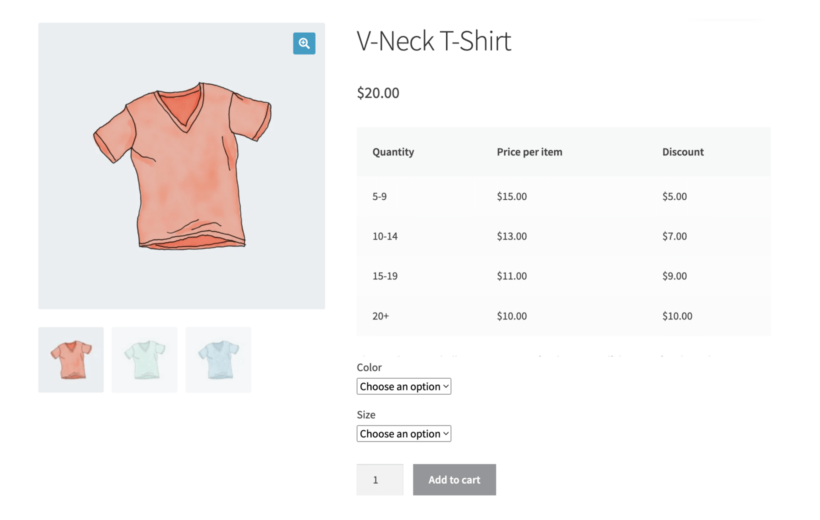
Tiered quantity discounts reduce prices based on purchase volume. Customers pay less per unit as they buy more of the same product.
Bulk volume discounts or tiered pricing applies straightforward percentage or flat rate discounts at specific quantity thresholds. A stationery store might price pens at $2 each for 1-10 units, $1.75 each for 11-20 units, and $1.50 each for 21+ units.
You can implement tiered discounts as percentage reductions (10% off orders over 100 units) or fixed price structures (Buy 10 products for $20 instead of $25). Both approaches work well for items customers naturally purchase in larger quantities.
Bundle discounts
Bundle discounts offer savings when customers buy a pre-defined number of products together. These work particularly well for variable products where customers can mix and match options.
Quantity or volume bundles use fixed-count pricing like "Buy 3 for $50" to encourage customers to purchase multiple variations. A beauty store selling variable eyeshadow products can use bundles to inspire customers to add multiple color variations to their cart.
Volume bundles work because they simplify the buying decision. Instead of calculating per-unit savings, customers see a straightforward bundle price that feels like a complete deal.
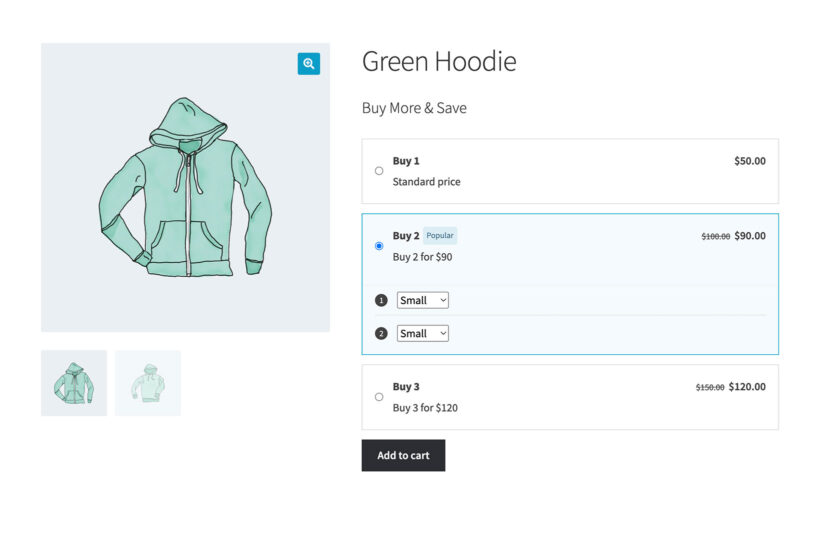
Volume bundles create urgency around specific quantity targets. When customers see "Buy 3 for $50," they understand exactly what action to take, which removes friction from the purchasing process.
Buy X get Y free offers
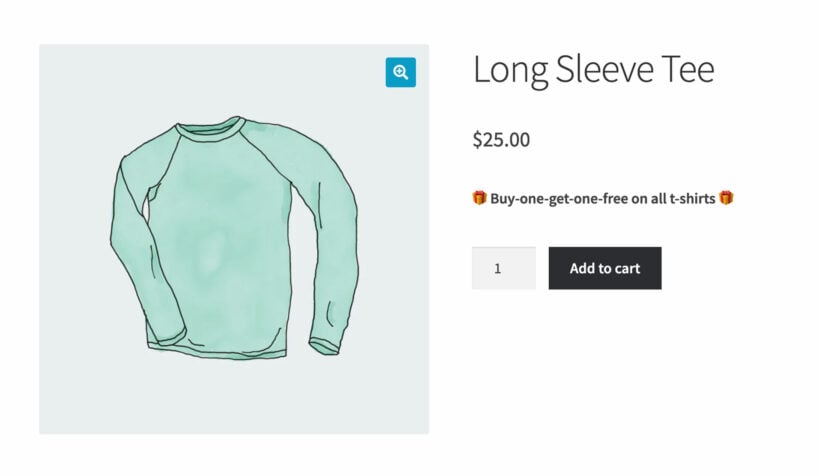
Buy X get Y free promotions reward customers with free items when they purchase a certain quantity. The free item can be the same product or a different complementary product.
Buy one get one free (BOGO) deals are the most common format. Other variations include buy two get one free, buy two get two free, or any combination that fits your profit margins and inventory goals.
These offers create perceived value because customers focus on what they're getting free rather than calculating percentage discounts. The psychology of "free" often converts better than equivalent percentage reductions.
Role-based discounts
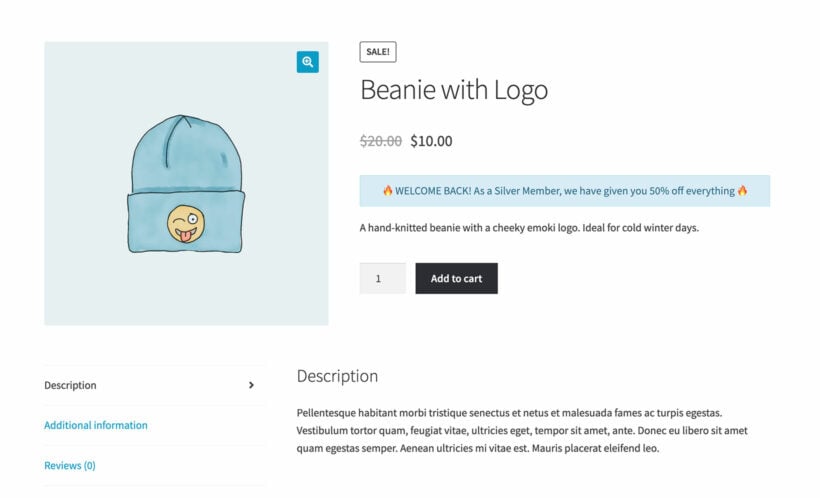
Role-based quantity discounts provide different bulk pricing tiers based on customer groups in your WooCommerce store. This approach lets you maintain standard pricing for retail customers while offering volume incentives to business buyers.
A hybrid wholesale and retail store can offer different discount levels for retail customers, wholesale buyers, and VIP wholesale buyers. Each role sees pricing appropriate to their typical purchase volumes.
B2B vs B2C quantity discounts
Business-to-business (B2B) stores typically require higher minimum quantities and steeper volume discounts than business-to-consumer (B2C) stores. B2B customers expect wholesale pricing structures with discounts starting at 50-100 units.
B2C quantity discounts work better with lower thresholds and smaller incremental savings. Retail customers respond well to discounts starting at 2-3 units with savings of 10-20% at higher quantities.
Why should I offer a WooCommerce quantity discount?
Quantity discounts deliver measurable benefits that directly impact your bottom line. Here's how they improve store performance.
Higher average order value
Customers buy more when they see savings opportunities tied to quantity. A shopper planning to buy one t-shirt might purchase three when a 10% discount applies to orders of three or more.
Larger quantity purchases increase your revenue per transaction. This growth compounds over time as more customers take advantage of your quantity pricing structures.
Quicker inventory turnover
Quantity discounts encourage customers to buy more products at once. This accelerates how quickly you sell through inventory.
Faster stock turnover reduces storage costs. It also frees up capital for new inventory, improving your cash flow and letting you respond faster to market trends.
Enhanced customer loyalty
Better prices for bulk purchases reduce customer motivation to shop around for alternatives. When customers know they can get better deals by buying more from you, they return for future orders.
Quantity discounts reward your best customers with the best prices. This creates a positive feedback loop where higher-volume buyers feel valued and continue purchasing from your store.
Increased profit margins
Selling larger quantities per order reduces per-unit costs for packaging and shipping. If you sell phone cases and offer discounts on orders of five or more, you spend less on individual packaging and can ship all items in one box.
Lower fulfillment costs per item increase your profit margin even after applying the quantity discount. The reduced handling costs and fewer shipping transactions often offset the discount you're offering.
Choosing the right quantity discount plugin
The right plugin makes the difference between basic quantity discounts and a comprehensive pricing approach that increases sales. I'll help you understand what features matter most and which plugins deliver them.
How I evaluated these plugins
I compared the main WooCommerce quantity discount plugins on a few things that matter:
- The range of discount types each one supports (tiered pricing, bundles, buy x get y free and role-based rules).
- Whether it displays pricing tables on the product page.
- How it handles scheduling and rule priorities.
- The price, and how actively it's maintained and supported.
Decision support guide
Different stores need different features. Use this guide to identify which capabilities matter for your business model.
- You need tiered pricing tables if: Your products sell in multiple quantity brackets (1-5, 6-10, 11+) and customers need to see all pricing tiers before deciding how many to buy.
- You need role-based pricing if: You sell to both retail and wholesale customers, or you want to reward VIP customers with better quantity discounts than regular shoppers.
- You need scheduling features if: You run seasonal promotions or flash sales and want to set up discount campaigns in advance without manually changing prices.
- You need promotional displays if: You want to actively market your quantity discounts on product pages and cart pages rather than letting customers discover them by accident.
Plugin comparison table
| Feature | WooCommerce Discount Manager | YITH Dynamic Pricing | Plugify Quantity Discounts | Flycart Discount Rules | Addify Dynamic Pricing |
|---|---|---|---|---|---|
| Tiered pricing | Yes | Yes | Yes | Yes | Yes |
| Volume bundles | Yes | Yes | No | Yes | Yes |
| BOGO deals | Yes | Yes | No | Yes | Yes |
| Role-based pricing | Yes | Yes | Yes | Yes | No |
| Pricing table display | Yes | No | Yes | No | Yes |
| Discount scheduling | Yes | Yes | No | Yes | Yes |
| Cart notices | Yes | Yes | No | No | No |
| Product Table integration | Yes | No | No | No | No |
| Annual price | From $79 | $149.99 | $49 | $85 | $99 |
| Money-back guarantee | 30 days | 30 days | 30 days | 14 days | 30 days |
Top plugins for WooCommerce quantity discounts
The list starts with the most flexible all-rounder, then covers more specialized options below.
1. WooCommerce Discount Manager
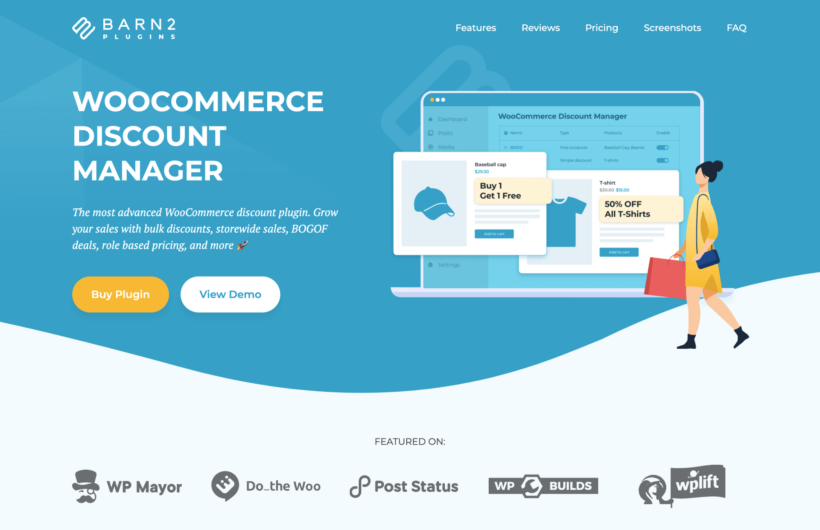
We built WooCommerce Discount Manager to provide the most comprehensive solution for quantity discounts. It supports all quantity discount types including tiered bulk pricing, volume bundles, buy x get y free offers, and role-based discounts.
The plugin works with all WooCommerce product types. You can create discounts for simple products, variable product discounts, and composite products using the same interface.
Targeting flexibility: Apply discounts storewide to your entire store catalog, to specific product categories, or to individual products. Each targeting option includes exclusion rules to prevent specific products or categories from receiving the discount.
Automatic application: The plugin automatically applies quantity discounts to eligible shopping carts. Customers don't need to manually enter coupon codes at checkout, which speeds up the purchasing process.
Discount scheduling: Set start and end dates ahead of time for periods when discounts will be active. This lets you configure and test discount rules well in advance of your promotion.
Promotional displays: Add custom banners with your own copy and design to product pages and cart pages. These banners draw attention to your quantity discounts and encourage customers to buy more.
Priority controls: Set discount priority rules that determine which discount applies when multiple rules could affect the same product. This prevents customer confusion and ensures your most important promotions take precedence.
Beyond quantity discounts, WooCommerce Discount Manager handles other discount types including fixed amount discounts, percentage discounts, cart discounts, and flash sales. It pairs well with WooCommerce Product Table to create quick order forms that display quantity discount information directly in the table.
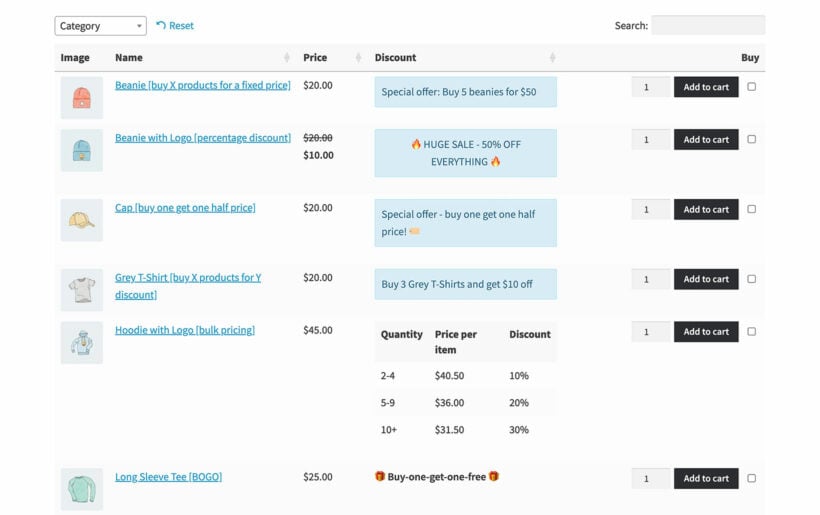
This demo shows how WooCommerce Discount Manager handles different quantity discount scenarios. The plugin displays tiered pricing tables automatically, updates prices in real-time as customers adjust quantities, and applies discounts without requiring coupon codes.
- ProsSupports every quantity discount type (tiered, bundles, buy x get y free and role-based), with scheduling, priority rules, on-page promo banners and Product Table integration.
- ConsBulk and spend-based discounts apply at the cart, so the product page shows the base price until checkout. It's WooCommerce-only, and displaying discount tiers inside an order form needs WooCommerce Product Table.
Pricing: Premium plugin available individually or bundled with WooCommerce Product Table. Pricing starts at $79 per year based on the number of sites and whether you choose annual or lifetime access. All purchases include a 30-day money-back guarantee.
2. YITH WooCommerce Dynamic Pricing & Discounts
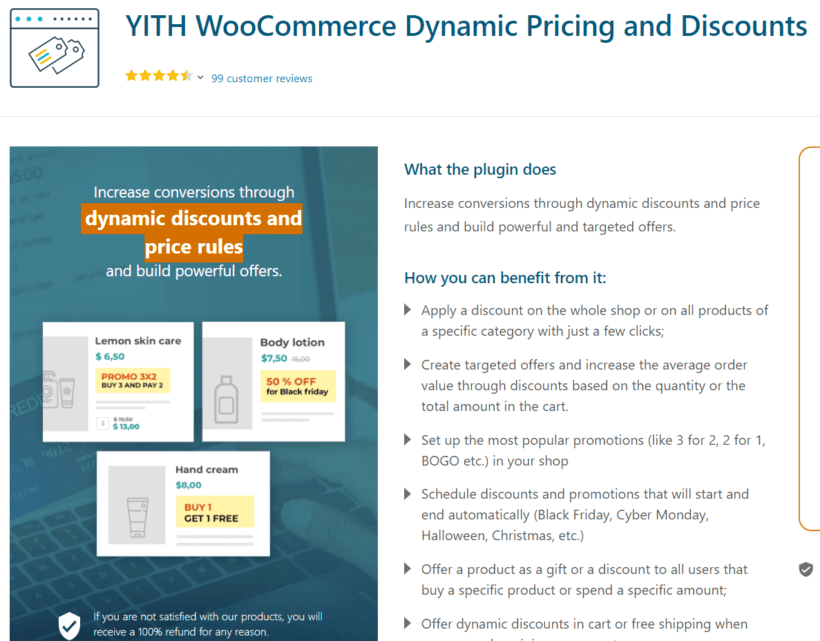
YITH WooCommerce Dynamic Pricing & Discounts offers an intuitive interface for creating quantity discounts. The plugin supports buy x get y deals, tiered pricing, and bulk discounts.
Product targeting: Set up discount rules for all products, specific categories, or individual products. This flexibility lets you run different promotions across different sections of your store.
User restrictions: Control which customers and customer groups can access quantity discounts. This feature supports hybrid stores that serve both retail and wholesale markets.
Discount combinations: Choose whether customers can use one discount per purchase or combine multiple discounts in a single order. This control prevents discount stacking that might hurt your margins.
Dynamic notices: Display notices on product pages and cart pages that encourage customers to update quantities to qualify for better pricing or free shipping.
- ProsFlexible rule types (tiered, BOGO and bulk), granular targeting by product, category or role, and part of the large YITH plugin ecosystem.
- ConsThere's no free version anymore (the WordPress.org listing closed in 2020), and licenses are single-site and renew annually at a higher rate. Reviewers also report it can slow the site down and gets fiddly to configure for complex rules.
Pricing: Premium plugin for $149.99 per year with a 30-day money-back guarantee.
3. WooCommerce Quantity Based Discounts & Pricing

WooCommerce Quantity Based Discounts & Pricing from Plugify specializes in quantity-focused discounts. The plugin provides three discount types: flat rate, fixed percentage, and tiered pricing.
Discount targeting: Add rules storewide, to specific categories, to individual products, or to user roles. This lets you create different quantity discount structures for different parts of your catalog.
Table positioning: Display the tiered pricing table before the product summary, before the add to cart button, or after the add to cart button. Choose the location that best fits your product page layout.
Brand customization: Customize table backgrounds and colors to match your store's visual design. This keeps your quantity discounts feeling integrated with your overall brand.
WooCommerce Quantity Based Discounts & Pricing works well if your discount approach focuses exclusively on quantity-based offers without needing other discount types.
- ProsSimple and focused on quantity pricing, with product- and cart-level rules, customizable on-page pricing tables, and well-rated support.
- ConsIt's premium-only with no free trial, it comes from a smaller vendor with a thin public review history, and it focuses on quantity pricing only, so there's no BOGO or volume-bundle support.
Pricing: Premium plugin for $49 per year with a 30-day money-back guarantee.
4. Flycart's Discount Rules for WooCommerce

Discount Rules for WooCommerce from Flycart handles bulk discounts, tiered pricing, and BOGO offers. The premium version unlocks quantity discount features, while the free version covers only basic discounts.
Targeting rules: Apply quantity discounts to entire product categories or individual products. Control whether the discount pricing rule affects single products or multiple products in the cart.
Role restrictions: Limit which customer groups can access quantity discounts. This supports different pricing for wholesale and retail customers.
Cart total discounts: Create discounts based on cart value like "Spend at least $120 and get 10% off" in addition to quantity-based rules.
Behavioral targeting: Restrict discounts based on user behavior including order count, previous purchases of specific products, and other customer history factors.
- ProsHugely popular (100,000+ installs, 4.8 stars), covers product and cart discounts, with a useful free tier and responsive support.
- ConsThe free version doesn't include quantity discounts (they're a Pro feature), and the admin uses an older form-based interface. Because discounts apply dynamically at checkout, they can clash with caching plugins unless configured carefully.
Pricing: Premium plugin for $85 per year with a 14-day money-back guarantee.
5. Addify's WooCommerce Dynamic Pricing and Discounts

WooCommerce Dynamic Pricing and Discounts from Addify offers quantity-based tiered pricing, BOGO offers, and volume discounts. The plugin extends beyond quantity discounts to include cart subtotal discounts and spend-based offers.
Multiple conditions: Add rules and conditions that apply discounts on a per-product basis, at the cart level, or based on user roles. This flexibility supports complex discount setups.
Sale price handling: Choose whether discount rules apply to regular product prices only or also to products already on sale. This control prevents unintended discount stacking.
Priority rules: Set which discount rules take precedence when multiple rules could apply to the same purchase. This prevents customer confusion and maintains your intended profit margins.
Scheduling: Configure specific date ranges for discount offers. This automation removes the manual work of starting and ending promotions.
- ProsCovers tiered pricing, BOGO and cart-subtotal discounts, with sale-price handling, priority rules and scheduling.
- ConsIt's weaker at combining several discount rules at once, the interface has some rough edges, the pricing table offers limited styling options, and it has no role-based pricing.
Pricing: Premium plugin for $99 per year with a 30-day money-back guarantee.
How to create quantity based discounts for your WooCommerce store
Setting up quantity discounts takes about 10 minutes from installation to testing. I'll walk you through creating a buy one get one free offer using WooCommerce Discount Manager.
Step 1: Install and configure the plugin
Install WooCommerce Discount Manager on your store. Navigate to Marketing → Discounts in your WordPress admin dashboard and click "Add New."
Select "Free products" from the menu and click "Create." This option handles BOGO deals and other free product offers.
Enter a clear name for your discount rule. This name appears only in the admin dashboard, so use something descriptive like "BOGO T-Shirts Summer Sale."
Step 2: Define discount rules and conditions
"Which products?" - Choose which items qualify for the offer. Select "All products" for a storewide promotion, or pick "Selected categories" or "Selected products" to target specific items.

"Number of paid products required" - Set the minimum quantity a customer must purchase to receive the deal. For a BOGO offer, enter "1" to require one paid product before giving one free.
"Number of free products given" - Specify how many products customers receive free. Enter "1" for a standard BOGO promotion.

"How should the discount be applied?" - Decide whether the free product must match the paid product or can be any eligible item from your selection.
"Applies to" - Select which customer groups can use this deal: all customers, specific user roles, or individual users.
Step 3: Schedule and promote the discount
"Availability" - Set how long your offer runs. Choose to make it active indefinitely or enter specific start and end dates for time-limited promotions.

"Product page content" - Add marketing copy that highlights the deal on product pages. Use text, images, shortcodes, or HTML. Keep it simple: "Buy any shirt, get another FREE! No code needed."
"Content location" - Choose where to display your promotional message. Six locations are available:
- Before product (above the product title)
- After product (below the entire product section)
- Before summary (above the product short description)
- After summary (below the product short description)
- Before add to cart (directly above the add to cart button)
- After add to cart (directly below the add to cart button)
"Cart notice" - Add a message for the cart page that confirms the offer has been applied. Example: "Great choice! Your Buy One, Get One Free deal is active."
Click "Save" to activate the discount based on your availability settings.
Step 4: Configure discount priorities
Stores running multiple promotions need priority controls to determine which discount applies when a customer qualifies for several offers. WooCommerce Discount Manager uses a simple drag-and-drop system.
Navigate to Marketing → Discounts to see all discount rules in your store.

Drag discount rules to arrange them by priority. The discount at the top of the list takes precedence over discounts below it.
Test your setup before launching to real customers. Add eligible products to your cart on the store's front end and verify that discounts apply correctly at the quantities you specified.
Best strategies for implementing quantity discounts in WooCommerce
Smart implementation makes the difference between quantity discounts that boost revenue and ones that hurt profit margins. Follow these tips to maximize results.
Schedule promotions beforehand
Plan and configure quantity discount campaigns well in advance. This gives you time to set up rules, test different configurations, and verify everything works correctly before customers see the promotion.
Advance planning lets you align quantity discount campaigns with your overall marketing calendar. You can coordinate discounts with email campaigns, social media promotions, and other marketing activities for maximum impact.
Use WooCommerce Discount Manager's 'Availability' option to set start and end dates that activate discounts automatically. This removes manual work and prevents errors from forgetting to start or end a promotion.
Promote discount offers clearly
Clear communication about quantity discounts increases conversion rates. Customers need to understand discount structures without confusion or calculation.
Avoid complex rules that require mental math. Use straightforward language on product pages, category pages, and wherever you promote the discount campaign.
Make discount terms immediately visible. Don't hide quantity pricing in small text or require customers to add items to their cart before seeing savings.
Set realistic thresholds
Quantity thresholds should match your products and target audience. High-ticket items like furniture work better with "buy 1 get 10% off the second item" than "buy 3 get 1 free."
Lower-priced items like t-shirts or socks support higher quantity thresholds. Customers feel comfortable buying 5-10 units when individual prices are low.
Balance encouraging bulk purchases against setting bars so high that they discourage buying. Test different threshold levels and adjust based on real purchasing behavior.
Monitor and refine performance
Use WooCommerce Analytics or Google Analytics to track quantity discount campaign performance regularly. Monitor average order value, total revenue, conversion rates, and profit margins.
Adjust campaigns that underperform. You might need to change discount rates, modify quantity thresholds, update promotional copy, or revise which products receive quantity pricing.
Successful quantity discounts require ongoing optimization. What works for one product category might not work for another, and customer response can change over time.
Combine with other marketing strategies
Quantity discounts deliver better results when integrated with other promotional tactics. Combine quantity pricing with limited-time offers or flash sales to create urgency.
Layer quantity discounts into your overall marketing plan. Promote them through email campaigns, social media posts, and site banners rather than relying only on product page displays.
Test combining quantity discounts with free shipping thresholds or gift with purchase offers. These combinations often increase average order value more than any single strategy alone.
Common quantity discount scenarios
Different business models benefit from specific quantity discount approaches. Here are four common scenarios with implementation recommendations.
Retail clothing stores with size variations
Challenge: Customers purchase multiple sizes of the same style, such as buying t-shirts in small, medium, and large for family members.
Solution: Volume bundles like "Buy 3 for $50" that apply across all variations. This lets customers mix and match sizes while receiving the discount.
Implementation: Set the volume bundle to apply to the parent variable product rather than individual variations. Configure minimum and maximum quantities that match typical family buying habits.
B2B wholesale suppliers with tiered pricing
Challenge: Business customers need different pricing tiers than retail customers, often purchasing 50-500+ units per order.
Solution: Role-based quantity discounts with higher thresholds and steeper discounts for wholesale user roles. Retail customers see standard pricing while wholesale accounts automatically receive bulk rates.
Implementation: Create separate discount rules for each customer role. Set wholesale quantity tiers at 50, 100, 250, and 500 units with progressively lower per-unit prices at each level.
Subscription box services with fixed packs
Challenge: Products must sell in exact quantities, such as a 5-item sample pack or a 12-item monthly subscription box.
Solution: Fixed quantity requirements that prevent customers from purchasing any quantity except the specified pack size. Set both minimum and maximum quantities to the same number.
Implementation: Configure products with a fixed quantity of exactly 5 items (or your pack size). Disable the quantity selector so customers can only add the complete pack to their cart.
Free shipping threshold promotions
Challenge: Shipping costs hurt profit margins on small orders, but you want to encourage larger purchases without explicitly discounting product prices.
Solution: Cart value thresholds that trigger free shipping at order totals where your shipping costs become manageable. This effectively discounts the order without reducing product prices.
Implementation: Set minimum cart total requirements using value rules features. Promote the free shipping threshold prominently so customers understand they can save on shipping by adding more items to their order.
Frequently Asked Questions
Can I set minimum quantities with custom code?
Yes, developers can use woocommerce_quantity_input_args to set minimum quantities via custom code. Add this code to your theme's functions.php file or use a code snippets plugin for safer implementation.
For cart validation, the woocommerce_check_cart_items hook enforces minimum quantities at checkout. This prevents customers from proceeding to payment without meeting your quantity requirements.
Custom code typically applies global rules only. Plugins like WooCommerce Discount Manager provide per-product and per-category control without requiring code modifications.
Where are WooCommerce's native quantity settings?
For individual products, navigate to Products → Edit Product → Product Data section → Inventory tab. These native settings control stock management but not purchase minimums or quantity discounts.
For store-wide settings, go to WooCommerce → Settings → Products → Inventory for global stock controls. These settings also focus on inventory rather than quantity rules.
Native WooCommerce manages stock levels only. Minimum and maximum purchase controls require plugins like WooCommerce Discount Manager to add quantity-based purchasing rules.
Can I use decimal quantities for weight-based products?
WooCommerce Discount Manager controls whole-number quantities only, such as 1, 2, or 3 units per product. This limitation affects standard quantity-based discounts.
Fractional quantities for weight-based products like 0.5 kg or 1.25 meters require WooCommerce Product Options with decimal quantity pickers. This plugin replaces the standard quantity field with inputs that accept decimal values.
Both plugins work together when needed. WooCommerce Discount Manager handles minimum and maximum quantity rules while Product Options manages decimal inputs for weight-based products.
See our guide on decimal quantity increments for complete implementation steps. This documentation covers setup for products sold by weight or measurement with fractional quantities.
Boost sales with WooCommerce quantity discounts!
Stores use quantity-based offers to move slow-selling inventory, boost customer loyalty, and increase sales. The right implementation combines the right plugin with smart promotion tactics that encourage customers to buy more.
WooCommerce Discount Manager delivers the most comprehensive solution for quantity discounts. This dynamic pricing plugin lets you create volume discounts, tiered pricing, buy x get y free deals, and role-based pricing. Built-in features like discount scheduling, priority controls, and promotional notices boost your WooCommerce UX and overall revenue.
Beyond quantity discounts, WooCommerce Discount Manager handles other promotional offers including flat rate discounts, percentage discounts, and cart discounts. This flexibility means one plugin covers all your discount needs rather than installing multiple solutions.
It also works alongside our other plugins where you need them:
- WooCommerce Product Table for order forms that show your discounts.
- WooCommerce Wholesale Pro for B2B and wholesale pricing.
- WooCommerce Product Options for decimal quantities on weight-based products.
Which should you choose? For most stores, WooCommerce Discount Manager is the most flexible all-rounder and the one I'd recommend. If you want to start free, Flycart's Discount Rules has a free tier for basic discounts. And if you only need quantity pricing tables on a tight budget, Plugify's Quantity Based Discounts is a cheaper, focused option.
Get started today and set up your first quantity discount offer in minutes!