How to sell furniture online with WooCommerce

A step-by-step guide to selling modular furniture online with WooCommerce. Customers can configure their furniture and order online with no manual input from you.
Modular furniture stores have a problem that most ecommerce websites don't. Customers need to choose materials, finishes, sizes, and accessories, then combine everything into a single order. A standard WooCommerce product page can't handle that well.
The solution is a product configurator. It lets customers build their ideal piece of furniture by selecting from the available options. The price updates automatically based on their choices.
To sell furniture online this way, you need WooCommerce Product Options. This plugin adds configurable option fields to any WooCommerce product page. Customers select their options, see the final price, and add to cart. No manual quotes. No back-and-forth emails ☺️
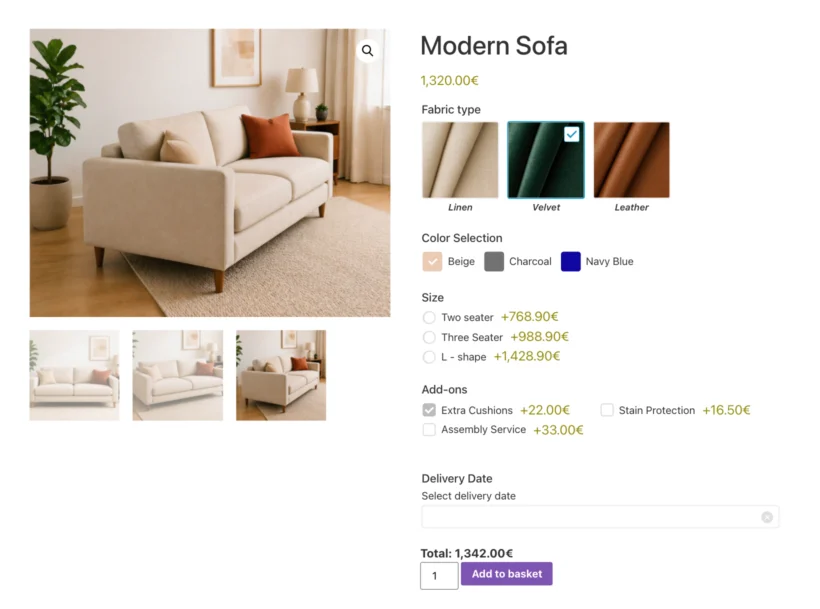
In this post, I'll walk you through how to set up a furniture product configurator with WooCommerce Product Options. You'll learn which option types work best for furniture stores and how to configure them step by step.
What is a furniture product configurator?
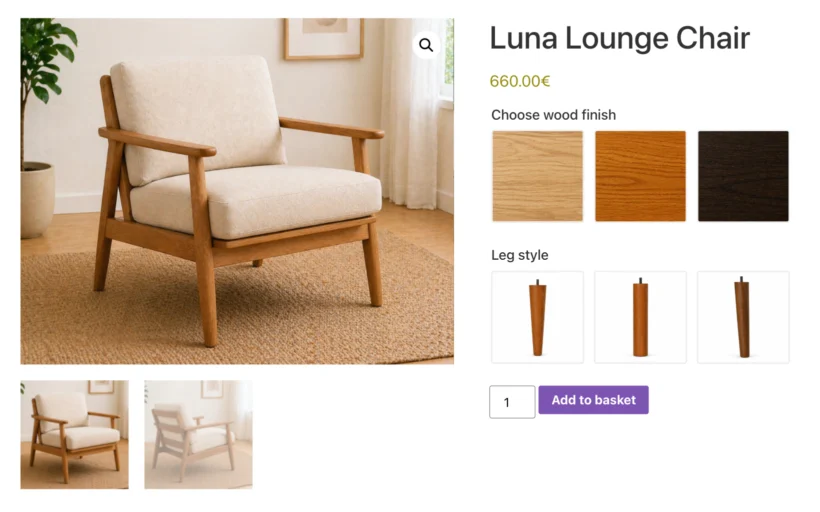
A furniture product configurator is an interactive form on your product page. It lets customers select specific options for a piece of furniture before adding it to their cart.
For example, a sofa configurator might include options for fabric, color, leg style, and size. A kitchen door configurator might let customers choose the door style, handle type, and whether they want assembly included.
The configurator calculates the total price in real time. Customers see exactly what they're paying for before they check out. This removes friction from the buying process and reduces support queries.
Without a configurator, you'd need to create a separate WooCommerce variation for every possible combination of options. That gets unmanageable fast. A sofa with 5 fabrics, 4 colors, and 3 sizes would need 60 variations for a single product. A configurator handles all of this automatically.
Why WooCommerce Product Options is ideal for furniture stores
WooCommerce Product Options is a plugin that adds extra option fields to your product pages. It supports 16+ field types, conditional logic, and flexible pricing. Here's why it works so well for selling modular furniture online.
Visual option selection
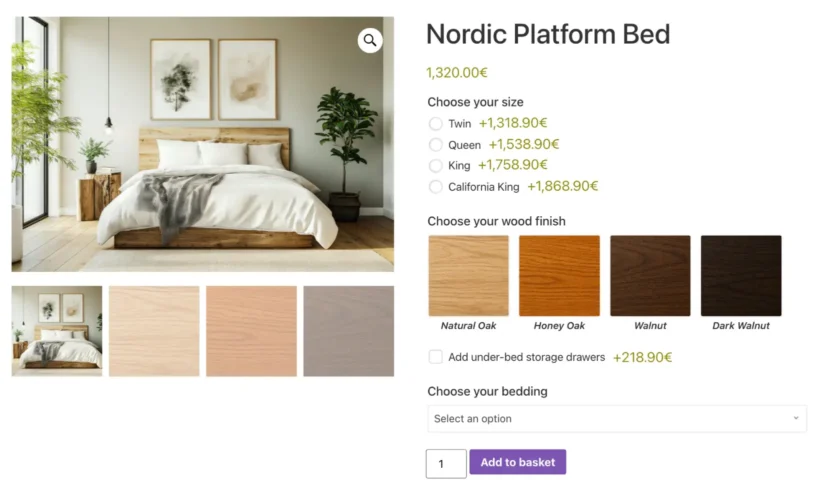
Furniture buyers want to see what they're choosing. WooCommerce Product Options supports image swatches and color swatches. Customers can click on a fabric swatch or wood finish to select it visually, rather than picking from a plain dropdown list.
This makes a big difference for furniture stores. Nobody wants to guess what "Natural Oak" looks like from a text label.
Conditional logic
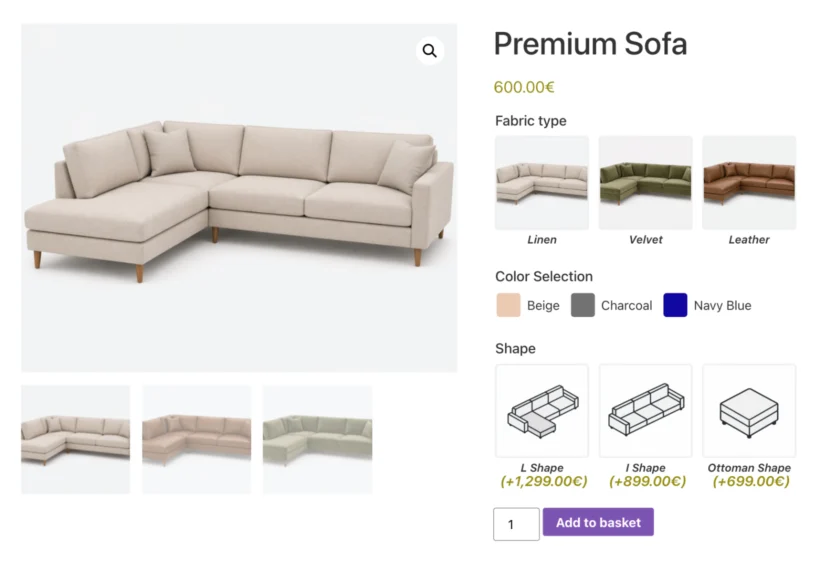
Conditional logic shows or hides options based on the customer's previous selections. For modular furniture, this is essential.
For example, if a customer selects "Installation & assembly" for a wardrobe, you can display additional fields asking for their preferred delivery date and location. If they don't select assembly, those fields stay hidden. This keeps the product page clean and avoids overwhelming customers with irrelevant choices.
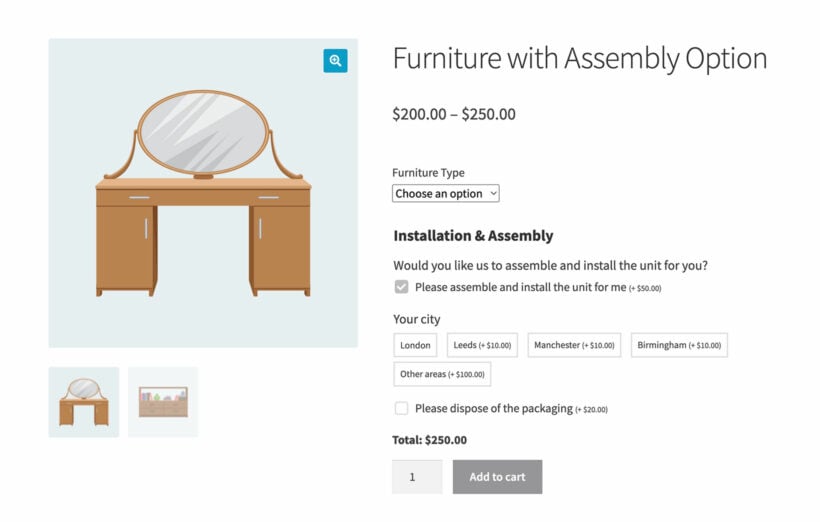
You can see this in action on the WooCommerce Product Options furniture demo. When you tick the assembly box, the conditional logic makes the extra options appear underneath.
Flexible pricing
Different furniture options often have different prices. WooCommerce Product Options supports several pricing methods that work well for furniture stores:
- Flat fees add a fixed amount when an option is selected. For example, charge $50 extra for premium fabric.
- Percentage-based pricing adjusts the price by a percentage. For example, add 15% for a larger size.
- Custom price formulas calculate the price based on measurements or other inputs. For example, use a formula to price a countertop based on width times depth.
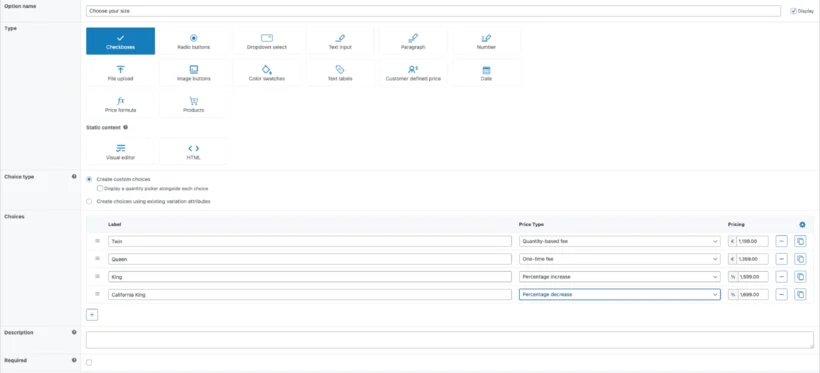
The plugin recalculates the total automatically as customers make their selections. They always see the current price on the product page.
16+ field types

WooCommerce Product Options gives you many ways to present furniture options to customers:
- Image swatches for materials, finishes, and fabric choices.
- Color swatches for paint colors or stain options.
- Radio buttons for choosing between sizes or styles.
- Checkboxes for add-on services like delivery, assembly, or extended warranty.
- Dropdowns for long lists of options like handle types or leg styles.
- Text inputs for custom engraving or personalization requests.
- Number fields for entering custom dimensions.
- File uploads for customers who want to provide reference images or design files.
Each field type can include its own pricing. This makes it easy to charge differently based on the customer's selections.
How to sell modular furniture online with WooCommerce (step by step)
Here's how to set up a furniture product configurator using WooCommerce Product Options. You'll need a WordPress website with WooCommerce installed. If you haven't set that up yet, follow the WPBeginner guide to creating a WordPress site and then set up WooCommerce.
Step 1: Add your furniture products to WooCommerce
First, add each piece of configurable furniture as a WooCommerce product. You don't need to create variations for every option (that's what the plugin handles). Instead, create a simple product for each base item.
In your WordPress dashboard, go to Products → Add New:
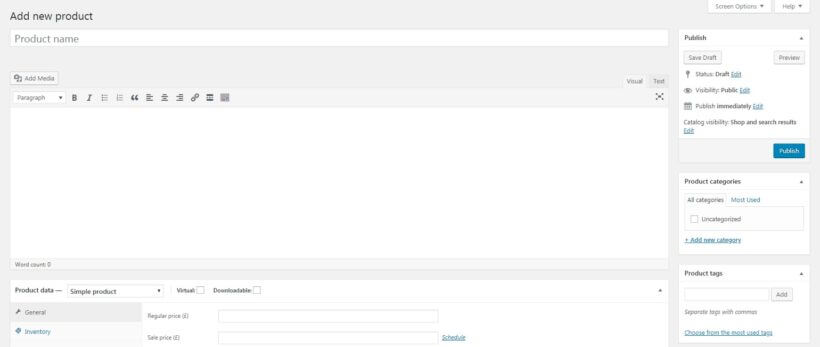
For each furniture product, I recommend including:
- A clear product name (e.g. "Modular Sofa" or "Kitchen Cabinet Door").
- A brief description in the Product short description box explaining what's configurable.
- A product image showing the item in its most popular configuration.
- A base price under Product data → General. This is the starting price before any options are selected.
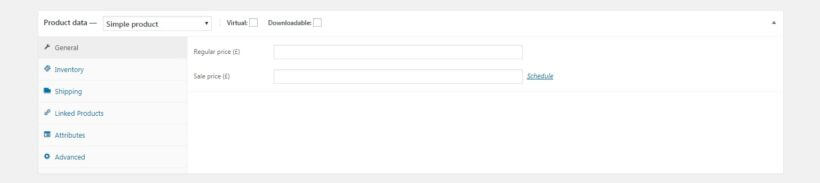
Repeat this for every piece of furniture you want to sell with configurable options. Hit Publish when each one is ready.
Step 2: Install WooCommerce Product Options
Next, purchase and install the WooCommerce Product Options plugin. Follow the installation instructions to get it set up on your site.
Once activated, go to Products → Product Options in your WordPress dashboard. This is where you'll create all the configurable options for your furniture products.
Step 3: Create your furniture option groups
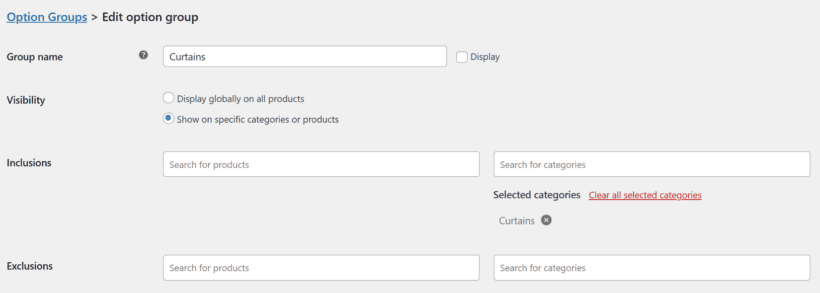
WooCommerce Product Options organizes your fields into option groups. Each group contains one or more options and can be assigned to specific products or categories.
Plan how many groups to create based on which furniture options are unique to specific products and which will be shared across multiple products. For example, you might create a unique set of options for each product, each of which would require its own group. and in addition you might create a separate group for installation and assembly which you will display across all products. This efficient approach avoids duplication.
To create an option group, click Add New on the Product Options page. Give the group a name, then add your individual options within it.
For each option, select the field type (image swatch, checkbox, dropdown, etc.) and add the choices.
You can set pricing for each choice individually. For example, you might set "Velvet" fabric at +$100 and "Linen" at +$50.
Step 4: Add conditional logic
Conditional logic is what makes a furniture configurator feel polished. It shows customers only the options that are relevant to their current selections.
To add conditional logic, edit any option within a group and look for the Advanced section.
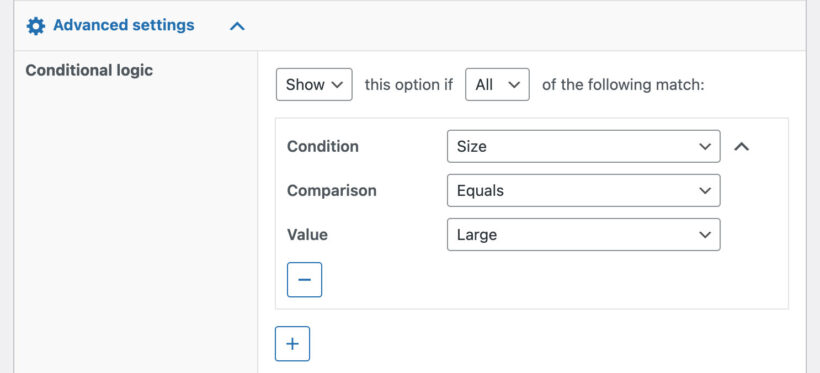
Here you can set rules like:
- Show the "Assembly location" field only when "Installation & assembly" is checked.
- Show "Cushion firmness" only when the customer selects a sofa with removable cushions.
- Show "Glass type" options only when the customer selects a table with a glass top.
You can also use conditional logic with product variations. For example, if you have size variations, you can show different fabric options depending on which size the customer selects.
Step 5: Set up pricing
For most furniture options, flat fees work well. Add $50 for premium fabric, $75 for assembly, and so on. You can set these when you add choices to each option.
If you need more advanced pricing, WooCommerce Product Options has a price formula feature. This is useful for furniture that's priced by measurement. For example, you could create a formula that calculates the price of a custom shelving unit based on the height and width the customer enters.

The plugin also lets you control how prices display on the product page. You can show the base price plus additions, hide the base price until options are selected, or show the total price with a breakdown.
Step 6: Preview and test
Before going live, preview each product page to check that:
- All options display correctly.
- Conditional logic shows and hides the right fields.
- Prices calculate accurately for different combinations.
- The page works well on mobile devices.
I recommend testing a few different configurations and adding them to the cart. Check that the cart and order details show the selected options clearly. This is what your customers will see, so make sure it's easy to understand.
Example furniture configurator setups
Here are a few ways furniture stores can use WooCommerce Product Options. These examples should give you ideas for your own configurator setup.
Kitchen doors and cabinets
A kitchen company could use image swatches to let customers browse door styles visually. Add a dropdown for handle type, color swatches for finish, and radio buttons for size. Use conditional logic to show hinge options only for certain door types. Add a checkbox for professional installation with a flat fee.
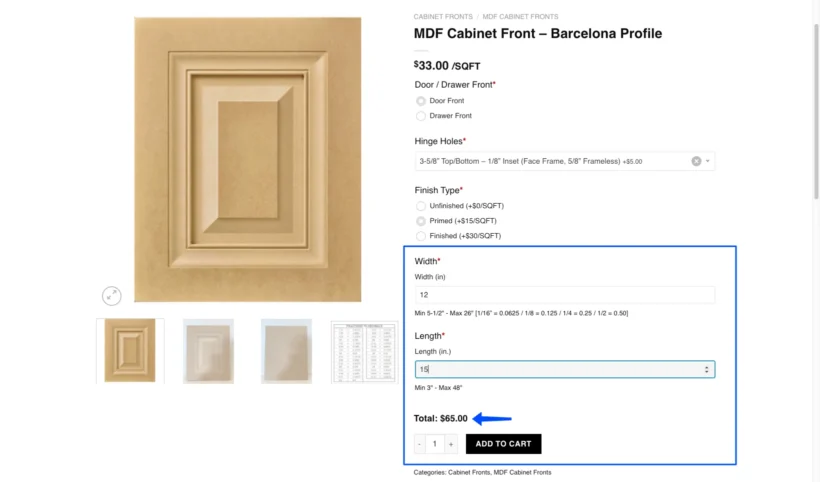
This is exactly the approach that The Cabinet Door Store, a family-owned Canadian supplier of custom cabinet doors and drawer fronts, took with WooCommerce Product Options. Their customers select a finish type (semi-gloss, matte, or woodgrain), then choose from a visual grid of color swatches. Pricing adjusts per square foot based on the finish, and conditional logic ensures customers only see the color palette relevant to their selection. The result? They moved from manual quoting to fully self-service ordering, significantly cutting down on back-and-forth communication with clients.
"This allows our clients to browse our entire catalog and check their own pricing, which has drastically improved our back and forth with clients," said Brett Nichol, who manages contractor accounts at The Cabinet Door Store.
Custom sofas
A sofa store could use color swatches for fabric color, image swatches for fabric type, and radio buttons for size. Add a dropdown for leg style and checkboxes for extras like arm covers and scatter cushions. Use a percentage-based price increase for larger sizes.
Office furniture
An office furniture supplier could use dropdowns for desk dimensions, color swatches for finish, and checkboxes for add-ons like cable management, monitor arms, and keyboard trays. Use quantity pickers to let customers order multiple units with different configurations.
Custom shelving
A shelving company could use number fields to collect custom dimensions from customers. Add a price formula that calculates cost based on width, height, and depth. Include image swatches for material choice and checkboxes for wall-mounting hardware and assembly.
Further reading: The better way to display WooCommerce product dimensions.
Tips for selling modular furniture online
Here are a few things I've found work well when setting up a furniture configurator:
- Use image swatches wherever possible. Furniture is visual. Customers want to see the material, not read a name.
- Keep option groups logical. Group related choices together (all material options in one group, all service add-ons in another). This makes the product page easy to follow.
- Set default values for popular options. Pre-select your most popular choices. This speeds up the buying process and gives customers a starting point.
- Use conditional logic to reduce clutter. Don't show every possible option at once. Reveal choices based on what the customer has already selected.
- Write clear option labels. Use plain language that customers understand. "Oak veneer" is better than "Material type OV-3".
- Test the mobile experience. Many furniture shoppers browse on their phones. Make sure your configurator works well on smaller screens.
Bonus: Create shareable furniture configurations
WooCommerce Product Options has a shareable cart links feature. You can configure a product with specific options selected, add it to the cart, and then copy a link from the top of the cart page. (These links only appear if you are logged in as an admin or store manager.) When a customer clicks that link, it recreates the exact configuration you set up.
This is useful for furniture stores in several ways:
- Send pre-configured product links to customers who've requested a quote.
- Create "recommended configuration" links for your best-selling setups.
- Include configured product links in email campaigns or on social media.
This saves customers the effort of configuring the product themselves and can speed up the purchase decision.
Further reading: How to create extra product options in WooCommerce.
Start selling modular furniture online today
Selling modular furniture online doesn't need to be complicated. With WooCommerce Product Options, you can create a product configurator that handles materials, finishes, sizes, add-on services, and custom pricing.
Here's a quick recap of the steps:
- Add your furniture products to WooCommerce with a base price.
- Install the WooCommerce Product Options plugin.
- Create option groups with the right field types for each product category.
- Add conditional logic to keep the configurator clean and relevant.
- Set up pricing for each option.
- Preview, test, and publish.
Do you have questions about setting up a furniture product configurator? Ask in the comments below!
4 Comments
Hi Guys, Love the plugin, its something we definitely need for the kitchen site we are building. We want to add a kitchen planner as well for the website so customers can see how their kitchen would look. Is that a plugin you can offer too? If not where would suggest we went as there seems to be little out there.
Hi, Nick. Thanks for commenting and I'm glad to hear you're keen to use WooCommerce Product Table. Sorry for the late reply! You can contact us much quicker via our dedicated Support Center.
What you describe sounds to be a plugin that would allow/help users to visualize the kitchen they're planning, possibly with some sort of way that they can add/place and move around items/products on an image/graphical grid. If so, I'm afraid this is beyond what any of our plugins is designed to do, and you could achieve it by adding it as a bespoke or custom plugin for your site. If you don't have a developer who can do this for you, then I recommend posting a job on Codeable where their pre-approved WordPress experts will send you a quote. We have partnered with them to provide plugin customization for our customers.
Hi There,
I want to sell various furniture on my site and let the user to select/customize various option of product like height/width/colour/materials/nobs/lock-of-door/plywood. Each attribute/option have some price as per user input. For example:
User want to buy door then he can enter:
1) Door size
2) all wooden or glasss
3) Lock
4) Handle
5) Polish
6) Plywood quality
Each of above have some price which can be calculation using door size input. So let me know whether this plugin fullfill my this requirement.
Try to buy door on this site: https://wewillbeatanyquote.com/
Hi, Vipin.
What our plugin does is to list your WooCommerce products in a searchable, filterable table, which increases the efficiency of how you show/display them to your visitors. You can display product info in the table based on info that already exists in the data for your products, rather than add any extra bits of info to them that isn't already stored in WooCommerce.
For what you describe, you can display this extra info by using our plugin with the official Woocommerce.com extension; WooCommerce Product Add-Ons. For details about this, please see our tutorial and demo.
I hope this helps. Should you have more questions or wish to discuss in more detail, you can access more information or get in touch with us at this link. Thanks.