Add your document library to Webflow
You can add your hosted document library to any Webflow page using a Code Embed element. This guide walks through every step.
Before you begin: Code Embed elements are a paid Webflow feature, available on the Basic Site plan and higher. On the free Starter plan, Webflow blocks custom code, so you will need a paid Site plan to add and publish the embed. Your library appears when you preview or publish your site - while you are editing, Webflow shows a placeholder in the Designer instead of the live library.
Step 1: Copy your embed code
In your hosted dashboard, open the Libraries screen and click Copy code next to the library you want to display. Your embed code looks like this (always use the exact code from your own dashboard, not this example):
<iframe src="https://your-library.documentlibrary.app/?dlp_embed=1" title="Document library" style="width:100%;border:0;height:600px;" loading="lazy"></iframe>
<script src="https://your-library.documentlibrary.app/?dlp_embed_resize=1" async></script>
Step 2: Create a page for your library
In the Webflow Designer, open the Pages panel and click the + to add a new page. Give it a name such as Document Library. Then add a link to the page in your navigation menu so visitors can find it.
Step 3: Add a Code Embed element
Open your new page, click the + (Add elements) panel, search for Embed, and drag the Code Embed element onto the section where you want the library to appear.
Step 4: Paste your embed code
The code editor opens automatically. Delete any placeholder text, paste the embed code you copied in Step 1, then click Save & Close.
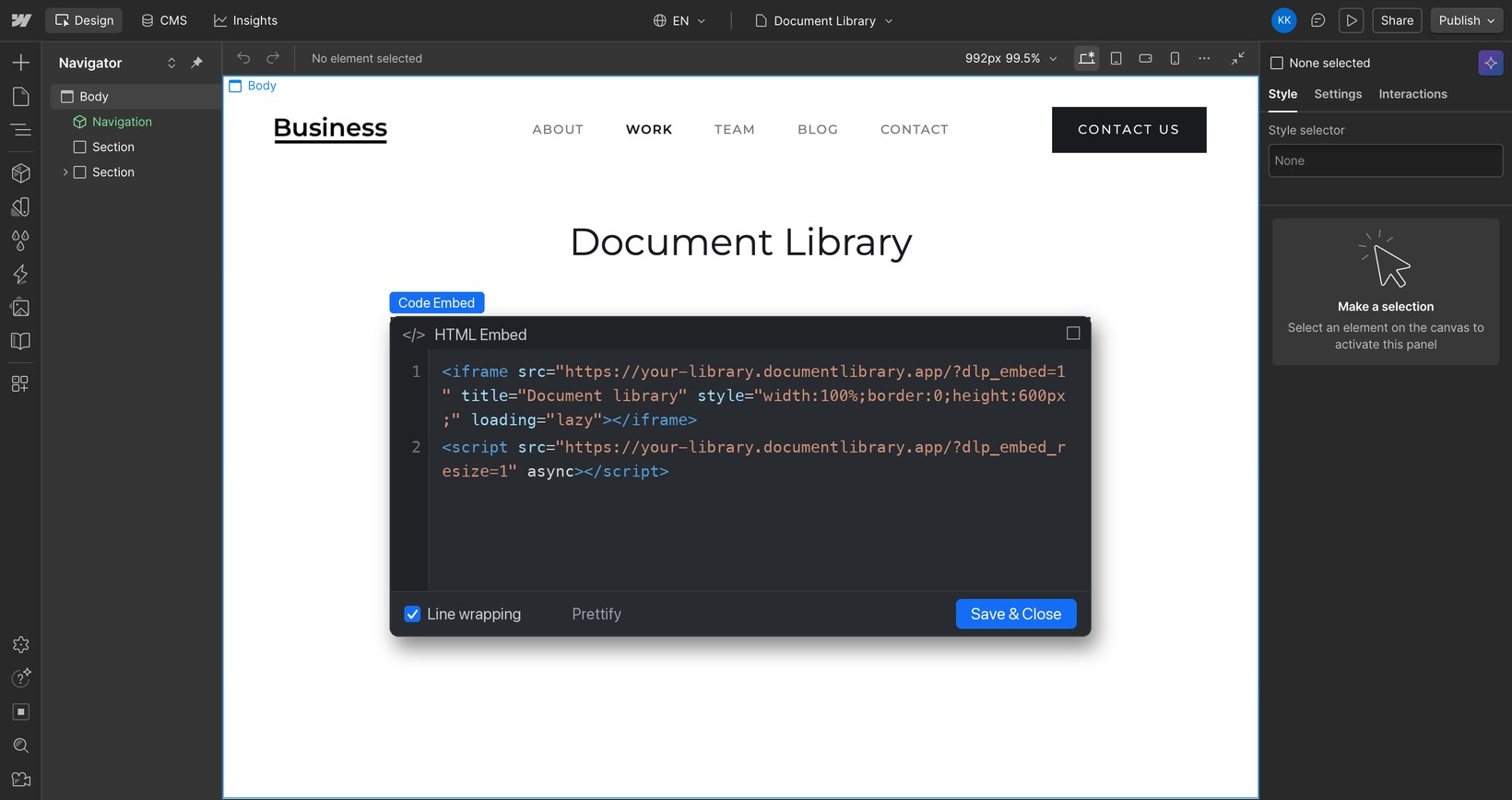
Step 5: Publish and view your library
While you are editing, Webflow shows a placeholder where the Code Embed sits. Click Publish in the top right to push your site live, then visit the page to see your document library, where visitors can search, filter by category, and download or preview each document. You can also click Preview (the eye icon) in the Designer to check it before publishing.