Add your document library to Shopify
You can add your hosted document library to a Shopify page, or directly to a product's description. Both take a couple of minutes.
The one thing to know: always paste your embed code into the HTML view (the </> button), not the normal visual editor. The visual editor strips embed code out when you save, but the HTML view keeps it.
Before you start: copy your embed code
In your hosted dashboard, open the Libraries screen and click Copy code next to the library you want to display. Your embed code looks like this (use the exact code from your own dashboard, not this example):
<iframe src="https://documentlibrary.pro/your-library/?dlp_embed=1" title="Document library" style="width:100%;border:0;height:600px;" loading="lazy"></iframe>
<script src="https://documentlibrary.pro/your-library/?dlp_embed_resize=1" async></script>
Add your library to a page
This is the best option for a standalone document library, such as a downloads or resources page.
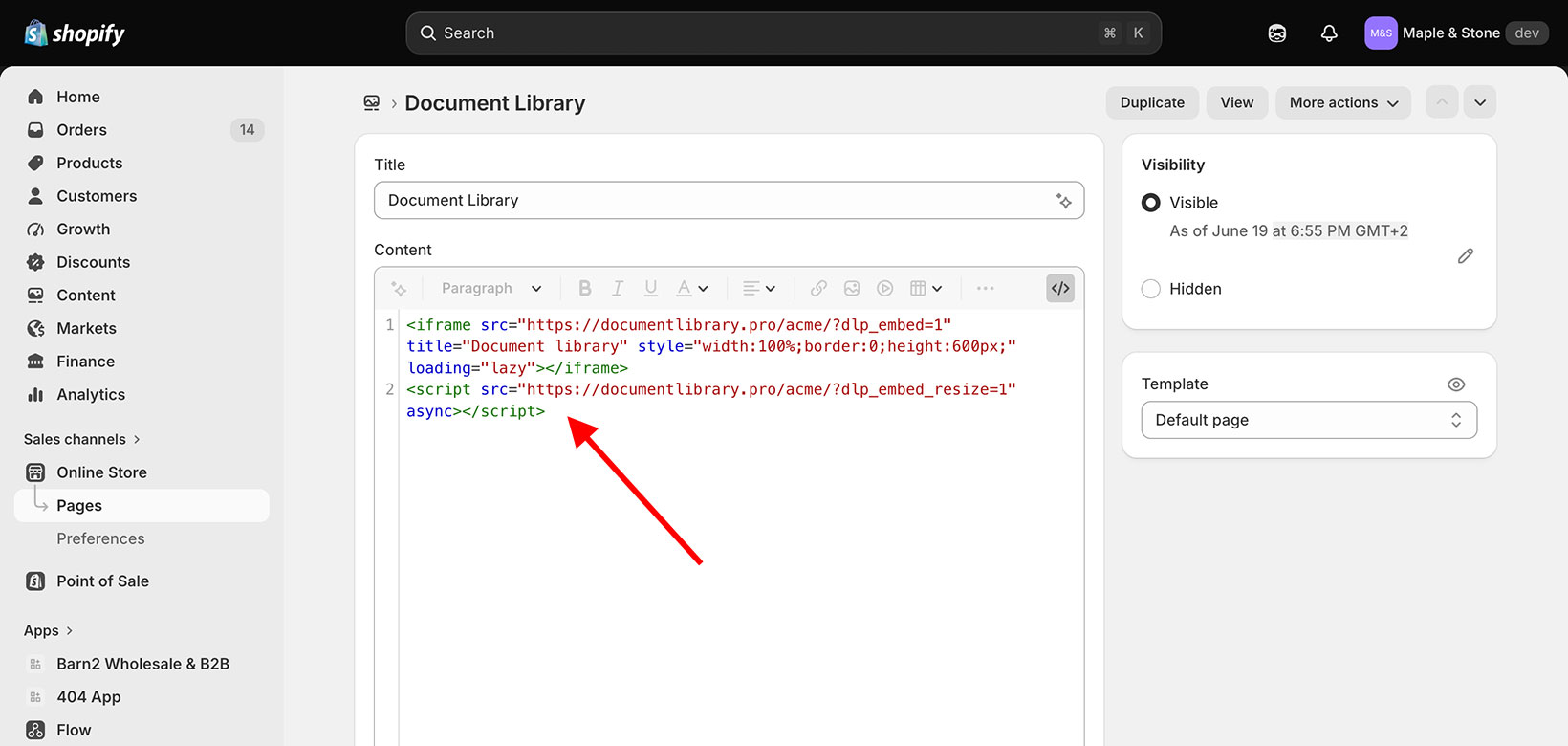
- In your Shopify admin, go to Online Store → Pages and click Add page.
- Enter a title, such as Document Library.
- In the Content toolbar, click the </> button (its tooltip says Show HTML) to switch to the HTML view.
- Paste your embed code into the box.
- Set Visibility to Visible, then click Save.
- To help customers find the page, add it to your menu under Online Store → Navigation.
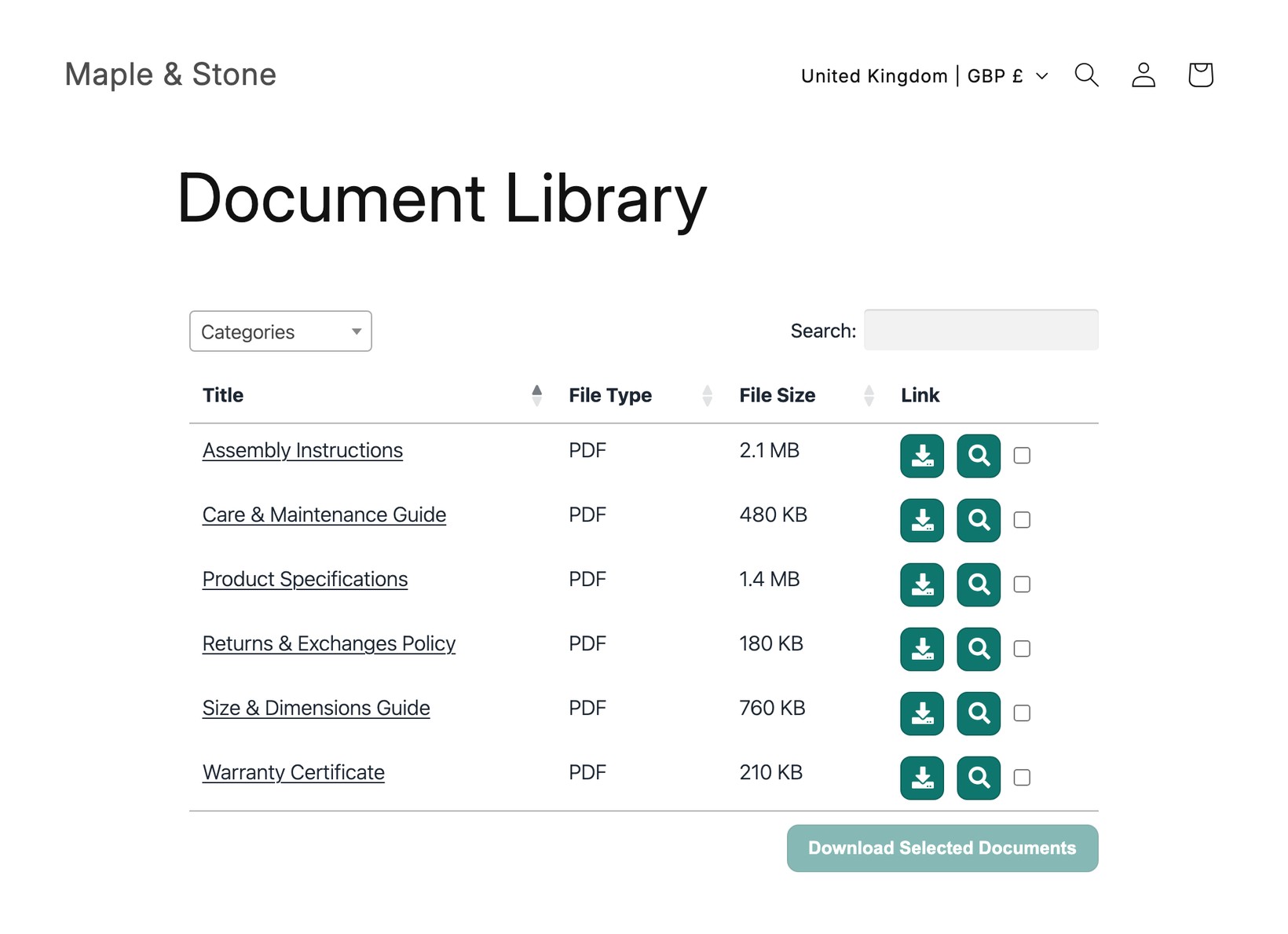
Click View page to see your library live on your store. Customers can search, filter by category, and download or preview each document.
Add your library to a product description
You can also show a document library directly on a product page. This is ideal for documents that relate to a specific product, such as spec sheets, manuals, size guides and warranty certificates.
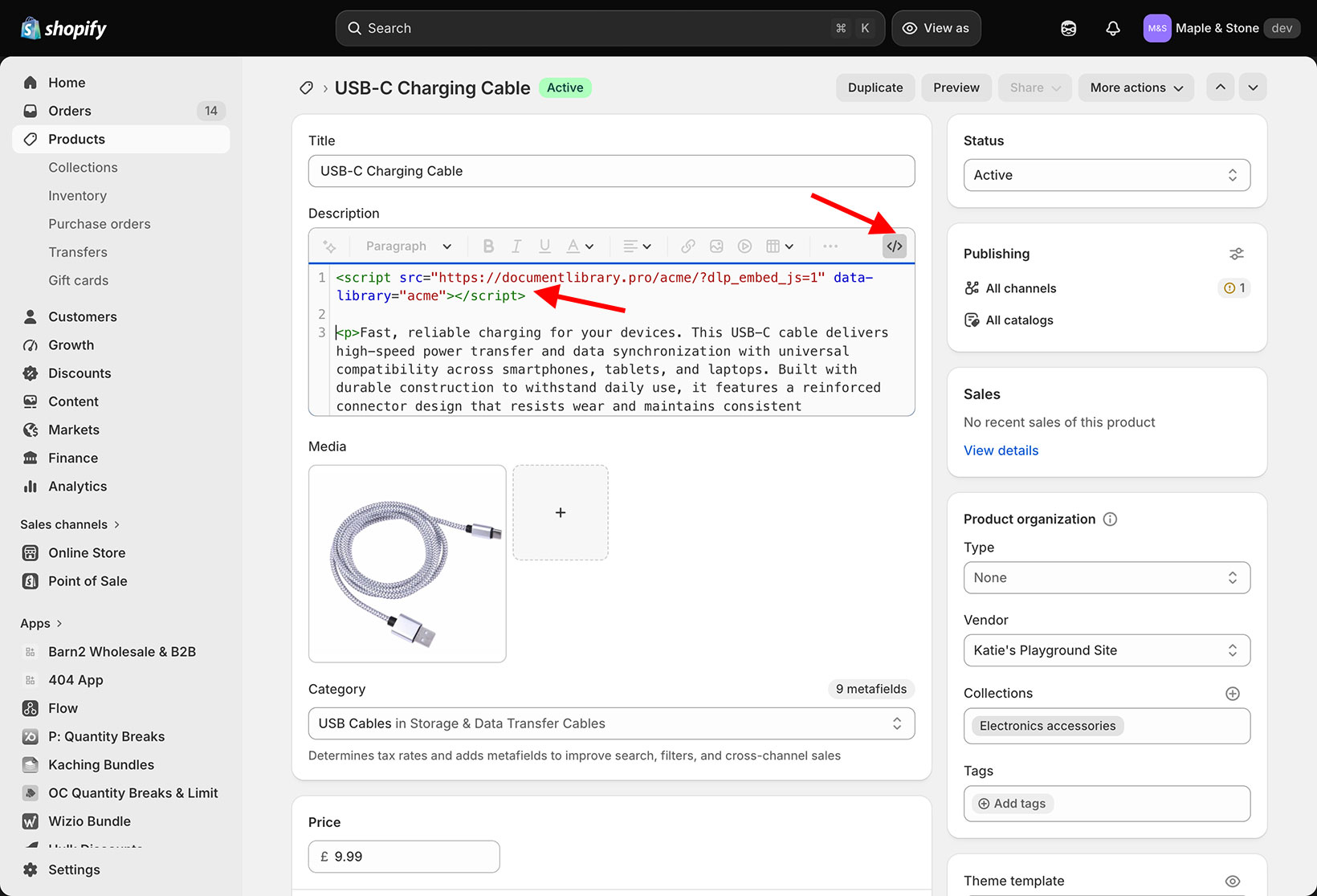
- Go to Products and open the product you want.
- In the Description toolbar, click the </> button to switch to the HTML view.
- Paste your embed code where you want the library to appear. To place it below your description text, paste it before your existing content as shown below, or after it to put the library at the bottom.
- Click Save.
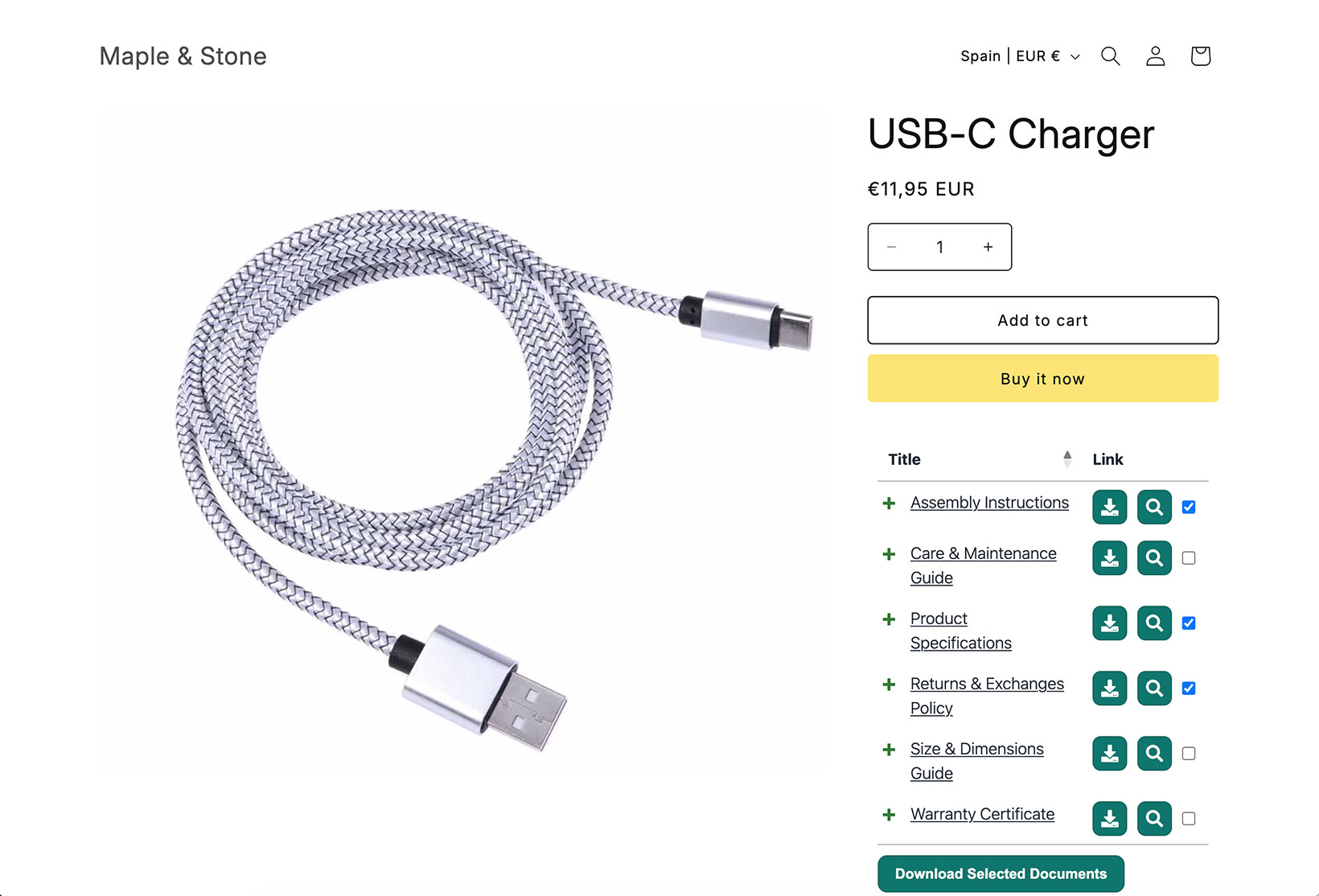
Your document library now appears on the product page, alongside the product details:
Coming soon: a one-click Shopify app
We are building a Shopify app that will let you add a document library with a drag-and-drop block. Until it is available, the methods above are the supported routes.