Document library controls
Document Library Pro comes with various elements that can be displayed above or below the table. These make it easier for users to search, sort and filter the table.
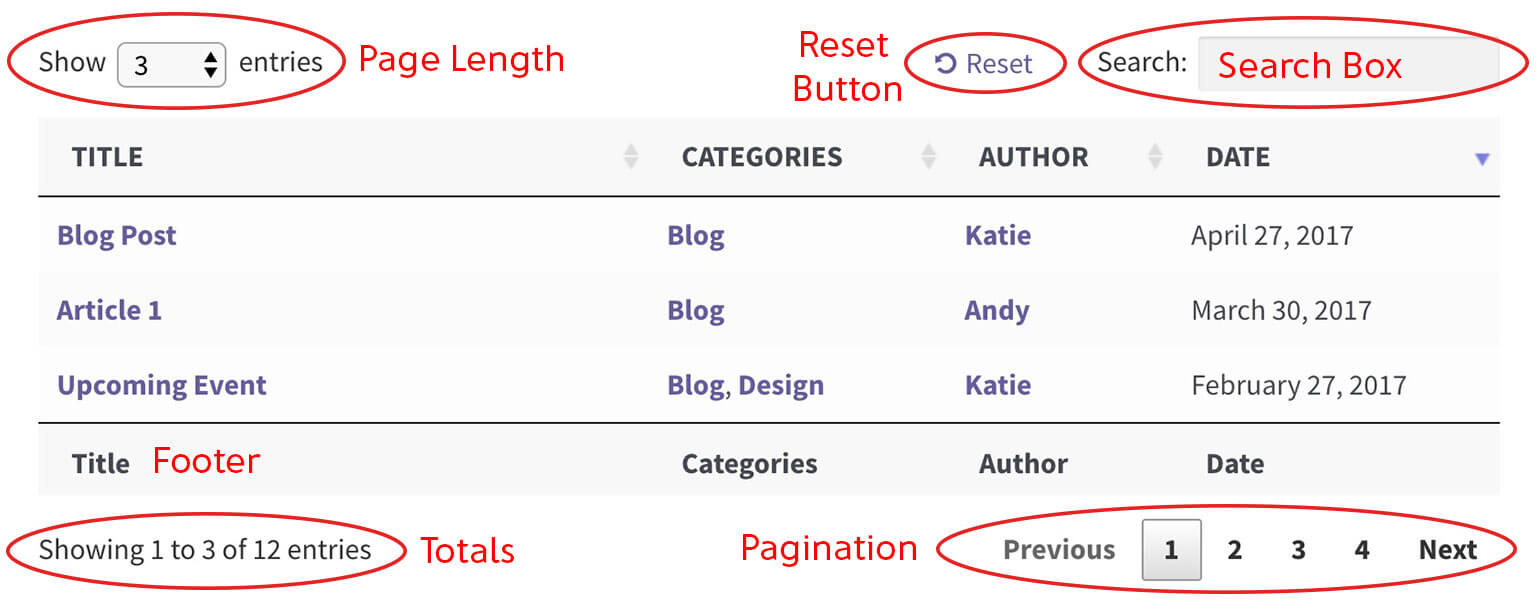
The available elements are:
- Search box – the keyword search box at the top right of the table.
- Page length – the “Show <x> entries” select box above the table.
- Totals – the total number of documents text displayed below the table (e.g. “Showing 1 to 10 of 50 entries”).
- Pagination - the paging options that appear below a multi-page table.
- Reset button – the ‘Reset’ link next to the search box which removes the current search/filters.
- Footer – an optional row at the bottom of the table where you can repeat the column headings
- Scroll offset - if you have a sticky header, you can also change where the table reloads so that the top isn't hidden behind the sticky header
Display search box
The search_box option controls whether to display the search box for filtering the table by keyword, and where it should appear. You can enable or disable it via the Search settings, or directly in the shortcode (from which you can also choose a position).
The position defaults to top. Choose from one of the following options:
toportrue– show search box above the table (top-right)bottom– show below the table (bottom-right)both- show above and below the tablefalse– hide the search box
Example: [doc_library search_box="bottom"]
Display page length
The page_length option controls whether to display the “Show <x> entries” drop-down menu, and whether to display it above or below your table. You can show, hide and position it via the Advanced settings, or directly in the shortcode.
The position defaults to top. Choose from one of the following options:
top– show page length above the table (top-left)bottom– show it below the table (bottom-left)both- show above and below the tablefalse– hide the page length drop-down
Example: [doc_library page_length="false"]
Display totals
The totals option controls whether to display the total number of documents in the table (e.g. “Showing 1 to 10 of 50 entries”), and where to display it. You can show, hide and position it via the Advanced settings, or directly in the shortcode.
Defaults to bottom. Choose from one of the following:
top– show above the table (top-left)bottom– show below the table (bottom-left)both- show above and below the tablefalse– hide the item totals
Example: [doc_library totals="top"]
Display pagination
The pagination option controls whether to display the pagination buttons for scrolling between the results, and where to display them. You can show, hide and position it via the Advanced settings, or directly in the shortcode.
Defaults to bottom. Choose from one of the following:
top– show above the table (top-right)bottom– show below the table (bottom-right)both- show above and below the tablefalse– hide the pagination buttons
Example: [doc_library pagination="false"]
Paging type
The paging_type option controls the style of pagination used for your document library. Choose between 5 pagination styles:
numbers– page numbers onlysimple– ‘Previous’ and ‘Next’ onlysimple_numbers– ‘Previous’ and ‘Next’ buttons, plus page numbers (the default)full– ‘First’, ‘Previous’, ‘Next’ and ‘Last’ buttonsfull_numbers– ‘First’, ‘Previous’, ‘Next’ and ‘Last’ buttons, plus page numbers
Example: [doc_library paging_type="full_numbers"]
-

- paging_type="numbers" (default)
-

- paging_type="simple"
-

- paging_type="simple_numbers"
-

- paging_type="full"
-

- paging_type="full_numbers"
Infinite scroll
Instead of numbered pagination, you can load more documents automatically as the visitor scrolls down. This works well for browsing-style libraries where people are scanning rather than looking for one specific document.
Enable Infinite scroll on the 'Advanced' tab of the plugin settings, or use the infinite_scroll shortcode option:
[doc_library infinite_scroll="true"]
When infinite scroll is enabled, the pagination options (documents per page, pagination style, pagination position and page length) no longer apply, and a Container height option appears instead. This sets the fixed height of the scrolling area. The default is 70vh, and you can enter any CSS length unit:
[doc_library infinite_scroll="true" infinite_height="500px"]
Infinite scroll is not available in legacy mode.
Reset button
The reset_button shortcode option controls whether to display the ‘Reset’ button above the table. Defaults to true. Set reset_button to false to hide the button.
Example:[doc_library reset_button="false"]
Show footer
Table layout only
The show_footer shortcode option lets you show the column headings at the bottom of the table as well as the top. The default is false (i.e. hide the footer headings), but you can set this to true to show them.
Example: [doc_library show_footer="true"]
Scroll offset
Table layout only
When paging between multiple pages of results in your table, Document Library Pro will automatically “jump” back to the top each time. This is particularly useful if you are displaying a large number of rows on each page. Document Library Pro attempts to scroll to the correct position on the page but sometimes it doesn’t quite calculate this correctly. This is because each website and WordPress theme is different and some can have features which interfere with the scroll position – e.g. sticky navigation menus.
The scroll_offset option lets you override the scroll amount or disable this behavior altogether. The default scroll amount is 15. If you find that the top of your table is “chopped off” when moving between pages, try increasing this to a larger number (e.g. scroll_offset="50"). If you’d like to disable automatic scrolling, set this option to false.
Example: [doc_library scroll_offset="35"]