How to customize WooCommerce product sorting


The order WooCommerce shows your products in is what a customer sees first. The products you push to the top of the shop and category pages do most of the selling; everything below the fold competes for the scroll-or-leave decision.
WooCommerce ships with a basic sort dropdown - popularity, price, rating or latest - plus a manual drag-and-drop order in the admin. That covers the simplest stores. Once your catalog grows past a few dozen products or you sell across categories that each need their own sort logic, the defaults start showing.
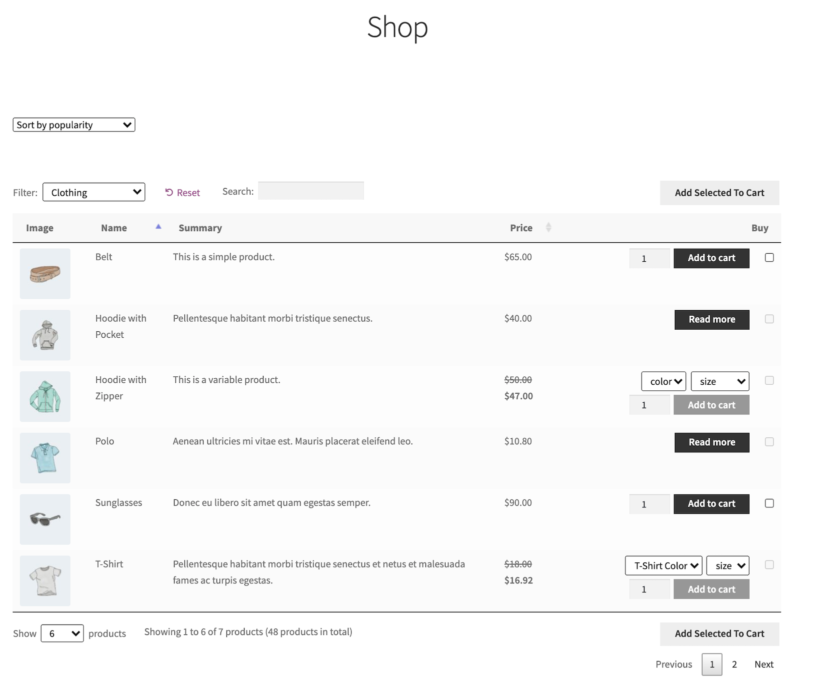
This guide walks through everything WooCommerce offers out of the box and where each option hits its limit. Then it shows how our WooCommerce Product Table plugin extends sorting with clickable column headers and a wider list of sort criteria:
- The built-in WooCommerce sort dropdown (popularity, rating, price and latest).
- Manual drag-and-drop ordering from the Products admin.
- Sort controls inside the WooCommerce Products blocks in the block editor.
- Shortcode
orderbyandorderparameters for custom product listings. - Our WooCommerce Product Table plugin for sortable column headers, SKU/attribute sorting, and customer-controlled re-sort.
- A custom code snippet for stores that need bespoke sort logic.
- Our WooCommerce Product Filters plugin for letting customers narrow the catalog alongside sorting.
What is product sorting in WooCommerce?
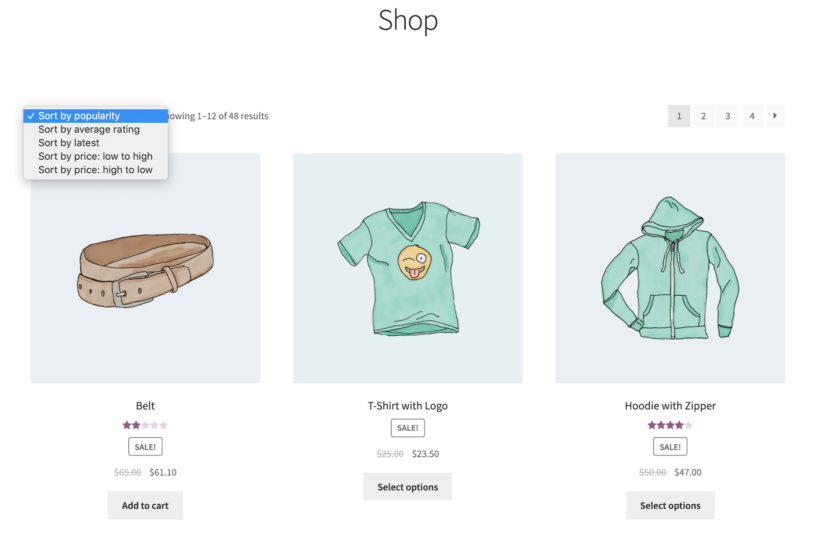
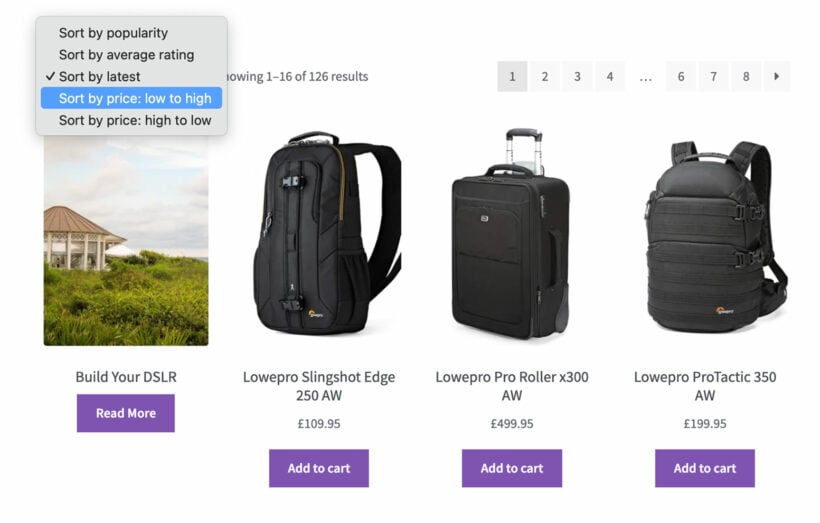
WooCommerce product sorting controls the order shoppers see products on the shop page, category pages and product blocks. The built-in WooCommerce sort products options give you popularity, average rating, latest, price low to high and price high to low. "Default sorting" lets store owners drag and drop products into a manual order.
The free WooCommerce plugin gives you those options out of the box. Plugins like our WooCommerce Product Table extend the list - you can sort by attribute, SKU, custom field or any column you've added to a product table.
What product sort options are built into WooCommerce?
WooCommerce includes five places you can set or change the sort order: the Customizer, the Products admin screen, the block editor, shortcodes, and custom code. Each has a specific use case.
The Customizer
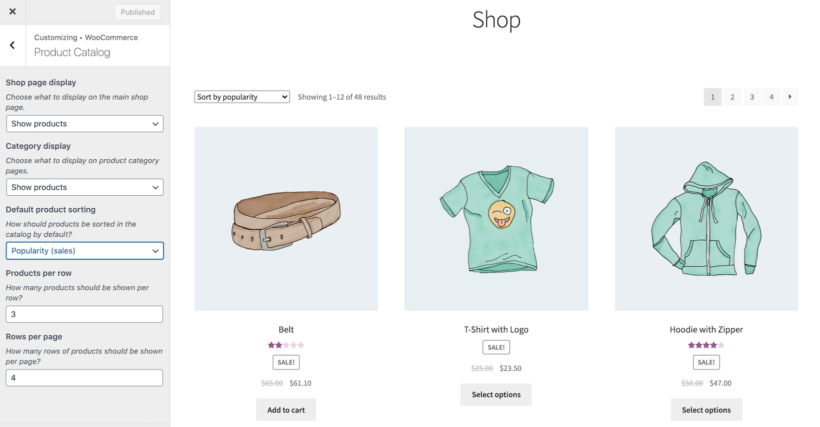
The WordPress Customizer controls the default front-end sort order. Go to Customizer → WooCommerce → Product Catalog and pick from default sorting (custom ordering + name), popularity, average rating, most recent, or price.
Most WooCommerce-optimized themes show a sort dropdown at the top of the shop and category pages so customers can change the order on the fly between the same five options.
The built-in options have three real limits:
- The list is short. You can't sort by SKU, attribute, custom field, stock or anything else the default options don't cover.
- You can pick the sort, but not the sort direction.
- The layout is still the standard product grid - sorting doesn't improve how the products are presented.
Manual drag-and-drop ordering in the Products admin
WooCommerce lets you drag products into a fixed order from the admin. Go to Products → All Products, click the Sorting tab, then drag each product into the order you want.
- From your WordPress admin, navigate to Products → All Products.
- Click the Sorting tab at the top of the product list.
- The product list switches to a draggable layout.
- Drag each product into the order you want them to appear on your shop and category pages.
- The new order saves as you drag. Check the front end to confirm.
This works only when the default product sorting is set to "Default sorting (custom ordering + name)" in the Customizer. Manual ordering is a good fit for highlighting bestsellers, seasonal items or high-margin products, but it's slow on a catalog with hundreds of products.
The WordPress block editor
WooCommerce Blocks include sort controls inside the Gutenberg editor. When you add any of the Products blocks to a page, you can pick the initial sort order. This controls the order when the page loads.
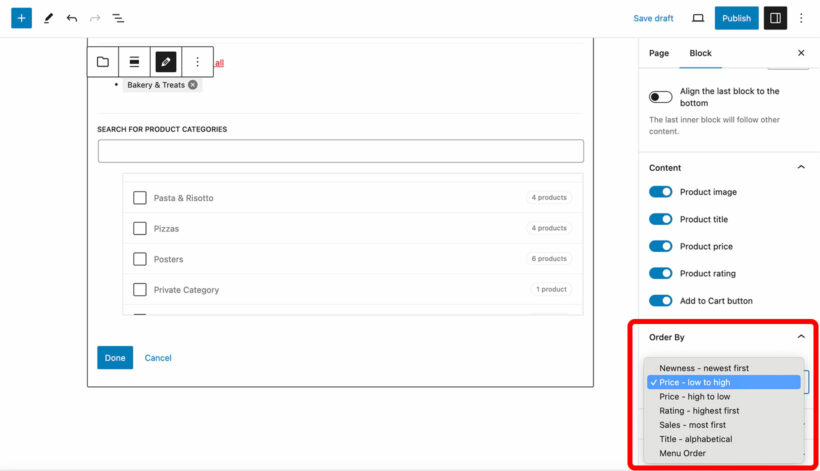
The Hand Picked Products block lets you manually select products to display in your chosen order. Other product blocks include filtering and sorting options inside the editor. Page builders like Elementor or Divi ship similar product modules with basic sorting controls.
Shortcodes
WooCommerce includes shortcodes with built-in sort parameters. The [products] shortcode accepts orderby and order parameters - you can sort by date, title, menu_order or price in ascending or descending order.
The shortcode parameters control the initial sort. Customers can't interact with them to re-sort on the front end, so they're useful for fixed listings rather than catalog pages. Our complete guide to WooCommerce shortcodes covers the full set.
Custom code snippets
For sort criteria the built-in options don't cover, you can add a custom snippet to a child theme's functions.php or to a code-snippet plugin. The full example is further down in this guide.
Where the customer-facing sort dropdown lives
On the front end, WooCommerce displays a 'Sort Products' dropdown at the top of the main shop page and on each product category page. Customers use it to re-sort by name, price, rating or date.
Common WooCommerce product sorting issues
Three problems crop up often enough to be worth listing the fixes here.
Theme compatibility
Some WordPress themes override WooCommerce's default sorting options. The displayed order can come out mixed up, or your custom sort options stop working.
The fastest check is to temporarily switch to the default Storefront theme. If sorting behaves correctly under Storefront, the problem is in your theme - contact your theme developer or look for a WooCommerce-specific theme.
Performance on large catalogs
Sorting by price, popularity or custom attributes runs database queries on every page load. On a catalog with thousands of products that can slow page loads noticeably.
Caching at the page level (WP Rocket and similar) helps. So does database optimization (WP-Optimize), reducing the number of products per page, and moving to a host built for WooCommerce traffic.
Manual ordering not displaying correctly
The drag-and-drop order only takes effect when the front-end sort is set to "Default sorting" in the Customizer. If you've moved products around in Products → All Products → Sorting but they still display in a different order, check the Customizer setting first. Theme overrides are the other usual cause.
WooCommerce Product Table - the most flexible product sorting plugin
The built-in sort options are limited because they're trying to fit into the standard product grid. Our WooCommerce Product Table plugin takes a different approach. It replaces the grid with a sortable table, gives each product a row, and lets the customer click any column header to re-sort the catalog.
The Barn2 team have done a great job with this plugin, it works great and is very flexible. We needed an updated Variables snippet and the team were only too pleased to help.
Cy Messenger
You can enable product tables globally on shop and category pages, or drop a custom product table into any page using a shortcode. Either way, sorting works the way customers expect from a spreadsheet or a serious B2B catalog. Column headers are clickable, the active sort direction is shown by a small arrow, and a second click reverses the direction.
Why use WooCommerce Product Table for product sorting
- Sort by anything. Choices include product name, attribute, menu order, ID, SKU, custom fields, price, popularity, reviews, date and last modified date - the widest WooCommerce sort products list of any plugin on this page.
- Sortable columns. Add any column to the table and customers can click the header to sort by that column. Numeric columns sort numerically, date columns sort chronologically.
- Set the initial sort. Pick the order the customer sees when the page first loads, then let them re-sort interactively.
- Ascending or descending. Each column can be sorted either way - for example, alphabetical by product name, or highest price first.
- Pairs with search and filters. The instant AJAX search box, the products-per-page setting and our WooCommerce Product Filters plugin all work alongside column sorting.
Tewes Corporation's industrial cable-ties catalog runs on Product Table for exactly this reason. Customers comparing twenty cable-tie variants can sort by tensile strength, length or price with a single click on the column header - faster than the default dropdown, more useful than scrolling through a grid. The wider write-up of why Product Table tops our list of WooCommerce product table plugins covers other real-store examples.
How WooCommerce Product Table compares to other sorting plugins
A few other plugins on WordPress.org extend WooCommerce's sort behavior without replacing the layout. Each does something genuinely useful, but none of them gives the customer a sortable table on the front end. Here's how they line up:
- Extra Product Sorting Options for WooCommerce (SkyVerge). Adds five extra options to the default WooCommerce dropdown - alphabetical, reverse alphabetical, on sale, review count and availability. It's a focused extension of the existing dropdown, not a layout change.
- Product Sort and Display for WooCommerce (a3rev). Adds category-grouped product display on the shop page, drag-and-drop category reordering and auto-show On Sale / Featured options. Endless scroll is included. The plugin is admin-controlled; customers still re-sort through the standard dropdown only.
- Rearrange Products for WooCommerce (Aslam Doctor). A drag-and-drop interface in the admin for reordering products on the shop page and inside each category. The free version is admin-only; the Pro version adds Smart Sort (bulk-sort by best-selling, ratings, price, stock status and more in one click).
WooCommerce Product Table goes further by replacing the grid with a sortable table where customers can click column headers to re-sort by any column you've added. Customer-controlled sort columns are the key feature these other plugins don't offer.
Set up product sorting with WooCommerce Product Table
Once you've installed and activated WooCommerce Product Table, there are two ways to apply it: globally to your shop and category pages, or selectively to a specific category by shortcode.
Method 1: Set product sorting globally for all products
Global sorting applies the same table settings across all shop pages.
- Open the plugin from the confirmation email and install the zip file.
- Go to Plugins → Add New and activate the plugin on your WordPress site.
- The table builder opens automatically. You can also re-open it later at Products → Product Tables → Add New.
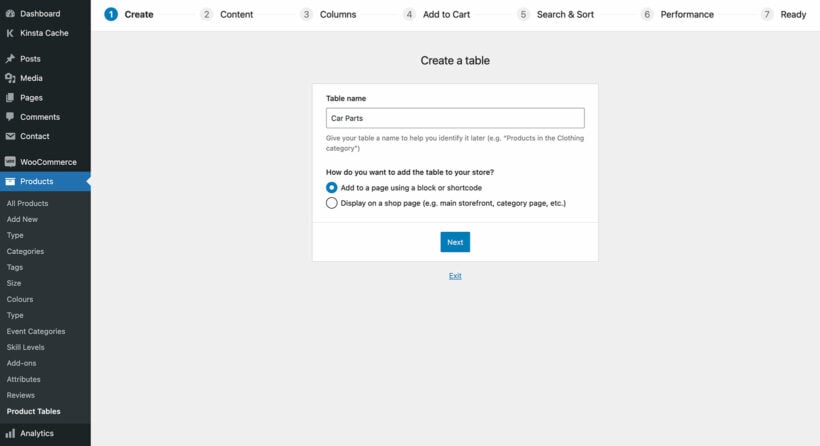
- On the first page of the builder, select Display on a shop page.
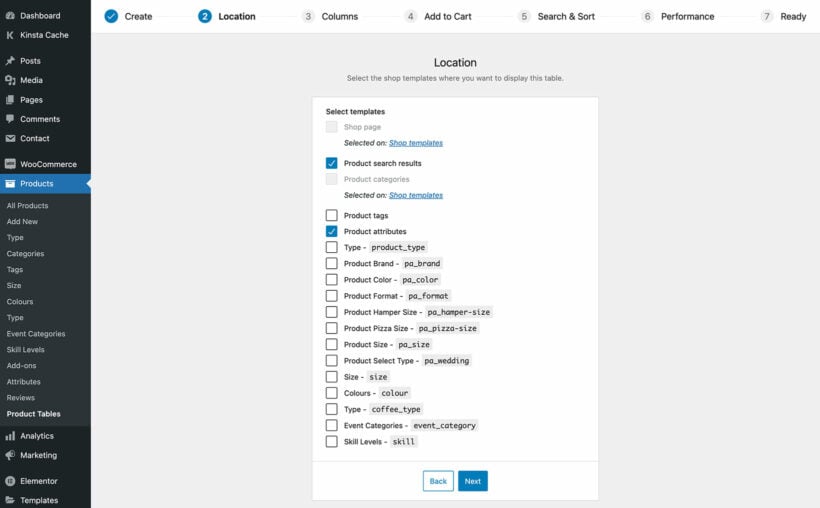
- Select which shop pages the table should replace. To apply globally, select all of them.
- Walk through the next pages to pick the columns, the add-to-cart style and anything else.
- On the Sort page, pick the initial sort order and direction. The built-in options are Default WooCommerce order (menu order), ID, date published, date modified, popularity, average rating, image, summary, stock, or price.

Advanced sort options
The Other option lets you sort products by any column in the table. Note that this only works when lazy load is disabled. The available columns are:
- SKU - by the unique SKU code.
- ID - sorts by the WooCommerce database product ID.
- Name - sorts by the product title.
- Description - by the first word of the main description.
- Short-description - by the first word of the short description.
- Date - by published date.
- Categories - by category.
- Tags - by tag.
- Reviews - by average rating.
- Stock - by stock status or stock quantity (depending on your inventory settings).
- Weight - sorts by product weight, lightest or heaviest first.
- Dimensions - by product dimensions.
- Price - sorts by the product price, low to high or high to low.
- Product attribute - by any attribute, for example size. Add att: in the Sort column field followed by the attribute slug, e.g.
att:size. - Custom field - by custom field values. Use cf: followed by the field name, e.g.
cf:reference. - Custom taxonomy term - by a custom taxonomy like Brand. Use tax: followed by the taxonomy slug, e.g.
tax:brand.
Change the sort direction
The Sort direction option sets the order:
- Automatic.
- Ascending (A to Z, 1 to 99).
- Descending (Z to A, 99 to 1).
The finished table appears on the relevant shop pages:
Method 2: Sort selected categories differently from the rest
If you sell different types of products you might want to sort each category in a different way - clothes by menu order, shoes by price.
Create a separate table per category and add it to its own page:
- From Plugins → Add New, install the WooCommerce Product Table plugin if you haven't already.
- Open the table builder at Products → Product Tables → Add New.
- On the first page, select Add to a page using a block or shortcode.
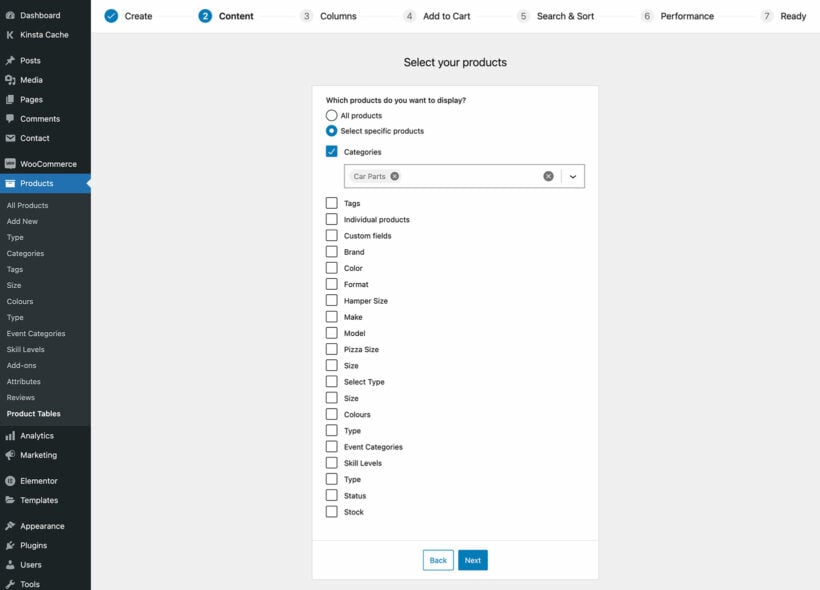
- On the Select your products page, pick the category whose sort you want to customize.
- Walk through the remaining steps, picking the sort order and direction.
- Copy the shortcode from the final page.
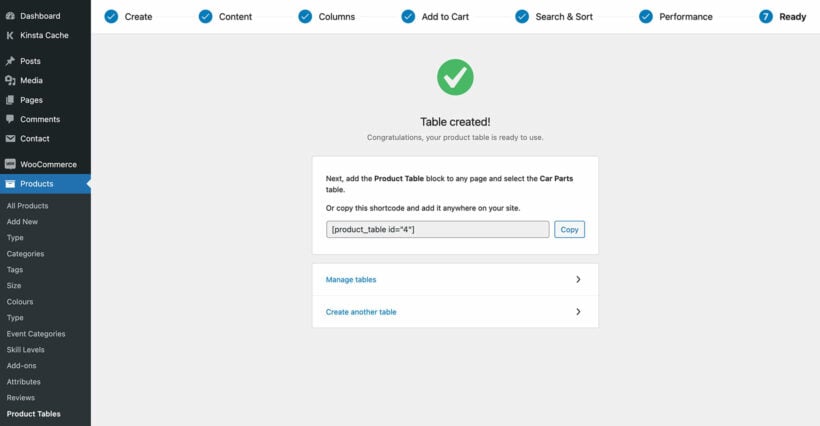
- Paste the shortcode (or add a Product Table Gutenberg block) on the page where you want the category to appear.
- Install the free Redirection plugin and redirect the original category page to the new page. Tools → Redirection is the menu.
- Repeat for each category you want to sort differently.
Checking the product sort order
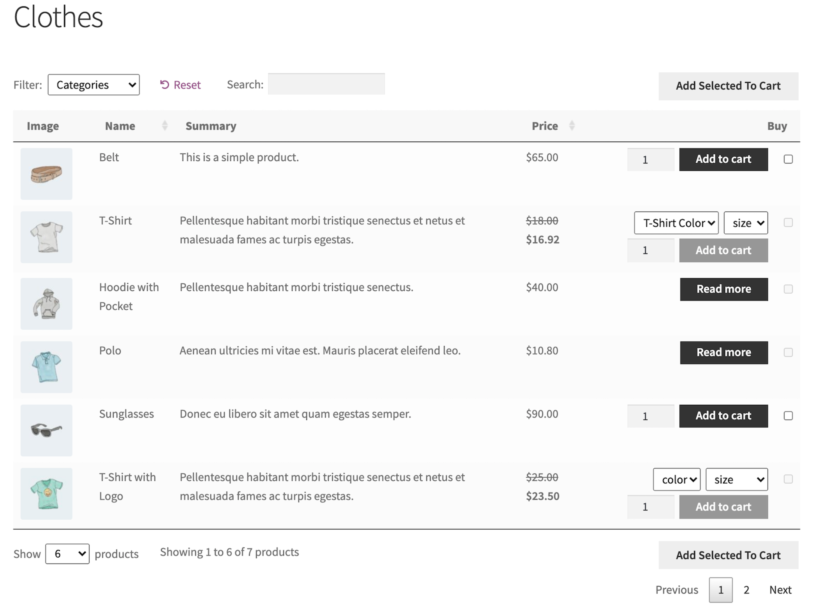
The category page renders with the sort order you set. The Clothes category sorted by menu order:
The Shoes category sorted by price:
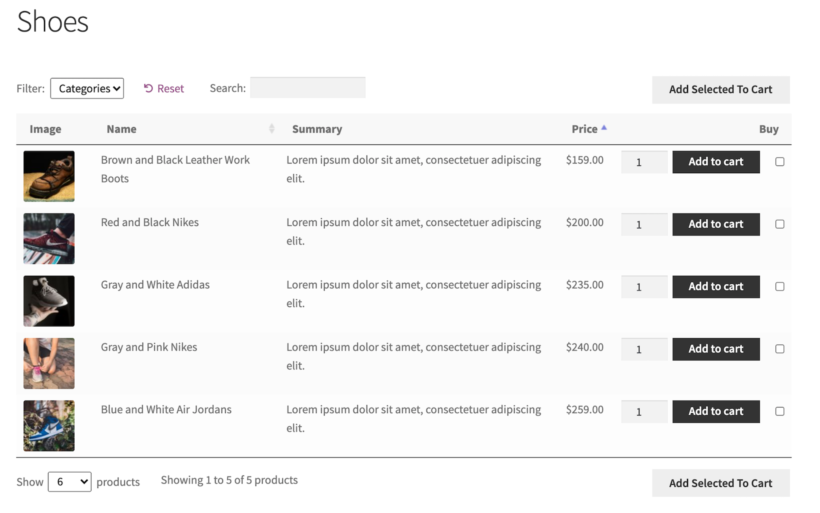
Customers re-sort by clicking any column header.
Reorder products manually using menu order
For full manual control, Product Table can sort by the WooCommerce menu order you set in the back end. Go to WooCommerce → Products, click the Sorting tab and drag products into the order you want.
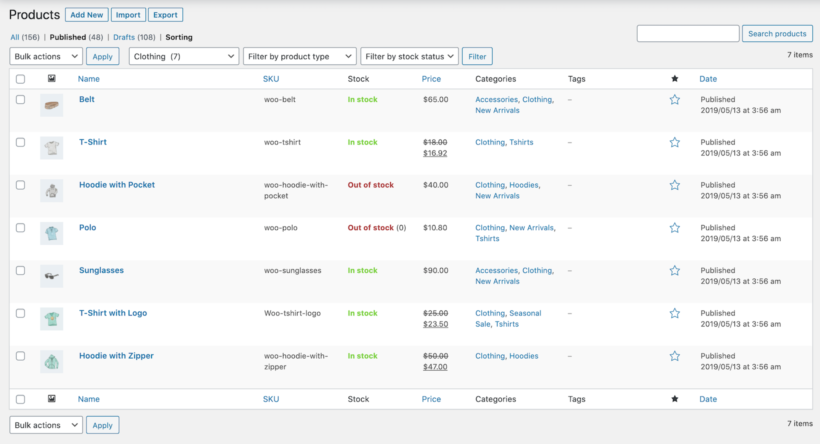
Products appear in the front-end table in the order you set. The full list of sortable columns and the extra date column options are in the plugin documentation. Stores looking for related front-end layouts can also browse our guide to product-page customization plugins or the guide to listing WooCommerce orders on the front end for adjacent use cases.
Custom code for bespoke sort logic
For sort criteria the built-in options and Product Table don't cover, a code snippet works. WooCommerce publishes a guide to custom sorting options as a starting point.
Add the code to your child theme's functions.php or to a code-snippet plugin. Don't add it to your parent theme's functions.php - it'll be wiped on the next theme update.
add_filter( 'woocommerce_get_catalog_ordering_args', 'custom_woocommerce_get_catalog_ordering_args' );
function custom_woocommerce_get_catalog_ordering_args( $args ) {
  $orderby_value = isset( $_GET['orderby'] ) ? wc_clean( $_GET['orderby'] ) : apply_filters( 'woocommerce_default_catalog_orderby', get_option( 'woocommerce_default_catalog_orderby' ) );
	if ( 'random_list' == $orderby_value ) {
		$args['orderby'] = 'rand';
		$args['order'] = '';
		$args['meta_key'] = '';
	}
	return $args;
}
add_filter( 'woocommerce_default_catalog_orderby_options', 'custom_woocommerce_catalog_orderby' );
add_filter( 'woocommerce_catalog_orderby', 'custom_woocommerce_catalog_orderby' );
function custom_woocommerce_catalog_orderby( $sortby ) {
	$sortby['random_list'] = 'Random';
	return $sortby;
}
This example adds a random sort to the default WooCommerce dropdown. The same approach works for any custom sort criterion you need.
Add filters alongside sorting with WooCommerce Product Filters
Sorting helps customers re-order what's already on the page. Filtering lets them narrow it down before the sort kicks in. The two work together: a customer on a 200-product catalog can filter for "Blue + Size Medium", then sort the remaining 12 results by price.
Our WooCommerce Product Filters plugin adds those filters as a sidebar widget, an above-the-catalog bar, or a shortcode. Filter types include categories, attributes, color, tags, custom taxonomy, price, ratings and stock status - presented as dropdowns, checkboxes, radio buttons, labels, image swatches or color swatches. There's also a guide to displaying products by category that covers related layouts.
Frequently asked questions
What is the default product sorting in WooCommerce?
The default sorting option in WooCommerce is "custom ordering and name", which displays products in the menu_order set in the admin and falls back to alphabetical by name. Change the site-wide default at WooCommerce → Settings → Products → Display, or per-category in the category edit screen.
How do you sort WooCommerce products by attribute?
WooCommerce doesn't sort by custom attributes out of the box. A free plugin like Extra Product Sorting Options for WooCommerce extends the front-end sort dropdown with a few extra options. WooCommerce Product Table adds sortable columns for any attribute, including SKU, stock status and custom fields.
How do you reorder products manually in WooCommerce?
Go to Products → All Products in the WordPress admin, click the Sorting tab and drag products into the order you want. The drag-and-drop order applies whenever the shop is set to "default sorting (custom ordering and name)".
Get started with WooCommerce product sorting
The built-in sort options handle the simplest stores. Once your catalog has more than a few dozen products, or you want customers to re-sort it the way they would a spreadsheet, we recommend installing our WooCommerce Product Table plugin.
It adds clickable column headers and lets customers sort by any column you've added - SKU, attribute, custom field or any of the built-in fields. It's the most flexible WooCommerce sort products plugin on the market, and it pairs with our WooCommerce Product Filters plugin when you also want customers to narrow the catalog before they sort.
9 Comments
Hi Maria
For Popularity order can we show Products based on the last 90 days sell?
Thanks
Hi, Vijay.
Thanks for asking about an option to sort products by "last purchased" (recently purchased on top). While we don't have any immediate plans to implement this, a few other people have previously requested this feature and we’re tracking the amount of demand to help us decide whether to prioritize it in future.
I have added your ‘vote’ to our feature request list, and we will let you know if we add this to a future version of the plugin. In the meantime, I'm sorry that this isn't possible.
Please let me know if you have any more questions. Cheers.
Hi! Can you add sorting by discount volume?
Hi, Nikolai. Thanks for asking. By default, WooCommerce only allows you to set a regular price and a sale price - and these are displayed in the price data field. Price and percentage discounts can be set by using a pricing plugin, and the price data field value displayed is usually the discounted price with the regular price crossed out.
What you would like to achieve is two-fold: First the discounted amount (e.g. $10 less) or percentage (e.g. 10%) needs to be displayed/included in the price field data value, and only then can a sorting function by this value be possible. I have added this to our feature request list so that we can track the amount of demand. We will let you know if we add this to a future version of the plugin.
In the meantime, I'm sorry that this isn't possible.
As an alternative or workaround, you could add/create the discount volume value as either a custom field or custom taxonomy and display it as a column in the product table, which you can then set the sorting by.
Please let me know if you have any more questions. Cheers!
Hi, Just wanted to ask, Can I still use the grid view but with the sorting functionalities of the plugin?
Hi Jo,
Thanks for your comment.
The sort option/feature of our plugin only appears within the product table, and cannot be used outside the table. WooCommerce itself comes with a sorting option on its own.
If it interests you, you can provide an option to your customers to switch between the default grid layout and the product table view (so they can use the functionality that comes with our plugin). To do this, please see Code Snippets - Switch Between Grid and Table View in Shop/Category Archive Pages.
I hope this helps! Let us know if you have any more questions/concerns. You may also reach us via our dedicated Support Center. Cheers!
Does your table do tables for shoes?
So each model shoe would be the row and the size attributes in each column
We need this for wholesale where customers are buying several sizes of each shoe.
YOur demos shoe shoes but no size attributes, which no one buys a shoe without the size.
Hi, Tim. You can achieve this by adding the size as a global product attribute and the different size as its terms in WooCommerce on your site, then use this for the product variations also in WooCommerce. Once this is set up, you can then use the available Product variations options to display the product and its variations in the product table on your site. You can see examples of this in our Product Table with Variations front-end demos (albeit we use hoodies and shirts in our demo, which you can do the same for shoes).
I hope this makes sense and helps. Should you have any more questions, you can also get in touch with us by enquiring via our dedicated Support Center. Thanks!
Thank you so much for your kind words! I'm really glad you found the information helpful. If you ever have more questions or need further assistance, feel free to reach out via our Support Center.