How to display new products & arrivals in WooCommerce


WooCommerce new products can be displayed using the Product Collection block's ready-made 'New Arrivals' collection, with no plugin required. This guide covers that built-in method and what to do when a standard product grid is not enough.
A store that adds stock every week can quickly bury its newest items on page four of the shop. A homepage that never changes can also make regular customers miss the WooCommerce new products they came back to see.
New arrivals are often what repeat buyers look for first. However, those products are almost invisible if they sit in date order behind everything else. I’ll cover both methods in order.
- WooCommerce blockIt creates a standard image-led grid using the New Arrivals collection. It suits smaller drops where product images matter more than comparing specifications.
- Product tableA table shows many new products in rows with useful columns, so buyers can compare part numbers, dimensions, and specifications. It suits SKU-heavy catalogs where customers may add several items from one page.
Why list WooCommerce new products separately in your store?
The main reason to separate new stock is to make it easier for shoppers to find.
It makes it easy for your regular customers to find the latest products that they haven't seen before. And new customers can easily differentiate between your WooCommerce new arrivals and older stock.
You also do not have to add a New! badge to the product images for every new item by hand. A new product badge can also look too similar to a sale badge.
Instead, you can have a dedicated WooCommerce new products page that lists new stock separately from older products. This can also help those products rank in search engines like Google. There is more than one way to build that page.
Where is the best place to list WooCommerce latest products?
Unlike featured products, you have full control over where you list your WooCommerce new products.
The best place to list your new WooCommerce products is on a separate New Products (or New Arrivals) product page. This way, customers will know exactly where to go to see the latest products you have in stock.
If you prefer, you can also list new products somewhere prominent such as a 'New arrivals' section on your homepage.
Both options work well for all sorts of e-commerce stores including those that sell:
- Apparel
- Gift items
- Furniture and home decor
- Cookware
- Arts and crafts supplies
- Tech products
- Toys
If you sell lots of products, you can create a WooCommerce new products page for the different categories of products you sell. Take a look at this example from Crate and Barrel:
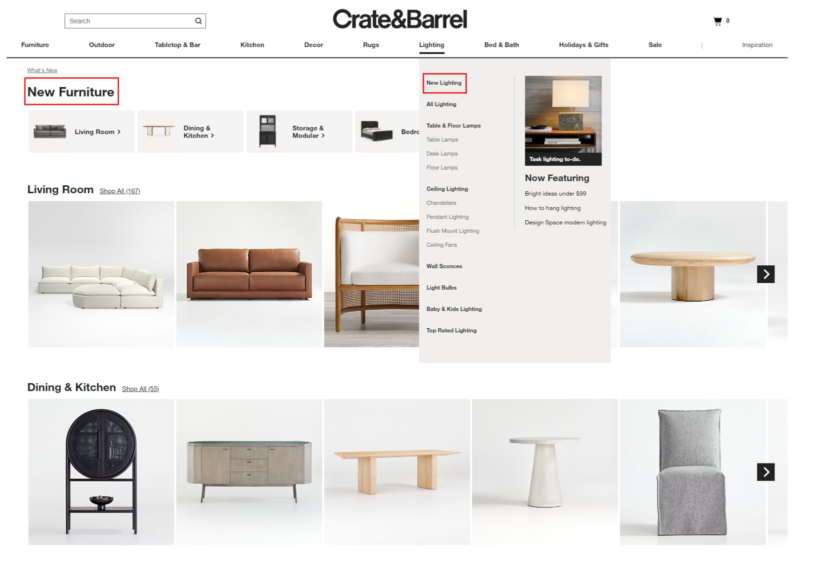
For example, if you sell furniture, home decor goods, and lighting, you could create three different product pages to showcase your WooCommerce new products. These would be New Furniture, New Home Decor, and New Lighting.
You can also list WooCommerce new products on the same page as your older stock. This can help you boost product visibility in your store and potentially encourage customers to buy more from you.
Display new arrivals with the built-in WooCommerce block
WooCommerce ships with a Product Collection block, which includes ready-made collections for common product displays. One of these collections is called 'New Arrivals', which means you can show recent products without installing another plugin. If you are already using WooCommerce blocks, this is the quickest route.
- Create or edit the page where you want the new arrivals to appear. You can put the section on a dedicated New Arrivals page or drop it straight onto the homepage. If you are customizing the shop page, this also lets you test different product sections before publishing.
- Insert the Product Collection block, and WooCommerce will prompt you to choose a collection. Choose 'New Arrivals'.
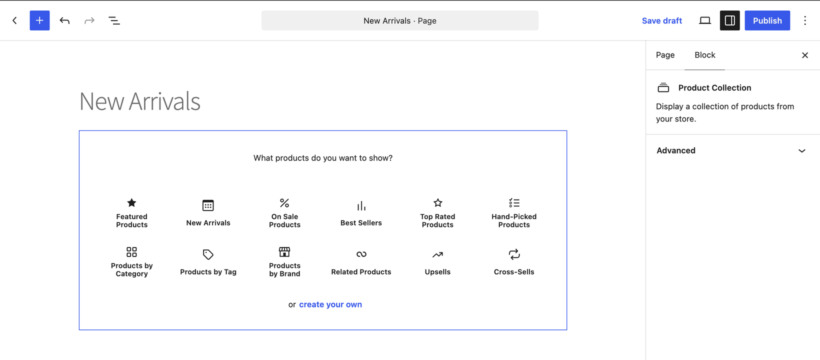
- Set the time window in the block sidebar. By default, the 'New Arrivals' collection only shows products created in the last 7 days. A store that adds stock less often than that may see an empty block and assume something is broken.
- Choose how the products should appear. The block sidebar includes products per page, a Stack, Grid or Carousel layout, and responsive column settings.
- Optionally restrict the section to one category. Turn off the 'Sync with current query' toggle. Then use the Filters section in the block sidebar to filter by category, tag or attribute.
The Product Collection block is used by default in the WooCommerce templates in block themes. On a classic theme, use the [products] shortcode instead.
[products limit="8" columns="4" orderby="date" order="DESC"]
The shortcode gives you a simple way of sorting products by date. The 'orderby' value accepts date, title, id, menu_order, popularity, rand and rating. The 'order' value accepts ASC or DESC.
The block outputs a standard product grid with one image-led card per product. Shoppers cannot compare specifications side by side and must open each product page in turn. That suits a small drop of visual products, but it is a poor fit for 30 new part numbers.
How to list WooCommerce new products using WooCommerce Product Table
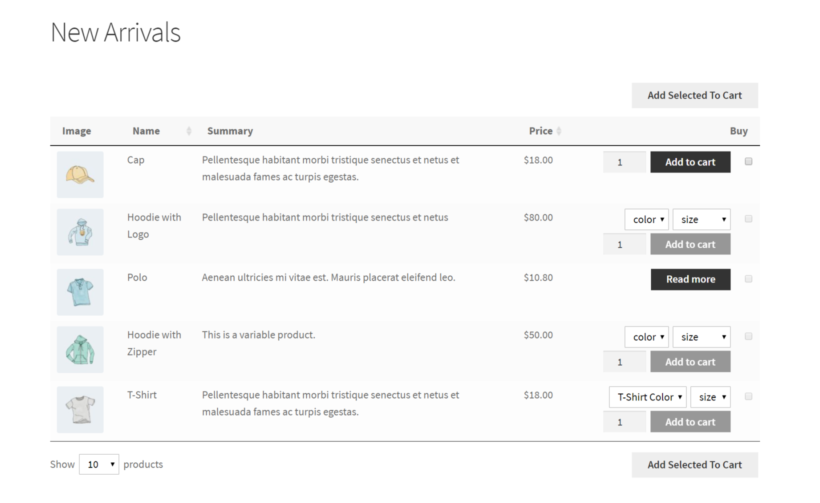
A table layout is best when new stock needs comparison rather than browsing. We looked at our own data from stores using WooCommerce Product Table, and industrial and technical stores were the biggest group. Within that group, mechanical parts, fixings and components accounted for roughly 30 to 35 percent, while electrical, automation and control parts were roughly 20 to 25 percent.
Building, construction and materials stores were the next biggest category, at roughly 20 to 25 percent of the stores we looked at. Automotive, motorsport and mechanical parts followed at roughly 15 to 18 percent, with food, drink and consumables also appearing often.
The common thread is a spec-first catalog where buyers compare part numbers, dimensions and specifications, and where the same customers often reorder. We built WooCommerce Product Table for this kind of buying process.
A table is the wrong layout for fashion and highly visual goods. Those shoppers usually want a large image, the full gallery and the product page. For new arrivals, use a table when buyers need to scan a lot of new stock and add several items to the cart in one go. Use the grid when the photograph sells the product.
If that sounds like your store, the next steps show how to set up a new products table.
Once you have the WooCommerce plugin and WooCommerce Product Table installed and activated on your WordPress website, here’s what you need to do:
Step 1: Create a table of new products
Head over to Products → Product Tables to create your first table of new products. Alternatively, do this in the setup wizard which opens when you first activate the plugin.
The table builder will walk you through the step-by-step process of listing new products:
- Add a memorable name for the table on the 'Create a table' opening screen. Leave the "Add to a page using a block or shortcode" option enabled and click Next.
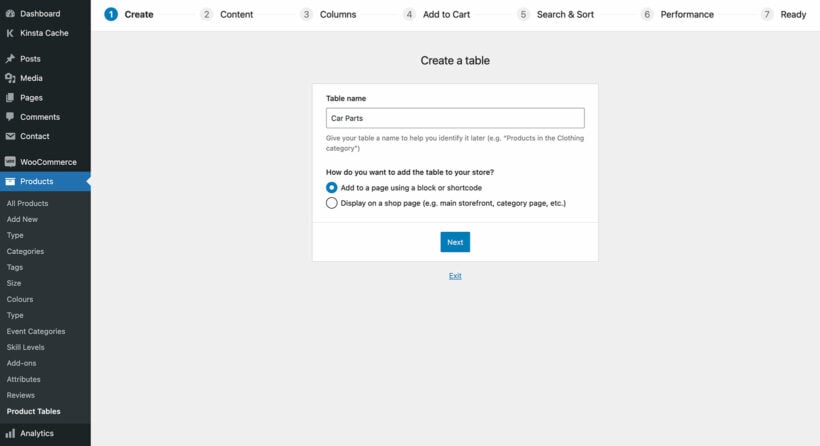
- On the second page, choose specific products/categories/etc. to display the new products for, or leave this set to "All products".
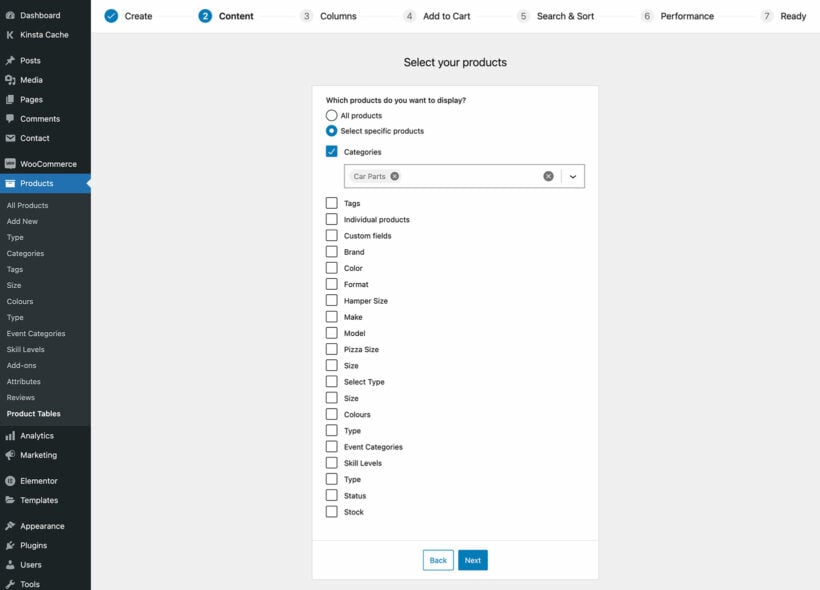
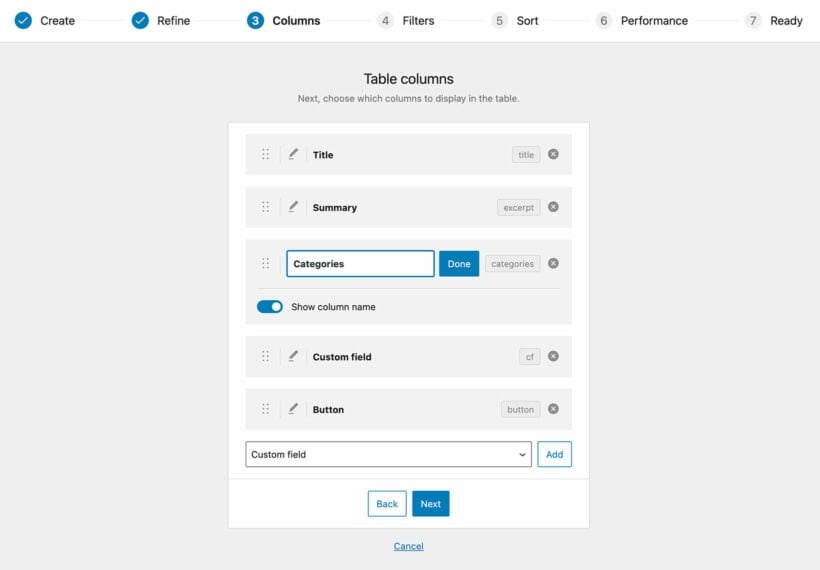
- The 'Columns' page lets you choose what product data to display about the new products. (Tip: Since you're listing new WooCommerce products, consider including a 'Date' column. This will display the date when the new product was added to your store so that customers can see how new it is.)
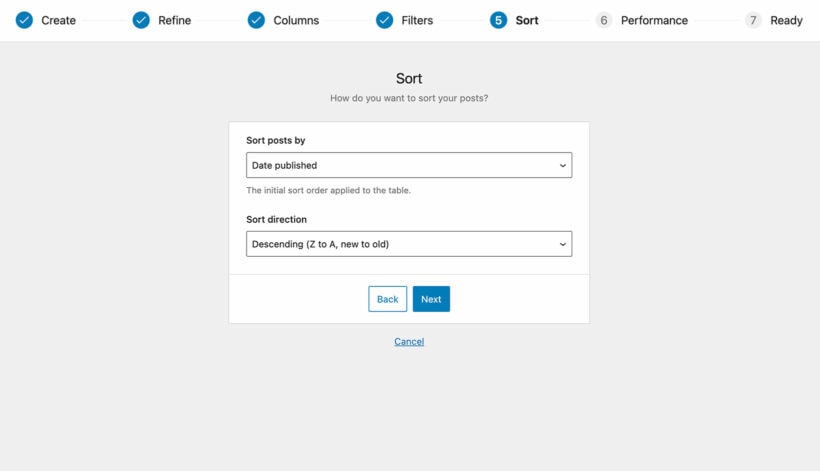
- On the 'Sort' page, choose to sort the products by 'Date published' in 'Descending' order. This is essential to listing new WooCommerce products.
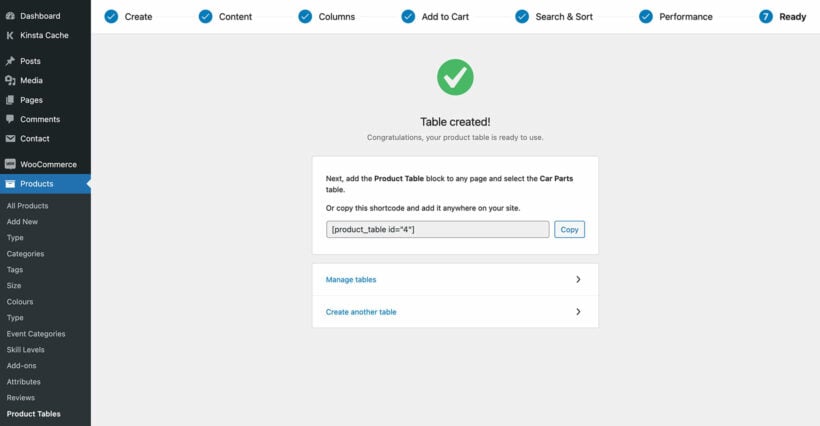
- Copy the shortcode that appears on the final screen of the wizard.
Step 2: Choose how many new products to display
So far, our table will list ALL products with the new arrivals first. However, our goal today is to list the new arrivals only.
To do that, we need to set the maximum number of new products which can appear in the table.
- Go to the plugin settings tab at Products → Product Tables → Settings.
- Change the 'Product limit' option to the number of new WooCommerce products that you wish to display. For example, set this to 10 to display the 10 newest products in your ecommerce store.
- Change any other options as needed. For example, if you're only listing 10 new products then I'd recommend hiding the search box, product totals and reset button which are only needed for larger product tables.
Click the Save changes button to proceed.
Step 3: Create a WooCommerce new products page to showcase the new arrivals
The final step is to create a new page to showcase the WooCommerce new products and new arrivals. Here’s what you need to do:
- Go to Pages → Add New from the WordPress admin and give your WooCommerce new products page a title. For example, it could be something like New Arrivals.
- Next, either add the shortcode that you copied in Step 1 above, or insert a 'Product Table' Gutenberg block and select the name of your new products table.
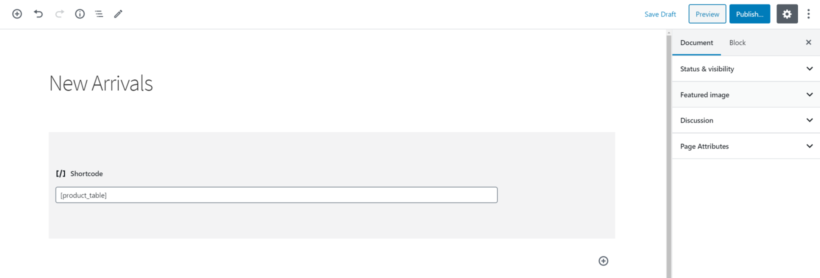
We’ve used the Storefront WordPress theme for this tutorial although WooCommerce Product Table works with most WooCommerce-compatible themes.
Case study: how The Games Den lists new arrivals on their website
The Games Den is a UK-based company that sells a wide range of board games, tabletop games, card games, accessories, miniatures, and paints. The screenshot below shows an example setup they built with our WooCommerce Product Table plugin, with new products displayed in a neat table layout for a New Arrivals page.
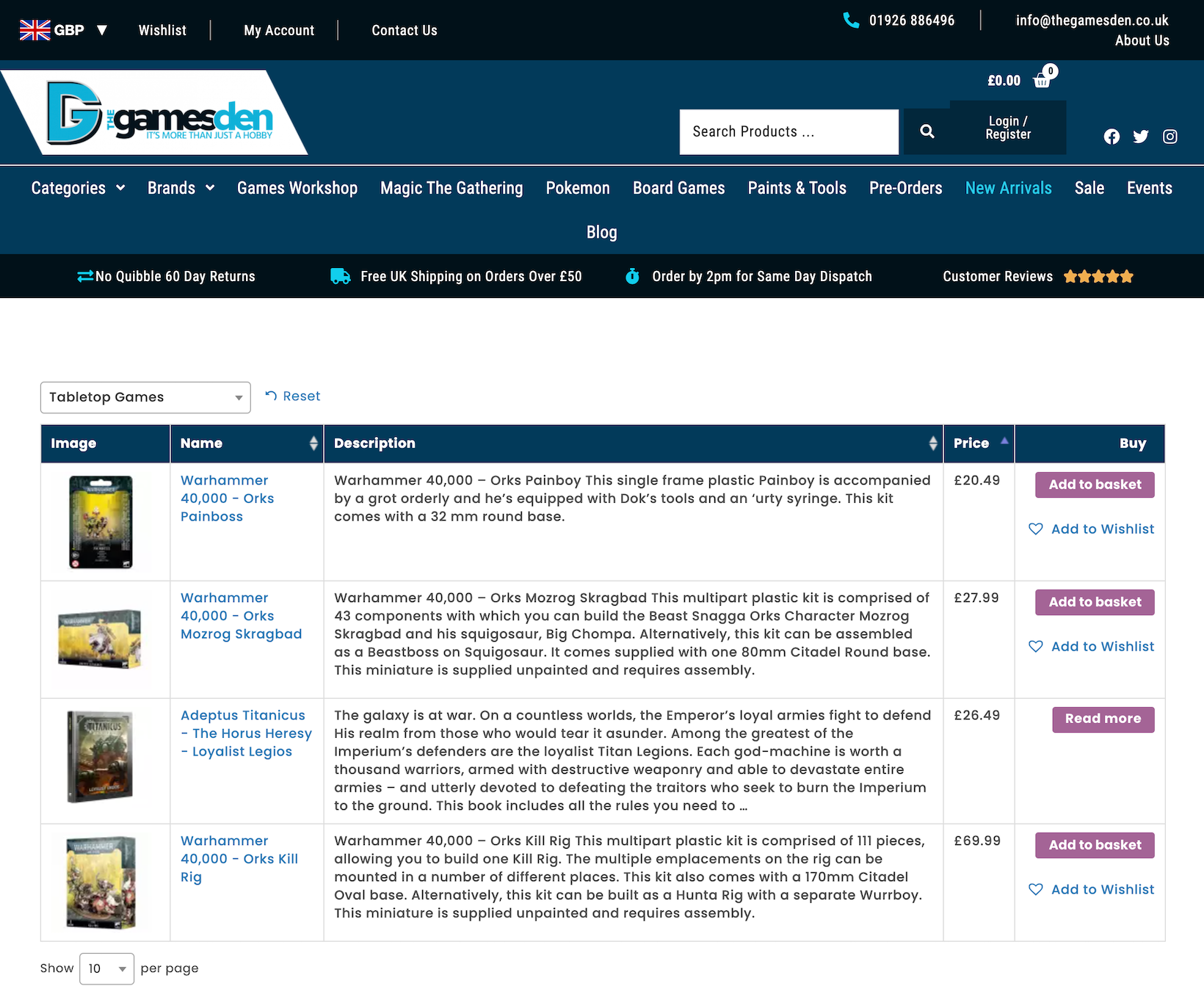
The table is configured to show 30 of the latest products in an organized way by default. Each product has an image, name, description, price, and buy button. The Games Den also uses TI's Wishlist plugin to add wishlist links to the table. They’ve chosen to show the wishlist links in the Buy column.
Customers can narrow down their search using the filter dropdown above the table. It lets them choose which category of products to show on the page such as Accessories, Miniatures, or Tabletop Games. In addition to this, they can sort the columns in the table alphabetically or by price (low-to-high or high-to-low).
Customers can click the product’s name to go to the single product page and learn more about it before adding it to their shopping cart.
Bonus: Give exclusive early access to certain customers
So far, you've learned how to list new arrivals in WooCommerce so that everyone can see them. That's fine for after they are officially released. But what if you want to give early access to new products to specific customers only?
For example, one store owner told us:
Whenever we do a new launch we protect the "new arrivals" category so our VIPs can have 1 hour of private shopping before public access. It's great for items that will sell out.
You can do this by installing our other plugin, WooCommerce Protected Categories. Put the new products in a specific category and restrict it using one of these methods:
- Password protect the category and send a link to your early access customers, along with the password. When they click on the link, they will have to enter the password before they can view or buy the new arrivals. This is a good option if your customers don't already have accounts on your website.
- Restrict the category to specific logged in users or roles. This is a good option if your VIP customers already have accounts on your website because they simply log into their account and can automatically see the new products.
Either way, simply change the category visibility back to 'Public' when your new arrivals are ready to be launched to the wider public.
How to send email alerts for WooCommerce new arrivals
A new arrivals page only works for people who visit your store. Email reaches regular customers who do not.
MailOptin can email customers and subscribers automatically whenever a new product is published. It can also send a daily, weekly or monthly digest of everything added since the last one.
You set it up under MailOptin → Email automation by creating a 'Posts Email Digest' automation. Set 'Select Post Type' to 'Product', then choose the recipients. These can be WordPress users filtered by role, or a list in a connected email service.
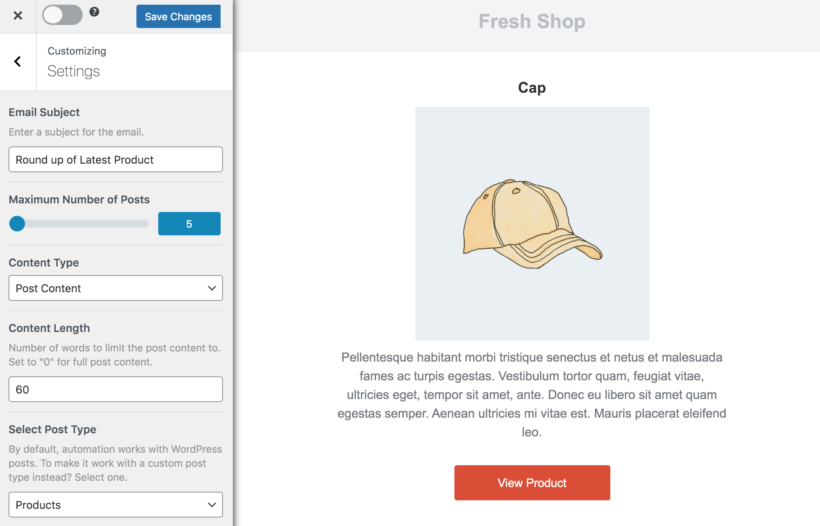
For the full setup, follow my walkthrough on setting up new product email alerts in WooCommerce.
Which method should you use?
I recommend that most stores start with the built-in Product Collection block. It is free, it takes a couple of minutes, and a grid is the right shape for a small drop of visual products.
Move to a table when the catalog is spec-heavy and shoppers need to compare a lot of new stock at once. WooCommerce Product Table also fits when buyers add several items to one order.
The extras above cover early access for VIP customers and email alerts. Start with the layout your customers need most: A simple visual grid or a faster comparison table for larger new product ranges.
4 Comments
usac.ProductCode__c=prCode;
usac.Product_Name__c = prname;
usac.Ecom_User_email__c=UserEmail;
usac.Name=user;
insert usac;
I want to display on recently viewed products only one time. only changes this code, where can I change.
Hi, Nani. Thanks for your comment. If you have a license for any of our plugins, please could you submit a request via our dedicated Support Center so that we may assist you best.
Also, I believe what you're asking about is a customization and this is beyond the scope of our support. While we try to be as helpful as possible, we simply can't allocate too many resources for customization and all I can do is to apologize for this inconvenience and hope that you understand. For the best advice about customizing WooCommerce in ways other than via the plugins discussed in this article, I suggest contacting official WooCommerce Support.
When I add new products to the store can they be automatically added to my latest additions at the bottom of each page? This will be either a widget or in my sub-footer
See image ~ http://hardy.global/autostore.jpg.
The client specifically wanted new additions to be seen at the bottom of each page and automaically updated as new products were added.
Regards Garry
Hi, Garry. Thanks for asking! Yes, you can display a product table in a text widget in your sub-footer or in your site's sub-footer itself that will automatically display your newly added products by placing the product table shortcode in it. See how you can Create product tables using a shortcode.
Let me know if you have any more questions. You can also enquire in more detail via our dedicated Support Center. Cheers!