The best WordPress directory plugins compared


A WordPress directory plugin turns a list of businesses, members, products, or any other content into a searchable, filterable directory that visitors can really use to find what they want.
Below I've compared 11 of the best WordPress directory plugins, covering everything from dedicated business directory builders to flexible table-based plugins you can shape into any kind of directory you need. Each can power a different shape of directory, so the right pick depends on whether you want a ready-made framework, full customization, or a free starting point.
What is a WordPress directory plugin?
A WordPress directory plugin turns businesses, members, products, or other content into a searchable, filterable directory on your site. Some are dedicated directory frameworks with listing forms and maps built in.
Others, like a table-based plugin, let you shape any content type into a sortable directory with search and filters. The right pick depends on whether you want a ready-made framework, full control over the layout, or a free starting point.
Quick verdict
- Best overall dedicated builderDirectorist is trusted by 20,000+ users and handles unlimited directories with custom fields, frontend submissions, and monetization built in.
- Best for custom directories from any post typePosts Table Pro turns any WordPress content into a searchable, filterable directory with the columns you choose.
- Best free optionHivePress is open source, with strong free features for business, service, and niche directories.
- Best for local business with mapsGeoDirectory focuses on physical listings with proximity search and Google Maps integration.
- Best for member directoriesProfilePress ships a drag-and-drop member directory builder on top of its membership plugin.
- Best for form-based directoriesFormidable Directory turns Formidable Forms submissions into business, employee, or user directories.
How we evaluated these directory plugins
I looked at each plugin against the factors that decide whether a directory plugin really works for your site. That means how easy it is to add and manage listings, what content types it supports, and how visitors search and filter. I also weighed frontend submission flows and payment support for sites that take paid listings.
When you're weighing the options yourself, here's the checklist:
- Simple to manage: is it easy to add new listings and adjust old ones? If you deal with a lot of entries, this process needs to be as streamlined as possible.
- Media support: can the plugin display images, videos, or other media for each listing?
- Ecommerce compatibility: can the directory integrate with your store products to act as a central product review and pricing database?
- Rating and review systems: does it support frontend submission of user reviews, ideal for a TripAdvisor-style site?
- Frontend submission of listings: can local business owners or members submit their own listings without going through the WordPress backend?
- Customizable fields and taxonomies: can you organize entries by categories, tags, or custom taxonomies relevant to your audience?
- Shortcode and block support: can you drop the directory anywhere on your site?
At-a-glance comparison
| Plugin | Free version | Standout strength | Best for |
|---|---|---|---|
| Directorist | Yes | Unlimited directories with custom fields, themes, and monetization | General dedicated directory builds |
| Posts Table Pro | No | Turns any post type into a sortable, filterable directory | Custom directories from any content type |
| HivePress | Yes | Open-source builder with strong free features | Free dedicated directory sites |
| aDirectory | Yes | Quick Directory Builder with monetization and mobile apps | Multi-directory sites and classifieds |
| Classified Listing | Yes | AI-assisted form builder and marketplace mode | Classified-ad and marketplace sites |
| Business Directory Plugin | Yes | Yellow Pages-style with reviews and maps | Local Yellow Pages-style directories |
| GeoDirectory | Yes (single location) | Proximity search and Google Maps integration | Local business directories with maps |
| ProfilePress | Yes | Drag-and-drop member directory builder | Membership and people directories |
| Formidable Directory | No | Builds directories from form submissions | Form-driven business, employee, or user directories |
| Sabai Directory | No | Affordable geodirectory with built-in reviews | Budget local directories |
| Directories Pro | No | Custom post type and taxonomy-based builds | Comprehensive single-package directories |
The 11 best WordPress directory plugins
Below are the 11 directory plugins worth considering, ordered by how well they suit most sites. The list starts with the strongest dedicated builder, then our own Posts Table Pro for custom directories, then more specialist tools.
1. Directorist

Directorist is a powerful and flexible WordPress directory plugin, trusted by more than 20,000 users. With the free Directorist Core, you can build unlimited directories with custom fields, forms, and ready-made templates with no coding needed.
For more advanced features, the premium version unlocks 30+ extensions and 13+ directory themes, giving you full control to create any type of directory site. You can build local business listings, job boards, classifieds, events, or niche directories.
Directorist includes a drag-and-drop builder, advanced search filters, frontend listing submissions, and built-in monetization options like paid listings and featured ads. It's mobile-friendly, SEO-optimized, and integrates with tools like Elementor, Gutenberg, WooCommerce, WPML, BuddyPress, and Mailchimp.
Pros:
- Free core with a generous feature set.
- Drag-and-drop builder and frontend submission flow.
- Strong monetization options (paid listings, featured ads, and marketplace).
- Wide integrations including Elementor, WooCommerce, and BuddyPress.
Cons:
- Best features and themes sit in the premium tiers.
- Configuration depth can overwhelm first-time directory builders.
Best for: sites that want a dedicated directory builder with frontend submissions and monetization out of the box.
2. Posts Table Pro
Our own Posts Table Pro plugin is the right choice when you want a custom directory built from your own content rather than a fixed framework. It lets you take any post type, including custom post types, and display it as a searchable, sortable, filterable table directory with the exact columns you choose.
Unlike dedicated directory plugins that lock you into a specific shape (business listings, member profiles, and classified ads), Posts Table Pro doesn't decide what your directory looks like. You decide which post type holds the entries. You decide which fields appear as columns, which taxonomies become filters, and how visitors search.
We didn't originally build Posts Table Pro as a directory tool. We made it for a client who wanted a searchable table of his blog posts, and then people started asking to display all kinds of content in it. So when is a dedicated directory builder the better choice? It comes down to the features you need, rather than how many entries you have. If you need visitors to submit their own listings, a directory plugin is built for that, whereas Posts Table Pro would need a separate forms plugin like Gravity Forms. But for the display side, Posts Table Pro's search, filters and flexible columns are often more capable than a dedicated builder's.
Create any type of WordPress directory
Here are just a few examples of the types of directory that you can build with Posts Table Pro:
- Real estate listings, either rentals or sales
- People and users, such as a member directory or staff directory
- Geolocations, like a directory of sports fields or parks
- Content, like a directory of PDFs, videos, or audio files
- Products, like a searchable directory of WooCommerce products for wholesale stores and other catalogs
To use Posts Table Pro, you typically create a custom post type for the content you want to collect, then use Posts Table Pro to display that content as a directory. The four-step tutorial later in this post walks through the setup.
Posts Table Pro works with any WordPress theme and uses AJAX search, so visitors get instant search results as they type.
Make Posts Table Pro your own
Because you're working with your own custom post types, you can build the directory exactly how you want it. Some examples:
- Use categories, tags, or custom taxonomies to organize directory items.
- Use custom fields to store as much or as little detail per entry as you need, including addresses for a geodirectory.
- Use Gravity Forms' drag-and-drop editor to create a frontend submission form. You can collect any information and even charge for submissions via Stripe, PayPal, or any other Gravity Forms payment gateway.
- Use Gravity Forms to let users submit reviews for directory items, which gives you a lightweight Yelp-style site.
- Use Setary to paste listings straight from a spreadsheet, create them in bulk, and edit the whole directory later in the same view.
Three real Barn2 customer directories
Three customer sites show how Posts Table Pro adapts to very different directory shapes.
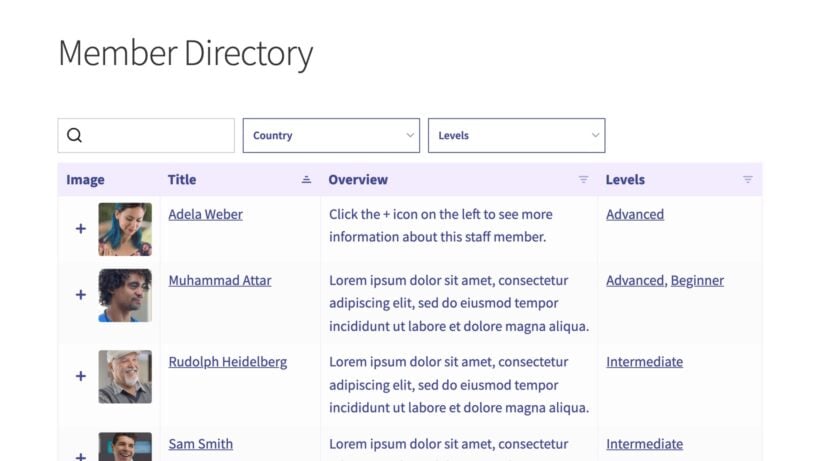
SuperConnection uses Posts Table Pro as a member directory. SuperConnection is a self-improvement training site with an online directory of consultants. The member directory shows each consultant's name and location, with each name linking to a fuller profile.

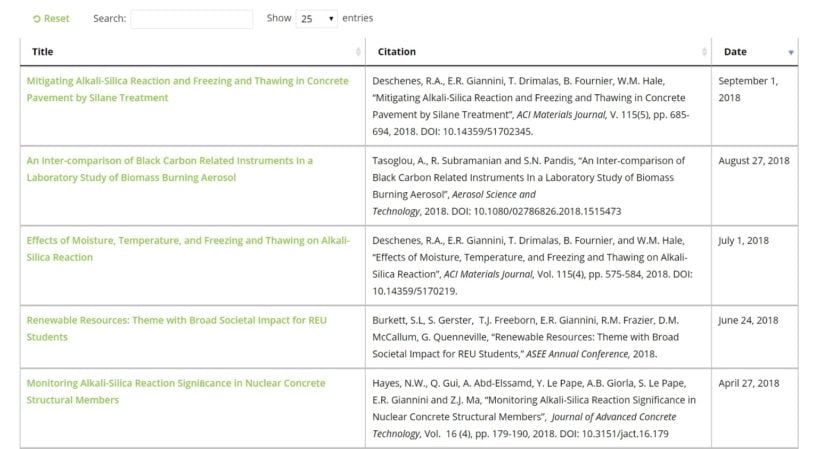
RJ Lee Group uses Posts Table Pro as a publications directory. RJ Lee Group is a forensics laboratory that publishes papers and presentations. To make publications available, they built a document directory with paper titles, full citations, and publication dates. A search bar handles the volume; clicking a title goes to a download page.
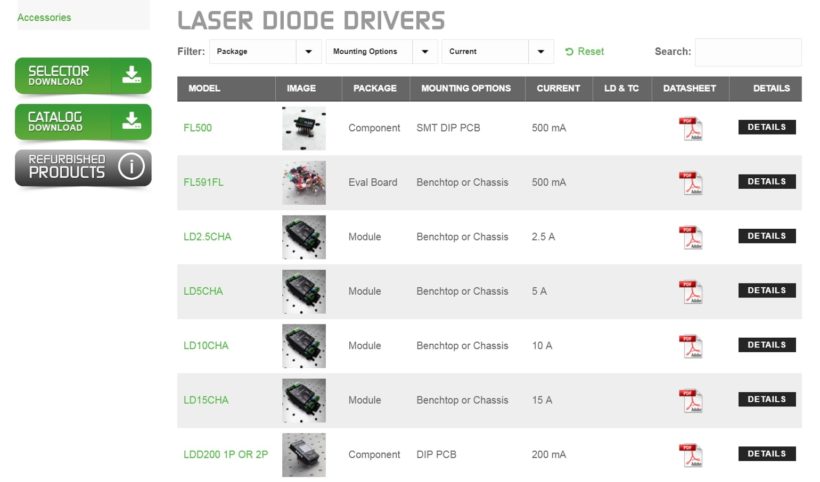
Wavelength Electronics uses Posts Table Pro as a product directory. Wavelength Electronics uses Posts Table Pro for a full product directory with images, technical datasheet downloads, and filter controls above the table. It powers product comparisons directly from the directory.
Pros:
- Works with any post type, so the directory matches your content exactly.
- AJAX search, sort, and filter on every column.
- Multi-select filters with match counts, plus shareable URLs so visitors can bookmark a filtered view of the directory.
- Pairs with Easy Post Types and Fields for custom fields and taxonomies.
- Pairs with Gravity Forms for frontend submissions and paid listings.
Cons:
- You can begin with the free Posts Data Table plugin, though directories built on custom post types need Posts Table Pro.
- Not a turnkey builder, you compose the directory rather than picking from templates.
Best for: custom directories built from your own post types, especially when no dedicated builder fits the shape of your content.
3. HivePress
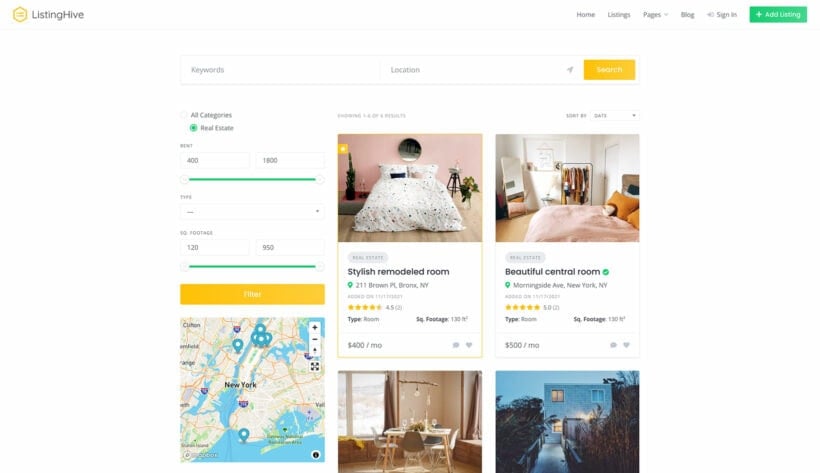
HivePress is one of the best free dedicated WordPress directory plugins. It's open source and lets you create directory websites with a clean user interface and good customization options.
HivePress is well suited to directories for businesses, services, products, and job listings, and adapts well to niche-specific cases like real estate or car dealerships. You can create custom fields for listings and choose from a range of templates to display them.
The plugin pairs well with the free ListingHive theme for the smoothest setup, but it works with any theme if you have specific branding requirements.
Pros:
- Free and open source.
- Clean, user-friendly listing interface.
- Custom fields and listing templates.
- Works for business, service, product, and job directories.
Cons:
- Best results come from pairing it with its companion theme.
- Advanced features rely on paid extensions.
Best for: sites that want a dedicated directory builder for free.
4. aDirectory

aDirectory is a flexible free WordPress directory plugin built for business directories and classified-ad listings. It scales well, so the same install can manage businesses, services, and products in separate directories on a single site.
The Quick Directory Builder is the standout feature. Monetization is built in. The multi-post-type feature lets you run separate directories for business, classifieds, events, jobs, and more from one install. There's also native mobile app support to extend the directory beyond the web.
aDirectory is available free at WordPress.org and works best with its dedicated themes and add-ons, though you can use any WordPress theme.
Pros:
- Free with monetization options out of the box.
- Multi-directory and multi-post-type support.
- A companion mobile app extends the directory beyond the web.
Cons:
- Best paired with its own themes and add-ons.
- Newer ecosystem than the long-established builders.
Best for: sites running multiple directory types in one place.
5. Classified Listing

Classified Listing is a powerful WordPress directory plugin with an AI-assisted form builder. It builds custom multi-directory forms based on what you describe, so setup is quicker than with manual field-by-field configuration.
Monetization works through Top, Featured, and Bump Up ads. You can also turn the directory into a marketplace and charge a commission from sellers when they make sales using the Store and Membership addon. The plugin is compatible with Elementor and Gutenberg.
Pros:
- AI-assisted form builder shortens setup.
- Strong monetization and marketplace features.
- Compatible with both Elementor and Gutenberg.
- Free and pro versions available.
Cons:
- Marketplace mode adds complexity if you only want a simple directory.
- Best features sit in the pro version.
Best for: classified-ad sites and marketplaces with paid listings.
6. Business Directory Plugin
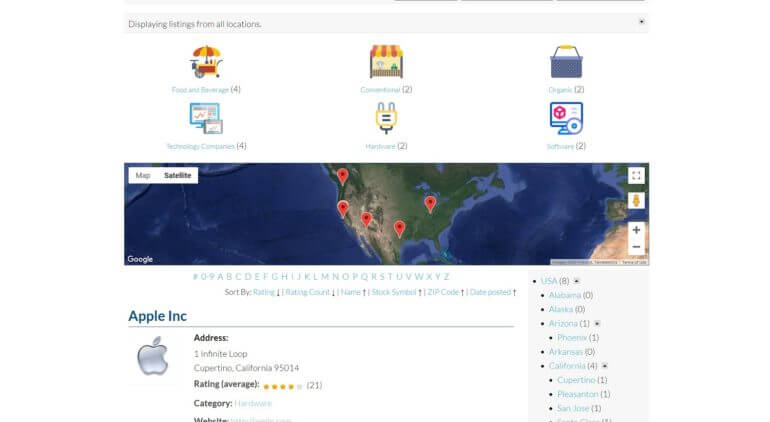
As the name suggests, Business Directory Plugin is a popular Yellow Pages-style directory builder. It includes review support, so you can lean toward a Yelp-style directory if you want.
The paid version adds location filters and a Google Maps module for displaying listings on a map. You can build a frontend submission form and take payment via PayPal or Stripe.
The free version on WordPress.org is limited, but the most useful functionality sits in premium extensions. The premium plan starts at $199.99 for a single site, which is on the higher end of this list.
Pros:
- Yellow Pages-style fit, with optional Yelp-style reviews.
- Google Maps and location filters in the premium version.
- Frontend submission with PayPal or Stripe.
Cons:
- Free version is heavily limited.
- Higher entry price than several alternatives.
Best for: traditional Yellow Pages and Yelp-style local directories.
7. GeoDirectory
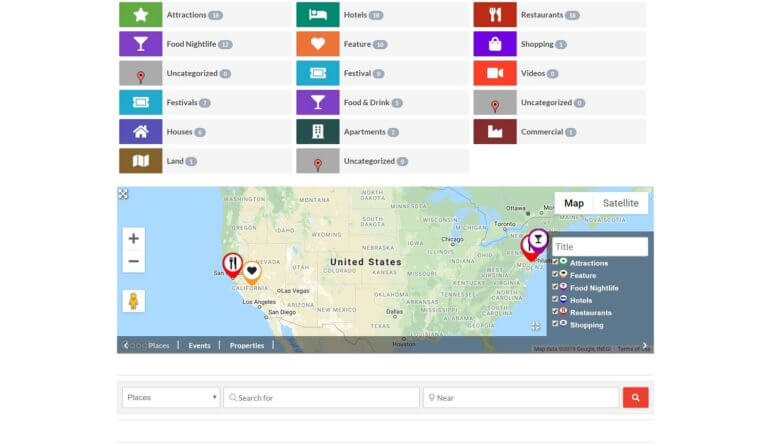
GeoDirectory is built for local business directories with maps. It focuses on physical listings, which makes it a strong business directory plugin but less suited to directories of people or non-tangible items.
The free version covers a single location. The premium version adds multi-location support, so visitors can search by zip code or proximity as well as by keyword. You can let users submit reviews for a Yelp-style directory, and add a frontend submission form with a drag-and-drop builder. A built-in CSV importer handles bulk imports.
If you want to charge for listings, the premium version lets you add prices and accept payment via PayPal or Stripe. Full premium access is $199 per year.
Pros:
- Built for local business with proximity search and Google Maps.
- Multi-location support in the premium version.
- CSV import for bulk listings.
Cons:
- Focused on physical locations, not a fit for people or content directories.
- Premium pricing is at the higher end of this list.
Best for: local business directories that need maps and proximity search.
8. ProfilePress

ProfilePress is a modern WordPress membership plugin with a strong member directory feature. It lists registered users on the front end of your site with a drag-and-drop builder for selecting which profile fields appear.
You also get pre-made templates to set up a member directory page quickly, sort and filter settings, a user search form, and pagination for large directories.
It's free on WordPress.org, with documentation and videos to get you started.
Pros:
- Drag-and-drop builder for member directories.
- Pre-made templates and a user search form.
- A free version is available on wordpress.org.
Cons:
- Designed for member directories, not general business directories.
- Some features need the premium membership plugin features.
Best for: membership sites and people directories.
9. Formidable Directory

Formidable Directory is built on Formidable Forms, the long-running form-building plugin. People started using Formidable's form-to-website features to build directories, and Formidable Directory packages that into an automated builder.
It comes in three formats: business, employee, and user, each with a quick-start wizard. You can create paid or free listings with all the major payment gateways and adjust the submission form with the drag-and-drop builder. If the included formats don't fit, the Views feature lets you turn form data into any kind of front-end display.
Formidable Directory starts at $298/year, which includes the entire Formidable Forms plugin.
Pros:
- Three ready-made directory formats with quick-start wizards.
- Bundled with the full Formidable Forms plugin.
- The submission flow is form-driven from end to end.
Cons:
- It's premium-only with no free tier.
- Form-first approach is heavier than picking a dedicated directory builder.
Best for: sites already using Formidable Forms, or directories built around form submissions.
10. Sabai Directory
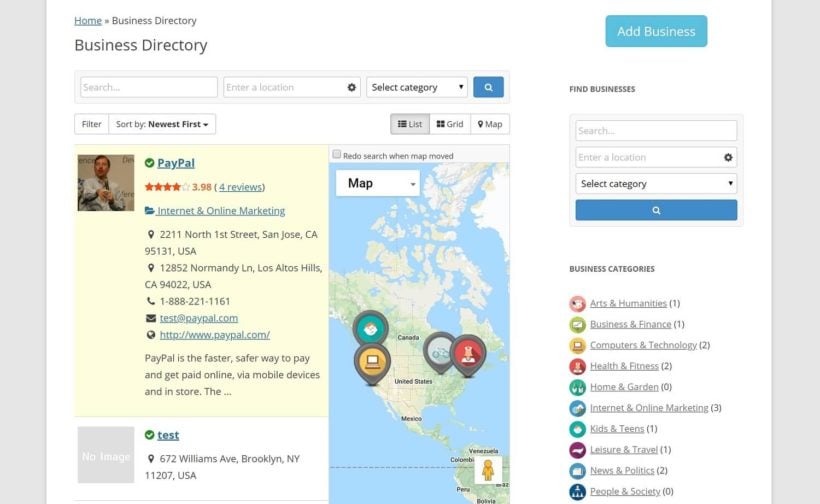
Sabai Directory is a budget WordPress directory plugin sold through CodeCanyon. It's affordable but less flexible than Posts Table Pro or the other more customizable options.
Built-in multi-location support and reviews make it a reasonable pick for a geodirectory or Yelp clone. Users can search by location and you can show listings on Google Maps. Frontend submission with PayPal, Stripe, and other payment gateways is supported, and a CSV import helps with bulk loading.
Pros:
- Affordable one-off CodeCanyon purchase.
- Built-in multi-location support and reviews.
- CSV import for bulk listings.
Cons:
- Less flexible than the more customizable plugins on this list.
- CodeCanyon distribution means slower update cycles than direct vendors.
Best for: budget local directories with reviews and maps.
11. Directories Pro
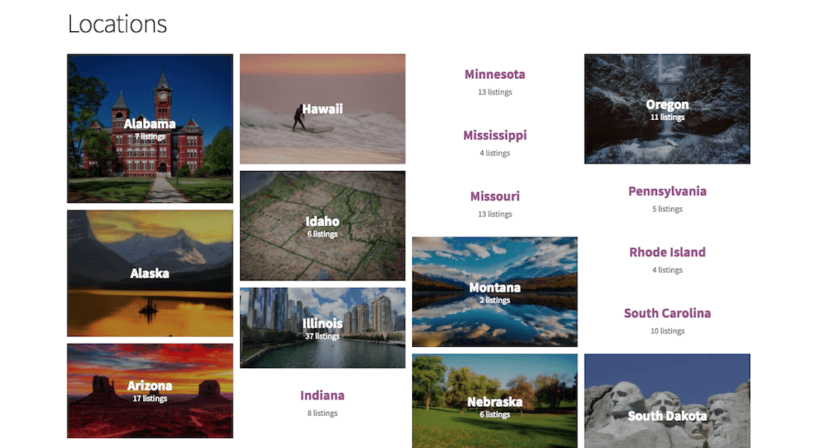
Directories Pro is a feature-rich plugin that covers most of the key directory needs in a single package. It's by the same team as Sabai Directory but built on custom post types and taxonomies, so managing fields, tags, geolocations, and reviews is more flexible.
You can charge for featured listings using WooCommerce payment gateways and let business owners "claim" their listings to verify and edit them.
The plugin is focused on functionality rather than styling, which makes it a strong pick if you want a well-built directory without spending time on visual customization. There's no multisite license, so each site needs its own license starting at $51.75/year on a Regular License, or $258.75 for Extended.
Pros:
- Built on custom post types and taxonomies for flexibility.
- Listing claim flow for business owners.
- WooCommerce-based payment for featured listings.
Cons:
- Function-focused, with less polished styling out of the box.
- There's no multisite license, so each install needs its own key.
Best for: sites that want a comprehensive directory in one purchase.
How to build a WordPress directory with Posts Table Pro (in 4 steps)
You'll notice this is the only plugin with a full tutorial. That's because Posts Table Pro isn't a dedicated directory builder. Where the plugins above ship with directory templates and frameworks, Posts Table Pro gives you a flexible canvas. It needs a bit more setup, but it lets you build essentially any type of directory you can think of.
If you went with Posts Table Pro for a custom directory, here's the build process. The same four steps apply whether you're putting together a database, a directory of products, or a listing of staff members.
Step 1: Install and activate the plugin
Purchase Posts Table Pro and download the zip from your account.
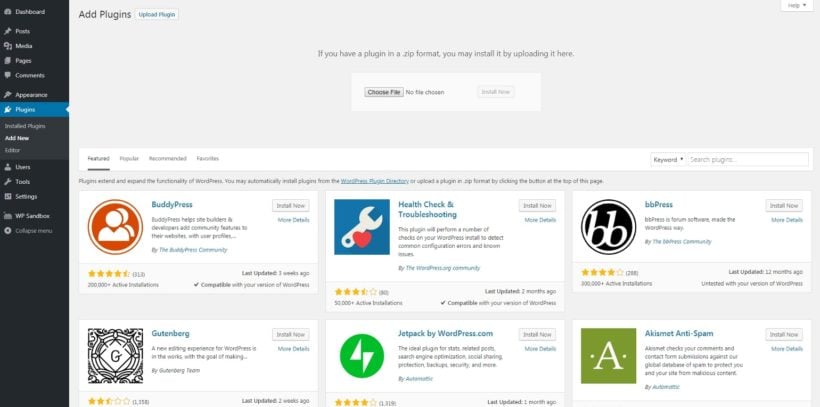
In your WordPress dashboard, go to Plugins → Add New, click Upload Plugin, choose the zip, and hit Install Now. Activate the plugin.

The setup wizard opens automatically and guides you through entering your license key.
Step 2: Customize the plugin's settings
The setup wizard walks you through your first table. You can also create new tables anytime by going to Post Tables → Add New.
Give your table a name and choose the post type to display. If your content type doesn't exist yet, create one with the free Easy Post Types and Fields plugin.
Choose your posts
On the posts page, you choose from posts, pages, or custom post types. Custom taxonomies appear too.
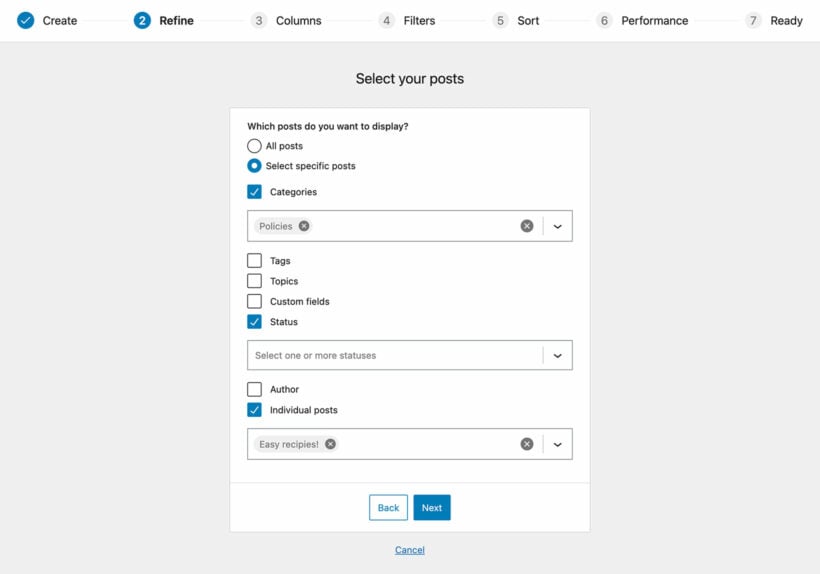
If you only need a few pieces of information, posts or pages work fine. To keep directory listings separate from your blog posts, create a custom post type.
Customize your columns
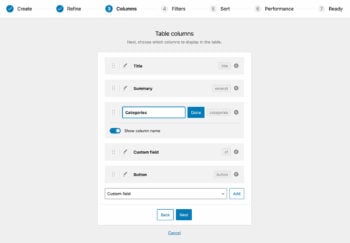
Pick which columns appear and in what order. For a book directory, that might be image, title, summary, country, phone, and reading level.
To add a column, choose the type from the dropdown and click Add. Drag to reorder, click the pencil to rename, toggle the heading off if you want, or click the X to remove.
Make your directory easy to navigate
Scroll down for the rest of the options. You can add filters and choose how the table sorts, and the table loads one page at a time so large directories stay fast.
I'd suggest checking out the filters option for any directory with more than a handful of entries.
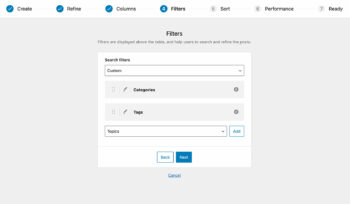
Filters appear as dropdown menus above the table. The options come from the taxonomies on the selected post type. Standard blog posts get categories and tags filters; other post types get their custom taxonomies.
The full options reference covers everything else.
Step 3: Create the individual directory entries
Add one piece of content per directory entry. For simple directories you can use regular WordPress posts. The title and description fields cover the name and bio for a staff member, for example.
For more detail, install the free Easy Post Types and Fields plugin. It adds custom fields and taxonomies to your posts so you can supplement each entry with whatever you need.
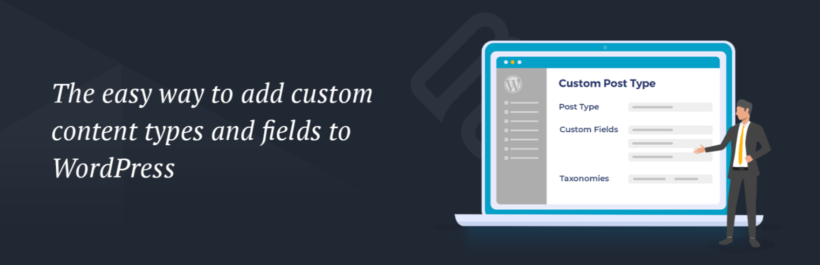
If you use posts for blog content too, create a custom post type for your directory entries so they don't mix.
After creating the custom post type, go back to the Posts Table Pro settings and select your new content type. Then add an individual post for each entry.
Step 4: Add the directory to your website
Display the directory using the Post Table block in the Gutenberg editor, or by copying the shortcode from the table builder and pasting it anywhere on your site.
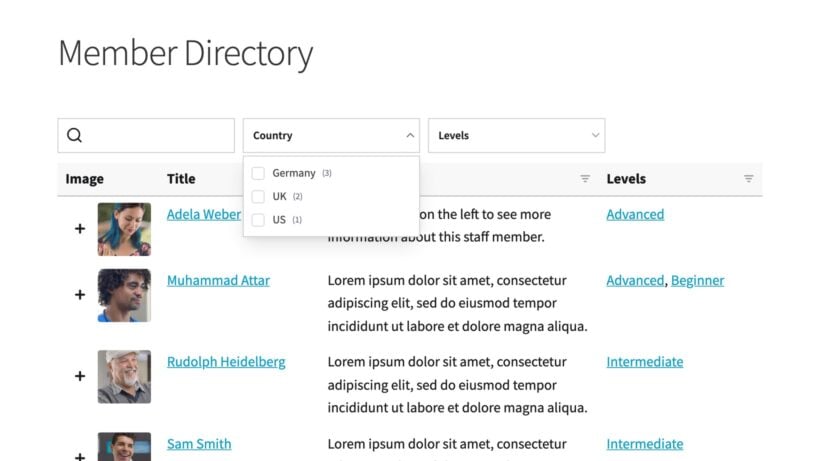
Add a heading and any context above the table, then publish the page.
Once your directory is ready to go live, choosing reliable VPS hosting can help ensure you have the resources and performance needed to keep your WordPress site running smoothly.
How to accept frontend directory submissions (including paid listings)
The steps above cover building a directory you add to yourself. For user-submitted listings, the simplest WordPress option is Gravity Forms with a few add-ons:
- The Gravity Forms + Custom Post Types extension adds form submissions to your directory's custom post type. You can hold new listings for moderation.
- The Gravity Forms PayPal addon takes payment before a listing goes live. Gravity Forms also supports Stripe, 2Checkout, Authorize.net, and other gateways.
Email notifications and customizable form fields are built in. Our full tutorial walks through the setup.
Frequently asked questions
Is there a free WordPress directory plugin?
Yes. Several directory plugins offer a free version, including options covered in this guide. Free tiers usually limit listing fields, filtering, or the number of entries, so they suit small directories or testing before you commit to a paid plan.
What is the best WordPress directory plugin?
There is no single best plugin. Dedicated frameworks suit business and member directories with listing forms and maps. A table-based plugin like Posts Table Pro suits directories built from existing content, where you want sortable, filterable listings without a separate listings system.
Can I build a business directory in WordPress?
Yes. A business directory needs listing fields, search, and filtering. A dedicated directory plugin gives you a ready-made framework, while a table-based plugin lets you build a business directory from a custom post type and display it as a searchable table.
How do I add search and filters to a WordPress directory?
Most directory plugins include search and filters as core features. With a table-based plugin, you enable a search box and filter dropdowns above the directory table so visitors can narrow listings by category, location, or any custom field.
Which WordPress directory plugin should you choose?
The right WordPress directory plugin is the one that matches the shape of your directory.
- For a general dedicated directory builder with monetization, choose Directorist.
- For a custom directory built from your own post types, choose Posts Table Pro.
- For a free dedicated builder, choose HivePress.
- For a multi-directory site with mobile app support, choose aDirectory.
- For classified ads and marketplaces with AI-assisted setup, choose Classified Listing.
- For Yellow Pages or Yelp-style local business directories, choose Business Directory Plugin or GeoDirectory if you need maps and proximity search.
- For member directories on a membership site, choose ProfilePress.
- For form-driven business, employee, or user directories, choose Formidable Directory.
If you're stuck choosing between two, install the free version of each on a staging site, drop in 10 to 20 real listings, and see which one feels easier to manage. The right plugin is usually the one that gets out of your way fastest.
18 Comments
Thanks for the write up! I've never heard of Post tables pro, I'm gonna have to buy it and check it out.
Currently using simple link directory but its cumbersome and is getting on my nerves. Glad I came across your article. Thanks man.
Hi, Ricky. Thanks for your comment - and for checking out Posts Table Pro! I'm glad you found this helpful, and hope all goes well with the switch. Should you have any questions, just let us know. You can get in touch via our dedicated Support Center. Cheers.
Thanks for putting this together. I’ve attempted to use a few different directory plugins, but I currently use aDirectory. I kinda like how so far it organizes my listings without too much fuss. This type of comparison really helps me better understand the decisions.
Hi Steve! Thanks so much for your feedback! I’m glad to hear the comparison was helpful and that aDirectory has been working well for you. It’s always interesting to hear which plugins people find the right fit for their setup.
Best of luck with your listings!
Thanks, its simple and clear to understand. I plan to make a directory for SEO freelancer. Its very useful
You're very welcome! I'm glad you found it clear and helpful. A directory for SEO freelancers sounds like a great idea—best of luck with the project, and feel free to reach out if you need any tips along the way!
Hey,
Thanks for the article, but somehow you missed aDirectory plugin, one of the fastest-growing directory plugins in WordPress. I have been using it for around 6 months. I think it would be great and your audience will get a value if you list in the article.
Hi Barron. Thanks for the suggestion! We'll definitely take a look at aDirectory and consider adding it in a future update to the article. Appreciate you sharing your experience!
Nice article! Is anyone else here using the Listdom directory plugin? I've found the map integration particularly useful for location-based directories.
Hi, Lisa. Thanks for the info about the Listdom directory plugin that you're using. I hope other readers might find it helpful for their location-based directory requirements.
I wonder if you might include the WordPress plugin “WP Directory Kit” in your list.
It has great “custom fields” and "visual editing in elementor" features that I haven’t noticed in other plugins.
Thank you very much.
Hi, Luigi. Thanks for the suggestion! I'm relaying the WP Directory Kit plugin that you mentioned to our team for review.
Are there any directories that are set up for businesses that have service areas of all different sizes?
Hi Melissa! Thanks for your comment. All directories are created by WordPress plugins so there's really no limit to the service area or size. If you have any questions about any of our plugins, you can reach us through our support center for best assistance. Cheers.
Hi I m developing a website and I am using the Profile builder Pro plugin to create the login register form etc in WordPress.
Is the Posts table pro compatible with the Profile builder plugin in wordpress? Or in other words CAN the Posts table pro draw imputed user data from the registration form to form the sortable table. For example I would need to sort members by their postcode, by their declared income as well as other criteria which they have filled into the registration form.
Thank You
Hi, Michael. Posts Table Pro pulls/draws data for the posts or custom post types of your WordPress site directly from the database and displays the exact values in columns of a dynamic table that you can filter, sort, and search. We haven't tested the plugin you mention with ours, but if it stores the form data to a custom post type on your site, then yes you can display the same in a posts table. Also, you can test this out on your site risk-free, as we have a 30-day money-back guarantee. This lets you buy the plugin and try it for up to a month, and get a full refund if you’re unhappy with it or if it doesn't suit your needs. Thanks!
Hello, a few questions for you here.
1. Is there an option for people to claim/manage their own listings? i.e. create an account/dashboard where these can be managed?
2. Is there an option to submit listings via a paid subscription-type service?
Thanks
Hi Austin
1. We've provided a separate tutorial on how your users can add their own listings. Unfortunately it's not possible for them to edit the listings after uploading them - you might need to do that as a custom development.
2. Yes, you can modify the instructions in the tutorial that I linked to in point 1 as follows - install WooCommerce and the WooCommerce Subscriptions extension to create a 'Listing' product. Use the Follow-Ups extension to automatically email everyone who buys the Listing product. This email should contain a link to the hidden page where you've added the 'Submit Listing' form so that they can submit their listing after paying.