A WordPress services list lets customers choose and buy your services online, just like they already buy products. It is also easier to set up than many service businesses expect.
Selling a service online means listing it and taking payment on your site, then carrying out the work afterwards. WordPress does not do that on its own, so you need a clear way to publish services and accept orders.
I'm going to show you how to create a WordPress services list and sell service products with either WooCommerce or Easy Digital Downloads. You'll see how to charge a fixed one-off price, by the hour or day, or with recurring subscription payments.
What is a WordPress services list?
A service is work you do for a customer. You might provide it face-to-face, online or through your staff. The important point is that you or your team are personally involved in delivering the service. If the work becomes fully automated, then it becomes a product instead.
With this in mind, you might be wondering how to add a WordPress services list to your website. After all, a service is carried out manually and not online!
The answer is that you can create a WordPress services list by separating the sales and provision of the service. Services can be listed and sold online in a similar way to products. The difference is that once a customer has ordered a service online, you will carry out work for them manually instead of posting them a product. So you sell the service online, and carry it out in real life.
And of course, these days you can productize and automate services, too! For example, you might sell software-as-a-service (SAAS) on your website. The instructions in this article will work whether you carry out services manually or automatically. Either way, you'll learn how to create a WordPress services list with options and 'Buy' buttons.
How listing services in WordPress works
First, the customer visits your website and views WordPress services list This might be a simple list of one or more services, or you might provide variation options. You might sell one-off services for a fixed price, or charge by the hour. Perhaps you'll generate recurring revenue by selling subscriptions to your services? You might have a dedicated page for ordering service, or your WordPress services list might appear in an ecommerce order form directly on the pages describing your services.
Second, the customer orders the service directly from the WordPress services listThey choose any options from the WordPress services list and add the service to the cart. They then view the cart and checkout, including paying online with credit card/debit card or PayPal checkout. The customer receives a 'Thank you for your order' email, and you receive an email with the order information. You can use this option with either WooCommerce or Easy Digital Downloads, and I'll show you how to do this later.
Finally, you contact the customer to arrange to provide the service This can be done outside of your WordPress website, or automatically depending on your setup. Either way, it will fit nicely into your usual working processes.
Do I need an ecommerce plugin to create a WordPress services list?
If you want to keep it really simple, then you might want a WordPress services list without the ecommerce side of things. However, you'd be missing out on many advantages of using ecommerce to sell services online.
Benefits of adding ecommerce to your list of services
Online payment for services By using a WordPress ecommerce plugin such as Easy Digital Downloads or WooCommerce, you can sell services and take payment online. There's a choice of payment gateways such as PayPal and Stripe. This saves you time compared to collecting payment offline and chasing invoices. It's also better for your service business' cash flow because customers pay upfront, before you provide the service.
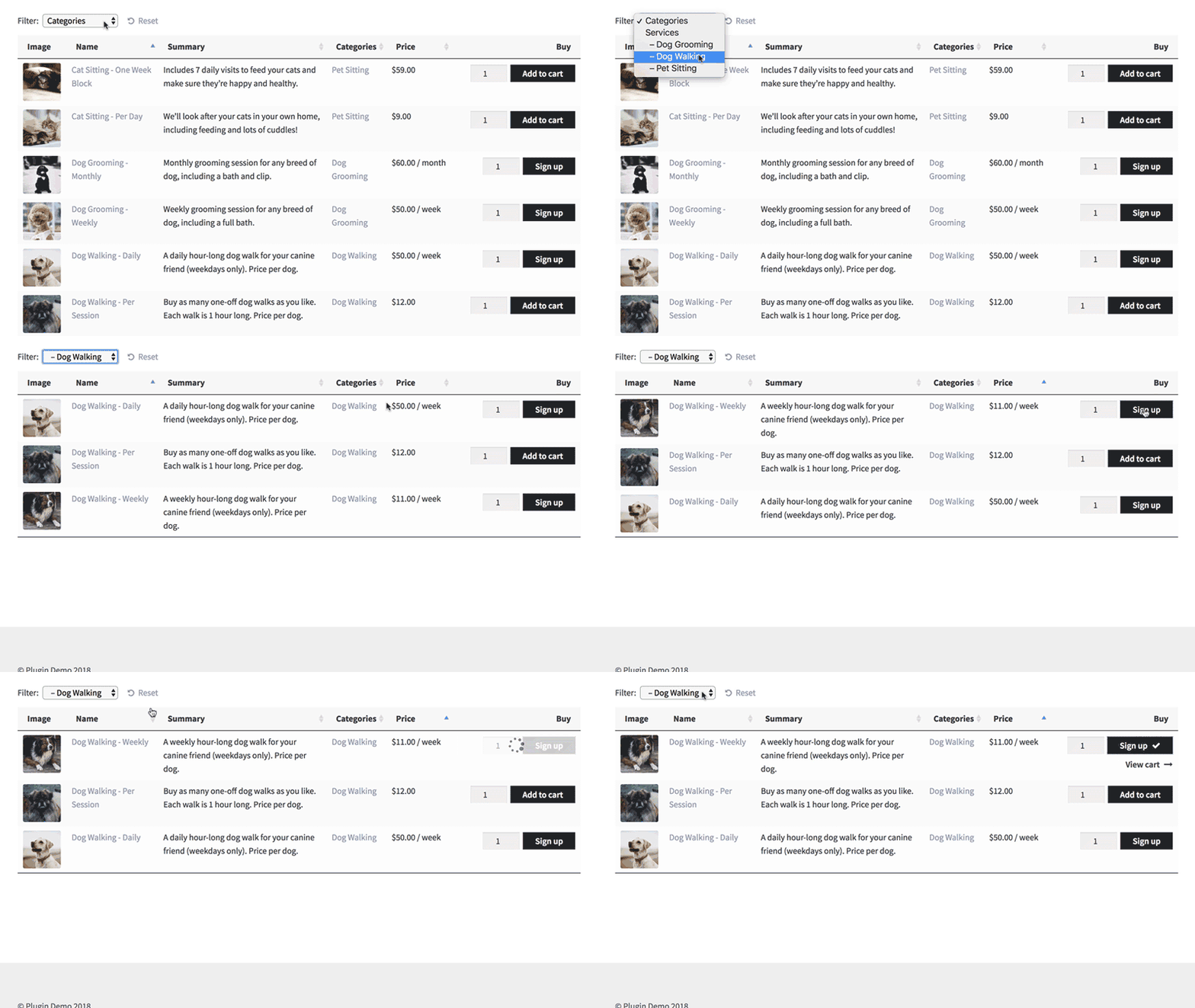
List services more effectively When we get to the ecommerce section of this tutorial, I'll show you how to list services in a searchable pricing table with filters, buy buttons and extra information. This is vital if you're listing more than a couple of services.
Easier to upsellWordPress ecommerce plugins come with options to sell more services through up-selling and cross-selling. This can involve advertising one service on the sales page for another service. Or it can involve adding optional extras to encourage each customer to buy more. Either way, it's easier to do this if you link your WordPress services list with WooCommerce or Easy Digital Downloads.
Built-in recording and invoicing With a simple service order form that doesn't use ecommerce, your sales aren't recorded anywhere. You have to maintain manual records about the services provided. In contrast, an ecommerce plugin keeps records of all your sales and sends invoices or payment receipts. This saves you admin time. To save even more time, there are even WooCommerce and Easy Digital Downloads extensions to automatically send data to accounting software such as Xero and QuickBooks.
Reporting Ecommerce plugins come with embedded analytics and reporting. You can see statistics on who has bought your services and which are selling best, directly in the WordPress Dashboard. This helps you to make your service business more successful, making ongoing improvements over time.
Offer appointments more efficientlyIf you're selling bookable appointments, you can save time and money by selling these services through WordPress. The ease of use should also drive more sales for you.
Some examples: Service products you can sell online
Before we start with the setup instructions, I'll share some examples of services that you can sell online. You can sell any type of service in WordPress, for example:
Professional services - architecture, conveyancing, document preparation and review, legal services, real estate advice, medical and will writing.
Expert services - online business, copywriting, CV writing and resumes, career development, coaching, consulting, lifestyle, life coaching, love and relationships, marketing, photography, search engine optimization (SEO), social media and web analytics.
As well as selling your time, you can package services into specific 'products' which people can select and order from you, such as website technical support, online training sessions or coaching webinars. For example, we had one web design client who used his WordPress website to sell remote video advice sessions. If you're a blogger or freelance writer, you might be interested in selling blogging services.
For example, Amazon lets people sell professional services (such as assembling and installing products) through their site. Similarly, Fiverr is an online marketplace for freelance services.
What a WordPress services list looks like
Whatever services you sell, the next question is how they appear on the page. In a standard WordPress store layout, each service gets its own page with a large photo. As a result, someone who wants two services clicks back and forth to order.
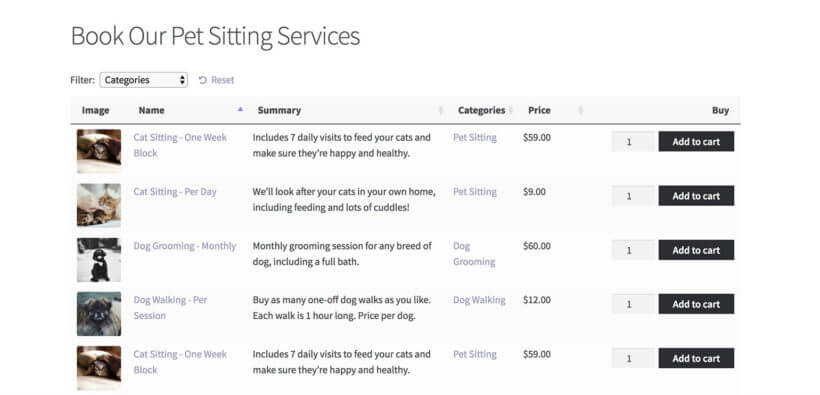
The alternative is a one page order form with every service on one page. Each row shows what is included, duration, price, a quantity box and an add to cart button. For example, a customer can book a dog walk and a grooming session in one basket without leaving the page.
That layout fits services because buyers compare what is included, how long it takes and what it costs. You can make it with our WooCommerce Product Table plugin. Next, you will choose between WooCommerce and Easy Digital Downloads, then build the table later in the article.
Which ecommerce plugin is best for selling services in WordPress?
There are two main ecommerce plugins which are perfect for creating a WordPress services order form:
WooCommerce is the world's leading ecommerce plugin, powering over 44% of all online stores. While it does let you sell physical products, it also comes with virtual products that are perfect for selling WooCommerce services.
Easy Digital Downloads is popular for selling virtual and digital products in WordPress. It's generally used to sell downloadable products such as WordPress plugins or ebooks. It's also ideal for selling services in Easy Digital Downloads.
Even better, both WooCommerce and Easy Digital Downloads are free WordPress plugins. I'll recommend some paid add-ons that will help you to sell services more effectively. However, the core ecommerce plugins are free of charge.
Choosing an ecommerce plugin for selling services online
Like I said, WooCommerce and Easy Digital Downloads are both good options for selling services in WordPress. So which one should you use?
Easy Digital Downloads only handles virtual products, so it stays simple behind the scenes. WooCommerce can also sell physical products, but that is not a drawback for service businesses. When you turn shipping off, those settings disappear and the WordPress admin stays simple.
There are a few reasons to choose WooCommerce over Easy Digital Downloads:
If there's any chance that you might sell physical products and need to charge postage one day, then you should definitely choose WooCommerce. This simply isn't possible with Easy Digital Downloads.
It's also slightly easier to use WooCommerce to display the WordPress services list in a table. I'll show you how to do this with both plugins in the next sections. However, there's one extra step with Easy Digital Downloads that happens automatically with WooCommerce.
If you sell bookable products for a specific date or time slot, such as an appointment or session, then WooCommerce is the only realistic choice. Easy Digital Downloads has no booking extension.
If you want to sell your time based on the number of hours or days, instead of charging a set price for each service, then WooCommerce is best.
You can use plugins like Woo Sell Services to easily sell services with WooCommerce.
If any of these points apply to you, then I'd recommend selling services in WooCommerce rather than EDD. Otherwise, they're both excellent options and you should read about each one to choose which is best for selling your services.
Tutorial 1: How to sell services with WooCommerce
1. First, set up WooCommerce
In the WordPress admin, go to Plugins → Add New and search for 'WooCommerce'.
Install the main WooCommerce plugin and activate it.
After you activate WooCommerce, you'll be invited to run the Setup Wizard. Do this, and choose your store currency, tax settings, etc. When it asks "Will you be shipping products?", do not tick this box. You're selling services, so you won't need the shipping settings.
On the payment gateways page, enter the email address that you use to log into PayPal to accept PayPal payments for services. I recommend Stripe for credit card and debit card payments (you'll need a Stripe.com account for this). Ideally, add your PayPal and Stripe account so that customers can choose how to pay for your services. If you want to give your customer base a 'Pay Later' option of paying manually offline too, choose the 'Check' payment option. You can then change the wording for this payment gateway as needed. (Tip - it doesn't need to say 'Check' at all - this is just a handy way of creating an offline payment method in WooCommerce.)
At the end of the Setup Wizard, click the button to Create Your First Product.
For more in-depth tutorials on setting up WooCommerce, check out these guides.
2. Add service products to WooCommerce
You'll be taken to the Add Product screen. This is where you'll add the first service to sell in WooCommerce.
Add a product title and description, plus categories and tags as required. Also upload a product image if you like, although this isn't essential for selling services with WooCommerce.
Use the 'Inventory' tab to limit the number of each service that people can buy from you in WooCommerce. This is useful if you have limited capacity. There's also a box that you can tick to prevent customers from buying more than one of each service.
Click 'Publish'.
Go to Products → Add New and repeat these steps for each service that you want to sell in WooCommerce.
3. Create a WordPress services list of your WooCommerce products
Next, we need to display your service products on the front end of your website. This is essential so that people can view your services in WooCommerce and buy them online.
WooCommerce comes with some built-in layouts for displaying products. Unfortunately, these aren't at all suitable for selling services. You don't want your service website to look like a clothes shop!
Instead, you need to showcase your list of services in WordPress in a professional-looking table layout. You can do this using the WooCommerce Product Table plugin. Once you've added your services as WooCommerce products, the Product Table plugin will automatically list them in a user-friendly table layout.
Why is a table good for listing services in WordPress?
Services sell better in a WooCommerce table because:
This layout prioritizes information rather than images. (You can include a small thumbnail picture if you like.)
If you have lots of services, it's easier for customers to find the services they need via built-in filters and keyword search box. Customers can view prices, choose options and add services to the cart directly from this service pricing table layout. For more information (like testimonials), customers can simply click through to the single page.
The other benefit of displaying WordPress services in a table is that you can insert the table anywhere on your website, without using a website builder.
Many WordPress sites already have a Services page with text that explains what they offer. Add the service product table to that page, so customers can buy without being sent to a separate shop page.
How to show a WordPress services list in a WooCommerce table
Choose the columns shown in the table so customers can compare each service, then use the pencil icon to rename each column heading. Turn on the keyword search box and filters if you have many services, and use the 'Quantity' box only when customers may buy more than one unit of the same service.
Next, create a page where you want to create a list of services in WordPress. Alternatively, edit an existing page on your website. For example, you might want to list the service options with prices and buy buttons directly on a page which already describes your services.
Either copy a shortcode from the final page of the table builder and insert it into a page. Alternatively, add the 'Product Table' Gutenberg block and select your table.
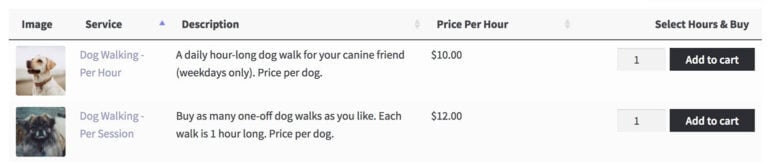
Your finished table of services might look something like this:
4. Use product variations to provide a choice of services
In step 2, I told you how to create a simple service product with a fixed price and no options. WooCommerce also supports variable service products.
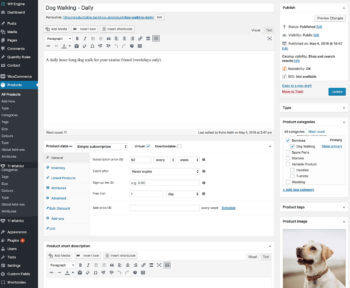
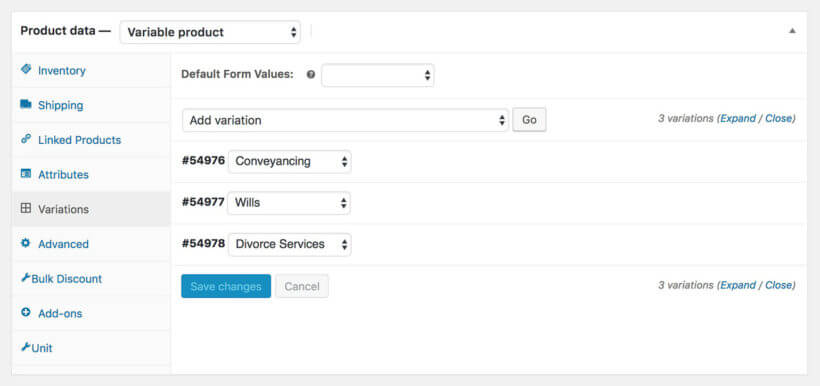
The instructions to create a service with variation options are similar to the ones in section 2, above. However, when you go to the Product Data section, use the Product Type dropdown to select 'Variable Product'. You then need to create attributes on the Attributes tab, and select these to create variations on the Variations tab. For each variation, you need to add a price and tick the 'Virtual' box to use it to sell services.
In this example services list, I created a 'Legal Services' product with a 'Service Type' attribute. I used this to create variations for 'Conveyancing', 'Wills' and 'Divorce Services', each with their own service cost:
If you select variation dropdowns on the WooCommerce Product Table plugin settings page, then the table will list 1 product per row. Each product will have a dropdown so that customers can choose variation options.
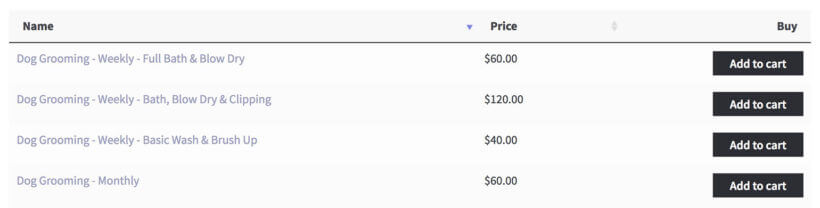
Alternatively, if you selected the separate variations option, then it might look something like this:
WooCommerce Product Table with each service variation on a separate row
Both are good options for selling options from the WordPress services list.
5. Use WooCommerce subscriptions to sell regular ongoing services
So far, we've talked about creating a WordPress WooCommerce services list with a one-off price for each service. This may fit your business model, but most small business owners know that recurring revenue is the holy grail. With this in mind, you might want to sell ongoing subscription services via your WordPress website.
Fortunately, you can do this with the official WooCommerce Subscriptions extension. This will set up an ongoing payment plan or subscription for each service. The customer will be billed automatically at the correct intervals, using their chosen payment gateway.
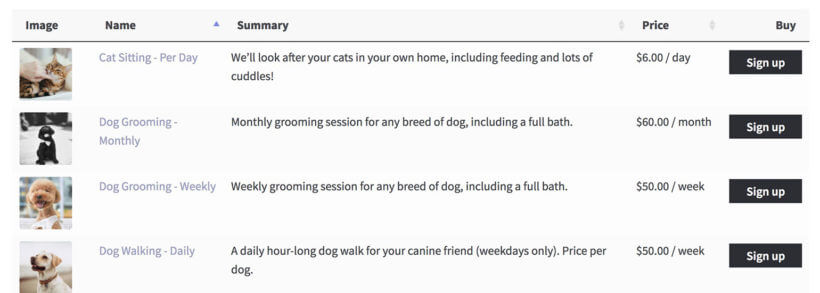
WooCommerce Product Table with Subscription Service Products
First create a subscription on the plugin settings page.
Next, instead of creating a Simple Product, you should select 'Subscription Product' from the 'Product Type' dropdown.
Set an ongoing cost for your service, for example an initial setup fee followed by a regular monthly payment.
Both PayPal and Stripe support recurring subscription payments. This is much better than sending invoices for manual payment each month. No more chasing overdue invoices - it all happens automatically via your WordPress website and WooCommerce!
Please note that WooCommerce Product Table doesn't work with variable subscriptions. To use the plugins together, we recommend adding each subscription option as a separate product. Another option is to add the options as product add-ons instead of variations. The add-on options will appear in the add to cart column of the table of subscription services.
6. Use product add-ons to sell optional extras
Let's say you're selling website maintenance services. You might have created 3 service products: Weekly Maintenance, Fortnightly Maintenance, and Monthly Maintenance. But how can you sell more services to each customer?
The answer is the WooCommerce Product Options extension. This handy plugin lets you add a range of optional extras to your service products in WooCommerce. These appear alongside the add to cart button, offering a powerful incentive for customers to order more from you.
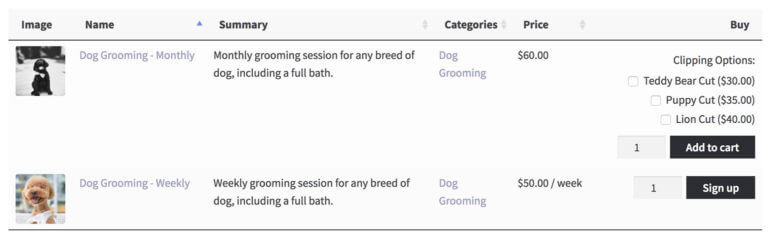
In the following example, I used Product Options to add tick boxes for extra dog grooming service options. As well as ordering a basic dog grooming session, customers can tick boxes to add different types of doggy haircut. The dog grooming products are displayed using the WooCommerce Product Table plugin with Product Options and Subscriptions. As you can see, this is a great way to significantly increase revenue from the same number of customers.
WooCommerce Product Table with the official Product Options plugin
How to sell services by the hour or day
You've learned how to use WooCommerce to sell services for a fixed price. But what if you want to sell your time, rather than a specific service? Luckily, you can do that too.
To sell critical services based on the amount of time, the instructions are similar to the ones I provided above. You'll just need to activate a few extra options when you create your product table:
Tick the 'Quantity' box to display a quantity picker in the buy column for each service.
When you set your product table columns, click on the pencil icon for each column to customize the wording. It needs to be clear that the service is priced by the hour or day.
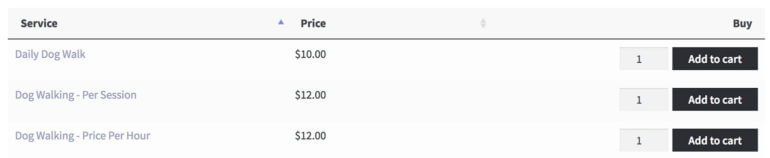
Alternatively, if you're not selling all your services by the hour, then you can just add the unit to the product name. Here's an example of what this might look like when you list WordPress services:
Tip: Use quick view to provide more information
By now, you know how to display a list of services in WordPress in a table layout. Maybe you want to show extra information about each service, but don't want to send people to a separate page for each service. Maybe you have too many variations or add-on options to fit into the table view.
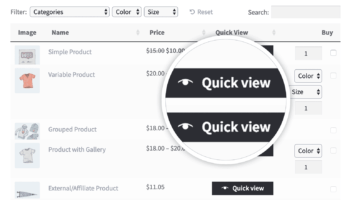
If this applies to you, then you can add the WooCommerce Quick View Pro plugin to show extra information and purchase options from a lightbox window:
Next, I'll reveal how to use Easy Digital Downloads (EDD) to create a WordPress services list. This is similar to WooCommerce, so read about the two ecommerce plugins and choose the one that best suits your needs.
Easy Digital Downloads is nice because it's simple and only contains the features you need to sell virtual products such as services. There's nothing extra to weigh it down, such as shipping options which you don't need for listing services.
However, the downside of EDD is that it's less popular. That's not necessarily a bad thing, but it means that fewer companies have developed useful add-ons and extensions for it. You can use EDD to create your WordPress services list, but you can't add the extra plugins from the WooCommerce section above. There is no Easy Digital Downloads quick view, product add-ons or bookings plugin.
But if EDD is the right ecommerce plugin for your WordPress services list, then this is how to set it up:
1. First, set up Easy Digital Downloads
In the WordPress dashboard, head to Plugins → Add New. Type 'Easy Digital Downloads' into the search box.
Install and activate the plugin.
Navigate to Downloads → Settings and choose the settings that you'll use to sell services with Easy Digital Downloads.
2. Add your services in Easy Digital Downloads
Now it's time to start adding your services as EDD products:
Go to Downloads → Add New.
Add your EDD service product name and description. You can also add categories and tags, plus an image if this will help to promote the service.
Add the service price.
Click Publish.
Repeat these steps for each service that you want to sell using Easy Digital Downloads.
3. Use product variations to provide a choice of services
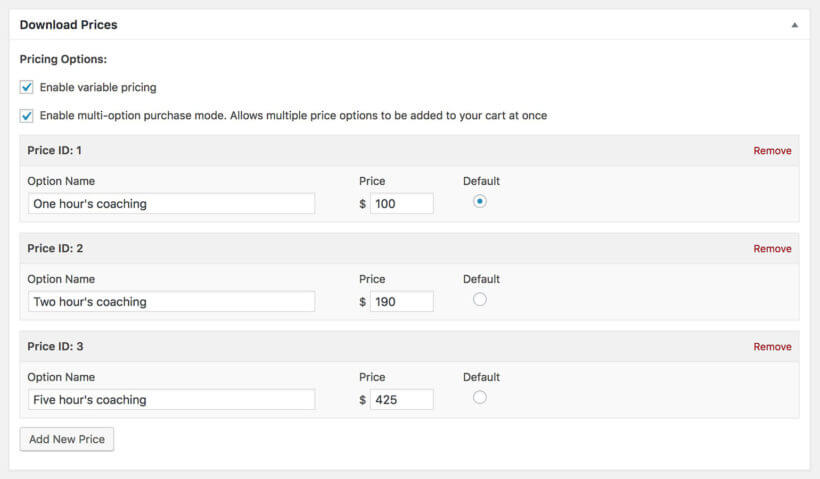
Like WooCommerce, Easy Digital Downloads also comes with a 'Variable Pricing' option. You'll see this when you add the price for your service in EDD. If you want to offer different options for a particular service, tick this box and add all the options. Set a price for each service option.
You can use this to provide quantity discounts to reward customers to buying more services, or for selling different service options at different prices.
4. Create an Easy Digital Downloads WordPress services list
Next, we need to list your services for sale on the front end of your WordPress website.
Like other WordPress ecommerce plugins, the standard Easy Digital Downloads store layouts aren't ideal for selling services. This isn't surprising, because they're mainly designed to sell digital products such as ebooks and WordPress plugins.
You can showcase the WordPress services list more effectively with the Posts Table Pro plugin. This dynamic WordPress table plugin lets you list all sorts of content from your website in a table view. It's particularly popular for creating an Easy Digital Downloads product table.
Customers can view your WordPress services list anywhere on your website, see the price and any other data you choose to display, select options, and add services to the cart. They can then checkout and pay for their services online with Easy Digital Downloads.
How to list services in an Easy Digital Downloads table
Install the Posts Table Pro plugin on your WordPress website and activate it.
Go to Post Tables → Settingsand activate your license key from the order confirmation email.
Follow the instructions in this tutorial to list your EDD service products in a table. You can use Easy Digital Downloads to sell services via any page on your website. Just put the Posts Table Pro shortcode wherever you want to display your WordPress services list.
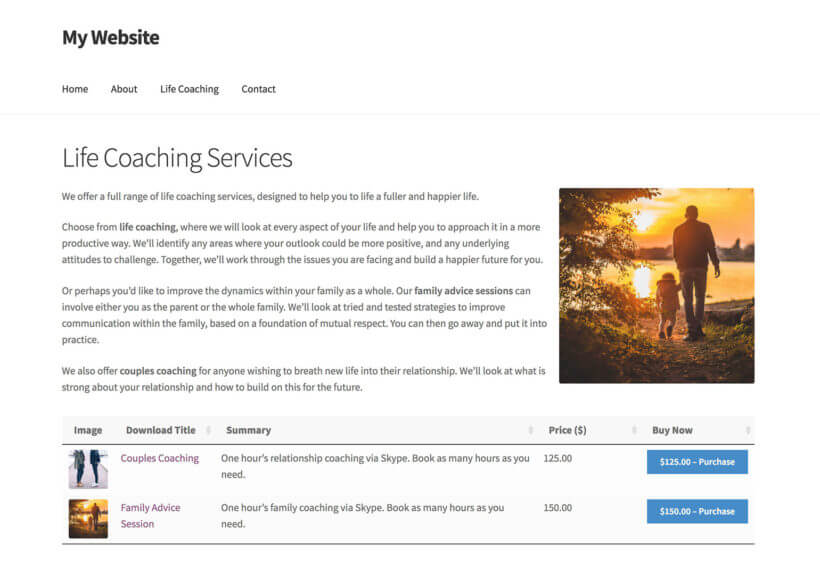
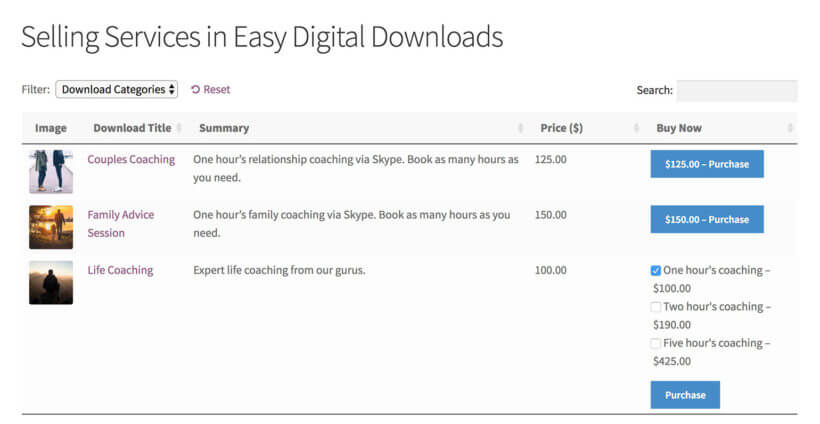
Your finished table of Easy Digital Downloads service products might look similar to this:
5. Sell service subscriptions with Easy Digital Downloads
Finally, you can install the EDD Recurring Payments extension to take regular payments for services. This automates the payment for regular services, so you don't need to worry about taking payment manually.
Start selling services in WordPress!
Even though you carry out services manually, you can save time and get more customers by selling services in WordPress. Use the instructions above to display the WordPress services list and let customers order services online and pay manually, or automate the sales process for your services using WooCommerce or Easy Digital Downloads. Once you've added your list of services to WordPress as ecommerce products, use either WooCommerce Product Table or Posts Table Pro to display them in a user-friendly layout.
Once your services list is live, your next job is to help the right customers find it. You can then build email marketing and wider digital marketing around the services you sell.
If you've used any of the methods in this tutorial to sell and list your services in WordPress, please let me know how you get on. I'd love to add some case studies to this article (which will include a link to your website!). Please add your comments below.
Hi, Teto. Thanks for your comment. I'm glad to hear it's helpful. Yes, you can do this with either WooCommerce or Easy Digital Downloads as described in our article.
We are interested in using Woocommerce with some helpdesk/service ticketing solution to help with our daily operations.
1) Better Customer experience
2) Better field service experience for our techs
3) CRM.... currently done by Quickbooks and phone calls....with 25plus yes of business.
Please have some reach out to me if this is attainable via Woocommerce to Quickbooks..
Hi, Nino. Thanks for your comment and interest in the above. I will get in touch with you directly, so we can discuss your needs in more detail. Cheers.
Very nicely laid out. Appreciate your effort, it helps us.
I was also wondering if there is a feasibility to add employees/ contractors on field to assign to the services and finally have contractor management as well just like customer management or order management.
Hi, Abhishek. Thanks for your comment, I'm glad to hear the info is helpful. Please could you send a message via our dedicated Support Center to describe what you'd like to achieve in more detail so that we can better understand your needs and advise you best.








33 Comments
Very nice article, can I sell social account marketing services too?
Hi, Teto. Thanks for your comment. I'm glad to hear it's helpful. Yes, you can do this with either WooCommerce or Easy Digital Downloads as described in our article.
We are interested in using Woocommerce with some helpdesk/service ticketing solution to help with our daily operations.
1) Better Customer experience
2) Better field service experience for our techs
3) CRM.... currently done by Quickbooks and phone calls....with 25plus yes of business.
Please have some reach out to me if this is attainable via Woocommerce to Quickbooks..
Hi, Nino. Thanks for your comment and interest in the above. I will get in touch with you directly, so we can discuss your needs in more detail. Cheers.
Very nicely laid out. Appreciate your effort, it helps us.
I was also wondering if there is a feasibility to add employees/ contractors on field to assign to the services and finally have contractor management as well just like customer management or order management.
Hi, Abhishek. Thanks for your comment, I'm glad to hear the info is helpful. Please could you send a message via our dedicated Support Center to describe what you'd like to achieve in more detail so that we can better understand your needs and advise you best.