If you’re running an online business selling courses or information products, you’ll want to build some private areas where only your customers or subscribers can access premium content and digital product files. Password and membership protection prove useful in these cases.
However, there is a serious loophole in these protection methods that often result in your digital product files being leaked out.
In this article, we’re going to show you two easy ways to protect both your WordPress content and digital products without any technical knowledge.
Why you should protect WordPress media files
Did you know that even though your website content is protected with a password or membership plugin, the media attachments embedded in those pages are still accessible to anyone who has direct links to those files?
That's because password and membership plugins don’t protect your file uploads - they're designed to protect content instead, such as pages, posts or products. As a consequence, if someone shares these file URLs on other forums and social platforms, others will be able to access them without having to purchase membership or log into your website.
Even worse, Google and other search engines could potentially index these private documents, videos, and images. So people can just find and access them directly through some simple search with the right keywords.
If you're selling courses or digital products then this puts you at risk of losing all your efforts, digital product files, and a lot of money...
2 ways to protect WordPress media attachments
Which option you need depends on where your files are. You can use either of them with plugins such as Password Protected Categories and WooCommerce Protected Categories which let you restrict access to your WordPress pages, posts and custom post types to specific users or roles. They add an extra layer of security by restricting access to the media files which are linked to from your protected pages/posts/products/etc.
The two options are:
Document Library Pro - For documents in a document library, this plugin protects the files itself. You tick one setting and your files move into a private folder that the web server won’t serve.
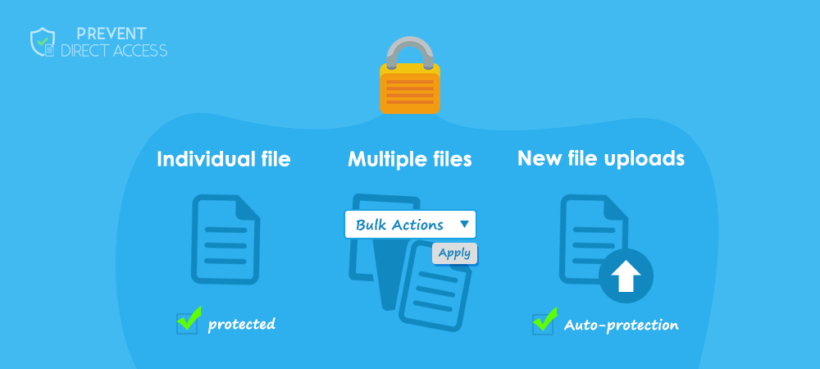
Prevent Direct Access (PDA) Gold - For products, posts, pages or any other post type outside a document library, this plugin provides many different ways to protect your WordPress media files. You can protect new file uploads automatically or on the fly under the WordPress media library. Alternatively, you can protect some specific files when editing a page or post. Instead of protecting each file individually, you can select and protect multiple files simultaneously using WordPress bulk actions under Media list view.
Plugin 1: Document Library Pro
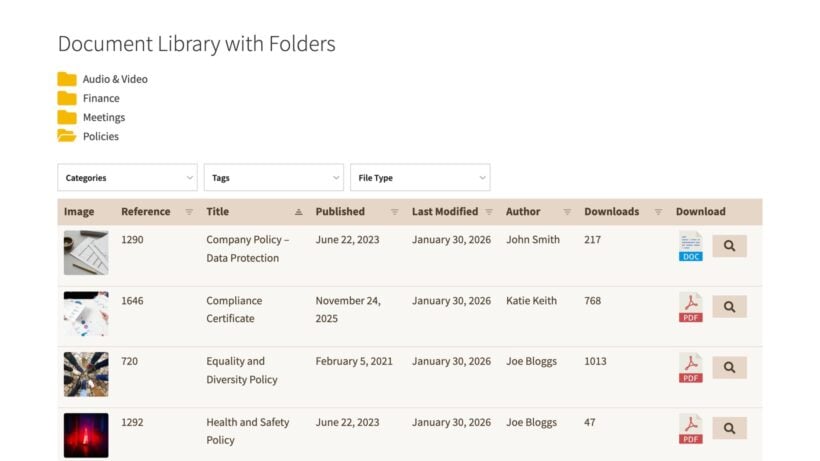
Document Library Pro protects its own files, so you don’t need anything else for the documents in your library. To illustrate how it works, let’s imagine that you’ve used the following plugins to create a private WordPress document library:
Document Library Pro for adding documents and displaying them in a searchable document library.
A searchable directory of downloadable files using the Document Library Pro plugin
That's a great solution, but doesn't actually protect the underlying WordPress media files - i.e. the documents that are linked to from the library. It's unlikely that unauthorised people will find them because they're only linked to from the private document library pages. However, if one user publicly shares the link to a document then they could potentially share it more widely.
If you’re concerned about this, tick ‘Protect media files’ under Documents → Settings → Access Control. Document Library Pro 4.2 added this setting on the Advanced plan. It’s switched off by default.
Securing digital files
While we’re using Password Protected Categories in this example, you can also use other membership plugins which restrict access to WordPress content.
Here’s how to switch the file protection on:
Check which web server your site runs on. On Apache, the plugin writes the rules it needs and there’s nothing for you to do. On Nginx, the settings page shows you a rule to add to your server configuration first, and your host can add it for you.
Go to Documents → Settings → Access Control.
Tick ‘Protect media files’.
Wait while your files move. A percentage next to ‘Protect media files’ shows you how far it has got, and you can leave the page while it runs.
Document Library Pro moves the files attached to your protected documents out of wp-content/uploads and into a private folder at uploads/dlp-protected-files. Your web server won’t serve anything from that folder. Every download runs through the plugin instead, which checks the visitor against the document’s own access rules before it sends the file.
A ‘Protected’ column in your Media Library shows you which files have moved. Nothing changes for your visitors: The same people can download the same files, and the download buttons in your library work exactly as they did before.
Reporting on downloads
Document Library Pro keeps a running total of downloads against each document, which you can show as a column in your library. The plugin doesn’t record who downloaded a file, or when.
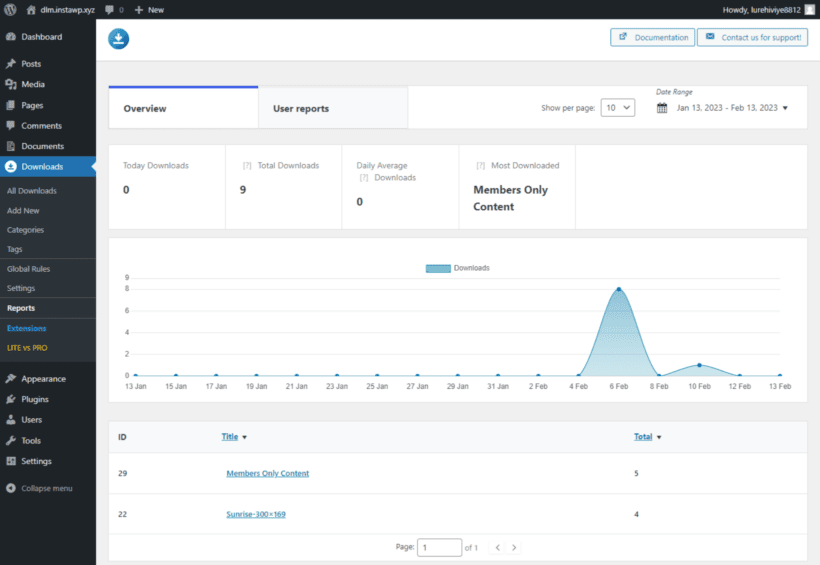
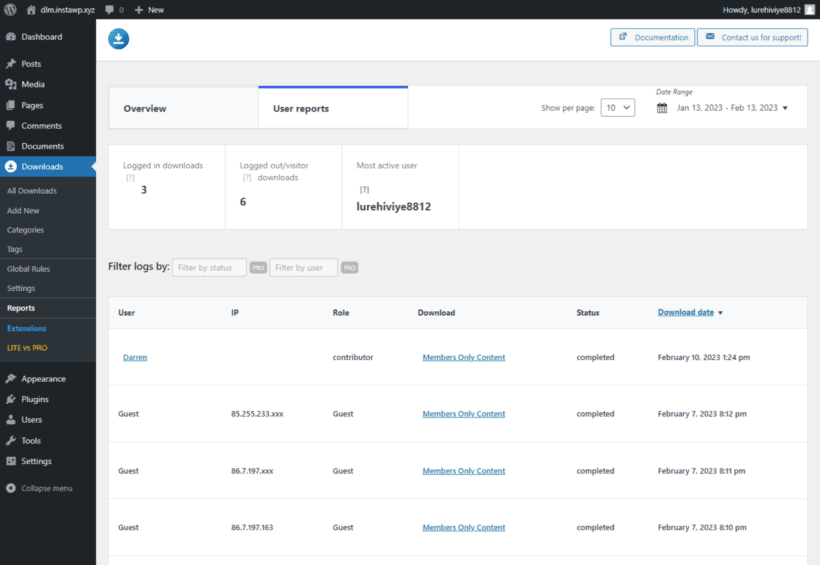
If you need that level of detail, Download Monitor reports your downloads per user and per date:
The reporting feature gives you an overview of downloads, filterable by date. Another helpful feature is user reporting:
Download Monitor also offers an extension called Enhanced Metrics. This extension provides even more information, such as failed/completed downloads, active users and downloads, and more.
Plugin 2: Prevent Direct Access
Prevent Direct Access (PDA) Gold restricts access to your WordPress Media Library files for products, posts, pages and any other post type outside a document library. It works with WordPress protection plugins like Password Protected Categories and WooCommerce Protected Categories. Simply use it to restrict access to your media files using the same type of protection that you're using for your pages, posts, and other content.
File Access Permission
File Access Permission (FAP) allows you to select certain user roles who can access your private protected files directly. There is global FAP which applies the permissions to all files by default. What’s more, you can set individual FAP with their Access Restriction extension. In other words, you can make different files accessible to different user roles.
While most of the options are self-explanatory, you may wonder when to use the "Anyone" and "No one" options:
Anyone option allows everyone to access your private files while stopping Google or other search engines from indexing them. This comes in useful when you want those files to be directly accessed through your website links and not through search results.
No one option literally stops everyone from accessing your protected files directly through their file URLs. In return, PDA Gold plugin gives you the power to create as many private download links as needed. This helps you share your protected files with some specific groups of users. And at the same time, you can track and restrict its usage by time or click.
How to protect both WordPress content and file attachments
The most bulletproof way to secure your WordPress content is to protect both your content and media attachments altogether.
Password Protected Categories - and it's e-commerce version WooCommerce Protected Categories - is one of the best WordPress password protection plugins. Both plugins allow you to protect an entire category including its sub-categories and all posts/products under that category, with a single password. You can also restrict entire categories so that only specific logged-in users or roles can access them.
Now, let’s learn how to integrate Prevent Direct Access Gold with Password Protected Categories and WooCommerce Protected Categories. It's the perfect combination to protect both WordPress categories and media file attachments on these posts/products.
Using Prevent Direct Access with Protected Categories
Follow these simple steps to protect any type of WordPress category. This could be a post category, page category, WooCommerce product category, or a category/custom taxonomy for any other custom post type.
You can protect as many categories as you’d like to while leaving the rest accessible to the public:
Go to the 'Add/Edit Category' page.
Add a new category or edit an existing one.
Under the ‘Visibility’ section above the ‘Add New Category’ button, select ‘Protected’.
Set a password and/or select user roles or specific users who can access the post/product.
In the WordPress Media Library List view, protect your attachment file and then click on ‘Configure File Protection’.
Select the ‘File Access Permission’ tab and choose the same user roles as per step 4.
Now, you can not only protect your private attachment files against Google and unwanted users. Simply by logging into their user account, your visitors can unlock both your attachments and protected media library files, as well as content.
Do you have any questions on how to password protect your website content and attachment files in WordPress? Please let us know in the comments section below.
Hello,
I want to offer certain products (video downloads) to specific users as it will have their branding, can i have a login page as the homepage? Also do you allow videos on product pages? is there a theme you could recommend for this.
Yes, in WooCommerce you can embed videos in the product description field, which will display in the single product pages.
Our plugins have been coded to work with any theme, and I recommend those that are fully WooCommerce-compatible, such as the default Storefront theme by Automattic, and the Boutique and Deli themes by WooCommerce. We also mention other themes at https://barn2.com/kb/wpt-themes/ (albeit the article is about another plugin of ours, these should also work well with WooCommerce Protected Categories).



5 Comments
Hello,
I want to offer certain products (video downloads) to specific users as it will have their branding, can i have a login page as the homepage? Also do you allow videos on product pages? is there a theme you could recommend for this.
Hi, John. Thanks for your interest in WooCommerce Protected Categories.
You can create a login form customized for each user's or user role's branding via the Theme My Login plugin, as discussed in our article: User and role protected categories.
Yes, in WooCommerce you can embed videos in the product description field, which will display in the single product pages.
Our plugins have been coded to work with any theme, and I recommend those that are fully WooCommerce-compatible, such as the default Storefront theme by Automattic, and the Boutique and Deli themes by WooCommerce. We also mention other themes at https://barn2.com/kb/wpt-themes/ (albeit the article is about another plugin of ours, these should also work well with WooCommerce Protected Categories).
Great tips, Thank you kindly. Do you have a video available for these tips?
Hi Cassandra, we don't have a video for this tutorial yet and hope to add one in future. Thanks for the suggestion!
I look forward to it eagerly. Thank you once again.