How to improve your average order value (7 proven ways)

Your average order value is the cheapest growth lever in your store: every dollar you add to each order falls almost entirely to the bottom line, without you spending more on ads or acquiring a single new customer. Here are seven proven ways to lift it.
Acquisition keeps getting more expensive. Ad costs are up, organic clicks are squeezed by AI overviews and most stores are paying more per visitor than they were two years ago. The cleanest way to grow revenue without spending more on acquisition is to get the customers you already have to spend more per order.
That's what raising average order value does. A 15% lift on a $60 AOV is the same revenue as 15% more orders, without the matching increase in shipping, support tickets or paid-traffic spend.
In this guide, I'll cover what AOV is, the formula for calculating it and seven specific techniques that reliably raise it on a WooCommerce store. I'll also share the Barn2 plugins that make each technique easier as I go.
What is average order value?
Average order value (AOV) is the average amount each customer spends per order in a given period. It's calculated by dividing total revenue by total orders over the period you're looking at.
Why does it matter? Well, AOV is one of the three core levers that determine ecommerce revenue, alongside traffic and conversion rate. Push any of the three up and revenue goes up. AOV is the one that requires the least net-new spending, which is why it's the first lever I look at when a store wants to grow without increasing its ad budget.
Tracking AOV also tells you how well specific changes are working. For example, if you launch a free-shipping threshold and AOV climbs, then the offer is doing its job. If you launch a bundle and AOV doesn't move, the bundle isn't being seen or isn't compelling. This allows you to take clear actions in response to the data.
How to calculate average order value
The formula is straightforward:
Average order value = total revenue / total orders
For example, if your store made $30,000 over 500 orders last month, your AOV is $60.
In WooCommerce, you can pull both numbers from Analytics → Revenue (or Reports → Orders on older versions). Export the period you want, divide and you have your number.
Two caveats worth knowing:
- Outliers skew small samples. A handful of unusually large or small orders can move a monthly AOV materially. Calculate over a longer window (a quarter or a year) for the cleanest picture and exclude obvious outliers if you're sense-checking a single month.
- Compare like with like. A pre-Christmas AOV isn't directly comparable to a mid-January one. When you're measuring whether a change worked, compare against the same period last year, not against the previous month.
Once you know your baseline, the next question is what to actually change to lift it.
7 ways to increase your average order value
Each of the seven techniques below works on its own. Stacked together, they compound: for instance, a customer who hits the free-shipping threshold, takes the bundle, accepts a checkout add-on and gets a personalized recommendation has just walked through four AOV levers in a single session. This makes them vastly more likely to spend more.
1. Cross-sell and upsell related products
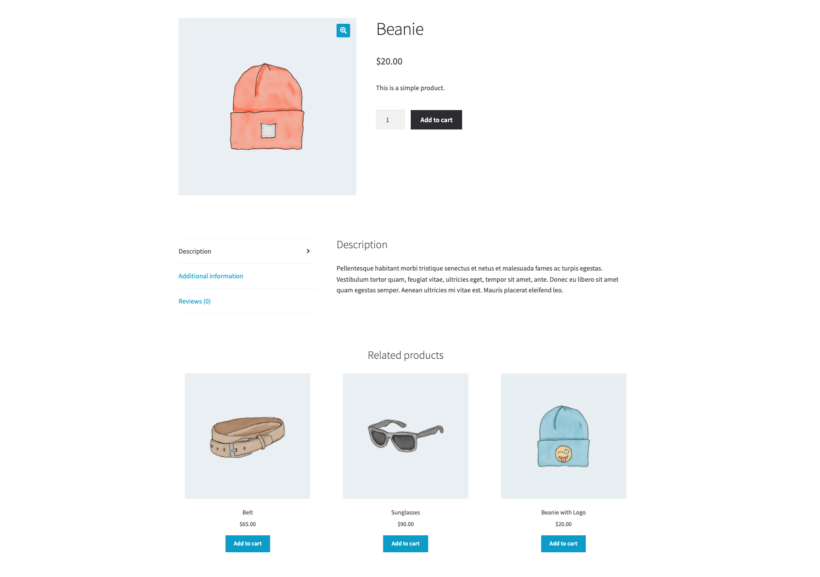
WooCommerce displays related items at the bottom of the page, but there are better ways to increase AOV
Cross-selling and upselling are the two biggest AOV levers that most stores aren't fully using. According to HubSpot research, cross-selling accounts for around 21% of company revenue on average for businesses that do it well.
Two different related products techniques to increase AOV
- Cross-selling offers a complementary product alongside the one a customer is already buying. If they're buying a sweatshirt, you offer the matching sweatpants or the sneakers that complete the outfit. See my guide to cross-selling examples for the patterns that work in different categories.
- Upselling offers a more expensive version of what they're already looking at. Bigger storage on the same laptop, the premium model with the better lens, the annual subscription instead of monthly. See my upselling guide for the WooCommerce-specific tactics.
The trick with both is placement. Cross-sells and upsells on the product page work, but they have to compete with the Add to Cart button for attention. The three highest-converting placements I've seen are:
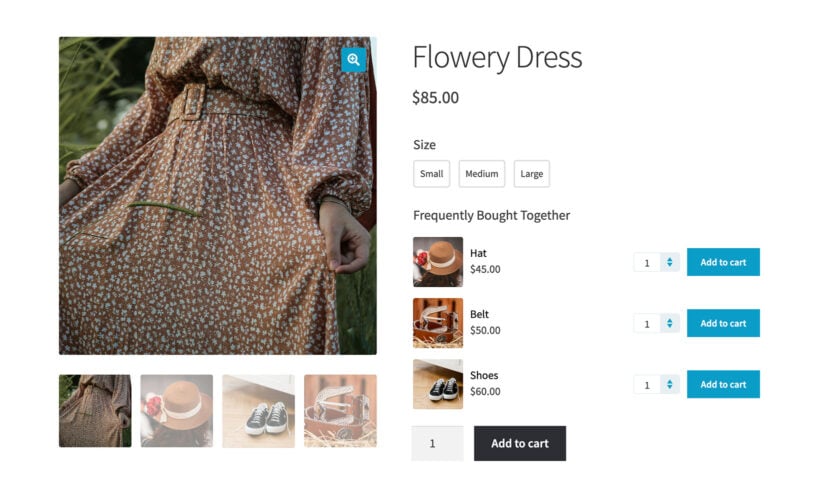
- Above Add to Cart, on the product page. The customer is already focused on this product. A small "Customers also bought" or "Complete the look" widget right above the Add to Cart button captures decision-time attention without making them leave the page. WooCommerce Product Options has a "Products" option type that displays related products directly on the product page above Add to Cart, alongside any other product options you've set up. This increases AOV much more effectively than displaying them at the bottom of the page, forcing customers to make an active decision about which frequently bought together items to buy.

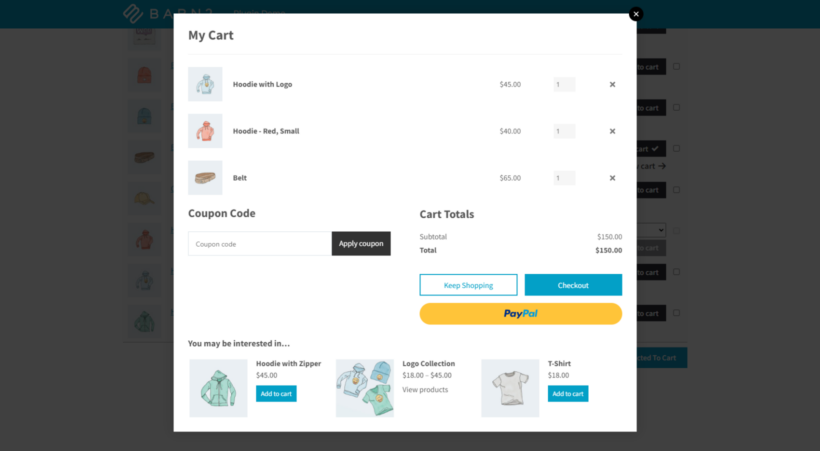
- In the popup cart, as the customer adds to cart. The instant they click Add to Cart is the moment they're most receptive to a complementary product. WooCommerce Fast Cart opens a popup cart with a built-in cross-sells slot, so the next product is one click away. This is the same pattern Amazon's Frequently Bought Together uses, applied at the cart moment instead of the product page.
- After the purchase. For post-purchase upsells (the offer that appears after the customer pays), see my one-click upsell guide. These convert even higher than mid-funnel upsells because the buying decision is already made. Emails can work too because you already have the customer's loyalty. At Barn2 we have an excellent conversion rate on the emails we send after purchase which offer a related product for a discounted price.
2. Bundle complementary products together
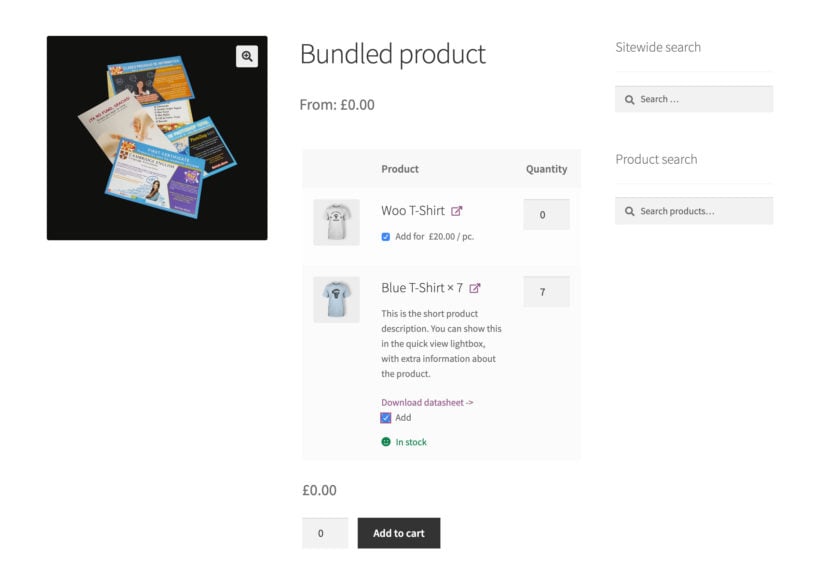
Product bundling packages multiple products together at a small discount. Shopify's own data shows stores using bundles and subscriptions see AOV increases of 20-30%, which makes bundling one of the highest-leverage AOV plays available.
The reason bundles work is less about the discount than about removing a decision. Instead of the customer wondering "do I also need X?", the bundle tells them yes and prices it as one item. The friction-removal does more than the price reduction.
Three bundle patterns that work in WooCommerce:
- Fixed bundles. A pre-selected set sold together at a fixed price. Best for "starter kit" or "complete-the-look" offers where the right combination is obvious.
- Customer-built bundles. The customer picks which products go in the bundle from a defined set, with bundle pricing applied automatically. Best for variety packs, mix-and-match boxes and curated gift sets.
- Volume bundles. Buy more of the same product and the per-unit price drops at defined tiers. Best for consumables, B2B reorders and any product where quantity correlates with usage.
WooCommerce Discount Manager covers all three patterns from a single plugin. The volume-bundle discount type is particularly well suited to consumables and B2B catalogs, where buyers naturally restock in larger quantities when the per-unit price falls. For the pricing strategy behind bundles in general, see my guide to product bundle pricing.
3. Add personalization and product add-ons
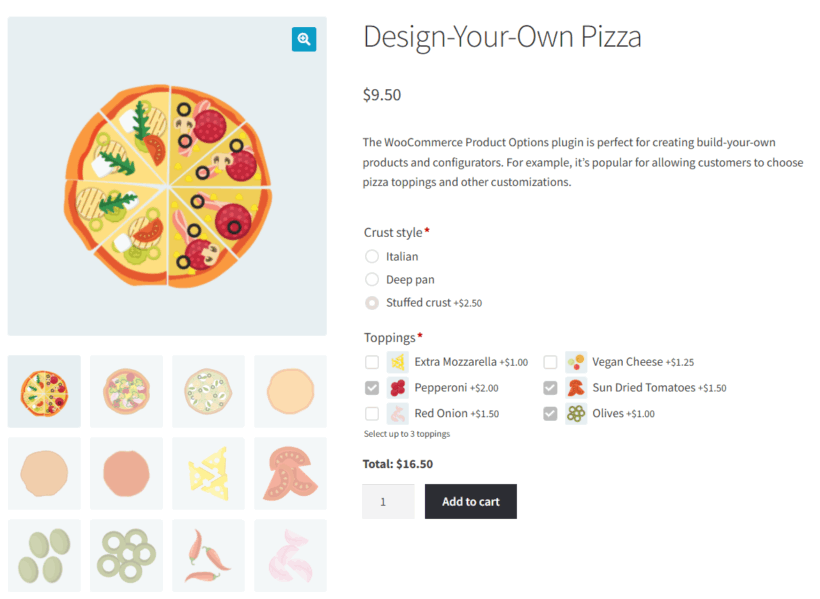
Product add-ons are extras attached to a base product, such as engraving on a piece of jewelry, gift wrap on an order, wall-mounting on a TV or extra cheese on a pizza. Each add-on raises the order value by a small amount, and customers don't experience them as upsells because they're framed as enhancements to a product they already chose.
The two categories worth distinguishing are:
- Functional add-ons. These cover services and extras like setup, installation, gift-wrapping, expedited shipping or extended warranties. Margin on these is high because they're services or low-cost extras.
- Personalization add-ons. Inputs that make the product feel custom, such as custom text on a mug, an embroidered monogram, a printed message on a card or a chosen color or material. These turn a generic product into a gift and customers pay a premium for them willingly.
You can use the same plugin for both - WooCommerce Product Options. Either way, you use it to add the option to the product page, set a price uplift per option, and the customer sees the total update in real time as they configure. See my guide to increasing AOV with product add-ons for the specific configurations that work best.
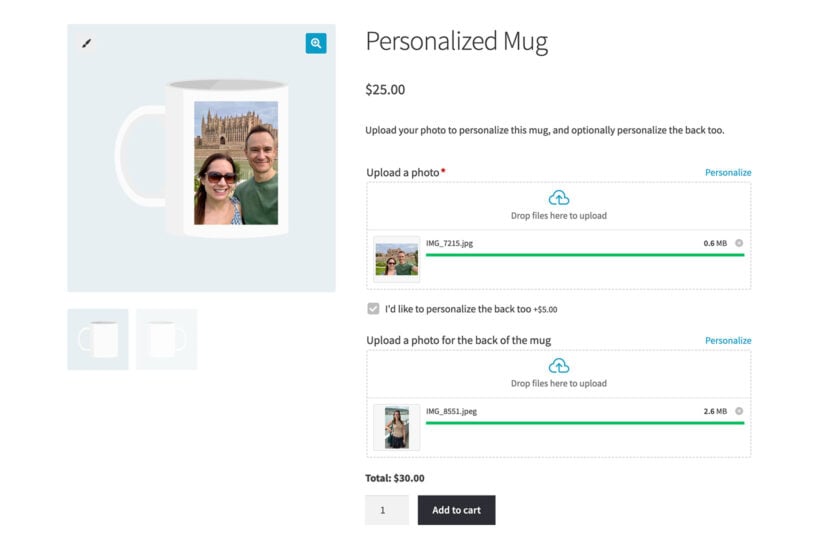
WooCommerce Product Options handles both functional and personalization add-ons, with an optional live-preview feature that shows the customer what their custom text or uploaded design will look like before they hit Add to Cart.
4. Use volume discounts to reward bulk buying
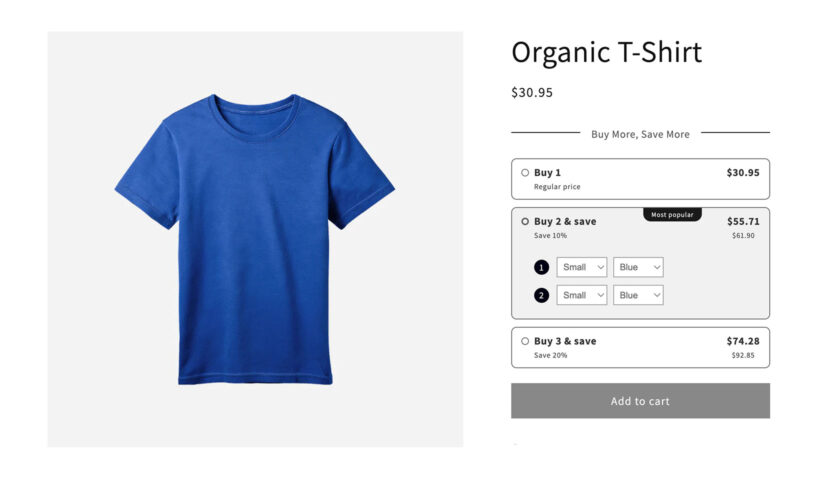
Quantity discounts or volume pricing give a price break when the customer buys more of the same product. Two for $18 instead of $10 each; tiered pricing that drops the per-unit cost at 5, 10 and 25 units; a bulk option on a consumable.
The technique works because it reframes the question the customer is asking. Without a volume discount, the question is "do I want two of these or just one?". With a volume discount, the question becomes "do I want to save 10% by taking the bigger pack?". The second question converts more often than the first.
Stores where volume discounts work especially well:
- Consumables. Categories like skincare, coffee, supplements, pet food and cleaning products. The buyer is going to repurchase anyway, so larger packs pull spending forward and lock in loyalty.
- B2B and wholesale catalogs. A wholesale buyer almost always wants the lowest per-unit price. Tiered volume pricing is the standard mechanic.
- Gift-set categories. "Buy two, get the third half-price" works on items customers might already be buying as gifts (e.g. candles, soaps, branded stationery).
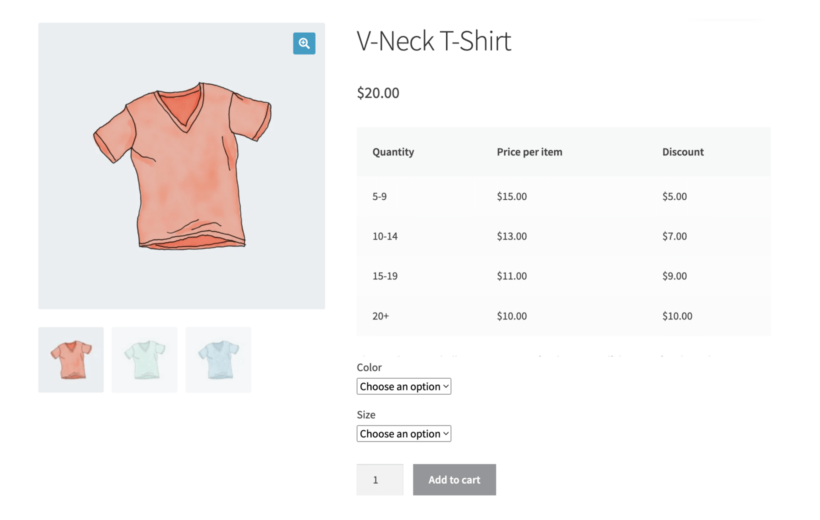
The setup is the same in WooCommerce regardless of category. WooCommerce Discount Manager has dedicated volume-bundles and bulk pricing discount types that let you define quantity tiers and the per-unit discount at each tier. It then applies the pricing automatically when the customer adds the qualifying quantity. See my guide to WooCommerce volume bundles for the configurations that fit different categories.
5. Streamline the checkout
Baymard's research finds that around 18% of US online shoppers abandon a checkout because the process is too long or complicated. Every abandoned cart is an AOV opportunity lost. It's not only that the order didn't happen; customers who get through a smooth checkout are also more receptive to the add-ons, gift wraps and shipping upgrades that lift AOV.
The default WooCommerce checkout is a single-page form with every field showing at once. That's fine for stores with low traffic and high-intent buyers. It struggles when:
- You ask for fields the customer doesn't expect (company name, phone, account creation prompts).
- The product type is impulse-friendly (gifts, fashion, snacks) and the form length kills the impulse.
- Cart abandonment is already elevated and you've ruled out shipping cost as the cause.
Two changes consistently lift checkout completion and AOV together:
- Replace the page with a popup checkout. Keeps the customer in the shopping context instead of navigating them off to a separate page. WooCommerce Fast Cart opens a side-panel cart and checkout that lets customers complete a purchase without leaving the page they were on. The shorter path means fewer drop-offs and more cross-sell exposure on the way through.
- Break long checkouts into steps. If your checkout genuinely needs more fields (B2B account info, multiple addresses, custom delivery instructions), a multistep checkout reduces perceived complexity by showing one section at a time. You can achieve this by combining WooCommerce Fast Cart with a multi-step checkout plugin like CheckoutWC.
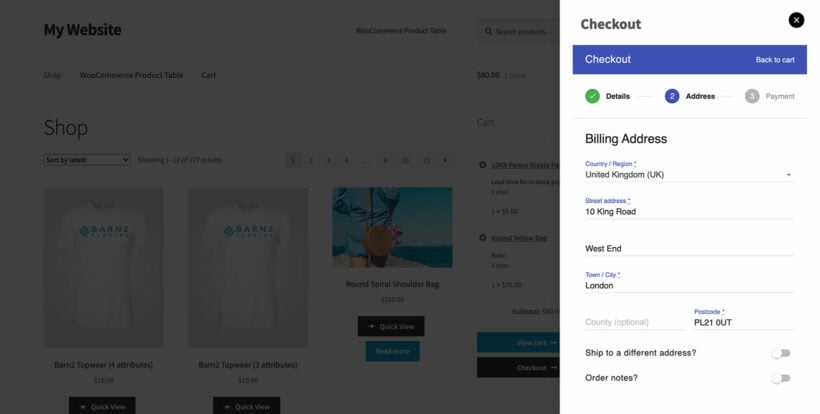
For the broader checkout-optimization playbook, see my guide to optimizing the WooCommerce checkout and how to speed up the checkout.
6. Set a free-shipping threshold

A free-shipping threshold ("free shipping on orders over $50") is one of the simplest AOV mechanics available and it works because of the psychology of round numbers. A customer with a $42 cart will add a $9 item to hit $51 far more often than they'd add the same item without a threshold to chase.
The threshold to set depends on your current AOV. The standard rule of thumb is to set the threshold around 25-30% above your current AOV. Set it too low and you give away shipping margin on orders that would have hit it anyway. Set it too high and most customers can't realistically reach it.
Two refinements that compound the effect:
- Show progress toward the threshold in the cart. "Add $7 more for free shipping" is significantly more persuasive than a banner buried at the top of the page. Most cart popups (including Fast Cart's) display a progress bar by default.
- Stack the threshold with a free-gift or bonus tier. "Free shipping at $50, free [product] at $75" creates two thresholds and pulls some customers past the first into the second. Use this carefully, because too many tiers and the offer becomes noise.
You can offer free shipping in WooCommerce core without needing any extra plugins.
The threshold can also be combined with surcharges at the opposite end. A small handling fee on low-value orders nudges customers toward the threshold from the other direction.
7. Recommend the right product at the right moment
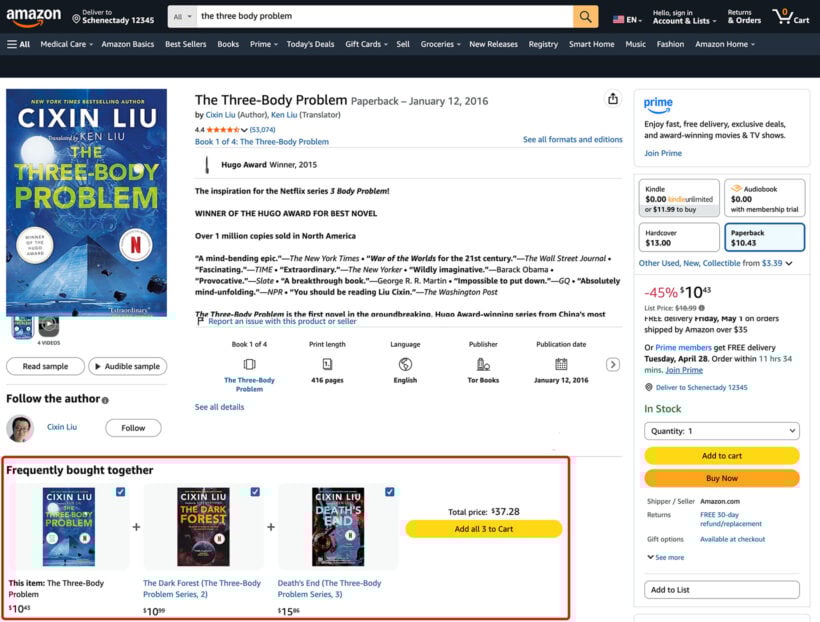
Product recommendations differ from cross-sells in one important way: cross-sells are paired by the merchant ("if they buy X, suggest Y"), while recommendations are generated dynamically based on the individual customer's behavior. Both work, but in different parts of the journey.
McKinsey's research finds that 35% of what consumers buy on Amazon comes from product recommendations. You don't need Amazon's data science to capture some of that lift on a WooCommerce store. Three placements cover most of the value:
- Product page. "Customers who viewed this also viewed" or "Frequently bought together" right under the product. This is easy to set up using related products or linked products built into WooCommerce. Or for an even bigger AOV boost, use WooCommerce Product Options to display the related items above the add to cart button.
- Cart. Cross-sells in the cart drawer, as covered earlier. WooCommerce Fast Cart's popup cart includes a cross-sells slot that displays automatically when a product with cross-sells is added.
- Order confirmation page. The most underused placement. Customers are in a buying mood the moment they've just paid; a "while you wait, you might also like" block on the thank-you page captures repeat purchases at near-zero acquisition cost. See my one-click upsell guide for the mechanics.
The main way you can get recommendations wrong is over-personalization that feels invasive. Stick to behavior the customer would expect you to track (what they've viewed, what's in their cart, what they've bought before) and avoid pulling in data that feels like surveillance.
Final thoughts: AOV is the cheapest growth lever you have
Three levers determine ecommerce revenue: traffic, conversion rate and average order value. AOV is the one that compounds without scaling acquisition spend. A 10% lift in AOV is the same revenue as a 10% lift in traffic, but the traffic costs more money and acquires more support load along the way.
The seven techniques here aren't a menu to pick one from. They're a stack: a store running cross-sells, bundles, add-ons, volume discounts, a free-shipping threshold and a popup checkout has multiple AOV levers active at every point in the ecommerce customer journey. Each one nudges spend up a little, and the cumulative effect is meaningful.
If you're starting from scratch, the highest-impact place to start is the checkout itself, because every other lever depends on the customer actually completing the order. A streamlined checkout paired with a cross-sell slot in the cart is the smallest set of changes that moves AOV measurably in most stores. From there, layer in bundles, add-ons and the free-shipping threshold as your category allows.
For more on the techniques in this guide, see my deep dives into cross-selling examples, product bundles and product add-ons.