
















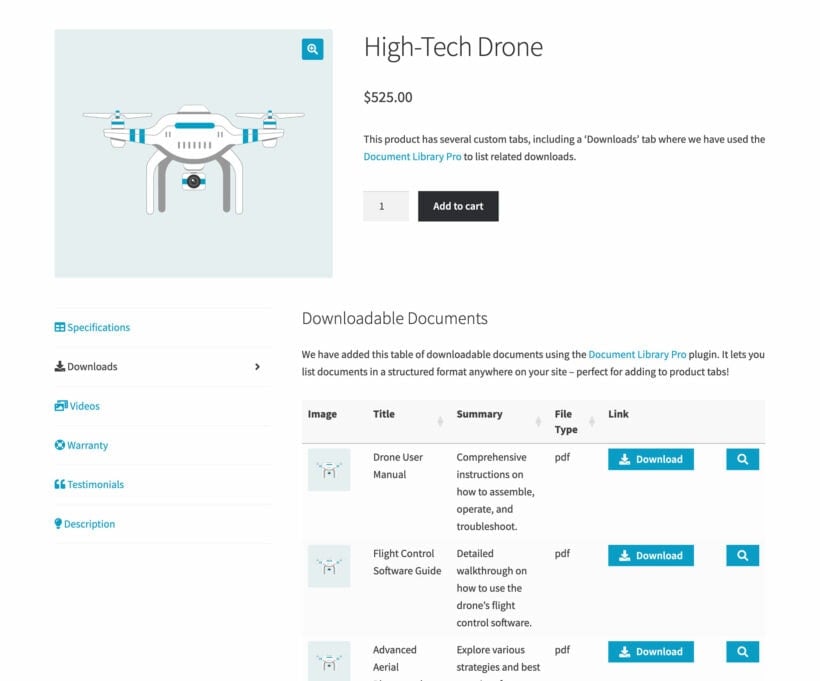


How do I add a new tab to the WooCommerce product page?
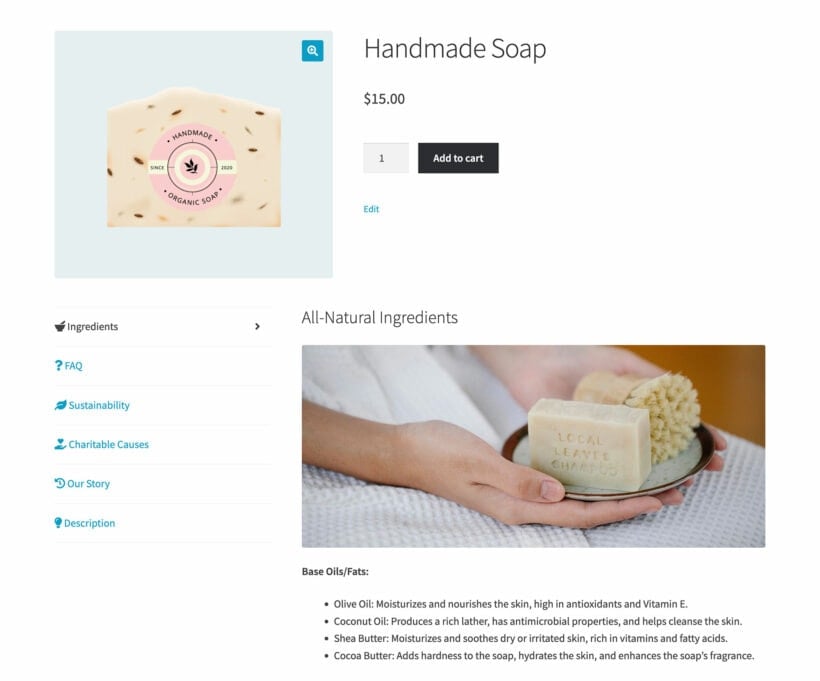
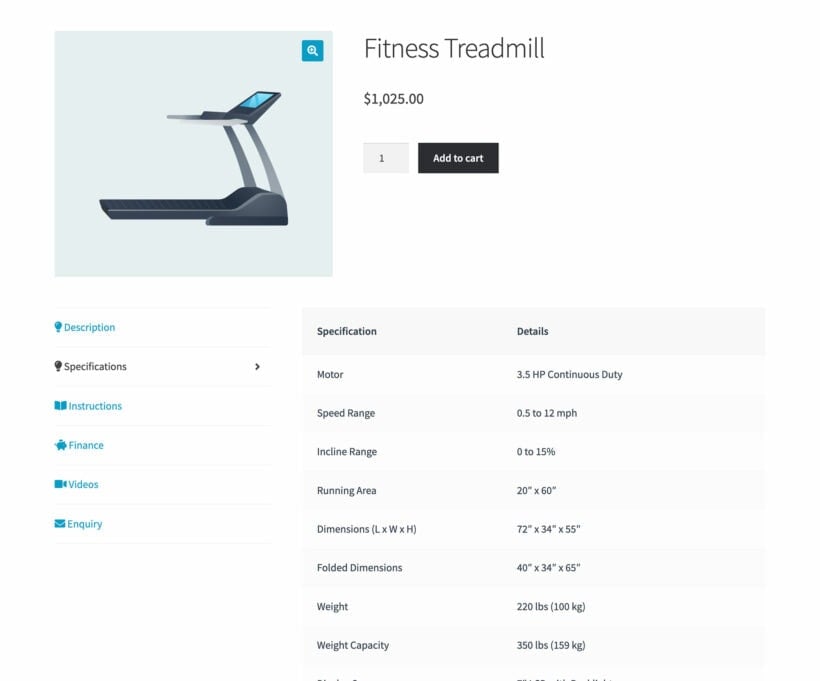
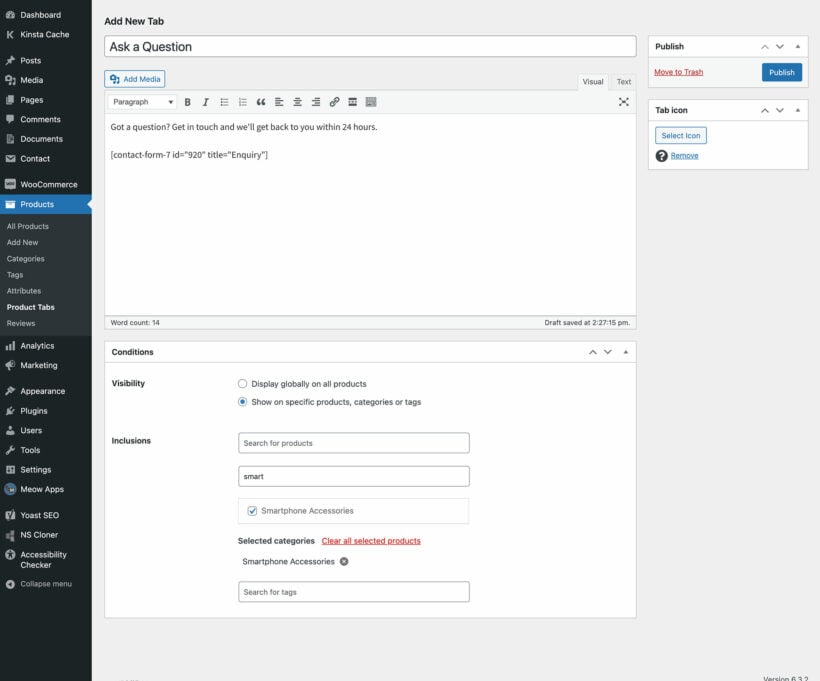
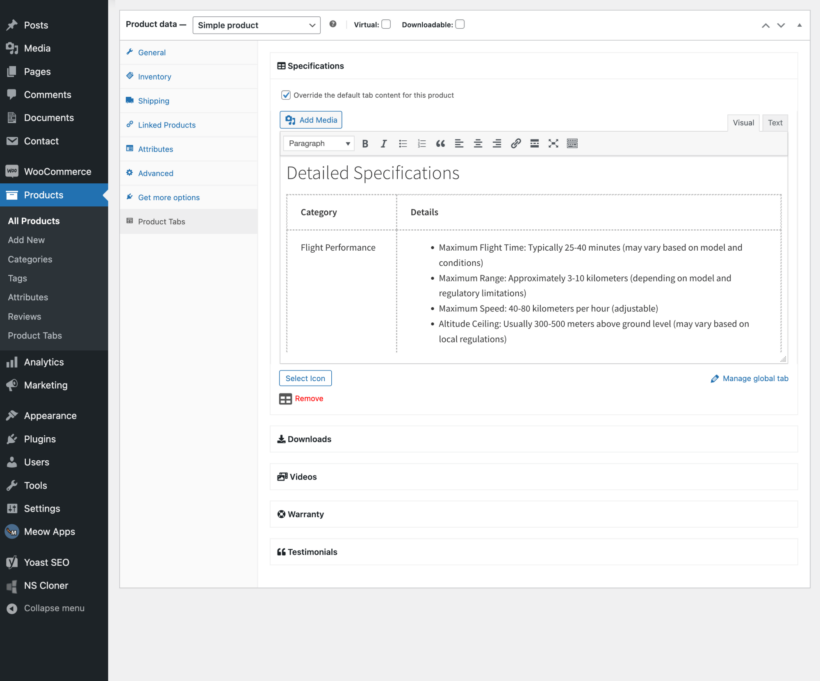
It's easy to add extra tabs to your product pages. Just create the tab, add the content, and set the visibility. There are several options for this, which you can mix and match as needed:
- Show the tab globally on all WooCommerce products.
- Display the tab on selected products, categories, or product tags only.
Can I customize the icons and titles of my tabs?
Absolutely! You have complete control over the name of each tab, and whether or not to add an icon to it.
Can I edit the default tabs that come with WooCommerce?
WooCommerce itself comes with 3 tabs which appear on the product page depending on your settings:
- Description - The main product description.
- Reviews - This tab appears for products that have reviews enabled.
- Additional Information - Extra product data such as attributes, if you have chosen to display these on the product page.
You can use the WooCommerce Product Tabs plugin to hide or disable any of these default tabs. In addition, you can rename or re-order the default product tabs, and hide the tab name. They all appear in the same editable drag-and-drop interface as your custom tabs.
How can I re-order the tabs on the WooCommerce product page?
Our WooCommerce tab manager plugin gives you full control over the order of the product page tabs. This includes the extra tabs that you create, plus the default tabs that come with WooCommerce itself.
To re-order the tabs, you can either use drag-and-drop or enter a number in the 'Priority' field. The tab with the lowest priority (e.g. '1') will appear first.
Can I add shortcodes within the tabs?
Yes, the custom product page tabs fully support shortcodes. For example, you can add shortcodes from:
- Your theme or page builder.
- WordPress contact form plugins (Gravity Forms, Contact Form 7, Ninja Forms, WS Form, etc.).
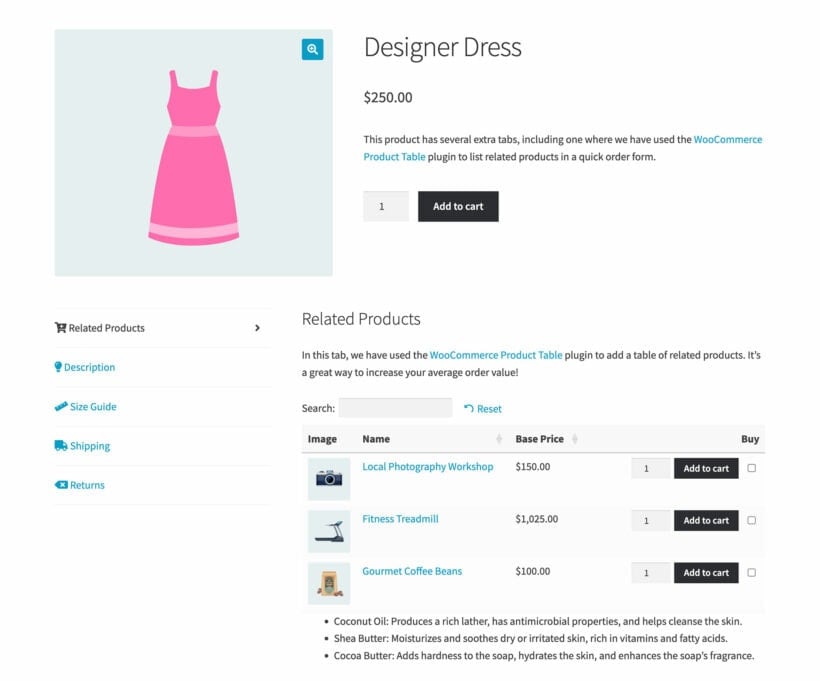
- Other Barn2 plugins such as WooCommerce Product Table, WooCommerce Bulk Variations or Document Library Pro.
- WordPress gallery plugins for inserting extra product images or video.
- Live chat or forum plugins for inserting a customer support form into an extra tab.
- Social media plugins for inserting social feeds into a product page tab.
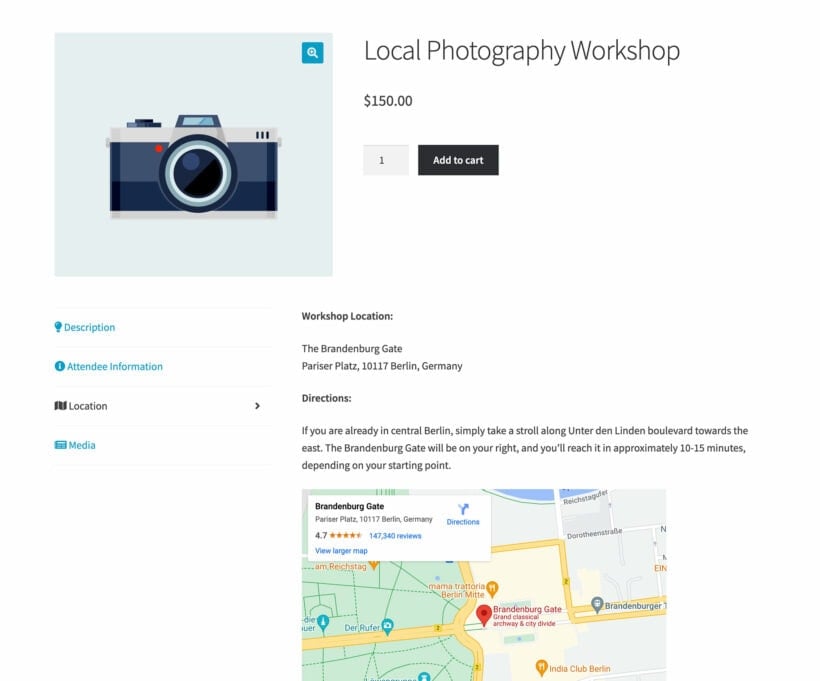
- Maps plugins to insert a Google Map showing your location.
- And anything else you can think of!
Can search engines read tab content?
Yes - the content of each product tab is output in the page's source code and is fully accessible to search engines. The tab content loads with the rest of the page, so search engines won't see it as 'hidden' or de-prioritize it.
How can I customize the style of my tabs?
The styling of the extra WooCommerce product page tabs will be identical to the default tabs on the product page (e.g. the Description tab). This means that they will always look perfect with your theme. As a result, it wouldn't make sense to include styling options in the WooCommerce Product Tabs plugin.
Instead, you can customize the styling by changing the options for product tabs in your theme, or using custom CSS. Your changes will affect all the tabs on the product page, not just the custom ones.
Can I set a default tab?
Yes, you can choose which tab is open by default when the product page first loads. For example, maybe you have added a 'Related Products' tab which is the third tab. You can choose for this to be open by default to draw customers' attention to your other products in your ecommerce store.
Will it work with my theme and other plugins?
WooCommerce Product Tabs works with any well-coded WordPress theme. The tabs are styled identically to WooCommerce's own default tabs, so they look right in your theme. You do not need a developer to write code or edit theme template files.
The theme compatibility page lists the themes we test with.
WooCommerce Product Tabs is fully compatible with all Barn2 plugins, and with most plugins from other companies. You can check the plugins we have tested with WooCommerce Product Tabs.
Does it work in my language?
WooCommerce Product Tabs is designed to work with any WordPress translation plugin such as WPML, WeGlot and TranslatePress. This makes it easy for you to translate the extra product fields into any language and use it on multilingual websites.
What are the minimum requirements for running the plugin?
WooCommerce Product Tabs is fully tested with the latest versions of WordPress and WooCommerce. We always recommend running the most up-to-date version, but we also support older installations:
- WooCommerce 7.2 or greater (tested to 11.0.1)
- WordPress 6.1 or greater (tested to 7.0.4)
- PHP 7.4 or greater (tested to 8.5)
- MySQL 5.7.8 or greater / MariaDB 10.3 or greater
What offers are available for WooCommerce Product Tabs?
Several offers are available if you are a nonprofit or wish to buy multiple plugins:
Charity discount - Registered nonprofits get 15% discount off.
2-plugin bundle - Get WooCommerce Product Tabs together with WooCommerce Quick View Pro at a reduced fixed price. Select the bundle in the pricing table above.
Multi-buy discount - Add any two or more Barn2 plugins to your cart and get 40% off automatically at checkout. The most expensive plugin stays at full price, and every other plugin is reduced by 40%. No coupon needed.
All Access Pass - For the best possible value, get our All Access Pass which gives you VIP access to our entire plugin suite including WooCommerce Product Tabs.




Excellent Plugin!
By John Beardon on
We use this plugin to add enquiries (email and whatsapp) and downloads tabs to products. This really helps to keep important info front and centre, without it getting lost within lengthy product descriptions. I also helps massively when changes are made to forms and downloads as they can be made in one simple interface instead of multiple edits to the actual products.