How to create product bundles for your WooCommerce store (+ plugin guide)

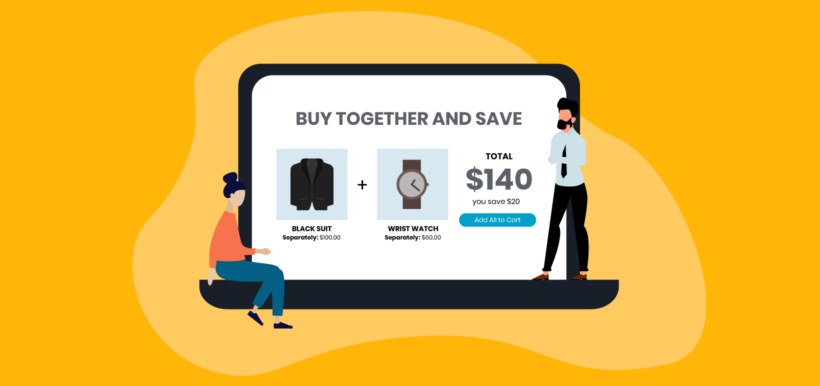
By the end of this article, you will have a clear understanding of how to create product bundles for your WooCommerce store, using one of four plugin methods depending on the type of bundle you want.
When using WooCommerce for your online store, you may have noticed that each product is treated individually by default, with no built-in option for customers to purchase multiple products together as a bundle. This can be a major issue if you want to offer product bundles in your store.
However, there is no need to worry! In this comprehensive guide, we'll show you how to create WooCommerce product bundles for your store using three different methods. By the end of this guide, you'll have a good understanding of the various methods available to bundle your products, and you'll be able to choose the one that works best for your store.
Creating WooCommerce product bundles might seem overwhelming, but with our guidance and professional advice, you can create attractive bundles that enhance your customers' shopping experience. Crafting WooCommerce product bundles is a great way that can aid in achieving your business goals.
So, let's dive in and learn how to bundle your WooCommerce products using our tutorial.
What is product bundling?
Product bundling is the practice of grouping two or more products and selling them together as a single offer. Customers get a coordinated set of items, and you increase the value of each order.
You see this everywhere outside of WooCommerce. McDonald's pairs a burger, fries and a drink into a Happy Meal. Gillette sells razors, blades and a stand as a "Best Bundle". Streaming services bundle Disney+, Hulu and ESPN+ on one bill. The mechanic is the same in every case: Combine items, set a price and present it as one offer.
Bundling sits next to two other ecommerce techniques that get confused with it.
Cross-selling recommends complementary items at the right moment, but each one is still sold individually. A Frequently Bought Together widget on the product page is a cross-sell, not a bundle.
Upselling suggests a more expensive version of the same product. A bundle is broader, because it can include accessories, add-ons or completely separate items.
WooCommerce also has built-in grouped products, which let customers buy several items from one page. Grouped products only work with simple products though, and there's no built-in discount logic. Bundles fix both of those gaps, which is why most stores reach for a plugin once they outgrow the default behavior.
Types of product bundling
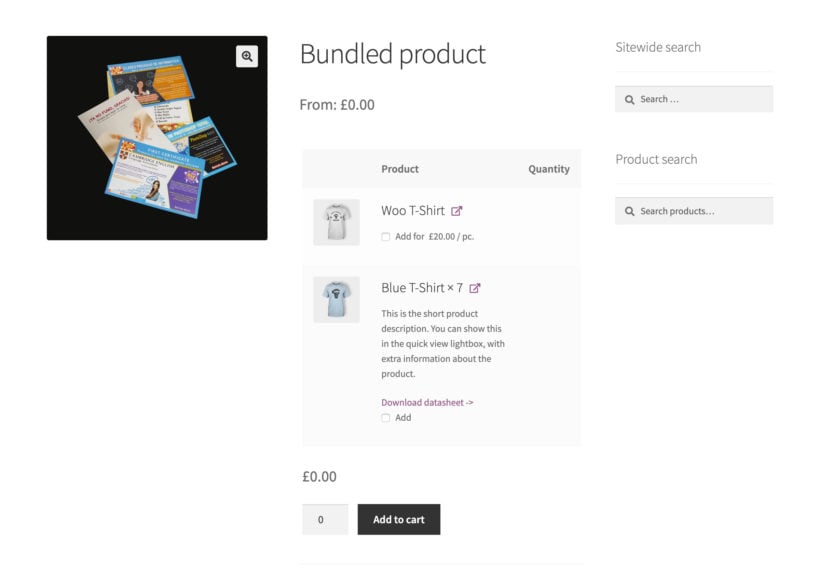
You can structure a bundle in different ways depending on what you want to sell and how much choice you want to give the customer.
Pure bundles. Items in the bundle can only be bought together, never separately. Hello Fresh meal kits are a pure bundle: You can't order the recipe card without the ingredients.
Mixed bundles (mix-and-match). The same items are also sold individually, but you offer a discount when they're purchased together. This is the most common type in ecommerce, because it keeps the standalone product pages working and adds the bundle as a second option.
BOGO (buy-one-get-one). Buy one item, get a second one free or at a steep discount. The "free" item is usually priced into the bundle, but customers respond strongly to the framing.
Cross-sell bundles. These pair a main product with complementary add-ons, like a camera with a memory card and a case, or a yoga mat with a strap and a block. The customer can usually choose which add-ons to include, so the bundle adapts to each cart.
Volume bundles. The discount scales with quantity of the same product. A customer who buys 3 of an item pays a different per-unit price than one who buys 6 or 12. It works when you want to encourage shoppers to stock up rather than just adding accessories.
Leader bundles. These pair a slow-moving or older product with a popular one to move stock. The popular item carries the bundle and the slow mover gets cleared, which is useful at the end of a season or before a product refresh.
Most stores end up using two or three of these. A new-customer offer might be a BOGO, a Black Friday promo might be a mixed bundle and a clearance push might be a leader bundle.
The best plugins for creating product bundles in WooCommerce
There are 4 different ways to create WooCommerce product bundles:
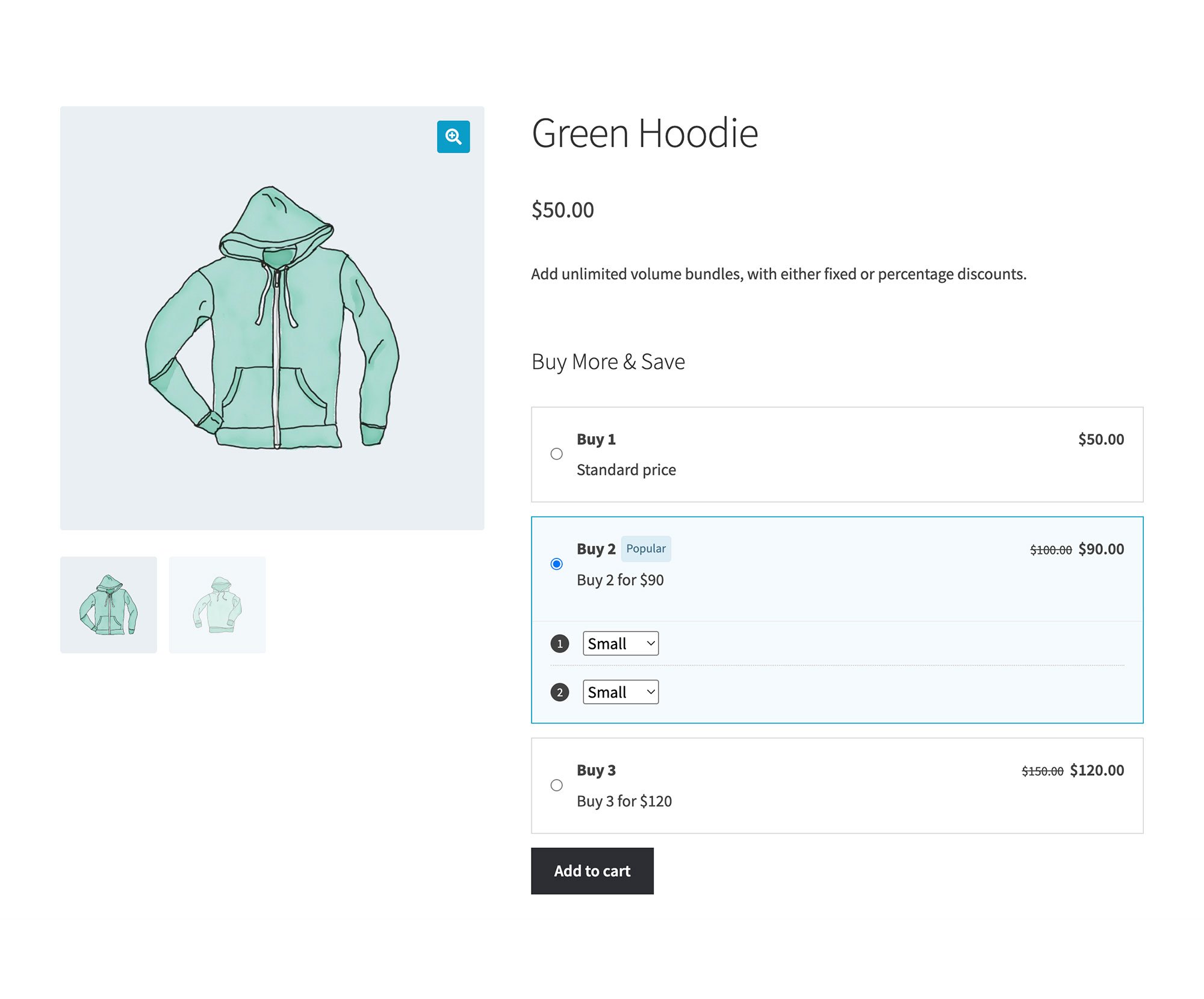

- WooCommerce Discount ManagerAdd quantity-based volume bundles that let customers buy 2, 3 or more of the same product at a discounted per-unit price. Perfect for stock-up offers. Setup instructions →
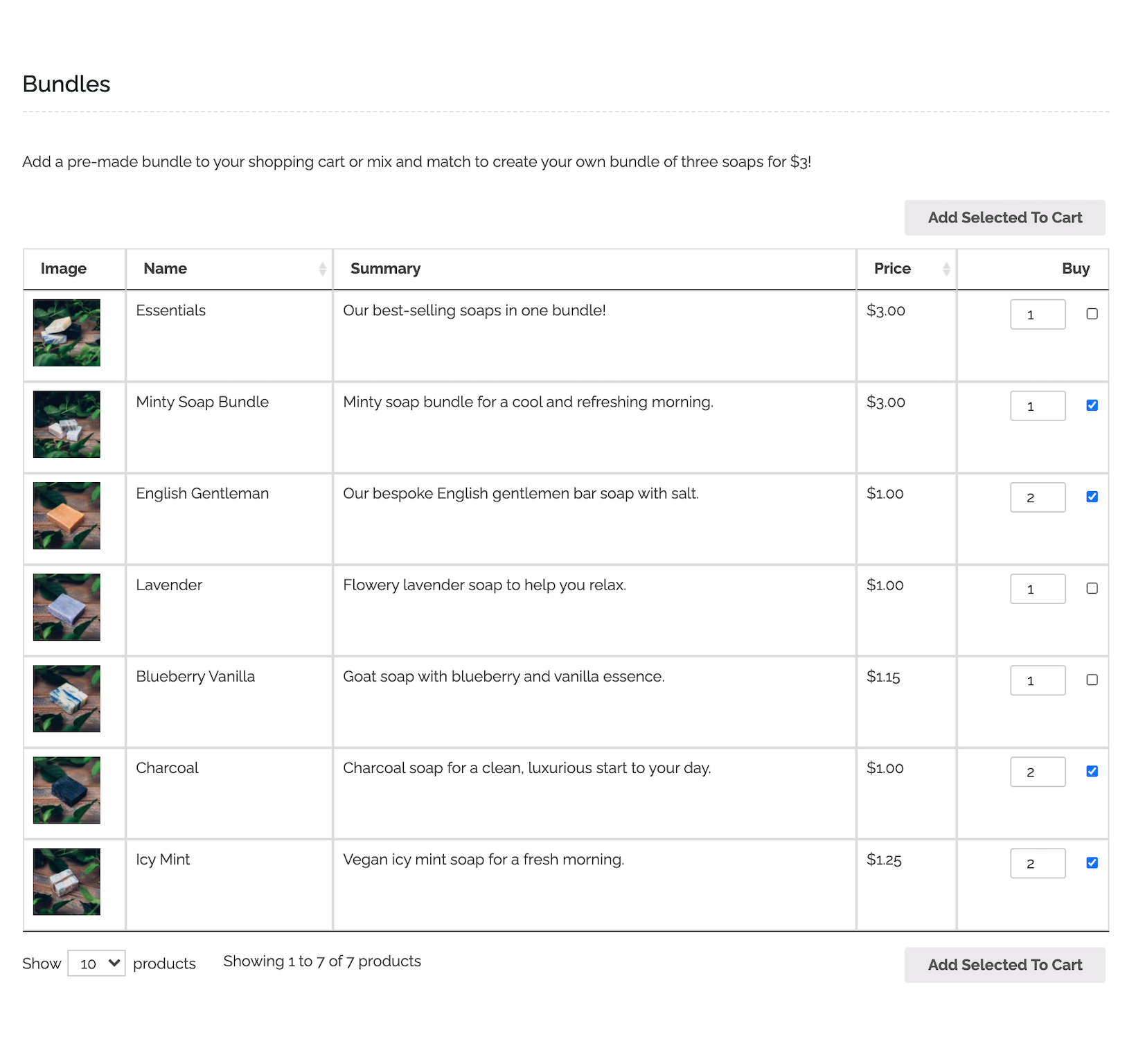
- WooCommerce Product TableLet customers build their own bundle by listing products individually so they can mix and match. Perfect for complete flexibility. Setup instructions →
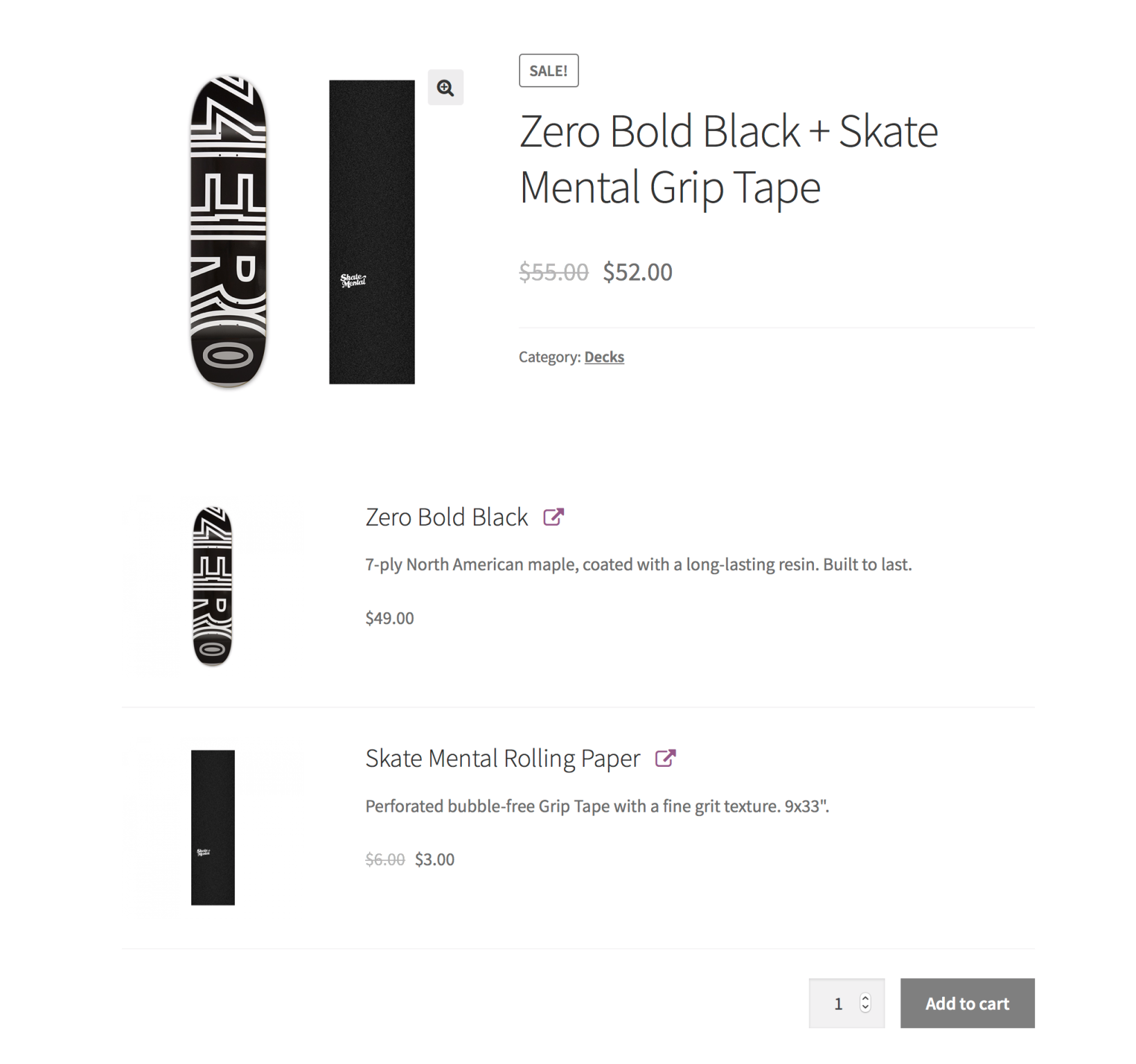
- WooCommerce Product BundlesSell fixed-price product bundles. Perfect for pre-defined bundles. Setup instructions →
- WooCommerce Bulk VariationsCreate a single product whose variations are the items in the bundle, letting customers pick which ones and how many they want. Perfect for converting individual products into a create-your-own bundle. Setup instructions →
And the best part is that we’ll also show you how to set up each method step-by-step. It’s super quick and easy and there’s absolutely no technical knowledge needed to follow this tutorial. You can start selling WooCommerce product bundles today!
Advantages of product bundling
A well-built bundle does more than lift the price of one order. It changes how customers shop, how stock moves through your warehouse and how often slow products sell. The reasons store owners run bundles year after year usually come down to four advantages.
- Higher average order value. A bundle gives customers a reason to add more items in one transaction. Most stores see a measurable AOV lift on bundled SKUs versus standalone ones, and that lift compounds when the bundle is surfaced on the product page or at checkout.
- Stronger perceived value. When the bundle is priced below the sum of its parts, customers feel they're getting a better deal, even when the absolute spend is higher. The framing matters more than the math.
- Faster inventory clearance. A leader bundle pairs a slow-moving SKU with a popular one, which moves the dead stock without resorting to a hard markdown on the listing page. It's useful at the end of a season or before a product refresh.
- Lower per-item marketing and packing costs. Marketing one bundle takes less ad budget than marketing each item separately, and shipping several products in one box costs less than shipping them one by one. Both savings scale with order volume.
What kinds of products work well in bundles?
The right products to bundle depend on what you sell and what your customers typically buy together. A few patterns consistently work:
- Complementary products, like a coffee machine with a pack of pods or a camera with a memory card.
- Accessories paired with a main product, like a phone case with a smartphone or a yoga strap with a mat.
- Variations of the same product, like a set of colored markers in different shades or a pack of mixed-flavor drinks.
- Starter kits that give a beginner everything they need, like a yoga kit, a cooking starter pack or a craft set.
- Seasonal groupings like winter clothing bundles or holiday decor sets that only make sense at one time of year.
Real Barn2 customers run bundles across very different niches:
- Artisan soaps, lotions and balms. Handmade sellers list every product in a front-end table with WooCommerce Product Table and offer "any 3 soaps + 1 lotion for $X". Customers tick what they want and check out in one step.
- Sports gear. A fixed-price "tennis starter pack" with a racket, two cans of balls and a wristband sells well as a gift option, built using WooCommerce Product Bundles.
- Candies, teas and coffees. A single "mix-and-match" product built with WooCommerce Bulk Variations lets customers choose how much of each flavor they want before adding the bundle to cart.

How to create product bundles for your WooCommerce store
By now, you know the 3 ways for creating WooCommerce product bundles and should have chosen which method is best for you. Next, here’s how you can set up each bundle type:
Method 1: Sell volume bundles with WooCommerce Discount Manager
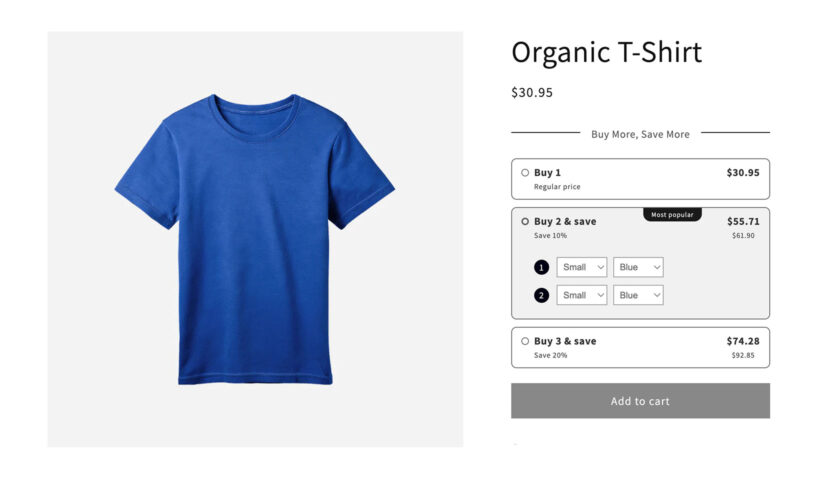
WooCommerce Discount Manager adds a dedicated Volume bundles discount type that puts pre-set multi-unit deals directly on the product page. A customer sees the tiered pricing inline, picks the quantity they want and gets the matching per-unit price applied at cart.
This is the right method for stock-up offers, for example "Buy 2 for $90 or 3 for $120". It's also the closest match to the bulk-discount model that wholesale and consumables stores rely on.
Setup instructions
- Get the WooCommerce Discount Manager plugin and install it on your site.
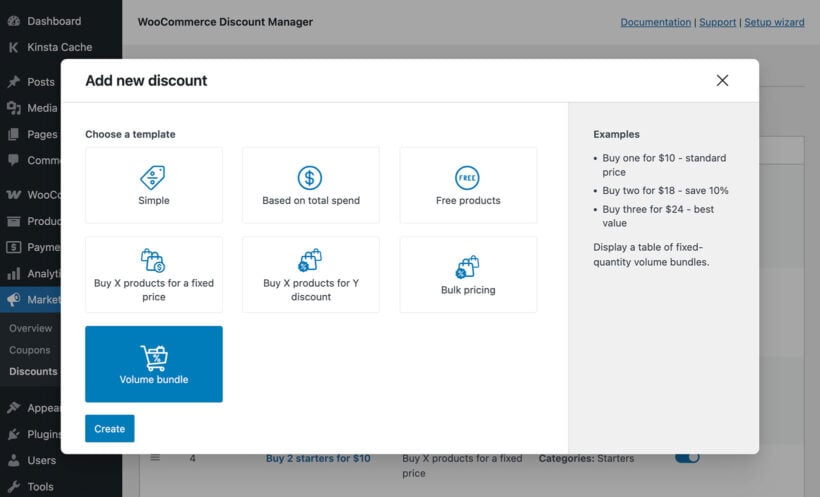
- Go to Marketing → Discounts and click Add New.
- Select Volume bundles as the discount type.
- Choose which products or categories the volume bundle applies to.
- Set the quantity tiers and the fixed or percentage discount at each tier.
- Save. The volume bundle appears on the matching product pages automatically.
Method 2: Build your own bundles with WooCommerce Product Table
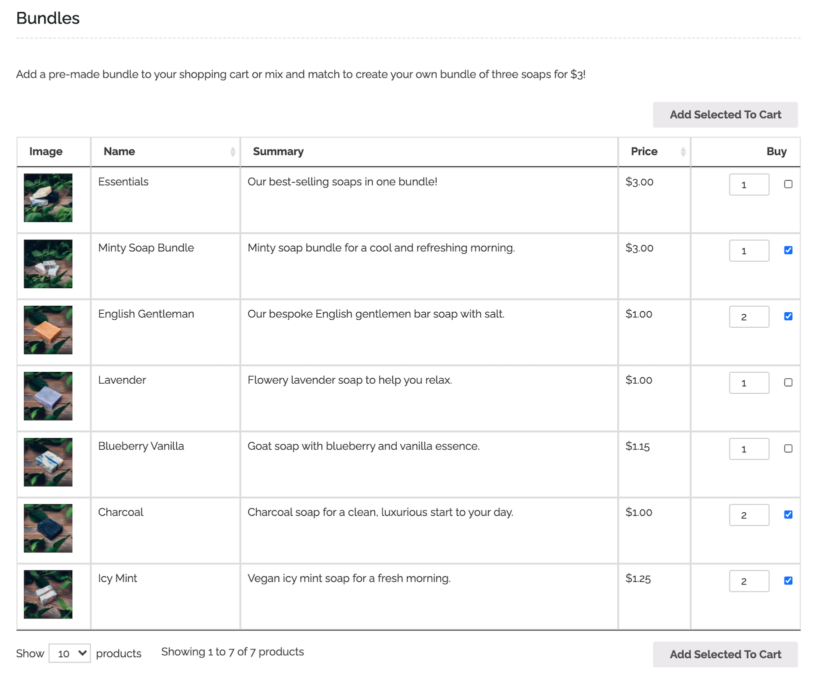
If you sell a variety of products and want to give customers the option to choose which ones they’d like to add to their product bundle, we recommend using the WooCommerce Product Table plugin.
We built Product Table after store owners kept asking for a single front-end page where customers can compare items, pick quantities and add to the cart without clicking into each product. For a build-your-own bundle, that's exactly the behaviour you want: every option in one table, checkboxes to multi-select, and one trip to the cart.
This is the best option if you want a flexible way to suggest product bundlings while allowing customers to choose which products to order and in which quantities.
Setup instructions
- Get the WooCommerce Product Table plugin and install and activate it on your WordPress site.
- Head over to Products → Product Tables → Add New to create your first list of product bundles. I recommend the following configuration:
- Select the option to "Add to a page using a block or shortcode".
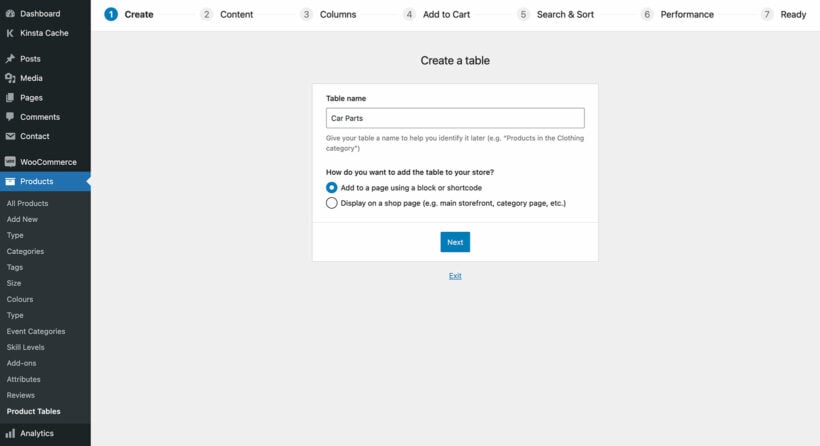
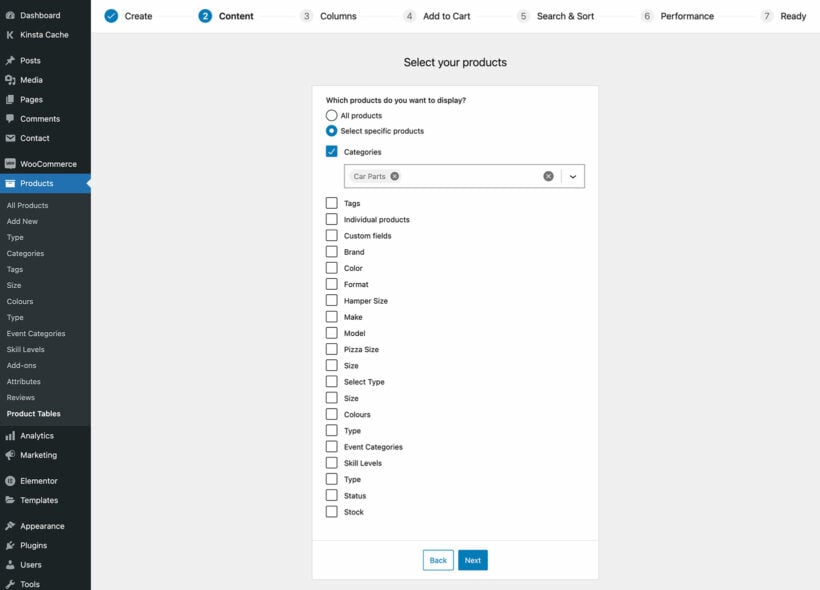
- Select which products to display in the bundle. For example, you can select individual products, or select them by category or tag. (Tip: If you'll be presenting the bundle options in multiple tables on the same page, then it's probably best to create a separate table listing products from each category. For now, just select the products that will appear in the first section of the bundle.)
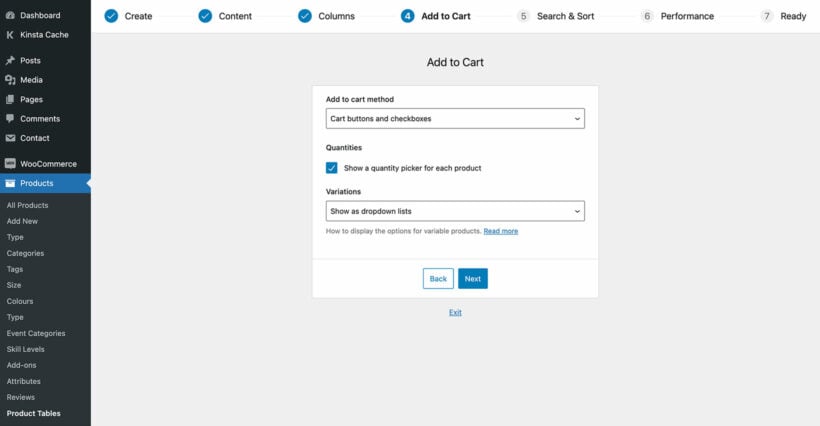
- On the 'Add to cart' page, I recommend using the checkbox add to cart button style. This lets customers multi-select products to build their bundle. If the bundle includes any variable products then you should either choose the 'Dropdown' style, or 'Show variations on their own row' if you want to list variations separately as if they were individual products.
- The last page of the table builder provides a shortcode for inserting the table. Copy this if you're not using the Gutenberg block editor.
- Repeat the above steps (selecting different products) if you will be listing the product bundle in multiple tables on the same page.
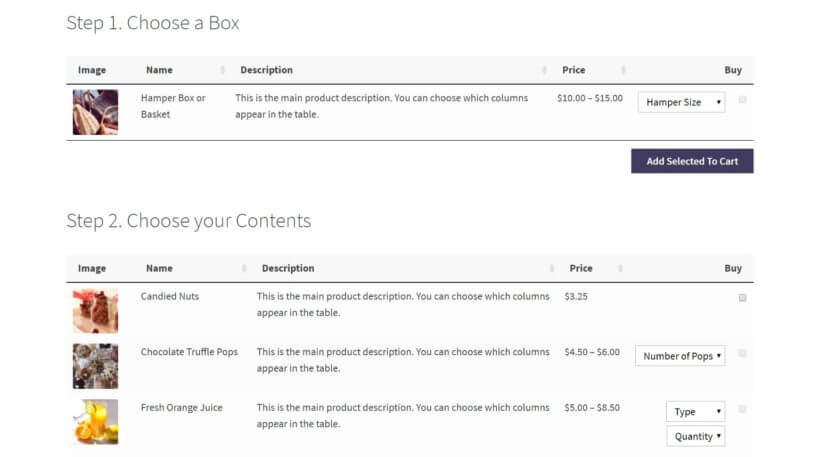
- Now create a new page and either add all your product table shortcodes to it, or insert each one using a 'Product Table' Gutenberg block. Add a heading between each table as required. This should walk customers through a logical step-by-step process to creating WooCommerce product bundles.
- Select the option to "Add to a page using a block or shortcode".
Method 3: Sell fixed-price bundles with WooCommerce Product Bundles
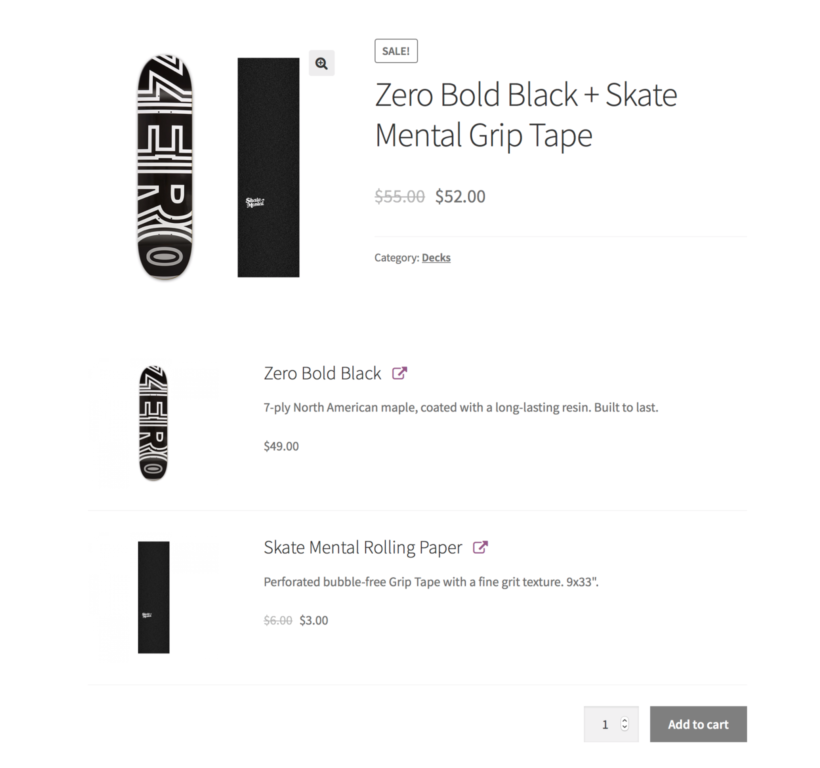
The Product Bundles WooCommerce add-on lets you display bundles of multiple WooCommerce product bundles with variations on a single product page.
There are two ways to sell product bundles: with one add-to-cart button for a fixed price or with separate prices and quantity boxes for each product in the bundle. The first option is recommended if you want to offer a fixed selection of products for a fixed price.
This is particularly useful for more expensive WooCommerce product bundles with variations like tech products (e.g. laptops with accessories), furniture (e.g. mattresses with bed sheets and pillows), or sports gear (e.g. ping pong table, rackets, and ping pong balls).
Setup instructions
- Get the WooCommerce Product Bundles plugin and install it on your site.
- Create a new product. This will be your product bundle.
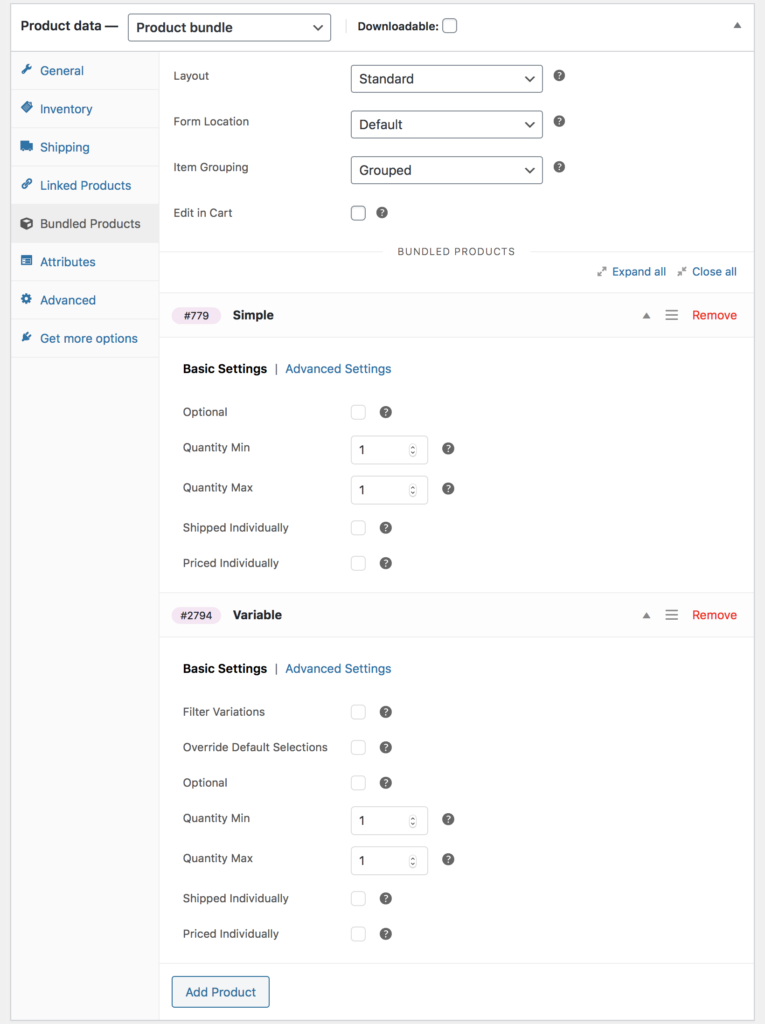
- Scroll down to the Product data section and use the dropdown to select the Product bundle option.
- Click on the Bundled Products tab to configure the WooCommerce bundled product options.
Method 4: Let customers pick and choose product bundles with variations
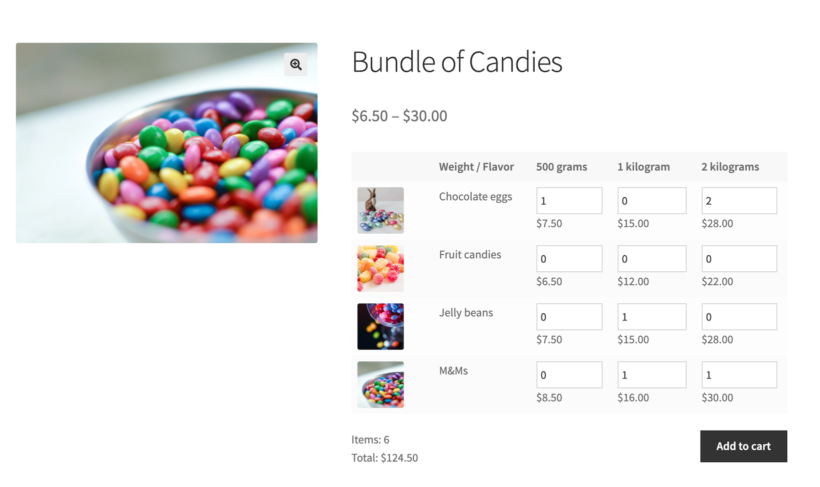
Method 3 uses the WooCommerce Bulk Variations plugin. It lets you create one product for each product bundle you want to sell. You can then add all the individual items that you want to allow users to bundle as variations. This is perfect for online stores that sell low-cost products like candies, sweets, teas, or coffees.
Using this plugin, you can display these variable products in a matrix on the single product page. You can also use the shortcode included in the plugin to show the product matrix on any page, such as a central Bundles page or in a widget. This allows customers to select the number of each variation they want to purchase and create their bundle.
Setup instructions
- Get the WooCommerce Bulk Variations plugin and install and activate it on your WordPress site.
- Go to Products → Attributes from the WordPress dashboard. Add attributes for the items you’d like to sell as bundle products. For example, if you’re selling candies you could add Flavor and Weight as attributes.
- Create a new WooCommerce product. This will be the product bundle.
- Scroll down to the Product data section and select Variable product using the dropdown.
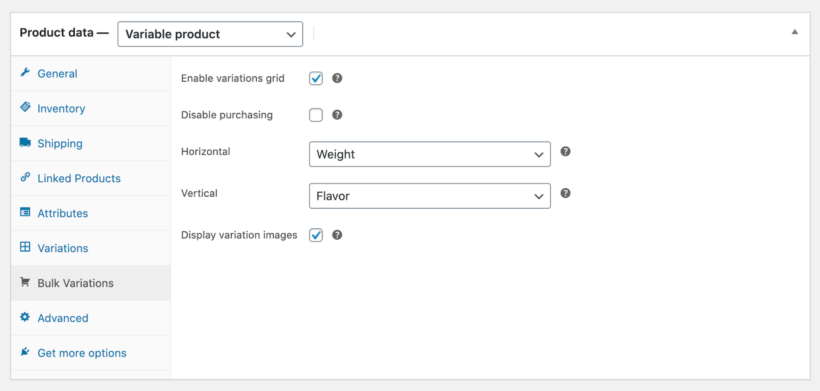
- Click on the Bulk Variations tab and configure the following settings:
- Tick the checkbox next to the Enable variations grid option.
- Set the Horizontal and Vertical attributes.
- Tick the checkbox next to the Display variation images option.
- Click the Publish button.
On the product page, customers can choose how much of each variation they’d like to purchase. This lets them complete their WooCommerce product bundles with variations. The total price appears directly under the matrix before they add everything to the cart.
If you don't want to display your bundle on the single product page, then you can insert the variations matrix elsewhere using a shortcode.
Moreover, thanks to its deep integration with WooCommerce Subscriptions and the All Products for WooCommerce Subscriptions add-on, you can also use Product Bundles to offer personalized subscription boxes.
What is the difference between grouped products and bundled products in WooCommerce?
In WooCommerce, a grouped product and a bundle product are two different types of product options that allow you to offer related products to your customer. Here is the main difference between the two:
- Grouped product: A grouped product is a collection of individual products that are sold separately, but grouped together on a single page. It allows customers to choose which individual products they want to buy and add them to their cart individually. For example, a camera, lenses, and accessories can be grouped together as a camera kit.
- Bundle product: A bundle product is a set of products sold as a single unit. Customers cannot choose which individual products they want to purchase from the bundle but must buy the entire bundle altogether. For example, you can bundle a laptop, mouse, and keyboard together as a single laptop package.
How do I create a grouped product in WooCommerce?
Creating a grouped product in WooCommerce involves a few simple steps. Here's how to do it:
- Log in to your WooCommerce account and navigate to the WordPress dashboard.
- Click on the "Products" tab and then click "AddNew" to create a new product.
- Choose "Grouped product" as the product type from the dropdown menu.
- Give your grouped product a name and description, and set the price for the group (if applicable).
- Under the "Grouped Products" table, click the "Add Products" button to add the individual products that make up the group.
- Search for and select the products you want to include in the group. You can add as many products as you like.
- Rearrange the order of the products if needed, using the drag-and-drop functionality.
- Save your changes, and you can now publish your grouped product.
Customers can view a list of individual products included in the group with prices and buy buttons. This provides them with the flexibility to purchase multiple products at once while choosing which products they want to buy.
How do I create a product list in WooCommerce?
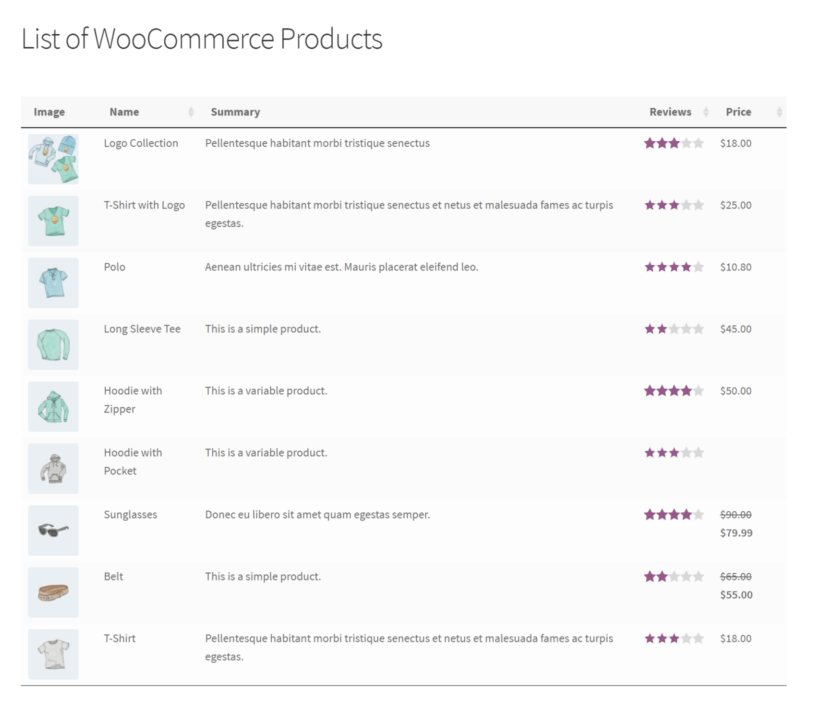
You can create a product list in WooCommerce by using the built-in functionality of the WooCommerce Product Table plugin. Here are the steps to follow:
- Log in to your WordPress dashboard.
- Navigate to the Products → Product Tables section in the left-hand menu.
- Click on the Add New button to create a new product list.
- Copy the shortcode from the final page, and paste it into the page where you want to list products. Alternatively, if you're using the Gutenberg editor then you can add the 'Product Table' block and select your product list to insert it.
Quantity rules and discounts
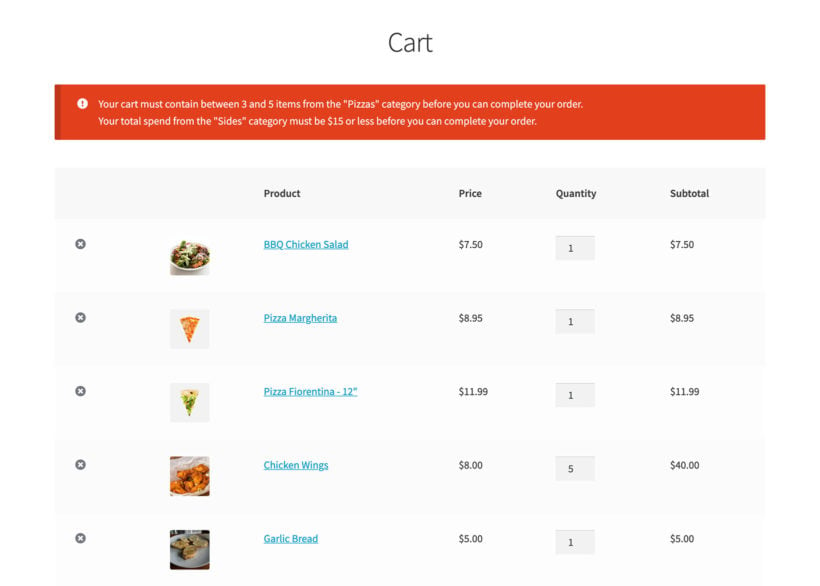
Many WooCommerce websites set rules around their product bundles. For example, you might want to restrict how many items customers can order from a bundle. You might want to automatically apply a bulk bundle discount depending on the number of products or variations ordered.
You can add these features using some excellent WooCommerce plugins, which work with all the methods in this tutorial:
- WooCommerce Discount Manager - Add quantity-based bulk discounts for specific bundles (e.g. based on category or product).
- WooCommerce Quantity Manager - Set minimum and maximum quantity rules for your bundles. You can either set these rules globally, per category, per product, or per variation.
Want to create WooCommerce product bundles?
There are four solid plugin paths to creating WooCommerce product bundles:
- Use WooCommerce Discount Manager for volume bundles that reward stocking up on the same product.
- Use WooCommerce Product Table for build-your-own bundles where customers mix and match across multiple products.
- Use WooCommerce Product Bundles for fixed-price bundles sold at a single price.
- Use WooCommerce Bulk Variations for mix-and-match bundles built from variations of a single product.
Be sure to make your product bundles relevant and attractive to your target audience. Promote them efficiently across your website and marketing channels. Providing a personalized and convenient shopping experience with product bundles can increase your revenue and profit margins.
Ready to create and sell WooCommerce product bundles with variations? Choose a plugin from the list above, and set it up today! With the right tools and strategies in place, you can take your ecommerce business to the next level 💪