How to hide price in WooCommerce: 3 simple methods (and code)

Hiding prices from public view is necessary for wholesale stores, catalog sites, and many other situations. WooCommerce doesn't include a built-in way to hide product prices, but it's straightforward to do with the right plugin.
Don't worry though, it's all very doable. By the end of this guide you'll know exactly which of three plugins fits your situation and how to set it up. The right one for you depends on what you want hidden and who you want to hide it from:
- Hide prices from logged-out visitors onlyUse WooCommerce Wholesale Pro. Best for wholesale and B2B stores where retail browsers shouldn't see trade prices, and for any store with different prices per customer group.
- Hide prices from everyoneUse WooCommerce Product Table. Best for spec catalogs, product directories, and "browse but enquire to buy" sites where the catalog is the product.
- Hide entire products from public viewUse WooCommerce Private Store for the whole shop, or WooCommerce Protected Categories for specific categories. Best for client-only or members-only stores.
- Write a code snippetAn option for developers who only need a one-off on a single site. The plugins above do this and more, but a snippet works if you'd rather not install another plugin.
Keep reading for the step-by-step setup for each option, plus the common pitfalls to watch out for.
Compare the three hide-price methods
| Method | Best for | Price visibility | Plugin | Setup difficulty |
|---|---|---|---|---|
| Hide prices from logged-out visitors | Wholesale stores, B2B businesses, members-only shops | Visible to logged-in users only | WooCommerce Wholesale Pro | Easy (5 minutes) |
| Product tables without prices | Product catalogs, directories, spec sites | Hidden from all visitors | WooCommerce Product Table | Easy (10 minutes) |
| Private store or protected categories | Client-only areas, exclusive shops, password-gated stores | Entire products hidden | WooCommerce Private Store or Protected Categories | Easy (10 minutes) |
| Custom code | Developers, simple one-off requirements | Flexible based on code | None | Hard (requires coding) |
How to choose the right method for your store?
Use this decision tree to pick the right option.
Start here: Why do you want to hide prices in WooCommerce?
→ "I run a wholesale or B2B store"
- Different prices for different customer groups?
- Yes: Use WooCommerce Wholesale Pro (Option 1).
- No, just hide from guests: Use WooCommerce Wholesale Pro with 'Hide price until login'.
- Want to hide the entire store from the public?
- Yes: Use WooCommerce Private Store (Option 3).
→ "I want to create a product catalog"
- Need search and filter features?
- Yes: Use WooCommerce Product Table (Option 2).
- No: Use the custom code snippet at the end for simple hiding.
→ "I run a members-only or client-specific store"
- Should non-members see product names and descriptions?
- Yes: Use WooCommerce Wholesale Pro with hide price until login (Option 1).
- No, hide everything: Use WooCommerce Private Store (Option 3) for the whole shop, or WooCommerce Protected Categories for specific categories.
→ "I need different sections for different clients"
- Use WooCommerce Protected Categories (Option 3). Each category can have its own password and branded landing page.
Option 1 - Hide prices from logged-out users
For most stores, WooCommerce Wholesale Pro is the option I'd start with. It lets you decide who sees prices and who doesn't. For example, you can show full prices to your logged-in wholesale customers and no prices at all to everyone else. Guests see neither prices nor buy buttons, because letting someone add things to their cart without knowing what they cost would be weird.
One small detail that's easy to miss if you go the DIY-code route: Wholesale Pro also hides the price from the hidden code that search engines like Google read behind the scenes. Most code snippets only filter the visible price, which is how trade prices end up in Google's search results by accident.
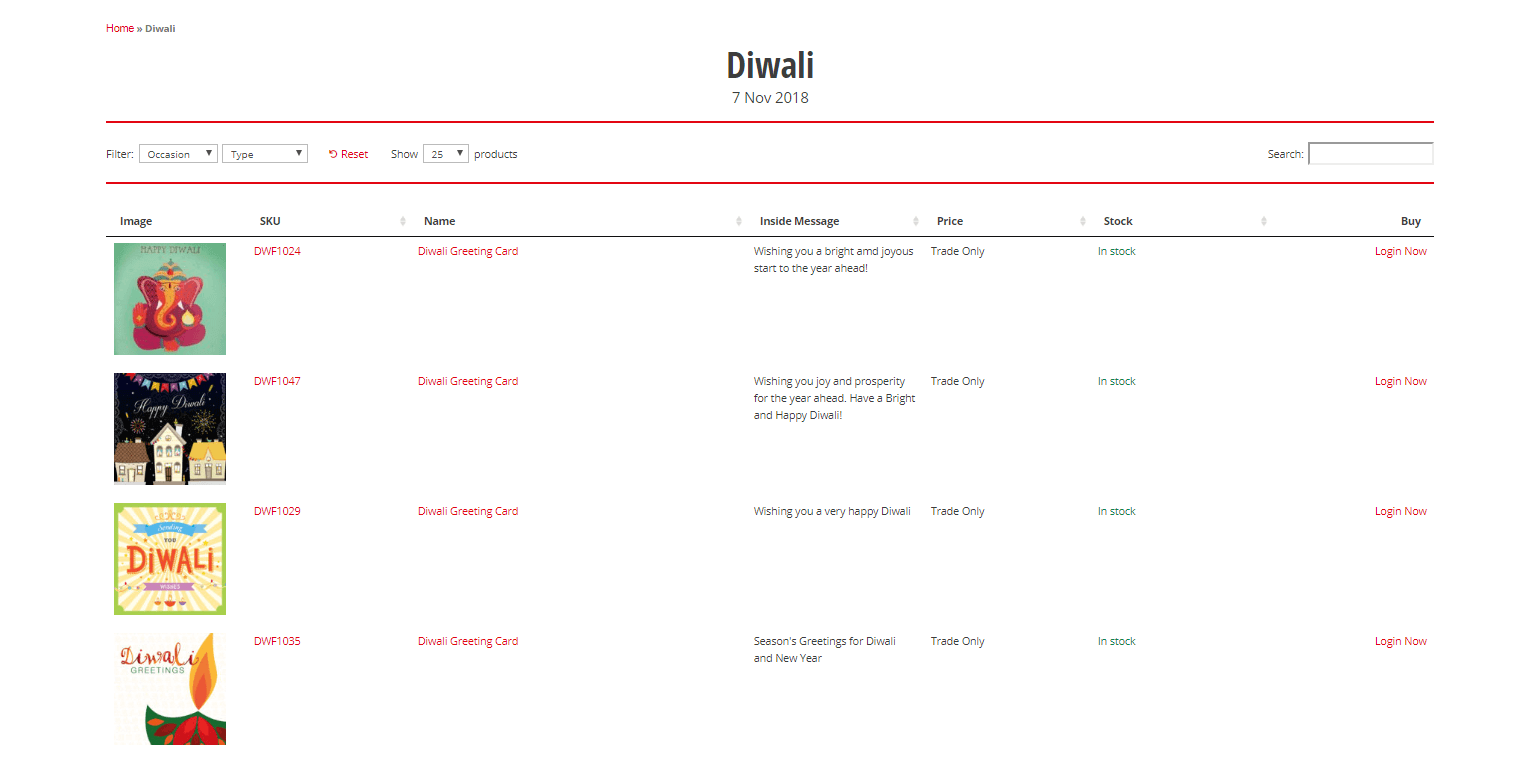
Davora, a UK supplier of ethnic and minor-season greetings cards, uses Wholesale Pro on top of a product table to run wholesale and retail from the same WooCommerce install. Logged-in wholesale buyers see prices and a fast quick-order table layout. Retail browsers see the public site with no prices and no checkout.
One Wholesale Pro customer review captures the dual-store use case well. Pascal wanted "all the opportunities to create a B2C and B2B-shop in one installation" and chose Wholesale Pro after a heavy evaluation against other wholesale plugins.
Other situations where this works well
Hide-price-until-login is most common on B2B sites, but stores use it for several adjacent models:
- Exclusive members-only purchasing clubs that keep products public for SEO and discovery, with prices hidden until members log in.
- Branded suppliers to specific customer segments (schools, sports teams and workwear suppliers) where prices are pre-agreed with the buying organization.
- Trade-only stores often run multiple user roles at different price tiers, such as gold, silver, distributor and reseller.
How to set it up
- Install WooCommerce Wholesale Pro on your WordPress site.
- Navigate to WooCommerce → Settings → Wholesale.
- Enable the 'Hide price until login' option and save changes.
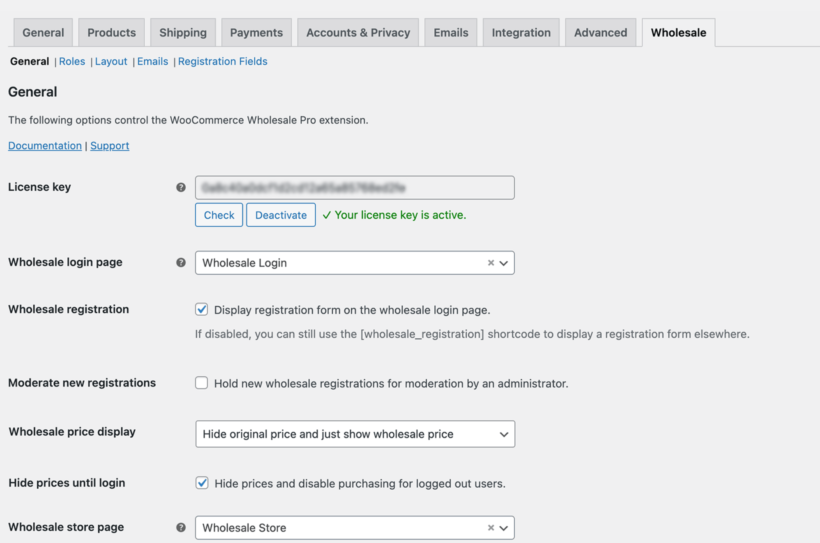
- (Optional) For role-based pricing, add wholesale user roles under WooCommerce → Settings → Wholesale → Roles and set prices per role on each product or category.
After saving, prices and buy buttons disappear for logged-out visitors across the entire site, including the mini-cart and product schema markup. Logged-in users see prices as normal.
Further reading: How to use the WooCommerce Hide Price Until Login plugin.
Option 2 - List products in a table with no prices
When you want to hide prices from everyone (not just guests), WooCommerce Product Table is the option to reach for. It turns your shop, or any other page, into a clean filterable table where you choose exactly which information shows in each column. Leave out the 'Price' and 'Buy' columns and you've got a catalog that lets shoppers browse and search but doesn't try to sell anything directly.
If your catalog runs to thousands of products, you don't need to worry about speed. Product Table has built-in lazy loading and caching that keep the page fast even on big stores.
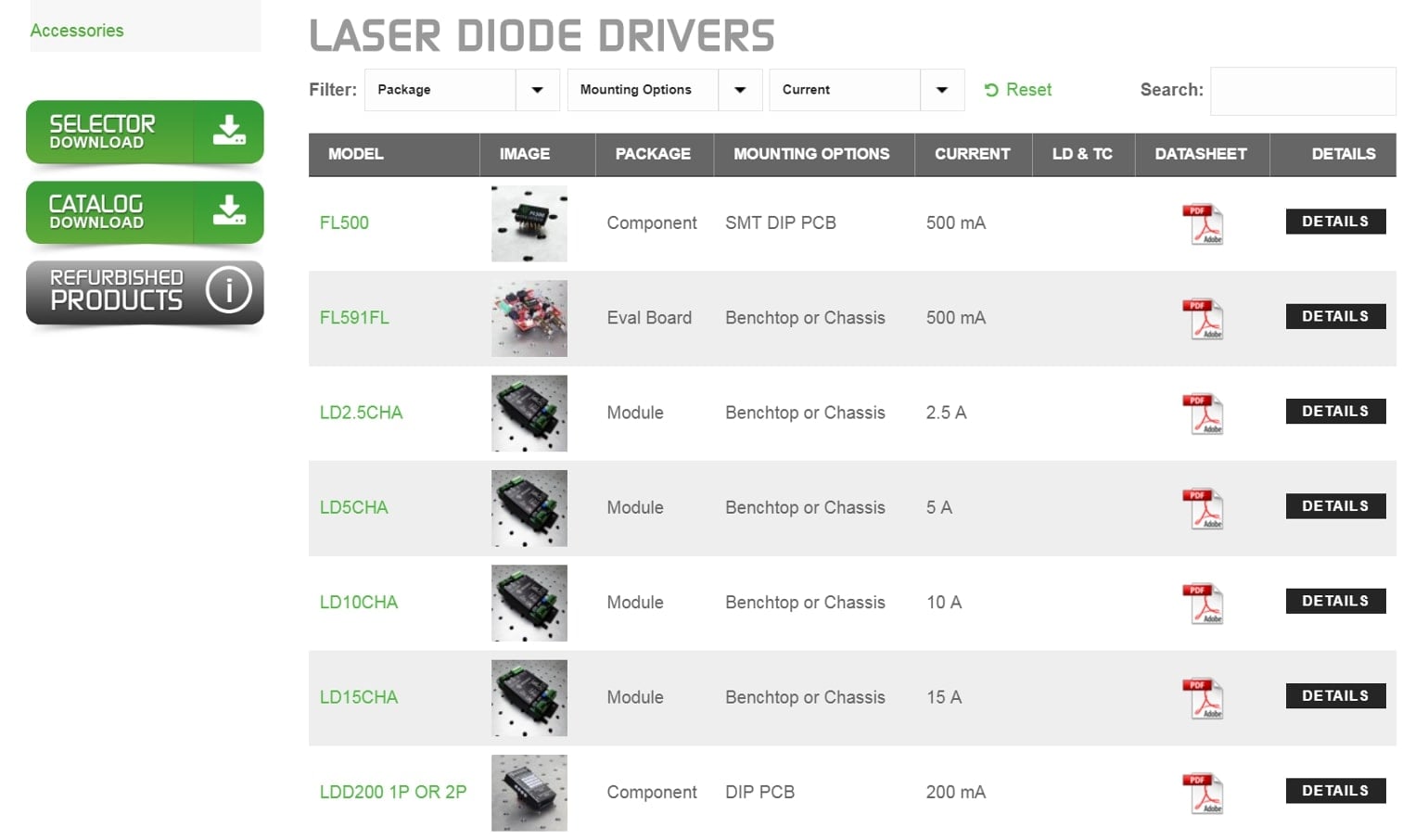
Wavelength Electronics, a Montana-based supplier of laser-diode and thermoelectric controllers, uses Product Table to give engineers a per-category comparison view. The tables show product specifications, ticks for supported features, links to PDF datasheets, and a "more info" link to the single product page (instead of an add to cart button). Customers compare options in the table, then click through when they're ready to enquire.
One Product Table customer review sums up where it tends to fit. Alane wrote that "it's excellent for wholesale stores to allow customers to quickly build their orders" and called it her go-to solution when a tabular product listing is needed.
Other situations where this works well
Product tables without prices are common across catalog-first WooCommerce stores:
- Parts and components catalogs (electronics, auto parts and industrial supplies) where customers need to compare product specifications before contacting a sales team.
- Product directories and showcase sites that aren't selling directly through the website.
- Restaurant and food menus that display items without prices and direct visitors to call or book.
- B2B stores combining a public-facing no-price catalog with Wholesale Pro for trade customers (Davora's setup, from Option 1).
How to set it up
- Install WooCommerce Product Table on your WordPress site.
- Create a new table via Products → Product Tables.
- Choose between a standalone catalog page or enabling the catalog view on your shop page templates.
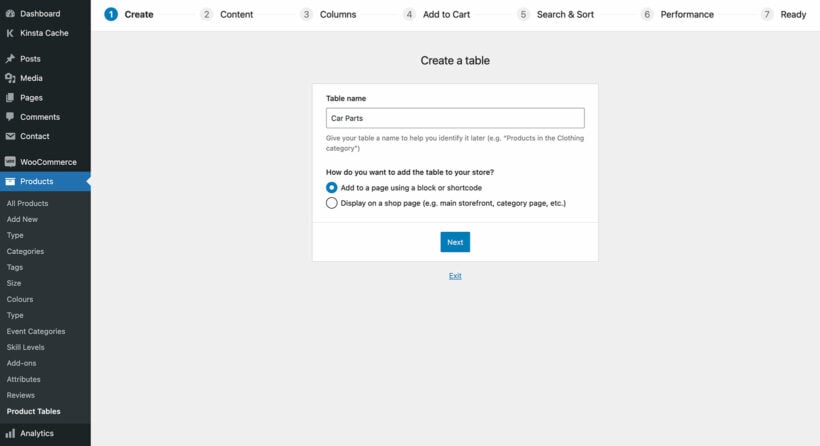
- Pick which products appear in the table (all products, a specific category, or a custom selection).
- On the 'Columns' page, exclude the 'price' and 'buy' columns. Rename remaining column headers if you want.
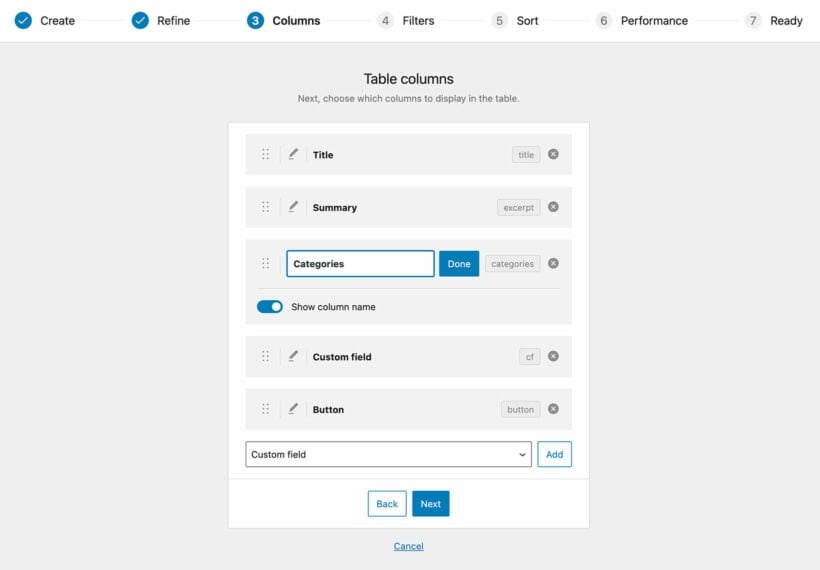
- Turn off 'Link to the product page' in the advanced column options if you don't want shoppers reaching the single product page where prices would otherwise show.
- Use the shortcode or 'Product Table' Gutenberg block to display the table on any page.
If you want prices hidden for logged-out users but visible to trade buyers, combine Product Table with WooCommerce Wholesale Pro from Option 1. The bundle works as a wholesale order form. Trade buyers see prices and add-to-cart buttons in the table; retail browsers see the same table with neither.
Further reading: How to display WooCommerce products in catalog mode.
Option 3 - Hide entire products from public view
If you want to hide your whole shop until visitors unlock it, WooCommerce Private Store is what you need. Your homepage, blog and about page stay public as normal, so search engines can still find your site and marketing pages keep working. Click 'Shop', or land on any product page, cart, checkout or account page, and visitors are asked for a password or to log in.
The typical use case is a one-password gate for a trade portal: you share the password with your wholesale customers and they all unlock the same store. It's also useful for keeping a whole shop live but invitation-only, while you build it out or trial it with a select group.
One Private Store customer review captures the practical case neatly. Michel wrote: "I needed to close my online store, but not to close down the entire site. Private Store did just that, after a very swift installation."
How to set up Private Store
- Install WooCommerce Private Store.
- Go to WooCommerce → Settings → Private Store. Choose how visitors unlock the store: a single shared password, a logged-in WordPress account, or a specific user role.
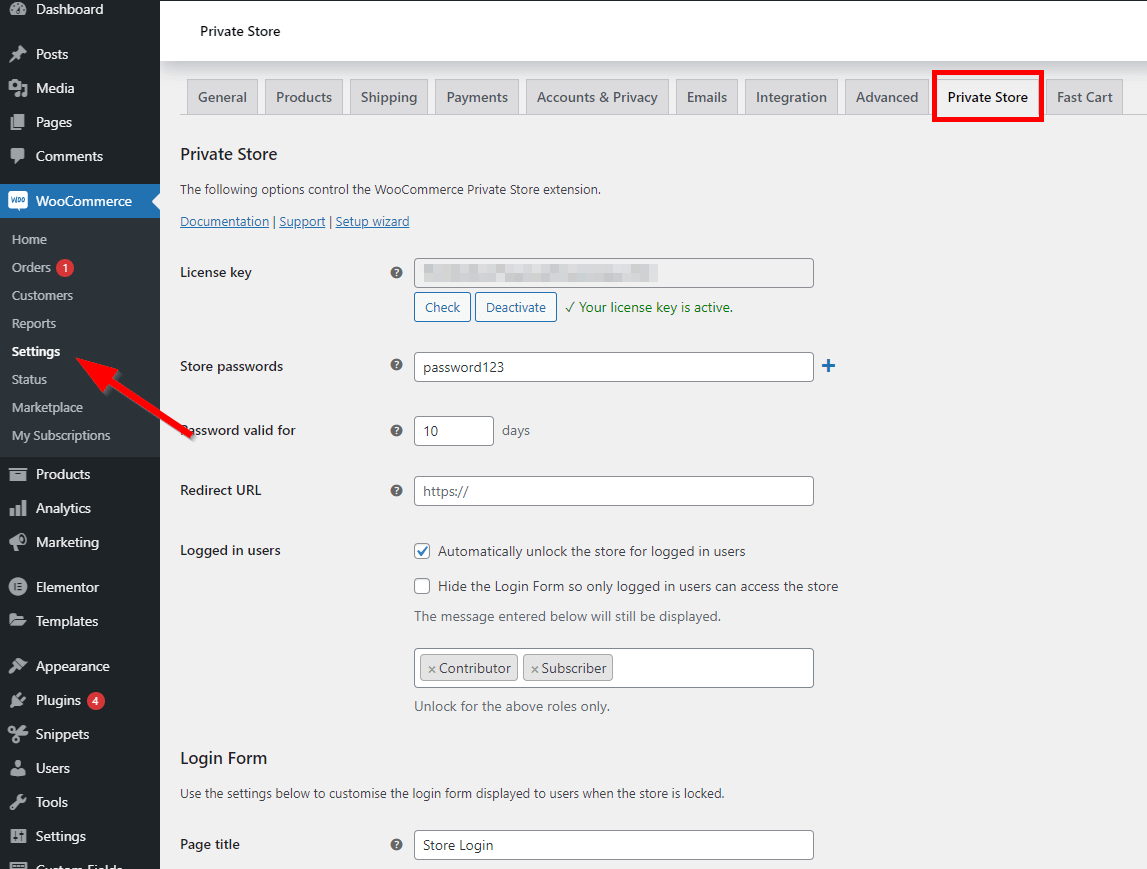
- Save changes. The shop, product pages, and cart immediately become hidden until visitors authenticate.
A practical heads-up before you ship: Private Store hides the 'My Account' link and the cart icon from your header menu when the store is locked. That's by design, not a bug. People often report it as broken; it isn't.
WooCommerce Protected Categories - private categories within a public shop
WooCommerce Protected Categories does the same thing, but at the category level instead of your whole shop. Give one category a password to share with a specific client. Restrict another to a particular user role. The rest of your shop carries on serving retail customers as normal.
A good real-world example is Withers Sports, a long-standing UK tennis retailer. They partnered with a national tennis coaching company and needed a way to offer exclusive discounted products to over 100 affiliated coaches, without making those prices visible to anyone else. Using Protected Categories, they built a password-protected, client-branded section of their store for the coaching company. Coaches log in with a shared password and see products and pricing tailored to them.
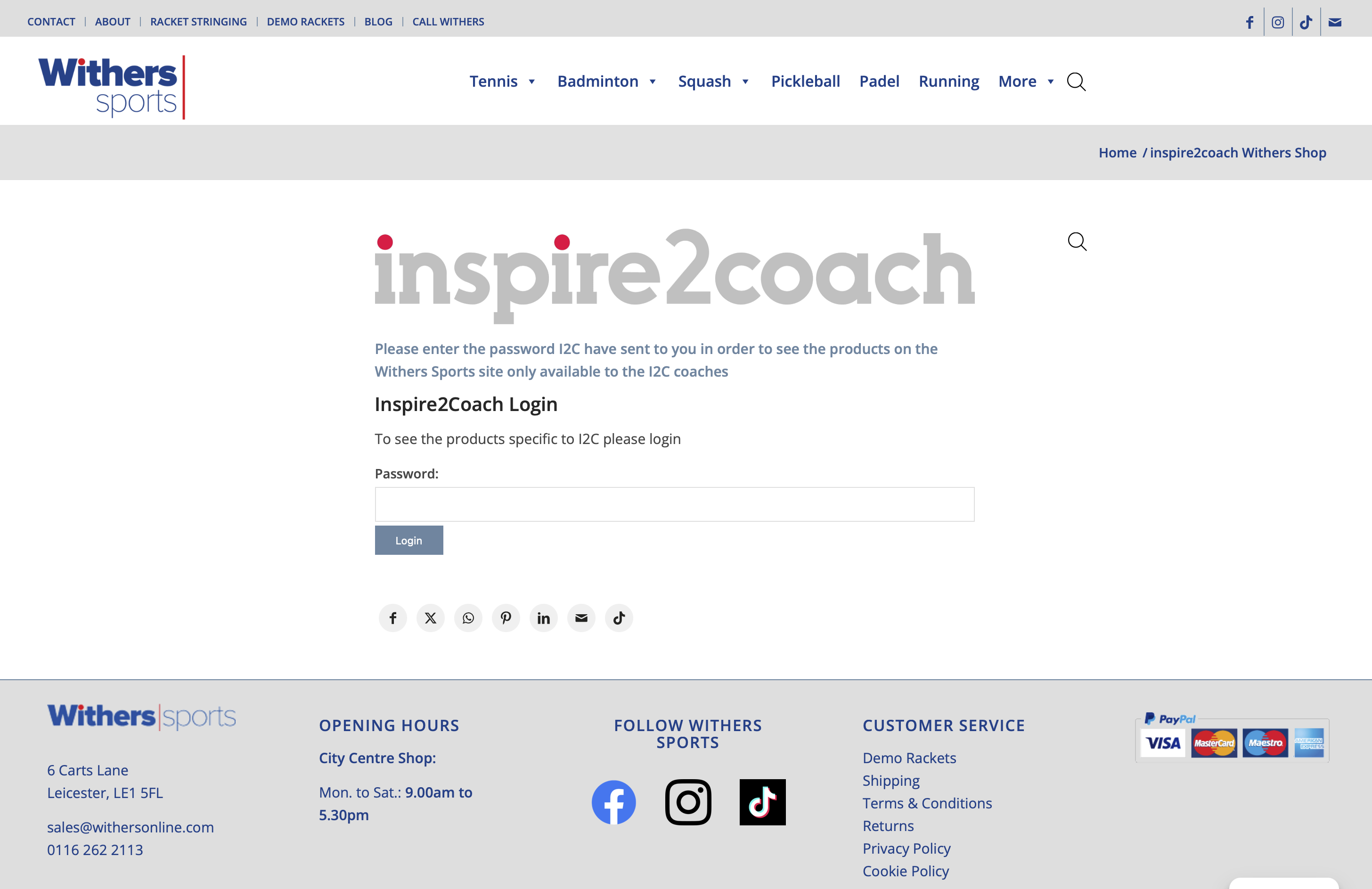
Providing a range of discounted products to the 100+ coaches within the client company, in a secure environment branded specifically to their needs, was a significant step forward in the business to business relationship.
James Spence, Director of Withers Sports Ltd.
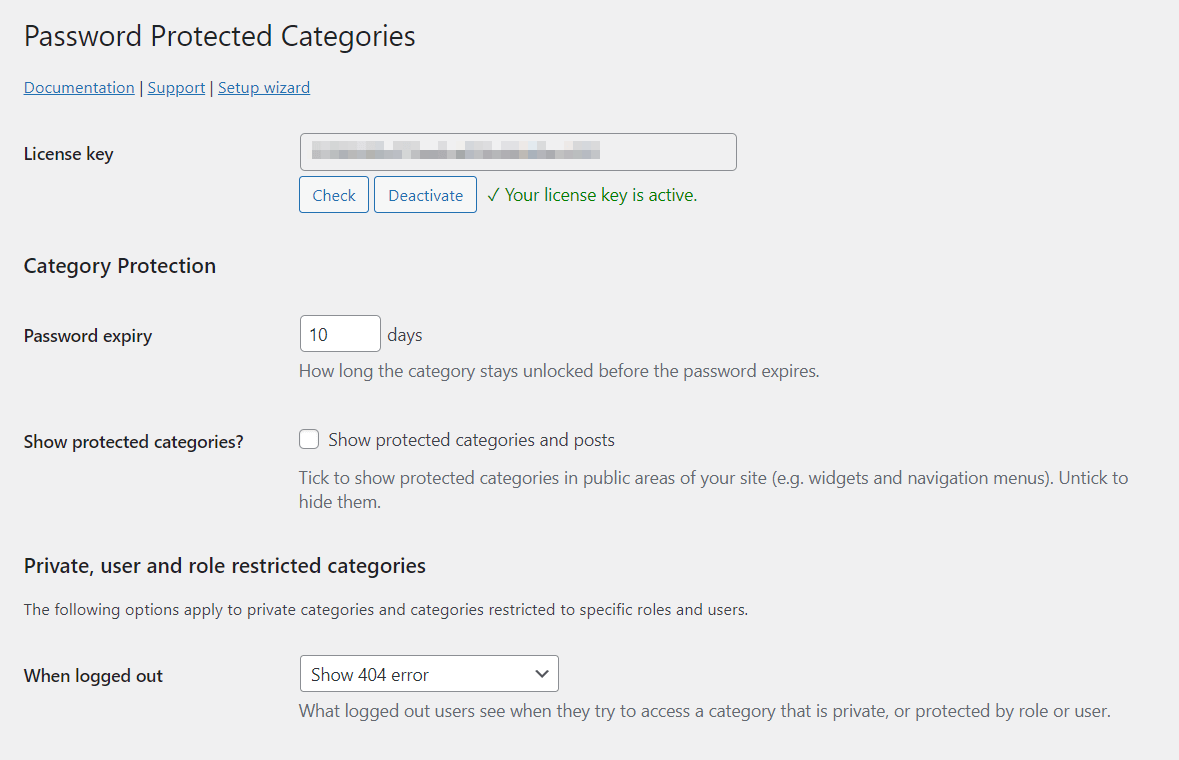
By default, Protected Categories shows the categories in the public shop, search results, and menus, with a password form when visitors try to enter them. If you'd rather hide them entirely until login, both visibility settings (public listings and navigation menus) can be toggled separately.
One Protected Categories customer review describes the show-but-restrict approach well. Stephen needed to restrict purchases on credentialed-license workbooks to qualified professionals. He wrote: "I can still show the products, but can easily make it [so they] know you can buy them with the password available from the administrator."
How to set up Protected Categories
- Install WooCommerce Protected Categories.
- Go to Products → Categories and edit (or create) the category you want to protect.
- Set its visibility to 'Password protected', 'Private (logged in)', or 'Private (user role)'.
- For password-protected categories, set a password (or multiple).
- To control whether the protected categories appear in your public shop listings and navigation menus, go to WooCommerce → Settings → Products → Protected categories.
Further reading: How to build a private WooCommerce members-only shop.
Common pitfalls when hiding WooCommerce prices
In our customer support, these are the four issues we see most often when people use the methods above to hide WooCommerce prices. Save yourself the trouble:
- Caching plugins serve the wrong version. The most common cause of "prices are still showing for logged-out visitors" is a page cache that captured the admin view before the plugin was active, then served it to guests. Exclude your shop page, your product pages and your product-category pages from page cache and Cloudflare cache, then clear the cache after installing the plugin. Most hosts can do this for you in one click. If you're on Cloudflare's free plan, set a page rule to bypass cache for those URLs.
- Heavily customized themes can leak the price. The price-hiding plugins above all filter the standard WooCommerce
woocommerce_get_price_htmlhook. Properly built themes use that hook and the plugins work without configuration. This works with Storefront, Astra, Kadence, Blocksy, GeneratePress, Divi and most other popular themes. Themes that fork WooCommerce's markup or wrap it in custom widgets can render the price through their own markup and bypass the filter. Some Elementor and Bricks WooCommerce widget sets behave this way. A small CSS rule usually fixes it. - Variable products need both add-to-cart actions removed. Wholesale Pro handles this automatically (it strips both
woocommerce_template_single_add_to_cartandwoocommerce_variable_add_to_cart), but custom code snippets often miss the second one. If you're using a code-only approach and your variable products still let people add to cart, that's the reason. - JSON-LD schema markup can leak the price even when the visible HTML doesn't. Many DIY snippets only filter the visible price, leaving WooCommerce's schema output intact. Google and AI crawlers read that schema and your trade pricing ends up in structured data. Wholesale Pro handles this with a separate filter on
woocommerce_structured_data_product_offer. If you go the code route, handle the schema separately.
How to hide the price range on variable products
Variable products show a price range, such as $10 to $40, instead of one price. That range shows on the shop page, the product page, and the variations dropdown.
To hide it, use the same plugin method that fits your store. WooCommerce Wholesale Pro hides the range from logged-out and non-wholesale visitors. Logged-in roles still see it, so retail browsers never see your trade pricing.
To remove the range for everyone, list the products in a no-price table with WooCommerce Product Table. You can also hide the products entirely with WooCommerce Private Store. After setup, check the variations dropdown too, since some themes render the variation price separately.
For developers: hide prices with code
The plugins above cover almost every real situation. If you're a developer building a one-off for a single store and you don't need user-role logic, the snippet below is the minimum viable version. Drop it in your theme's functions.php file or a small utility plugin.
<?php
// Hide all product prices storewide and disable add-to-cart.
// Place in your theme's functions.php or a custom plugin.
function custom_hide_prices_storewide() {
    add_filter( 'woocommerce_get_price_html', 'custom_replace_price_with_message', 10, 2 );

    remove_action( 'woocommerce_single_product_summary', 'woocommerce_template_single_add_to_cart', 30 );
    remove_action( 'woocommerce_after_shop_loop_item', 'woocommerce_template_loop_add_to_cart', 10 );
}
add_action( 'wp', 'custom_hide_prices_storewide' );

function custom_replace_price_with_message( $price, $product ) {
    return '<span style="color: red; font-size: 14px;">Call <strong>516.695.3110</strong> for pricing.</span>';
}
Customize the replacement text with your own phone number or wording. If you need per-category or per-product hiding (or want to handle the schema markup correctly), you'll have to extend this with conditional checks. By that point, WooCommerce Wholesale Pro is faster to set up than maintaining a custom snippet, and it covers the schema-markup and variation gotchas for free.
Frequently asked questions about hiding WooCommerce prices
Will hiding prices affect my SEO?
No, hiding prices doesn't hurt SEO directly. Search engines still crawl and index your product titles, descriptions, and images. Some store owners find that hiding prices increases on-site time because visitors browse longer before reaching out for a quote.
Will hiding prices work with my theme?
All three plugins work with any properly coded WooCommerce theme that uses standard WooCommerce hooks. Most popular themes are fine out of the box, including Storefront, Astra, Kadence, Blocksy, GeneratePress and Divi. Heavily customized themes or page-builder WooCommerce widgets (some Elementor and Bricks setups) can render the price through custom markup that bypasses the filter. If you hit that, a small CSS rule usually fixes it.
Will price hiding slow down my site?
No. All three plugins use WordPress filters and actions, not extra database queries. Wholesale Pro intercepts the price HTML before it renders. Product Table has built-in lazy-load and table caching for large catalogs. Private Store and Protected Categories run a single capability check per request. The performance impact is negligible on a properly cached site.
Can I display "Contact for price" instead of hiding prices completely?
Yes. WooCommerce Wholesale Pro supports custom replacement text per category or storewide. Common choices are "Contact for price", "Login to see price", or a phone number. The custom code snippet above shows how to do it manually too.
How do I show different prices to wholesale and retail customers?
WooCommerce Wholesale Pro handles this automatically. Set up wholesale user roles and assign different prices to each role. Retail customers see standard prices, wholesale customers see trade pricing, and logged-out visitors see no prices at all.
Can I hide prices but still show stock status?
Yes. Stock status displays independently from prices, so all three plugins let you show stock levels while hiding pricing.
Can I combine multiple price hiding methods?
Yes. Common combinations include WooCommerce Wholesale Pro plus Product Table for wholesale order forms, or Protected Categories plus Wholesale Pro for client-only areas with role-based pricing inside.
Pick the right plugin for your store
For most WooCommerce stores, WooCommerce Wholesale Pro is the right choice. It handles the common case (hide prices from non-logged-in visitors, show different prices to specific user roles) and deals with the schema markup, variable products and mini-cart correctly out of the box.
For catalog-first sites where you're not selling directly through the website, use WooCommerce Product Table. It hides prices from everyone and gives visitors a fast, searchable catalog to browse.
For client-only or members-only stores where products themselves need hiding, WooCommerce Private Store covers the whole shop and WooCommerce Protected Categories covers individual categories.
15 Comments
I was just looking for it. Thank you for sharing.
Hi, Keith. Thanks for your comment. Glad this helped!
Hi! Thanks for all the info.
I was wondering if in any of this cases, if you just hide the product price the user can still add to cart the product and complete the purchase? That is what I need to achieve: do not show product price, but let the user to make a purchase, and then the shop admin will contact the user an share the final price.
Is this possible with one of this plug ins?
Hi, Daniela. Thanks for asking. While you can use either Option 2 or 3 to allow customers to add products to the cart without showing the product prices, please note that the prices will still be displayed by default in the WooCommerce cart page.
To allow customers to make a purchase without showing the product prices even in the cart and checkout pages, I suggest that you contact official WooCommerce Support for the best advice.
I want to mention Hidden price price with article number in picture (jpg format) in such way that i can Inform my wholesale client to find the hidden price and cater my retail client with the same picture without disclosing price. Ps i want to Make my retail customer think that its product code.
For eg:
13ADS/18-LCW-00
Where 13ADS is the product code while 1800 is the price.
Any updated advice would be highly appreciated.
Hi, Arsalan.
You can mention or add what you like to the product image (such as your example product code text) by using an image editing program or app, such as Photoshop or similar software.
Then each wholesale user will need their own account on your site to be able to access the wholesale area/page and unlock the wholesale pricing for their user role.
Let me know if you have any other questions. You can also contact us via our dedicated Support Center.
Hi Colin,
plugin is not compatible with paid woocommerce memberships plugin, unfortunately.
Could you check up this, please.
If you could find a workaround to hide price for the login-status only, would be great (add-to-cart button can be blocked by memberships plugin itself).
Thanks a lot.
Kind regards from Germany
Frank
Hi, Frank. Thanks for your comment and sorry to hear the Hide Price Until Login plugin by CedCommerce doesn't work with your WooCommerce memberships plugin. Please may I know the latter's exact name and author/developer?
As a workaround, you can use a combination of our WooCommerce Product Table and WooCommerce Protected Categories plugins to hide your product prices until a user logs in. Put your products in protected categories and then display a copy of your products in a public category or categories via the product table without displaying/including the price and add to cart columns. You will need to disable the links to the single product pages as well. This will display a product table without the prices and ability to add them to the cart for logged out users. Logged in users can navigate to the protected categories or be redirected to a special page that displays a product table that includes the price and add to cart columns.
I hope this makes sense. Should you have any other questions, you can also get in touch with us via our dedicated Support Center. Many thanks.