How to create a WordPress product catalog (with or without a shopping cart)

As an online store owner, you might want to create a WordPress product catalog to showcase your products. The only problem is that most e-commerce plugins don't provide much flexibility in terms of how to display products.
One way to create a visually appealing, user-friendly product catalog in WordPress is by using a product table layout, with a simple WordPress plugin - WooCommerce Product Table. It makes it easy for customers to browse a product list view, view details, and act on your conversion goal, whether it’s to make a purchase or get in touch for a quote.

In this article, we’ll start off by explaining in more detail what a WP product catalog table is. We’ll also walk you through a step by step tutorial on how you can create a WordPress product catalog, with or without a shopping cart.
What is a WordPress product catalog and who needs one?
A WordPress product catalog is a structured display of your products that customers can browse, search, and filter. Out of the box, most e-commerce plugins only display products in a standard grid. Each product takes up a large amount of screen space. The layout looks attractive, but it is not user-friendly for stores that sell more than a few products.
A grid also makes it difficult for customers to browse quickly or compare product details.
A product table plugin solves this. It creates a WordPress product catalog with or without a shopping cart. You can display more products per page. Customers can search, sort, and filter to find exactly what they need.
Who needs a WordPress product catalog?
Anyone who wants a user-friendly way to showcase many products can benefit from a WordPress catalog plugin. Products appear in a neat table or grid layout with the details that matter. There is no need for fiddly custom CSS or complicated HTML. Customers see more products per page.
E-commerce stores that sell products
Online stores that sell directly from their website benefit from a product table layout. It displays more products on a single page, with key product information and Add to Cart buttons.
The table layout also makes bulk buying easy. Stores that sell several products per order, such as wholesale suppliers or stationery shops, gain the most. From our own analysis of stores using Product Table, the biggest users are industrial and technical shops with spec-heavy catalogs of parts and components, where buyers compare data rather than browse big images.
Product tables also include search, sort, and filter options based on parameters such as price.
Businesses wanting to showcase products without e-commerce
Some businesses want to showcase products without selling them on the website. Customers browse the online catalog and make a selection.
These businesses usually take orders by phone or through quote requests. A full shopping cart is not practical for them.
However, a WordPress product catalog displays the range without showing prices or cart functionality.
Next, let's look at the WordPress product catalog plugins available. First, I'll cover the best WooCommerce product catalog plugin. Then we'll look at other options for WordPress sites not using WooCommerce. Finally, I'll show how to create a WP product catalog without needing an e-commerce plugin at all!
Introducing WooCommerce Product Table
The WooCommerce Product Table plugin lets you create a product catalog in WordPress to display products in a searchable, sortable, and filterable table layout.
We built WooCommerce Product Table for stores where the data about each product matters more to the buying decision than a big image. It's a great fit for technical or spec-heavy catalogs, and less suited to traditional clothing stores where shoppers want big photos and the full gallery.
This product catalog plugin is hugely beneficial to both businesses and e-commerce stores because:
- Works with WooCommerce, the world's leading WordPress e-commerce platform.
- Lets customers browse your entire product listing, or a curated selection of products, at a glance.
- Makes it easy for customers to view important product information and compare products quickly.
- Takes up less room on your website as compared to the standard format offered by most WordPress e-commerce plugins.
- Simplifies the purchasing process by allowing customers to buy multiple products from a single page. In other words, they don’t have to visit individual product pages to add products to their shopping cart.
- You can improve the buying process even further by using Product Table with its sister plugin, WooCommerce Quick View Pro.
In addition, the WooCommerce Product Table plugin lets you decide which columns you’d like to display in your WordPress product catalog (and in what order). You also have the option to decide how customers can filter through products e.g. by product category.
How to list products in a catalog for e-commerce
If you’d like to give customers the option to buy products directly from your online store then you’d want to display Add to Cart buttons in your WordPress product catalog.
Below, we’ll show you how you can do this regardless of which WP e-commerce plugin you’re using.
For WooCommerce
To get started, you’ll need a WordPress website with the WooCommerce plugin installed and some products added. You’ll also need to purchase the WooCommerce Product Table plugin and install and activate it on your website.
Step 1: Create a table-based WordPress catalog
Go to Products → Product Tables → Add New to launch the table builder. We'll use this to create a WordPress product catalog which lists your inventory in a table view.
The first page prompts you to decide how you'll add the catalog to your site. You have 2 choices here:
- Add to a page using a blog or shortcode - Use this option if you want to add a WordPress product catalog to a separate page, without affecting your main ecommerce store pages.
- Display on a shop page - Alternatively, use this option to use the catalog layout on all your store pages, without having to add it to any pages manually.
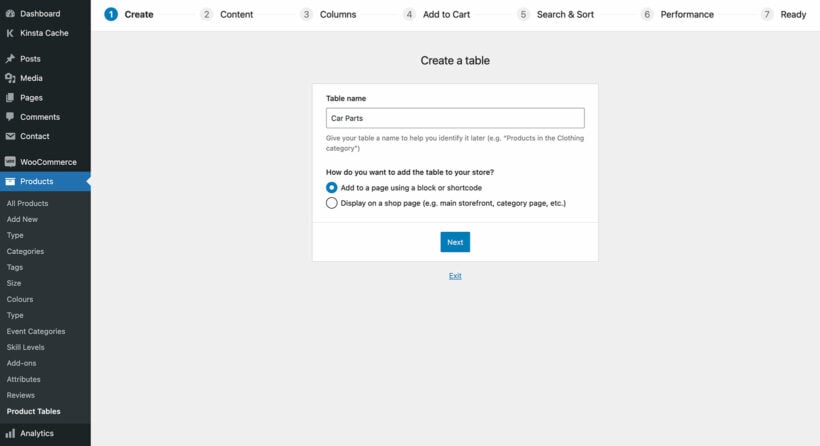
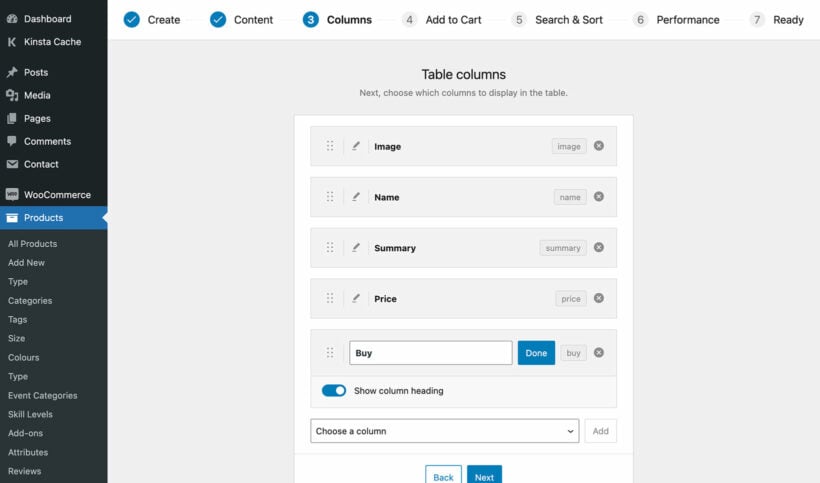
There are lots of useful options in the table builder, but we'll focus most on choosing your columns. These affect what product data appears in the WordPress catalog view.
Set the columns you’d like to have displayed in the front-end WordPress product catalog. For example, you might consider displaying the product’s image, name, a short description, price, and add to cart buttons:
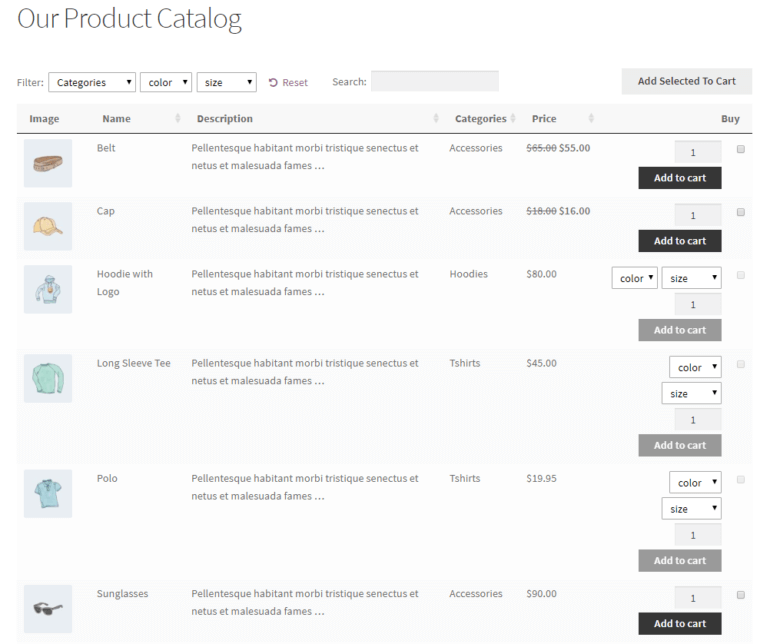
A WordPress product catalog with these columns will look something like this:
For complete instructions, be sure to check out this article on WooCommerce Product Catalog: Build a Product Table With or Without Online Purchasing.
Step 2: Add the product catalog to a page
You only need this step if you chose to insert the WordPress product catalog manually, above.
Log in to your WordPress admin panel and head over to Pages → Add New to create a new page for the WordPress product catalog. Give your new page a name. For example, you might call it Our Product Catalog.
Add the catalog to a page by selecting the 'Product Table' block and choosing your table. Or if you don't use the WordPress block editor then copy the product table from the end of the table builder and add that.
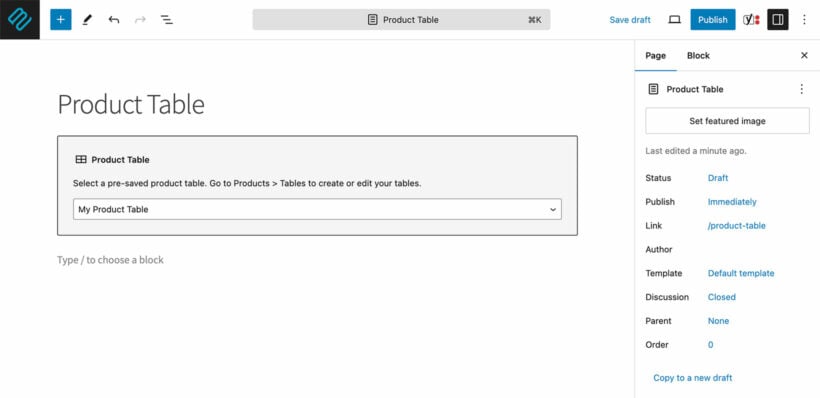
Once you’re done, click the Publish… button and preview the page. The WordPress product catalog should look something like this:
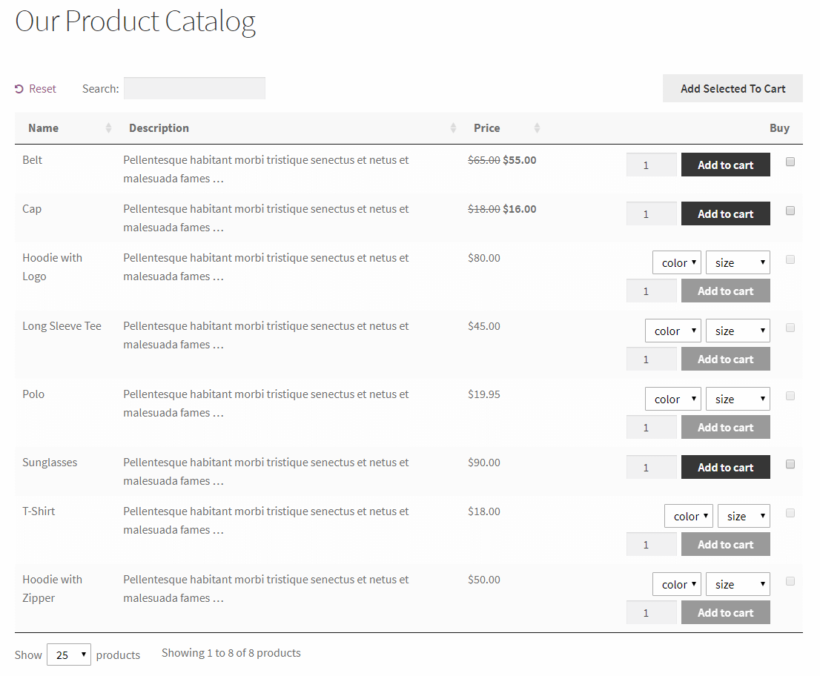
You’ll see a dynamic product catalog in a table layout. At this time, the table layout displays the default columns.
Step 3: Add product quick view to your tables
Used alone, WooCommerce Product Table comes with an add to cart column where customers can choose variations, pick a quantity, and add to the cart.
Some stores find that they want to show extra information, without taking customers to a separate page for each product. They might want to show multiple product images. Or they might have too many variations to fit neatly in the product table.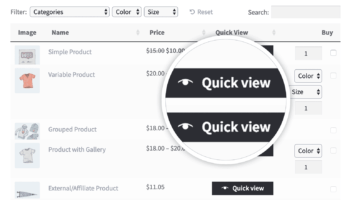
If any of this applies to you, then you can enhance your product tables by adding WooCommerce Quick View Pro. This plugin works alongside the table-based product catalog. It adds quick view links or buttons to the catalog pages.
Customers use the lightbox to view the full image gallery, read more information, choose variations and add to the cart.
Quick view is a great alternative to having a separate page for each product. Add it to your WooCommerce product catalog as follows:
- Install and activate the WooCommerce Quick View Pro plugin.
- Go to WooCommerce → Settings → Products → Quick view. Enter your license key and choose what you'd like to appear in the quick view lightbox.
- Edit the product table you created above (Products → Product Tables) and edit it. Add Quick View to the list of columns. If you want to disable the links to the single product page, scroll down to the Quick View settings on the same page, and enable this option.
For WP ecommerce, Easy Digital Downloads, or any other e-commerce plugin
If you’re using any other e-commerce plugin, such as WP ecommerce or Easy Digital Downloads, to power your online store, you can use the Posts Table Pro plugin to create a dynamic, functional WordPress product catalog.
The only condition is that the e-commerce plugin must create its own custom post type in WordPress for storing products. That's fine, as nearly all WordPress e-commerce plugins do this.
With the Posts Table Pro plugin installed and activated, simply select the products post type from your e-commerce plugin on the Posts Table Pro settings page. Then, enter the [posts_table] shortcode wherever you’d like to display the WordPress product catalog.
How to create a WordPress product catalog without a shopping cart
In some cases, you might want to create a WordPress product catalog without a shopping cart. In other words, you want to showcase your products in a product table layout with e-commerce functionality disabled.
Below, we’ve outlined the steps you need to follow to combine product tables with catalog mode while disabling the e-commerce functionality.
Strangely, I'm going to talk about WooCommerce again. Yes, I know it's an e-commerce plugin - but you can equally use it without offering an online ordering facility. I'll show you how this works, and I'll also tell you how to create a WordPress product catalog without installing any e-commerce plugin at all.
Create a WooCommerce product catalog without online ordering
Start off by following Steps 1 and 2 outlined in the previous section. The only differences are:
- Do not include a
buycolumn when you choose your product table columns. - When you add your products in WooCommerce, do NOT add prices. This is important because you're not selling them online. If you don't add prices then no add to cart buttons will appear. Or if you really want to show prices, then use the Catalog Visibility Options extension to hide product prices and add to cart buttons throughout your online store.
Your non-ecommerce WordPress product catalog will look something like this:
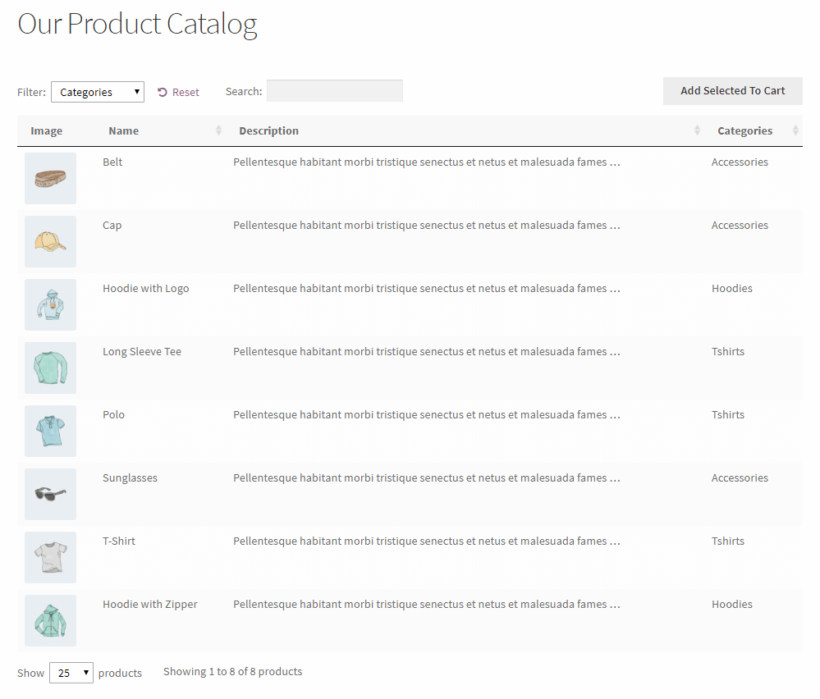
Perfect!
Create a product catalog without an e-commerce plugin
Finally, I'll reveal how to create a WordPress product catalog without needing an e-commerce plugin at all! E-commerce plugins such as WooCommerce are fantastic, free of charge, and won't weigh down your site too much.
But if you really don't want one, then you can create your own custom post type and use this to store your products instead. This will add a 'Products' section (or whatever you want to call it) to the left of the WordPress admin.
Once you've added the products, use the Posts Table Pro plugin to them in a table-style WordPress product catalog on the front-end of your website.
For full instructions, please see our tutorial about how to create custom post types and display them using Posts Table Pro.
Frequently asked questions
How do you create a product catalog in WordPress?
Install a catalog plugin, add your products, and choose a catalog layout. With WooCommerce Product Table, go to Products, then Product Tables, then Add New, pick your columns, and add the table to any page with a block or shortcode.
Can you create a WordPress product catalog without WooCommerce?
Yes. Store products in a custom post type and display them with Posts Table Pro. This works with Easy Digital Downloads and any e-commerce plugin that registers its own post type. It also works with no e-commerce plugin at all.
How do you display products without a shopping cart?
Leave out the buy column and do not add prices to your products. WooCommerce then shows no add to cart buttons, so visitors browse the catalog and contact you to order. The Catalog Visibility Options extension can also hide prices and add to cart buttons storewide.
The perfect WordPress product catalog plugins
The WooCommerce Product Table and Posts Table Pro plugins give you a functional, dynamic WordPress product catalog. You can showcase products only, or let customers buy directly from your store.
Either way, you control how your product listing appears on the front end. Choose the columns that fit your products. Offer search, sort, and filter options. Let customers buy from a single page bulk order form.
Do you agree that a table-based product catalog improves the customer experience? Share your thoughts in the comments below!