5 best WordPress file sharing plugins (free and paid)


Need to share files on your WordPress site? This guide covers the 5 best WordPress file sharing plugins for every scenario - whether you're distributing documents to users, collecting uploads from clients, or managing your site's internal files without FTP.
WordPress is a powerful content management system (CMS) that lets you add files to your site, but if you want a proper file sharing setup, its default features don't go very far.
Depending on what you need, "file sharing on WordPress" could mean three quite different things: sharing documents with visitors for download (a resource or document library), accepting file uploads from users like clients or members, or managing your site's own server files without needing FTP. These workflows require different tools, and choosing the wrong one wastes time. This article covers all three, with plugin recommendations for each.
Here's what you'll find below:
- What a WordPress file sharing plugin is and key things to look for.
- The 5 best WordPress file sharing plugins, with the pros and cons of each.
- A comparison table to help you choose.
- How to share files publicly and privately using Document Library Pro.
We also made a video covering the same topic, which you can view here:
Quick verdict
Short on time? Here's which plugin wins for each job:
- Best overall Document Library Pro is the most complete option for a searchable, access-controlled library of documents and resources.
- Best for managing server files without FTP Advanced File Manager gives you direct access to your site's files from the dashboard.
- Best for selling and tracking downloads WordPress Download Manager handles digital-product sales and detailed download stats.
- Best free option Shared Files or User Private Files both give you a front-end upload form and download area at no cost.
What is a WordPress file sharing plugin?
A WordPress file sharing plugin extends the default Media Library. Site owners can publish, organize, and control access to files for visitors, members, or staff. These plugins add searchable libraries and role-based access control. They also add front-end upload forms, external cloud links to Google Drive and Dropbox, and download tracking.
The right choice depends on what you need: a public resource library, a private member portal, or back-end file management. I'll walk you through the best WordPress file sharing plugins in each category next.
How I evaluated these file sharing plugins
File sharing means different things to different people, so I compared these plugins on the factors that decide whether one will work for you. That meant looking at security and access control, the front-end experience for visitors, how files are managed and organized, cloud storage integrations, and overall use-case fit. Price and support quality fed in too, based on each plugin's reviews and track record.
I find that people often install the first plugin they come across, then discover later it doesn't fit their use case. These are the five areas I focused on, and the ones worth thinking through before you commit:
- Security and access control Can you restrict files to specific user roles, individuals, or password holders? This matters especially if you're sharing sensitive documents or building a private member area.
- User experience Can visitors search, sort, and filter files from the front end? Is there a drag-and-drop upload option, and does it work on mobile?
- File management What file formats are supported? Can you organize documents into folders and categories? Is bulk import available?
- Integrations Does the plugin connect to cloud storage like Google Drive, Dropbox, or OneDrive? Can it work alongside your existing plugins?
- Use-case fit Some plugins focus on download management and analytics; others are built around document libraries with front-end display. Make sure the plugin matches your real goal.
5 best WordPress file sharing plugins
Here are the 5 best WordPress file sharing plugins:
- Document Library Pro
- WordPress Download Manager
- Advanced File Manager
- Shared Files
- WordPress File Sharing Plugin
Let me tell you more about each one.
1. Document Library Pro
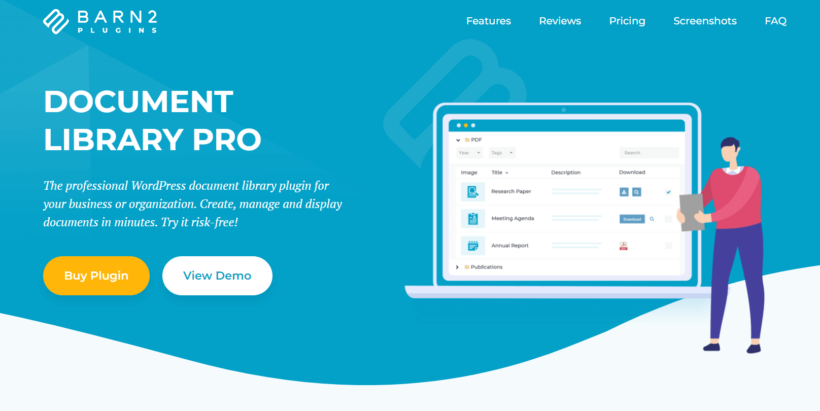
Rating: 4.99 stars
Best for: Searchable document libraries with access control. Particularly well suited to charities, healthcare organizations, councils, membership bodies, and any organization that needs to share resources or governance documents - publicly or behind a login.
We built Document Library Pro for uploading, organizing, and displaying files in a searchable front-end library. It gives you complete control over what gets shared, who can see it, and how it's displayed.
Key features
- Access control and private file areas The Advanced plan adds native access restrictions at global, category, and individual document level. Restrict files by user role, individual user, or password to build a private member portal or client resource area without a second plugin.
- Add files in five different ways Add files manually with metadata, select them from the existing Media Library, bulk import by CSV, drag and drop to upload, or let users contribute through a front-end submission form. Host files on your site or link to them externally, with no restriction on file format.
- External file links Link to files hosted on Google Drive, Dropbox, OneDrive, SharePoint, YouTube, or any other URL, so you don't have to duplicate files already in cloud storage.
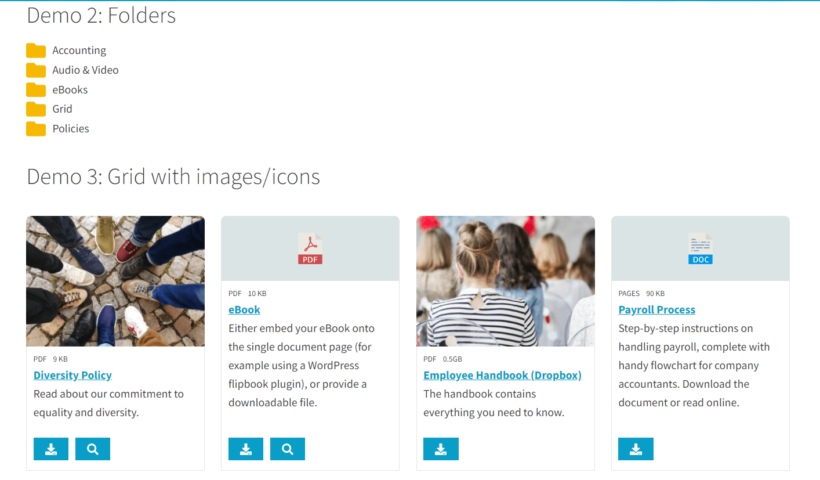
- Flexible display, search, and previews Show documents as a download button, icon, or text link in a table or grid, organized into nested folders with custom columns. Visitors get instant AJAX search, filtering by category and tag, and inline Office Web Viewer previews for Word, Excel, and PowerPoint files.
- Version control, expiry, and analytics On the Advanced plan, set expiry dates to remove outdated documents, replace a file while keeping the same URL so links never break, and track which documents are downloaded and by whom.
Document Library Pro works with any WordPress theme and includes technical support.
Not running WordPress? The same file library is available as a cloud version you can add to any site, so you can share files from Squarespace, Wix, or an intranet.
Pricing: Two plans - Essentials (public libraries without advanced access control) and Advanced (full access restrictions, version control, analytics, and more). Both are paid, with a 15% discount available for nonprofits and charities.
Pros: Front-end display, access control, cloud links, previews, and version control in one plugin, so you rarely need a second tool.
Cons: It's built for sharing files on the front end of your site. If you only need to manage media files in the WordPress back end, a dedicated file manager is a better fit.
Free version: a lighter edition called Document Library Lite is available on WordPress.org if you want to try a basic file list before adding access control and cloud links.
2. WordPress Download Manager
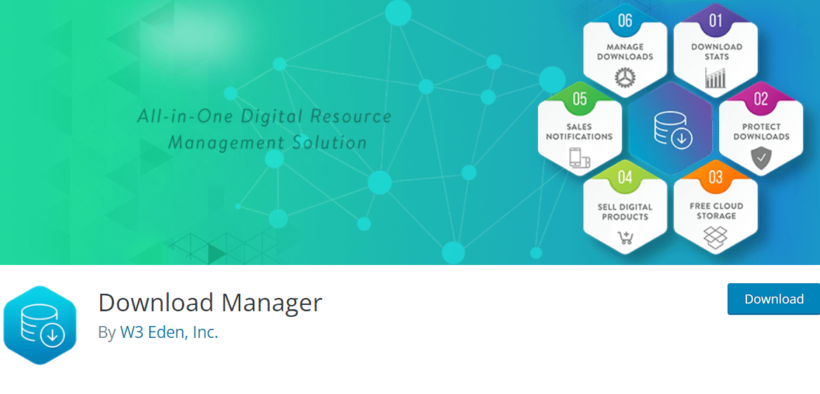
Rating: 4.1 stars (1,000+ reviews); 100,000+ installs
Best for: Monitoring downloads, selling digital products, and controlling file access with detailed analytics.
WordPress Download Manager by W3 Eden is a plugin that tracks and manages file downloads on your WordPress site. It has fewer front-end display options than Document Library Pro but is well-suited to anyone who needs robust download tracking or wants to sell digital files.
Key features
- Bulk import and multi-file archive downloads Add multiple files of different formats simultaneously using a process similar to creating a post, or via FTP. Users can download files as archived ZIP files from the front end.
- Limit access to files Control which visitors can download files using roles and password protection. Apply access control to entire packages or individual files. Protect files from bots with Captcha Lock or IP Block.
- Download stats and bandwidth control Access backend analytics with detailed access logs. Track download counts per file and monitor who is downloading, including their geolocation.
- Ecommerce-ready with social sharing The plugin is set up for selling digital products and licenses. Vary pricing with license types such as 'Simple' and 'Unlimited'. Promote products on social networks like Facebook, Twitter, and Pinterest.
Free vs paid: Download Manager has free and paid versions. The free version includes 15GB of Google Drive and 2GB of Dropbox storage. You need one of the 3 paid plans to access multi-file packaging, bulk import, and download stats.
Pros: A mature plugin with a capable free tier, strong download statistics, and built-in tools for selling digital files.
Cons: The free version pushes a lot of upgrade prompts, and reviewers report friction canceling the auto-renewing Pro plans, along with slower support.
3. Advanced File Manager
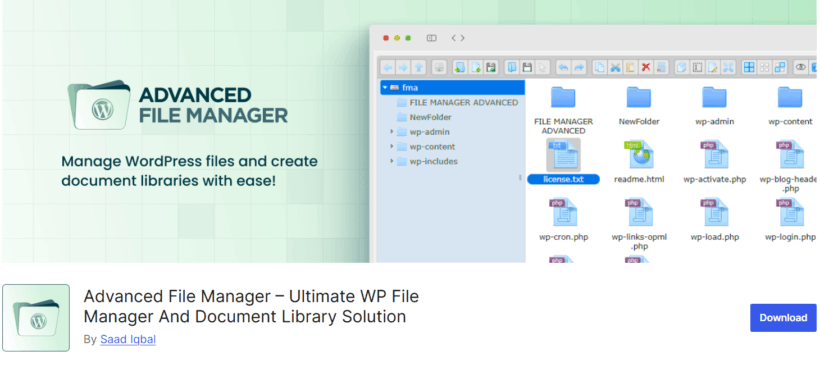
Rating: 4.8 stars (430+ reviews); 100,000+ installs
Best for: Site owners and developers who need direct access to server files from the WordPress dashboard - without FTP or cPanel.
Advanced File Manager is a free WordPress plugin that gives you complete control over your site's files directly from the dashboard or the front end. It goes beyond basic file handling with tools like an AI coding assistant, cloud sync, and private folders.
Related tutorial: How to create a WordPress file manager.
Key features
- Manage WordPress files from the dashboard or front end.
- Upload, edit, copy, move, and delete files easily.
- AI coding assistant for writing and debugging code.
- Cloud sync with Dropbox, Google Drive, OneDrive, Amazon S3, GitHub, and more.
- Smart alerts via Slack and email for instant updates.
- Private folders for secure user-specific storage.
- Archive tools to zip and unzip files quickly.
- Custom themes including dark, light, and Windows layouts.
- 50+ premium code editor themes.
- Multilingual ready for global use.
Free vs paid: The core plugin is free. Premium extensions are available for additional features.
This WordPress file manager plugin is a strong choice for site owners who want full-featured file access without extra cost - though it offers fewer document display and tracking options than Document Library Pro.
Pros: Free, full file management from the dashboard without FTP, a large active user base, and an actively maintained plugin with responsive support.
Cons: The features many people want, including front-end access, role-based access control, and cloud sync, are Pro-only. As a tool with deep server access, it has also needed several security patches, so keep it updated.
4. Shared Files

Rating: 4.4 stars (30+ reviews); 4,000+ installs
Best for: General download management and public file sharing without complex configuration.
Shared Files is a free WordPress plugin for uploading files from the front or back end and displaying them in a grid-based library. It functions as a "personal WordPress-based Dropbox" for storing and sharing files.
Key features
- Stores files separately from the WordPress Media Library for easier organization.
- Front-end file upload form for users without admin access who need to share files.
- Lightbox previews for certain file types.
- Download tracking and basic statistics so you can see which files are most popular.
- Optional lead generation: require visitors to provide contact information before downloading a file.
- Use shortcodes to list downloadable files anywhere on your site.
Free vs paid: Free plugin with optional paid add-ons for extended features.
Pros: Affordable and actively maintained, with a front-end upload form and a library that's kept separate from the Media Library.
Cons: Uploaded files can stay reachable by direct URL unless you lock them down, and some front-end features sit behind the Pro version.
5. WordPress File Sharing Plugin

Rating: 4.5 stars (50+ reviews); 1,000+ installs
Best for: Simple private file sharing where both admins and front-end users need to upload and manage files.
The free plugin by User Private Files allows website visitors and admins to upload and share files with built-in privacy restrictions. It has an outdated design compared to alternatives like Document Library Pro, but it provides surprisingly useful features for a free plugin.
Key features
- Front-end users can upload files, add basic information, and edit or delete them.
- Two shortcode options for listing files on your site in different formats.
- Stores files in the WordPress Media Library.
- Structure files into folders.
- Restrict files to everyone, no one, or specific user roles.
Free vs paid: The core plugin is free, but most settings and the more advanced features are gated behind the paid Pro version.
Pros: Purpose-built for role-based private sharing and client portals, with fast support and a free core.
Cons: Most settings are locked to Pro, and some users report private files being reachable by direct link, so check your permissions carefully.
Plugin comparison table
To help you choose the right WordPress file sharing plugin, here's how they compare on the features that differ most between them:
| Plugin | Free vs paid | Best use case | Access control | Front-end upload |
|---|---|---|---|---|
| Document Library Pro | Paid (15% nonprofit discount) | Searchable document libraries with access control | Yes - by user role, individual user, or password, applied at global, category, or document level | Yes - native shortcode form |
| WordPress Download Manager | Free + paid plans | Selling and tracking digital downloads | User roles and password protection | Limited |
| Advanced File Manager | Free (premium add-ons available) | Server file management without FTP | Not applicable - admin tool | Not applicable - admin tool |
| Shared Files | Free + paid add-ons | General public file sharing | Limited | Yes - basic |
| WordPress File Sharing Plugin | Free + paid (Pro) | Simple private sharing for admins and users | User roles only | Yes - basic |
How to share files and documents in WordPress (4 steps)
I'll demonstrate each step using Document Library Pro.
Step 1: Install and activate Document Library Pro
Start by getting Document Library Pro here.
After purchasing, you'll receive a confirmation email with a license key. Then:
- Go to Plugins → Add New → Upload Plugin in your admin area and upload the plugin ZIP file.
- Click Install Now, then Activate Plugin.
- Follow the link to "enter your license key", type it in, and click Activate.
Document Library Pro is now ready to use.
Step 2: Configure your default library settings
Go to Documents → Settings to configure all default options for your file libraries.
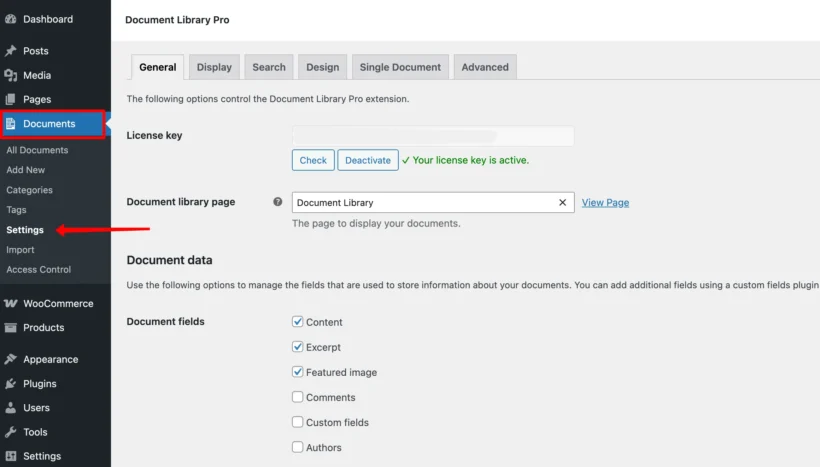
In the General tab, choose the file fields to display on single file pages - options include content, excerpt, featured image, and comments. Set a default document library page, either using the 'Document Library' page the plugin creates automatically, or add a document library anywhere with the [doc_library] shortcode.
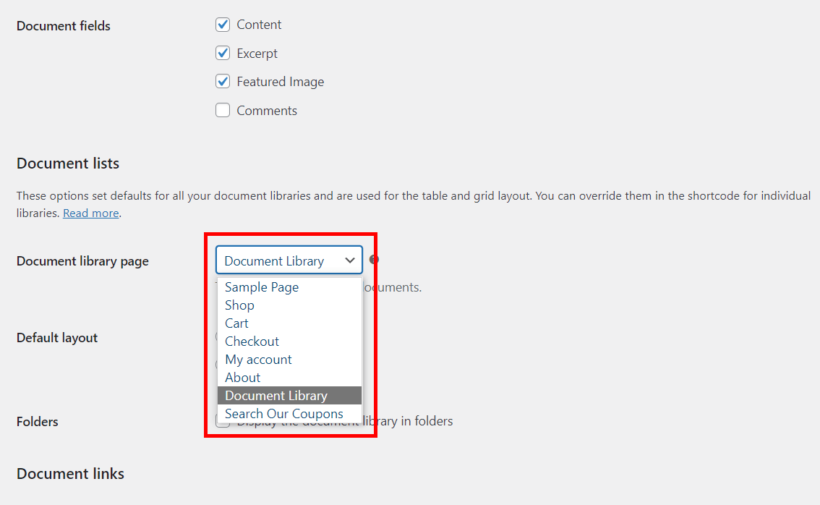
Under the other tabs, set up table or grid columns, choose whether to show a file preview or lightbox, and configure individual file pages.
Step 3: Add files to your WordPress site
Adding a file follows the same process as creating a page or post. Go to Documents → Add New.
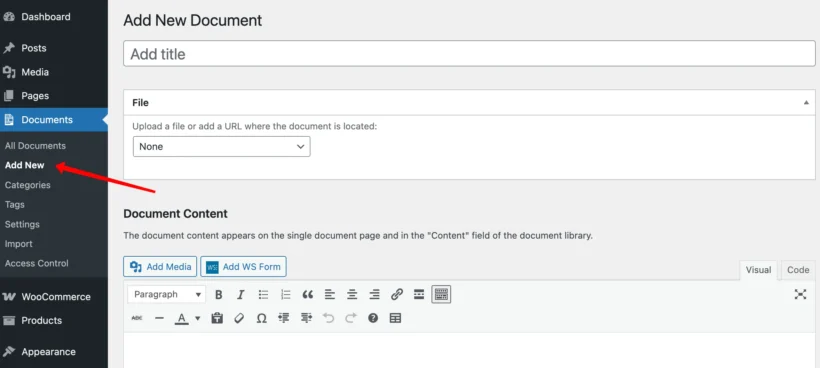
Fill in the fields like author, file size, and category, then click Publish.
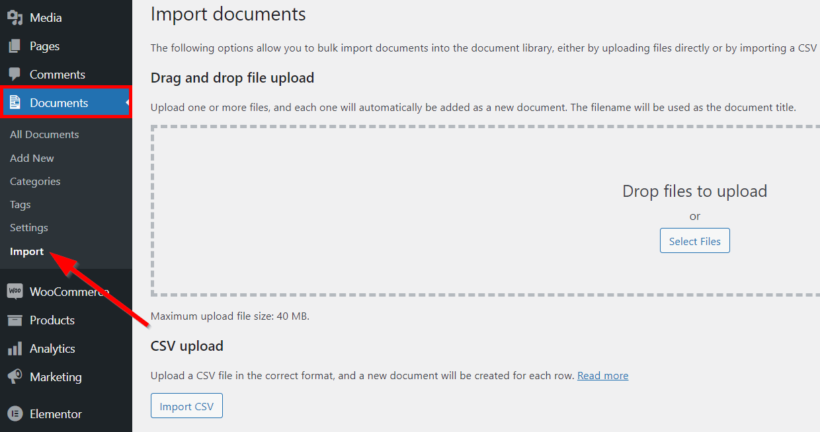
For larger collections, go to Documents → Import and use drag and drop or CSV bulk import. You can also convert existing files in your Media Library to documents.
Step 4: Display the documents on any page
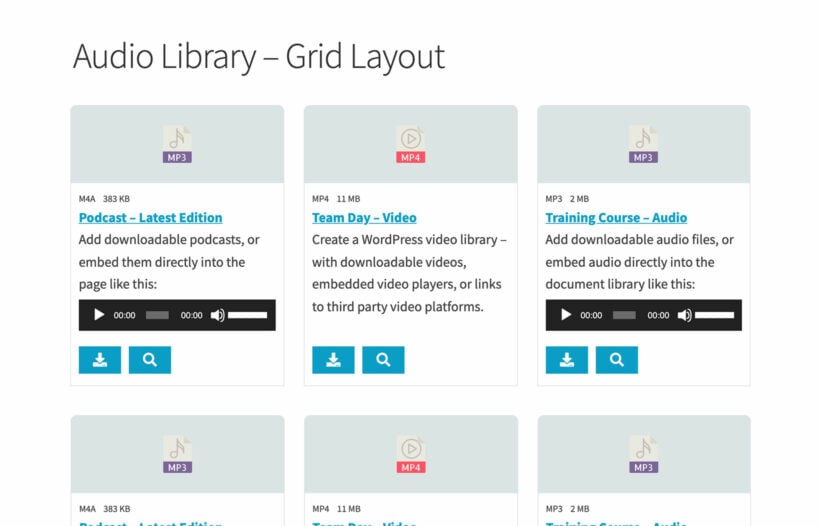
All files you add or convert automatically appear on the default document library page. They display in either a grid layout:
Or a table layout:
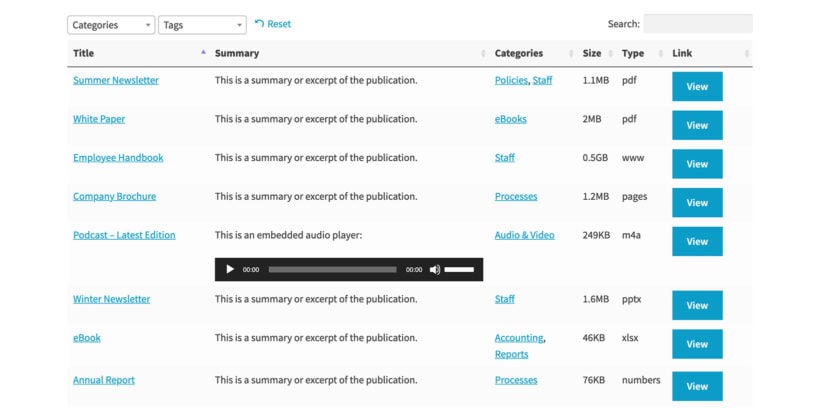
You can control which files display using categories, tags, and other attributes. See the full list of shortcode options for displaying different file lists.
How to offer WordPress secure file sharing
Document Library Pro shares files publicly by default - but restricting access is straightforward, especially on the Advanced plan.
The Advanced plan includes native access control at three levels:
- Global restriction - lock down the entire document library so only logged-in users can access it.
- Category-level restriction - restrict individual categories to specific user roles, individual users, or password holders.
- Document-level restriction - control visibility on a file-by-file basis.
This makes Document Library Pro a self-contained solution for most private file sharing scenarios, including member portals, client resource areas, and gated content. It's cleaner than running two separate plugins.
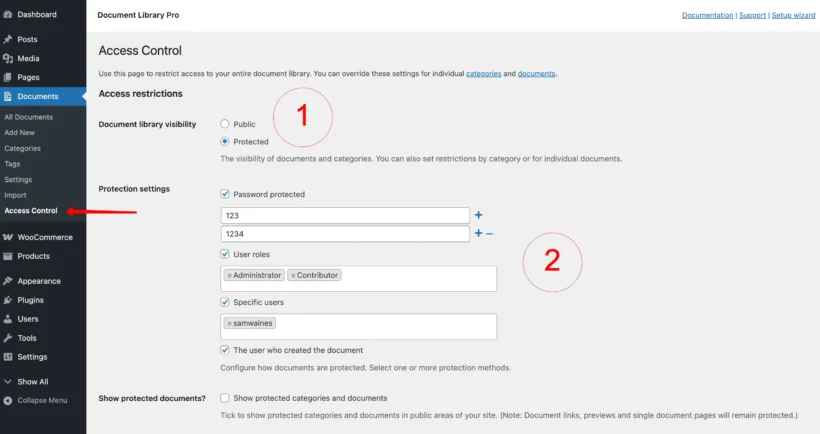
To protect documents globally, go to Access Control and (1.) set the Document Library Visibility to 'Protected'. Then (2.) choose to enable any or all of the available protection options; 'password protection', 'user role', or 'specific user' access control. The same steps apply to protecting document categories (look for the protection settings in the Categories tab), and even for protecting individual documents (found in the edit page of any document).
Which file sharing plugin should you choose?
The right plugin comes down to the job you're doing, because these five tools solve genuinely different problems:
- Sharing documents and resources on the front end For a searchable, organized library that visitors or members can browse and download, public or behind a login, Document Library Pro is the most complete option.
- Managing your server files without FTP If your real task is editing, moving, or deleting the files on your server, Advanced File Manager does something Document Library Pro doesn't, and the free version covers most needs.
- Selling or tracking downloads For digital-product sales and detailed per-file download stats, WordPress Download Manager is built for the job.
- Simple, free front-end sharing If you just need a front-end upload form and a basic download area at no cost, Shared Files or User Private Files will handle it, as long as you're happy to lock files down yourself.
Start sharing files on WordPress
Whether you need a public resource library, a private member portal, or a company wiki, WordPress file sharing plugins give you far more control than the default Media Library. Each plugin in this roundup handles a slightly different scenario, so the right choice really does depend on what you're trying to build.
If your goal is a searchable, organized document library - public or private - Document Library Pro is the most complete option. It covers everything from front-end file submission and external cloud links to version control and role-based access, all in one plugin.
FAQ
What is a WordPress file sharing plugin?
WordPress is a CMS that lets you add files to your Media Library. Popular formats include PNG, JPG, MP4, and PDFs. After adding files, you can insert them into posts and pages for visitors to download.
A WordPress file sharing plugin is a tool that creates robust file sharing and management systems beyond WordPress's defaults. These plugins build organized file databases that you can share with clients (in a private client portal), team members, or site users, displayed in hierarchical directories that make navigation straightforward.
WordPress file sharing plugins are also known as WordPress download managers or document sharing plugins. They let visitors search your database and find files quickly.
Do I need a WordPress file sharing plugin?
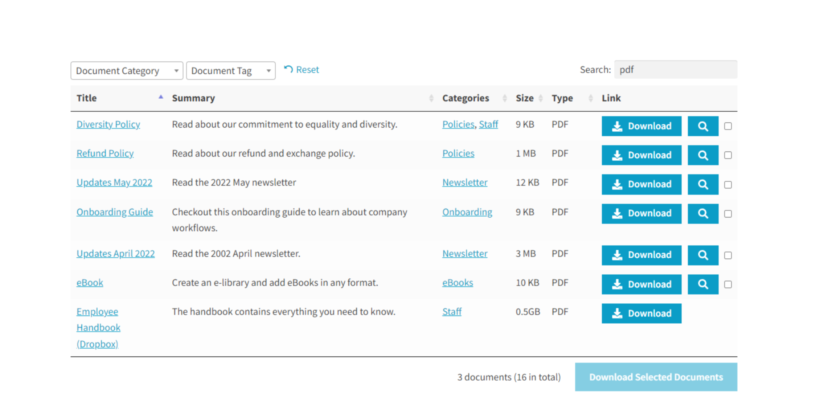
Organizations of all kinds need structured ways to share files and documents with the right people. Popular use cases include:
- Company wikis Employee onboarding works better when files are organized and accessible. WordPress file sharing plugins give staff access to the documents they need, without unnecessary email chains.
- Public WordPress file sharing portals Public platforms let internet users download audio, video, document, and other file types, organized by category, tag, or custom taxonomy.
- Educational institution websites Schools and universities share study or test materials with students, arranged in folders by course or level.
- Resource libraries Charities, councils, healthcare organizations, and membership bodies use WordPress document libraries to share policies, agendas, minutes, and guidance - publicly or to members only. (Document Library Pro offers a 15% nonprofit discount.)
- Legal and finance businesses Firms with large volumes of records organize them in hierarchical document libraries for easy future reference.
What are the benefits of using a WordPress file sharing plugin?
Whether you need a public platform or an internal system, a good WordPress file sharing plugin helps in these ways:
- Add any file type and offer downloads WordPress supports many file types by default, but formats like FLV, BMP, JSON, or PSD need extra support. File sharing plugins cover these formats and enable quick downloads.
- Help visitors find files faster Advanced search, sorting, and filtering let users navigate your file library quickly. Clear folder structures mean staff and visitors can find what they need without contacting you.
- Boost team productivity Good file organization reduces the time spent uploading, tracking, and redistributing files manually, which adds up to meaningful time savings across a team.
- Improve file security Access control features let you limit which team members or visitors can access which files. Keeping everything in one secure, organized location is safer than spreading files across email threads and multiple platforms.
Can you recommend a free file sharing plugin?
There are three solid free options covered in this guide. Shared Files is the best choice for general public file sharing - it includes a front-end upload form, download statistics, and a lead generation gate. Advanced File Manager is the right pick if you need to access and manage your site's server files from the dashboard without FTP. WordPress File Sharing Plugin (User Private Files) works well for simple private file sharing where both admins and front-end users need to upload and manage files. For anything more complex - like role-based access, a searchable library, or external cloud links - you'll need a paid option like Document Library Pro.
What's the difference between a file manager and a download manager?
A WordPress file manager plugin provides direct access to your website's server files - the kind of access you'd normally get through FTP or cPanel. A WordPress download manager organizes and tracks files that you want to share with visitors for download. The two tools solve completely different problems: use a file manager if you need to edit, move, or delete files on the server; use a download manager (or a document library plugin like Document Library Pro) if you want visitors to find and download files from the front end of your site.
What should I use to manage my WordPress files from the dashboard without FTP?
If you need access to your server files - themes, plugins, uploads - without using FTP, Advanced File Manager is the plugin to look at. It gives you a full file system interface inside the WordPress dashboard. However, if your goal is to share documents with your site visitors rather than manage server files, that's a different job entirely - and Document Library Pro is the better fit. It's worth being clear about which problem you're solving before installing anything.