The best WooCommerce product variations plugins in 2026 (5+ recommendations)

WooCommerce product variations can be a pain to set up. However, you can make your life much easier by installing the best WooCommerce product variations plugins. Below are the ones I'd recommend, what each one does well, and where it fits.
As an online store owner, you might want to offer multiple variations of the same product. For example, you might want to sell a notebook in different colors, a cake with toppings of your choosing, a table in different types of wood etc.
In this article, we’re going to learn how to set up product variations, understand the limitations of WooCommerce, and explore a viable way to:
- Let merchants add and edit variations more quickly and easily.
- Let customers view and select product variations from other parts of your shop - not just on the single product page.
- Change the way that variable product prices are displayed.
- Show and hide variations using conditional logic.
- Use extra product options as an alternative to WooCommerce product variations.
We will also explore the best WooCommerce product variations plugins and understand what each one has to offer.
But first, I'll show you how to set up product variations in the first place.
Quick answer: best WooCommerce product variations plugins
- Best for bulk editingWooCommerce Bulk Variations handles fast variation edits and a bulk-order display for variable products.
- Best for replacing variations entirelyWooCommerce Product Options swaps the variation system for flexible add-on fields with conditional logic.
- Best for shop-page displayWooCommerce Product Table shows variable products as a searchable, sortable table.
- Best free optionWPC Variations Radio Buttons for WooCommerce is a free WP.org plugin that replaces the variation dropdown with radio buttons.
How to set up product variations in WooCommerce
You probably already know that WooCommerce is one of the best (and easiest) ways to create an e-commerce site using WordPress. It lets you add all of your products to your store and creates an individual product page for each of them.
For each product you add to your online store, WooCommerce gives you the option to add product variations. WooCommerce products have variations whenever they come in multiple options. For example, this may include, sizes, colors, patterns, flavors, toppings, or materials – depending on the types of products you’re selling.
In order to set this up, we’ll be using attributes and variations. Let's first understand the difference between them.
Product attributes vs variations
- Product attributes are essentially details about the product like weight, size, color etc. They give the customer a better understanding of the product before purchase.
- Product variations on the other hand are actual choices that you’re offering the customer between variations of the same product.
Let’s understand with an example: 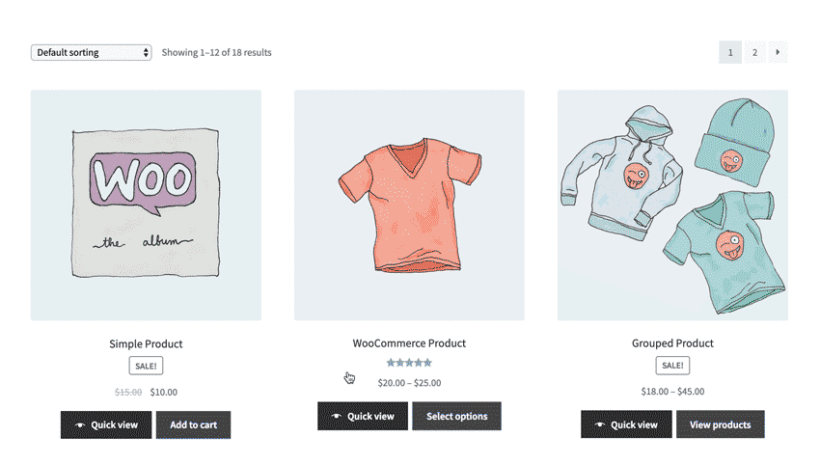
Here, the product variations are the color and size that a customer can choose. The product attributes are details like the category, description, SKU etc.
With that in mind, let’s look at how to set up product variations in WooCommerce using the example of a stationery store.
Step 1: Create your product attributes
- The easiest way to create product attributes is by navigating to Products → Attributes and adding an attribute. Let’s say you’re selling a notebook in multiple colors and with ruled/unruled options. You could set up attributes with the name “Color” and “Line” and then click “Add Attribute”.
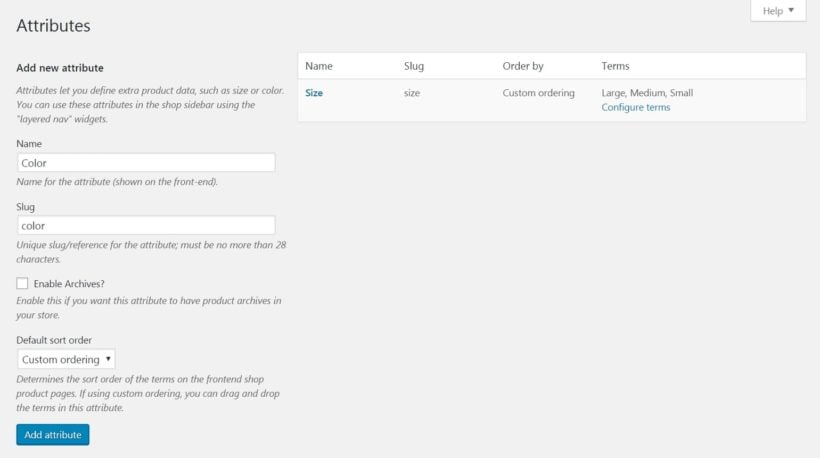
- Next you’ll need to click on “Configure Terms” to add details about the variations. You could add terms like “yellow”, “green” and “black” for the Color attribute and terms like “ruled” and “unruled” for the Line attribute.
- You can set up as many attributes as you’d like in the same way.
Step 2: Assign attributes to your products
Once your attributes are created, you need to allot them to their respective products. Open your Product and navigate to “Product Data”. Click on the drop down menu next to it (it is set to “simple product” by default). Here you need to choose “Variable product”.
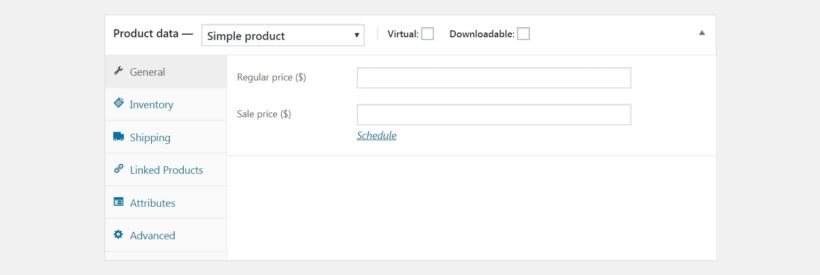
Now click on “Attributes” from the right side menu and add your attributes one by one.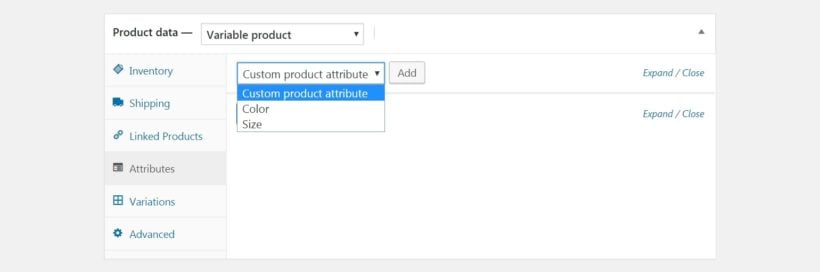
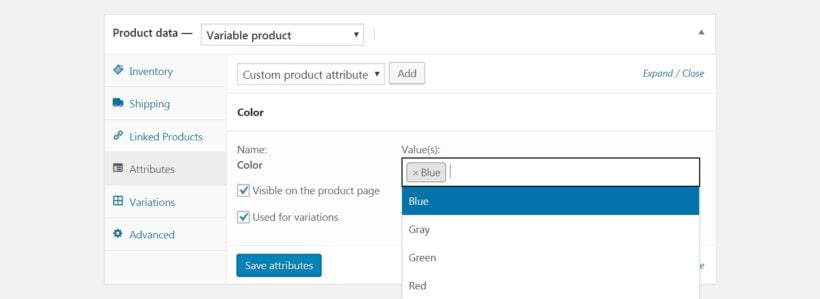
You can see the terms that you added in the previous step listed under “Values”. Make sure to select both “Visible on the product page” and “Used for variations”.
Step 3: Create your variations
- Now click on “Variation” from the left side menu. Select “Add Variation” from the dropdown menu and click on “Go”.
- Now all you have to do is choose your attributes and configure settings like price, size, weight, SKU etc - as per your preference.

- Hit “Save Changes” once you’re done. You can then create as many variations as you’d like.
2 problems with product variations
Problem #1: Difficult to edit multiple variations at once
If you follow the instructions above, you'll see that the process is fine for adding one variation.
But what if you want to add lots of variations to a product? That's when it starts to get really time-consuming.
Problem #2: Limit ways to display variations to customers
Although WooCommerce lets customers view and select product variations on the single product page, that's the only place you can display them. And the only option is to display them as variation dropdown lists (e.g. one dropdown for Size and one for Color). This isn’t the best possible solution for most store owners.
Here are a few reasons why:
- Product variations aren’t as prominent as they can be.
- Comparing the variations on offer with different products is difficult.
- Customers have to navigate to the individual product page to be able to view the available variations.
- Dropdown lists don't offer great visual experience for selling most types of product variations.
The good news is that you can easily address these problems by adding a WooCommerce product variations display plugin. Keep reading for our selection of the best.
The best WooCommerce plugins to display product variations
As we saw earlier, the other problem with WooCommerce product variations is the limited way in which they are displayed.
Unfortunately, WooCommerce's default single product page isn't always the best option for displaying product variations. Let's explore the best WooCommerce product variations plugins to present product variations to customers.
Manage variations more easily and display them in a bulk variation order form
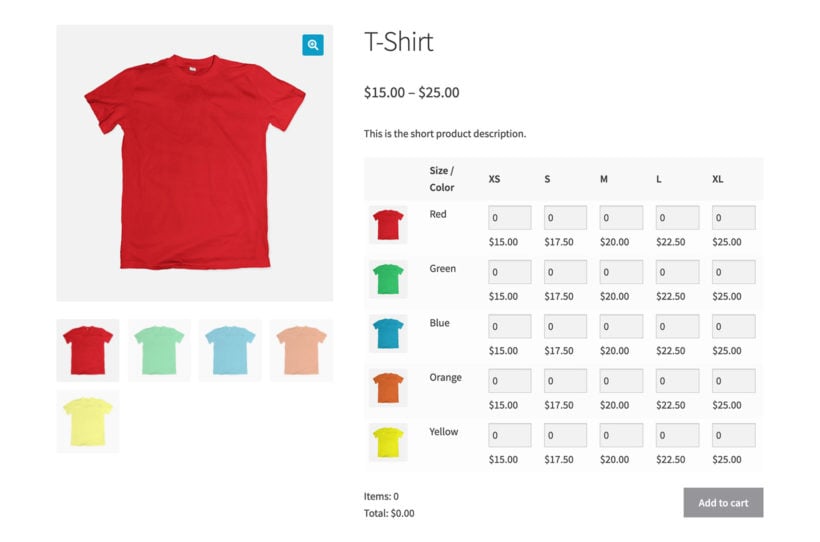
To speed up the process of creating multiple variations, simply install the WooCommerce Bulk Variations plugin. This handy plugin adds some extra features which allow you to filter the list of variations and apply bulk actions to them:
- Install WooCommerce Bulk Variations.
- Open the 'Variations' tab on the 'Edit Product' screen.
- You will see a new 'Filters' bar above the list of variations. Use this to select all the variations that you want to edit at once.
- Next, use the bulk actions dropdown above the filter bar (which normally says 'Add variation') to select a bulk action. For example, you can bulk-edit variation prices or set the same image for all the selected variations.
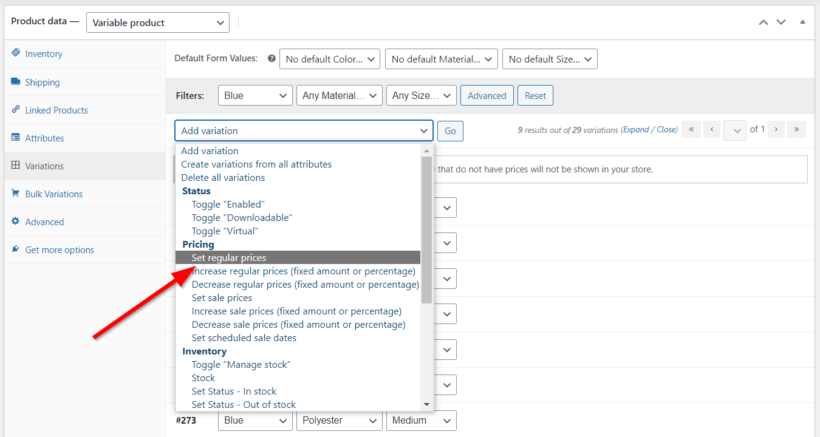
In this screenshot, we have used WooCommerce Bulk Variations to select all variations with a 'Blue' attribute. We have then quickly changed the variation price for all the blue items only.
This is much faster than setting prices and other data for each variation individually. You can do the same with other types of variation data, such as adding variation images in bulk.
Why WooCommerce Bulk Variations is perfect for displaying product variations
The WooCommerce Bulk Variations plugin is great for displaying product variations for clothing and apparel, wholesale products, and products that are typically sold in large volumes. It’s also the perfect choice for products that don’t require images but may have several variations such as sweets and candies.
Using the WooCommerce Bulk Variations plugin, you can replace the single product page with either a bulk ordering grid or a simple price matrix. This is a great way to boost product variation visibility in your online store and make it easier for customers to buy more from you.
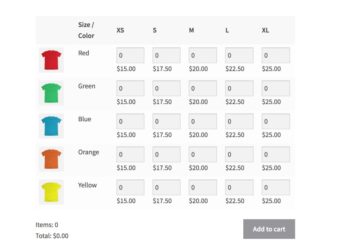
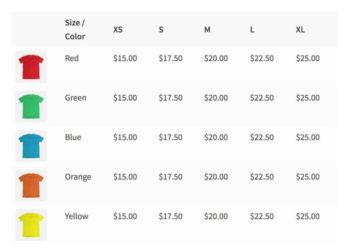
Instead of using dropdowns to select the correct product variation and adding items to their cart one at a time, customers can simply choose how much of each product variation they’d like to purchase, set the quantity, and add them to their cart in one go.
The key benefit here is that customers don’t have to spend time adding variations to their shopping cart one at a time. This is the most intuitive way to sell variable products in WooCommerce.
Bonus: WooCommerce Bulk Variations is the only plugin in the market that enables you to display bulk variations with 3+ attributes in the grid, instead of just 2!
Pros and cons of WooCommerce Bulk Variations
The biggest win is speed. It cuts the time spent creating and editing variations on products with lots of size/color combinations. The bulk order form also lets customers add several variations to cart at once, and it's the only plugin we know of that supports 3+ attributes in a bulk grid.
The trade-offs: it's paid only, with no free tier. It also focuses on one variable product at a time - for editing variations across many products, see Setary below. And for shop-page display you'll still want WooCommerce Product Table.
Replace the variation dropdown with checkboxes, color/image swatches, and more
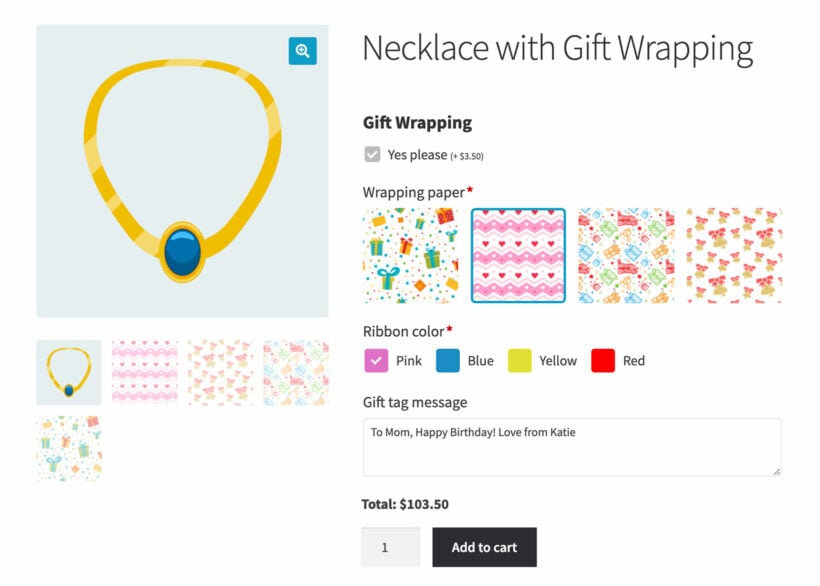
If you're looking for a complete alternative to WooCommerce product variations, then it's worth considering a totally different way to set them up. The WooCommerce Product Options plugin offers an interesting alternative.
Instead of using variable products, you add the choices as product options. These are managed using a completely different interface, which is much faster to use than variations. That's because you don't to enter prices, images etc. for every possible combination of options (as you do with variations). Instead, you add each option individually and the plugin calculates the pricing etc.
To help you to visualize this, here's a screenshot of adding product options in the WordPress admin:
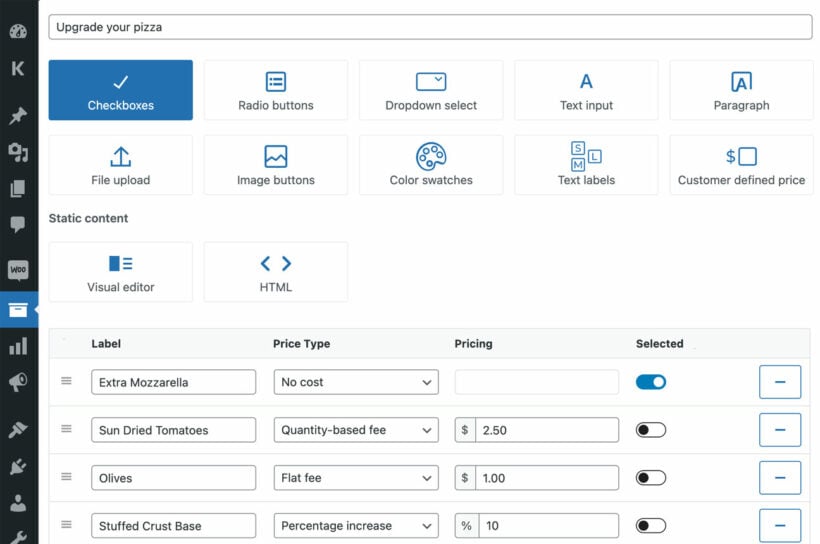
You can add a wide range of option styles, different price calculation options, and even use conditional logic to show and hide options depending on the user's selections. That's a real bonus because WooCommerce doesn't offer conditional logic for variations.
And in the front end, you can choose many more ways to display options than you get with variants. As well as dropdowns, you can display options as checkboxes, clickable images, text fields, file uploads, and more.
Pros and cons of WooCommerce Product Options
The strength is flexibility. You get checkboxes, swatches, text fields, file uploads and conditional logic in one interface - conditional logic alone is something native WooCommerce variations don't offer.
The trade-offs: this is a different approach to variations, so existing variable products don't migrate automatically. Pricing also calculates differently - each option adds to the base price, rather than each combination having its own price - which suits some stores and not others.
List variations in a product table on your main shop pages
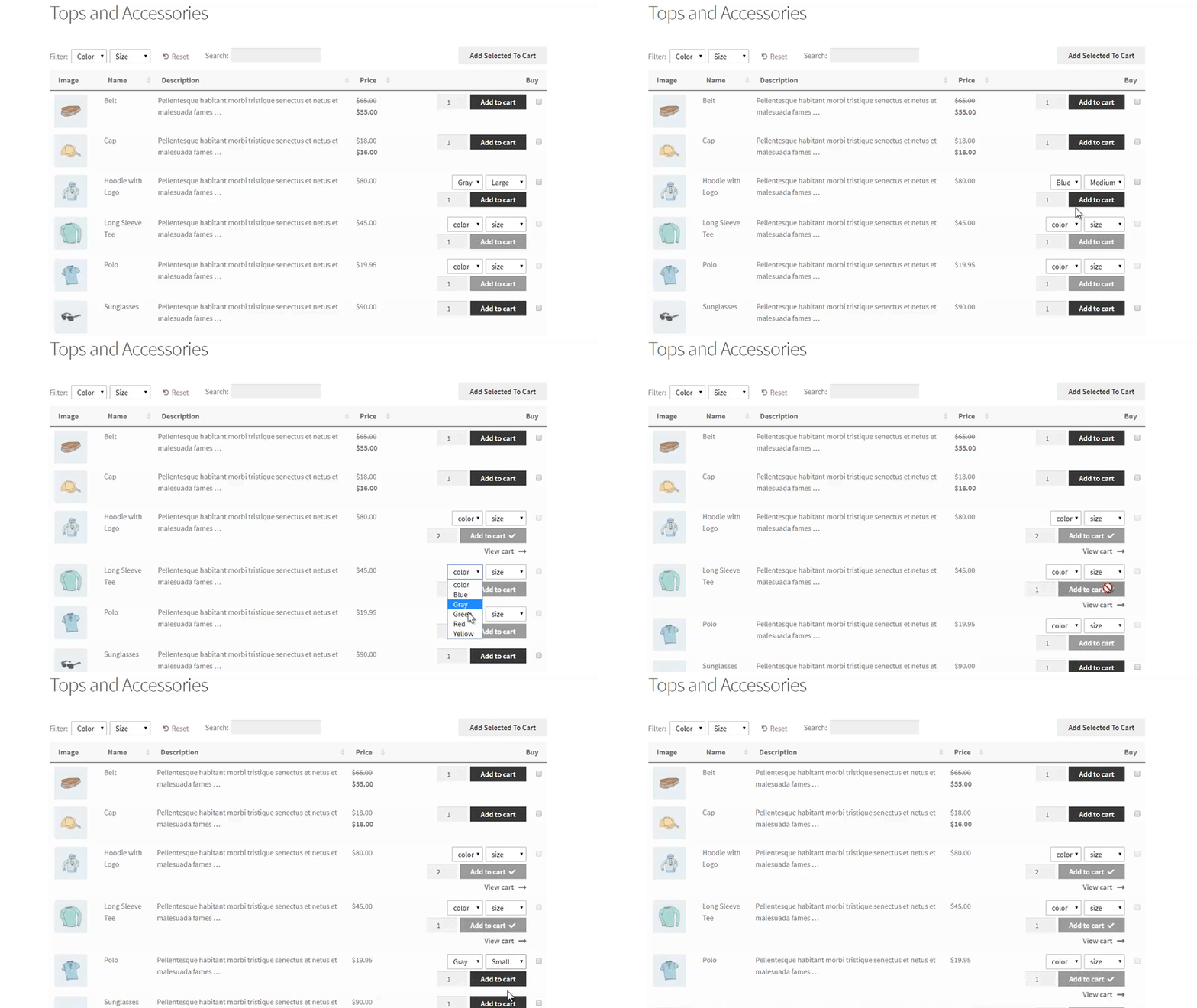
WooCommerce Product Table lets you list variable products in a searchable, sortable, and filterable table layout.
Customers are able to view and select the exact product and variations they’re looking for using its extensive filtering options. In this way, it can be used as a WooCommerce product variations plugin.
The WooCommerce Product Table plugin enables you to:
- List variable products on your main shop page, category pages or any other page in your online store.
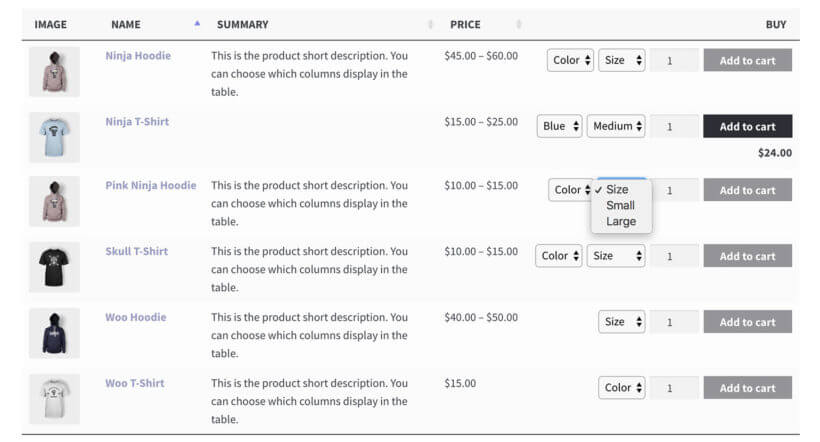
- List variable products in two different formats in your table layout. You can choose to display them as either:
- Dropdowns in the Add to Cart column (perfect for businesses that sell clothes, shoes, or food)
-
- Separate rows in the product table layout (perfect for businesses selling spare parts or large products like furniture or mattresses)
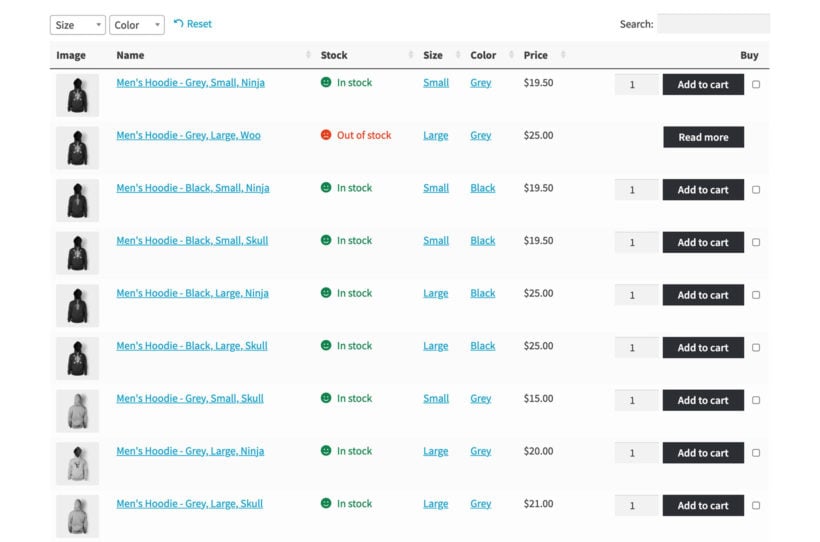
Creating product tables with proper variable products enables customers to view and select variations from any of the pages you choose to display the variation on instead of having to navigate to the individual product pages. This significantly improves the user experience your site delivers.
WooCommerce Product Table is an ideal solution for creating product catalogs, restaurant menus, order forms, and wholesale stores.
Pros and cons of WooCommerce Product Table
Best for stores where a table layout makes sense - parts catalogs, wholesale order forms, restaurant menus, B2B stores with hundreds of SKUs. Customers can compare and add multiple variations to cart without clicking through individual product pages.
The trade-off: it replaces the standard shop-page grid with a table layout, so it's not a fit for visual or fashion-style stores that need large product images as the main draw.
Save time by bulk editing product variations
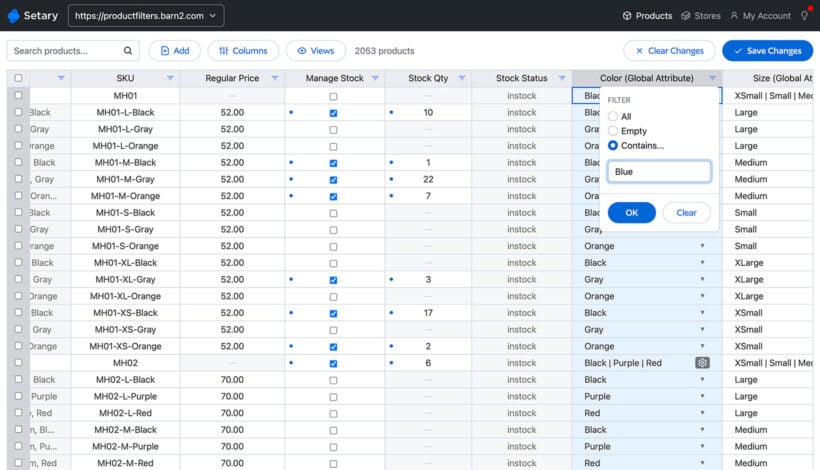
The Setary bulk editing app can save you a huge amount of time if you have large numbers of variations to update. Normally in WooCommerce, you have to edit each product separately in order to add or edit variations. The WooCommerce Bulk Variations plugin which I mentioned above adds better bulk editing to the 'Edit Product' screen, but you can still only edit variations for one product at a time. Setary takes this a step further.
It works by displaying all your products and variations in a spreadsheet. You can quickly filter the variations and update them, either inline or using a bulk edit form.
Let customers select variations from a quick view lightbox
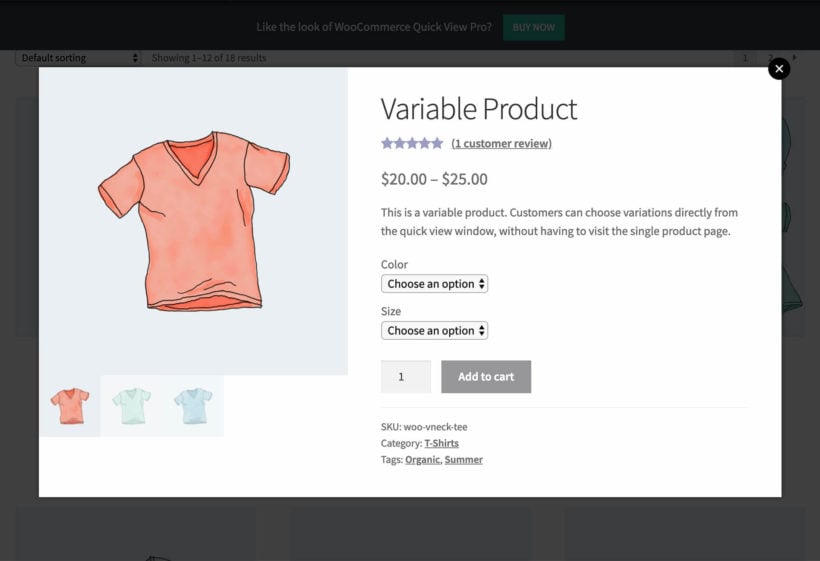
WooCommerce Quick View Pro is a different type of WooCommerce variations plugin. It lets you present product variations in a lightbox view. In addition to the variations, you can also display product images and galleries, details, and purchasing options.
Customers are able to open the lightbox either by clicking on the product's name (or image) or by using the Quick View button. If you choose to enable the option to launch the lightbox by clicking on the product name or image, links to the single product page will automatically be disabled.
The WooCommerce Quick View Pro plugin is ideal for variable products that are best presented with images and galleries e.g. fashion items, food, and tech products. It's also perfect for products that don't require images, but have multiple variations.
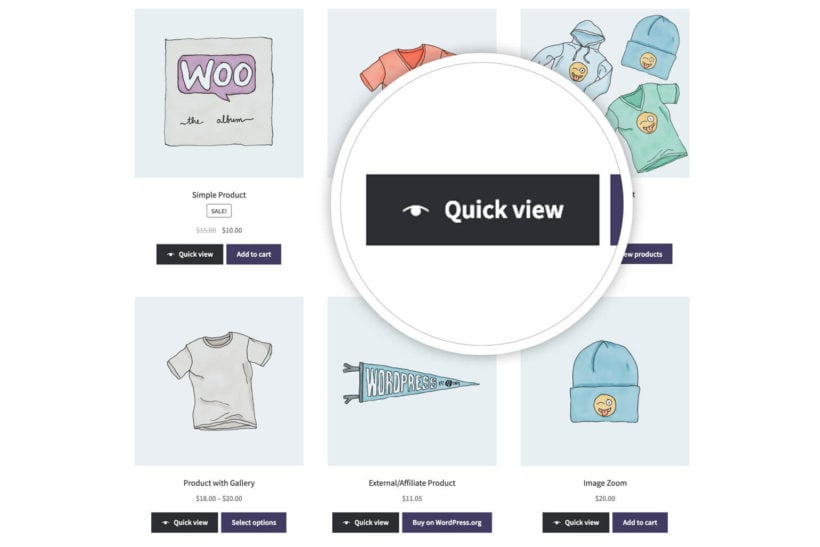
Either way, the plugin lets you replace the single product page with a lightbox. What this means is that you can display the information customers need to make a buying decision and choose variations directly in the quick view lightbox. So, instead of clicking through to the single product page, customers can select product variations and make a purchase directly from the main shop page or category pages. There's no need to visit a separate page for each product.
What information can I display about my variations?
With the WooCommerce Quick View Pro plugin, you can display the following information in the lightbox:
- Product name
- Product image (and full gallery)
- Reviews
- Price
- Quantity selector
- Product variation dropdowns
- Add to cart button (including variation dropdowns and quantity picker)
- Product details (such as SKUs and categories)
Pros and cons of WooCommerce Quick View Pro
Lets customers browse and add variable products to cart from the shop or category page via a lightbox, without leaving the page. Good for shops where customers compare products quickly.
The trade-off: it only solves the discovery side - you'll still need Bulk Variations or Product Options for management or setup of variations themselves. Best paired with one of those rather than used alone.
Change the variation price format
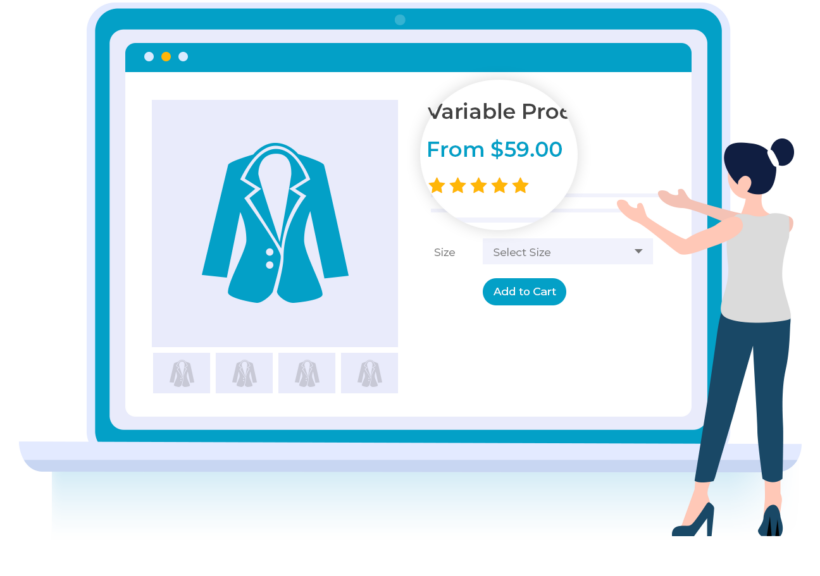
Another limitation of WooCommerce product variations is that if your variations have different prices, then they are always displayed as a range. For example: "$50 - $100."
That's pretty basic and doesn't give you any flexibility. The solution is to install the WooCommerce Variation Prices plugin. This gives you total control over how to display and format variable product prices in your store. For example, you might set the price to display as "From $50" or list all the individual variation prices.
Alternative WooCommerce product variation plugins
Now you know how to add product variations in WooCommerce. You've learned how to choose the best WooCommerce variation product plugins to manage and display your variable products. You also know how to add variations in the WordPress admin, with bulk actions to save you time.
Of course, there are other ways to customize WooCommerce product variations too. Here's a selection of some other options that are worth looking at.
Other plugins to consider
- Variation Swatches for WooCommerce: This plugin is dedicated to making attributes and variations easy to use and customize. It can be used to display products with multiple variations using neat, professional color swatches, instead of the regular dropdown box. This significantly improves the UI experience for your customers and reduces the amount of effort needed to place an order.

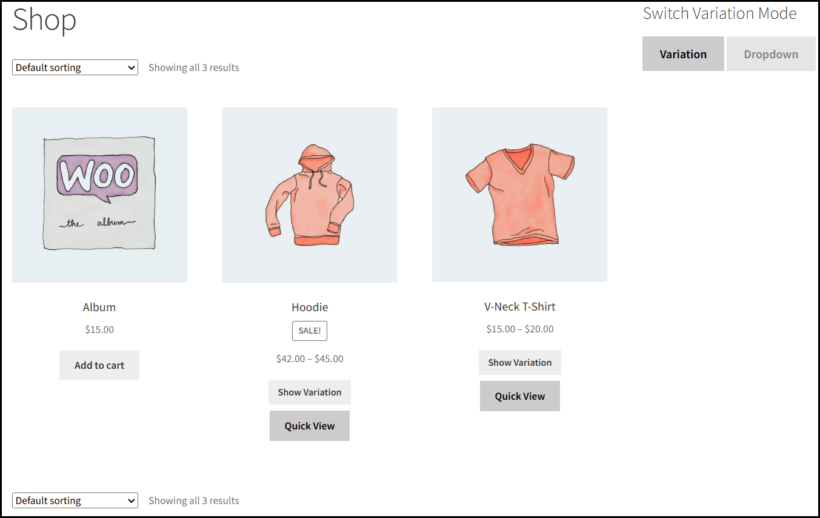
- Smart Variations & Attributes Display for WooCommerce is a solid option if you want product variations to be easier to browse. It shows variations as individual products on shop and category pages, rather than hiding them in dropdowns. Shoppers can switch back to dropdowns if needed, while features like quick view, dynamic images, and AJAX add-to-cart simplify selection.
- YITH WooCommerce Color And Label Variations: Display icons, labels and images instead of the default variation dropdowns. Strengths: color/image swatches with tooltip previews, free version on WordPress.org, premium adds entrance animation and per-attribute image galleries. Trade-offs: focused on display only - it doesn't help with bulk editing or shop-page listing.
- WPC Variations Radio Buttons for WooCommerce: Replaces the variation dropdown with radio buttons so all options are visible at once. Strengths: free on WordPress.org, lightweight, simple to set up, makes ordering easier for customers who want to see all options without clicking the dropdown. Trade-offs: no bulk order form, no product table integration and no image swatches in the free version - it's a display upgrade rather than a full variations workflow.
- Product Variations Swatches for WooCommerce: Using this plugin, you can display product attributes in different types of swatches - Colors, Buttons, Images, Variation Images or Radio. You can even customize the details of the swatch design like the name, height, width, font size, padding, mobile mode size color, box-shadow effect, hover style etc.
- Variation Images Gallery for WooCommerce: This plugin allows users to showcase unlimited additionalimages as galleries for each product variation. It is particularly useful for stores which are selling apparel or food. It allows your site visitors to zoom into images and enables them to visualize your variation product easily.
Frequently asked questions about WooCommerce product variations
How do I add product variations in WooCommerce?
Set the product type to 'Variable product' on the Edit Product screen, add the attributes you want under the Attributes tab and tick 'Used for variations', then generate variations from the Variations tab. The full step-by-step is in our complete guide to WooCommerce product variations.
Can I set different prices for different variations in WooCommerce?
Yes. Each variation has its own price field on the Variations tab, so a 'Small' can cost less than a 'Large'. For displaying that range cleanly on the front end (for example as 'From $50' rather than '$50 - $100'), see the WooCommerce Variation Prices plugin above.
How do I add more than 50 variations in WooCommerce?
The native 'Add variation' dropdown adds variations in batches, so you keep clicking Go until you have all the combinations. For stores with lots of variations, that gets painful fast - WooCommerce Bulk Variations or a dedicated bulk-management plugin is the practical fix.
What is the best way to manage WooCommerce product variations?
For most stores, the best approach is a combination: WooCommerce Bulk Variations for fast editing within each product, plus WooCommerce Product Table if you want variations visible on the shop or category page. Stores with hundreds of variable products often add Setary on top for cross-product bulk edits.
The best WooCommerce product variation plugins
In conclusion, it's a shame that WooCommerce on its own doesn't do a better job of managing and displaying variations. Fortunately, there are lots of fantastic WooCommerce variation plugins which can solve this. Use the one that fixes your specific pain-points with variations:
- Bulk Variations - For adding and editing variations more easily.
- Product Options - Display variations in a wide range of flexible styles such as checkboxes, color swatches and clickable images.
- Setary - For bulk editing variations across multiple products from a time-saving spreadsheet.
- Product Table and Quick View - For displaying variations away from the single product page.
- Variation Prices - To customize the way that variation prices are displayed.
What else would you like to be able to do with your variable products? Let us know in the comments below.
2 Comments
While interesting, feels a bit disingenuous, not mentioning iThemeland's powerful (if horrible UX) xBulk, and WPC's lovely free variatoins plugin.
Hi, Tim. Thank you for your feedback and for mentioning these alternatives. If you have any questions about our plugins, please don't hesitate to contact our Support Center. Thanks!