WooCommerce custom add to cart button: Best free & pro plugins


Discover the best free and premium WooCommerce custom add to cart button plugins, and how to choose the right one for your store.
One of the most important features of any e-commerce store is the "add to cart" button, which allows customers to easily add items to their shopping cart and continue shopping. While WooCommerce offers a default add to cart button, many businesses may want to customize this button to appeal to their customers more effectively. In this article, I will explore the best free and pro plugins available for customizing the WooCommerce add to cart button. I'll also help you choose the one that's right for your business.
To give you plenty of options, I'll focus on three plugins which take different approaches to customizing the add to cart button:
- WooCommerce Custom Add to Cart Button (free plugin) - Change the 'Add to Cart' button text, replace the add to cart text with an icon, or add an icon alongside the button text.
- Express Shop Page (premium plugins) - Extend the add to cart button on the shop page by adding quantity and variation pickers.
- WooCommerce Product Table (premium plugin) - Make it quicker and easier to add products to the cart by listing them in a fast one-page order form. It comes complete with multiple add to cart buttons, quantity fields and variation pickers for true one-page shopping. Use it alone or with the free WooCommerce Custom Add to Cart Button plugin.
Keep reading to learn more about these options, and choose which one(s) to install on your store for the best results.
Why customize the WooCommerce add to cart button?
There are lots of reasons why store owners might want an option in WooCommerce to upgrade the add to cart button.
For example:
- Do you feel that the 'add to cart' text wording doesn't quite fit with your brand? For example, a lot of WooCommerce store in the UK change the button text to 'add to basket'. Think about what custom add to cart text would work better for you.
- Are you using another plugin to change the function of the WooCommerce add to cart button? This could be through a course bookings plugin, events plugin, add to quote plugin, etc. If so, you might want to reword the Add to Cart text with something more relevant, such as 'Buy Now', 'Enrol Now', 'Book a Place', 'Add to Quote' or 'Make an Enquiry'.
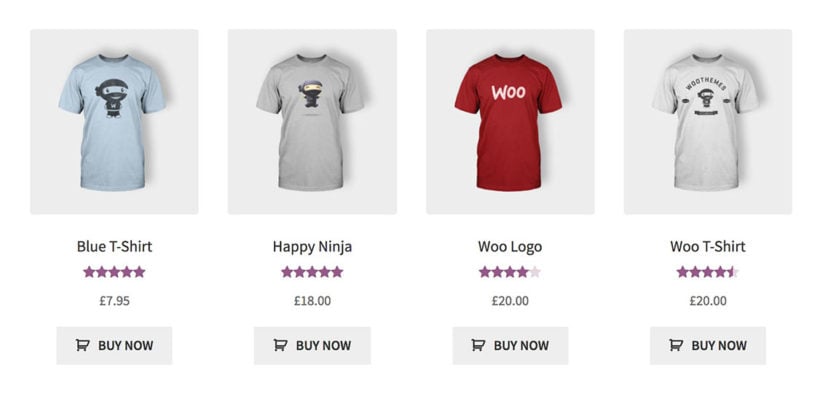
- Are your customers frustrated by the basic add to cart buttons on the Shop page, which don't let you change quantities or choose variations? If so, then you might want to extend these using a plugin like WooCommerce Express Shop Page. This brings all the usual product options onto the shop page, instead of having standalone add to cart buttons.
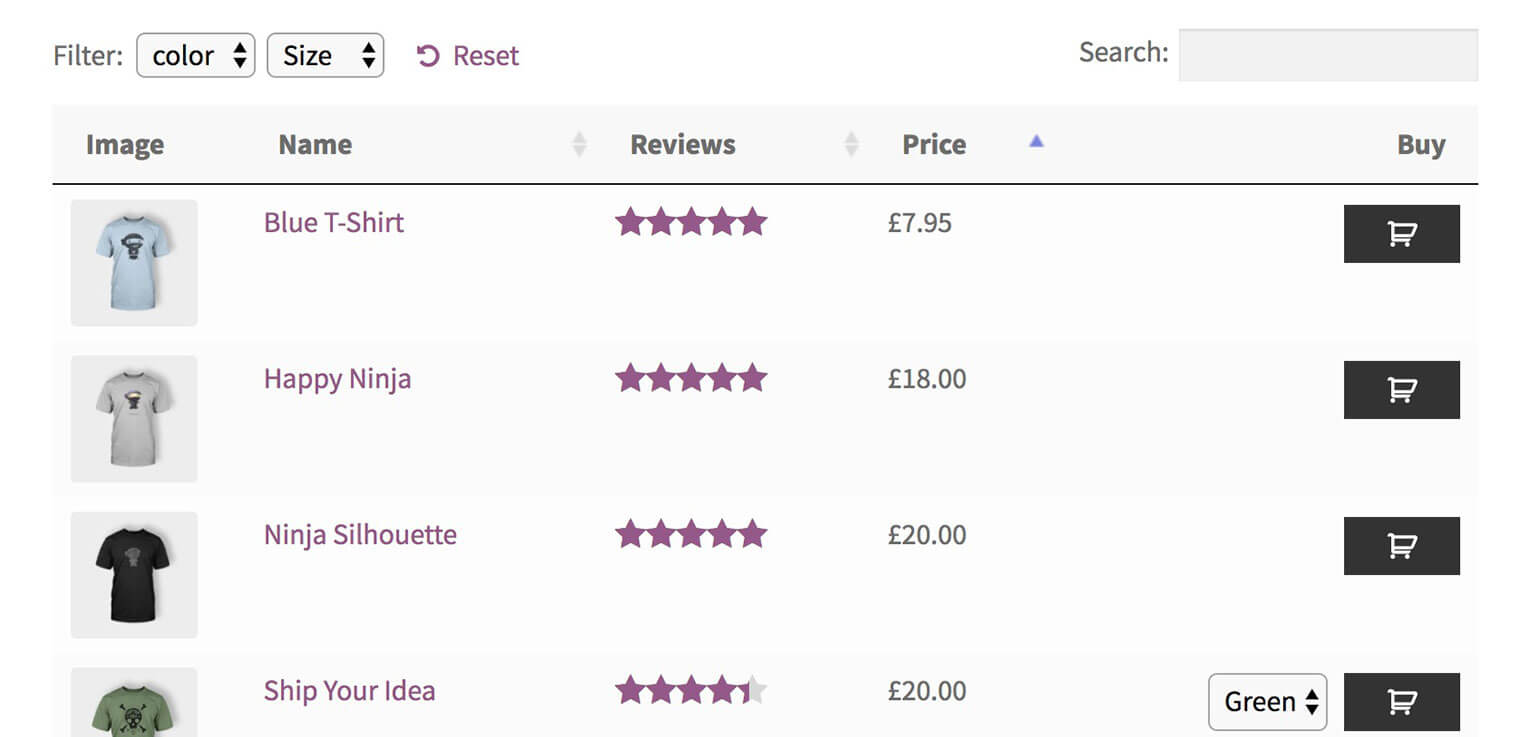
- If you've used our Product Table plugin to create a WooCommerce order form, then you might want to remove the Add to Cart text and replace it with a simple cart icon for each product.

A website using the free Custom Add to Cart Button plugin with WooCommerce Product Table - Or maybe you just want to change the capitalization of the add to cart text, for example from lowercase to uppercase or vice versa.
Whatever your reason for wanting to change the add to cart link in WooCommerce, you can do it with the free WooCommerce Custom Add to Cart Button plugin.
Option 1: Change the add to cart text and add an icon
WooCommerce Custom Add to Cart Button is a 100% free WordPress plugin for customizing the add to cart button. It comes with all the essential features for customizing the WooCommerce add to cart button text and adding a cart icon:
- Change the wording of the WooCommerce add to cart button text.
- Add a high definition (retina) WooCommerce cart icon alongside the text.
- Hide the add to cart text and just have an icon.
It's super-simple and lightweight, so it won't weigh down your site.
Here are some examples of the plugin in action:
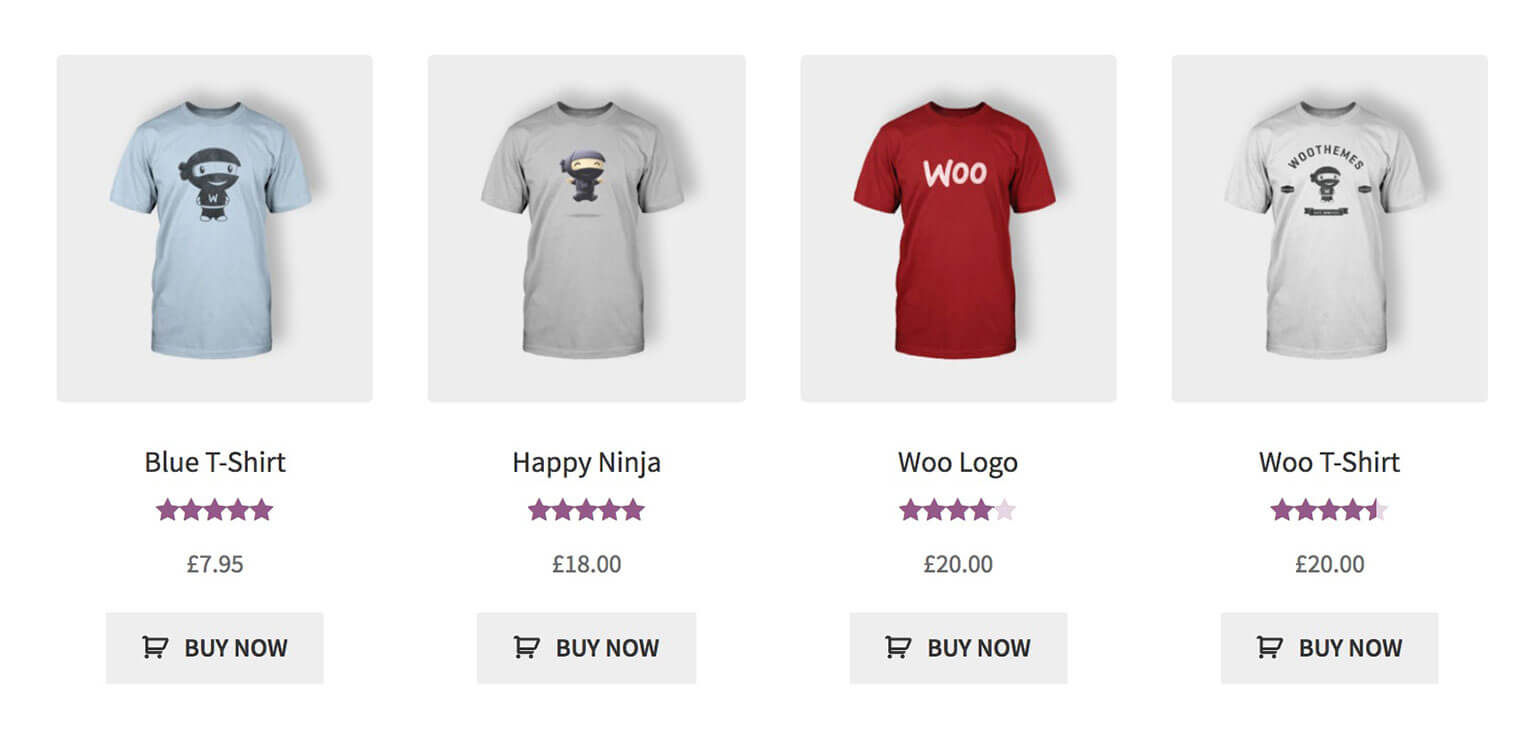
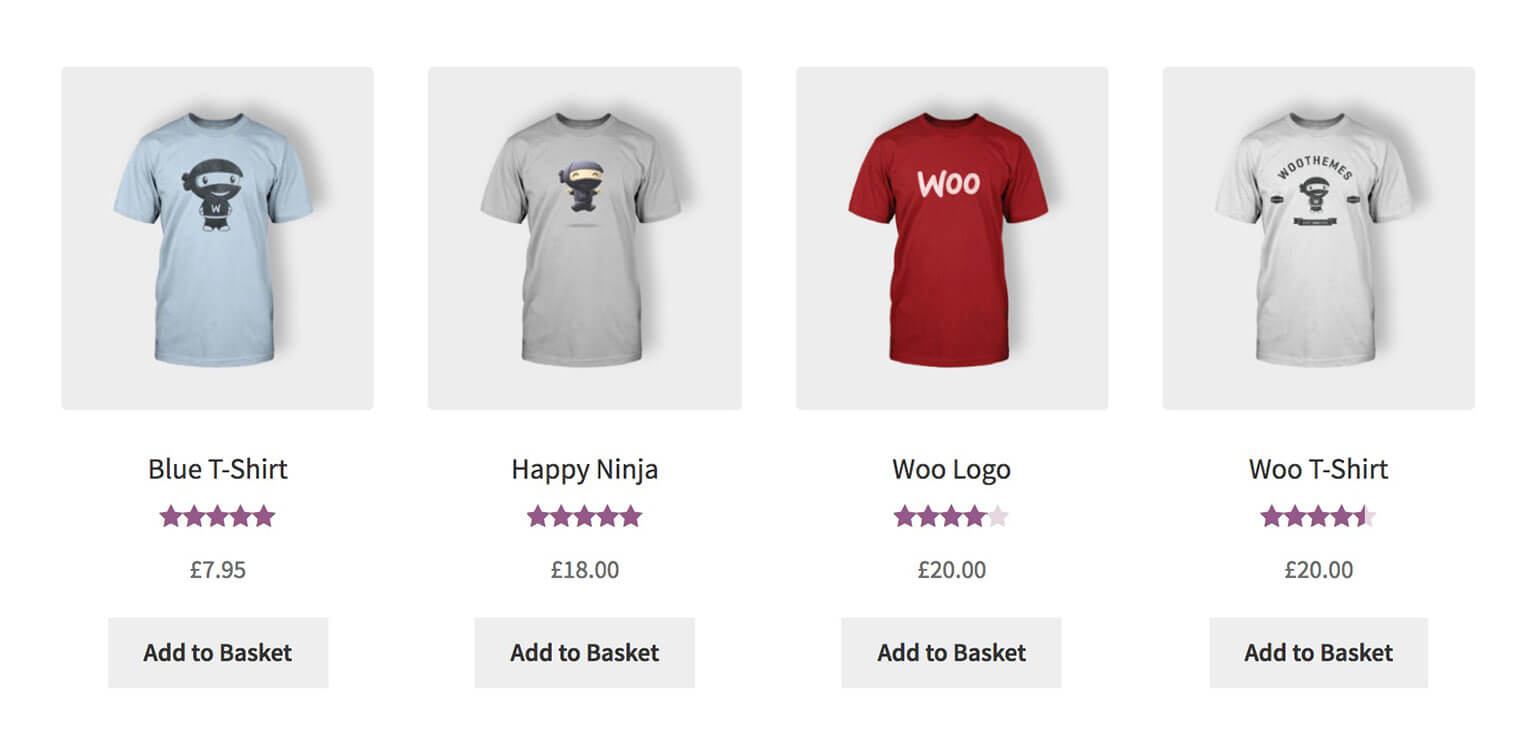
How to create WooCommerce custom add to cart buttons
- Log into the WordPress Dashboard and go to Plugins → Add New.
- Search for 'WooCommerce Custom Add to Cart Button'.
- Install and activate the plugin of this name by Barn2 Media.
- Go to Appearance → Customizer → WooCommerce → Add to Cart. Here, choose the options for your custom WooCommerce add to cart buttons.
As you can see, the plugin is incredibly simple to use. There are full usage instructions on the official WooCommerce Custom Add to Cart Button plugin page on wordpress.org, but that's basically it!
Option 2: Add quantity and variation pickers to the Shop page add to cart button

WooCommerce puts add to cart buttons on your main product listing pages, such as the main Shop page and your category pages. However, these are pretty useless as they come! That's because clicking the add to cart button only adds 1 of each product to the cart - there's no way to choose a quantity. It's even worse for variable products, which show a 'Select options' button linking to the single product page.
It's much better to allow customers to choose quantities and variations directly on your Shop and category pages.
Fortunately, you can easily do this with the WooCommerce Express Shop Page plugin. It adds variation dropdowns and quantity pickers to the shop page like this:
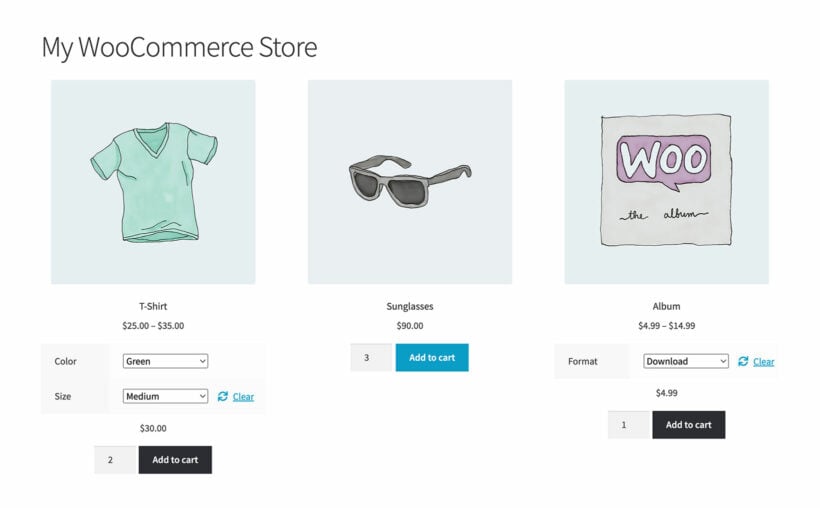
As you can see, customizing the basic add to cart button in this way makes it much easier to add products to the cart.
For best results, use Express Shop Page with the free WooCommerce Custom Add to Cart Button plugin to change the button text and add an icon.
Further reading: How to show variations on the Shop page in WooCommerce.
Option 3: Create one-page order forms with custom add to cart buttons
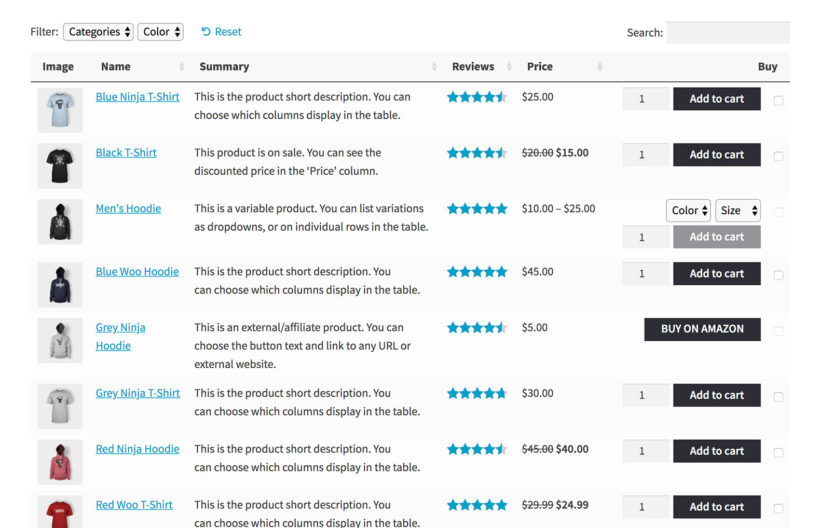
So far, we've discovered two plugins for customizing the WooCommerce add to cart button. These create a custom button without changing the overall layout of your products.
The WooCommerce Product Table plugin takes things to the next level. It takes your products and displays them in a quick one-page order form for faster shopping.
Use it alone, or with WooCommerce Custom Add to Cart Button to create a WooCommerce order form with cart icons.
WooCommerce Product Table is a powerful solution for taking your custom add to cart buttons to the next level. This plugin offers a unique approach to product displays by creating a table format. This allows customers to purchase products directly from the main shop page. As a result, there's no need to click through to individual product pages.
Why should I use custom add to cart buttons in a product table?
Product tables are a good addition to your store because:
- There are a variety of purchasing options. These include the ability to select product variation and choose quantities. As a result, customers can quickly add products to the cart directly from the order form. This enhances the customer experience by streamlining the purchasing process. It also helps to increase conversions by reducing the number of clicks required to make a purchase.
- You can also add WooCommerce custom fields to the product table, such as SKU, weight, and dimensions. Add multiple columns to provide customers with additional information.
- It is highly customizable, with a range of options to control the appearance and functionality of the product table. You can choose which columns to display in the table, enable filters and sorting, and even add product search functionality.
As you can see, this gives you a lot of conversion-boosting flexibility compared the default WooCommerce shop page. Bringing the full range of add to cart options to the main shop page can help to increase conversions. The end result: driving more sales for your business.
Further reading: Read our detailed tutorial about many more ways you can customize the WooCommerce add to cart button by adding checkboxes, variation dropdowns, and more.
Which WooCommerce add to cart plugin should I use?
In conclusion, customizing the WooCommerce add to cart button is a crucial step in improving the shopping experience for your customers. By using the free WooCommerce Custom Add to Cart Button plugin, you can easily change the button text and add an icon, helping to improve the design and functionality of your website.
Additionally, the WooCommerce Product Table plugin takes things one step further by bringing the full range of add to cart options directly onto the shop page. This allows customers to purchase products without having to navigate to individual product pages.
While each of these plugins offers its own unique set of features, they work best when used together. Combine them to create a highly customized and streamlined shopping experience for your customers. This will help to conversions and drive more sales for your business.
So why wait? Try them out today and see the difference they can make for your WooCommerce store!
28 Comments
Choose different add to cart icons allowing for custom shopping cart icons would be a great option!! Also if there were a way for the button itself to signify that if had been pressed with a tick or something... Rather than the user having to check the cart that would be an amazing feature.
Thanks, I'll add these to the feature request list!
Can it show up in a search? For instance, if I put "birdwatching" into a search on a site, and a book on birdwatching comes up in the search, is it possible to have the add to cart button show up on the search result?
This free plugin only changes your existing add to cart buttons, it doesn't change where they appear. You might be interested in our other plugin, WooCommerce Product Table. It lets you list products in a table layout anywhere on your site, with add to cart buttons. If you're happy to modify template files in your theme then you can use the product table layout on the product search results page (NOT the global WordPress search results, as these list other types of content and not just WooCommerce products). The instructions for using product tables with add to cart buttons on the search results page are here.
Why Woo custome add cart button not show on text panel? I use Woocommerce 3.3.5
Please help me
Hi Kim, have you installed and activated the WooCommerce Custom Add to Cart Button plugin? When the plugin is active, you should see its settings in the Customizer.
Thanks, help me a lot!