How to customize the WooCommerce order confirmation page

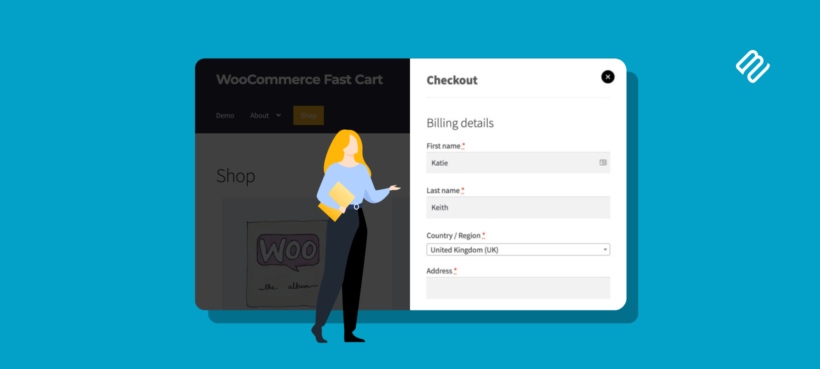
The WooCommerce order confirmation page is the last thing a customer sees after buying, and most stores leave it as a plain receipt. A few changes turn it into a page that thanks customers, brings them back, and even sells a little more.
When a customer finishes paying, WooCommerce sends them to the order confirmation page, also called the thank you page or order received page. By default it's a bare summary, and it wastes the one moment you have the customer's full attention.
There are three ways to make it work harder, depending on how hands-on you want to be:
- A plugin like FunnelKit that rebuilds the page with no code.
- Two free code snippets that give you precise control.
- WooCommerce Fast Cart, which speeds up the checkout that leads to the page by moving it into an on-page popup.
What is the WooCommerce order confirmation page?
The order confirmation page is the screen a customer lands on straight after a successful payment. WooCommerce shows it at a unique URL for each order, and it's the on-site counterpart to the order confirmation email.
By default, it includes:
- A thank you message ("Thank you. Your order has been received.").
- The order number, date and total.
- The payment method used for the order.
- A summary of the items bought, plus billing and shipping details.
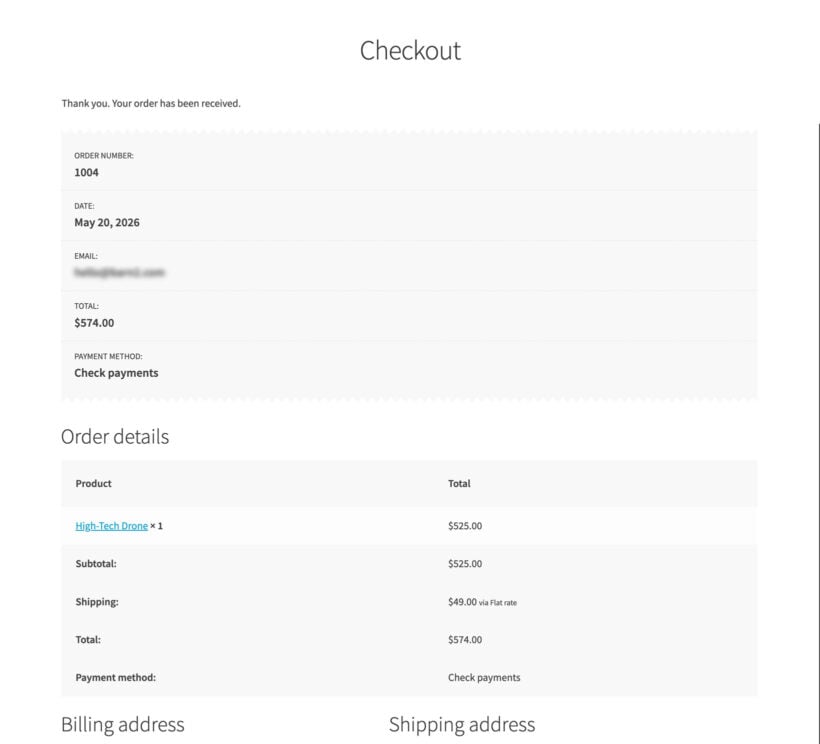
That covers the basics, but it says nothing in your brand's voice, gives no next steps, and does nothing to bring the customer back. Here's how to change that.
Transform the confirmation page with a plugin
The quickest way to transform the order confirmation page is a plugin, with no code needed. A funnel plugin rebuilds the page from scratch with a drag-and-drop editor, and FunnelKit is the one I'd start with. It replaces the default order received page with a custom layout, where you can add your own thank-you message, the order details, a discount code for the next order, and related-product recommendations that lift the average order value.
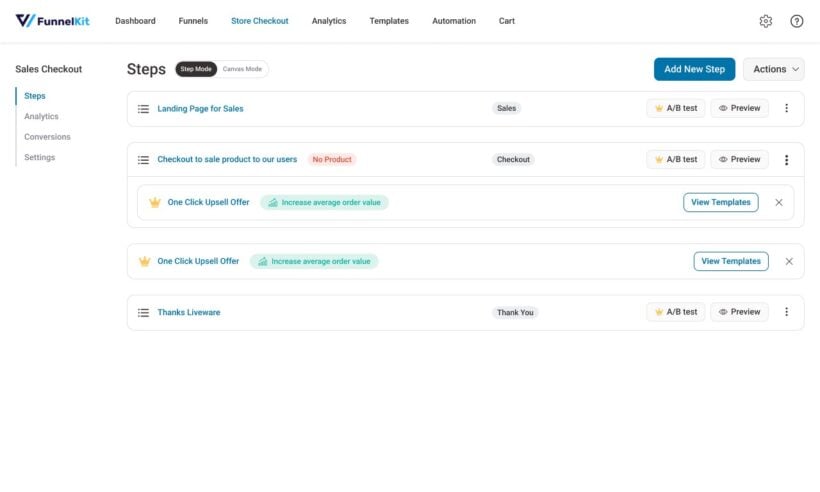
FunnelKit builds the confirmation page as the final step of a checkout funnel, so you can also slot in an order bump or a one-click upsell along the way. CartFlows works the same way and is a solid alternative. Both are free to start, with paid tiers that unlock the upsell features.
If you only need to change the wording or drop in a line or two of content, the code snippets below are quicker and don't add a plugin.
Changing the order confirmation message (with code)
If you're happy to paste in a small code snippet, you can customize the page directly without a plugin. The next two methods are free and give you precise control, starting with the confirmation message.
The default "Thank you. Your order has been received." line is controlled by a WooCommerce filter called woocommerce_thankyou_order_received_text. You can change it to anything you like, including the customer's name.
Add this snippet to your child theme's functions.php file, or paste it into a free plugin like Code Snippets:
add_filter( 'woocommerce_thankyou_order_received_text', function( $text, $order ) {
    return 'Thank you, ' . esc_html( $order->get_billing_first_name() ) . '. Your order is confirmed and we are getting it ready now.';
}, 10, 2 );
That replaces the generic line with a warmer, personalized one. The $order object gives you access to the customer's details, so you can tailor the message however you want.
Adding content to the order confirmation page
To add anything below the confirmation, like next steps or a discount for the next order, use the woocommerce_thankyou action hook. It runs on the order received page and passes you the order ID.
add_action( 'woocommerce_thankyou', function( $order_id ) {
    if ( ! $order_id ) {
        return;
    }
    echo '<h2>What happens next</h2>';
    echo '<p>We will email your tracking details as soon as your order ships. Enjoy 10% off your next order with code <strong>THANKS10</strong>.</p>';
}, 20 );
Because the hook gives you the order ID, you can load the full order and show details that are specific to that customer, such as their items, a download link for a digital product, or a delivery estimate. These two snippets cover what most stores need for free, and the plugin route above is there if you'd rather use a visual editor.
Ideas for your order confirmation page
Once you can edit the page, the question is what to put on it. The order confirmation page works hardest when it does three jobs at once:
- ReassureConfirm the order went through and thank the customer in your own voice, not WooCommerce's default wording.
- InformTell them clearly what happens next: when it ships, how to track it, or how to access a digital product.
- Encourage the next orderOffer a discount code for their next purchase, invite them to follow you on social media, or use WooCommerce review plugins to request feedback.
Keep any product suggestions genuinely relevant and low-key. The sale is already done, so the goal here is the start of a repeat customer, not a hard upsell. If you do want to recommend products, frame them as a helpful "goes well with what you just bought" rather than a pushy pitch.
Show the whole checkout in a popup with Fast Cart
Editing the confirmation page polishes the final step. WooCommerce Fast Cart improves everything that leads up to it, by moving the cart and checkout into a single on-page popup so customers add products and pay without the page ever reloading.
With Fast Cart, a customer adds a product and the cart slides out. They check out in the same popup, without loading a single new page. Once they place the order, WooCommerce takes them to your order confirmation page, the one you've just customized.
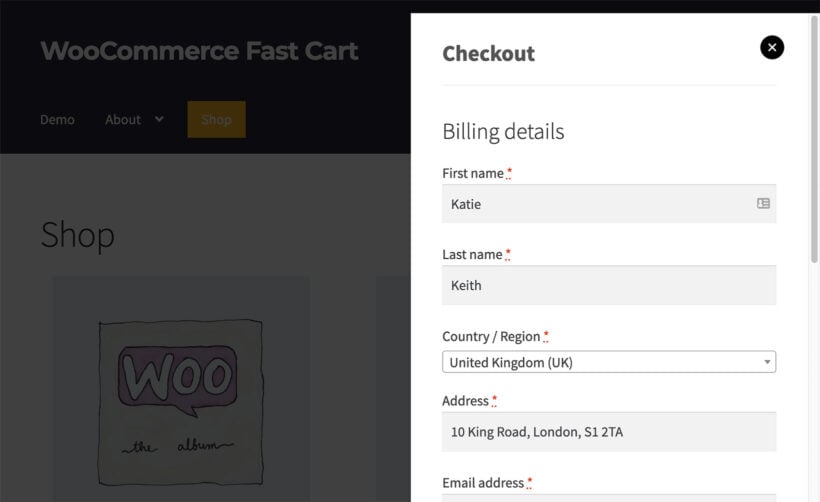
This is the adjacent win to customizing the confirmation page. If you're already polishing the wording on your thank you page, you're the kind of store owner who cares about the whole post-add-to-cart experience, and Fast Cart tightens all of it at once. It keeps customers on the page they were browsing, which is exactly where a casual buyer is most likely to follow through.
It also pairs naturally with the other checkout work worth doing, like enabling guest checkout and trimming the checkout page down to the fields you need.
Frequently asked questions about the WooCommerce order confirmation page
What is the WooCommerce order confirmation page?
It's the page a customer sees straight after paying, also called the thank you page or order received page. By default it shows a thank you line, the order number, the items bought and the billing and shipping details.
How do I customize the WooCommerce thank you page?
Use the woocommerce_thankyou_order_received_text filter to change the confirmation message, and the woocommerce_thankyou action hook to add custom content like next steps or a discount code. Both are small snippets you can add to your child theme or a code snippets plugin.
Can customers check out without leaving the page?
Yes. WooCommerce Fast Cart shows the cart and checkout in an on-page popup, so customers complete the purchase without loading a separate page. After they place the order, WooCommerce takes them to your order confirmation page.
Do I need a plugin to edit the order confirmation page?
No. The two code snippets above cover most stores for free. If you'd rather use a visual editor, a plugin like FunnelKit rebuilds the whole page without code, and Fast Cart handles the popup version of the checkout.
Final thoughts
The WooCommerce order confirmation page is easy to ignore because the default version works. But it's the one moment a customer is guaranteed to be paying attention, so it's worth a few minutes to improve.
Which approach you pick comes down to how hands-on you want to be. For a full no-code rebuild with related products and offers, use a plugin like FunnelKit. For free, precise control over the wording and content, the two code snippets do the job. And to speed up the checkout that leads to the page, WooCommerce Fast Cart moves the cart and checkout into an on-page popup so customers get there faster.