How to hide prices until login in WooCommerce (step-by-step)

WooCommerce can't hide prices until login on its own, so you need a plugin. WooCommerce Wholesale Pro hides prices and Add to Cart buttons from logged-out users, and I'll show you how to set it up, step by step.
By default, WooCommerce shows prices to everyone, including visitors who haven't logged in. This guide shows you how to change that using WooCommerce Wholesale Pro, ensuring only registered users can see prices and place orders.
Many store owners, particularly those running wholesale-only shops, need to restrict pricing to a member-facing interface. Restricting visibility ensures that only approved customers or wholesalers can view costs and complete a purchase. Since WooCommerce doesn't offer a native setting to hide pricing from guests, a dedicated plugin is the most effective solution.
We built Wholesale Pro specifically for stores like this. It started when we noticed that the most common use of our Protected Categories plugin was wholesale, and those customers needed more than category restrictions: role-based pricing, wholesale registration, and wholesale-only payment, shipping and tax options. So we built a plugin designed around the wholesale workflow from the start.
If you’re in this situation, the setup is straightforward. In this tutorial, we’ll explain how to configure your store in a few simple steps. There is no technical knowledge required, so you can quickly manage your shop's visibility and protect your margins from unauthorized viewers.
How do you hide prices until login in WooCommerce?
WooCommerce does not hide prices from guests by default. To hide prices until login, install a plugin such as WooCommerce Wholesale Pro, then turn on the ‘Hide prices until login’ setting.
The plugin removes product prices and the ‘Add to Cart’ button from logged-out visitors across the shop and single product pages, and shows a custom message in their place. Logged-in customers see standard prices, while wholesale roles see their own pricing. You can apply this to the whole store or to chosen categories.
Why hide price until login?
Many stores want to let everyone browse the catalog while hiding prices. They show prices, product options, and purchasing options to logged-in users only. To do this, you hide prices and the add to cart button from guest users, and reveal them once a user logs in.
Hiding prices until login can be a powerful strategy for WooCommerce stores that sell to wholesale customers or have a membership-based model. By controlling price visibility, you not only maintain exclusivity but also encourage potential buyers to register, boosting engagement and customer retention
Katie KeithFounder & CEO
Hiding prices from guests is a common need for wholesale and members-only stores, and it's straightforward to set up once you have the right plugin.
Free vs paid plugins to hide prices until login in WooCommerce
When looking to hide prices from guests, you’ll find several free plugins in the WordPress.org repository, such as Hide Price Until User Login For WooCommerce. While these are excellent for simple sites, it’s important to understand where they fall short compared to a professional solution like WooCommerce Wholesale Pro or WooCommerce's own Hide Prices & Private Store plugin.
The Limitations of free plugins
Free plugins generally offer a "one-size-fits-all" approach. They typically hide prices globally across your entire store. This works if you want a basic catalog mode, but it lacks nuance. For example, most free versions don't allow you to:
- Target specific categories: You might want to hide prices for high-end machinery but keep them public for small parts. Free plugins rarely offer this level of control.
- Support multiple user roles: If you have different tiers (e.g., Retail, Silver Wholesale, and Gold Wholesale), a free plugin usually treats everyone who is "logged in" exactly the same.
- Include a registration system: Hiding prices is only half the battle. You also need a way for users to register for access. Free plugins often require you to install additional, separate plugins to manage user approvals.
Why invest in a paid plugin?
A premium plugin like WooCommerce Wholesale Pro is designed for businesses that need to balance public visibility with private pricing. It’s worth the investment if you require:
- Granular control: You can hide prices globally, by product category, or even for specific user roles while keeping your shop SEO-friendly.
- A complete ecosystem: It includes a built-in new user registration and moderation system. This means you can vet new customers before they gain access to your pricing, a must-have for B2B and wholesale operations.
- Role-based pricing: Instead of just showing the "normal" price after login, you can display unique discounts based on the user's role.
If you simply want to hide every price on your site with no exceptions, a free plugin is a fine starting point. However, if you are running a professional store, need to approve your members, or want to offer tiered pricing, a paid solution is the only way to ensure a seamless experience for both you and your customers.
Use cases for a wooCommerce hide price until login plugin
- Wholesale stores that don’t sell directly to the general public and only want to show prices to wholesale customers. A WooCommerce hide price until login plugin enabled everyone to browse your inventory, while only allowing pre-approved wholesale users to register, see prices or purchases.
- Manufacturers publish details of their products on their websites but only allow approved resellers to purchase from them.
- WooCommerce members-only stores where people have to join a club or buy a membership before making a purchase. Letting prospective customers browse products without prices encourages them to create an account via a custom WooCommerce registration form. This allows store owners to build an email list and retarget customers more effectively. In addition, it allows them to let visitors browse their products and increases their store’s online visibility.
Displaying your products publicly, while hiding prices and buy buttons from logged out users, is the perfect solution. You get the SEO benefits of having this important information available to all, and the business benefits of only allowing pre-approved customers to see prices or purchases.
Even though WooCommerce Wholesale Pro is primarily aimed at wholesale stores, it can be an ideal solution for any online store that wants to use the WooCommerce show price after login feature to hide prices and disable purchasing options for logged-out users and guests.
How to use WooCommerce Wholesale Pro to hide prices until login
With the WooCommerce Wholesale Pro plugin, you can easily hide prices until login for your store’s visitors and customers. You can either hide prices completely or display alternate content in their place. For example, you could add a 'Login to view prices and place an order message, linking to your login page. You can also check out the plugin documentation for step-by-step instructions.
For this tutorial, we’ll assume you already have the WooCommerce plugin set up on your WordPress website and some products added to your store.
Step #1: Get the WooCommerce Wholesale Pro plugin
The first step is to get the WooCommerce Wholesale Pro plugin and install and activate it on your WordPress website. You’ll receive the plugin files along with a license key. Copy this to your clipboard.
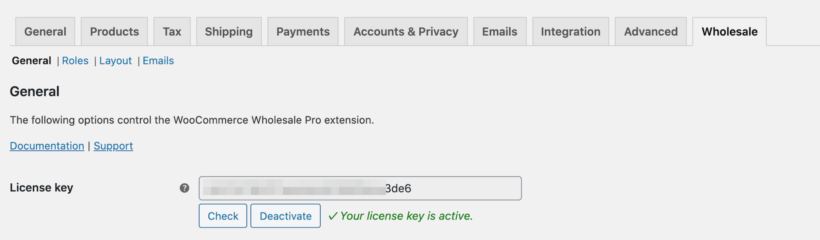
Log into your WordPress dashboard and head over to WooCommerce → Settings → Wholesale → General. Paste the license key in the License key field and click the Save changes button.
Step #2: Configure the plugin’s settings
From the same screen (i.e. WooCommerce → Settings → Wholesale → General), tick the checkbox next to the Hide prices until login option as shown in the screenshot below:
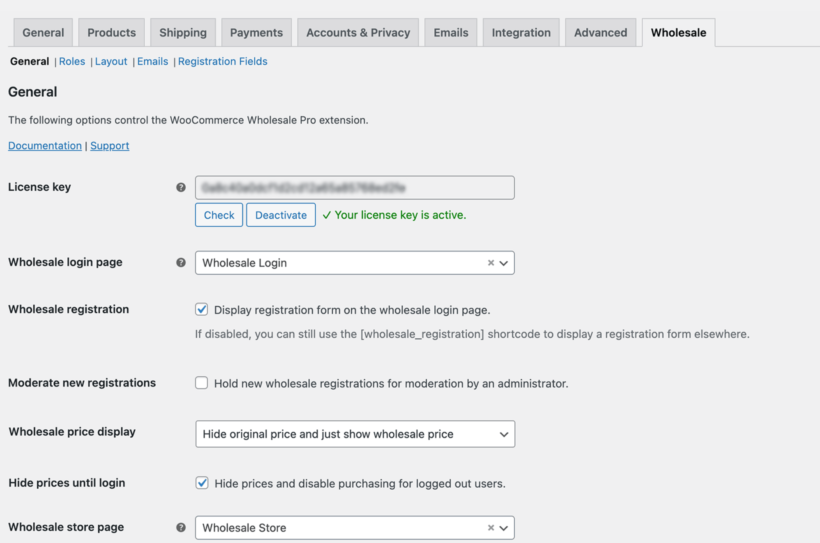
This will automatically hide product prices and any information in the add to cart area.
More specifically:
- Logged out users (non-logged-in users) will be able to browse products and view product pages as usual. However, if a user is not logged in and has not used the login to see add to cart and prices in WooCommerce feature, they will not have access to price information or the add to cart option. This also applies to other user roles such as Subscribers. Put simply; they will only be allowed to browse the store in catalog mode.
- Logged in users with a non-wholesale role (e.g. Customers) will see the normal price for each product.
- Logged in users with a wholesale role will see the correct wholesale price for their role.
Next, we’ll show you how to create WooCommerce wholesale user roles with wholesale pricing. If you're only utilizing WooCommerce's hide price if not logged in feature to conceal prices from visitors and not creating a wholesale store, you can skip the next steps.
Step #3: Add wholesale user roles and prices (optional)
Go to WooCommerce → Settings → Wholesale → Roles from the WordPress admin panel and click the Add new role button. From here, you can manage your WooCommerce user roles by either adding a global percentage discount to the default wholesale role or creating extra roles, each with its own specific role-based discounts.

If you want all new wholesale registrations to be assigned this user role automatically, tick the checkbox next to the Default role option. In addition, if you want to set exact wholesale WooCommerce prices for specific products instead of offering a percentage discount, tick the checkbox next to the Product specific pricing option.
Note: You can offer discounts to each wholesale user role based on the product category.
Click the Save changes button to proceed.
You can create as many wholesale user roles as possible by following the steps outlined above.
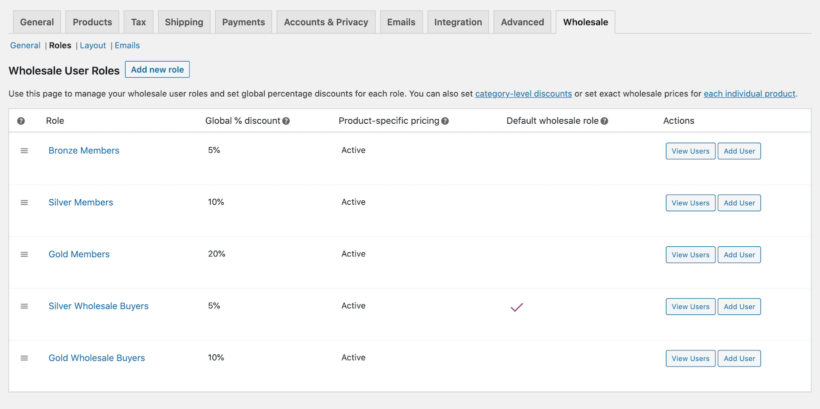
For example, if you want to create a members-only WooCommerce store, you would simply create user roles for the different memberships you offer. You might have user roles for Bronze Members, Silver Members, and Gold Members.
How to hide the add to cart button until login in WooCommerce
By default, WooCommerce encourages immediate purchases, but many business models need a layer of exclusivity. The WooCommerce Wholesale Pro plugin hides the add to cart button automatically. You do not have to configure separate rules for the price and the button. The plugin hides both elements at the same time.
Once you have enabled the "Hide prices until login" option, the plugin automatically removes the "Add to Cart" button from both the single product page and the main shop archives for logged-out users. In its place, the plugin displays your custom lead-in text or a login link, ensuring the call to action is replaced with a prompt to log in or register. This creates a clean, professional catalog appearance that protects your margins while maintaining a high-quality user experience for guest browsers.
This feature also extends to more complex product setups. Any variation selectors, product add-on fields, or booking calendars are automatically hidden from view until the user authenticates, preventing guests from interacting with product options before they are authorized to see the price.
How to show a login to see prices message in WooCommerce
When you hide prices from guest users, it is important to provide a clear call to action so they know how to gain access. Rather than simply leaving a blank space where the price and buy buttons used to be, WooCommerce Wholesale Pro allows you to display a custom "Login to see prices" message.
Once you enable the 'Hide price until login' option, an 'Alternate content' field will appear immediately underneath. This field is fully customizable. While it displays as plain text by default, you can incorporate HTML or shortcodes to make the prompt more functional. For example, you can include a direct link to your login or registration page with a message like: "Please log in to view prices."
By using this feature, you guide prospective customers toward the next step in the journey. In the example below, the message has been placed in a styled box to make it more prominent on the single product page, ensuring visitors don't miss the instructions on how to access your exclusive pricing.
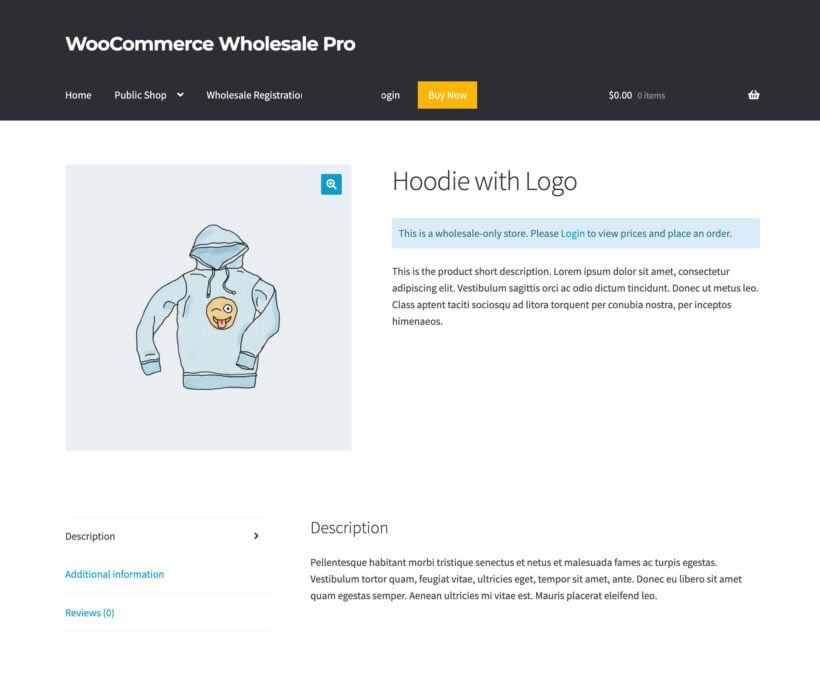
Front-end pricing preview: Guest users vs. logged in users
Let’s take a look at what the online store will look like to guest users, logged in customers, and logged in wholesale users on the front end:


And here’s what the single product page will look like:


It hides prices until login for visitors and guests. On the WooCommerce main shop page, guest users will only be able to see some product detail, including the product image, ratings, sales banners, and a Read More button redirecting them to the single product page. And, on the single product page, you’ll notice that both the product’s price and add to cart options are hidden.
In order to view product prices and purchasing options, customers will have to log into their accounts.
When a user with the Customer user role logs into their account, they’ll see regular product prices (i.e. without discounts). In addition to this, they’ll also see the product prices, purchasing options (including variations), and the add to cart button on the single product pages.
When wholesale user logs into their user account, they’ll be able to see the product prices with the percentage discount applied to it (or the exact wholesale price you’ve set for the individual product). They’ll see the same wholesale rates on the single product page along with product purchasing options.
This way, they can add products to their shopping cart and proceed to the checkout page. All of this is possible without messing around with HTML/CSS code or adding code to the functions.php file via FTP.
How to hide prices for specific product categories for logged-out users
Can I hide prices for specific product categories only?
Yes. WooCommerce Wholesale Pro allows you to hide prices for specific categories rather than your entire store. You can manage these visibility settings per category within the standard WooCommerce category settings in your WordPress admin.
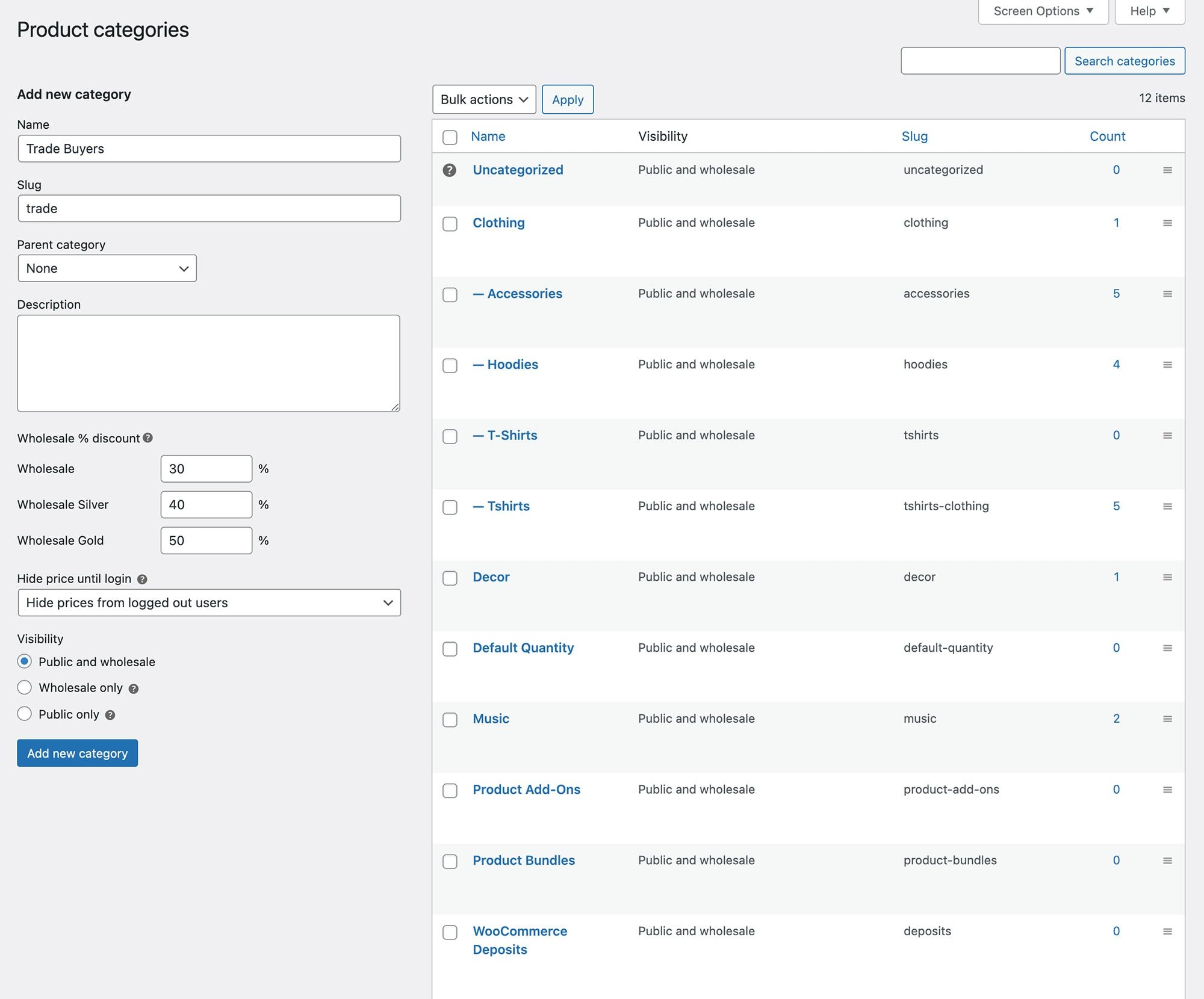
If you want to hide the price of certain product categories only for users who are not logged in, follow these steps:
- Navigate to the Products → Categories section and select the category you wish to edit.
- Look for the 'Hide price until login' option, which offers three settings:
- Use the global or parent category setting (the default) - this means the global setting (as described earlier) will be applied.
- Hide prices from logged-out users - this means users who are not logged in will never see the price of products in this category, regardless of the global setting.
- Show prices to logged-out users - this means users who are not logged in will always see the price of products in this category, regardless of the global setting.
- To control what shows up in place of the price for all hidden price categories, use the global 'Alternate content' field. Note that subcategories will inherit the parent category's setting unless you specifically hide the price for the subcategory.
In cases where a product belongs to multiple categories with different WooCommerce hide until price if not lo settings, WooCommerce Wholesale Pro will prioritize the most secure approach and hide the price from users who are not logged in.
List products without prices in quick order forms
If you have implemented the WooCommerce different price for logged in users feature to hide prices from non-registered guests and visitors, it's likely that your customers are already familiar with your products and services. As a result, they need a quicker way to select multiple products, choose variations, and add to the cart.
You can do this by using WooCommerce Wholesale Pro with the WooCommerce Product Table plugin, which you can buy together as a two-plugin bundle. It displays any or all of your products in a quick order form layout like this:
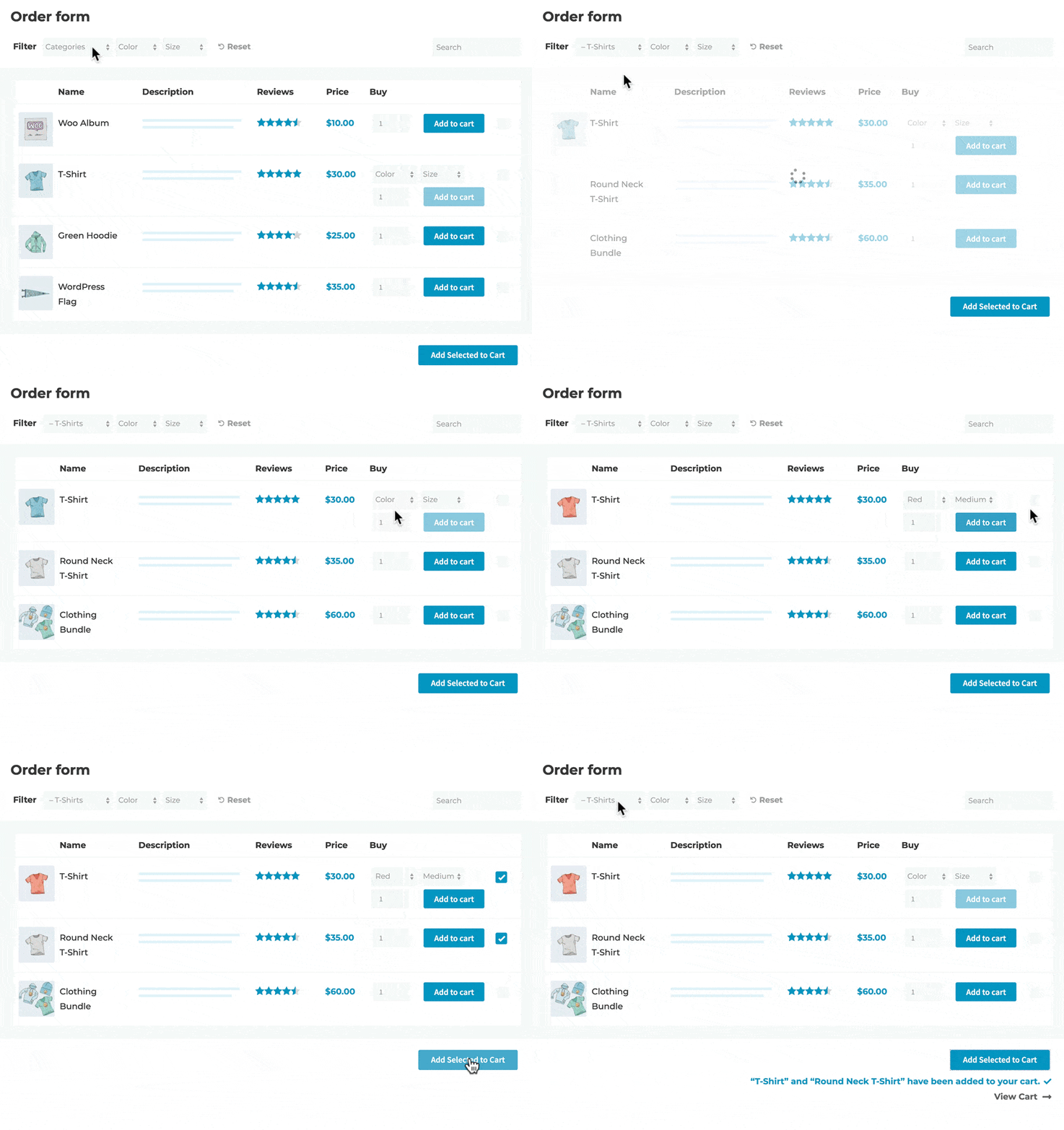
You can choose whether to enable the order form layout for guests and/or logged in wholesale users. It's an excellent way to speed up shopping, and therefore to increase your sales and conversions.
How to programmatically hide prices until login
You can also hide prices from guests using a simple code snippet instead of a plugin. This method works well for developers or those comfortable editing theme files.
To get started, add the following code to your child theme’s functions.php file or via a plugin like Code Snippets:
add_filter( 'woocommerce_get_price_html', 'hide_price_for_guests', 10, 2 );
function hide_price_for_guests( $price, $product ) {
    if ( ! is_user_logged_in() ) {
        return '<p class="login-to-see-price">Please <a href="' . esc_url( wp_login_url( get_permalink() ) ) . '">log in</a> to see prices.</p>';
    }
    return $price;
}
This snippet checks whether the current user is logged in. If they’re not, it replaces the product price with a login prompt that links to the WooCommerce login page. Once logged in, users will be able to see the prices as normal.
You can customize the login message or style it with CSS as needed to match your theme. This is a simple way to create a WooCommerce hide price until login experience without a plugin, but there are limitations, and you have to maintain the custom code yourself, through all future updates of WooCommerce and WordPress.
How to allow users to request a quote
Instead of simply hiding prices until login, you might want to offer a more interactive experience by setting up a WooCommerce request a quote system. This is especially useful for stores selling custom products, bulk items, or offering specialized B2B pricing.
Using the WooCommerce Product Options plugin, you can create a "Request a Quote" system by adding custom fields to your product pages. For example, you could add a checkbox labeled Request a quote, a text box for additional notes, or even a file upload field. This gives customers a direct way to ask for pricing information based on their specific needs.

While this is a great solution for individual products, it’s worth noting that WooCommerce Wholesale Pro offers a much more complete system. It automatically hides prices from guests, supports role-based pricing, and lets you create a members-only wholesale area. So if you're running a B2B store or need more control over pricing visibility and user roles, it’s a more comprehensive alternative to using a basic code snippet.
How to hide prices for wholesale customers only in WooCommerce
Understanding the distinction between global price visibility and role-based pricing is crucial for maintaining a professional storefront. WooCommerce Wholesale Pro provides two distinct layers of control to manage these scenarios effectively.
When the "Hide prices until login" option is enabled, your store essentially becomes a public showroom. Logged-out guests can browse your product range, but the prices and "Add to Cart" buttons are completely hidden. This is the ideal strategy if you want to protect your pricing strategy from competitors or the general public while still benefiting from SEO by keeping your products crawlable. Once a user logs in, the plugin "unlocks" visibility based on their specific account type.
While the first scenario controls who sees prices, role-based pricing controls what price they see. This is specific to logged-in users. A standard customer will log in and see the retail price, whereas a user assigned a specific Wholesale Role will see the discounted rates assigned to them. You can even customize the display, such as showing the wholesale price next to a crossed-out original price to emphasize the savings.
The plugin allows you to layer these features. You can hide all prices from the public to eliminate doubt about your market positioning, then automatically reveal standard prices to retail customers and exclusive discounts to wholesale partners upon login. This ensures a seamless, "plug-and-play" experience for every user segment.
Frequently asked questions
How do I hide prices until login in WooCommerce for free?
Free plugins in the WordPress repository can hide prices from logged-out users, but they usually apply one global rule with no category control, no multiple roles, and no built-in registration. A paid plugin such as WooCommerce Wholesale Pro adds those controls when a free option is not enough.
Can I hide prices until login without a plugin?
Yes. You can add a code snippet to your child theme that replaces the price with a login prompt for logged-out users. It works, but you have to maintain the code through future WooCommerce and WordPress updates, so a plugin is usually simpler for non-developers.
How do I show a “login to see price” message in WooCommerce?
With WooCommerce Wholesale Pro, the ‘Hide prices until login’ setting adds an ‘Alternate content’ field. You can enter plain text, HTML, or shortcodes there, such as a link to your login page, so guests see a clear prompt where the price used to be.
Can I hide prices for registered users only in certain categories?
Yes. WooCommerce Wholesale Pro lets you hide prices for specific product categories rather than the whole store. Each category can use the global setting, always hide prices from logged-out users, or always show them, and the most restrictive rule wins when a product sits in more than one category.
Next step: Hide price until login with WooCommerce Wholesale Pro
Transform your store into a private wholesale portal with the "Hide Prices Until Login" feature. This setting protects your competitive margins by ensuring that only verified, registered customers can access your pricing.
By tailoring visibility based on user roles, you not only build a high-quality, professional shopping experience but also rapidly grow your member database. It’s a sophisticated way to manage a hybrid B2B and B2C store without the need for a second website.
Get Started Risk-Free:
- Plug-and-play setup: Built with clean, optimized code for immediate compatibility.
- Comprehensive documentation: Clear, step-by-step guides to get you running in minutes.
- Expert support: Our technical team is ready to assist if you have any questions.
- 30-day money-back guarantee: Love the results or get a full refund, completely risk-free.
Get the WooCommerce Wholesale Pro plugin today to hide prices until login!
2 Comments
hello,
I'm looking for a tool that allows me to not show pricing of specific products (not all).
The webshop uses simple, grouped, variable & composite products and we use a pricing wizard to assemble your customized product.
Will this plugin do the trick?
Regards,
Gunther
Hi, Gunther.
Our plugin comes with a "Hide prices until login" option, which will automatically hide product prices and any information in the add to cart area.
What you want to achieve is already listed on our feature request list and I have added your ‘vote’ to it. We will let you know if we add this to a future version of the plugin. As an alternative, you could use the Catalog Visibility Options plugin.
Let us know if you have more questions. Cheers!