2 easy ways to list WooCommerce variations

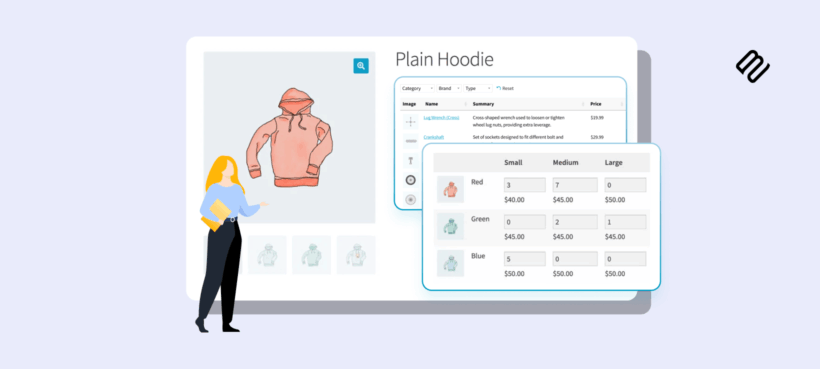
WooCommerce variations are powerful, but the default way of displaying them - a product page with attribute dropdowns - isn't always the best fit. Here are two easy ways to list WooCommerce variations so customers can find and buy them faster.
The way WooCommerce lets you create and manage product variations is one of its strongest features. For a store selling a handful of variable products, the default attribute dropdowns work fine. For a store with dozens or hundreds of variations - a wholesale catalog, a clothing store or a food menu - the default display creates friction. Customers click through page after page, only to find a dropdown they have to interact with before they can add anything to their cart 🥱
This article covers two ways to fix that, depending on whether you want to surface every variation on the product page itself or list variations across multiple products in a single place:
- WooCommerce Bulk Variations, which automatically creates a grid of all the variations for that product on the product page, replacing the default attribute dropdowns.
- WooCommerce Product Table, which is perfect for listing the variations of multiple products in a single table, for example on the shop page.
I'll walk through each one in turn.
What are WooCommerce variations?
A WooCommerce variation is a specific combination of attributes on a variable product. The classic example is a t-shirt that comes in red and blue, each in small, medium and large. Each of those six combinations is a variation. Customers pick a size and a color on the product page, and WooCommerce updates the price, stock and add-to-cart button to match.
That model works when there are a few attributes and a few products. It breaks down as soon as the catalog gets bigger or the customer needs to see and compare multiple variations side by side. The two methods below keep WooCommerce's underlying variation system intact - they just change how variations are presented on the front end.
For a deeper primer on creating and managing variations themselves, the official WooCommerce variable product documentation covers the basics.
Method 1: Automatically create a variations grid with WooCommerce Bulk Variations
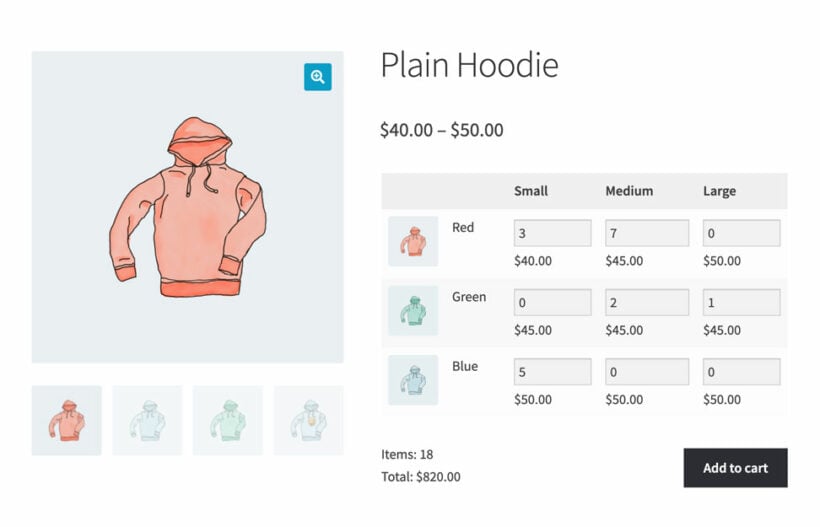
The simplest way to list WooCommerce variations is to replace the default attribute dropdowns with a grid showing every variation of a product at once. The customer can see all of the options, prices and stock levels in a single view, and add the quantities they want of each variation directly from the grid.
The WooCommerce Bulk Variations plugin does this automatically. Once installed, it activates on any variable product you choose. There's no manual configuration of which variations to show - the grid is generated from the variations you've already set up in WooCommerce.
The grid sits on the single variable product page, in place of the default dropdowns. Each cell shows the price and stock for that variation, with a quantity box for the customer to fill in. When they're done choosing how many of each variation they want, one add-to-cart button drops the whole selection into the cart.
This is particularly useful for:
- Wholesale and B2B stores where customers order multiple sizes or colors in a single transaction.
- Restaurants and food stores where customers build an order from a menu of variations.
- Any clothing, accessory or homeware store where customers tend to buy across multiple variations of the same product.
Can I list variations with 3 or more attributes?
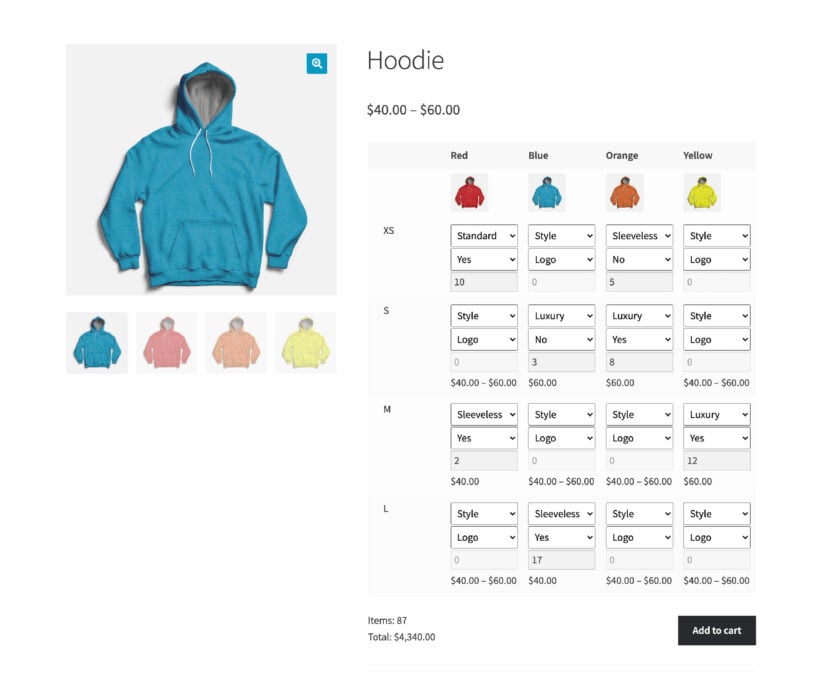
The plugin handles complex products too. If a product has three or more variation attributes - for example a hoodie with color, size, style, brand, and logo - Bulk Variations lays them out across rows, columns and per-cell dropdowns. Customers can still see every combination in one view and order multiple variations in a single action.
You can also display:
- A price matrix showing variation prices without quantity boxes, useful for catalogs where customers order via a different method.
- Stock information per cell, so customers can see availability before they commit.
- Variation descriptions, images and custom fields alongside the standard data.
The grid sits within the existing single product page, so the rest of the page (product title, gallery, description and reviews) is unchanged. It just replaces the bit that used to be attribute dropdowns.
Further reading: How to add visual color choices using variation swatches for WooCommerce.
Method 2: List variations from multiple products in a WooCommerce Product Table
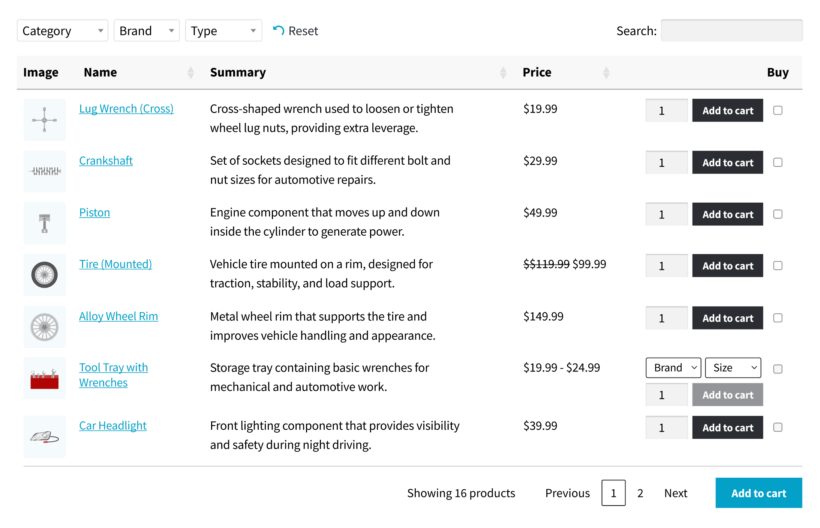
The second method solves a different problem: listing variations across multiple products in one place. This is the right approach when customers want to browse a catalog and add things to their cart from a single page - for example a wholesale order form, a food menu, a parts catalog, or a custom shop page that replaces the standard WooCommerce grid.
The WooCommerce Product Table plugin builds the table. You decide which products appear in it (by category, tag, attribute or hand-picked selection), which columns to show, and how variations are handled. The table can live on any page via the [product_table] shortcode, including the shop page itself.
There are two ways to display variations within a Product Table.
Option A: Variation dropdowns in each row
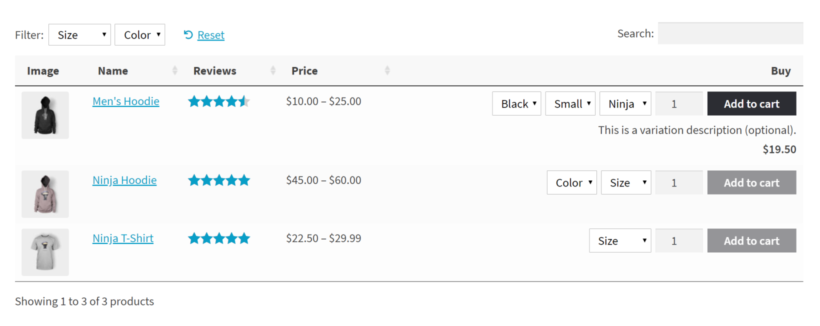
The screenshot above shows the first option. Each variable product gets one row in the table, with attribute dropdowns built into the row itself. Customers pick the size and color directly, enter a quantity, and click add to cart - all without leaving the page.
This works well when each variable product has only a few attributes and customers tend to buy one of each product at a time.
Option B: Every variation on its own row
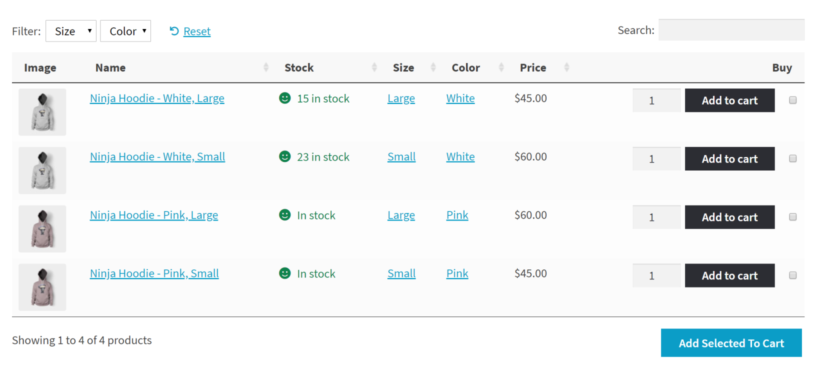
The second option expands every variation into its own row. A hoodie with two sizes and two colors becomes four rows in the table. Each row shows that specific variation's image, attributes, price, stock and add-to-cart button. Or if variation images aren't important to your products, then you can display them without images.
This is the right move when:
- Each variation has a meaningfully different price (so a single average price would mislead).
- Customers want to compare variations side by side at a glance.
- You want add-to-cart checkboxes so customers can select multiple variations and add them all in one click.
Why a table beats the default layout for multi-product browsing
The structural advantages are:
- Customers compare across products and variations on a single page instead of clicking through each one.
- Filters and search above the table help customers narrow down a long catalog quickly.
- Multi-select checkboxes can add several variations to the cart in one go - a clear lift in average order value for bulk-buy stores.
- Custom column choices (image, summary, stock, custom fields, image size) let you tailor the table to the products and the audience.
Which method should you pick?
The two methods solve different problems:
- Pick Bulk VariationsIf you want every variation of a single product visible on the product page, with a grid or price matrix that customers can order from in one action. Best for wholesale, B2B, food ordering and any store where customers buy multiple variations of the same product per order.
- Pick Product TableIf you want to list variations from multiple products in one place - a custom shop page, a quick order form, a wholesale catalog or a category page. Best for catalogs where customers shop across products rather than within one.
The two plugins are not substitutes. Plenty of Barn2 stores use them together - Bulk Variations on the single product page for in-product ordering, Product Table on the shop page for cross-product browsing. They sit alongside the default WooCommerce variation system, so layering them doesn't break anything.
Frequently asked questions about listing WooCommerce variations
Can I list variations from multiple products in a single grid?
A Bulk Variations grid is per-product - it shows the variations of one variable product at a time. If you want variations from multiple products in a single view, a Product Table is the right tool. You can configure the table to show variations from any combination of products, categories or tags.
Will listing variations differently affect my SEO?
The variations themselves don't get separate URLs - they're still part of the parent variable product. Both methods change the front-end display only. From an SEO perspective the product URLs and structured data stay the same.
Do I need a custom theme to use either plugin?
No. Both WooCommerce Bulk Variations and WooCommerce Product Table work with any properly-built WordPress theme. The Bulk Variations grid sits on the single product page in place of the default dropdowns, and the Product Table layout sits within whatever page you place the shortcode on. If your theme overrides WooCommerce templates aggressively, you may need to adjust some CSS, but no theme switch is required.
Which method is best for a wholesale store?
The combination of both. Use Bulk Variations on the single product page so wholesale buyers can order multiple variations of the same product in one grid. Use Product Table on the shop or category pages so they can browse across the whole catalog and add items to their order without clicking through each product page.
Can customers still see individual variation pages?
Yes. Both methods sit on top of WooCommerce's existing variation system, so the parent variable product page is unchanged. With Product Table, you can choose whether each row links to the parent product page, the specific variation, or skips the click-through entirely by making each row a direct add-to-cart.
Final thoughts
The default WooCommerce variation system is genuinely powerful, but the standard dropdown display isn't right for every store. Both methods above keep that underlying system intact and just change how variations are presented on the front end.
- For a store where customers buy multiple variations of one product per order, start with Bulk Variations on the single product page.
- For a store where customers browse across products and want to add variations from many products in one go, start with Product Table.
Plenty of stores end up using both - they solve different problems and complement each other well.
Whichever method you pick, the goal is the same: give customers a faster, clearer path from finding a variation to buying it.