8 ways to improve your ecommerce filters

On a store with thousands of products, the filters do the hard work of getting each customer to the few items they care about. These eight changes make your ecommerce filters faster and easier to use.
Shoppers don't have the patience to scroll through everything. They expect to narrow a catalog down to their size, budget and style in a few clicks, the way they can on Amazon. When a store makes that hard, they leave. A clunky or missing filter doesn't just annoy people, it sends them to a competitor who makes the search easier.
The good news is that you don't have to build this yourself. Just install the WooCommerce Product Filters plugin and let your customers narrow a huge catalog down to a short, relevant list. The results update instantly as they click.
Below, I'll explain the best places to put your filters, what to let people filter by, and how to keep the whole thing fast.
Better filters turn browsers into buyers
Ecommerce filters are the controls that let shoppers narrow a product list by things like price, size, color, category or rating. They turn a wall of products into a short list of the ones a customer really wants.
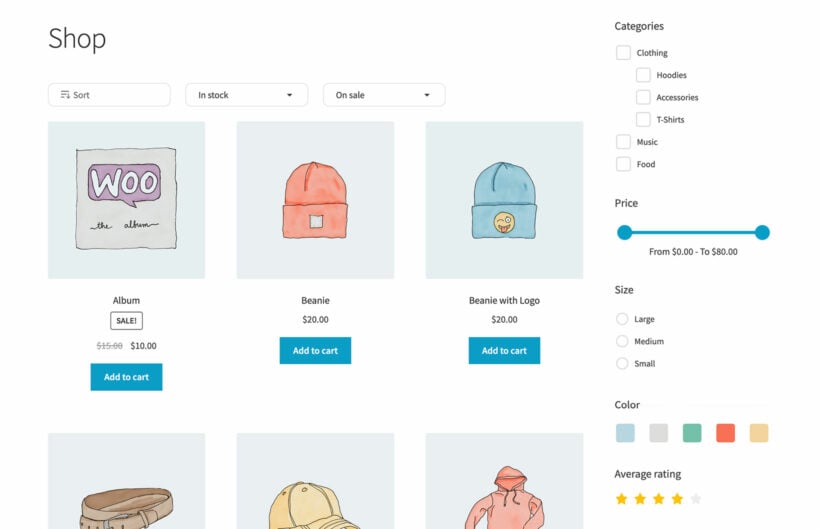
That matters because product filtering is one of the weakest parts of most online stores. Usability research from the Baymard Institute consistently points to filtering and sorting as a top reason shoppers fail to find what they want and leave. A better filtering experience does three things for your store:
- Faster product discovery. Customers reach the products they want in fewer clicks, which keeps them on the page.
- Higher conversions. A smoother path to the right product means more people reach the add to cart button. Good filtering is part of wider WooCommerce UX that lifts sales across the store.
- Fewer support questions. Shoppers answer their own questions about size, color or availability instead of emailing you.
You also learn from filters. Watching which options customers use most tells you what they care about, which helps you stock and merchandise better over time.
1. Choose where your filters appear
You have a choice here, and there isn't one right answer. A left-hand sidebar filter is the layout most shoppers know, but plenty of big-name stores skip the sidebar and put a horizontal filter bar above the products instead. You can also use both, as in the clothing store below.
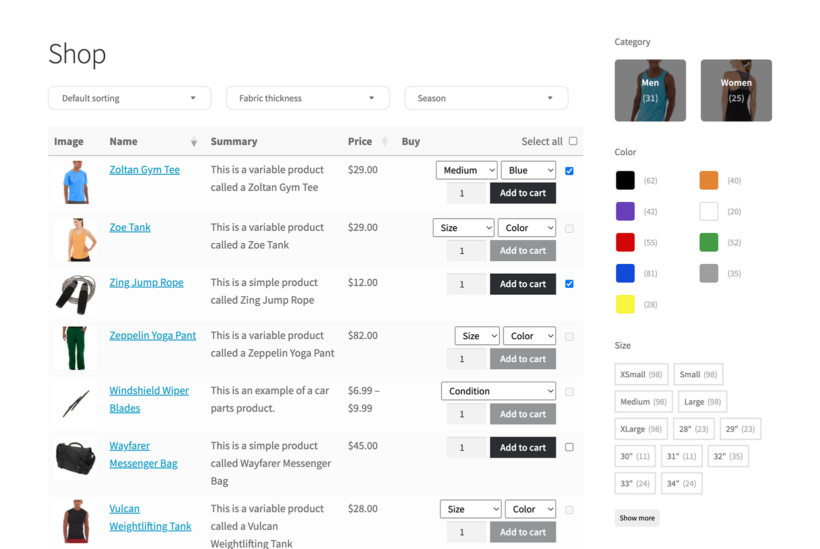
What matters more is what happens on mobile. If you choose sidebar filters, WooCommerce Product Filters automatically moves them above the products, or into a slide-out panel, on any screen too narrow for a sidebar. That way they never disappear on mobile. The default WooCommerce filter widgets only work in the sidebar. On mobile, where most themes drop the sidebar entirely, they often disappear altogether.
2. Let people filter by anything that matters
The more relevant the filters, the faster customers find their product. Start with the basics that suit almost any store: a price filter, a category filter, and a filter by attribute for things like size and material.
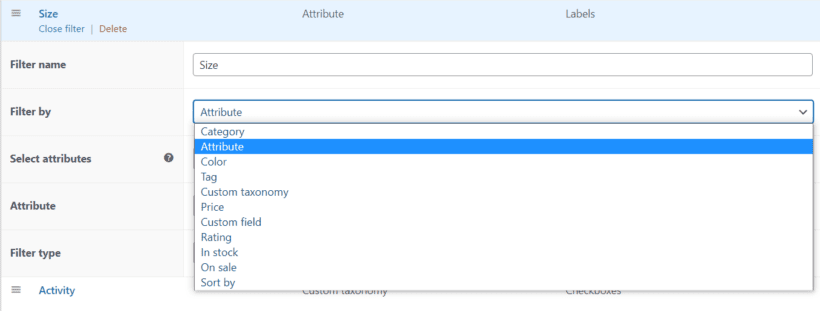
WooCommerce Product Filters can filter by category, price, attributes, tags, custom taxonomies, custom fields, rating, stock status and on-sale items, plus a keyword search and a sort dropdown. If you store extra product data in custom fields, custom taxonomies or carefully managed product attributes, those become filters too. Resist the urge to add everything, though. A short list of meaningful filters beats a cluttered sidebar that overwhelms people.
3. Add visual filters like color and image swatches
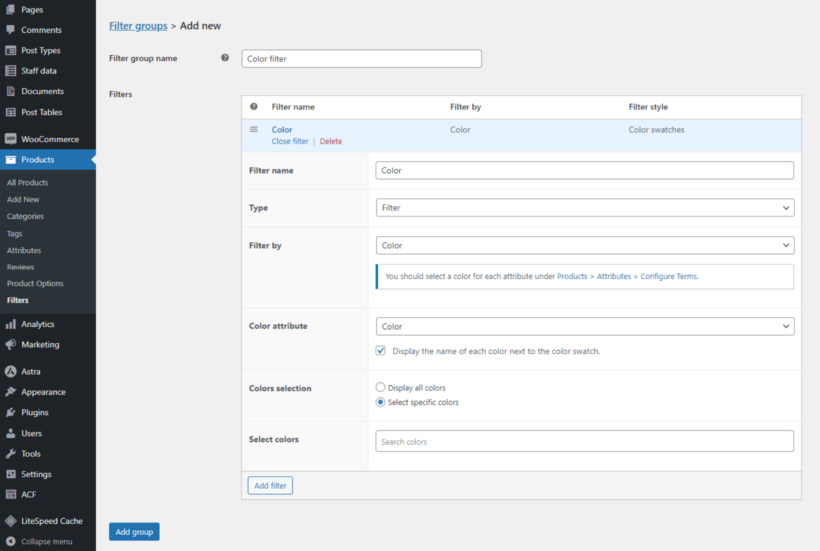
Text and dropdowns get the job done, but visual filters are quicker to scan and far more appealing. Instead of a checkbox that says "Blue", show a real blue swatch. Instead of a material called "Oak", show a small photo of the wood grain.
This is where color swatches earn their place. Customers see the option at a glance and don't have to picture what an unusual shade like amaranth or sage looks like. Each filter can show as a dropdown, checkbox, radio button, text label, image, color swatch or range slider, so you can match the style to the data.
The same idea works beyond the sidebar. For variable products, you can carry it onto the product page with variation swatches, and there's a full guide to filtering by color if that's central to what you sell.
4. Give shoppers a keyword search box
Some customers know exactly what they want and don't want to click through filters at all. A keyword search filter lets them type a product name or term and jump straight to it.
The one rule here is to never show a dead end. If a search returns nothing, suggest related products or popular items instead of an empty page, because a blank result is a fast way to lose someone. It's worth pairing your filters with one of the better WooCommerce product search plugins so the search itself is fast and forgiving of typos.
5. Help buyers filter by rating and popularity
Shoppers can't handle your products before they buy, so they lean on what other people thought. Letting them filter by star rating puts your best-reviewed items one click away, which is reassuring for anyone on the fence.
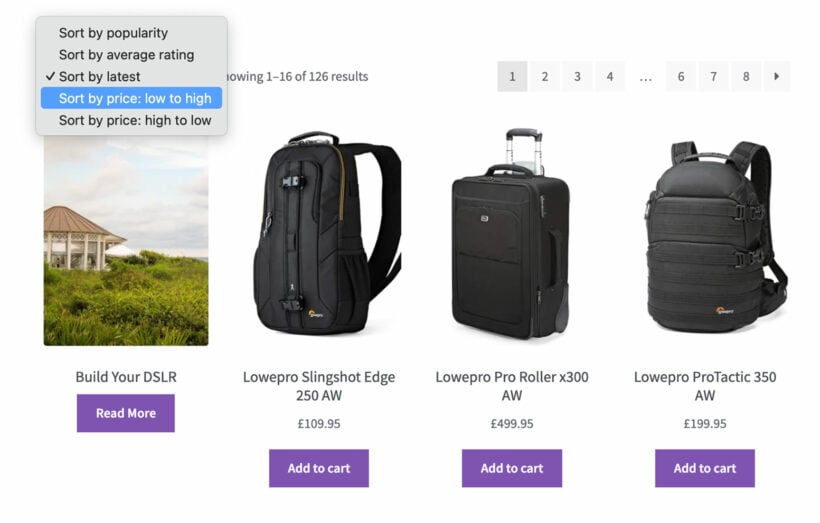
A sort option does similar work. The plugin includes a sort dropdown so customers can reorder products by popularity, average rating, price or how recently you added them. Surfacing your most popular and best-rated products is a quiet nudge toward the items most likely to convert.
6. Show availability and delivery options up front
An out-of-stock product or an impossible delivery date stings most when a customer only finds out at the checkout. Good filters surface that information at the start, so people only see what they can buy and receive in time.

A filter by stock status lets people hide anything they can't buy right now. If you sell food, flowers or anything time-sensitive, the same thinking applies to delivery, where letting customers check delivery slots up front saves a frustrating dead end later on.
7. Make filtering instant with AJAX (without hurting SEO)
Speed is a feature. If the page reloads every time a customer ticks a box, filtering feels slow and clunky. AJAX filtering updates the product grid instantly, with no full page reload, so refining a search feels effortless.
WooCommerce Product Filters uses its own indexing system to keep filtering fast even on huge catalogs, and you can see how it compares to other AJAX product filter plugins. Fast AJAX filtering does raise one SEO question, since filtered views can either go unindexed or spawn thousands of thin, near-duplicate pages. The plugin gives each filter option its own URL so you can link to a pre-set filter and let search engines index it cleanly. My guide to speeding up WooCommerce filters without breaking SEO covers this in more detail, and there's a wider walkthrough of faceted search if you want layered filters done properly.
8. Get the mobile filtering experience right
Most shoppers now browse on a phone, where screen space is tight and a giant filter list gets in the way. The fix is to tuck the filters into a slide-out panel that customers open with a single tap, then collapse once they've made their choice.
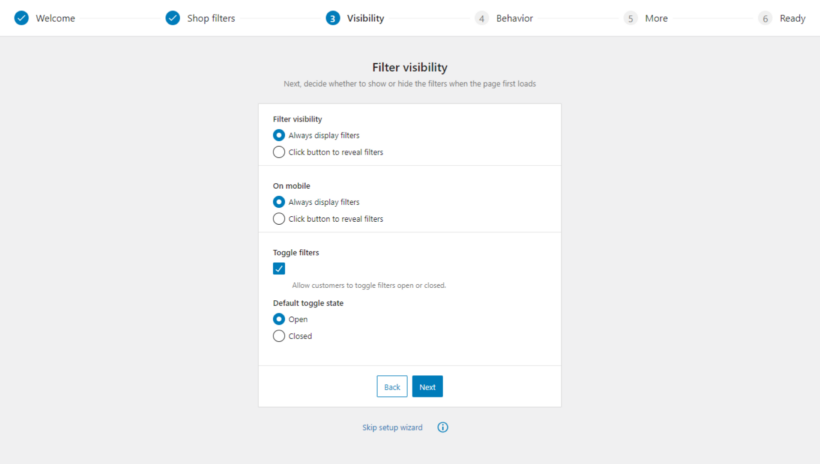
The plugin handles this automatically, hiding filters in a mobile-friendly drawer and letting you choose different filter options for desktop and mobile. Test it on a real phone, not just a shrunken browser window, because the tap targets and slide-out behavior are what make or break mobile filtering.
Setting up product filters in WooCommerce
WooCommerce doesn't include proper product filters out of the box, so you'll need a plugin. Once you've installed and activated WooCommerce Product Filters, here's the basic flow:
- Go to Products → Filters and click 'Add New' to create a filter group.
- Add the individual filters you want in that group, such as price, category, color and rating, and choose how each one displays.
- Save the group, then display it using the built-in widget, the
[product_filters]shortcode, or by selecting it on the plugin's settings page so it appears on your shop and category pages.
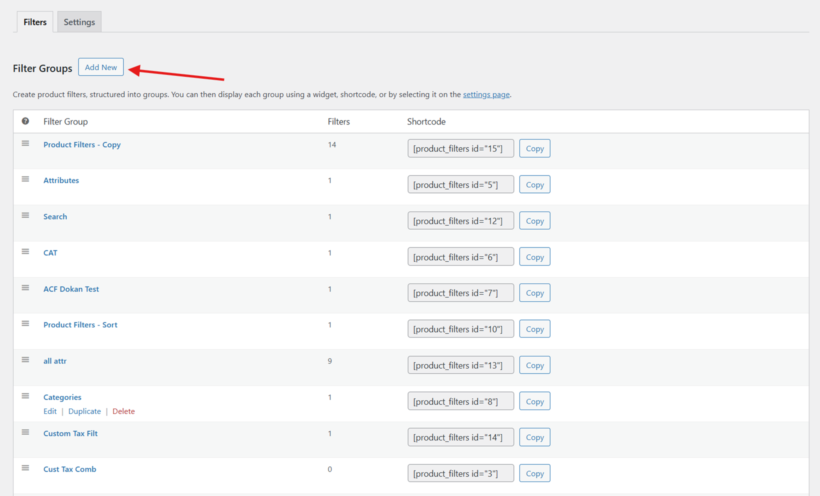
A setup wizard walks you through the first group, and the plugin comes with a set of recommended filters so you're not starting from a blank page. For step-by-step help, the knowledge base covers blocks, page builders and shortcodes.
The best plugin for ecommerce filters
There are several filter plugins for WooCommerce, and it's worth knowing what to look for in a filter plugin before you choose. My recommendation is WooCommerce Product Filters, which covers everything in this article: every filter type, visual swatches, AJAX speed, SEO-friendly URLs and a proper mobile experience. If you want to compare the options yourself, I've put together a roundup of the best WooCommerce product filter plugins.
Filters are one part of a faster shopping experience. They speed up product discovery. From there, a product table lets customers compare and order without visiting a separate page for each item. And WooCommerce Fast Cart moves the cart and checkout into a fast on-page popup, so people can pay without leaving the page. Together they remove friction at every stage, which is what really lifts your conversion rate.
Frequently asked questions about ecommerce filters
What are ecommerce filters?
Ecommerce filters are controls on a shop or category page that let customers narrow the product list by attributes like price, size, color, category, rating or stock status. They help shoppers find the right product quickly.
How do I add filters to my WooCommerce store?
WooCommerce doesn't include advanced filters by default, so you'll need a plugin like WooCommerce Product Filters. Install it, create a filter group under Products → Filters, add the filters you want, then display the group with a widget or shortcode.
Do product filters slow down my site?
They can if the plugin reloads the whole page or runs heavy queries. A well-built filter plugin uses AJAX and its own indexing system to return results instantly, even on large catalogs, so filtering stays fast.
How should I display filters on mobile?
Hide them in a slide-out panel that customers open with a tap, rather than showing a long list above the products. A good filter plugin does this automatically and lets you set different filter options for mobile and desktop.
Putting better filters in place
You don't need all eight changes at once. Start with the two that help the most customers. First, put your filters somewhere obvious, whether that's a sidebar or a bar above the products. Then let shoppers filter by the handful of things that matter most for your products. From there, add visual swatches, a search box and a clean mobile experience as you go.
Filters won't rescue a slow store or a thin catalog on their own, but they're one of the cheapest wins available, and most stores treat them as an afterthought. WooCommerce Product Filters lets shoppers filter a large catalog by price, attributes, ratings and more, with instant AJAX results that stay fast on any theme or catalog size. Pair it with WooCommerce Fast Cart to keep that speed going all the way to checkout. Walk your own shop the way a customer would, time how long it takes to find one specific product, and start with whatever slowed you down.