How to use a WooCommerce product filter plugin

A WooCommerce product filter helps customers find what they want in seconds instead of clicking through endless shop pages. Get the filters right and the rest of the customer journey gets faster too. Customers select products quicker, check out faster and buy more often.
Default WooCommerce gives you a few basic filter widgets, but they're rigid and not designed for a modern shop. In this guide I'll show you how to use the WooCommerce Product Filters plugin to add the kind of filters customers actually expect, and then layer in two more Barn2 plugins to speed up the rest of the journey.
By the end you'll know how to set up product filters from scratch and combine them with WooCommerce Product Table and WooCommerce Fast Cart to cut the number of clicks between landing on your shop and completing checkout.
What is a WooCommerce product filter?
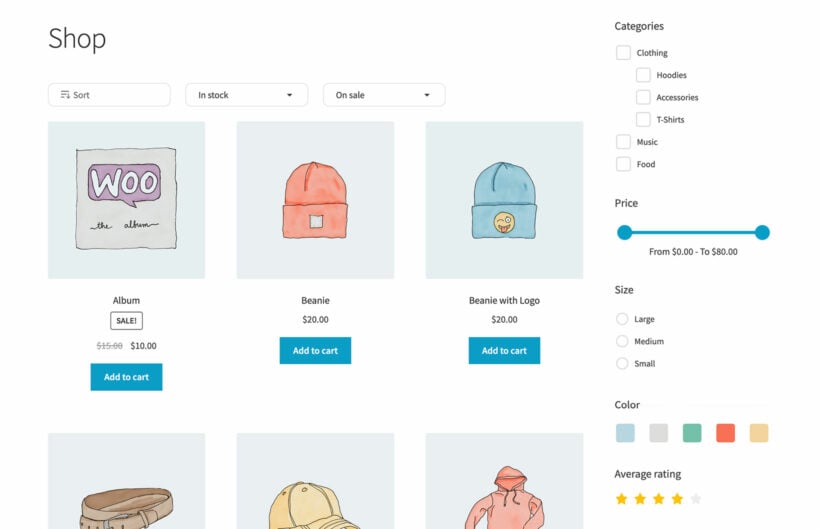
A WooCommerce product filter lets customers narrow a shop or category page down to the products they actually want, without scrolling through everything in stock. The customer ticks a category, picks a price range or selects a color and the page updates to show only matching products.
WooCommerce ships with a handful of filter widgets out of the box: Filter by price, filter by attribute and filter by rating. They work, but they're limited in three ways:
- Widget-only placement. The default filters live in a sidebar widget. They can't be embedded above a product grid or onto a custom page without code.
- No AJAX. Every filter change reloads the page, which feels slow on anything bigger than a tiny catalog.
- Plain checkboxes only. No color swatches, no image filters and no range sliders.
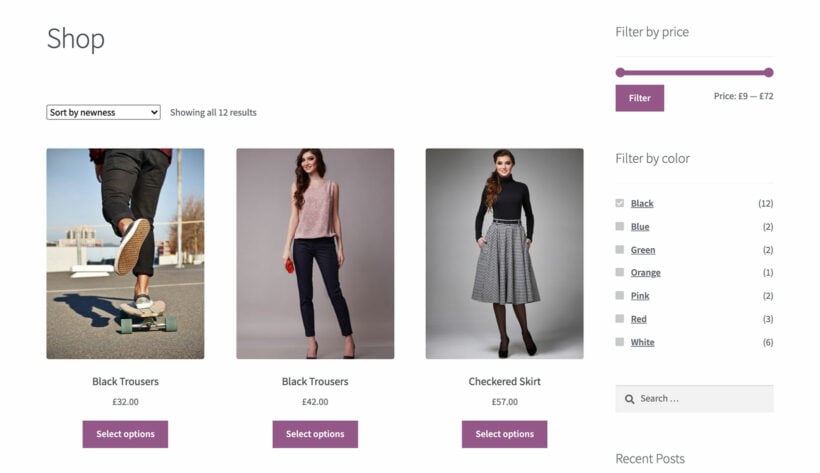
For a small store with 20 products this is usually fine. For anything bigger, customers expect filters that update instantly, look good and let them filter by visual attributes like color.
How to use the WooCommerce Product Filters plugin
WooCommerce Product Filters is Barn2's filter plugin. It replaces the default filter widgets with AJAX-powered, visually rich filters that you can place anywhere on the site. There are filter types for categories, attributes, colors, tags, price ranges, ratings and custom taxonomies.
Here's how to install it and create your first filter group.
1. Install and activate the plugin
- Buy and download WooCommerce Product Filters. You'll get a zip file and a license key.
- In your WordPress admin, go to Plugins → Add New → Upload Plugin, choose the zip file and click 'Install Now', then 'Activate'.
- Go to Products → Filters → Settings and paste your license key into the field at the top.
The setup wizard appears after activation. It walks you through choosing where to display the filters and creating a starter filter group. You can skip the wizard and configure everything manually if you prefer.
2. Configure the plugin settings
The main settings live at Products → Filters → Settings. The ones you'll touch most often:
- Filter group. The default group, "Recommended Filters", attaches automatically to the shop page, category pages and tag archives. You can leave this set, change it to a different group or unset it entirely if you want to place filters manually.
- Filter visibility. Choose whether the filters are visible by default or collapsed behind a button. On mobile, collapsed is usually the better default.
- Update method. AJAX is what most stores want. Page reloads are available if you have a caching setup that struggles with AJAX.
3. Create filters and a filter group
Filters are individual filter controls such as Categories, Price, Color or Brand. Filter groups are containers that hold one or more filters and get attached to a page or area of the site.
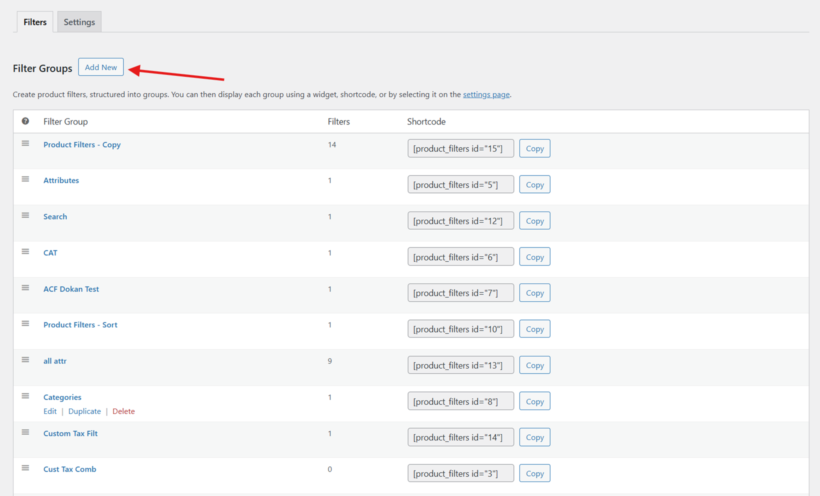
To set them up:
- Go to Products → Filters → Filters and click Add New.
- Pick a filter type. The most useful starting types are Categories, Attributes and Price.
- Set the display style for the filter. Categories and attributes support dropdowns, checkboxes, radio buttons, labels and clickable images. Use color swatches when the attribute is something visual like color or material.
- Save the filter, then repeat for any others you want to add.
- Go to Products → Filters → Filter Groups, create a new group and add your filters in the order you want them to appear.
- Choose where the group attaches: The shop page, specific categories, a custom page using a shortcode or block, or a sidebar widget.
Visit a page covered by the group on the front end and your filters appear in the position you chose, updating the product list as customers tick options.
4. Filter variations as if they were separate products
A common source of friction is that filtering by attribute returns the parent variable product, even when only one variation matches. Customers click through, see the unfiltered options on the product page and have to re-select.
You can fix this by combining WooCommerce Product Filters with the show variations as single products approach, so each variation appears as its own row in filtered results with the right image, price and stock. Customers see exactly what they filtered for and click straight through to the right variant.
Speed up the rest of the customer journey
Good filters cut the time from "landing on the shop page" to "I found the product I want". The rest of the journey matters just as much, and two more Barn2 plugins remove friction further down the funnel.
One-page product selection with WooCommerce Product Table
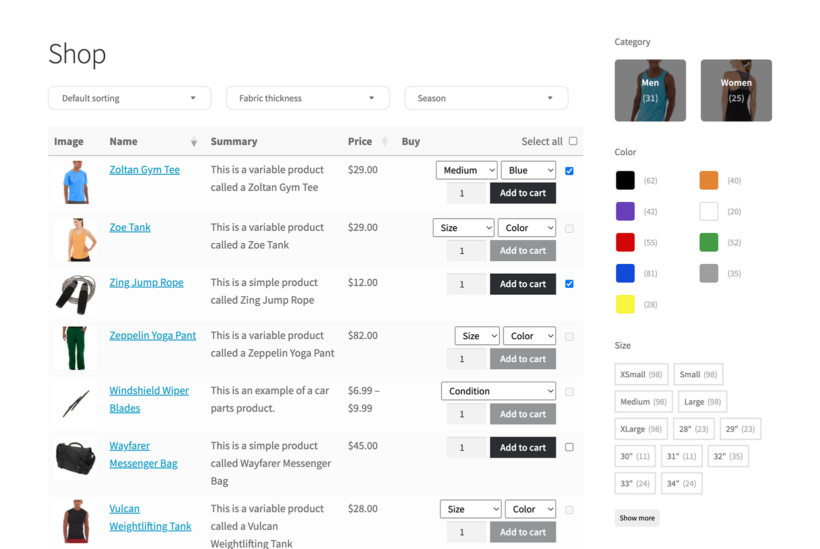
WooCommerce Product Table swaps the default grid layout for a structured table. Each product gets a row with all the information a customer needs to decide. They see the image, name, short description, variation dropdowns, quantity box and an add-to-cart button on a single screen, with no need to click into a separate product page for each item.
The table works alongside WooCommerce Product Filters out of the box. Filters above the table update which rows are visible, and customers can add multiple products to the cart from a single page using the multi-add-to-cart feature.
This setup works well for stores where customers typically buy more than one product per order, including auto parts shops, food and drink retailers, B2B catalogs, restaurant ordering and wholesale stores.
Faster cart and checkout with WooCommerce Fast Cart
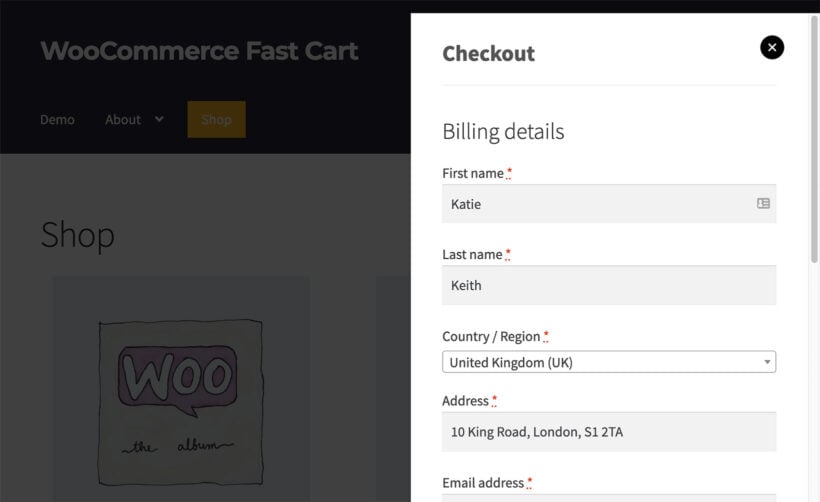
Once a customer has filtered, selected and added a product, the cart and checkout pages become the next opportunity to lose them. WooCommerce Fast Cart replaces those page navigations with an in-place popup. The customer clicks add-to-cart, sees the cart slide in, reviews and checks out without ever leaving the page they were browsing.
For stores running a shop page with filters and a product table, Fast Cart keeps the customer on that browsing page through the whole purchase. They can add a product, check out and keep browsing for the next purchase without losing their filter selections.
How fast filters fit a wider speed strategy
Adding WooCommerce Product Filters is the single biggest improvement you can make to a slow shop page. But filters and WooCommerce review plugins don't guarantee speed on their own. If your filters are AJAX-powered but your shop page takes four seconds to load, customers still leave before they get to the filters.
A few related reads on the wider speed and conversion picture:
- Speed up WooCommerce filters without breaking SEO covers the caching and indexing trade-offs that come with AJAX filters.
- What to look for in a WooCommerce filter plugin compares the main plugins on the market if you want to evaluate options before buying.
Get started with WooCommerce product filters
WooCommerce Product Filters is the fastest way to replace WooCommerce's limited default filter widgets with modern, AJAX-powered filters that customers actually use. Combine it with WooCommerce Product Table and WooCommerce Fast Cart and you've cut friction at every stage of the journey, from finding products to choosing them to completing checkout.
- Faster product discovery through AJAX filters, color swatches and variation-aware filtering.
- One-page selection by listing products in a table so customers can compare and add multiple items without page hops.
- Frictionless checkout via a popup cart and checkout that stays on the browsing page.