Step-by-step: Hiding WooCommerce product categories

Need to hide a WooCommerce category from the shop page? Sometimes you have products that you don't want to list publicly. To your dismay, though, WooCommerce doesn't give you an option to hide categories from the shop page.
One of the key features of WooCommerce is its ability to organize products into categories, making it easy for customers to browse and find what they're looking for. However, there are times when you want to hide a particular category of products from the shop page.
Sometimes you need a happy medium between hiding a single product and hiding your entire WooCommerce store. Perhaps you have some products that aren't quite ready for public release, or maybe you want to restrict certain items to a specific group of customers. Whatever the reason, you'll soon discover that WooCommerce has no built-in option to hide a category from your shop page.
Thankfully, a few methods can help you hide categories from your shop page.
Benefits of hiding categories in WooCommerce
Categories are one of WooCommerce's most useful features. They help customers find specific products on your site.
However, there are situations where you may need to hide a whole category. For example, if a product is out of stock or has been discontinued, you might not want that category showing on your site. Hiding it avoids confusion for customers who would otherwise be interested in the product, only to find that it isn't available to buy.
Hiding categories also simplifies your store's navigation. When too many categories are on display, it can be overwhelming for customers to find the products they're looking for. By hiding the ones they don't need, you give them a cleaner experience and can even help your store's SEO or search engine ranking.

When to hide categories in your WooCommerce store
Good category management is a big part of running a successful online store, and hiding the right categories at the right time keeps your shop usable and easy to browse. Here are some common situations where hiding a category helps:
- Discontinued products: When a product is no longer available for purchase, it's important to remove it from the website to avoid confusion. By hiding the category of discontinued products, you can make sure customers don't see or try to check out these items.
- Out of stock items: If a product is temporarily out of stock, you may want to hide its category until the product is back in stock. This helps avoid customer frustration and reduces the number of inquiries about availability.
- Seasonal products: Some products are only relevant during certain times of the year. For example, Christmas decorations may only be relevant during the holiday season. By hiding seasonal categories during the off-season, you can keep things tidy and avoid showing customers products they can't use right now.
- Restricted products: Some products may be restricted by age, location, or other criteria. By hiding the category of restricted products, you can make sure only eligible customers are able to access these items.
Exploring different methods to hide WooCommerce categories
If you want to hide specific categories on your WooCommerce shop page, there are two main methods you can use.
Method 1: Using a plugin to hide categories
Using a plugin is the method I'd recommend. It's easy, even if you don't have much technical knowledge. All you need to do is install the plugin, activate it, and then configure which categories to hide.
To help, I'll show you how to hide a category from your WooCommerce shop page using a user-friendly plugin.
Our simple written tutorial and video will show you how to customize how your hidden WooCommerce categories work - all without writing a single line of code.
Method 2: Hiding categories with code snippets
The second method involves code snippets. It requires more technical knowledge than a plugin, but it can be useful if you want more control over how categories are hidden.
To use this method, you'll need to add some code snippets to your theme's functions.php file or to a custom plugin. You can find ready-made snippets for hiding WooCommerce categories online, and then adapt them to suit your needs.
You can tweak the code to hide categories in a specific way or to achieve a particular result. Just be aware that code snippets can be risky if you're not confident with PHP, since a mistake could break your site or cause other issues.
The best plugin to hide a WooCommerce category
The problem
There are lots of reasons why you might want to hide a category from your main shop page. For example, maybe you're creating a WooCommerce wholesale store and need to keep the wholesale categories off the public shop page. Maybe you're selling customer-specific products, with a hidden category for each company.
Whatever your reason, WooCommerce unfortunately doesn't come with a built-in option to do this.
While it is possible to use a PHP function to hide a category from the shop page, that solution:
- Isn't very user-friendly because it requires you to work directly with PHP code, rather than a human-friendly interface.
- Makes it difficult to change which categories are hidden later on, because you'll need to dive back into the code every time you want to make an adjustment.
The solution
WooCommerce Protected Categories offers a simpler way to hide a WooCommerce category (including all products and subcategories inside). It:
- Gives you more flexibility than the WooCommerce PHP function in terms of how shoppers interact with your hidden categories.
- Lets you choose which categories to hide right from your WordPress dashboard.
- Lets you decide whether to hide a category from the shop page completely, or show it but require customers to enter a password or login to access a protected category or its products.
How does the WooCommerce hide categories plugin work?
To hide WooCommerce categories, you can use the WooCommerce Protected Categories plugin. It lets you conceal one or more product categories within your store. When you hide a category from the shop page…
- All the products inside that category are hidden too.
- You can choose whether or not to display hidden categories and their products on your shop page, category pages, archive pages, and search results.
- You can also decide whether hidden categories and their associated products appear in your navigation menus and widgets.
And as I mentioned earlier, you can "unhide" your categories via:
- A password - once a user enters a correct password, the plugin automatically unlocks all the products in that category. They can then browse the hidden category and its sub-categories without having to re-enter the password.
- User roles - restrict the visibility of hidden categories and their products to users with specific user roles.
- Individual users - only selected logged in users can see the hidden category and its products.
Have a read through this glowing review from a happy customer using the WooCommerce Protected Categories plugin:
Step-by-step guide: How to hide WooCommerce categories with WooCommerce Protected Categories
Below, I'll show you how to hide WooCommerce categories from the shop page using WooCommerce Protected Categories.
Step 1: Choose how to hide your categories
First, install and activate WooCommerce Protected Categories in the WordPress admin panel. Next, go to Products → Categories.
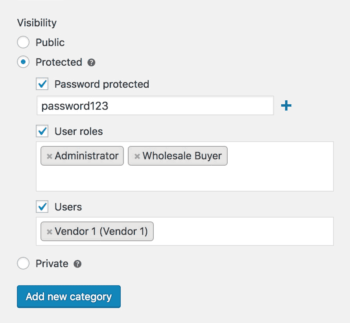
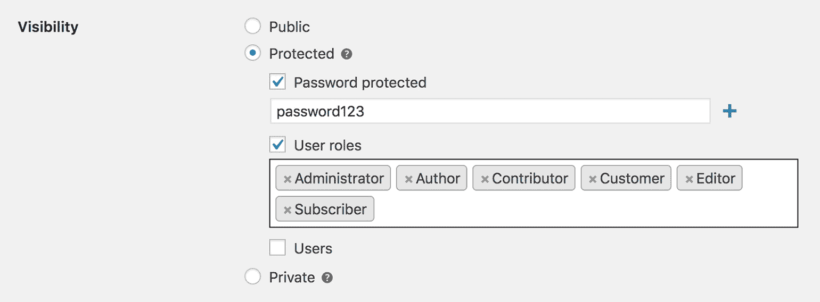
You can either create a new category to house your hidden products or you can edit an existing category. Whichever method you choose, you'll see a new Visibility section at the bottom of the page. Click the 'Protected' option, and choose between:
- Password protected Visitors will need to enter a password to see the category. You can create multiple passwords to unlock the category if desired.
- User roles Your category will only be visible to certain user roles.
- Users Your category will only be visible to the users that you select here.
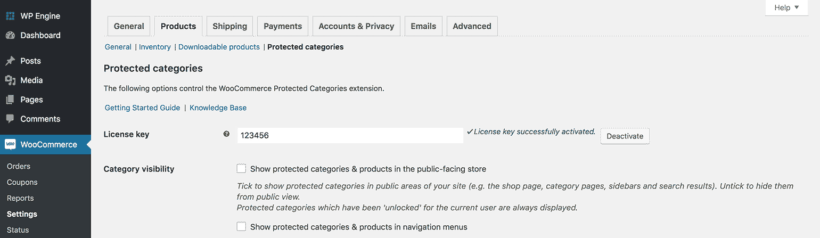
Once you've hidden a category via either method, go to WooCommerce → Settings → Products → Protected categories to configure a few more basic settings.
Step 2: Configure general plugin settings
One especially important group of settings is Category Visibility.
If you want to completely remove a WooCommerce category from the shop page, you should uncheck both boxes. Alternatively, tick both boxes to still display the category, but require users to enter a password or login to see its contents.
Use the other settings to control your password login form, and what happens when a logged-out user tries to access a protected category:
Step 3: Enable password protection, user role restriction, and more
Once you've hidden your categories, you'll want to provide other ways for selected customers to access them. There are a few ways to do this, depending on whether you've hidden the categories behind password protection or user login.
Providing access to WooCommerce password protected categories
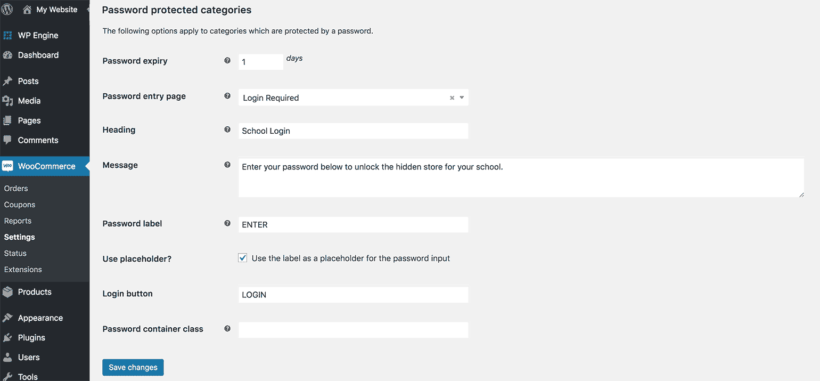
Create a central category login form by adding the shortcode [category_login] to any page. Customers will be directed to the hidden category with the password they have entered. Once unlocked, the customer will be able to see the protected category, products and pricing and cart buttons on the main Woo shop page. The protected content will remain hidden from the store catalog for everyone else. As store owner, you can customize the hidden category login page in the plugin settings.
Providing access for a user or role-protected WooCommerce categories
If you've created user or role protected categories, then there are some different settings for your hidden categories. These let you choose what happens when someone without the correct privileges (e.g. a logged out user) tries to access a hidden WooCommerce category or product.
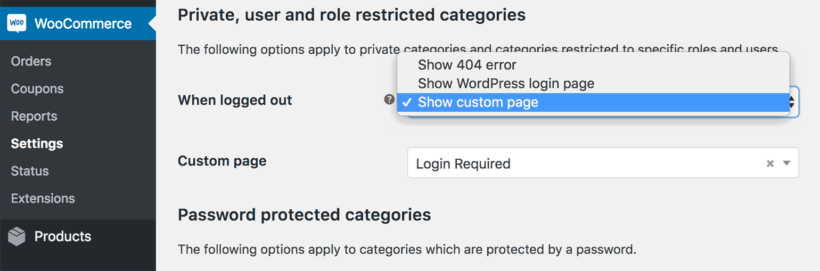
To provide access to the hidden category, simply encourage users to login as usual. For example, they can login using the WooCommerce Account page, which shows a login form for logged out users.
I also recommend using the free Peter's Login Redirect plugin. Use it to redirect users to the correct hidden category after they log in. This gives you fine-grained control over where each individual user or user role is redirected after logging in.
You may also like: How to display WooCommerce products by category.
Real-world applications: eLearning Launchpad Case study
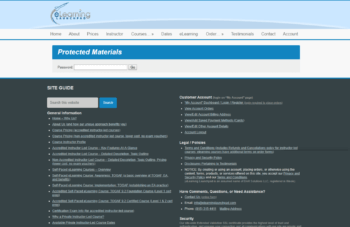
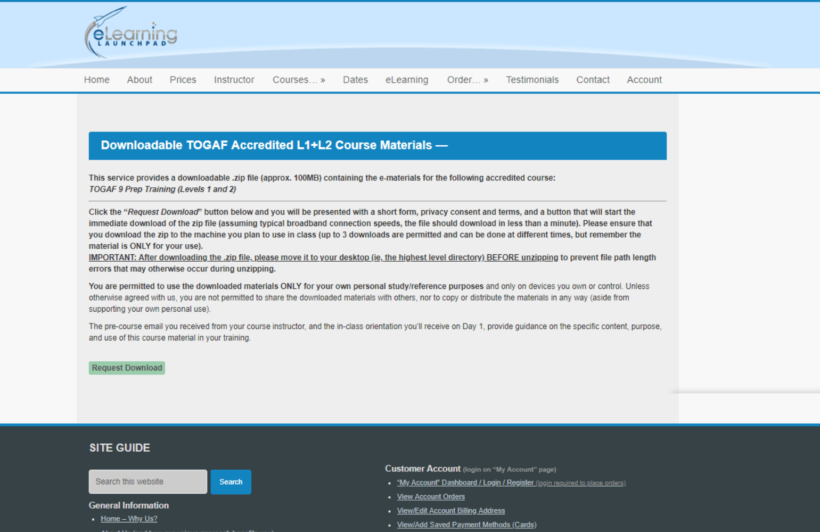
Attendees download course materials ahead of the training session. But these materials need to be kept private. That’s why they needed a plugin to hide categories in WooCommerce. Files are hidden behind a password protected category page and eLearning Launchpad sends out passwords to access the page. From there, customers can download materials. The Free Downloads WooCommerce Pro plugin lets eLearning Launchpad capture customer data before files are downloaded.
The downloads are set up as WooCommerce products even though they aren’t being sold on the ecommerce site. This is to simplify managing the downloads and take advantage of the benefits, such as being able to hide categories and products in WooCommerce.
It's a great example of what the plugin can do.
Alternative method: How to hide categories with CSS
Another way to hide a category from your main shop page is with HTML and CSS. This method takes some technical knowledge.
First, you need to inspect the category you want to hide on your product page using your browser's developer tools. You can then identify the HTML element that represents the category and its ID or class. Once you have this information, you can add some custom code that hides the category by setting its display property to "none."
Keep in mind that this method only affects the visual display and does not impose any real access restrictions. Users can still reach the hidden category through direct links or by typing its URL. So, if you want to restrict access to the category, you'll need to use the WooCommerce Protected Categories plugin.
If you're not familiar with coding, this method can be risky too. A mistake in your code could break your site or cause other issues. So you should only use it if you have some basic knowledge of HTML and CSS, or if you're working with an experienced WordPress developer.
Related: How to allow customers to filter by category in WooCommerce.
Best practices in WooCommerce category management
Efficient category management is key to a well-organized, user-friendly online store. Here are some tips to keep your navigation smooth and the shopping experience pleasant for customers:
- Organize categories thoughtfully: Take the time to carefully plan and structure your categories. Make sure they are logical, intuitive, and reflect the products you offer. Consider creating subcategories or using parent-child relationships to further organize your products. This helps customers easily locate the items they are looking for and improves the overall browsing experience.
- Use conditional rules: Conditional rules let you customize category visibility further. With the right plugin, like WooCommerce Protected Categories, you can set up rules based on user roles, membership levels, or other criteria. For example, you can hide specific categories from general customers while making them accessible to VIP members only. This level of control lets you provide tailored experiences to different customer segments.
- Prioritize category display: If you have overlapping or conflicting rules for category visibility, prioritize the display order. For example, if a customer belongs to multiple user roles, you can prioritize the display of categories associated with their highest role.
- Regularly review and update: Category management is an ongoing process. Regularly review your category structure, rules, and priorities to accommodate any changes in your product offerings or customer segments. Monitor customer feedback and behavior to spot areas for improvement or potential adjustments to your category management approach.
- Test and optimize: Experiment with different category arrangements, conditional rules, and priority settings. This lets you find the best configuration for your specific business needs. Test the user experience and gather feedback to fine-tune your category setup.
Start hiding WooCommerce categories today!
If you have products that you don't want to list publicly on your WooCommerce shop page, you can easily hide them using the Protected Categories plugin. It's the best option for hiding a WooCommerce category, because it's easy to use and doesn't require technical knowledge.
The plugin is super-flexible. You can choose to require a password, restrict access to certain user roles, or only allow specific individual users to view the hidden categories.
Questions about hiding a category from your WooCommerce shop page? Leave a comment and we'll do our best to help.
16 Comments
Hello,
i have purchased this plug-in but i have an issue... when i hide a category(private), all the products wich also belong to a public category disappear in these public categories.
My question is, is it possible to hide a category and display some products of the same category somewhere else?
Hi David, thanks for your inquiry. All products inherit the protection applied to the category.
In your case, the product will be private. The product can only be unlocked by a user who is logged in and has privileges to view private products (normally Administrators and Store Managers).
It is advisable that you create a copy of the product using the Duplicate Post plugin which makes it easy to clone WooCommerce products.
This way, you can set the duplicate product in the other non-private category as its separate product.
I hope this helps. Let us know if you have further questions.
Hi
We are designing a WooCommerce store for a Paint and Wallpaper store. The 2 "top" level categories are "Paint" and "Wallpaper" - both have numerous sub-categories (Brand / Collection / Colour etc).
What I am trying to achieve is the one of my shop pages will be purely for displaying Paint (and its sub categories) only, and another page displaying Wallpaper (and its sub categories) only, but without the requirement for customers to enter a password.
In simple terms, I need the flexibility of hiding certain categories on certain pages, and displaying them on another, without password entry.
Do you have a solution fo rthis?
Kind regards
Ciaran
Hi, Ciaran. Thanks for your comment and my apologies for the late reply.
If I understand correctly, I believe what you would like to have are categories that are private/protected/hidden on some pages whilst public on others.
Please note that there is no grey area in hiding/protecting categories. A public category will be public anywhere on the site and a hidden/protected category will not be public anywhere on the site.
As a workaround for what you would like to achieve, I suggest you instead have 2 identical categories, each with their identical copies/set of products. One will be the public version of the category and its products and the other the hidden/protected one. This way you can decide whether to display the public or the protected category version on your pages.
You can easily create copies of your products using the free Duplicate Post plugin + use the Group Stock Manager plugin to allow you to share stock quantity between the duplicate products in each category (to help you track inventory across the duplicates).
I hope this makes sense and helps. Should you have any other questions, you can get in touch with us much sooner via our dedicated Support Center.
Best regards and keep safe.
Hi, I am looking at purchasing the protected categories plugin. We don't want to show the category 'sold' in our store. But on a separate page we do want to show the 'Sold' stock. Is this plugin the right choice for us?
Hi, Mark. Thanks for your comment and sorry for the late reply here. I believe you also sent a similar enquiry via our Support Center, which we replied to right away. For those who might have a similar concern, I'm including my reply below:
You can hide a category from being publicly visible on your shop page by making the category protected (See: Password protected, user and role protected categories) and then ensuring that the Category Visibility options in the plugin settings are not enabled/checked/ticked.
The category page or category archive page would be where you can show the protected category and the products it contains. When going to the category's address or URL, users who have the password or have access to the category via User or User Role protection will need to log in. To allow for this, you should set the When logged out page to be either your site's WordPress login page or a custom page, which should be a central password login page.