Document Library Pro now syncs with Google Drive and Dropbox

If your documents already live in Google Drive or Dropbox, why maintain a second copy of every file on your website? Document Library Pro can now turn a shared folder into a document library that updates itself.
Sharing documents on a website has always meant keeping two copies of every file: One in the folder where it lives, and one on the site. Every update has to happen in both places, so sooner or later the website copy goes stale. (We've all clicked a 'Board minutes' link that turned out to be two years old.)
Our new folder sync feature removes that job completely. Document Library Pro can display a Google Drive or Dropbox folder on any website and keep it in sync automatically, with nothing to set up beyond pasting the folder's share link. We're rolling it out now, starting with the cloud version.
Turn a shared folder into a document library
Folder sync connects a Google Drive or Dropbox folder to a category in your document library. Document Library Pro creates one document for every file in the folder, using the file name as the title. Subfolders become subcategories, so your library structure always matches your folder structure.
Synced documents behave like any other document in your library. Visitors can search for them, filter them, preview them and download them.
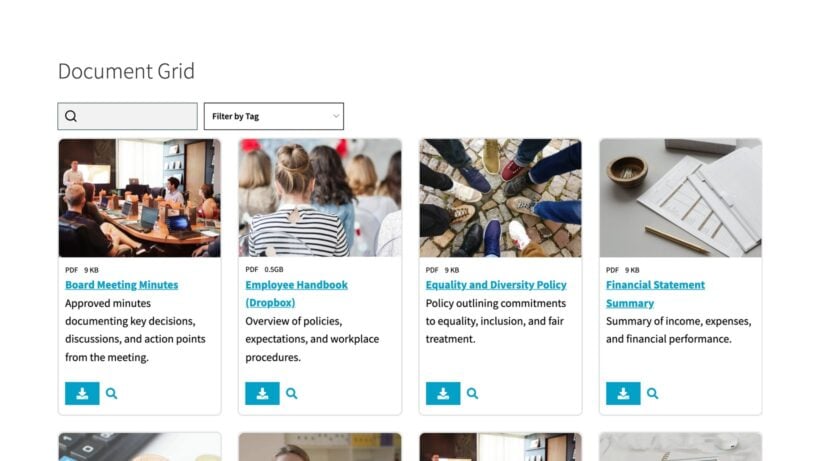
The folder remains the source of truth. Your library re-syncs with it automatically every day, and a 'Sync Now' button pulls changes across instantly. When you add a file to the folder, a new document appears in your library. Deleted files are removed, and replaced files update to match.
Connect your folder without API keys or OAuth
Typical Google Drive plugins for WordPress ask you to create a project in the Google Cloud Console, generate credentials and authorize your account through OAuth before they'll display a single file. Dropbox plugins for WordPress are the same story, with app keys to set up first.
Document Library Pro works from a public share link instead: The same link you'd send to a colleague. If you can share a folder, you can build a library, and there's nothing else to configure.
Sync is also completely safe for your files. Document Library Pro only ever reads from the folder and never changes it, and sync errors never delete documents from your library.
Please be aware that a shared link means anyone who has it can open the folder directly in Google Drive or Dropbox. Only sync folders whose contents are suitable for the people who use your library. You can still protect the library itself with a password or other access control.
Sync a Google Drive or Dropbox folder in three steps
The whole process takes a couple of minutes, whichever cloud service you use.
1. Get a shared folder link
In Google Drive, right-click the folder and choose 'Share'. Under 'General access', select 'Anyone with the link' and copy the link.
In Dropbox, hover over the folder and click 'Share'. Create a link that anyone with the link can view, then copy it.
2. Paste the link into a document category
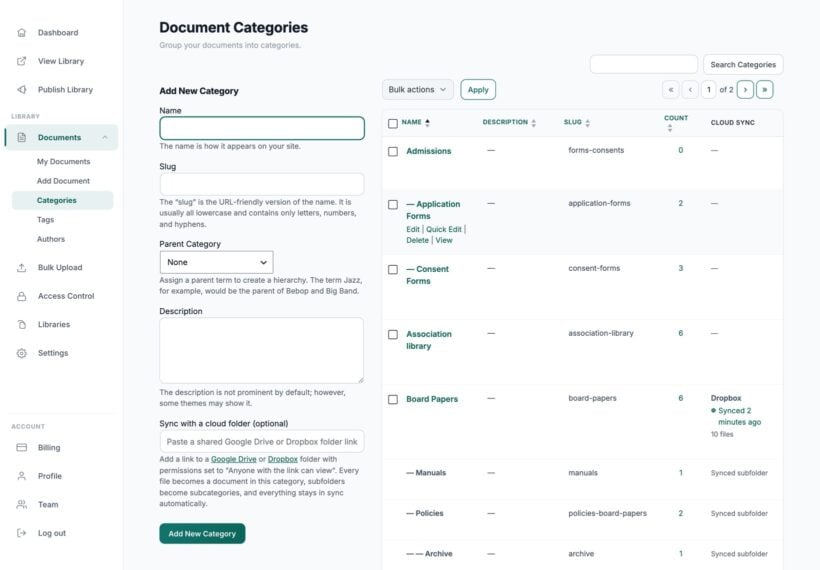
Go to the Categories screen in your library admin. Create a new category, or edit an existing one. Paste your link into the 'Sync with a cloud folder' field and save.
The first sync starts straight away. You can watch its progress in the 'Cloud Sync' column of the Categories screen.
3. Let the library keep itself in sync
From now on, you manage your library by managing the folder. Changes come across at the next daily sync, or as soon as you click 'Sync Now'.
Because the folder is the source of truth, synced documents are read-only in your library admin. To change a document, change the file in Google Drive or Dropbox. Per-document extras that would conflict with syncing, such as document expiry, aren't available on synced documents either.
If you ever disconnect the folder, your documents stay in the library, so nothing disappears.
The folder sync setup guide covers each step in more detail, along with troubleshooting tips. I've also written step-by-step guides to displaying a Google Drive folder on your website and embedding a Dropbox folder.
Who is folder sync for?
Folder sync is for anyone whose documents already live in Google Drive or Dropbox. If a shared folder is where your files get created, updated and approved, your website can now follow along automatically.
That describes most of the organizations using Document Library Pro. We recently audited 500 of the sites using our document libraries to see who runs them: Around 40% belonged to nonprofits and charities. Healthcare organizations, local councils, and membership and professional associations made up most of the rest.
These organizations run long-lived libraries of policies, meeting minutes, reports and guidance documents. Files like those almost always start life in a shared cloud folder.
Board packs are a good example. One of our customers is a membership organization whose board minutes and papers live in a member-only library behind a login. Documents like those get written and approved in a shared folder first, so connecting the folder cuts out a whole publishing step.
Similarly, a school can sync its policies folder and stop re-uploading PDFs every September. The same goes for a parish council pointing a category at its meeting papers, or a manufacturer syncing a Dropbox folder of spec sheets and manuals. In every case, the person who updates the documents never needs to log into the website.
Plans and availability
Folder sync is available on the Advanced plan of Document Library Pro.
The feature is live today in the cloud version, which gives you a searchable document library on any website via a simple embed code. You can also use it in our Shopify app, where libraries run on the same cloud engine.
The WordPress plugin is next: We're testing folder sync there now, and I'll announce it on this blog when it ships.
Start syncing your first folder
If your documents are already organized in Google Drive or Dropbox, the hard part of building a document library is done. Connecting the folder to Document Library Pro turns it into a searchable, filterable library on your website, and keeps it that way without any ongoing work. Here's what folder sync gives you:
- Zero setupPaste a public share link. There are no API keys, OAuth screens or account connections.
- A library that builds itselfEvery file becomes a document, and subfolders become subcategories.
- Always up to dateYour library re-syncs daily, or on demand with the 'Sync Now' button.
- Safe by designDocument Library Pro only reads from your folder, and sync errors never delete your documents.
Of everything we've added to Document Library Pro, folder sync is the feature I expect to save people the most ongoing work, because it removes the library upkeep entirely. Take a look at the full feature list, then start a free trial and paste in your first folder link.
2 Comments
That’s really smart of you to point that out - version control is always such a headache when dealing with multiple platforms.
Thank you for your comment. We're glad you found it useful. - Carl