How to embed a Google Drive folder in WordPress


There are three ways to embed a Google Drive folder in WordPress: Google's built-in embed code, a document library that syncs with your folder, or a Google Drive plugin. I'll walk through all three and tell you which one to pick.
Lots of organizations keep their important files in Google Drive. Your policies, board minutes and product manuals are already organized into folders, and now you need those files on your WordPress site. Uploading everything twice wastes your time, and the copies go stale the moment someone updates a file in Drive.
In this guide, I'll cover:
- Google's free embed code, which displays a folder in an iframe.
- Document Library Pro's folder sync, which turns your folder into a searchable document library. This is the method I recommend for most sites, and there are no API keys or account connections to set up.
- Google Drive plugins, which connect to your account through the Google API.
Which method should you choose?
This table compares the three methods side by side:
| Google's embed code | Document Library Pro folder sync | Google Drive plugins | |
|---|---|---|---|
| Cost | Free | Paid, with a free trial | Free and paid versions; folder embeds are often a paid feature |
| Setup | Copy and paste an embed code | Paste a shared folder link | Connect your Google account; some need a Google Cloud project |
| Search and filters | None | Instant search, filters and sorting | Depends on the plugin |
| Downloads | On Google's site | Download buttons on your site | Depends on the plugin |
| Automatic updates | Live view of the folder | Daily sync plus a 'Sync Now' button | Live view via your account connection |
| Matches your site design | No | Yes | Partly |
My advice comes down to what you're embedding:
- One documentUse Google's embed code and move on with your day.
- A folder full of filesSync it into a searchable library with Document Library Pro's folder sync. This is my recommendation for most sites, because your visitors get search, filters and downloads without leaving your website.
- Drive extras like client uploadsPick a Google Drive plugin and accept the setup work.
Method 1: Embed a Google Drive folder with Google's embed code
Google doesn't offer an embed button for folders in the Drive interface. Instead, you build the embed code yourself using a special URL. It only takes a couple of minutes, and it's completely free.
Here's how to embed a Google Drive folder in WordPress without a plugin:
- Open Google Drive and right-click the folder you want to embed. Choose 'Share', then 'Share' again. Under 'General access', select 'Anyone with the link' and click 'Copy link'. Google's guide to sharing files explains the options in more detail.
- Find the folder ID. It's the long string of letters and numbers after
/folders/in the link you copied.

- Paste the ID into this embed code, replacing
FOLDER_ID:<iframe src="https://drive.google.com/embeddedfolderview?id=FOLDER_ID#list" width="100%" height="600" style="border:0;"></iframe>
- In WordPress, edit the page where you want the folder to appear. Add a 'Custom HTML' block, paste the code and click 'Update'.
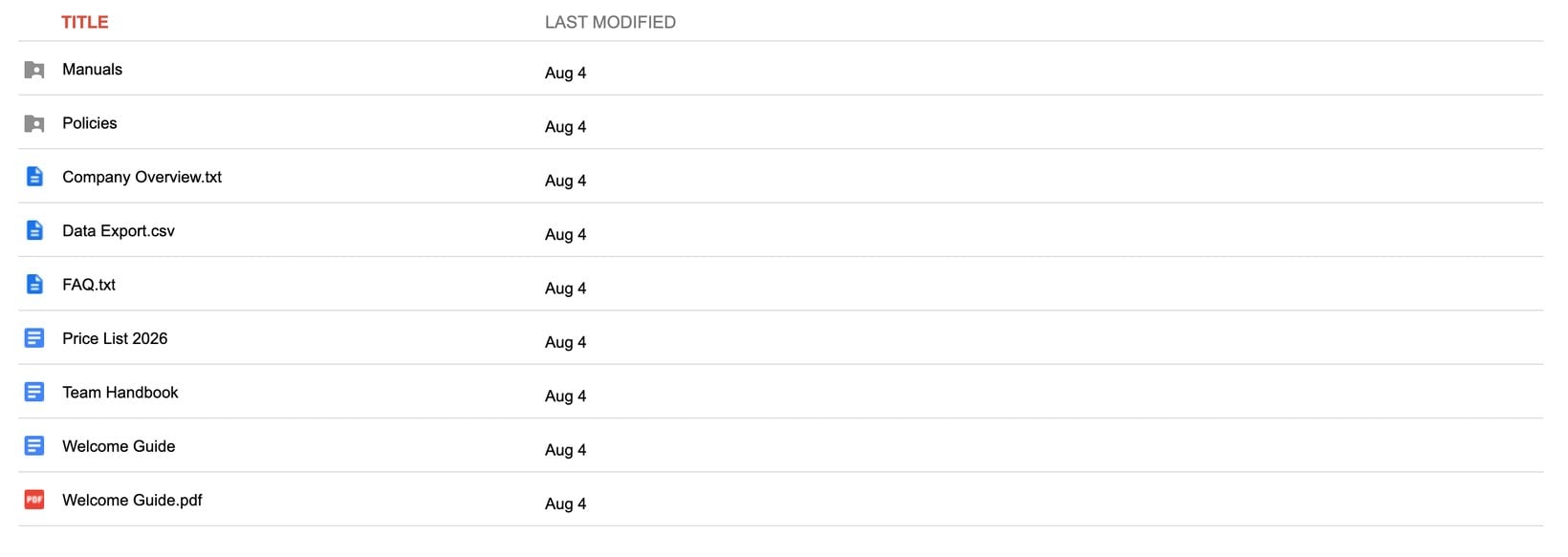
The folder now appears in an iframe on your page. Swap #list for #grid at the end of the URL if you prefer thumbnails to a plain list.
Limitations of the Google Drive embed code
The result works, but it's basic. This is what you give up with the embed code:
- There is no search box and there are no filters. Visitors scroll until they spot the file they need.
- You can't change how it looks. The fonts, colors and layout come from Google, and they won't match your theme.
- Clicking a file sends visitors to drive.google.com in a new tab, so downloads happen on Google's site rather than yours.
- The folder must be shared publicly. Even if you restrict the page it sits on, anyone with the folder link can still open it on Google Drive.
- Google doesn't officially document this embed URL, which means it could change or stop working without notice.
Despite those limits, the embed code is genuinely the right choice in two situations. If you only need to display one document rather than a whole library of them, embedding that single file is simpler. The same applies if you want the full document visible on the page instead of a link to it.
I've written separate guides on embedding Google Docs in WordPress and embedding Google Sheets which cover those single-file routes. There's also a complete guide to the Google Drive embed code, covering PDFs and videos too.
Method 2: Sync your Google Drive folder into a document library
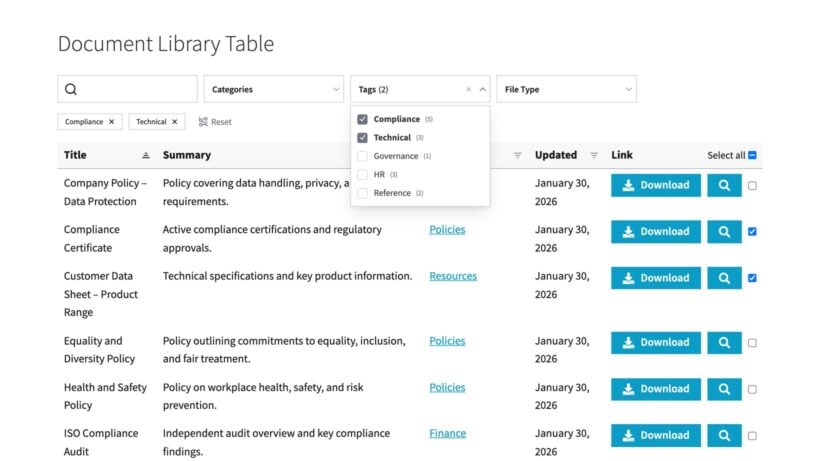
This method turns your Google Drive folder into a proper document library like the one above, with instant search, filters and download buttons on your own site. Our Document Library Pro plugin does this with a feature called folder sync.
Folder sync works from the same public share link you created for Method 1. You paste the link into a document category, and every file in the folder becomes a document in your library. Subfolders become subcategories, so the library always mirrors your folder structure.
There are no API keys to create and no Google account to connect, which also means you never grant anyone access to the rest of your Drive.
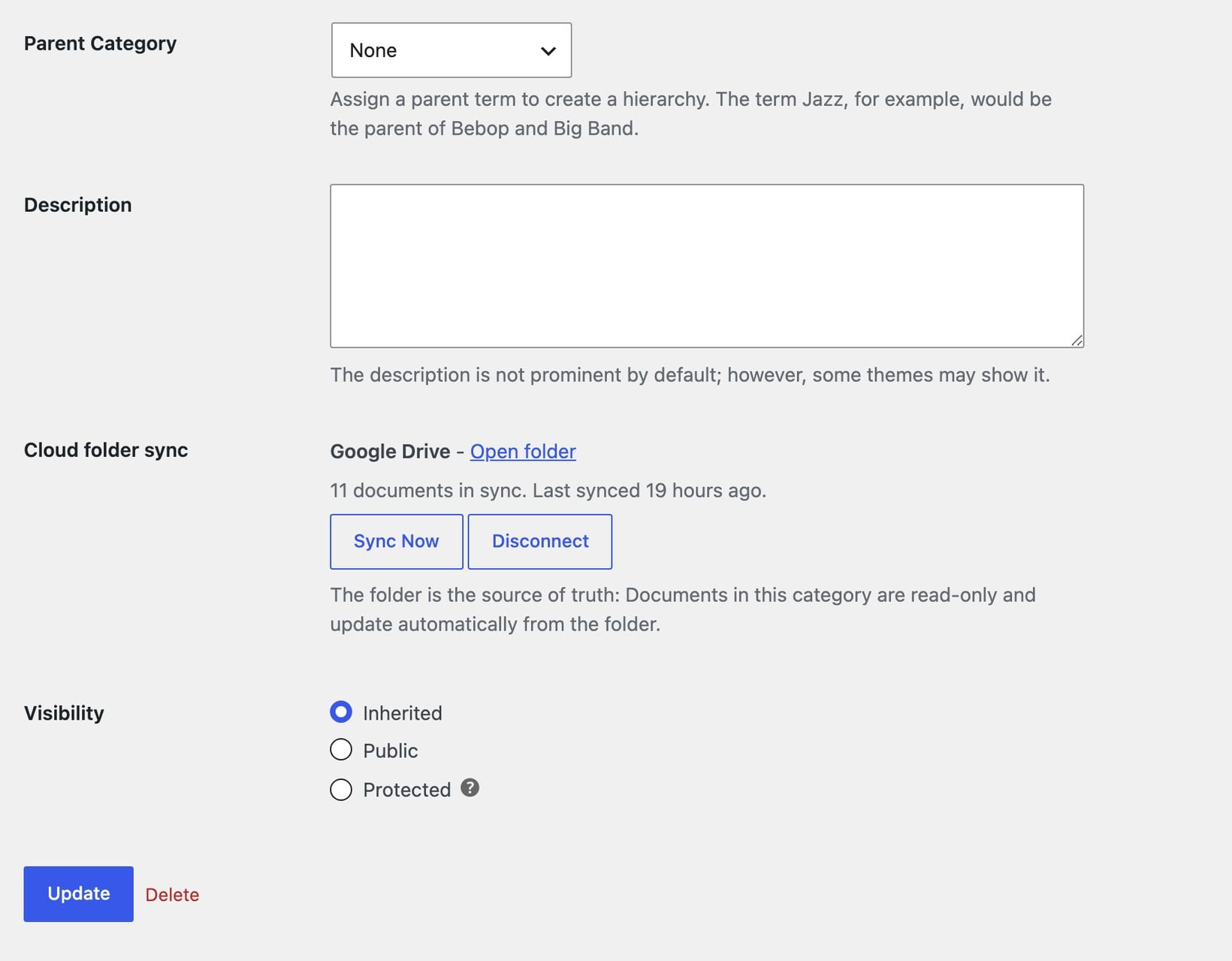
The sync screenshots in this section come from a test folder of company policies and manuals that we synced while building the feature.
The folder stays the source of truth: Your library re-syncs with it automatically every day, or you can click 'Sync Now' after making changes. When someone adds a file to the folder, a new document appears on your site. Delete or replace a file and the document disappears or updates to match.
The setup takes four steps:
- Start a free trial of Document Library Pro. Folder sync is part of the cloud version, which is included in the Advanced plan. We're bringing it to the WordPress plugin version too.
- Share your Google Drive folder with 'Anyone with the link', exactly as in Method 1, and copy the link. Remember that anyone with the link can open the folder on Google Drive, so only sync folders whose files are suitable for the people using your library. You can still protect the library page itself.
- Go to the 'Categories' screen in your library admin. Create a new category, paste the link into the 'Google Drive folder' field, and click 'Add Category'. The first sync starts straight away, and you can watch its progress in the 'Cloud Sync' column.
- Embed the finished library in your WordPress site by pasting your library's embed snippet into any page or post. The folder sync documentation walks through every step.
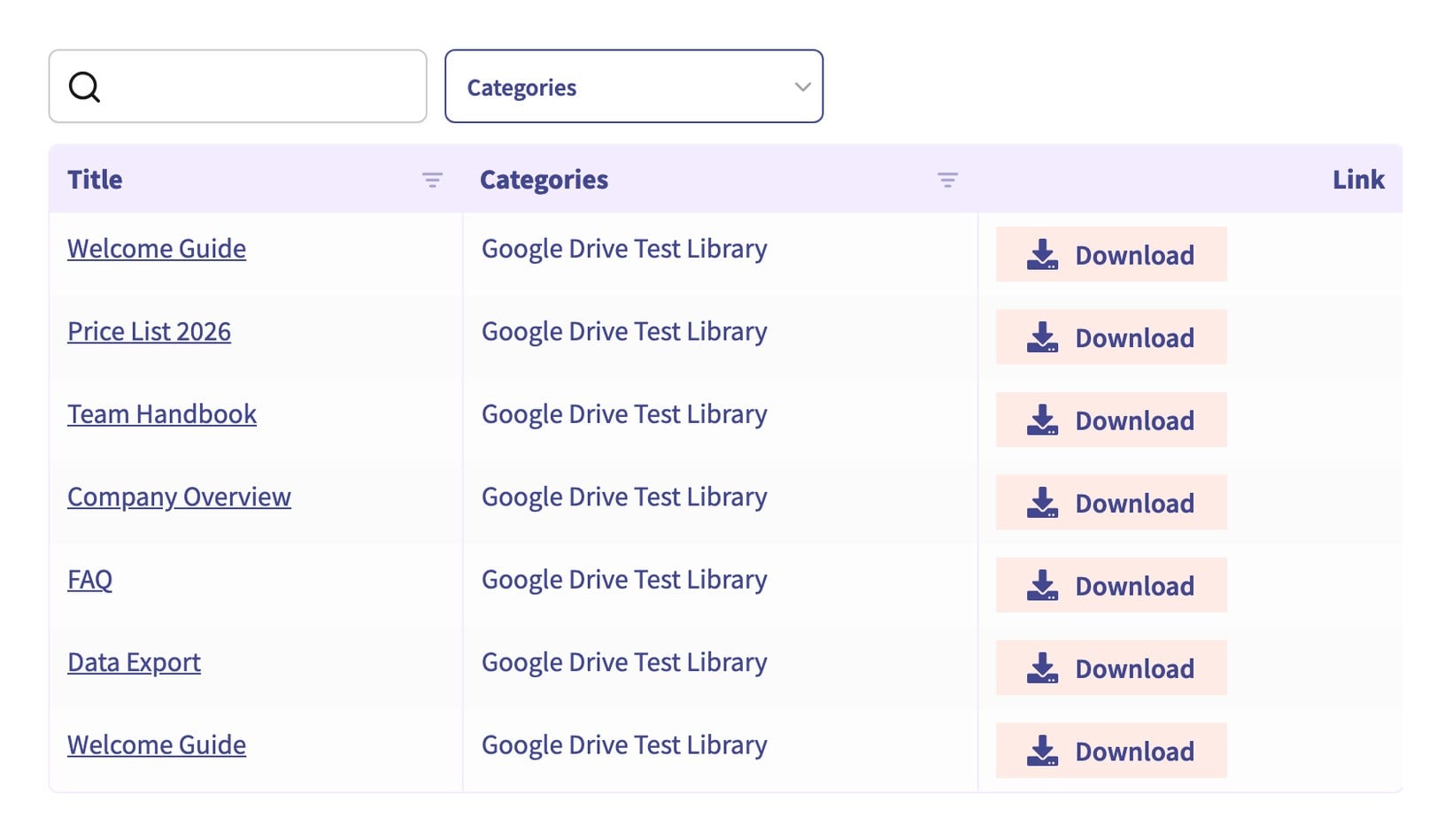
Our own analysis of 500 customer sites running Document Library Pro showed that PDFs are by far the most common file type people put in their libraries. My guide to creating a searchable PDF library goes deeper on that use case.
The same analysis showed that around 40% of those sites are nonprofits, with healthcare organizations and local councils close behind. Few of those organizations have a developer on hand, and that's who folder sync is for: You paste a link and the library builds itself.
Method 3: Use a Google Drive WordPress plugin
A Google Drive WordPress plugin connects your site to your Drive account through the Google API. Most of them can display file browsers, galleries and download links, and some let visitors upload files straight into your Drive.
Integrate Google Drive is a popular free option. You sign in with your Google account, grant the plugin access to your Drive, and then build file browser or gallery modules that you add to pages with a shortcode.
The basic setup for Integrate Google Drive looks like this:
- Install the free plugin from WordPress.org.
- Sign in with your Google account and grant the plugin access to your Drive.
- Create a 'File Browser' module in the Module Builder.
- Add the module's shortcode to any page or post.
This is what the finished file browser looks like on a page:
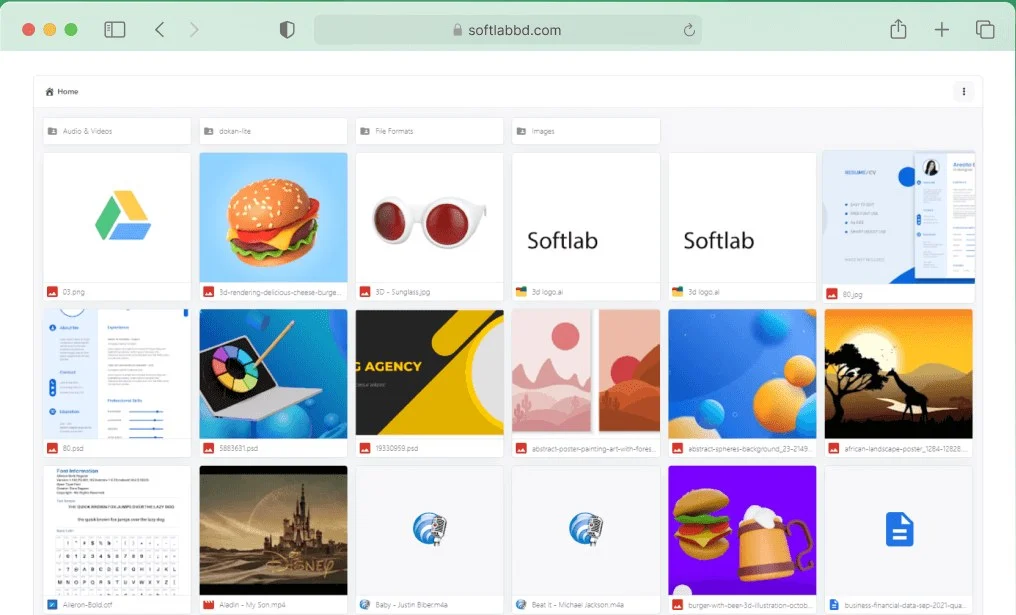
Embed Files from Google Drive takes a similar approach. It needs the separate Google Apps Login plugin to handle the connection, and embedding folders rather than single files requires the premium version.
The setup is where these plugins get heavy. Connecting means granting a third-party app access to your Drive, and several popular options ask you to create your own project in the Google Cloud Console and paste in API credentials. That's a developer console built for programmers, and it's a strange place to end up when all you wanted was a folder on your website.
Even so, the extras can be worth it. A plugin makes sense when you need Drive-specific features, for example letting clients upload files into your Drive from your site, or showing different folders to different users.
FAQs about embedding Google Drive in WordPress
How do I get the Google Drive embed code for a folder?
Google doesn't provide an embed code for folders, but you can build one yourself. Share the folder with 'Anyone with the link', copy the folder ID from the share link, and place it in an iframe pointing to https://drive.google.com/embeddedfolderview?id=FOLDER_ID#list.
Can I embed a Google Drive folder in WordPress without a plugin?
Yes. Paste Google's iframe embed code into a 'Custom HTML' block on any page. The folder must be shared with 'Anyone with the link', and the embedded view has no search, filters or styling options.
Do embedded Google Drive folders update automatically?
Yes. Google's iframe embed always shows the folder's current contents. Document Library Pro's folder sync updates your library automatically every day, and you can click 'Sync Now' to update it immediately.
Is there a WordPress Google Drive integration that doesn't need API keys?
Yes. Document Library Pro's folder sync connects a Google Drive folder to your site using only the folder's public share link. There are no API keys, no Google Cloud project and no account connection.
Can visitors download files from an embedded Google Drive folder?
With Google's iframe embed, clicking a file opens it on drive.google.com, and visitors download it from there. With a synced document library, visitors download files directly from your site. Native Google Docs, Sheets and Slides are the exception: They open on Google in a new tab.
Put your Google Drive folder to work
Google's embed code is a quick, free way to show one document or a simple folder on your site. A Google Drive plugin adds extras like client uploads in exchange for a heavier Google API setup. For a folder full of files that people need to search and download, Document Library Pro's folder sync serves your visitors best.
Paste a shared folder link and you get a searchable, downloadable WordPress document library that stays in sync with Google Drive automatically. It works with Dropbox folders too.
2 Comments
One thing worth flagging on the raw iframe method is that any site running a strict Content-Security-Policy or a security plugin that sets frame-ancestors or frame-src headers can silently block the embed, so it just shows a blank box with no error in the page source. Checking the browser console for a CSP violation before assuming the folder ID or sharing setting is wrong saves a lot of wasted troubleshooting time.
Thanks so much for highlighting this, Aneeq! That is a fantastic point about CSP headers causing those quiet blank box issues. Checking the browser console first is such a helpful tip and will definitely save readers a ton of troubleshooting time! Appreciate you sharing this valuable tip with our community!