How to build a free donor database in WordPress


Most small nonprofits track donors in a spreadsheet that's started to creak, but the dedicated donor CRMs start at $50 to $200 a month. A free WordPress donor database fills the gap, and it can be set up in an afternoon.
Most small nonprofits start tracking donors in a shared Google Sheet, and that works fine until about 200 entries. Then the sheet starts to creak. It's slow to search, you can't filter on giving level without a pivot table, and you can't share it with the board without emailing the file around. The next step is usually to pay $50 to $200 a month for a dedicated CRM like Bloomerang or DonorPerfect.
For most small nonprofits, that pricing is overkill. Most of the cost supports tools you might not need: branded donation forms, peer-to-peer fundraising and integrated mail merge for tax receipts. If you only need a searchable, filterable record of who has given what, WordPress and two or three plugins cover the job.
None of this needs a developer:
- The donor records live in a WordPress custom post type, built with the free Easy Post Types and Fields plugin.
- Posts Table Pro then turns them into a table your team can search and sort.
- Password Protected Categories keeps that table off the public side of your site.
- I've added a bonus at the end on Document Library Pro, which gives board minutes, sponsor packs and annual reports a separate home of their own.
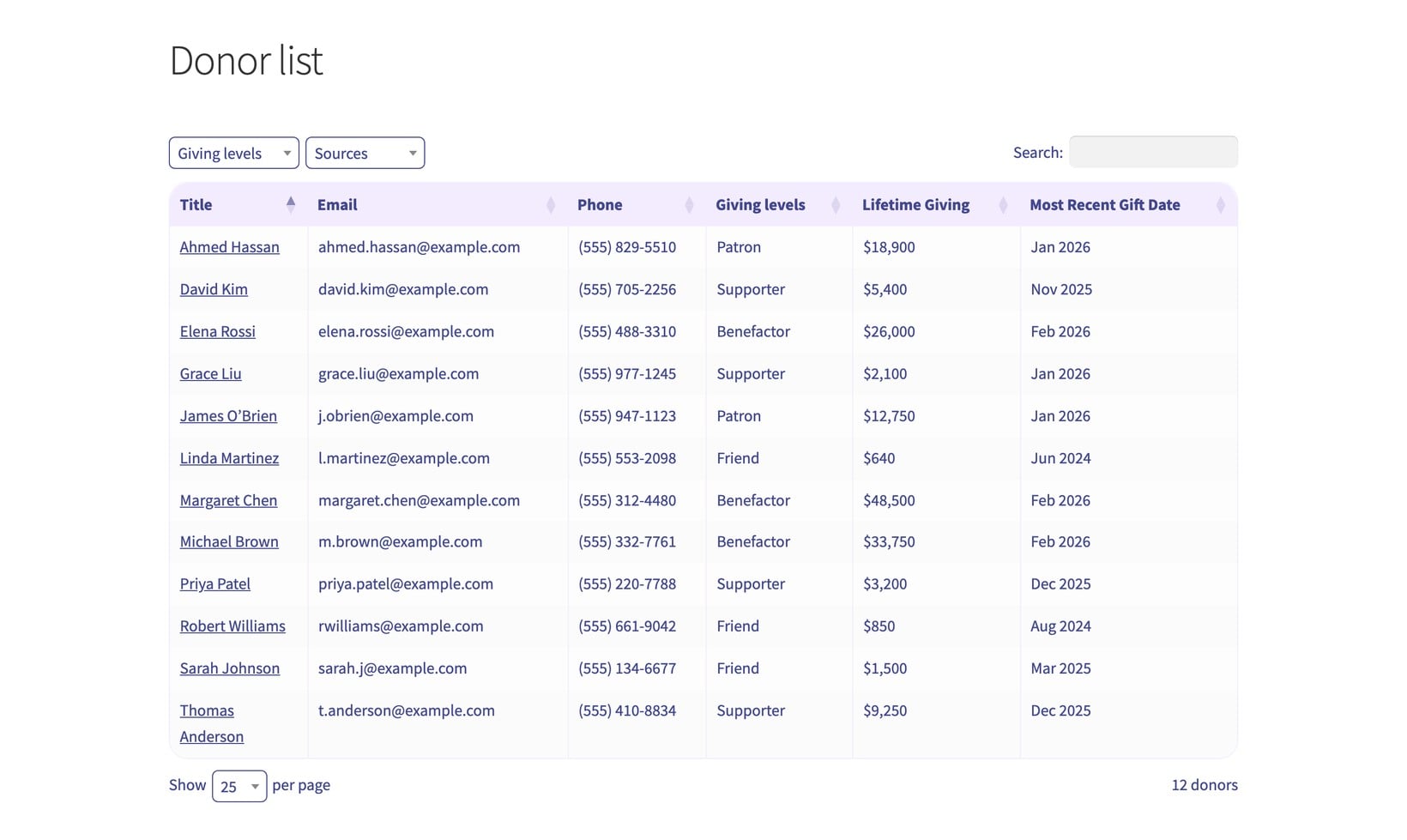
What does a donor database need to do?
A donor database is a structured record of every person or organization that has given to your nonprofit website, along with their contact details, gift history and any notes from past conversations. It's the operational layer behind donor stewardship, separate from the fundraising tool itself.
At a minimum, you need to:
- Find a donor quickly by name, email or campaign.
- See their full giving history in one place: amounts, dates and gift types.
- Filter by date range, giving level, or first-time vs repeat.
- Record notes from calls, donor surveys, meetings and stewardship touchpoints.
- Control who on the team can read and edit the records.
Some nonprofits also want a public donor wall. This is a thank-you list on the website that names supporters at agreed giving levels. That's a useful trust signal for new visitors, and it doubles as social proof for future campaigns. some donors like this type of public recognition, and it's an incentive for more people to donate.
Anything more involved than that, like automated recurring billing, peer-to-peer pages or integrated direct mail, is a fundraising platform job, not a database one. Keep those decisions separate.
Why use WordPress instead of a paid donor CRM?
The real reason most small nonprofits sign up for a paid CRM is that the spreadsheet stopped working and they didn't know what else to try. Then they're paying $100 a month for a tool that's 80% donation-form-builder and 20% the donor list they came for.
WordPress already runs a sizeable share of nonprofit websites. If you have a site, you already have most of the infrastructure: a database, a user system, secure logins and scheduled backups. Adding a custom post type for donors and displaying it as a searchable table is a small extension of what the site already does.
I'd recommend the WordPress route when:
- You have fewer than 5,000 donor records (although more if fine too, if you have good hosting).
- Two or three people on staff need to read or edit donor data.
- Your fundraising is mostly direct asks, events, grants and recurring gifts processed through one or two payment tools.
- You want full control over who can see what, without paying per seat.
A dedicated nonprofit CRM is the better choice if you're running active peer-to-peer campaigns, you need a donor self-service portal with login, or you have a fundraising team of five or more who all live in the donor data. A WordPress membership plugin would be better for that.
The plugins you'll need
Three plugins do the work. They're all made by Barn2, so we guarantee their compatibility:
- Easy Post Types and Fields (free)Creates the donor custom post type and the custom fields that store gift information. Available on the WordPress.org plugin directory.
- Posts Table ProLists the donor records as a searchable, sortable, filterable table on any page. Reads the fields and taxonomies set up with Easy Post Types and Fields.
- Password Protected Categories (optional)Restricts the donor page to staff, board members or anyone you give a password to. Skip this if the database is genuinely public.
- Document Library Pro (optional bonus)A separate plugin for donor-facing or board-facing documents: sponsor packs, annual reports and board minutes. Not part of the donor database itself.
Step 1: Create a donor custom post type
This step adds a dedicated "Donor" section to the left of the WordPress admin, keeping everything organized.
Install Easy Post Types and Fields from the WordPress.org repository. Go to Post Types → Add New and walk through the three-step wizard:
- Give the post type a singular name ('Donor') and a plural name ('Donors'). Click 'Next'.
- Choose which standard features the post type needs. Tick 'Title' (for the donor's name) and 'Featured image' (optional, for a profile photo). Untick 'Content', 'Comments' and 'Author' unless you want them. Click 'Create'.
- Click 'Finish' on the 'Ready' screen.
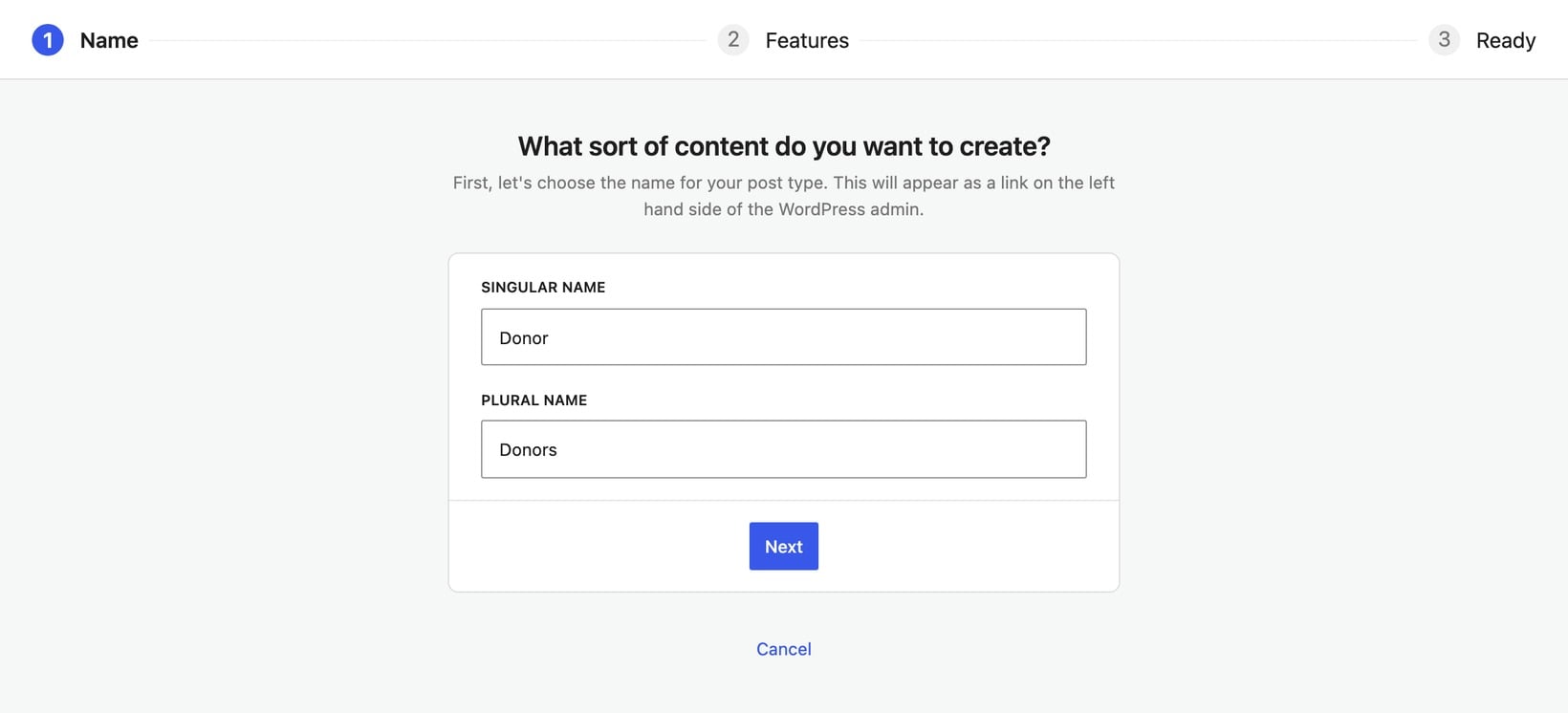
You'll now have a 'Donors' menu in the WordPress admin sidebar, with the same Add, Edit and View screens as any other post type.
For the underlying concepts (post types, fields, taxonomies and how they fit together), see the KB article on creating custom post types, fields and taxonomies.
Step 2: Add fields for donor information
A donor record needs more than a title. Easy Post Types lets you define custom fields and taxonomies attached to the Donors post type.
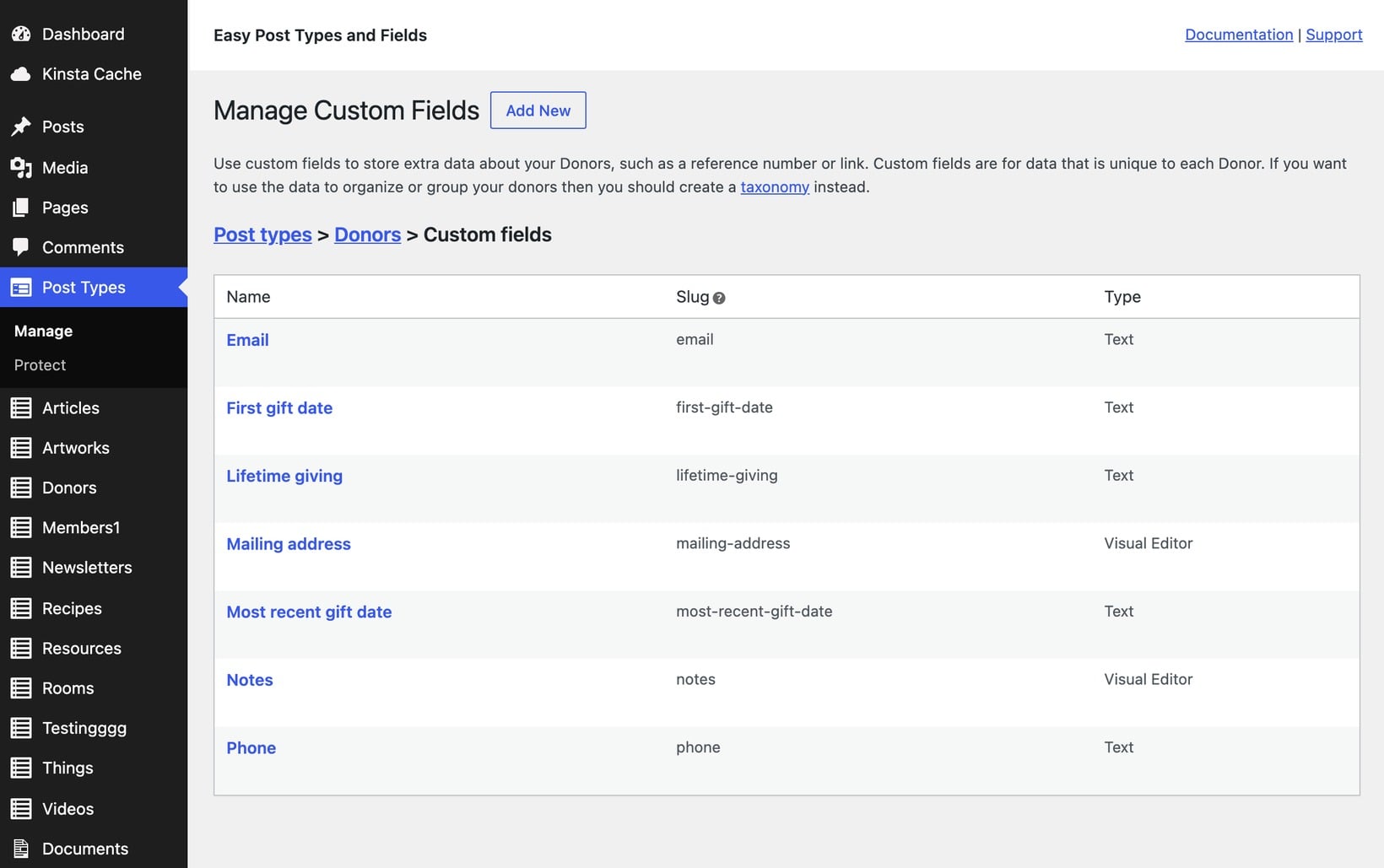
Go to Post Types → Donors → Custom Fields and add the fields you need. A reasonable starting set:
- EmailText field, used as the primary contact identifier.
- PhoneText field.
- Mailing addressTextarea field.
- Lifetime givingNumber field, the running total you update after each gift.
- First gift dateDate field, marks when the relationship started.
- Most recent gift dateDate field, flags donors who are at risk of lapsing.
- NotesTextarea field, for call notes and stewardship touchpoints.
Then go to Post Types → Donors → Taxonomies and add taxonomies for the categorical fields:
- Giving levelTag donors with their level. Friend, Supporter, Patron and Benefactor are common choices, or use whatever your levels are named.
- SourceTag each donor with one source from direct mail, event, online, grant, major gift or recurring to record how the donor was acquired.
- StatusMark each donor as active, lapsed or prospect.
Taxonomies are different from fields. A taxonomy lets you tag donors with one or more of a fixed set of values. Posts Table Pro turns each taxonomy into a filter dropdown above the table. For the difference between fields and taxonomies, see the KB article on the difference between custom fields and taxonomies.
Step 3: Add donors to the database
Once the post type and fields are set up, adding a donor uses the same workflow as adding any WordPress post:
- Go to Donors → Add New.
- Type the donor's name in the title field.
- Fill in the custom fields on the right-hand side.
- Pick the relevant giving level and source from the taxonomy boxes.
- Click 'Publish'.
For an existing donor list, you have two options:
- Manual entryFine for a list of fewer than 100 donors. Add records as you go, starting with your top donors so the most important data is in first.
- CSV importUse a plugin like WP All Import to load a spreadsheet straight into the Donors post type and its custom fields. Faster for a large back-catalog of donors.
I'd start with manual entry for the top 20 donors. It gives you a feel for which fields matter most before you commit to a CSV mapping for the rest.
Step 4: Display the donor list with Posts Table Pro
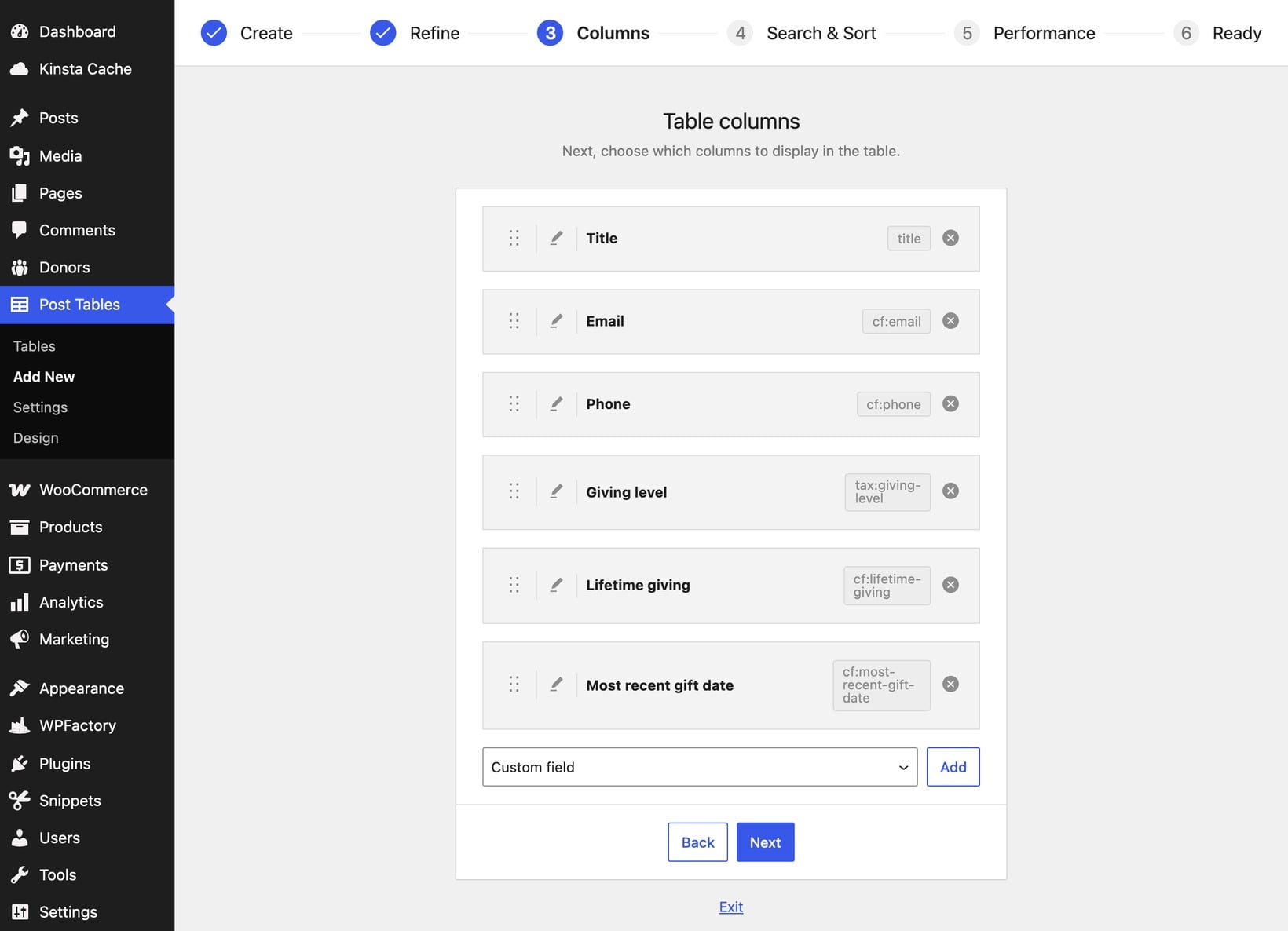
Install Posts Table Pro, then go to Post Tables → Add Table to open the table builder. It walks you through creating the table step by step.
- Give the table a name and choose Donors as the content type.
- On the Columns step, add the columns you want to show: name, email, phone, giving level, lifetime giving and most recent gift date.
- Add filter dropdowns for giving level and source so your team can narrow the list.
When the table looks right, insert it into a page. Edit your Donors page and either add the Post Table block and select your table, or paste the shortcode the builder gives you (for example The posts table (ID:12) could not be found.). Both display the same table.
A search box appears top-right by default. Sorting works per column. The team can sort by lifetime giving to find the major-gift list, or by most recent gift date to spot lapsing donors.
For the full list of options (column widths, default sort order, search behavior and design templates), see the Posts Table Pro tutorial or the guide to listing WordPress custom post types in a searchable table.
Public donor wall vs private internal database
A public donor wall lists supporters who've agreed to be named. It usually shows the donor's name, giving level and the year of their gift. It does not show amounts, contact details or notes. The page sits in the public navigation, often under "Support us" or "Our supporters".
A private internal database is the staff and board version. It shows everything: amounts, contact details and notes. It must not be publicly accessible. This is the version most small nonprofits want, and it's what the password protection step below sets up.
You can run both off the same Donors post type with two different shortcodes, on two different pages. For example, the public page might have basic columns such as the donor's name and picture. In contrast, the private version might have additional columns such as the donation amount.
We have the exact same setup on the Barn2 site for sharing our customer discounts. Our public customer discounts page uses Posts Table Pro to list the discounts which are available. There's also a private version of this page, available only to existing customers, which includes the actual discount codes and links.
Restricting access to the donor database
The private donor list lives behind a password, like any other private page in WordPress. Install Password Protected Categories, then add one or more taxonomies to the Donors post type (these will be your 'Private' categories, used only to flag pages that aren't public).
Set up the protected category:
- Go to Donors → Categories → Add New.
- Give the category a name like 'Private'.
- Scroll to the Visibility section and pick 'Protected'.
- Set a password, or tick 'User roles' to restrict to a specific user role.
- Click 'Add New Category'.
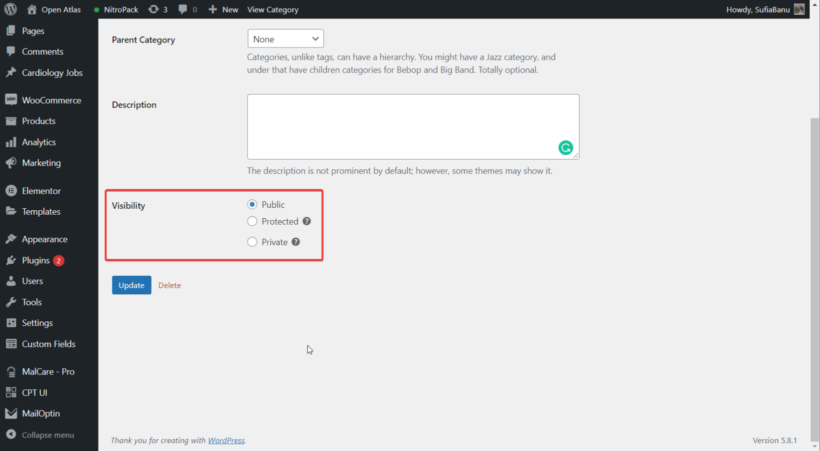
Assign the private donor list page to this category. Anyone hitting the page without the password (or without the right user role) sees a login form instead of the table.
Two practical notes:
- First, set up a separate password for the board and another for the staff so you can rotate them independently.
- Second, also restrict the underlying donor posts: otherwise a determined visitor could enumerate them through search results or the REST API. The KB article on private custom post types covers the extra step of taking the donor post type private at the WordPress level.
For a fuller walkthrough of restricting any custom post type, see the tutorial on how to password protect a WordPress custom post type.
Bonus: a separate document library for donor and board resources
The donor database is a list of people. Sponsor packs, annual reports, financial statements, board meeting minutes and case studies are documents. Mixing the two on one page is messy, and the table layout that suits donors does not suit files.
Document Library Pro is built for the file side. It gives you a separate searchable table of documents, with filters by category, file type and date, plus direct-download links.
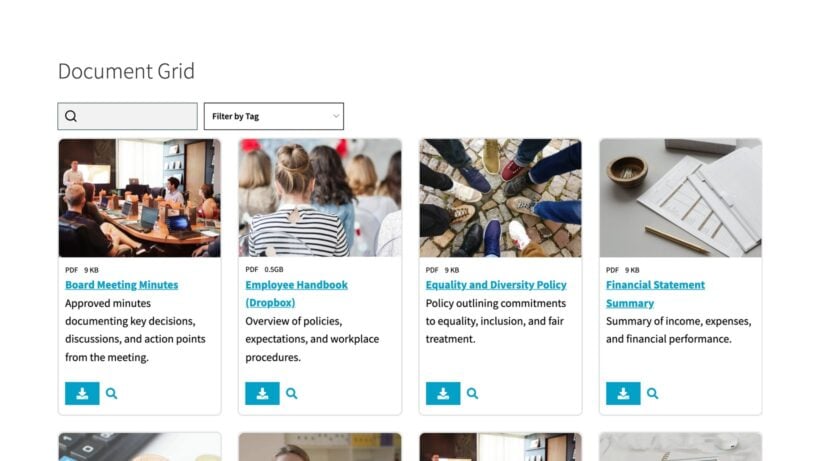
Many nonprofit WordPress websites pair the two together. Staff use a private donor list built with Posts Table Pro. In addition, board members and major donors use a private resource library built with Document Library Pro.
Our WordPress nonprofit resource library examples post shows five real organizations using the document library approach if you want to see what other charities have built.
Signs you've outgrown a WordPress donor database
A self-built donor database scales further than people expect, but it's not the right home for every nonprofit. A dedicated CRM makes sense when:
- You're processing 50+ recurring gifts per month and need automated thank-you emails per gift tier.
- You're running peer-to-peer fundraising campaigns where supporters create their own pages.
- Your team has five or more people who need simultaneous access to donor records and a shared activity log.
- You need a donor self-service portal with login, gift history and recurring-gift management.
- You're integrating with QuickBooks, Salesforce or another accounting or CRM system as the source of truth.
For the donation forms themselves, separate from the database, WooCommerce as a donation plugin pairs well with the WordPress donor database approach. GiveWP alternatives covers the dedicated tools when you do need to upgrade.
Frequently asked questions about WordPress donor databases
Is a WordPress donor database GDPR-compliant?
The plugins themselves are GDPR-friendly: data stays on your own site, and no third party processes it. Compliance is about your policies (lawful basis for storing donor data, retention period and deletion process), not the storage tool. Document your donor data policies and make sure your team follows them.
How many donors can a WordPress donor database handle?
Posts Table Pro and Easy Post Types and Fields run comfortably up to a few thousand records on standard managed WordPress hosting. Past about 5,000 records, a dedicated CRM with proper indexing and reporting will outperform a WordPress build for everyday queries.
Can donors update their own information?
Donors can't update their own information out of the box. The donor database is a staff-facing tool. If you need donor self-service (gift history, recurring-gift management and profile updates), a dedicated nonprofit CRM is the better fit, or a plugin like GiveWP for the donor-facing portal.
What's the difference between this and a CRM like Bloomerang?
A WordPress donor database is a record-keeping tool. A nonprofit CRM is a record-keeping tool plus a fundraising platform: donation forms, peer-to-peer pages, automated thank-yous, mail-merge for receipts and reporting dashboards. If you only need the record-keeping side, the WordPress version covers it for free or close to it.
Final thoughts on building your own donor database
For most small nonprofits, a custom post type built with Easy Post Types and Fields plus Posts Table Pro replaces a paid CRM for the donor-list job, and Password Protected Categories keeps the data behind the right login. If your nonprofit also needs a place for board minutes, sponsor packs and reports, Document Library Pro sits alongside the donor database as a separate, dedicated home for files.
Start with the top 20 donors, the four or five fields you'll look at most, and a single private page. The rest will reveal itself once your team is using the table every day.