What's new in Document Library Pro 4.2

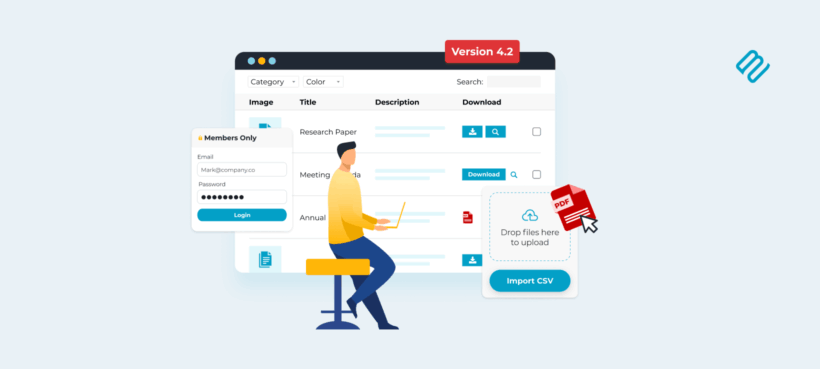
Document Library Pro 4.2 adds three new features to your document libraries: Multiple files per document, version history for each file, and protection for the files behind a restricted document.
Two things have always been true of a document in Document Library Pro: Each document held one file, and locking the document did nothing to the file itself. For example, an annual report published as a PDF and a Word file needed two rows in your library, and a password-protected document file could be accessed by someone who knew the direct URL even though the document page was hidden.
Version 4.2 changes both, and adds version history for each file along the way. Here's what's in the release:
- Multiple files or links per document.
- Version history for every file.
- Protection for the files attached to restricted documents.
- Better search and filters, plus a redesigned File Source panel.
Attach multiple files to each document
Each document in your library can now hold up to three files, or up to three URLs. The library shows a separate download button for every file, plus a preview button for the file types that support previews.
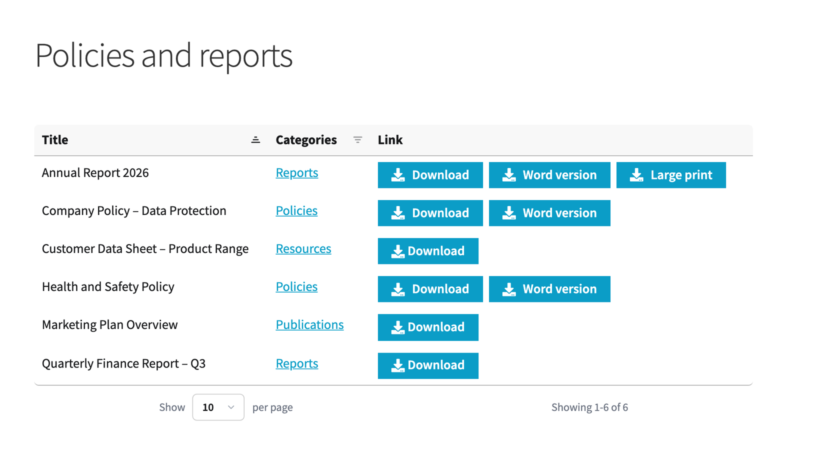
Here's when a second or third file is useful:
- The same document in several formatsAn ebook as PDF, EPUB and Kindle, or a form as PDF and Word.
- A document and its attachmentsBoard minutes with the spreadsheet they refer to.
- A file and an external linkA guide you host yourself, plus the video walkthrough on YouTube.
- Two languagesThe English and Spanish versions of a policy.
Multiple files is disabled by default, so your libraries look the same after the update as they did before it. Turn it on under Documents → Settings → Display, then fill in 'Button/link text 2' and 'Button/link text 3' on the same screen.
Those two settings apply to your whole library, so choose wording that suits every document. 'PDF' works better on a button than 'Download the annual report as a PDF'. If you run more than one library and will be using different file types for each, then you can override the global button text on the Edit screen for each document.
You add the files in the File Source section of the document editor, which we've redesigned for this release. Upload the first file as usual, then click 'Add file' underneath it. The document link options are documented in full in the knowledge base.
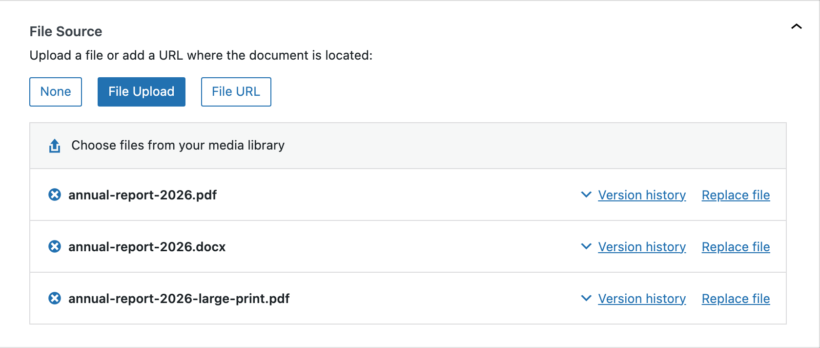
Version history for every file in your document library
Document Library Pro has had a version control feature which stores previous versions of your documents for a long time. With one file per document, one history was enough. With three, replacing the Word file would have meant rolling back the PDF alongside it.
On the Advanced plan, each attached file now keeps its own version history. For example, you can replace the Word file, look at its previous versions and roll it back, and the PDF beside it remains untouched. The history appears next to each file in the File Source panel rather than once for the whole document.
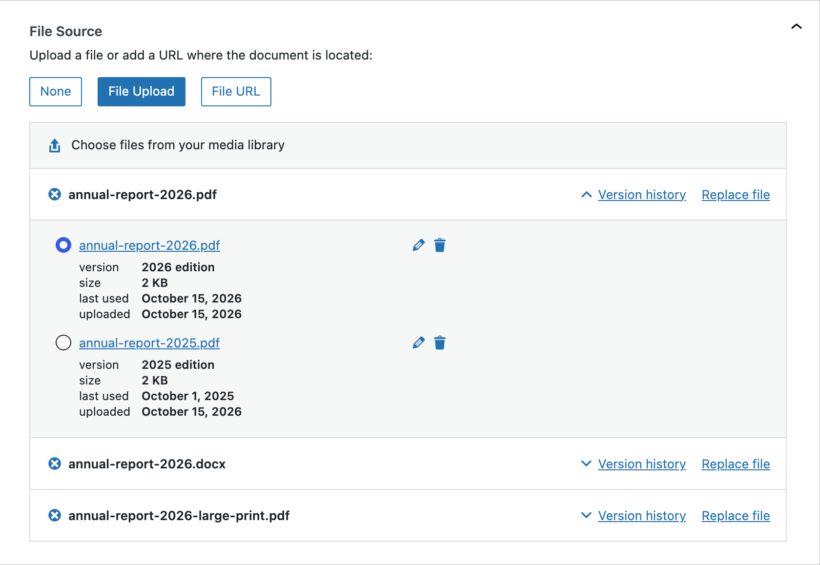
Version control in WordPress is particularly useful for documents that change on a schedule, such as a policy reissued every year or a price list. Keeping the old versions means you can answer "What did this say in March?" without digging through site backups.
Protect the files behind a restricted document
Document Library Pro has been able to restrict a document by password, user role or individual user since we added this last year. However, that restricts the document and not the file. WordPress serves everything in your uploads folder to anyone with the URL, so the file behind a locked document stayed downloadable by anyone who had its address.
Until now, customers had to use a separate plugin to protect the underlying files. Document Library Pro 4.2 now does this itself, on the Advanced plan.
Tick 'Protect media files' under Documents → Settings → Access Control. The files attached to your protected documents move into a private folder that the web server won't hand out. Every download then runs through the plugin, which checks the visitor against the document's own rules first.
The move happens in the background and you can carry on working while it runs. Nothing else changes: The same people can download the same files, and the buttons in your library work exactly as before.
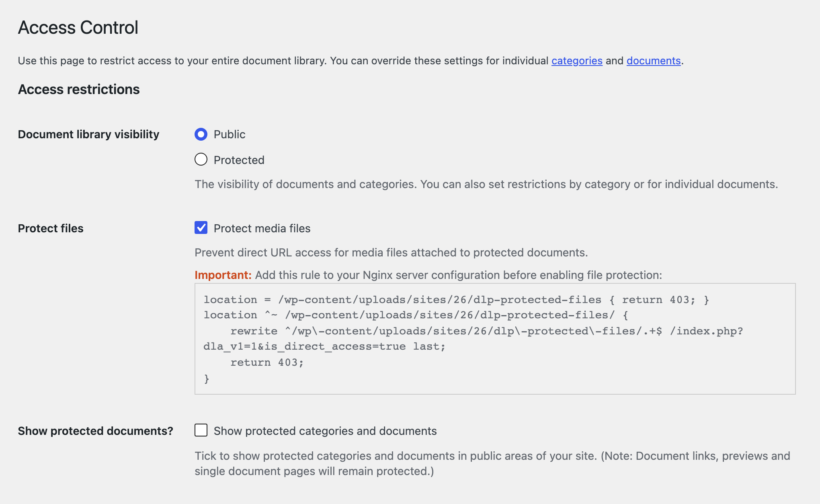
Two things to check before you switch it on:
- If your site runs on Nginx, the plugin gives you a server rule to add first, which your host can do for you.
- If you ever deactivate the plugin, it asks whether to move the files back to the public folder.
A lot of organizations buy Document Library Pro for its access control. When we audited 500 sites running our document libraries, around 40% belonged to nonprofits and charities. Healthcare organizations, local councils and professional associations made up most of the rest.
Libraries like those hold board papers, patient information and member-only guidance, so a locked document with an unlocked file behind it isn't much protection. If you want the background, I've written about how WordPress media access control works and why the uploads folder behaves this way.
Smaller improvements in Document Library Pro 4.2
- Search matches partial words, so typing 'annu' finds 'annual'.
- Visitors can clear or replace a preset search.
- Multi-select filters keep the other options available after you pick one.
- Taxonomies created with Pods appear in the document display settings.
- Embedded login forms are hidden from people who are already logged in.
The full changelog lists everything in the release, including the developer changes.
Which Document Library Pro plan has each feature?
Multiple files per document is in both plans, Essentials and Advanced.
Version history and file protection are both on the Advanced plan. If you're on Essentials, you can upgrade at any time and pay the difference. Our knowledge base has a full breakdown of which Document Library Pro plan you need.
Updating to Document Library Pro 4.2
Update Document Library Pro from the Plugins screen in your WordPress dashboard, the same way as any other release. Nothing on your site changes until you turn the new features on.
- Update the plugin. If you have a staging site, update there first.
- Go to Documents → Settings → Display, tick 'Multiple files per document', then fill in the button text for files two and three.
- On the Advanced plan, go to Documents → Settings → Access Control and tick 'Protect media files'. Read the Nginx note first if your host uses Nginx.
- Open a document, add a second file in the File Source panel, then look at how the row reads on the front end.
Our knowledge base covers each step in more detail, in adding and importing documents, document version control and protecting your document library. If you try the new features and something behaves differently from what you expected, get in touch through our support center and we'll take a look.