How to set up Shopify automatic discounts

Shopify automatic discounts apply at cart and checkout when a customer meets your predefined conditions - no code entry required. This guide covers how to set them up, what their limits are, and which tools to use when native Shopify stops being enough.
Automatic discounts remove one of the most common friction points in the checkout process. Instead of hunting for a code, customers see their savings applied automatically. That simplicity is good for conversion rates and can push average order values higher when you're running quantity-based or order-threshold promotions.
Before you set one up, there are three things about how Shopify handles automatic discounts that trip up most merchants:
- First, Shopify caps active automatic discounts at 25 - including those created by third-party apps.
- Second, when multiple automatic discounts could apply to the same order, Shopify picks only the one that saves the customer the most.
- Third, automatic discounts don't appear on product pages by default. They only show up at cart and checkout.
This guide covers native setup, the limits you'll run into, and the right tools for different discount needs. By the end, you'll know exactly how your automatic discounts will behave before you launch them.
The four types of automatic discounts in Shopify
Shopify supports four native automatic discount types. Each one serves a different strategic purpose.
- Percentage offReduces the price by a consistent percentage. Good for maintaining predictable margins across a product range.
- Fixed amount offTakes a set dollar amount off products or orders. Often more compelling to customers than an equivalent percentage reduction - "$10 off" registers faster than "12% off" for most people.
- Buy X Get YRequires customers to buy specific products to unlock a free product or discounted item. Works well for cross-selling or moving slower inventory, and is particularly useful for introducing customers to products they wouldn't normally add to their cart.
- Free shippingWaives shipping costs when an order reaches a minimum value. One of the most dependable ways to increase average order value without touching product prices.
Common use cases across all four types include site-wide sale events, promotions for specific collections, and bulk purchase incentives.
Method 1: How to set up automatic discounts in Shopify
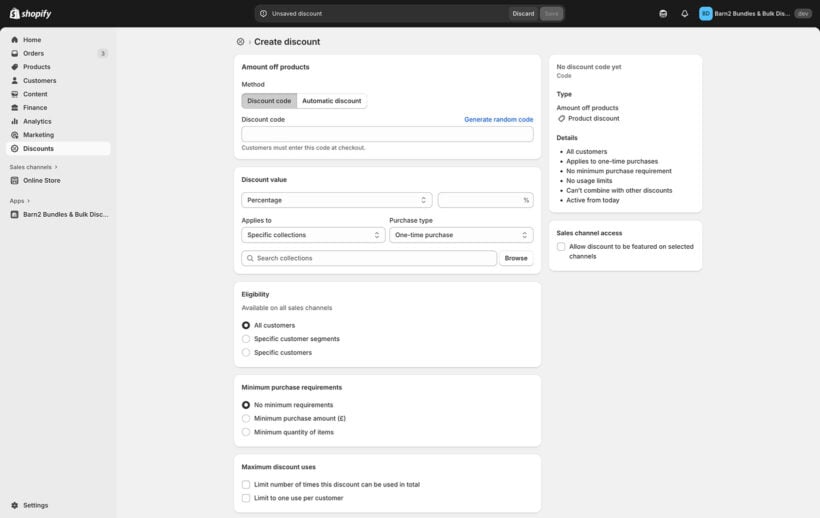
The steps below walk through setting up an 'Amount off' automatic discount. The process is nearly identical for other types - just the fields change.
- Open your Shopify admin and go to Discounts.
- Click Create discount.
- From the discount type menu, select Amount off products.
- Under Method, select Automatic discount.
- Enter a name. This name is visible to customers at checkout.
- Set the discount value as a percentage or fixed amount.
- Apply the discount to specific products or collections.
- Set any minimum purchase requirements or quantity thresholds.
- Choose customer eligibility.
- Decide whether to allow combination with other discount types.
- Set a start date and, optionally, an end date.
- Save the discount.
Tips for different automatic discount types
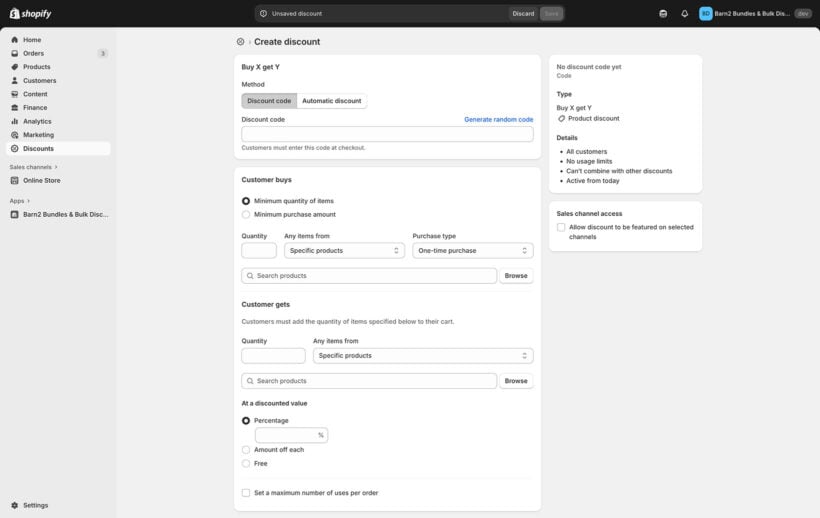
For Buy X Get Y discounts in Shopify, you'll select both the qualifying products and the discounted products separately. One thing to flag: the discounted item doesn't add to the cart automatically. Customers have to add both the trigger item and the discounted item themselves.
For Free Shipping discounts, you'll set a minimum order value instead of a discount amount.
Don't forget to test your discounts!
Before you go live, test with qualifying and non-qualifying items. Verify which discount wins if multiple apply, confirm taxes calculate correctly on the discounted subtotal, and check how the discount displays at cart and checkout. Testing takes ten minutes. Fixing a misconfigured discount after customers have complained takes considerably longer.
Limitations of native Shopify automatic discounts
Native automatic discounts work well for straightforward promotions. They start to create problems at scale.
The hard cap is 25 active automatic discounts per store. That total includes discounts created by third-party apps that use Shopify's native infrastructure. Merchants with large catalogs hit this ceiling faster than expected - especially when running product-specific or collection-specific quantity discounts.
Stacking is also limited. When multiple automatic discounts could apply to the same product, Shopify applies only the one offering the greatest saving. You don't get to control which one wins beyond that logic.
Product page visibility is another gap. Customers browsing your store don't see automatic discounts until they reach cart or checkout. For quantity-based pricing, that's a real problem - customers have no way of knowing a bulk discount exists until they've already decided what to buy. That disconnect can suppress the very purchasing behavior the discount was designed to encourage.
Two additional limits worth knowing: automatic discounts don't apply on post-purchase upsell pages, and customers can apply a maximum of five product or order discount codes and one shipping code per order alongside them.
Fortunately, you can solve a lot of these problems by installing one of the best Shopify automatic discount apps.
Method 2: Setting automated quantity-based discounts with Bundles & Bulk Discounts
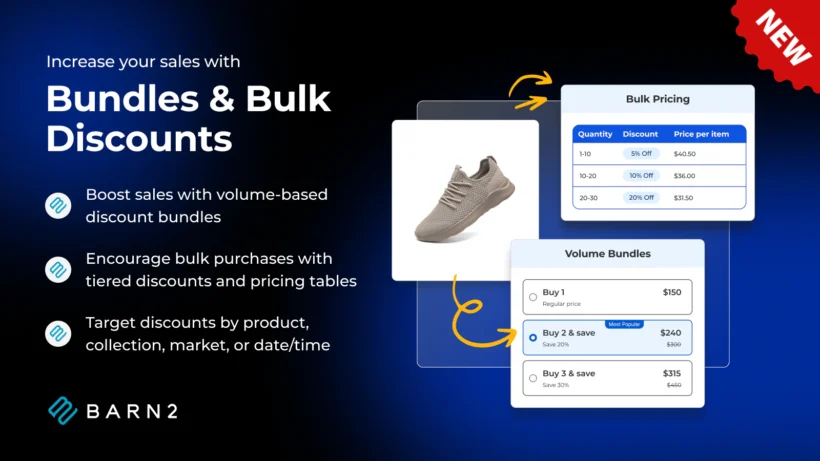
For merchants who need quantity-based automatic discounts beyond what Shopify natively supports, Bundles & Bulk Discounts takes a different approach. It bypasses Shopify's 25-discount limit entirely for quantity-based pricing and adds product page visibility that native discounts can't offer.
The app supports two discount structures:
- Volume bundlesCustomers choose from discrete bundle options - for example, "Buy 2 for $15, Buy 3 for $20." The options display directly on the product page, so customers see the incentive before they decide how much to buy.
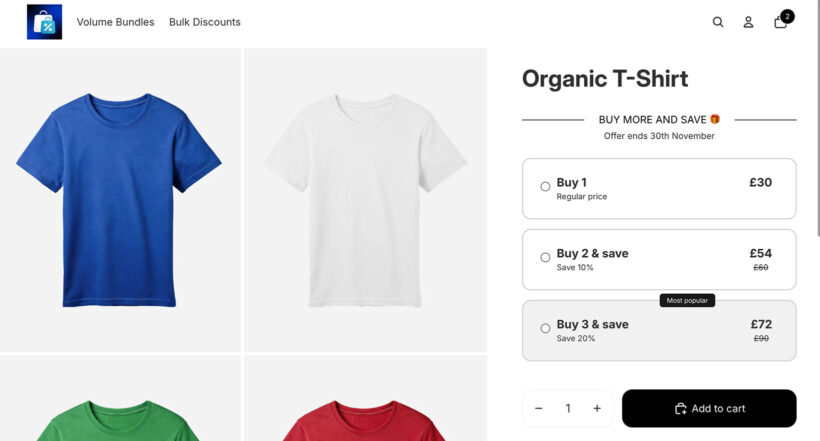
- Bulk discountsTiered pricing that updates in real time as customers adjust quantity. No bundle selection required - the price changes as the number goes up.
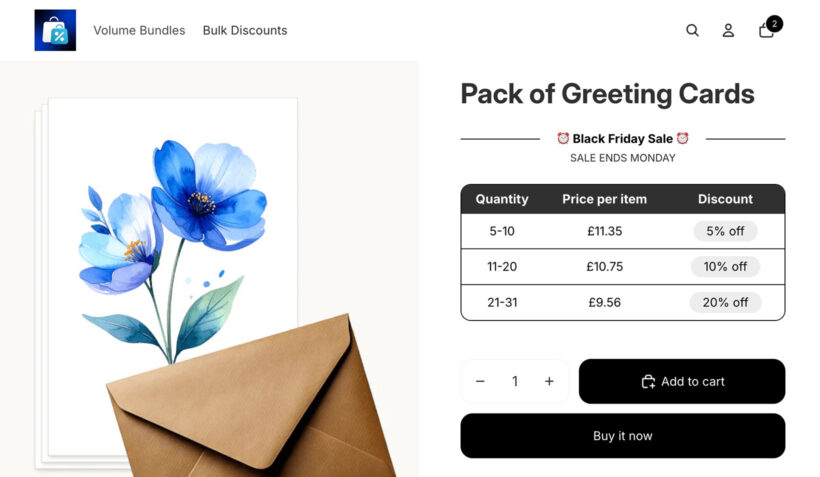
When multiple discount rules could apply to the same product, a drag-and-drop prioritization system lets you set which rule takes precedence. That prevents unintended stacking and protects margins. You can also schedule discounts with start and end dates to run time-limited offers without manual intervention.
The app is focused specifically on quantity-based discounts. If you need site-wide percentage reductions or fixed-amount-off promotions, native Shopify or a different app is the right tool.
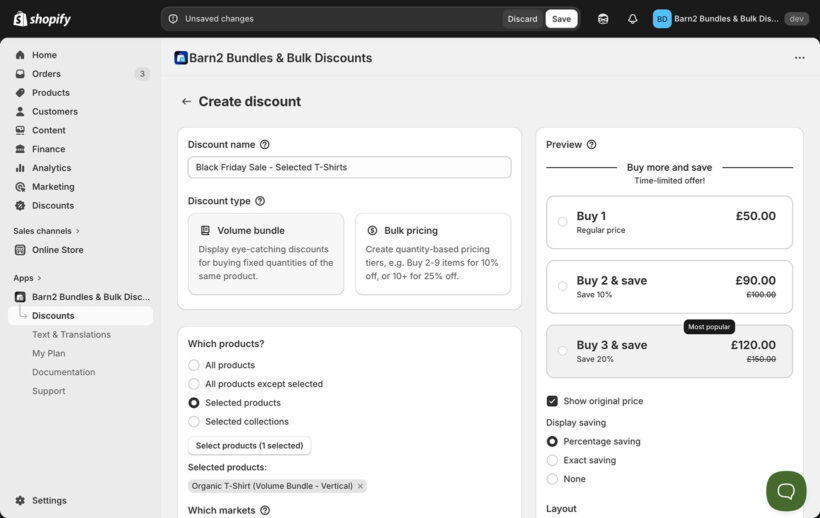
To get started: install from the Shopify App Store, configure your volume bundles or bulk discount tiers, set quantity thresholds and discount values, target specific products or collections, and drag to prioritize when rules overlap.
Other automatic discount solutions
Bold Discounts for flash sales and visible price changes
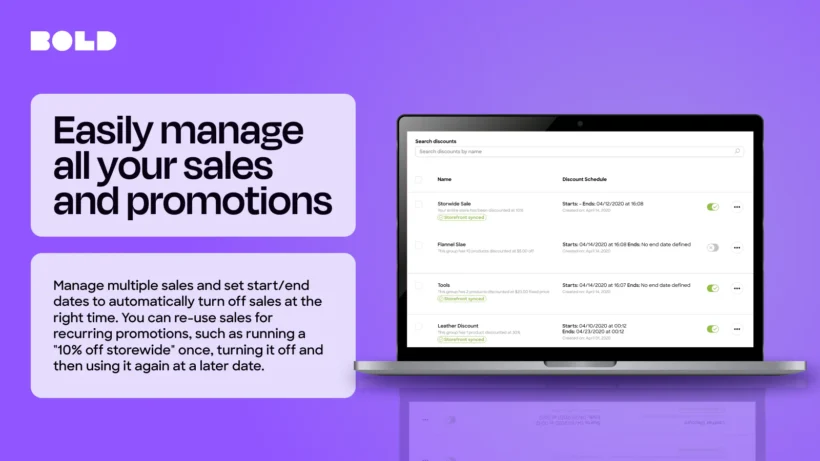
Bold Discounts takes a fundamentally different approach from native automatic discounts. Instead of applying savings at checkout, it modifies the actual product price throughout the store - moving the original price to the 'Compare at' field to show strikethrough pricing on product pages, collection pages, and search results.
That makes it a strong fit for time-limited sale events where immediate visual impact matters. Customers see reduced prices before they add anything to their cart, which creates urgency at every point in their browsing session rather than just at checkout.
Choose Bold Discounts when you want a highly visible storewide sale with countdown timers and sale badges, rather than quantity-based incentives. It's not designed for tiered pricing - it's optimized for percentage or fixed-amount reductions applied broadly across products.
A free version is available. The paid plan is $19.99/month.
DiscountRay
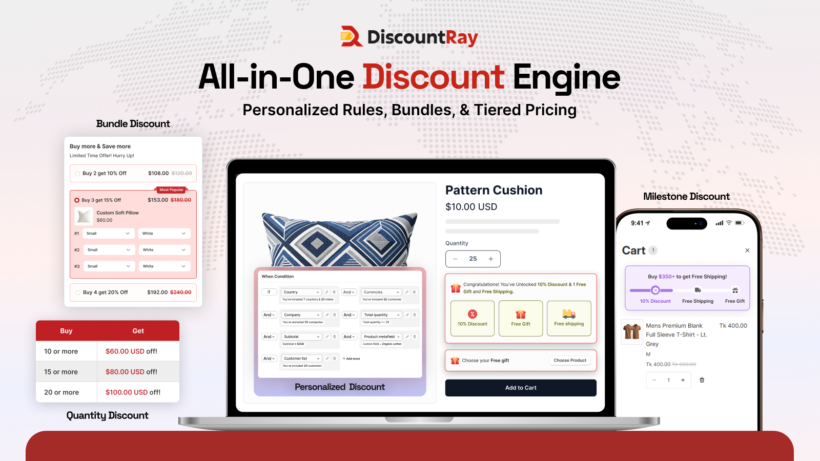
DiscountRay is built around automatic discounts, but it approaches them differently from Shopify's native setup. Where Shopify applies a single discount condition at checkout, DiscountRay lets you create tiered pricing, volume breaks, and quantity-based discounts that trigger automatically, without a code, across product and collection pages.
That makes it a practical fit for merchants who want to reward purchase behavior in real time, buy more, save more, rather than applying a flat percentage across everything.
But the more interesting use case is the personalization layer. You can target discounts by customer tag, customer group, company, or even email domain, so a wholesale buyer sees their negotiated price automatically, while a retail customer sees the standard one. Same storefront, different pricing, zero manual work.
Choose DiscountRay when you need automatic discounts that go beyond a single rule; especially if you're managing both B2B and retail customers, or want to run segmented promotions without juggling discount codes.
A free plan is available. Paid plans start at $9/month.
Planning your Shopify automatic discount strategy
The setup is the easy part. Getting the strategy right before you build anything saves time and protects margins.
Start by defining what you're trying to achieve. Clearing slow-moving stock, increasing average order value, and rewarding repeat customers are all valid goals - but each one points toward a different discount structure. A bulk discount makes sense for volume incentives. A minimum order threshold works better for pushing up cart values. A targeted collection discount is more appropriate for moving specific inventory.
Once you know the goal, calculate the margin impact before you set a value. It's easy to pick a percentage that drives sales volume but destroys profitability on lower-margin products. Know your cost of goods and work backward from the discount depth you can actually afford.
Promotion strategy matters just as much as the discount itself. An automatic discount that customers don't know about won't change behavior. Decide in advance how you'll communicate the offer - homepage banner, email campaign, product page badge, or social post. The discount handles the mechanics at checkout. Getting customers to the checkout in the first place is a separate job.
Keep the conditions simple. "10% off orders over $50" converts better than complex multi-tier rules that require customers to read fine print. Complicated eligibility criteria generate support tickets and erode trust when the discount doesn't apply the way a customer expected. Fewer conditions mean fewer complaints.
Track performance from day one. Decide which metrics you're monitoring - conversion rate, average order value, discount cost as a percentage of revenue - before you launch. That way you can make a clear call on whether to keep, adjust, or end the promotion, rather than guessing based on a vague sense that sales went up.
Shopify automatic discount pre-launch checklist
A discount that works technically can still hurt the business if the economics aren't right. Go through these before you publish:
- Calculate margin impact first.Know your cost of goods and your acceptable discount depth. Deep discounts can drive volume while destroying profitability.
- Keep conditions simple.Fewer eligibility rules mean fewer "why didn't my discount apply?" complaints from confused customers.
- Plan your promotion strategy.Decide how customers will find out about the discount - homepage banner, email campaign, product page badge, or social post.
- Schedule to avoid unintended overlap.Check whether the discount period conflicts with other active promotions or major sales events.
- Define your success metrics upfront.Know which KPIs you're tracking - conversion rate, average order value, discount cost - before you launch, not after.
Managing automatic discounts
As your store grows, keeping automatic discounts organized becomes its own challenge. Each discount has its own validity window, usage conditions, and combination rules. Without clear internal documentation, it's easy for conflicting discounts to accumulate - especially when multiple team members have access to the Shopify admin.
Set validity dates on every discount you create. Open-ended automatic discounts are easy to forget about, and a sale from three months ago that's still running is a margin problem. Review active discounts regularly and deactivate anything that's no longer intentional.
Combination settings also need careful thought. Shopify lets you configure whether an automatic discount can stack with product discounts, order discounts, or shipping discounts. Enabling combinations without thinking through the scenarios can result in deeper discounts than you intended. Test every combination you allow before it goes live.
Troubleshooting automatic discounts
When an automatic discount doesn't apply, there's almost always a specific reason. Here's where to look first.
The most common cause is that the cart doesn't meet all specified conditions. Customers may have the wrong variant selected, be missing a required product tag, or have items from a collection that's been excluded from the promotion.
For Buy X Get Y discounts, check that the customer has added both the qualifying trigger items and the discounted items to their cart. The discounted item doesn't appear automatically.
If a discount seems to be applying the wrong amount, check whether multiple automatic discounts are eligible for the same order. Shopify applies only the one that saves the customer the most - which may not be the discount you expected to win.
Schedule issues are easy to miss. Confirm the discount has reached its start date, hasn't passed its end date, and is active on the sales channel the customer is shopping through.
Finally, clarify how your automatic discounts interact with manual codes. Automatic discounts don't stack with each other - only the best-value automatic discount applies. Customers can combine an automatic discount with manual discount codes depending on your combination settings, with a maximum of five product or order codes and one shipping code per order.
One more thing that catches people out: automatic discounts don't apply on post-purchase upsell pages. If you're running upsells after checkout and expecting a discount to carry through, it won't.
Set up your Shopify automatic discounts today
Shopify's native automatic discounts handle straightforward promotions well. They apply at cart and checkout, operate within a 25-discount maximum, and select the best-value option when multiple are eligible. For most site-wide sales and simple collection promotions, that's enough.
When you need unlimited quantity-based discounts with product page visibility and conflict control, Bundles & Bulk Discounts is the right next step. Whatever tool you use, test with both qualifying and non-qualifying items before launch. Catching a misconfigured rule before customers see it takes minutes. Fixing the fallout after takes much longer.
2 Comments
That’s a really smart approach. It’s amazing how much smoother things are when the discount just pops up.
Hi! Thanks for your comment and the kind words. Please let me know if you have any questions. You can also reach us through our Support Center or email us at
[email protected]. Cheers.