The best WordPress glossary plugins compared


A WordPress glossary plugin turns the technical terms scattered through your content into a searchable, browsable resource. Visitors find what they need quickly, and search engines reward you with stronger topical authority.
You can build a glossary as a regular post or page, but a dedicated WordPress glossary plugin handles two things you'd otherwise build by hand: structured term-and-definition entries, and the tooltips, indexes, or searchable tables that surface them.
In this post, I'll cover:
- How a WordPress glossary plugin boosts SEO.
- 7 plugins worth considering, with pros and cons of each.
- A step-by-step build of a searchable, sortable, filterable glossary with Posts Table Pro.
- Best practices for glossary entries that maximize SEO impact.
Quick verdict
- Best overallCM Tooltip Glossary is the most complete freemium glossary plugin, with automatic term detection, tooltips, and a standalone glossary page.
- Best for sortable, filterable glossary tablesPosts Table Pro displays your terms in a searchable, sortable table with the extra columns and taxonomies you want visitors to filter by.
- Best free Gutenberg optionHeroic Glossary is a free block-editor glossary with ready-made templates and reusable blocks.
- Best for tooltip-driven glossariesGlossary for WordPress by Codeat auto-links term instances across your site with stylish tooltips.
- Best for community submissionsName Directory adds frontend suggestion forms so visitors can propose new glossary terms.
How a WordPress glossary plugin boosts your SEO
A dedicated glossary plugin pays back in real organic rankings. Here are the five biggest benefits.
Makes content more accessible and user-friendly
A well-built glossary, like this one by Moz, lets visitors find answers without leaving your site. Longer sessions and lower bounce rates signal to search engines that your site offers relevant, high-quality content.
Builds topical authority
Search engines reward sites that cover a topic in depth. A glossary of industry terms shows expertise on a subject and lifts your site's overall topical authority.
If you run a digital marketing site, defining terms like "conversion rate optimization" or "programmatic advertising" signals that your site is a trusted source. Bonus points if you create standalone content for the terms and link each back to the glossary entry.
WordPress glossary plugins are a powerful tool for enhancing SEO by providing clear definitions and explanations of terms directly within your content. This not only improves user experience but also helps retain visitors on your site longer, which can positively impact your search engine rankings.
Jessica MalnikContent Strategist
Improves internal linking architecture
Your internal linking structure tells search engines which pages matter. A glossary helps in several ways:
- Helps search engines understand the context of your content.
- Distributes link equity across pages.
- Helps visitors browse to directing visitors to related, useful content.
Enhances content richness
The best WordPress glossary plugins aren't just for text definitions. You can add images, infographics, and videos to your glossary entries, which improves engagement metrics like time on page, scroll depth, and repeat visits.
Captures featured snippets and voice search answers
Search engines favor concise, accurate definitions for featured snippets. Glossary plugins format your content in a way that increases the chance of getting selected. In the era of voice search, clear definitions also improve the chance of being used in voice responses.
How we evaluated these glossary plugins
I looked at each plugin against the factors that decide whether a glossary plugin really works for your site. That means how easy it is to add and manage terms, whether tooltips or a searchable table fits your use case better, and how much customization the plugin offers. I also looked at compatibility with the block editor, SEO plugins, page builders, and multilingual tools.
At-a-glance comparison
| Plugin | Free version | Standout strength | Best for |
|---|---|---|---|
| CM Tooltip Glossary | Yes | Auto-detected terms with tooltips and a standalone index | Most freemium glossary use cases |
| Posts Table Pro | No | Searchable, sortable, filterable table of terms with extra columns | Large glossaries that need real browsing |
| Heroic Glossary | Yes | Native Gutenberg block with ready-made templates | Block-editor sites that want a free option |
| Glossary for WordPress | Yes | Auto-links term instances site-wide with stylish tooltips | Tooltip-driven glossaries with deep customization |
| WordPress Tooltips | Yes | Shortcode-focused tooltips with auto glossary index | Multilingual sites and simple tooltip needs |
| Name Directory | Yes | Frontend suggestion forms for visitor-submitted terms | Community-driven and crowdsourced glossaries |
| WP Glossary | No | Encyclopedia-style index with linkify, tooltips, and animations | Encyclopedias, lexicons, and knowledge bases |
The 7 best WordPress glossary plugins
Below are the seven glossary plugins worth considering, ordered by how well they suit most sites. The list starts with the strongest dedicated freemium builder, then our own Posts Table Pro for table-based glossaries, then more specialist tools.
1. CM Tooltip Glossary
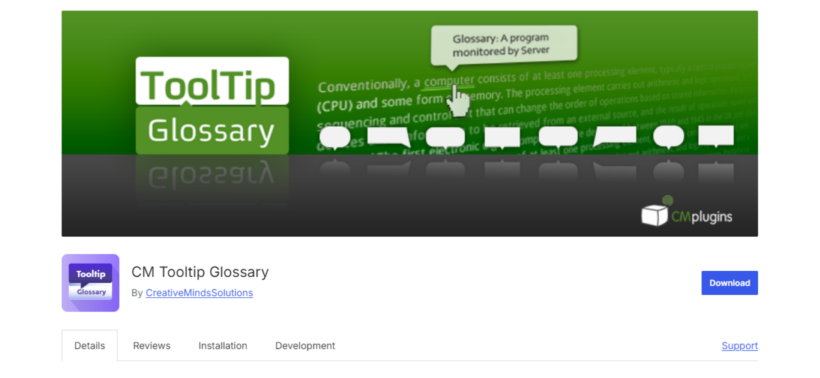
CM Tooltip Glossary is a popular freemium plugin that lets you build comprehensive glossaries with dynamic tooltips. It scans your site's posts and pages for glossary terms automatically, then adds them to a standalone glossary page with full definitions for each entry.
Tooltips appear when visitors hover on a term, so readers get the definition in context without leaving the page. Upgrading to the premium version unlocks audio and video tooltips, support for abbreviations and variations, and integrations with Merriam-Webster, Google Translate, Wikipedia, and ChatGPT.
Pros:
- The plugin auto-detects terms across posts and pages.
- Tooltips plus a standalone glossary index out of the box.
- Generous free version on WordPress.org.
- The premium tier integrates with external dictionaries and AI tools.
Cons:
- The most useful features (audio, abbreviations, and integrations) sit in the paid version.
- Auto-detection can over-link if your content is dense with technical terms.
Best for: most sites that want a freemium glossary with tooltips and an index, with no fuss.
2. Posts Table Pro
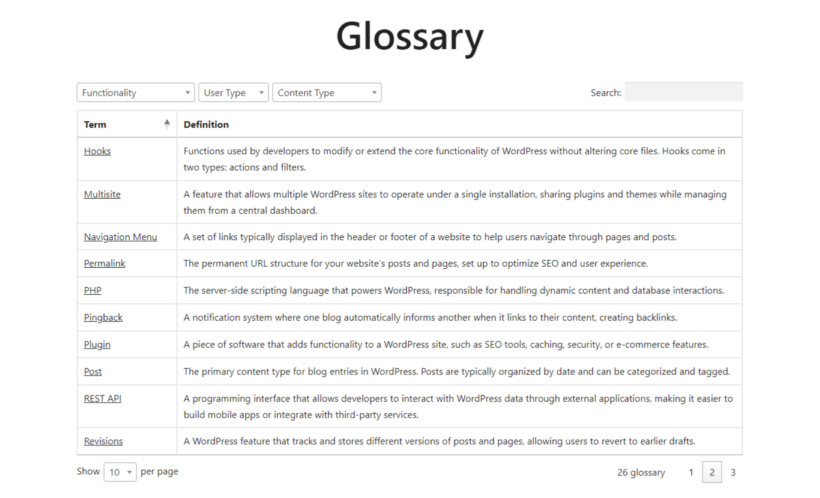
Our own Posts Table Pro plugin is the right choice when your glossary is too large or too rich for a simple tooltip-and-index plugin. It displays your terms as a searchable, sortable, filterable table where every term is its own row, with the columns and taxonomies you want visitors to use as filters.
For a glossary with hundreds or thousands of terms, that table model is what visitors want. They can search by keyword, sort alphabetically or by date, and filter by the categories you've set up. Click a row and they get the full entry page with longer content, images, or video.
Here's a preview of how a Posts Table Pro glossary looks on the front end:
Posts Table Pro suits large ecommerce sites, educational platforms, and niche blogs. You can build responsive, dynamic glossaries, dictionaries, and A to Z lists with the same setup.
The standout features:
- Over 50 customization settings, including pagination, search boxes, column widths, and content lengths.
- AJAX instant search that filters results live as the visitor types.
- Multimedia support for images, audio, and video alongside text definitions.
- Translation-ready, with WPML, WeGlot, and TranslatePress compatibility.
- Fully responsive for desktop, tablet, and mobile.
- Inherits your theme's style, with built-in options to tweak colors, fonts, and spacing.
Pros:
- Real navigation for large glossaries: search, sort, filter, paginate.
- Works with any custom post type, so the glossary uses your own data model.
- Pair with Easy Post Types and Fields for custom fields and taxonomies.
- It's multilingual via WPML and other translation plugins.
Cons:
- There is a free version, Posts Data Table, but it lists standard blog posts only, so glossary terms held in a custom post type need the Pro plugin.
- Doesn't add tooltips, so it's a different model from CM Tooltip Glossary.
- Needs more setup than a turnkey tooltip plugin (see the tutorial below).
Best for: large or detail-rich glossaries that need a real searchable, sortable, filterable interface rather than a static A-Z list.
3. Heroic Glossary

Heroic Glossary works differently from the others. It ships as a Gutenberg block with ready-made templates and an intuitive workflow for creating glossaries directly inside the WordPress editor.
It includes alphabetical sorting for easier navigation and an instant search option for finding specific terms quickly. Glossary blocks are reusable across multiple pages, so you can drop the same glossary anywhere without recreating it.
Pros:
- 100% free, with no premium tier to upsell.
- Native Gutenberg block with ready-made templates.
- You can reuse glossary blocks across multiple pages.
- Instant search and alphabetical sorting included.
Cons:
- It's block-editor only, so Classic Editor sites need a different option.
- It has fewer customization knobs than the freemium alternatives.
Best for: block-editor sites that want a polished free glossary with no upsell path.
4. Glossary for WordPress
Glossary for WordPress by Codeat is a strong freemium option focused on tooltip-driven glossaries. The free version auto-links every instance of a term to a definition and adds glossaries to custom post types, archive pages, and taxonomy pages.
The premium version adds advanced tooltip styling, automatic footnotes for glossary terms, full control over mobile tooltip behavior, and other extras. Glossary for WordPress integrates with Elementor, Yoast SEO, Polylang, and WPML.
Pros:
- Auto-linking across posts, pages, archives, and taxonomies.
- It integrates with Elementor, Yoast, Polylang, and WPML.
- The free version is solid, with a clear premium upgrade path.
Cons:
- The most polished tooltip controls require the premium version.
- Auto-linking can over-link at scale just like the others.
Best for: sites that want tooltip-driven glossaries with deep customization and SEO plugin integrations.
5. WordPress Tooltips
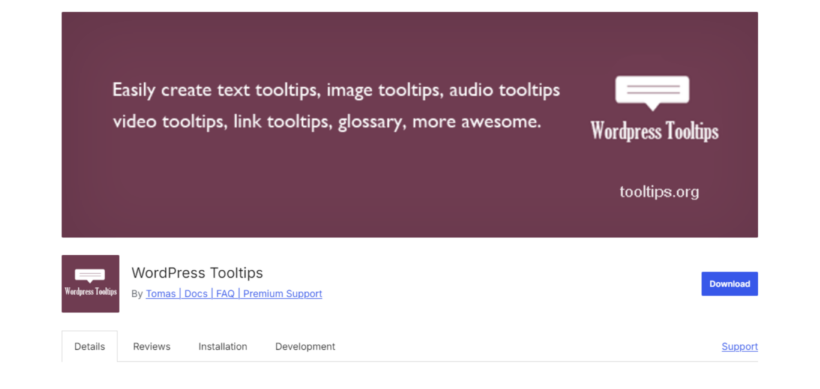
WordPress Tooltips is a simple freemium plugin built around adding tooltips to elements on a page. The tooltips are responsive, so they adapt to fit the visitor's screen.
It also doubles as a glossary plugin. It's shortcode-focused, so you control how the glossary looks on the front end through specific shortcodes. On install, the plugin creates a glossary index page that links every tooltip term. It supports multiple languages including French, Spanish, German, Swedish, and Finnish.
Pros:
- The plugin is lightweight and simple to set up.
- The plugin generates an index page automatically for SEO.
- It supports multiple languages for international audiences.
Cons:
- Tooltips are the primary feature; the glossary side is lighter.
- Shortcode-focused approach is dated next to block-editor alternatives.
Best for: multilingual sites with simple tooltip needs.
6. Name Directory
Name Directory has been around since 2013. It grew out of a request to let visitors to a bird enthusiast site suggest names for hatchlings, and that origin shows in the standout feature: frontend suggestion forms so visitors can propose new terms.
You can create multiple glossaries or indexes and embed them with shortcodes. Newest entries can be showcased to keep the glossary feeling fresh. The plugin pairs with Members for role permissions and Relevanssi for stronger search.
Pros:
- Frontend suggestion forms for community-driven glossaries.
- You can run multiple glossaries from a single install.
- It's free, and the developer responds to custom requests.
Cons:
- It's light on tooltips and modern UI features.
- The niche origin shows. It feels less polished than the larger plugins.
Best for: community-driven or crowdsourced glossaries where visitors contribute terms.
7. WP Glossary
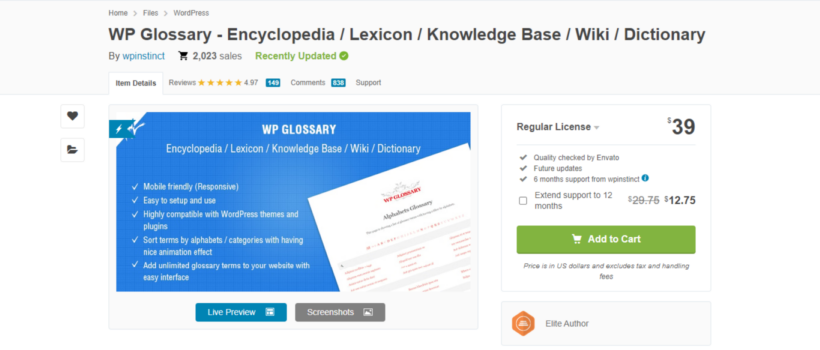
WP Glossary is a well-known CodeCanyon premium plugin for building glossaries, encyclopedias, dictionaries, lexicons, wikis, and knowledge bases. On install, it creates a standalone indexable glossary page where you add unlimited terms, or you can use an existing post type.
Useful features include the "linkify" option that automatically hyperlinks glossary terms across posts and pages, tooltips on hover, animation effects, and an instant search that shows results as visitors type.
Pros:
- It builds an encyclopedia-style index page out of the box.
- Linkify auto-hyperlinks glossary terms across the site.
- Tooltips, animations, and instant search are built in.
Cons:
- It's premium-only with no free tier on WP.org.
- The CodeCanyon distribution leads to slower update cycles than direct vendors.
Best for: encyclopedias, lexicons, and knowledge bases that need linkify and tooltips together.
How to build a WordPress glossary with Posts Table Pro
You'll notice this is the only plugin with a full tutorial. That's because Posts Table Pro isn't a dedicated glossary builder. Where the plugins above ship with glossary templates and tooltip detection, Posts Table Pro gives you a flexible table that you configure to fit any kind of glossary you can think of, from simple A-Z lists to multi-thousand-term technical references with filters.
For this tutorial, I'll build a glossary index page that lists WordPress-related terms and their definitions.
1. Create a glossary post type
First, add a "glossary" post type to your site. This adds a "Glossary" section to the left of the WordPress admin where you'll add all the terms. A free custom post type plugin handles this; Posts Table Pro then displays the terms in a searchable table.
1a. Set up a custom post type
- In your WordPress admin, go to Plugins → Add New.
- Search for the free Easy Post Types and Fields plugin and install it.
- After activation, click the new Post Types tab on the left, then Manage → Add New to create your Glossary post type.
- Enter the singular and plural names. I used "Glossary" and "Glossaries".

- Select the standard WordPress fields you'll use, then click Create.

- A new "Glossary" section appears on the left of the WordPress admin.

1b. Add custom fields and taxonomies (optional)
The standard fields cover the basics: title for the term, content for the definition. If that's all you need, skip to the next section. Otherwise, custom fields hold extra structured data per term, and custom taxonomies let you group and filter the glossary.
To add custom fields:
- Go to Post Types → Manage.
- Find the glossary post type and click Custom Fields.

- Click Add New. Provide a name and slug, pick a field type like text or visual editor, then save.
To add custom taxonomies:
- Go to Post Types → Manage and click Taxonomies for the glossary post type.

- Click Add New, enter the singular and plural names and slug. For this tutorial I added Content Type, Functionality, and User Type.

- Indicate whether the taxonomy is hierarchical, then save.
2. Add glossary terms, definitions, and other details
Next, add the terms themselves.
- Go to Glossary → Add new glossary in the WordPress admin.
- Enter the term in the title field and its definition in the content area.

- Use the menu on the right to assign taxonomy terms and any custom field values.
- Click Publish.
3. List glossary terms in a searchable, sortable, filterable table
Now display the terms on the front end.
- Purchase and install Posts Table Pro.
- Create a new table by going to Posts Table → Add New.
- Give the table a name (internal only).

- Choose the Glossary post type.
- On the Select your posts screen, choose all glossary entries (or filter to specific ones).

- Pick the columns to display for each term, renaming if needed.

- If you created custom taxonomies, add filters on the Filters page.

- Set the sort order. For a glossary, alphabetically by title is the natural default.

4. Add the glossary table to the front end
Finally, drop the table onto a page.
- Copy the shortcode from the final page of the table builder, or use the Posts Table Pro block in the block editor.

- Go to Pages, create a new page or edit an existing one, and either insert the Posts Table Pro block or paste the shortcode.

- Click Publish or Update. Your glossary is now live.
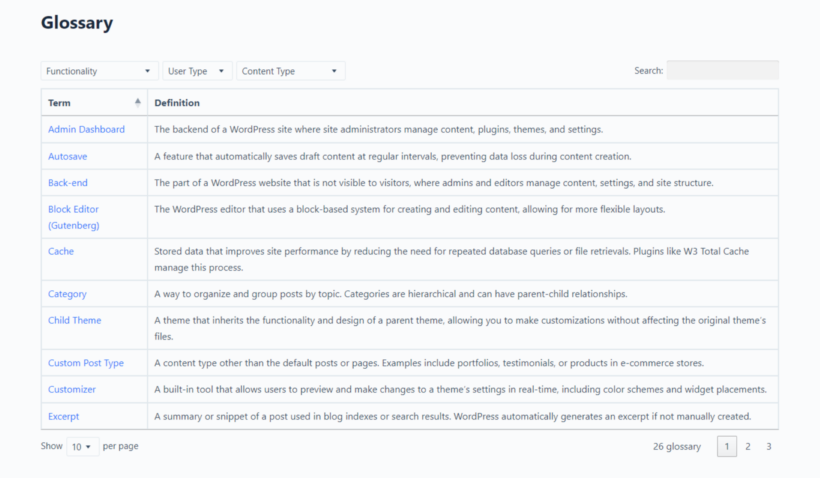
To tweak the design, go to Settings → Posts Table Pro → Design and choose Custom. You'll find options for borders, header background, text styles, and more.
Best practices for glossary entries that maximize SEO impact
A glossary's SEO value depends on how well each entry is written. Here are the techniques worth applying to every term.
Add clear and concise definitions
The whole point of a glossary is to clarify concepts. Jargon and complex explanations defeat that. Use straightforward, easily digestible definitions for every entry so users understand them quickly and search engines index them accurately.
Incorporate relevant keyphrases and their synonyms
Weave relevant keywords and their synonyms naturally into each entry so you rank for a wider range of search queries. Take care not to keyword-stuff: it hurts rankings more than it helps.
Enrich entries with contextual information
Examples and multimedia like images, audio, video, or links to related terms add value to each entry, improve engagement metrics, and keep visitors on your site longer.
Link to related content
Add internal links from each term to related blog posts, tutorials, and product pages. A strong internal link profile improves user navigation and signals content hierarchy and relevance to search engines.
Optimize titles, descriptions, and headings
Each glossary entry's H1 should reflect the primary term. Use H2 and H3 for sub-sections like examples or related terms. The clearer the structure, the better search engines understand what the page is about.
Enable schema markup
Schema lets search engines display your content in rich snippets, which improves click-through rates and visibility. Use Rank Math, Yoast SEO, or a similar plugin to add schema to glossary entries.
Which WordPress glossary plugin should you choose?
The right glossary plugin depends on how big your glossary is and how visitors will use it.
- For most freemium glossary needs with tooltips and an index, choose CM Tooltip Glossary.
- For a large or detail-rich glossary that needs real search, sort, and filter, choose Posts Table Pro.
- For a free, modern block-editor glossary, choose Heroic Glossary.
- For a tooltip-driven glossary with deep customization, choose Glossary for WordPress.
- For multilingual sites with simple tooltip needs, choose WordPress Tooltips.
- For community-driven or crowdsourced glossaries, choose Name Directory.
- For encyclopedias and knowledge bases, choose WP Glossary.
If you're stuck choosing, write down what your glossary really does. A handful of important terms scattered through your content suits a tooltip plugin. Thousands of terms with filters and categories suit a table-based approach. Whichever you pick, get the first 20 entries in and see how the page feels before deciding to switch.
Typing terms in one at a time is the slow part of a big glossary. With Setary, you can paste the terms, definitions and categories from a spreadsheet, and they become entries on the site.