How to set minimum order quantities in WooCommerce


Learn how to set minimum order quantities and amounts in WooCommerce to ensure every sale is profitable, with step-by-step instructions for using plugins or custom code.
One of the most important elements of running an online business with WooCommerce is making sure your profits outweigh your costs. There are several factors which can make this difficult:
- Low product costs - If you're selling low-cost items, then you run the risk of receiving orders which aren't profitable. After all, what happens if a customer orders a $0.99 pen and nothing else? It's probably not worth your time to package and despatch such a low value order.
- Unprofitable shipping costs - Cost of shipping can wipe out your profits if you offer fixed rate shipping methods and customers are only buying one or two inexpensive items.
As a result, you can wind up losing money on sales, dragging down your bottom line.
WooCommerce supports two types of purchase minimums: minimum quantities (item count) and minimum amounts (dollar value). WooCommerce's default minimum quantity is 1 unit per product. This article covers both types but focuses on quantity controls to prevent unprofitable orders.
What this guide covers: This guide shows how to customize WooCommerce quantity fields including defaults, minimums, maximums, and step increments. You can use a plugin (no coding required, 5-minute setup) or add custom PHP code (developers only). The WooCommerce Quantity Manager plugin offers the most comprehensive control without technical knowledge.
The solution is to implement minimum order controls. WooCommerce doesn't include these features natively, and custom PHP code is risky and time-consuming for most store owners. In this article, I'll show you how to set up minimum order quantities and amounts using WooCommerce Quantity Manager, plus provide code alternatives for developers.
How to set up minimum order quantities and amounts with WooCommerce Quantity Manager
WooCommerce Quantity Manager is a comprehensive product quantity rules plugin. It gives you total control over the quantities in your store, including the ability to add minimum order quantities and amounts.
Three ways to manage quantities in WooCommerce
Three main approaches exist for setting minimum quantities in WooCommerce.
1. Official WooCommerce extensions
Official extensions like Min/Max Quantities from WooCommerce.com let you set minimum and maximum values per product, variation, or category.
2. Third-party plugins
Third-party plugins like WooCommerce Quantity Manager provide global settings and per-product rules. WooCommerce Quantity Manager stands out for comprehensive management with user role restrictions and category-level controls not found in simpler alternatives.
3. Custom code
Developers can add functions to their theme's functions.php file using the woocommerce_quantity_input_args filter hook. Code typically applies global rules only, while plugins offer finer control.
WooCommerce Quantity Manager offers the most comprehensive approach with these features:
- Set minimum and maximum quantities - Control quantities by item count or dollar value. Examples: minimum 5 units per product, maximum $500 cart total, or requiring packs of 10. You can also set order minimums and maximum order amounts for the entire cart.
- Change the default quantity - Change the default quantity from WooCommerce's standard of 1 to any number. Higher defaults subtly encourage larger purchases.
- Set quantity step increments - Set quantity step increments for buying in multiples. Examples: steps of 5 (customers buy 5, 10, 15 units) or steps of 6 for half-dozen products.
- Manage by products, categories, variations, or user roles - Set different quantity rules per product, category, variation, or user role. You can even set user role-specific rules at the category level. Examples: wholesale customers minimum 10 units for a specific category, retail customers minimum 1 unit.
- Validation and error messages - Validation prevents checkout when quantity requirements aren't met. The plugin actively disables the checkout button and displays helpful error messages until customers adjust quantities. Works with both the classic checkout and the newer block-based checkout.
- Easy to set up and use.
- Comes with expert support, plus a 30-day money back guarantee.
The plugin integrates with WooCommerce Product Table to display quantity controls in searchable product tables and one-page order forms.
Keep reading to learn how to use the Quantity Manager plugin to add minimum order quantities in WooCommerce, step-by-step.
Step-by-step setup tutorial
- Purchase, install, and activate the minimum order plugin on your WordPress website.
- Go to WooCommerce → Settings → Products → Quantity Manager.
- Use the 'Value rules' field to set a minimum order amount for your entire WooCommerce store. Either add a minimum order price, or a minimum number of products if you prefer:
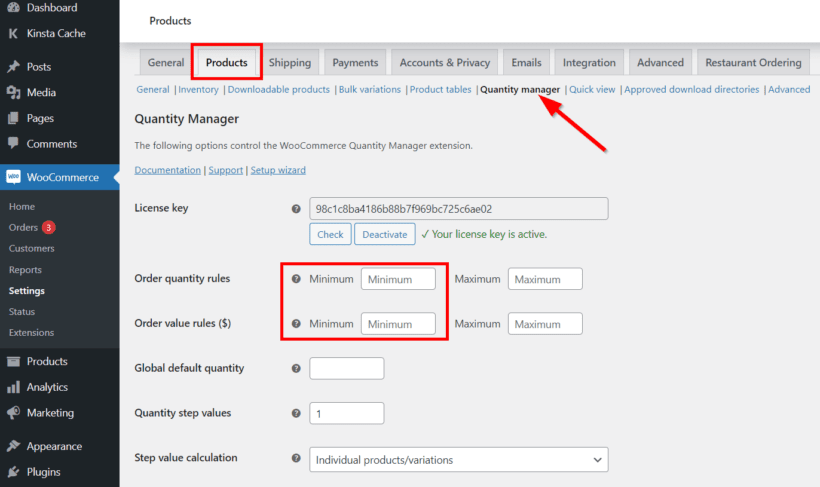
This will apply the same minimum order quantity to every item in your shop. If you prefer, you can skip this step and add different minimum order quantities per category, or even per product or variation.
To set per category: Go to Products → Categories → [select or create category] and scroll to the 'Quantity Rules' section. Category-level rules apply automatically to all products within that category and its subcategories. This makes setting wholesale minimums easy without editing individual products.
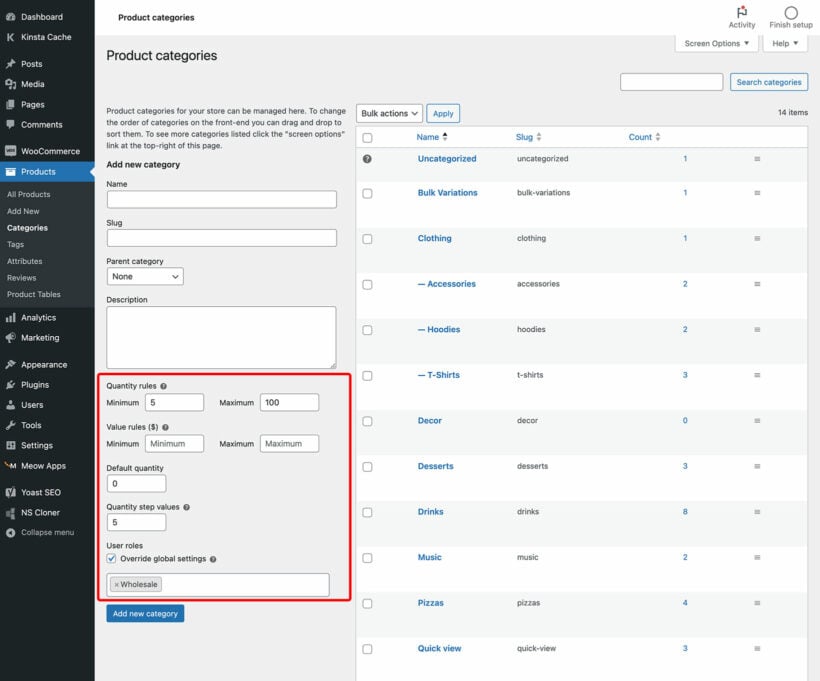
To set per product: Go to Products → Edit Product → Product Data section → Inventory tab.

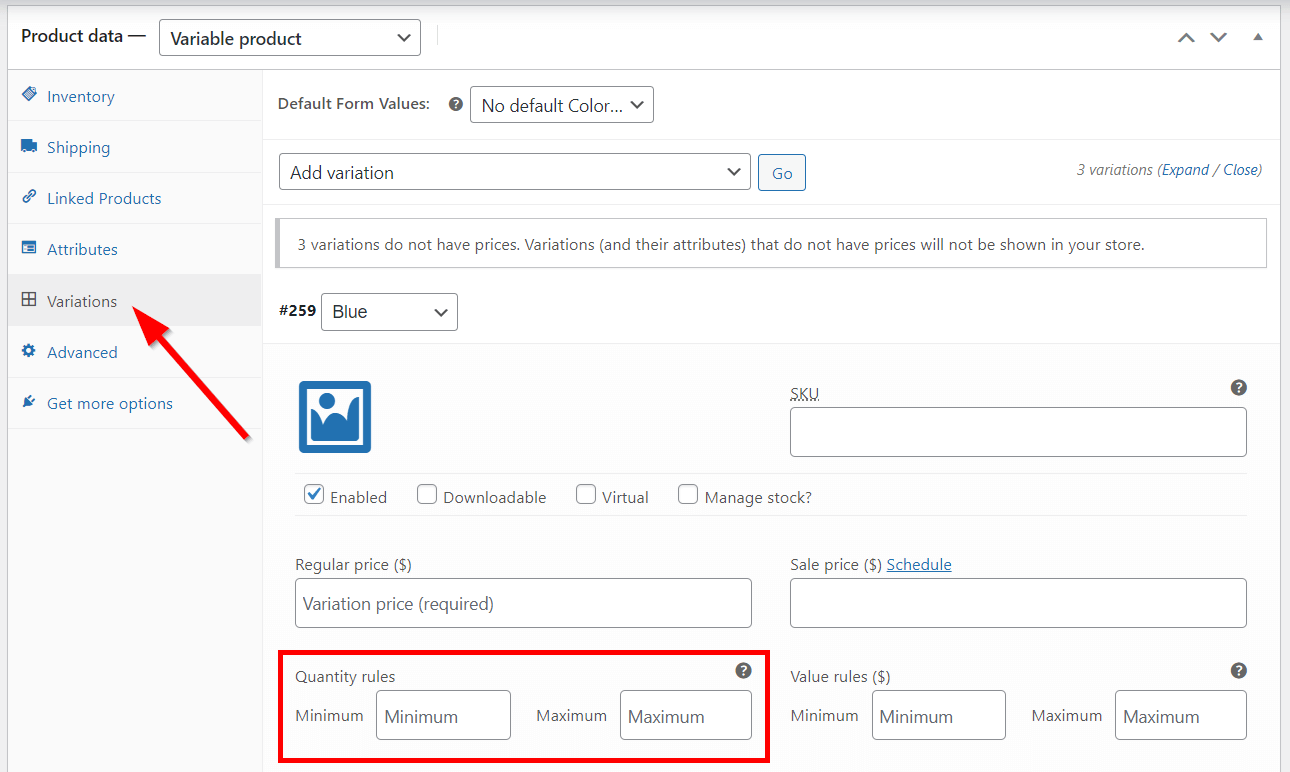
For variations, navigate to Products → Edit Product → Product Data section → Variations, select a variation, and find the Quantity Rules settings there.
Displaying quantity controls beyond product pages
WooCommerce Quantity Manager integrates with several Barn2 plugins to display quantity controls beyond single product pages.
- WooCommerce Product TableCreates searchable product tables with quantity columns, allowing customers to set quantities for multiple products before bulk checkout.
- WooCommerce Quick View ProDisplays quantity fields in lightbox popups when customers click products on shop pages, showing min/max rules in quick view.
- WooCommerce Bulk VariationsShows variation grids with quantity inputs for each variation, ideal for products with multiple size/color options requiring minimums per variation.
- WooCommerce Restaurant OrderingPowers restaurant menus with quantity controls for food items, applying minimums for delivery orders and catering packages.
- WooCommerce Fast CartDisplays quantity rules in the popup cart and checkout, letting customers adjust quantities before completing their purchase.
All these plugins respect WooCommerce Quantity Manager's quantity rules, validation messages, and user role restrictions automatically.
Compatibility: WooCommerce Quantity Manager also works with High-Performance Order Storage (HPOS), WooCommerce Subscriptions, and WooCommerce Product Bundles.
Common minimum quantity scenarios
Different business models require different quantity approaches. Here are the most common scenarios and how to configure them.
- Buying in multiples (e.g., 6-packs, 12-packs)Use case: beverages, eggs, baked goods sold by the dozen. Use quantity step increments of 6 so customers can only buy 6, 12, 18 units.
- Wholesale minimums (e.g., minimum 10 units)Use case: B2B suppliers, bulk distributors, trade accounts. Set a global minimum of 10 via the plugin settings to ensure all wholesale orders are profitable.
- Specific product packs (exactly 5 items)Use case: sample packs, gift sets, starter kits. Use the Fixed Quantity option in the plugin or set both minimum and maximum to 5 to enforce exact quantities.
- Cart value thresholds for free shippingUse case: encouraging larger orders for shipping economics. Set a minimum cart total of $50 using the value rules feature to qualify customers for your free shipping tier.
Choosing the right minimum order amount for your WooCommerce store
Although minimum order quantities can be a useful tool for WooCommerce shop owners, they must be implemented with care. Here are some factors that you should consider when making this important decision. Use them to determine a reasonable and justified order minimum which will achieve the benefits mentioned above, without annoying customers.
- Minimum profitability - What is the minimum order value which would effectively cover shipping and fulfilment costs (e.g. if you offer free shipping)?
- Customer perception - At what point is the minimum order quantity so high that it will turn away enough customers to negate the benefits? Consider getting feedback from loyal customers. Their insights can be valuable in determining a threshold they'd be comfortable with.
- Market research - Understand what competitors are doing. If you set a minimum too high, you might push customers to competitors.
- Demand for your product - Estimate how many units of an item you expect to sell over a given period, and how quickly you need to get through the stock.
- Your break-even point - What are your per unit costs, which would result in zero profit if you didn't achieve them? For example, if you stocked your store with 20 cat toys that you purchased for $40, then your break even point is $2.
- Understand your costs - Calculate all operational costs, including production, storage, shipping, and handling fees.
I recommend using a process of trial and error to find the right balance. Analyze sales data, cart abandonment rates, and customer feedback during this period to adjust the minimum order quantity as needed.
Best practices for setting minimum order quantities
Follow these guidelines when setting quantity rules for different product types.
Product type segmentation:
- Low-cost items (under $10) - Set higher minimums (5-10 units) to ensure profitability per transaction and offset fulfillment costs.
- Mid-range products ($10-50) - Use moderate minimums (2-5 units) balancing customer accessibility with order value goals.
- Premium items ($50+) - Lower minimums (1-2 units) avoid purchase barriers while using value rules for cart minimums instead.
Communication best practices:
- Display rules prominently - Show quantity requirements on product pages, cart, and checkout to prevent surprise at payment.
- Use guiding language - Frame validation messages positively ("Add 2 more items to qualify for free shipping") rather than blocking ("Order doesn't meet minimum").
Monitoring approach: Start conservative with minimums and increase gradually based on data. Track AOV and cart abandonment weekly for the first month, adjusting rules if abandonment increases significantly.
Strategies to implement minimum order quantities
Setting minimum order quantities in WooCommerce is largely about you, the store owner or manager. It's a way of guaranteeing your profitability, and while you don't want to put customers off, it's not directly designed to benefit them.
However, you can achieve a win-win situation by using minimum order quantities alongside strategies which allow customers to actively benefit from placing higher value orders. This can make a big difference to your bottom line and customer satisfaction by aligning your interests.
Some examples
- Tiered discounts - Offer bulk discounts at cart thresholds (5% off $100+, 10% off $200+) to incentivize larger purchases.
- Bundling - Create product bundles priced just above the minimum. This encourages users to opt for bundles and ensures profitability.
- Loyalty programs - Introduce loyalty programs where customers accumulate points based on order value. Set redemption thresholds that encourage meeting the minimum.
- Seasonal promotions - Introduce limited-time items or discounts that require customers to reach a certain cart value. Seasonal sales like Black Friday are a big part of this.
- Limited-time items - Build a sense of urgency and exclusivity, encouraging customers to add items to their cart on that particular shopping visit.
Important clarification: WooCommerce Quantity Manager controls HOW MUCH customers buy through minimums, maximums, and step increments. For price changes based on quantity purchased (bulk discounts, tiered pricing), you need a separate dynamic pricing plugin. Combining quantity controls with dynamic pricing creates powerful incentive systems for bulk purchases.
How to communicate quantity requirements and cart minimums to customers
To prevent frustration and cart abandonment, you should communicate the minimum order quantity from the moment visitors land on your website. You can do this using banners, cart page notifications, and also during the checkout process.
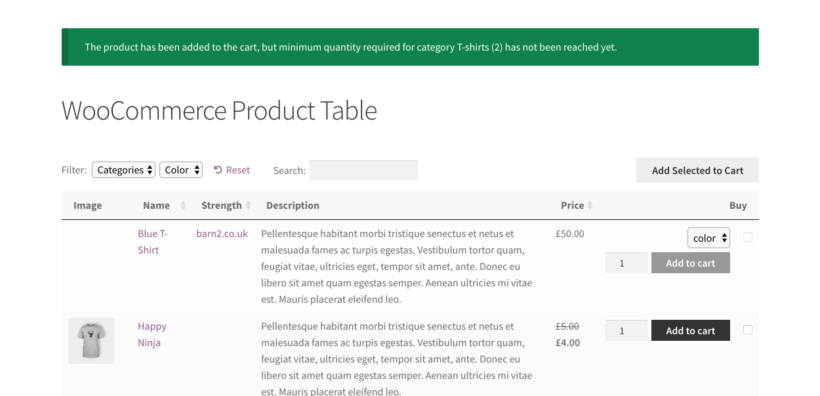
Banners are a good way to communicate a global minimum order quantity. In contrast, more functional messages on individual products or categories will work if you're using more specific minimum purchase messages. For example, this screenshot shows WooCommerce Quantity Manager combined with our WooCommerce Product Table plugin. The minimum order validation takes place inline, and clearly advises customers of the minimum quantity for each product:
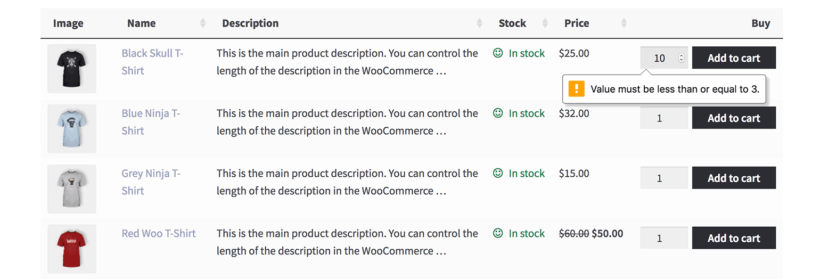
Be creative and word your minimum order messages positively, rather than sounding like a rule or command. The aim here is to positively guide customers into ordering the right amount. One way to do this is to remind them of the other products they will benefit from. That way, they don't feel they're adding items to the cart just to meet the minimum order quantity.
Measuring the impact of order minimums on your business
Monitor these metrics after implementing quantity rules to assess impact and make data-driven adjustments.
- Average Order Value (AOV) - Calculate total revenue divided by number of orders. Track monthly to measure the impact on AOV.
- Cart abandonment rate - Watch for spikes indicating minimums may be too high or poorly communicated.
- Customer behavior patterns - Are customers adding more items to meet minimums? Using bundles? Bouncing at cart?
- Support inquiries - Increased questions about quantity rules may signal confusion requiring clearer messaging.
Start conservative with minimums and increase gradually based on data. If abandonment spikes significantly, lower minimums or add incentives like free shipping thresholds.
Related tutorial: 3 ways to hide prices in WooCommerce.
FAQ
What are minimum order quantities and amounts in WooCommerce?
A minimum order quantity is the lowest number of items or dollar value that must be in a shopper's cart before they can access the checkout page and complete their order.
WooCommerce minimum order quantities are helpful for many different types of shops, including:
- Wholesale and bulk suppliers - Setting minimum order quantities ensures that handling and shipping is cost-effective and efficient, allowing you to receive bulk WooCommerce orders only.
- Specialty and niche ecommerce stores - Customers often start browsing your other products when they realise they need to meet a minimum quantity for their cart subtotal. As a result, it encourages users to explore a wider range of your products, beyond the specific item they searched for.
- Custom product creators - If you build custom or made-to-measure products, then setting quantity minimums for each order can help justify customizations and ensure clients are invested in the products they are ordering.
Why set minimum order quantities and amounts?
There are lots of reasons to add minimum order quantities in WooCommerce. Here are some of the main benefits:
- Covers or offsets the cost of shipping low-cost items - Ensuring that every order exceeds a minimum quantity means that you can charge competitive prices for shipping. You know you'll be making at least a minimum profit margin on each order.
- Increases average order value - By encouraging customers to purchase more, you can pretty much guarantee that your average order value will be higher than if there was no minimum. After all, you are only accepting sales with a higher order total!
- Encourages bulk purchasing - A minimum threshold nudges customers to buy in larger quantities. This is a popular strategy in WooCommerce wholesale stores using our WooCommerce Wholesale Pro plugin.
- Improves operational efficiency - Processing and shipping smaller orders can be expensive. A minimum order quantity in WooCommerce ensures that every fulfilled order justifies the operational cost. Your warehouse and despatch teams only have to focus on medium or large orders.
- Provides opportunities for cross-selling and upselling - When customers have to spend at least the minimum order amount, they're actively looking for ways to reach this minimum. As a result, they will respond more favorably to your cross-selling efforts, for example displaying related products above the add to cart button or in a popup cart.
- Creates one-stop shopping - Forcing customers to place larger orders and order multiple items makes them more aware of your full product range.
- Boosts inventory turnover - It can help move products faster, reducing the risk of dead stock.
For guidance on monitoring and adjusting your quantity rules based on performance data, see the 'Measuring the impact' section above.
Can I set minimum quantities with custom code?
Yes, developers can use the woocommerce_quantity_input_args filter hook to set minimum quantities via custom code. Add functions to your theme's functions.php file or use a code snippets plugin for safer implementation.
For cart validation, hook into woocommerce_check_cart_items to enforce minimum quantities at checkout. Code typically applies global rules only, while plugins like WooCommerce Quantity Manager offer per-product and per-category control.
Where are WooCommerce's native quantity settings?
For individual products: Products → Edit Product → Product Data section → Inventory tab for stock management.
For store-wide settings: WooCommerce → Settings → Products → Inventory for global stock controls.
Native WooCommerce manages stock levels only. Minimum and maximum purchase controls require plugins like WooCommerce Quantity Manager.
Can I use decimal quantities for weight-based products?
WooCommerce Quantity Manager controls whole-number quantities (1, 2, 3 units per product). For fractional quantities needed for weight-based products (0.5 kg, 1.25 meters), use WooCommerce Product Options with specialized decimal quantity pickers.
Both plugins work together for comprehensive quantity control: WooCommerce Quantity Manager for min/max rules, Product Options for decimal inputs. See Barn2's guide on decimal quantity increments for complete implementation steps.
How do I maintain minimum order quantity rules over time?
After implementing minimum order quantities, monitor your key metrics monthly. Track average order value (AOV) and cart abandonment rates to assess whether your minimums are helping or hurting sales. If abandonment increases significantly, consider lowering your thresholds or adding incentives.
Use WooCommerce Quantity Manager's flexible settings to test different rules per category. For example, try higher minimums on low-margin products and lower minimums on premium items. Review customer support inquiries for confusion about quantity rules, and adjust your validation messages accordingly. Regular optimization based on real data will help you find the sweet spot between profitability and customer satisfaction.
Start controlling order quantities today
Setting up minimum order quantities is a strategic move you can use to reach a variety of business goals, including:
- Improved profit margins through shipping and handling cost mitigation.
- Improved AOV and boosted bottom line.
- Opportunities for upselling and cross-sales.
The WooCommerce Quantity Manager plugin makes it quick and easy to add minimum order quantities in WooCommerce. WooCommerce Quantity Manager is the most comprehensive quantity management plugin for WooCommerce. You can set a global minimum order value or quantity for the entire cart. Alternatively, you can set different order minimums per category, product or even per variation. This gives you everything you need to ensure that every sale is profitable, whatever type of products you sell.