2 methods to show single variations on the WooCommerce shop page


Are your customers tired of clicking into each product page to find the right variation? In this article, I'll walk you through 2 reliable methods for showing single variations directly on the WooCommerce shop page.
By showing variations on the shop pages, customers get all the product data they need on a single page. This eliminates the need for them to visit individual product pages, resulting in a more seamless and faster shopping experience.
I'm writing this following recent changes to Iconic's Show Single Variations plugin. The Iconic brand has now been discontinued, and the plugin has been merged into something called Kadence Store Kit. Its future as a standalone product is unclear, so lots of store owners are looking for a reliable alternative.
If you already use Show Single Variations, the plugin should keep working. For a new store though, the bundled approach has trade-offs. Kadence Store Kit ships with features you may not need. Show Single Variations is also no longer being actively developed on its own.
Below, I cover 2 reliable methods for showing single variations on the WooCommerce shop page using Barn2 plugins:
- WooCommerce Product Table - Display each variation as a separate row in a tidy order form. Customers see images, prices and add to cart buttons for every option at a glance.
- WooCommerce Product Filters - Add rich filtering to your existing shop and category pages. A new feature is coming soon that will split each filtered variation out as a separate item.
Why does WooCommerce make it so difficult to select variations?
What are WooCommerce product variations?
WooCommerce product variations are different versions of a single product. They allow customers to choose their preferred option based on features such as color, size, or material.
For example, if you're selling t-shirts, you could offer different color variations like red, blue, or green. Additionally, you could also provide different size options like small, medium, or large. Each combination of color and size is a separate variation of the parent product.
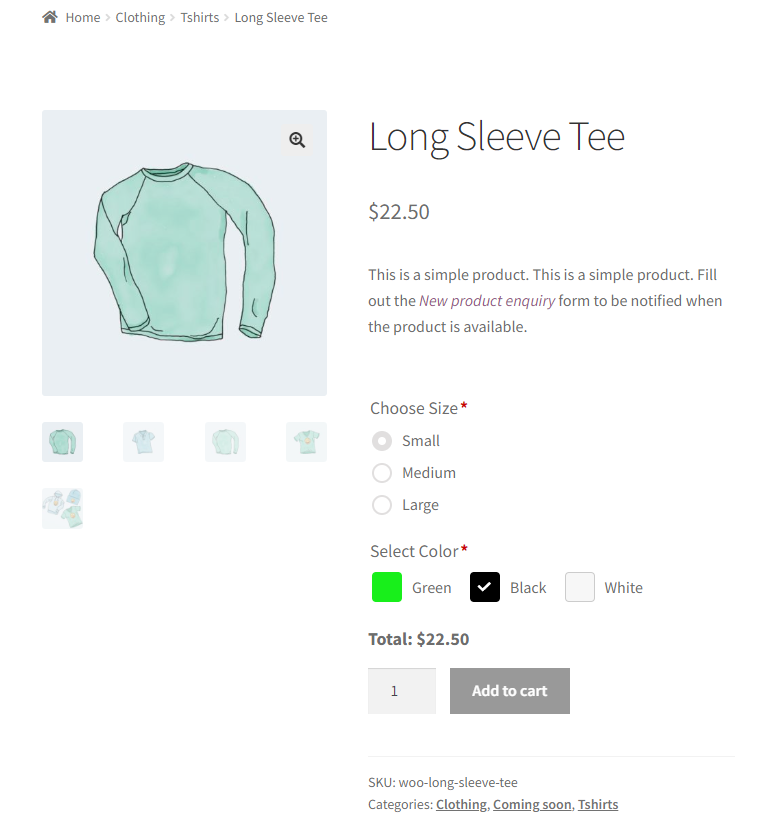
There are lots of benefits to offering product variations because of the flexibility they offer. However, you need to show them in appropriate places on your site - and unfortunately, WooCommerce isn't great at that.
Does WooCommerce allow you to show variations?
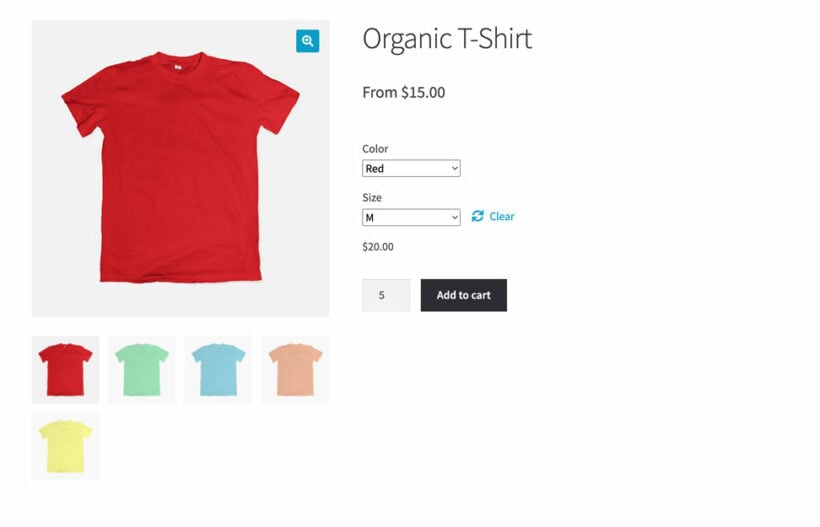
Yes, WooCommerce does allow you to show variations on product pages. Customers can visit the individual product pages, select their preferred variation and click the add to cart button:
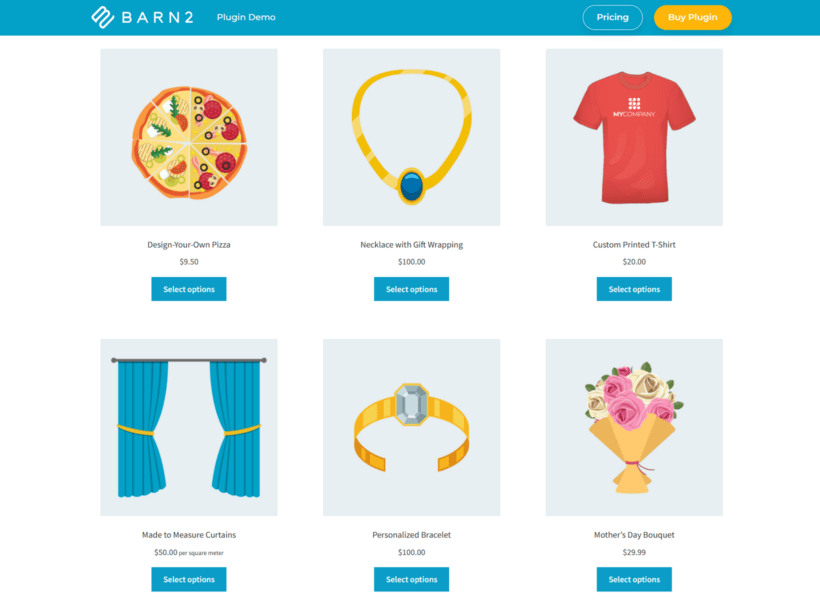
However, variations are not displayed on the WooCommerce shop and category pages. Instead, WooCommerce shows a Select options button linking customers to the single product page to view and choose the variation:
This process can be inconvenient for customers as it slows down the shopping experience and can be frustrating for those who simply want to select their preferred variation from the shop page itself.
This is where the 2 methods below come in. Both let customers see and pick the exact variation they want, directly from the shop page. There's no need to click through to a separate product page first.
Why should you show variations on your WooCommerce shop pages?
Showing variations on your WooCommerce shop pages can have massive benefits for your online store. Here are some:
- Streamlined customer experienceDisplaying variations on your ecommerce shop pages allows customers to see and select their preferred options directly from the shop page. This saves them from visiting single variation pages.
- Quicker product selection and purchasing processWith the convenience of variation dropdowns on the shop page, customers can quickly select variations of their choice, speeding up the product selection and purchasing process.
- Reduced likelihood of cart abandonmentBy showing variations on the shop page, you reduce the likelihood of cart abandonment as customers can quickly find and purchase the product with their preferred options.
- Increased sales and conversion ratesDisplaying variations on your online store shop page can help boost your sales and conversion rates by creating a more user-friendly and efficient shopping experience for your customers.
Use case examples: Products that shine with shop page variations
Below are a few use cases where showing product attributes on the shop page is particularly effective.
- Clothing items with multiple sizes and colorsCustomers can quickly and easily see which size and color combinations are available, allowing for a streamlined shopping experience. By showing WooCommerce variations as separate products, customers can see all the color options at a glance.
- Customizable products with multiple options.ecommerce stores that sell phone cases can simplify their shop pages by displaying individual phone models as a variation option. This makes it easier for customers to select their specific phone model from a dropdown menu and proceed directly to the checkout process.
- Electronics with different specifications.Electronics with different specifications may have different pricing and configurations. With shop page variations, customers can quickly select their preferred configuration, leading to a faster checkout experience.
- Furniture with various materials and finishes.Customers can quickly see the different variations of the same furniture piece and visualize how it'd fit into their home decor.
Method 1: Create a shop page order form with variation dropdowns
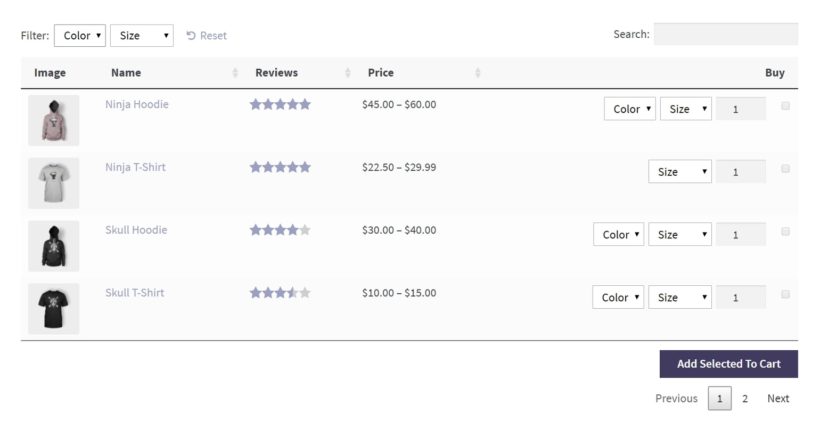
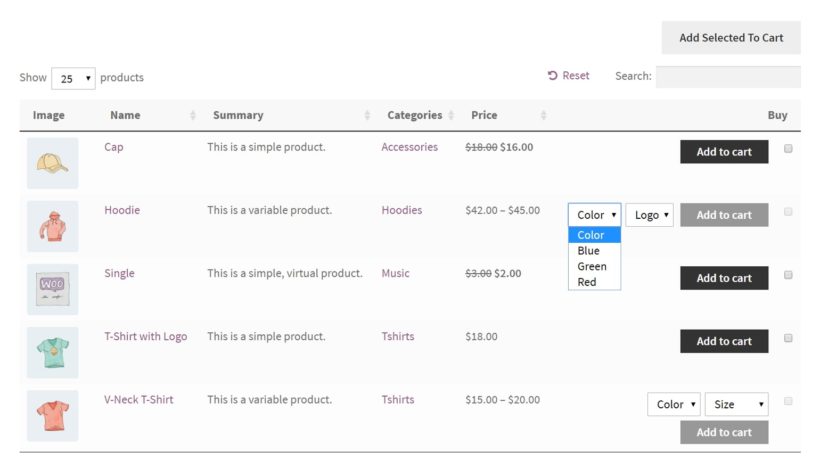
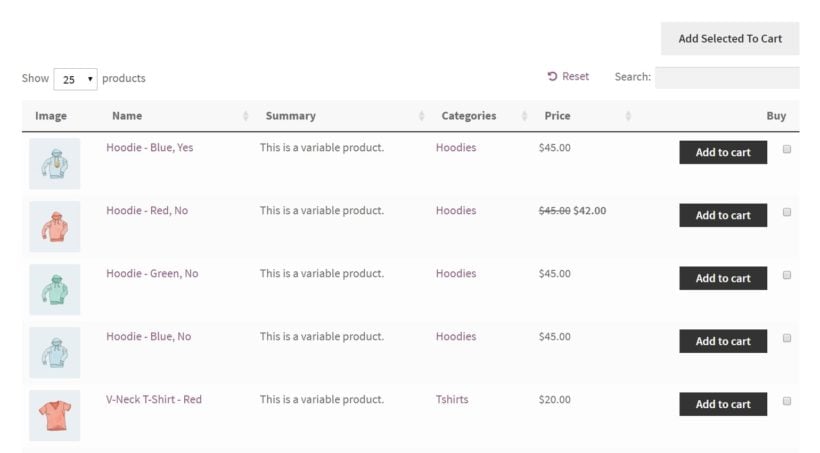
WooCommerce Product Table Pro is a WordPress variations plugin that lists variable products in an organized, attractive order form. And even better, it can display WooCommerce variations on the shop page in two ways: as separate products or as dropdown lists:

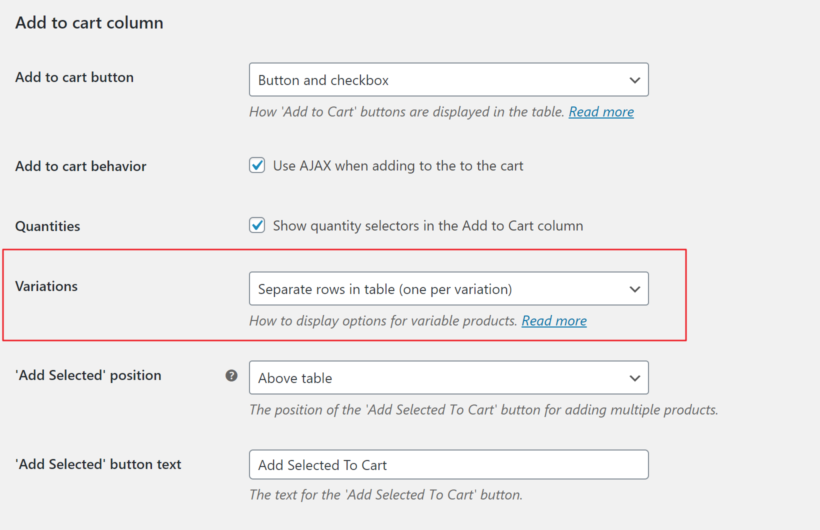
Plus, you can customize how the table looks and what it contains. To show the order form with variations on the shop page, just tick the relevant box in the settings page.
Before you start, here's how to add variable WooCommerce products
First, you’ll want to have a WooCommerce shop ready to go. You can use either a new or an existing WooCommerce store – the choice is up to you. Let’s get to work! Let’s take a quick look at the process of adding variations in WooCommerce in case you haven't already done this.
First, create product attributes
Imagine that you want to set up a clothing store. To add variations per product, first visit the Products → Attributes tab:
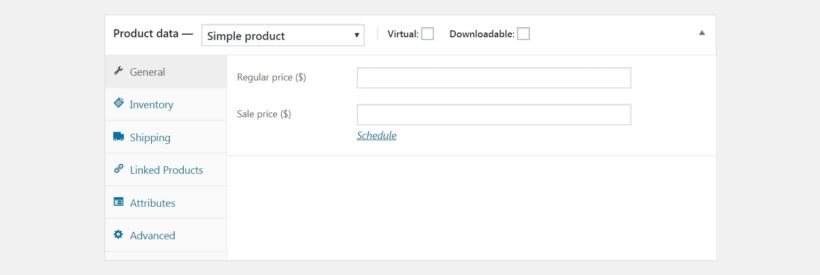
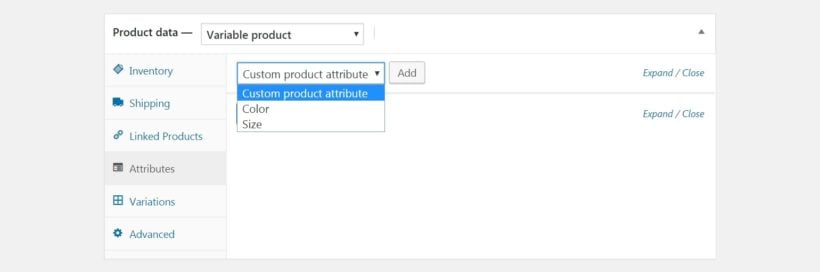
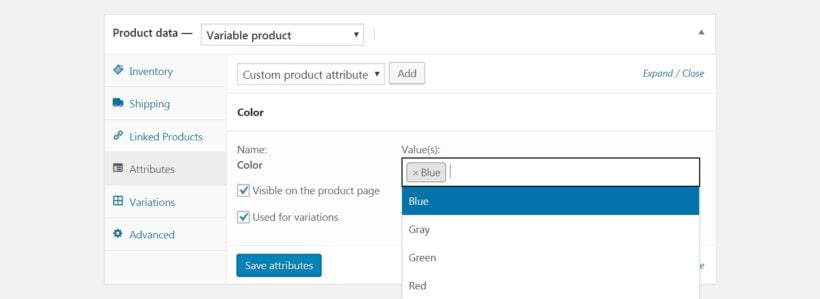
Attributes are key descriptors for your products and are required for variations to work properly. So you’ll want to add in all the attributes here that apply to your products. For more details, check out our complete guide to displaying product attributes in WooCommerce. Then, open up a new or existing product in WooCommerce, and scroll down to the Product data section: At the top, you’ll want to select Variable product from the dropdown menu. This will alter the customization options you see for this product. You may notice that there’s now a Variations tab – but don’t go there just yet. First click on Attributes, choose one that applies to the current product from the dropdown menu, and select the Add button: Check the box labeled Used for variations, and pick all the relevant attributes in the Value(s) field that apply to your variable product. For example, these can be different colors or sizes. You can also set global attributes for all products or individually per product. Then, select Save attributes: Now head to the Variations tab, and click on Go to create variations. On the next screen, you can create your first variation by selecting one of the product's attributes: You can now fill out any specific information that applies to your specific variations. This includes the item’s price, size, and so on. Save your changes when you’re done, and you can continue adding more attributes and variations as needed. After that, you’ll want to do the same with all other products that come in multiple options. Now that you've set up your variable products, you're ready to display them on the shop page. I'll tell you how to do that next. Setting up a product table and using it to display product variations couldn’t be easier. Which variations option you choose is completely up to your personal preference. Show as dropdown list is the first choice, and will place a drop-down menu for each variation next to the Add to Cart buttons: This lets customers easily select product variations on the WooCommerce shop page, and then add whatever they want to their carts by ticking the checkbox. If you select Show as separate rows, on the other hand, here’s what you’ll see: Each hoodie and t-shirt variation is now its own row in the table. This is a bit less concise – and takes up more space – but it makes the shop page variations more prominent. It also lets customers choose more than one version of a product (for instance, they could buy both a blue and a red hoodie). It does this without creating a new product in WooCommerce. Ultimately, either of these options will be effective, and will make it much simpler for customers to select product variations on the WooCommerce shop page. We’d suggest experimenting with both, to see what looks better to you. Once you're done, visit the WooCommerce shop page and test it. You'll see the variations appearing on the shop page, making it much easier for customers to choose variations. WooCommerce Product Filters adds rich, AJAX-powered filtering to your existing shop and category pages. Customers can narrow products by attribute, price and other criteria without changing the underlying layout. Today, the plugin lets shoppers filter by color swatches, image swatches, checkboxes, price sliders and more. Even before any single-variations feature ships, the filter UI works on day one. Customers can narrow a clothing catalog to just the blue items. Or filter a furniture shop to just the oak finishes. We're releasing a new single variations feature in WooCommerce Product Filters in the next few weeks. It will let you display each variation that has its own image or price. Each one will appear as a separate item on the shop or category pages. There will be 2 modes to choose from: The filter-driven mode is the more elegant of the two. For example, a customer ticks the blue color swatch. Only the blue variations of each product appear in the results. Each one shows with its correct image and price. The shop page stays tidy by default, and the detail surfaces only when it's useful. I'll update this article when the feature ships. In the meantime, you can install WooCommerce Product Filters today. The filtering side of the experience works right now, ready for the upgrade when it lands. So far, we've looked at how to use WooCommerce Product Table and WooCommerce Product Filters to show single variations on your main shop page. To enhance your store even further, you can use either plugin with these additional extensions: Let's be honest - variations are a pretty basic way of displaying product options. They can only be displayed as dropdowns (or as individual products, if you're using the "separate variations" option in WooCommerce Product Table). This isn't ideal for letting customers personalize your products. For more flexibility, you can create product add-ons using the WooCommerce Product Options plugin instead of (or as well as) using product variations. For example, this screenshot shows products with a wide variety of options including checkboxes, color variation swatches, text fields, and radio buttons: When you use WooCommerce Product Options with the WooCommerce Product Table plugin, you can display these add-ons inline on the shop page. This means that customers don't have to navigate to the single product page. They can easily view and select from all available options for a product, including add-ons, directly from the shop page. WooCommerce Product Options works with both simple products and variable products. This means that you can either add extra options to simple products, or alongside your existing variations. Displaying variations on shop pages can improve the overall user experience and boost sales. In this article, we've looked at two different ways to display variations on the shop page and category pages: Both plugins are easy to set up and work with any theme. The best part? They each come with a 30-day money-back guarantee, so you can try and see if it's a good fit.
Next, use the attributes to create variations

How to show product variations on the WooCommerce shop page
2 ways to display variations on the shop page
Method 2: Use WooCommerce Product Filters

Coming soon: show single variations through filtering
Additional plugins to enhance your store even further
Display WooCommerce product add-ons on the shop page
Ready to show variations on the shop page?