6 best WordPress user roles plugins (including the free user role editor)


Looking for a free WordPress user roles plugin? WordPress gives you only a handful of fixed roles out of the box, so you'll want a plugin for finer control. I've compared the six best free options below, with the pros and cons of each.
While WordPress comes with five default user roles (Administrator, Editor, Author, Contributor, and Subscriber), these preset permissions often prove insufficient for growing websites with multiple contributors. Default roles can be too rigid when you need granular control over what different team members can access and modify.
Below, I've picked the best free plugin for each common task - creating custom roles, adjusting permissions, handling user registration and more - so you can extend WordPress beyond its built-in capabilities. I'll then point you to a few premium options for restricting what each role can access on the front end.
Quick verdict: the best user roles plugin for the job
These plugins do different jobs, so the best one depends on what you need. Here's the short answer before the full comparison below.
- Best overallUser Role Editor is the most popular choice for editing capabilities and creating custom roles, with a free version that covers most single-site needs.
- Best for front-end registrationUser Registration lets visitors sign up through a form and assigns them to a role automatically.
- Best for hiding content by roleUse Password Protected Categories to restrict WordPress posts, pages and custom post types, or WooCommerce Protected Categories for WooCommerce product categories.
- Best for bulk user importsImport and export users and customers brings users in from a CSV and assigns them to roles as it goes.
My criteria for choosing these user roles plugins
User roles plugins cover a few different jobs, so I didn't rank them as straight alternatives. Instead, I picked the best free option for each task and compared them on what matters:
- What job it does - editing capabilities, creating roles, front-end registration, hiding admin areas or bulk-importing users.
- Free vs premium - what the free version covers and what's held back for the paid tier.
- Ease of use - whether the interface is approachable for non-developers.
- Maintenance and trust - I checked that each plugin is actively developed, recently updated and well reviewed on WordPress.org.
What's the difference between a user roles plugin and the User Role Editor plugin?
A WordPress user roles plugin is any plugin that adds, edits, or restricts roles and capabilities. The category covers tools for creating new roles, hiding parts of the dashboard, restricting front-end content, and more.
User Role Editor is one specific plugin in that category, published on wordpress.org by Vladimir Garagulya. It focuses on editing role capabilities and creating custom roles. You can read our review of User Role Editor further down this page.
How do I change a user’s role in WordPress?
To change someone’s role in WordPress, open Users in the dashboard, hover over the person, and select ‘Edit’. Set the ‘Role’ dropdown to the role you want, then save.
To go further than the five built-in roles, install User Role Editor, open Users → User Role Editor, and tick or untick individual capabilities to build a custom role. On a WooCommerce store, pair role changes with WooCommerce Wholesale Pro for role-based pricing or WooCommerce Protected Categories to hide products from the wrong roles.
6 best free WordPress user roles plugins
Here is our selection of the top plugins for adding and editing user roles, and WordPress permissions plugins for editing your site.
These plugins are not direct alternatives to one another. Each free version of the WordPress user roles plugin brings a unique set of features to the table, and we have chosen the best one from each category.
Together, they give you full control over adding and managing WordPress user roles. Mix and match them to add the exact features you need.
Note: These plugins focus on the WordPress back end. They don't affect which parts of your public-facing website the user can see. For example, they won't restrict pages or posts to certain user roles. For front-end control, you can pair them with one of the premium version plugins mentioned later in this article.
User Role Editor
Great for:
- creating new user roles
- modifying the default user roles' permissions
The User Role Editor plugin is the most popular WordPress user roles plugin of them all. You can use it to do two main things:
- First, WordPress User Role Editor lets you browse through the current user roles on your site and the WordPress permissions plugins each of them has. For instance, a common problem for blogs that work with multiple authors is that Contributors can't upload images to accompany their posts. Using this plugin you can assign that capability to all Contributor accounts.
- Second, you can create completely new user roles with WordPress User Role Editor plugin as well. Then, you can assign specific capabilities to these new roles. For example, this is useful if you're creating a WordPress client portal and need to create a "Client" user role.
Cons: The interface looks dated and exposes a lot of technical capability names at once, which can feel overwhelming. Per-user capabilities, multisite support and import/export are reserved for the Pro version.
User Registration
Great for:
- enabling front-facing user registration forms
- assigning new users to specific user roles
It's easy to imagine multiple scenarios in which a site might need publicly available user registration forms. This plugin gives you exactly that.
It's easy to use, there's a drag-and-drop interface for form building, and there are even some templates to make your work faster.
Then, what this plugin also does is it allows you to assign these new users to a specific user role on your site. You can probably imagine the possibilities this creates when you pair it with User Role Editor or any of the other plugins on this list.
Cons: It has grown into a full membership and registration suite, so it's more than you need if you only want to assign roles. Many of the advanced fields and membership features sit behind the paid plans.
PublishPress Capabilities
Great for:
- creating new user roles
- showing/hiding menu items based on user role
- duplicate an existing user role
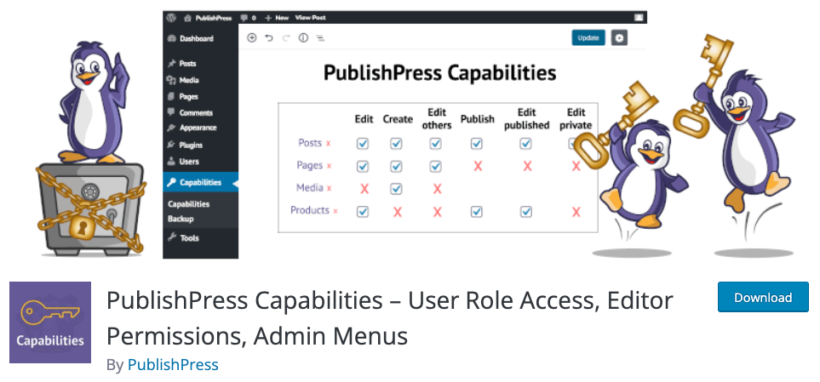
In simple terms, this is a good alternative to User Role Editor if you're not enjoying that plugin for whatever reason. PublishPress Capabilities is slightly less popular, but not any less functional.
You can create a new user role from scratch or duplicate an existing one with this WordPress user roles plugin. These newly created roles can then be assigned to individual sites or WordPress multisite networks.
But apart from that, one original feature that you'll find in this plugin is the ability to show/hide menu items based on the user role of the person viewing it. Again, this won't restrict any specific area of your site from the user, but only hide or show individual menu items.
Cons: It's slightly less widely used than User Role Editor, and the more advanced access-permission controls are part of the Pro version.
Hide Admin Bar Based on User Roles
Great for:
- hiding the admin bar based on the user role
This is a great single-purpose plugin for anyone who wants to hide that pesky admin menu bar from the top of the screen for logged-in users.
Why you'd want to do that? Well, it's not very professional for normal users to see the WordPress admin bar at the top of your website, even if they have an account and are logged in. Normal users should be able to manage their accounts from the front end and never see the admin panel or bar.
This plugin lets you hide the bar unless the person viewing is an Administrator (or whatever user role you think is suitable).
Cons: It does one thing only - hiding the admin bar - so it isn't a role editor in its own right. It also has the smallest user base and lowest rating of the plugins here, though it still does its single job reliably.
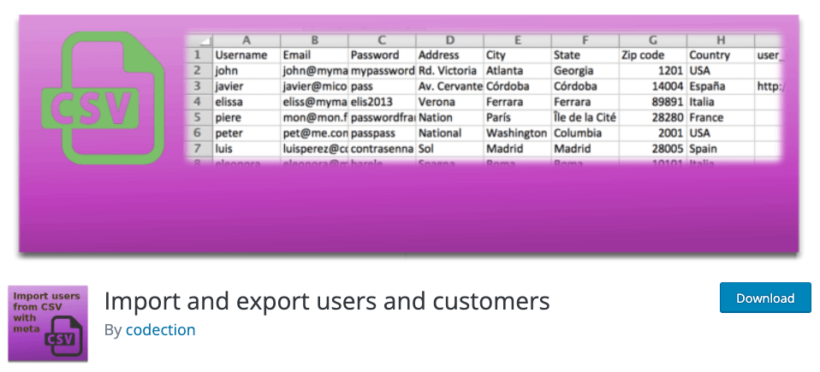
Import and export users and customers
Great for:
- bulk-importing user accounts and assigning them to roles
By default, WordPress is pretty good at importing data from other WordPress sites. However, if you have a standard CSV file with a bunch of user data in it, then you might encounter some issues with your file manager.
This is where this aptly named plugin comes into play and offers a helping hand. It lets you take any CSV with user data, map it to corresponding WordPress user data points, and bring it all in through a simple UI.
The best part is that it will also assign those new users to specific user roles that you have on the site. This is particularly useful when importing customer data to WooCommerce.
Cons: This is a bulk import and export tool rather than a role editor, so you'll pair it with one of the others to create or edit the roles you assign.
Melapress Role Editor
Great for:
- creating, editing, and deleting custom user roles
- managing complex role setups with multiple roles per user
- improving security with capability-level allow/deny controls
Melapress Role Editor is a user-friendly WordPress user role editor designed for site owners who want fine-grained control without the complexity. It has an intuitive interface and guided wizards, making it easy for both technical and non-technical people to use.
It gives you complete visibility and control over every user role on your site. You can quickly adjust capabilities, allow or deny specific privileges, and even assign users to multiple roles when the situation gets more complex. For example, if you need an Editor who can also manage WooCommerce-related tasks, you can give them both roles without creating an entirely new one.
On top of this, the plugin comes with thoughtful quality-of-life features such as automatic change detection, the ability to restore previous configurations and built-in backups. It also has native support for popular plugins, including WooCommerce, Yoast SEO and Easy Digital Downloads. All of this adds up to a tool designed to make role management safer and clearer.
Cons: It's the newest plugin here with very few reviews so far, so it has less of a track record than the established options. The deepest features sit in the premium tier.
WordPress user roles plugins compared
Here's how the six free plugins compare at a glance. They do different jobs, so the right one depends on the task in front of you.
| Plugin | Free version | Main job | Creates or edits roles | Pricing |
|---|---|---|---|---|
| User Role Editor | Yes | Edit capabilities and create roles | Yes | Freemium |
| User Registration | Yes | Front-end registration and role assignment | Assigns roles | Freemium |
| PublishPress Capabilities | Yes | Edit capabilities and hide admin menus | Yes | Freemium |
| Hide Admin Bar Based on User Roles | Yes | Hide the admin bar by role | No | Free |
| Import and export users and customers | Yes | Bulk import and export users | Assigns on import | Freemium |
| Melapress Role Editor | Yes | Edit roles and assign multiple roles per user | Yes | Freemium |
Restrict access to your public-facing website based on WordPress user roles
The list so far has been about free WordPress user roles plugins. However, not everything can be done using just free plugins. Particularly, you can't restrict content across various areas of your front-end site effectively.
So, as a bonus, here are some premium solutions that make a lot more possible once your roles are set up. Most of these are our own plugins at Barn2.
They handle a different job from the free role editors above: restricting what each role can access on the front end. So we've kept them separate from the main list rather than ranking them alongside it. They all work with the free plugins described above.
Password Protected Categories
Our Password Protected Categories plugin lets you restrict whole categories on your site based on WordPress user role.
Great for:
- Restricting pages, posts, and any custom post types based on user role.
There are hundreds of ways to run a simple membership site on WordPress. Most of these are pretty expensive. However, if you just need to restrict access to certain parts of your site, then our Password Protected Categories plugin handles the job more than well.
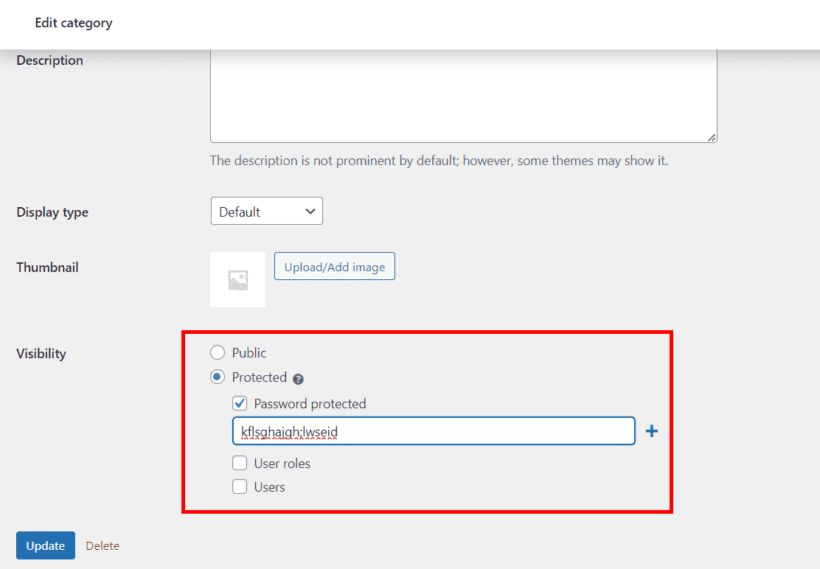
As the name suggests, this WordPress permissions plugin takes any post or page category and restricts access to it. Visitors get in by knowing the password or by having a user account assigned to a specific role.
For instance, you can create a new WordPress user role using any of the free plugins above and call it Member or something similar. Then create a new category for your members-only content, and use Password Protected Categories to pair the role and the category.
If you want to, you can even have a selected role in which individual users can access each category and its posts.
Pro tip: By default, WordPress doesn't let you create categories for pages. Use this free plugin to do it. You can then hide them based on user role with Password Protected Categories.
Cons: It's a premium plugin, and it focuses on category and password restriction rather than full membership features like drip content or member dashboards.
Add user role-based features to a WooCommerce store
Before we finish, let's look at some plugins that let you control a WooCommerce online store based on user role. For example, if you're using WooCommerce then you can restrict access to certain products based on user role, add role-based pricing, and even role-based quantity rules.
WooCommerce Protected Categories
Great for:
- restricting sections of your WooCommerce store based on user role
Our WooCommerce Protected Categories plugin works similarly to Password Protected Categories, but this time it's all about your WooCommerce store and products.
Why would you restrict access to parts of your WooCommerce store? There are a couple of use cases for this, but the most common one is when your store serves both B2C and B2B customers.
For example, the WooCommerce Protected Categories plugin lets you create a separate section in your store for your B2B product line and partners. Or, you can create VIP areas for your best customers.
The way this works is simple. First, you create a new product category and then a new user role called, say, B2B. Then, you can pair the two together.
Pro tip: If you want to hide the entire "shop" area of your site - the entire store - then use our WooCommerce Private Store plugin for that instead.
Cons: It's premium, and it restricts by category, so it's a targeted access tool rather than a complete B2B or membership system on its own.
WooCommerce Wholesale Pro
Great for:
- adding role-based pricing to WooCommerce
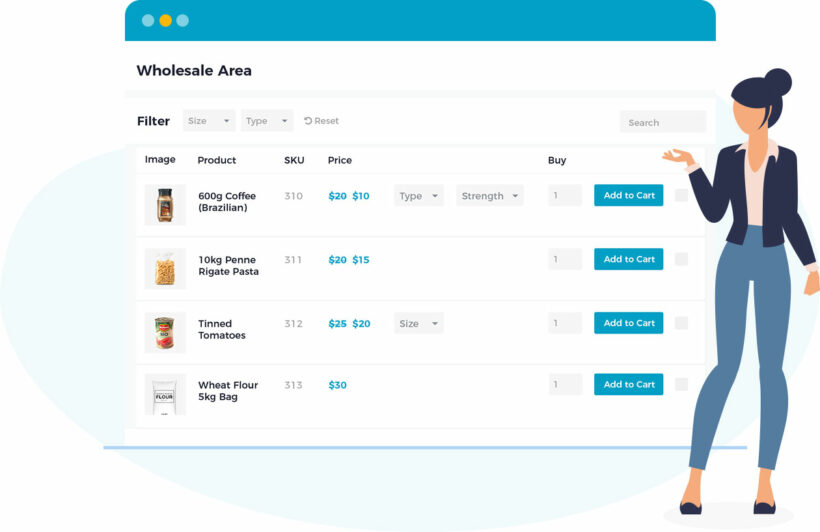
Adding a wholesale module to your WooCommerce store hasn't been the most straightforward task. The difficult thing about it is that you want your wholesale customers to be able to see the entire product catalog, just with different prices.
This is exactly what our WooCommerce Wholesale Pro plugin allows you to do. It lets you map custom product prices to new user roles.
Beyond pricing, a wholesale store usually needs related features too. With Wholesale Pro you can also charge different prices by user role, take role-based payments and shipping, and let customers register for a wholesale role. Our complete guide to creating a WooCommerce wholesale store walks through the full setup.
An important detail about this plugin is that it also lets you create those new user roles, so you don't have to use any of the free WordPress user roles plugins listed above.
Also, you're not limited to any specific number of new user roles. If you so desire, you can create five, ten, or more wholesale user levels, each with its own pricing.
Then, you can set role-based visibility and choose which products are visible to the public vs wholesale users.
Read more: Here's our in-depth tutorial on role-based pricing - everything you need to know.
Cons: It's a premium, WooCommerce-only plugin, so it's built for stores rather than general WordPress role editing.
WooCommerce Quantity Manager
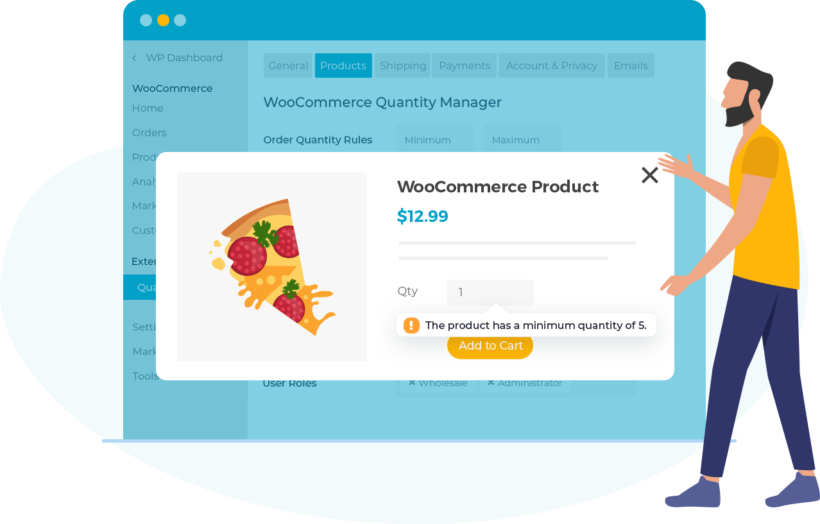
Great for:
- adding role-based quantity rules to WooCommerce
Depending on the industry you operate in and the type of products you're selling, setting minimum as well as maximum product quantities and order values starts making a lot of sense.
For example, for any hand-made product, you might want to set maximum quantities. As a counter-example, no business card printing service will let you buy just one business card, so minimum quantities make a lot of sense there.
Overall, if you're in the kind of business that needs this, you're probably well aware of it by now. Our WooCommerce Quantity Manager plugin gives you these features.
First, you can set allowed quantities per product or per category. Then, you can add user roles to the mix and allow some of your customers to order more/less.
This lets you protect your margins and make every order manageable for your casual customers, while also allowing your best customers to tailor their orders more.
Cons: It's premium and tightly focused on quantity and order rules, so it's an add-on for that specific job rather than a broad role manager.
ELEX WooCommerce Catalog Mode, Wholesale & Role-Based Pricing
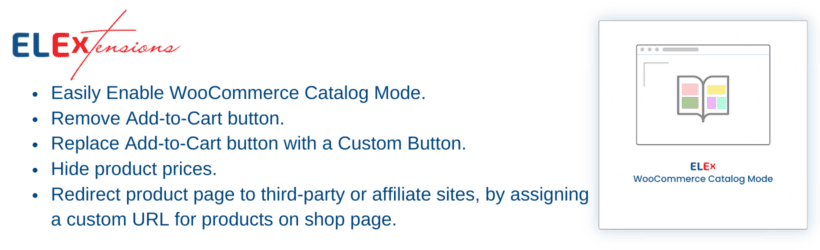
This plugin by ELEX turns WooCommerce into a product catalog and restricts it based on user role. You can create a catalog mode by hiding the 'Add to Cart' button, so customers can browse without buying.
Its main draw is role-based pricing. You can give different roles - wholesalers, VIP customers and so on - their own pricing, set wholesale pricing rules and quantity-based discounts, and hide specific prices or show custom messages per role.
Cons: The full catalog and pricing features are premium, and it's aimed at catalog and wholesale pricing rather than general role editing.
Best practices for using WordPress user roles plugins
WordPress user roles plugins can improve your site and the experience for your visitors. To get the most from them, follow a few best practices:
- Start with a plan: Before installing a WordPress user roles plugin, you need a clear plan of what you want to achieve. Consider the roles and permissions you need, the access levels required, and the users who will be assigned these roles.
- Test on a staging site: Before making changes to your live site, it's a good idea to test the plugin on a staging site. This way, you can ensure that everything works as expected and avoid any potential issues or conflicts.
- Create new roles sparingly: While it's tempting to create new user roles for every possible scenario, it's important to keep it simple. Too many roles can lead to confusion and make it difficult to manage permissions effectively.
- Use role capabilities wisely: When creating new roles or editing existing user roles, make sure to assign the appropriate capabilities. Be careful not to assign too many capabilities to a role, as this can increase security risks.
- Regularly review and update user roles: As your website evolves and grows, it's important to regularly review your user roles and permissions. Do this to ensure they still meet your needs. Update roles as necessary and remove any unnecessary roles.
- Use a trusted plugin: Make sure to use a trusted WordPress user roles plugin that is actively maintained and regularly updated. This will help ensure compatibility with the latest version of WordPress. It also reduces the risk of security vulnerabilities.
So, which is the best WordPress user roles plugin?
There's no single best plugin here, because they do different jobs. The right one depends on the task in front of you:
- To edit capabilities and create custom roles, start with User Role Editor. PublishPress Capabilities and Melapress Role Editor are strong alternatives if you prefer their interfaces.
- To let people register and land in the right role automatically, use User Registration.
- To bring users in from a spreadsheet, use Import and export users and customers.
- To restrict what each role can access on the front end, add Password Protected Categories. For a store, pair it with our WooCommerce Protected Categories, WooCommerce Wholesale Pro, WooCommerce Quantity Manager or WooCommerce Private Store.
FAQ
Is the User Role Editor plugin free?
Yes, User Role Editor has a free version on wordpress.org. The free version lets you edit role capabilities and create new custom roles. There is also a Pro version with extras like per-user capabilities, multisite support, and import/export of roles. The free version is enough for most single-site use cases.
Which WordPress user roles plugin works best with WooCommerce?
For role-based pricing, registration, and product visibility on a WooCommerce store, our WooCommerce Wholesale Pro is the most complete option. It bundles role creation with the WooCommerce-specific features you need. To restrict whole categories of products to certain roles, pair it with WooCommerce Protected Categories.
Have you experimented with a WordPress user roles plugin? Let us know how they're performing for you.
How do I create a custom user role in WordPress?
WordPress has no built-in screen for creating a role, so you need a plugin. Install User Role Editor, go to Users → User Role Editor, and choose ‘Add Role’. Give the role a name, pick an existing role to copy capabilities from if you want a starting point, then tick the capabilities the new role should have. Save, and the role is ready to assign to any user.
Can you restrict WooCommerce products to specific user roles?
Yes. WooCommerce Protected Categories lets you hide whole product categories so only chosen user roles can see or buy them, which suits members-only or trade ranges. For a full wholesale setup, WooCommerce Wholesale Pro adds a wholesale role with its own pricing and a registration form, so approved customers see trade prices while everyone else sees retail. The two work together when you need both hidden ranges and role-based pricing.