The best WordPress gallery plugins compared


The right WordPress gallery plugin turns a folder of images into something visitors will linger over, with the layouts, filters, and search options the default media gallery can't touch.
WordPress includes a simple built-in gallery feature, but it's only good for the most basic of image galleries. A dedicated WordPress gallery plugin gives you more options for:
- Gallery templates You can choose from table views, masonry galleries, Polaroid styles, and more.
- Search/filter options You can help visitors find specific items in your gallery.
- What content to include Beyond images, you can create a gallery of blog posts, portfolio items, WooCommerce products, and more.
Below I've ranked seven WordPress gallery plugins worth considering, and the quick verdict block immediately below names the top pick for each use case.
Quick verdict
- Best overallModula is easy to use, packed with layouts and effects, and works for beginners and pros alike.
- Best for image and text galleriesPosts Table Pro and WooCommerce Product Table are the right choice when your gallery needs sortable columns of detail alongside the images.
- Best for photographersEnvira Gallery adds watermarking, Lightroom integration and client proofing on top of attractive layouts.
- Best for power usersNextGEN Gallery handles thousands of images with dedicated file management and print fulfillment.
- Best free optionFooGallery gives you a stylish gallery for free, with a clear paid upgrade path as your needs grow.
- Best for the block editorGalleryberg is built natively for Gutenberg, with five layouts and a clean editing experience.
- Best for 360 and virtual toursWPVR Virtual Tours turns panoramic images into immersive scenes with VR-headset support.
How we evaluated these gallery plugins
I looked at each plugin against the factors that decide whether a gallery plugin really works for your site. That means the gallery layouts you get, the content sources supported, search and filter options for visitors, performance on image-heavy pages, and how well it works with the block editor.
When you're weighing the options yourself, here's the checklist:
- Content sources: if you want to go beyond simple image galleries, check what content sources the plugin supports. Examples include videos, blog posts, custom post types, and WooCommerce products.
- Filter options: if you're including a lot of items, let visitors search or filter to find the ones they want. Not all plugins support filterable galleries.
- Deeplinking: do you want to be able to share links to specific gallery items? Not all plugins let you.
- Watermarking: do you need to automatically add watermarks to items in your gallery? This can be helpful for photographers.
- Gallery layouts: do you want a table layout, masonry grid, or carousel?
- Block editor compatibility: if you edit in the WordPress block editor, check the plugin works inside Gutenberg.
- Performance features: with lots of items, look for lazy loading, infinite scroll, and pagination to keep galleries fast.
At-a-glance comparison
| Plugin | Free version | Standout strength | Best for |
|---|---|---|---|
| Modula | Yes | Wide range of layouts, hover effects, and lightboxes | General image and video galleries |
| Posts Table Pro and WooCommerce Product Table | No | Sortable, filterable text columns alongside the images | Galleries combining images with text |
| Envira Gallery | Lite | Watermarking, Lightroom integration, and client proofing | Photographers |
| NextGEN Gallery | Lite | Heavy-duty image management and print fulfillment | Power users and agencies |
| FooGallery | Yes | Polished layouts with a clear paid upgrade path | Sites that want to start free |
| Galleryberg | Yes | Built natively as a Gutenberg block | Sites editing in the block editor |
| WPVR Virtual Tours | Limited | 360 degree images and full virtual tours | Real estate, tourism, and venues |
The best WordPress gallery plugins
Below are the seven gallery plugins I'd consider, ordered by how well they suit most sites. The list starts with the strongest all-rounder for image and video galleries. Then come our own table-based plugins for galleries that need text alongside images, followed by more specialist tools (photographer-focused, heavy-duty management, block-editor-native, and virtual tours).
1. Modula

Modula is the plugin I'd reach for if I wanted a flexible image and video gallery without much fuss. It works for a quick blog gallery, a photographer's portfolio, or a video showcase, with enough layout options that you rarely run into a wall.
The depth of gallery features is what sets it apart from the simpler free plugins. You get 4 grid types (creative, custom, slider, and masonry), 42 image hover effects, a Fancybox-powered lightbox, filterable galleries, and 4 image loading effects.
You can even create albums to organize your galleries according to your style. How about mixing videos and images? Well, Modula lets you create image galleries, video galleries, or a mix of both.
If you want to let your visitors share your images or galleries, you can add sharing buttons to your pictures. Or you can allow your website visitors to see your masterpieces in detail by enabling the Zoom extension.
How about displaying data from your image directly into your gallery and lightbox view? Thanks to its EXIF extension, you can add EXIF information, including Camera, Lens, Focal Length, Shutter Speed, Aperture, ISO, and Date.
Modula also offers 3 more extensions. Modula Defaults creates multiple gallery defaults. Modula User Roles controls which user role can create, edit, or remove galleries. Modula Whitelabel replaces any occurrence of Modula with your brand name and logo.
Finally, if you want to migrate your galleries to another plugin, Modula provides a migration tool for importing and exporting galleries.
Pros:
- Very easy to use, with galleries built in a few minutes.
- Wide range of layouts, hover effects, and lightbox styles.
- Supports mixed image and video galleries.
- Useful add-ons for EXIF data, user roles, and whitelabel.
Cons:
- The best layouts and extensions need the Pro version.
- No support for custom post types or WooCommerce galleries.
Best for: most site owners who want a flexible, easy-to-use image and video gallery plugin.
2. Posts Table Pro and WooCommerce Product Table
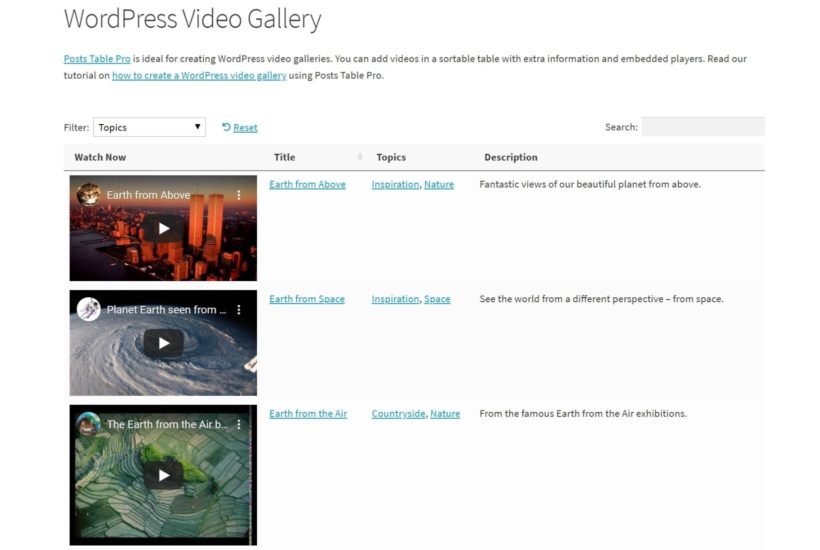
Our own Posts Table Pro and WooCommerce Product Table plugins are the right choice when your gallery needs to show text alongside the images. Most gallery plugins focus on the visual side, with layouts, hover effects, and lightboxes.
These two take the opposite approach. They turn your content into a searchable, sortable, filterable list with columns of detail visitors can use to find what they're looking for.
Use Posts Table Pro for galleries of posts, portfolio items, audio or video files, documents, or any custom post type. Use WooCommerce Product Table when the gallery items are WooCommerce products you want visitors to browse, filter, and buy.
For Posts Table Pro, the same approach works for several common galleries. The gallery shortcode guide walks through a photo gallery with searchable captions and tags.
The audio library guide uses the same approach for episode artwork plus titles, dates and duration. The staff directory guide shows headshots alongside roles, departments, and contact details, so every row has an image and the visitor filters by text.
For WooCommerce Product Table, here's a real Barn2 customer using it as an image-and-text gallery:
An online-proofing gallery built with WooCommerce Product Table
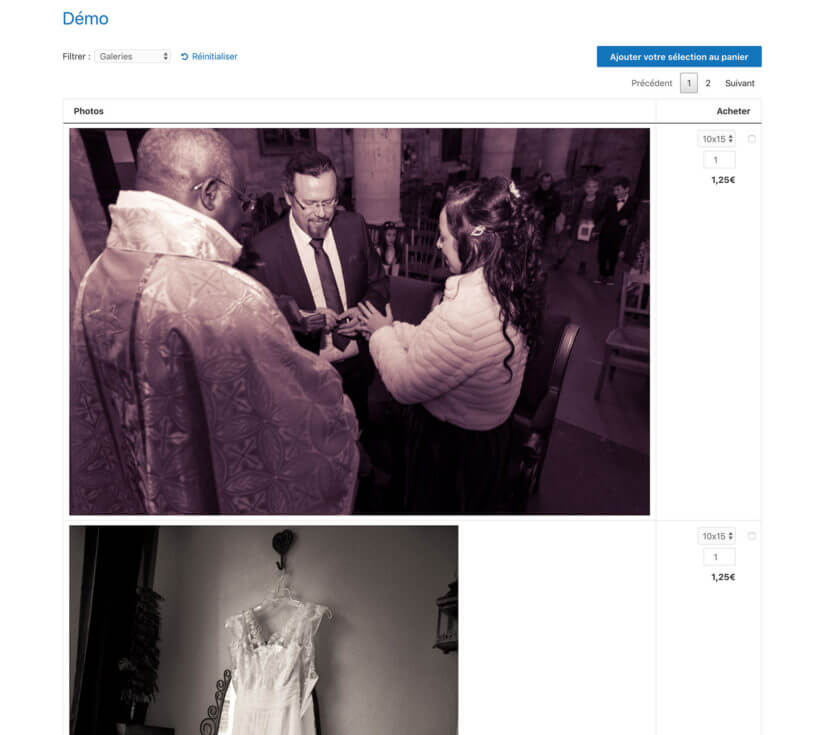
Thierry runs a wedding photography studio in Paris called Photo Studio TNK.
To help clients proof the photos he takes of their weddings, Thierry uses WooCommerce Product Table to create a personalized WordPress photo gallery for each client. Clients browse the image gallery and check a box for all the photos they want to purchase.
To make sure each client's gallery is private, Thierry also uses WooCommerce Protected Categories to add password protection to each gallery. To make it easier to upload hundreds of images, he uses the Feed Them Gallery plugin to automatically convert images into sellable WooCommerce products.
Pros:
- Visitors can search, sort, and filter through hundreds of items on one page.
- You can show columns of detail (client, date, location, and price) alongside the image.
- AJAX lazy loading keeps large galleries fast.
- Works for content that isn't really photos: projects, audio, files, and products.
Cons:
- Not a photo gallery plugin, so layouts like masonry or Polaroid aren't an option.
- No watermarking or print-fulfillment features.
- Posts Table Pro has a free release, Posts Data Table, for basic post lists; WooCommerce Product Table comes as premium only.
- If you mostly want a beautiful image grid, a dedicated gallery plugin is the better tool.
Best for: portfolios, online-proofing galleries, audio and video catalogues, and any gallery where sortable columns of detail matter more than masonry-style image layouts.
3. Envira Gallery

Envira Gallery is a user-friendly WordPress photo gallery plugin that can help you create stylish masonry galleries or other interesting gallery layouts. You can also modify how the gallery styles look using your own custom CSS and use a drag-and-drop gallery builder to change the order of gallery items.
You can create standalone galleries or group galleries together into albums, complete with different album styles. It also has some nice features for photographers like automatic watermarking, an Adobe Lightroom integration, and support for online client proofing.
If you want to integrate with social media, Envira Gallery can help you add social sharing buttons to gallery items and you can also import Instagram posts as gallery items. With the premium version, other gallery sources include videos and blog posts, which is helpful if you're a blogger.
Finally, if you want to sell images from your galleries, Envira Gallery includes a WooCommerce integration to add ecommerce support.
Envira Gallery Lite is a limited free version at WordPress.org that works for simple image galleries, but you'll need the premium version for access to the more advanced features. There are different premium tiers depending on the features you need, which can get a little pricey. You can also use it with add-ons for advanced functionality such as fullscreen galleries.
Pros:
- Strong photographer-focused features: watermarking, Lightroom, client proofing.
- Drag-and-drop builder, masonry and album styles.
- WooCommerce integration if you want to sell prints.
Cons:
- The most useful add-ons sit behind higher pricing tiers.
- The free version is fairly limited.
Best for: photographers and bloggers who need watermarking, proofing, and a polished gallery design.
4. NextGEN Gallery

NextGEN Gallery is a popular WordPress photo gallery plugin for photographers or other power users.
One unique thing about NextGEN Gallery is that it includes heavy-duty image file management on the backend. Rather than managing your gallery images in the regular WordPress media library, NextGEN Gallery gives you a separate interface to manage all of your images.
This approach can be a little complicated for casual users, but it's helpful if you need to manage thousands of image files.
We have a built-in wizard which walks through how to use the plugin. Once users understand what the plugin can do they typically find themselves managing and displaying galleries in seconds. So while it might be a slight learning curve, in the beginning, it's quite simple once you know what is what.
Scott (Imagely)Developers of NextGEN Gallery
Beyond gallery management, NextGEN Gallery's premium extensions add a lot more. You get extra gallery layouts (including carousels), automatic print fulfillment via White House Custom Colour (WHCC), image deeplinking, ecommerce support, online client proofing, hover effects, and social media integrations.
The automatic print fulfillment feature is one of NextGEN's most distinctive points. It's a real advantage if you want to sell physical prints and outsource fulfillment to a third party.
NextGEN Gallery does have a limited free version at WordPress.org, but it only includes simple gallery styles and lacks most of the features mentioned above.
I might argue that NextGEN Gallery actually is the most feature-rich gallery plugin of them all. It includes image protection of originals, advanced resize control, watermarking, thumbnail display, image browser display, tag cloud, single-image display, multiple lightbox options, and much more, for free. NextGEN Gallery, while it might have a lot of features, is the fastest loading gallery plugin for WordPress now.
Scott (Imagely)Developers of NextGEN Gallery
If you want to get the most from NextGEN Gallery, you'll want to go with the premium add-ons, which come in different bundles depending on your needs. The cheapest premium version is NextGEN Plus at $99, but most people will want NextGEN Pro, which costs $149.
Pros:
- Dedicated image management for thousands of files.
- Automatic print fulfillment via WHCC, uncommon in this category.
- Image protection, watermarking and resize control built in.
Cons:
- The separate management UI is overkill for casual users.
- The features that make it stand out are mostly in the premium bundles.
Best for: high-volume photographers and agencies who manage thousands of images and want print-fulfillment built in.
5. FooGallery

FooGallery is an image gallery plugin that comes in both a free and premium version and makes a good option for a simple, stylish WordPress photo gallery.
The Pro version also adds support for video galleries from YouTube and Vimeo. It also lets you build dynamic galleries from a WordPress post query (any post type, with filters), which extends the plugin well beyond a basic image gallery.
We recently released an update that includes a new datasource in FooGallery Pro, which allows you to build/load a gallery from a post query in the WP admin. You can choose the post type and a few other settings to build up a dynamic gallery.
Brad (FooPlugins)Developers of FooGallery
The Pro version also lets you create image galleries from sources beyond your WordPress media library, including Adobe Lightroom and FTP server folders.
One thing in FooGallery's favor is the variety of gallery templates. If you opt for the paid version, you'll get lots of style options including:
- Slider
- Masonry grid
- Polaroid
You can also control the CSS, choose the pagination options, and add multiple loaded effects and hover effects. The plugin is also compatible with CDNs.
If you want to help visitors filter gallery items, you can add media categories and tags, along with front-end gallery filtering (including thumbnail gallery filters).
You also get advanced pagination options, infinite scroll, and lazy loading support.
FooGallery has a limited free version at WordPress.org, but you'll need the premium version for the best templates, video galleries, and other features. The premium version starts at $59 for use on a single site and ranges up to $199 for use on up to 25 sites.
Pros:
- Strong free version, with a generous set of layouts.
- Pro version adds dynamic galleries from any post type.
- Built-in pagination, infinite scroll and lazy loading.
Cons:
- Video galleries and the nicer templates need the paid version.
- No client-proofing or print-fulfillment features.
Best for: site owners who want a polished gallery for free and a clear paid upgrade path as needs grow.
6. Galleryberg

Galleryberg is a modern WordPress gallery plugin built specifically for the Gutenberg block editor. If you prefer working natively within the WordPress editor rather than relying on shortcodes or external page builders, Galleryberg is an excellent choice.
Unlike many gallery plugins that add their own separate interfaces, Galleryberg integrates directly into the block editor as a custom gallery block. This means you can build and customize your galleries right alongside your other content, and what you see while editing is exactly what visitors will see on the front end.
Galleryberg gives you five gallery layouts to choose from. The options are Tiles, Masonry, Justified, Square, and Mosaic, and you switch between them with a single click. The plugin includes a responsive lightbox. You get smooth zoom, slide navigation, and keyboard and touch controls on desktop and mobile.
You can customize image spacing, borders, column counts (from 1 to 8), and caption display, including hover-based caption overlays. Galleryberg uses lazy loading to keep pages fast on image-heavy galleries, and includes keyboard navigation for accessibility.
One thing to note is that Galleryberg focuses on image galleries within the block editor. It doesn't support other content sources like blog posts, custom post types, or WooCommerce products, so it suits people who want a clean, focused image gallery experience inside Gutenberg.
Galleryberg has a free version available at WordPress.org, with a Pro version starting at $49 for a single-site lifetime license.
Pros:
- Built natively as a Gutenberg block, so editing matches the front-end.
- Five distinct layouts and a polished lightbox.
- Server-side rendering and lazy loading keep it lightweight.
- Lifetime Pro pricing on a single site.
Cons:
- Image galleries only, no support for other content sources.
- Less mature than the long-established alternatives.
Best for: site owners who edit in the block editor and want a focused, modern image gallery.
7. WPVR Virtual Tours

WPVR Virtual Tours is a specialist among the plugins here. It creates 360 degree galleries and virtual tours rather than standard photo galleries. If your content is panoramic or immersive (real estate walk-throughs, venue tours, and museum exhibits), this is the plugin to look at.
You can display panoramic images and videos on your WordPress site and link multiple 360 degree scenes together into a virtual tour visitors can navigate. This is particularly useful for real estate sites, tourism sites, or anywhere immersive content enhances the user experience.
WPVR is also compatible with virtual reality headsets, so visitors can view the 360 degree content with a VR headset for an even more immersive experience. It's one of the few WordPress gallery plugins to offer this.
Pros:
- Specialist support for 360 degree images and panoramic content.
- Build full multi-scene virtual tours, not just single panoramas.
- Works with VR headsets for an immersive view.
Cons:
- Niche use case, overkill for standard photo galleries.
- You need panoramic source images, which most sites don't have.
Best for: real estate, tourism and venue sites that want to publish immersive 360 content.
Which WordPress gallery plugin should you choose?
The right gallery plugin depends on the content you're showing, not on which one has the most features.
- If you want the strongest all-round image and video gallery, choose Modula.
- If your gallery needs to combine images with sortable text columns (portfolios, online proofing, or audio and video catalogues), choose Posts Table Pro or WooCommerce Product Table.
- If you're a photographer who needs watermarking and client proofing, choose Envira Gallery.
- If you manage thousands of images and want print fulfillment, choose NextGEN Gallery.
- If you want a strong free starting point with a clear upgrade path, choose FooGallery.
- If you edit in the block editor and want a clean, modern gallery, choose Galleryberg.
- If your content is panoramic and you need virtual tours, choose WPVR Virtual Tours.
If you're still stuck, install the free version of your top two picks on a staging site, drop a few of your real images into each, and look at the result on mobile. The one that survives first contact with your real content is the one to ship.
10 Comments
Great job! Your collection of the plugin is mind-blowing.
I want to recommend one more plugin here - Portfolio Designer. This plugin comes with Grid, Masonry, Slider, and Justify layout to showcase your projects in an image gallery. Social sharing is one of the strong features of this plugin using which your users will be able to share photos or videos via social media.
Visit here & get more info: https://bit.ly/31TdGmf
Hi, Michael. We appreciate your kind words. Thanks for sharing an alternative gallery plugin that we can use.
Best regards,
Thanks for putting these together. Each of them comes with its own set of benefits that can greatly affect your WordPress gallery. When it comes to WordPress gallery protection, I think you can consider this https://preventdirectaccess.com/ plugin. It helps protect all files in your gallery within seconds.
Hi, Alice. Thanks for mentioning the Prevent Direct Access (PDA) plugin. We are yet to test Posts Table Pro with that plugin and it's an interesting alternative! The file access manager plugin that we have tested with is Advanced Access Manager (AAM) by VasylTech, which we mention in our tutorials such as the one where we discuss how you can Create WordPress Tables with User Specific Content.
Thanks for including NextGEN Gallery in this post, we appreciate it. A couple points worth noting, if you don't mind.
"This approach can be a little complicated for casual users, but it’s helpful if you need to manage thousands of image files."
We have a built-in wizard which walks through how to use the plugin. Once users understand what the plugin can do they typically find themselves managing and displaying galleries in seconds. So while it might be a slight learning curve, in the beginning, it's quite simple once you know what is what. But so is most of the WordPress ecosystem :)
"NextGEN Gallery does have a limited free version at WordPress.org, but it only includes simple gallery styles and lacks most of the features mentioned above."
I might argue that NextGEN Gallery actually is the most feature-rich gallery plugin of them all. It includes image protection of originals, advanced resize control, watermarking, thumbnail display, image browser display, tag cloud, single-image display, multiple lightbox options, and much more...for free.
The last thing I would love to mention is the fine-tuning we've been doing lately. NextGEN Gallery, while it might have a lot of features, is the fastest loading gallery plugin for WordPress now. Meaning, it will have the least impact on site speed.
Hi, Scott.
Thanks for your feedback (and for authenticating yourself!). I've included your comments in our article above.
Cheers!
Hey Colin,
Thanks for mentioning FooGallery - we really appreciate it!
I just wanted to point out a correction about FooGallery that I hope you can use to update your article.
You mention "but you don’t get the option to create galleries from blog posts or other post types". We recently released a new update, which includes a new datasource in FooGallery PRO, which allows you to build a gallery from a post query in the WP admin. You can choose the post type and a few other settings to build up a dynamic gallery.
Again, thanks for the mention and keep up the great work
cheers
Brad
Hi, Brad.
Thanks for letting us know! I've added the info above, after verifying it with Noah of FooPlugins Support first (of course). ;)
Best regards,