How to customize WooCommerce quantity fields & boost sales


Learn how to customize the WooCommerce quantity field to increase average order values. This guide covers plugin setup, PHP code options, and practical strategies for controlling product quantities.
Customizing the WooCommerce quantity field lets you control how customers select quantities in your store. Whether you want to change the default starting value, set minimum and maximum rules, or add quantity increments, there are two main approaches: using a plugin (no coding required) or adding custom PHP code. Most store owners can complete the setup in under 5 minutes with a plugin.
I've tested both methods extensively, and while the code approach works for simple global changes, the plugin method offers far more flexibility. You can set different defaults for different products, categories, and even user roles without touching any code.
But why does any of this matter? Understanding how quantity fields affect customer behavior can help you make smarter decisions about your store setup.
In this article, I'm going to tell you why it's important to be able to change the WooCommerce default quantity in your store. You'll also learn how to do this in less than 5 minutes with the WooCommerce Quantity Manager plugin.
It's the most comprehensive quantity management plugin on the market, which lets you change the default quantity value in WooCommerce. And even better, it comes with everything else you need to take full control over what quantities your customers can buy.
Understanding the WooCommerce quantity field
A WooCommerce quantity field is an input box that lets customers specify how many units of a product they want to purchase. It typically appears on single product pages, though plugins can add quantity fields to shop pages, category pages, and cart pages. The cart page also includes quantity fields that let customers adjust amounts before checkout.
The quantity field consists of several elements: a number input box, optional plus and minus buttons, and any quantity rules you've configured. By default, WooCommerce sets the starting value to 1 and allows customers to enter any whole number up to your stock limit. Some themes add increment and decrement buttons, while others display a simple text input.
WooCommerce provides limited native options for customizing quantity fields. You can manage stock levels through the inventory settings, but there's no built-in way to change the default starting value or set minimum purchase requirements. This limitation frustrates store owners who need more control over customer purchasing behavior.
Most stores leave these settings unchanged, but customizing quantity field behavior can significantly impact your sales. The default configuration doesn't account for products sold in sets, wholesale orders, or items where higher quantities make more sense.
One important attribute of quantity fields is the default value they display when the page loads.
What is a WooCommerce default quantity?
First, let's be clear about what I'm referring to with the term "WooCommerce default quantity".
A default quantity is the initial value which appears in the quantity field of an ecommerce online store. For example, WooCommerce product pages generally contain a quantity selector. You might also see quantity pickers in other parts of your store, for example in a product table or a quick view lightbox (depending on which plugins are installed).
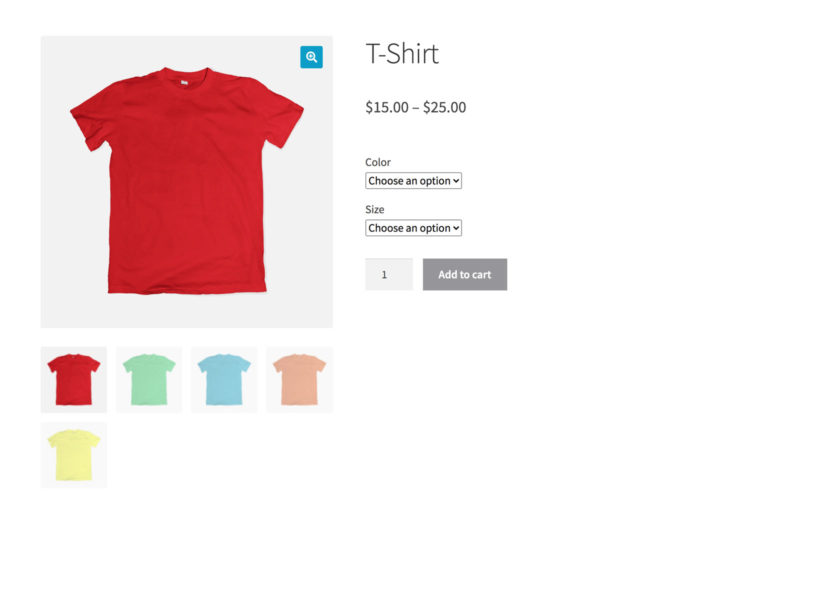
Either way, the default quantity value in WooCommerce will always be 1.
What's wrong with the usual WooCommerce default quantity?
At first glance, you might think that it makes sense for the starting quantity in WooCommerce to be 1. After all, that's the lowest quantity that a customer can buy, so why not display this as the default?
However, there's a very good reason why a default quantity of 1 is bad for business. It reduces your average order value 📉🙁
The worst possible quantity that a customer can purchase is 1. That's because by definition, you get more revenue when customers order in higher quantities. Displaying a default quantity of 1 presents this as the norm, creating an expectation that customers will order each product individually. It gives customers the opportunity to be lazy as they can add items to the cart by clicking the 'Add to Cart' button without even changing the quantity. They just hit the button, and add the item with the default quantity.
As a result, you can subtly encourage customers to buy more simply by changing the WooCommerce default quantity. That's right, you're not setting quantity rules or forcing them to buy bigger quantities. You're simply nudging them in the right direction by displaying a different number in the box.
This could be a higher number, subtly creating an expectation that it's normal to purchase in bigger quantities.
Or alternatively, you could change the WooCommerce default quantity to zero. A default quantity of 0 forces customers to think freely about what quantity to enter, instead of letting them assume that they only want 1.
Follow the steps in the tutorial below to change your default quantity, and then watch your average order value increase 📈.
Why control product quantities?
Controlling product quantities helps you align customer behavior with your business model. Rather than leaving quantity decisions entirely to customers, strategic defaults and rules can boost your revenue while still giving shoppers freedom to choose. Here are the main benefits:
- Increase average order valueHigher default quantities subtly suggest larger purchases without forcing customers to buy more than they want. I find that even small changes to defaults can make a noticeable difference in order totals.
- Prevent low-value ordersMinimum quantity rules ensure each sale meets your profitability threshold, which is especially useful for B2B and wholesale stores. Processing orders costs time and money, so eliminating unprofitable small orders makes business sense.
- Match product economicsSome products only make sense when sold in multiples. Think dozens for bakery items, pairs for pillows, or sets for dining chairs. Your quantity defaults should reflect how customers actually use these products.
- Guide customer behaviorDefaults create expectations without forcing purchases. Customers remain free to change the quantity, but many simply accept the suggested amount. This psychological nudge works because people often follow the path of least resistance.
- Support different business modelsWholesale stores, event ticketing, and bulk product sellers all benefit from quantity controls tailored to their specific needs. A one-size-fits-all approach rarely works for specialized stores.
What sort of products need a custom default quantity?
All sorts of online store owners need a way to set the default quantity value for their products. Here are some examples:
Training courses and events
If you sell training courses or event tickets, your customers might need to buy multiple tickets. In this scenario, it makes sense for the default quantity to be 0. Initially, customers view the booking form with a starting quantity of zero, which they can increase to the required number of tickets. Displaying the WooCommerce default quantity as zero encourages customers to think about whether to attend with other people, instead of just booking for themselves.
Pillow cases, cushions, dinner plates, and furniture
If you sell products that are typically bought in sets then you can use the default quantity plugin to pre-fill the quantity field. For example, if you sell pillows, pillow cases, cushions, bed side tables, or dining room chairs, you'd need to be able to set the default quantity of individual products to, say, 2 or 4, or 6. Similarly, if you're selling dining chairs then setting the default quantity to 4 will nudge customers to think of buying a full set, instead of just one.
Products that are sold by the dozen
If you sell hardware goods, auto-parts, or bakery items, you could set the default quantity of products to 12. This way, customers wouldn't have to manually set it to a dozen (which affects user experience) or accidentally place an order for a single item instead of a dozen.
WooCommerce order forms
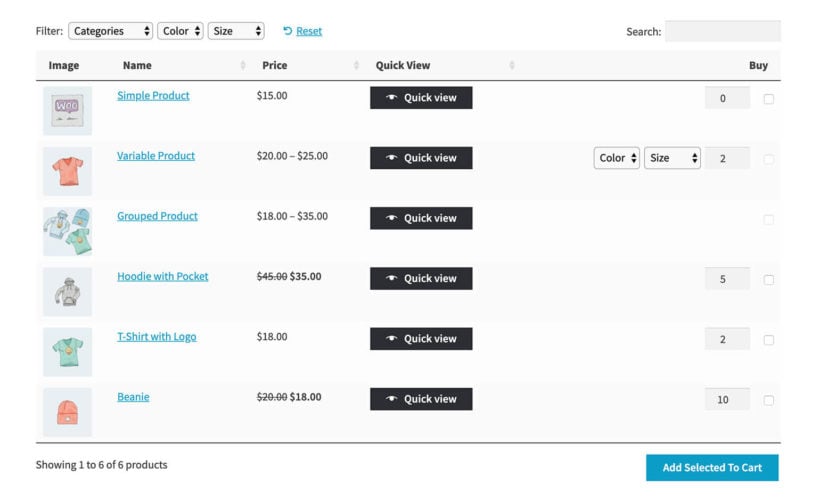
If you're creating an order form, consider setting the initial default quantity value to 0.
Rather than being a low number like 1, a WooCommerce default quantity of zero is a blank slate. Shoppers can then increase the required quantity from zero to any number they wish. It's just like a traditional paper order form.
Alternatively, consider setting the default quantity to slightly above the average quantity that your customers order. This will help to inspire them to buy more.
Products designed to be used together
If you're selling products that are designed to be used together, then use the WooCommerce default quantity to encourage multiple purchases. For example:
- You might set the starting quantity value to 6 for a chair that pairs with a 6-person table.
- For products that are often sold in pairs, set the default quantity to 2.
Low value products
For low value (high order) products, you can get away with suggesting a higher initial quantity number.
For example, if you're selling pens individually then setting the starting quantity to 10 will encourage the customer to order 10. If the initial quantity was 1, then they would probably order a smaller quantity!
The solution: Change the default quantity with the WooCommerce Quantity Manager plugin
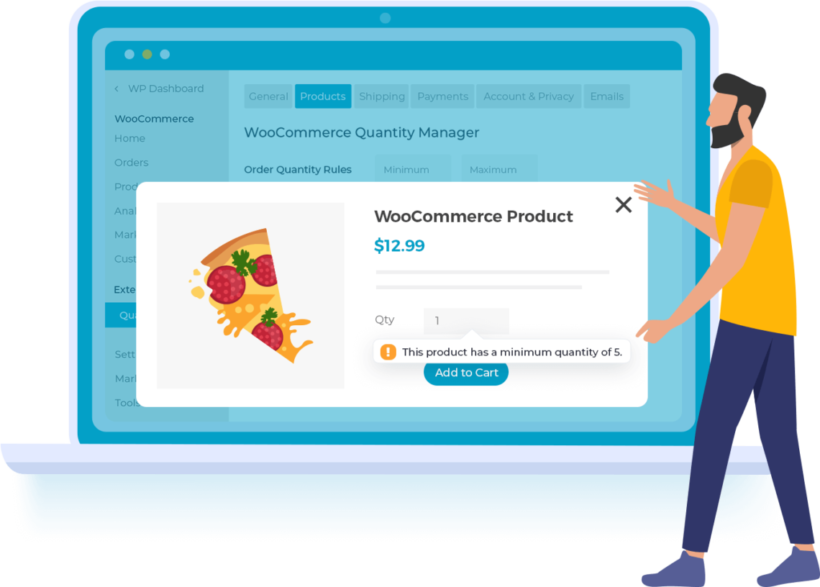
Now we know why changing the default quantity value in WooCommerce can increase your revenue, I'll tell you how to do it.
Two ways to customize quantity fields
There are two main approaches to customizing WooCommerce quantity fields. The plugin method uses WooCommerce Quantity Manager and provides a visual interface with no coding required. It covers all features including defaults, min/max rules, step values, and user role controls.
The code method uses the woocommerce_quantity_input_args filter hook. This requires editing your theme's functions.php file or using a code snippets plugin. It's more limited than the plugin approach, typically handling just defaults and basic min/max values.
I'd recommend the plugin method for most users because it's more comprehensive and easier to maintain. However, if you only need a simple global default change and prefer working with code, the PHP approach works fine.
You can easily change the WooCommerce default quantity by installing the Quantity Manager plugin. This handy plugin gives you full control over all aspects of quantity management in your store, including setting the starting value for the quantity field. You can:
- Change the default quantitySet a custom starting value for your product quantity pickers globally, per category, per product, or per variation.
- Set minimum quantitiesSet minimum quantities or order values storewide or per product to ensure every sale is profitable.
- Set maximum quantitiesSet maximum quantities or spend values to ensure you only receive orders you can handle, regardless of stock levels.
- Add quantity incrementsSet quantity step values so customers must buy in multiples of 5, 10, or any number you choose.
- Control quantities by user roleSet different quantity rules for different user roles. This is ideal for wholesale customers, VIP members, or B2B buyers who need different purchasing limits.
The plugin also supports decimal and fractional quantities for weight-based products. You can allow customers to order amounts like 0.5 kg, 1.25 kg, or 2.5 meters, which is perfect for fabric, bulk foods, or any product sold by measurement.
Quantity Manager integrates with shop page plugins to display custom quantity fields on shop and category pages. See the frontend display section below for specific plugin integrations.
It's worth noting that changing the default quantity in WooCommerce is not a rule. That's because it's just a suggestion and customers are free to change the quantity to anything they like. In contrast, the other features of WooCommerce Quantity Manager are actual quantity rules. That is, they physically prevent customers from ordering quantities that don't meet the quantity rules you have set.
You can use default quantities alone to nudge customers in the right direction, or you can combine them with minimum and maximum quantity rules or step values.
Step-by-step tutorial: Change the WooCommerce default quantity
Before diving into the written steps, watch this video walkthrough to see quantity rules in action. It covers default quantities (2:07), minimum quantities (1:47), step values (2:25), and includes practical tips for different store types (5:05-6:19).
Prefer written instructions? Follow the steps below.
The recommended method uses the WooCommerce Quantity Manager plugin. This approach requires no coding knowledge and provides the most control over your quantity settings.
- Install the WooCommerce Quantity Manager plugin on your WordPress site.
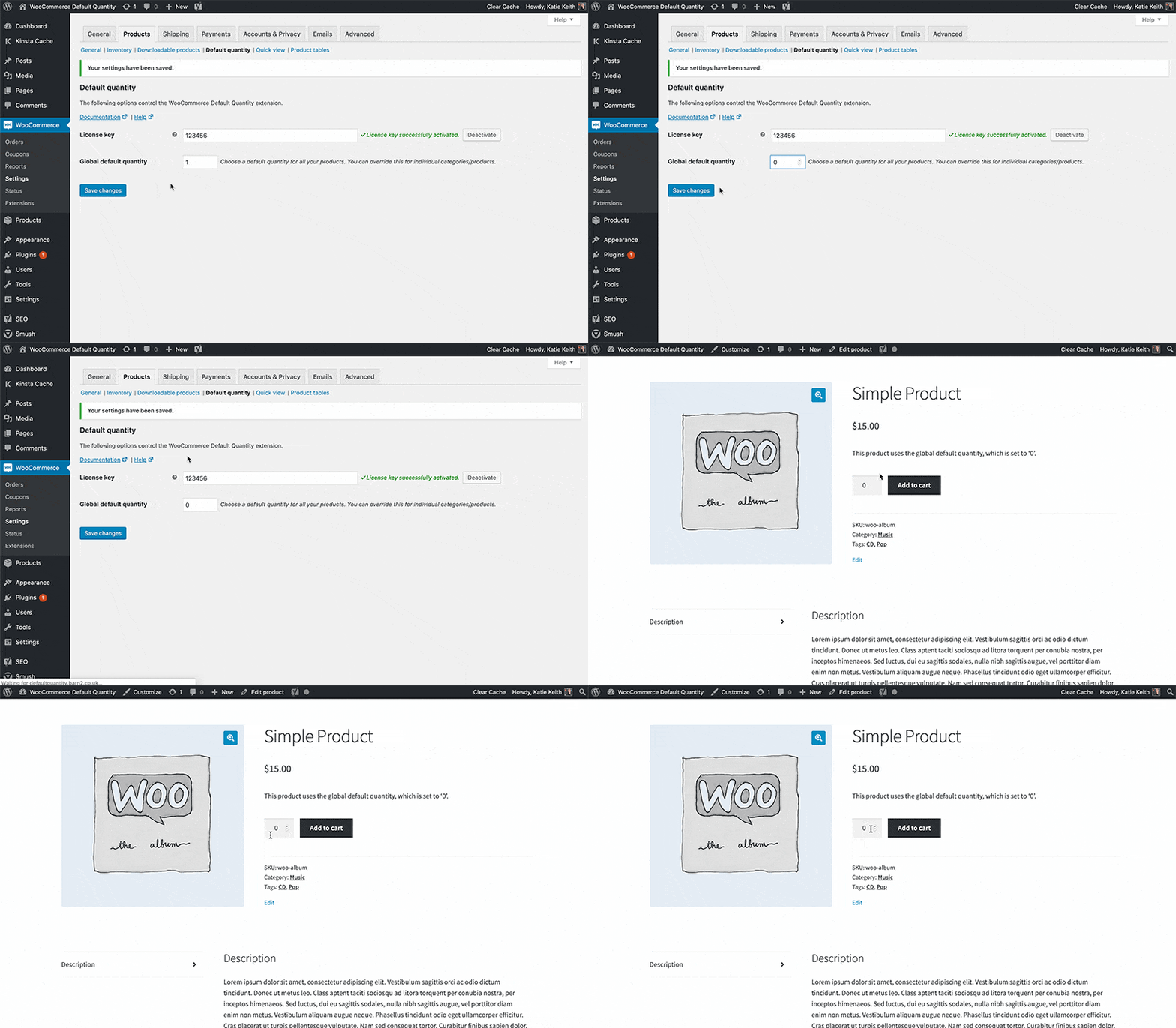
- In the plugin setup wizard, set a global storewide default quantity by entering any number in the box.
- Add other quantity rules such as minimum and maximum quantities.
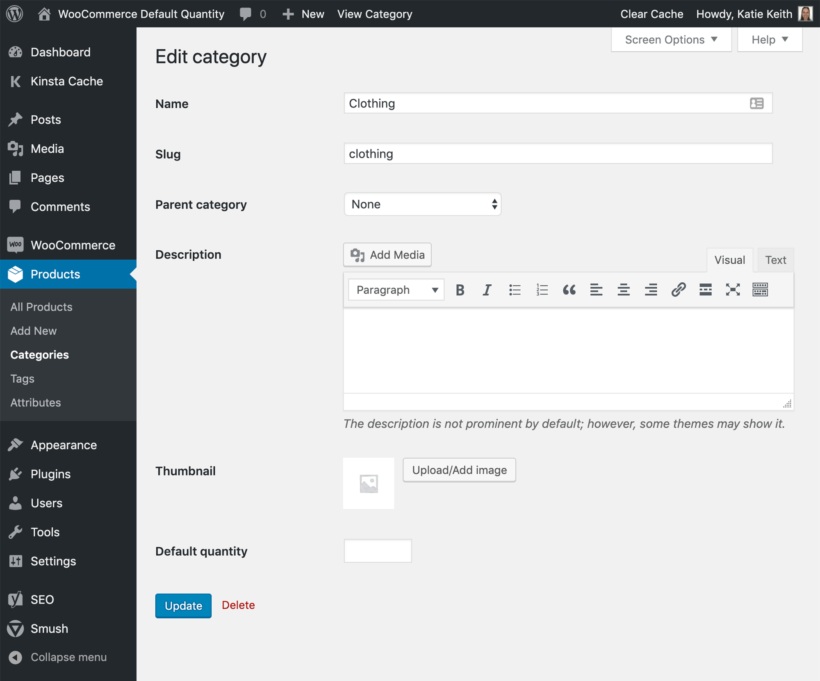
- To set the default quantity per category, go to Products → Categories and enter a value in the 'Default Quantity' field.
- To set a different default quantity per product or variation, go to the 'Edit Product' page.
To set the default quantity for an entire category of products, navigate to the product category (from Products → Categories) and use the 'Default quantity' selector box to set a default quantity for all products under that category.
Alternative: Set default quantity with code
For developers who prefer working with code, you can set the default quantity using the woocommerce_quantity_input_args filter. This method requires no additional plugins but offers less flexibility than the plugin approach.
Here's the PHP code to set a default quantity of 2:
add_filter( 'woocommerce_quantity_input_args', 'custom_default_quantity', 10, 2 );
function custom_default_quantity( $args, $product ) {
    $args['input_value'] = 2;
    return $args;
}
Add this code to your theme's functions.php file or use a code snippets plugin. Change the number 2 to whatever default value you want. Note that this applies globally to all products, whereas the plugin lets you set different defaults per product or category.
You can also set minimum quantities with code using the same filter:
add_filter( 'woocommerce_quantity_input_args', 'custom_min_quantity', 10, 2 );
function custom_min_quantity( $args, $product ) {
    $args['min_value'] = 3;
    return $args;
}
This sets the minimum quantity to 3. The key difference between default and minimum is that the default is just a starting suggestion, while the minimum is an enforced rule that prevents customers from ordering below that threshold.
What does it look like on the front end?
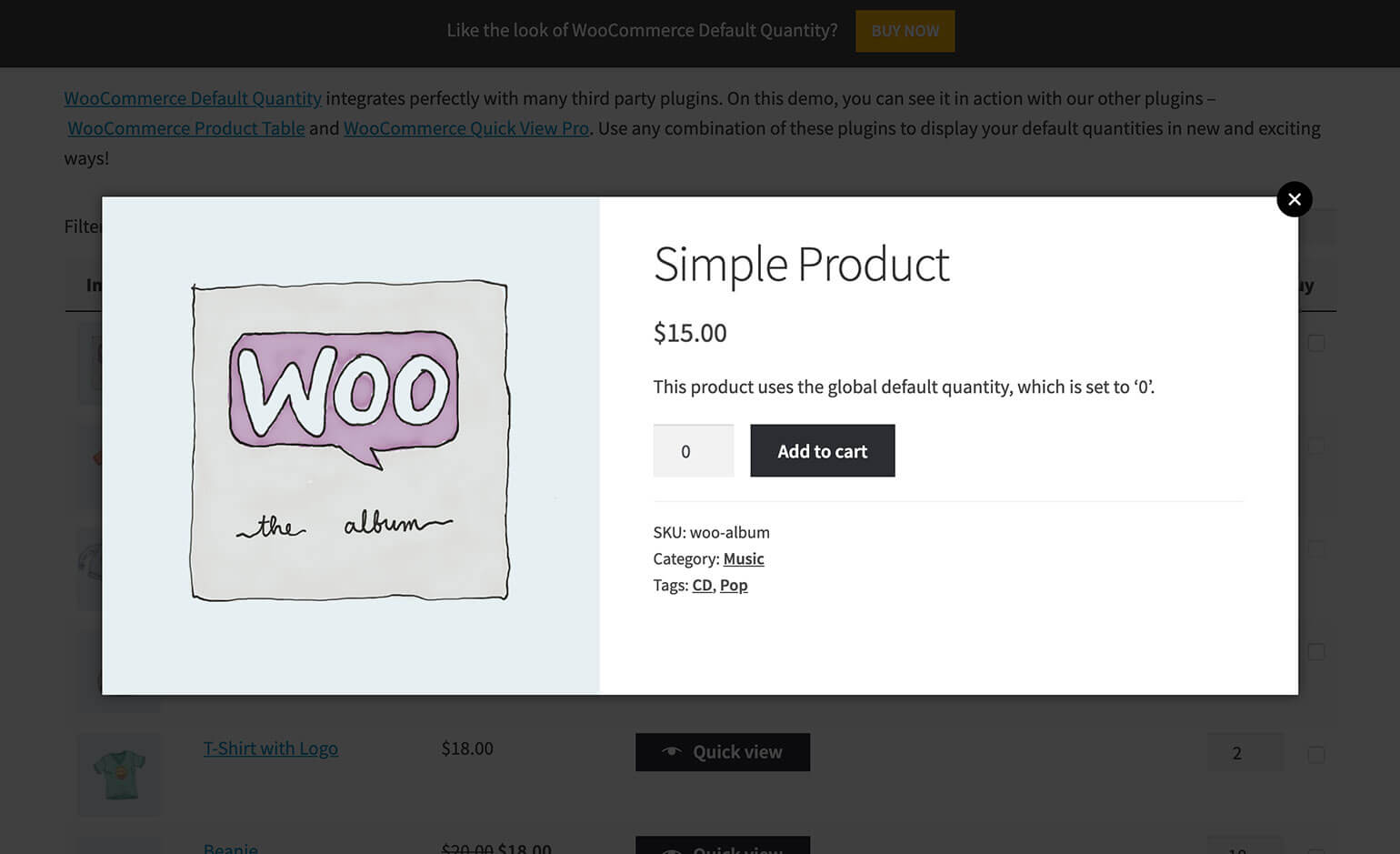
Once you have changed the WooCommerce default quantity, the correct value will automatically display on single product pages. When the product page loads, the quantity field will now display the correct default value as the starting amount. Customers can then click 'Add to Cart' to buy the default quantity, or change the value to their desired number.
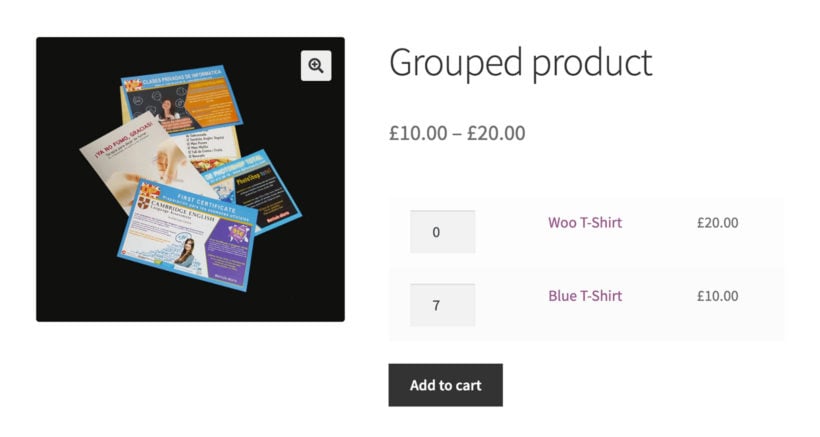
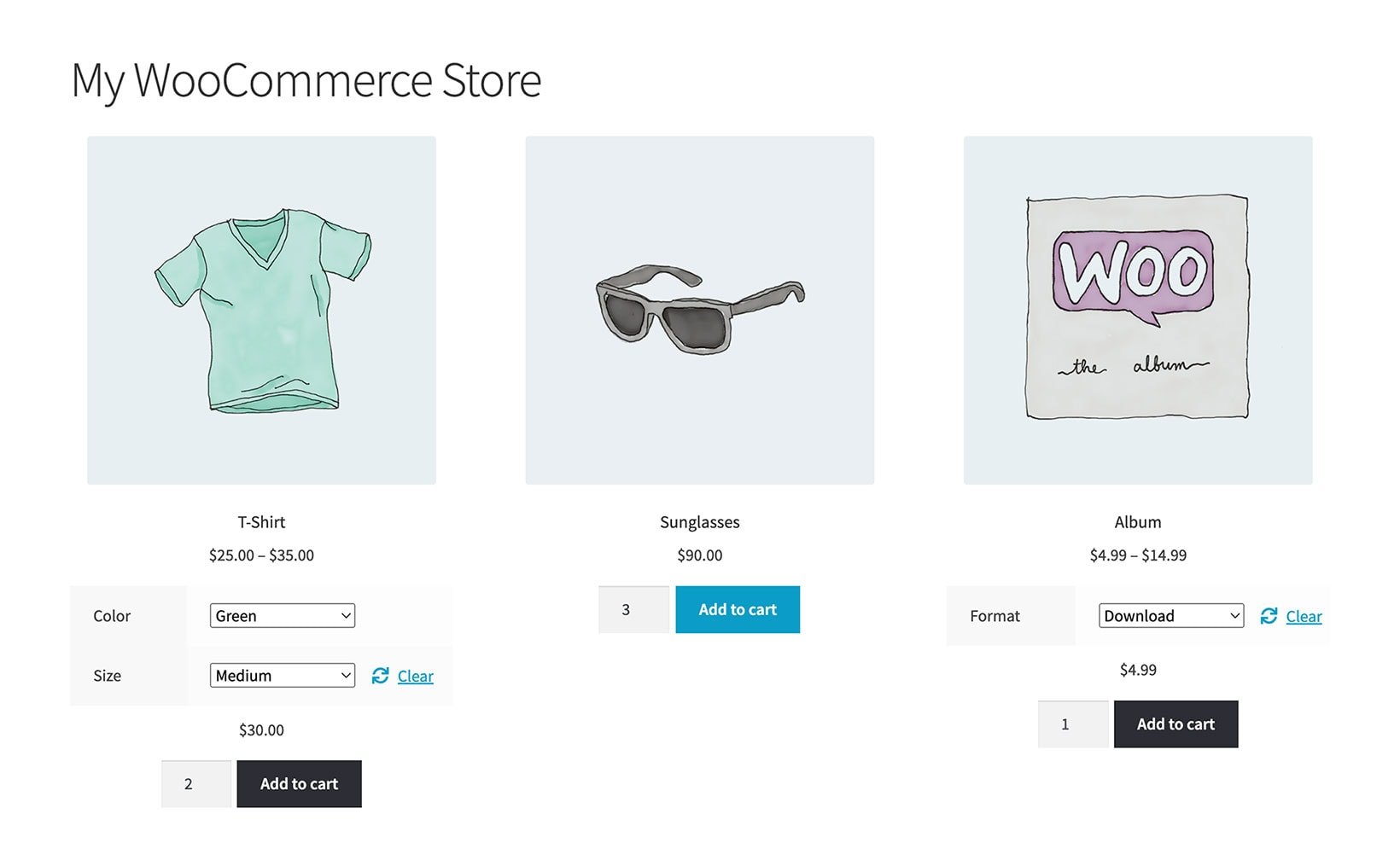
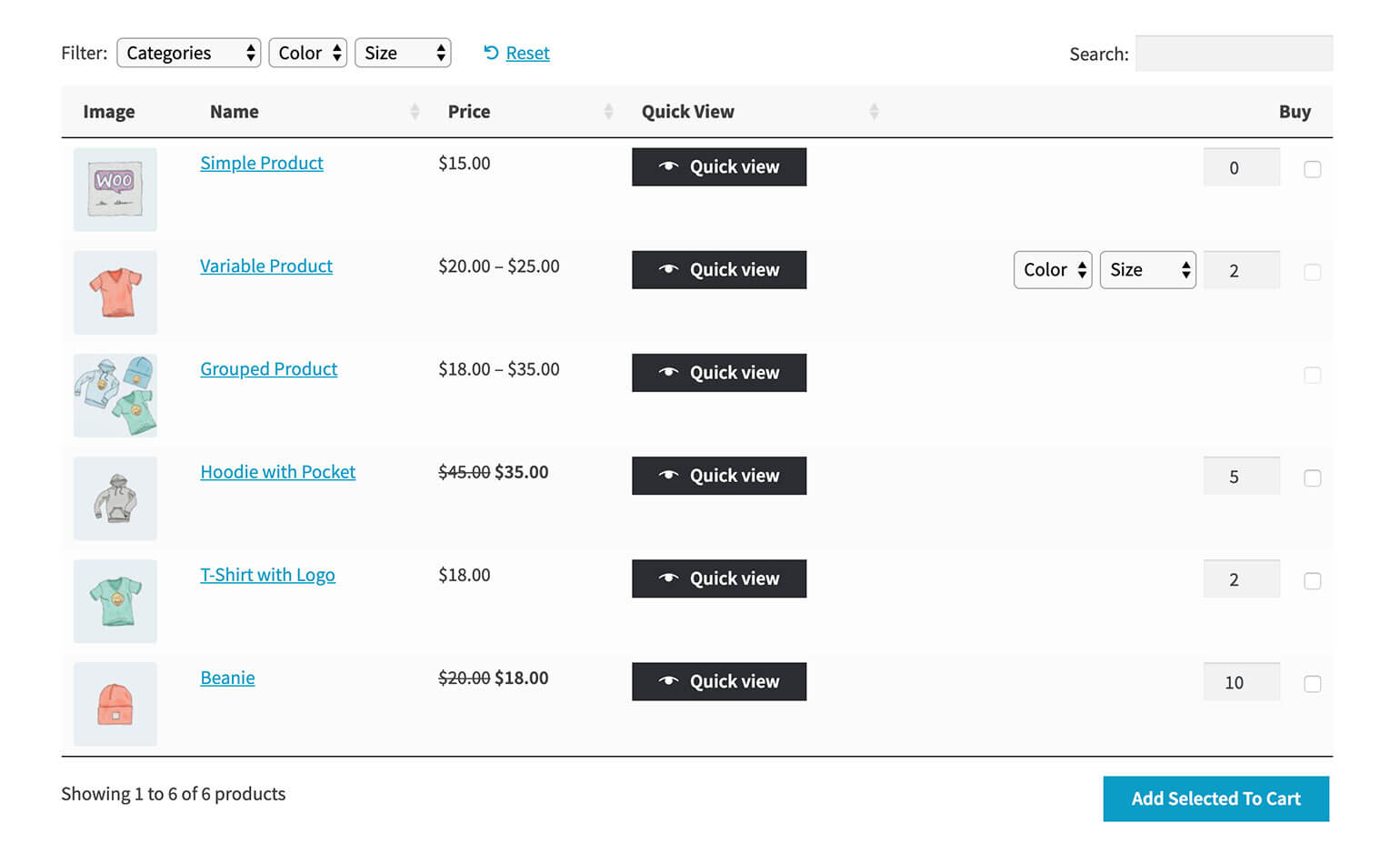
By default, WooCommerce only shows quantity fields on single product pages. Several plugins let customers select quantities on shop pages and category pages as well:
- WooCommerce Express Shop Page - Adds quantity pickers and variation dropdowns directly to shop and category pages without changing your store layout.
- WooCommerce Product Table - Creates one-page order forms with searchable tables that include quantity columns and variation selectors.
- WooCommerce Quick View Pro - Displays quantity fields in lightbox popups when customers click products on shop pages.
- WooCommerce Restaurant Ordering - Lists food products in a one-page order form with quantity selection for each item.
- WooCommerce Bulk Variations - Displays product variations in a grid layout with quantity boxes for bulk ordering.
All five plugins integrate with Quantity Manager to display your custom default values.
Hiding quantity fields for specific products
Sometimes you need to hide the quantity field entirely. This makes sense for one-of-a-kind items, single-use tickets, or digital downloads where customers should only purchase one.
Using the 'Sold individually' checkbox
WooCommerce includes a built-in option for this. Go to Edit Product → Product Data → Inventory tab and tick the 'Sold individually' checkbox. This hides the quantity field and forces a quantity of 1 for that product.
The Quantity Manager plugin respects this setting, so your quantity rules won't conflict with products marked as sold individually.
CSS hiding (cosmetic only)
You can also use CSS to hide quantity fields visually. However, this is purely cosmetic and doesn't change the actual purchasing behavior. Customers could still modify quantities through browser developer tools. For a proper solution, use the 'Sold individually' option instead.
Alternative display options
If you want to keep quantity selection but change how it looks, consider customizing the WooCommerce quantity input, plus/minus buttons or dropdown quantity menus. These offer different user experiences while maintaining full quantity control.
Common questions
What happens when default conflicts with minimum?
The minimum quantity takes priority because it's an enforced rule. The default is just a starting suggestion, so if you set a default of 2 but a minimum of 5, the quantity field will display 5.
Does this work with variable products?
Yes, you can set defaults per variation or globally for all variations of a product. The plugin handles variable products and their individual variations separately.
Will this work with my theme?
Quantity Manager works with all WooCommerce-compatible themes. Some themes add custom styling to quantity fields, but the plugin's functionality remains consistent regardless of your theme choice.
Start setting quantity defaults today!
Changing the default quantity in your ecommerce store is a gentle way of inspiring customers to order higher quantities from you. WooCommerce Quantity Manager is the most comprehensive quantity management plugin for WooCommerce, and you can set it up in less than 5 minutes. You'll be able to set default quantities:
- Globally (i.e. for all products)
- For individual WooCommerce products
- For entire WooCommerce product categories
And to make sure you get maximum value for money, you can also set quantity rules such as minimum and maximum quantities.
Get it today and you'll be amazed at how easy it is to use!
Do you have any questions about how to get started? We're happy to help, so let us know in the comments section below!