How WordPress media access control works

Learn how WordPress media access control works across two layers: backend Media Library visibility, and frontend file URL protection. This guide covers code fixes, plugin options, and the decisions that determine which approach fits your site.
WordPress treats every uploaded file as public by default. Anything stored in wp-content/uploads/ has a direct URL that anyone can visit without logging in. This predictable path leads straight to your file 😬
This creates two separate problems that need two separate solutions:
- Backend visibilityWhich logged-in users see which files inside the admin Media Library.
- Frontend file protectionWhether someone with a direct URL can download the actual file.
Most guides cover one side and ignore the other. I'm going to cover both: admin restriction, URL blocking, search engine indexing, and authenticated downloads. By the end, you'll know exactly which tools to combine for your specific use case.
Restricting backend Media Library visibility
WordPress media access control starts with role capabilities. The upload_files capability controls who can access the Media Library at all.
Authors, Editors, and Administrators have this capability by default. Contributors and Subscribers do not. Without upload_files, a user has zero access to the Media Library menu. They cannot upload files or browse the media modal at all. You would need to explicitly grant upload_files via code or a role-editor plugin for these roles to see anything.
However, it's not ideal because every user with the upload_files capability sees all media items. WordPress does not filter by author out of the box. An Author sees uploads from every other Author, Editor, and Administrator on the site. On a multi-author blog with 20 contributors, every Author sees every image, PDF, and video uploaded by all 19 other users.
The code fix
The most common solution is the ajax_query_attachments_args filter. Add it to your child theme's functions.php or a code snippets plugin like WPCode.
The snippet checks current_user_can('edit_others_posts'). If false, it sets the author query parameter to the current user's ID. Only their own uploads appear in the Media Library grid.
Editors and Admins retain full access because they have the edit_others_posts capability. Authors do not, so they only see their own files. This is the behavior most multi-author sites want: Authors stay in their lane, while Editors and Admins can manage everything.
The limitation with backend media file access that most guides miss
The filter I mentioned above only fires on the wp_ajax_query_attachments AJAX endpoint. REST API requests to /wp/v2/media bypass it entirely. It doesn't cover custom blocks or headless setups that query the REST API.
The more robust approach is to filter all three query paths:
ajax_query_attachments_argsfor the media modal AJAX requests.pre_get_postsfor the main Media Library screen in wp-admin.rest_attachment_queryfor REST-based attachment requests (including modern editor flows that use REST under the hood).
That is the thorough WordPress-native way to restrict backend media visibility today.
Why restricting the Media Library doesn't protect your files
Every file uploaded to WordPress lives in wp-content/uploads/ with a predictable URL pattern. WordPress organizes uploads into year/month subdirectories by default, per the wp_upload_dir() documentation. A typical URL looks like this: yourdomain.com/wp-content/uploads/2025/03/filename.pdf.
That URL works for anyone, whether or not they're logged in or restricted in the admin.
The WordPress hosting handbook states that the uploads directory must remain web-accessible for the site to function. This is by design. However, it means that absolutely anyone can paste a known or guessed URL into their browser and download the file. This applies to both real users and search engine bots or AI crawlers. As a result, you can easily find your private media files being indexed in search engines 😱
Backend restriction is a method of dashboard organization rather than security.
In the next section, we'll talk about the second layer: preventing access to the actual file URLs.
Preventing direct frontend file access
There's a choice of three approaches for blocking public access to files in wp-content/uploads/. Your web server type is the first decision point, and most guides either bury this or ignore it entirely.
Approach 1: .htaccess rules
Custom rules in wp-content/uploads/.htaccess intercept file requests at the web server level. The rules can block access outright or route requests through a PHP authentication script.
A basic rule might deny all direct access to PDF files. A more advanced setup rewrites requests through a PHP gatekeeper. That script checks login status or user role before serving the file.
This works well on Apache servers, as it handles the job without adding a plugin.
However, there are several downsides. These rules require maintenance across WordPress and server updates. A core update or migration can silently break custom .htaccess rules. And they only work on Apache. If your host runs NGINX (for example, Kinsta or WP Engine), .htaccess files are ignored entirely. You would need to configure NGINX server blocks directly, which requires server-level access that many managed hosts don't provide.
Approach 2: Plugin-based protection
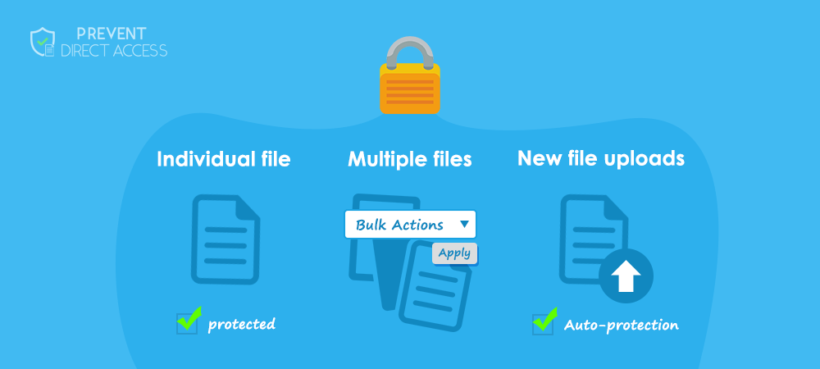
The Prevent Direct Access (PDA) plugin rewrites file URLs through a PHP handler. The handler checks permissions before serving each file.
PDA relies on .htaccess rewrites internally. NGINX users need separate server block configuration, but PDA still supports NGINX with the right setup.
The free version protects unlimited files and blocks search engine indexing. The paid version adds expiring links (limited by time and click count), folder-level protection, and WooCommerce integration.
Approach 3: Signed URLs via cloud storage
This approach moves files off wp-content/uploads/ entirely. Instead, they go to a private Amazon S3 bucket, DigitalOcean Spaces, or Google Cloud Storage.
It works like this: WordPress requests a signed URL from the cloud provider. That URL contains a cryptographic signature and expires after a set time. The WP Offload Media plugin from Delicious Brains handles this integration.
Signed URLs work natively via S3 pre-signed URLs without requiring CloudFront. However, CloudFront is an optional (and recommended) layer that adds CDN edge delivery and supports its own signed URL format.
This is the architecturally strongest option. It removes the public URL problem at the source. The tradeoff is more setup complexity and ongoing cloud hosting costs.
Stopping Google from indexing private WordPress files
Files that are never linked from any page can still appear in Google search results. This catches a lot of site owners off-guard.
Search engines discover files through several vectors:
- External sites linking directly to the file URL.
- Sitemaps that include media attachment URLs.
- Google crawling known /wp-content/uploads/ path patterns.
The primary countermeasure is the X-Robots-Tag: noindex HTTP response header. Unlike a robots.txt disallow (which only prevents crawling), X-Robots-Tag prevents indexing even when Google finds the URL from another source.
How Document Library Pro handles this
The Document Library Pro plugin is a popular method for providing front-end access to media library files. This is much more convenient than finding files via the backend media library, and lets your users benefit from its searchable and filterable interface. The built-in access controls give you full access over who can access the files in the library - either globally, per category, or per file or document.
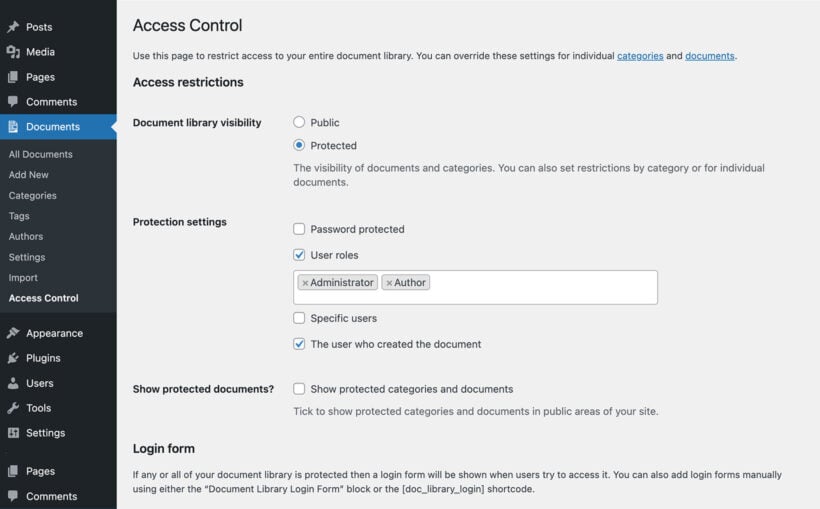
When you restrict access to documents, the plugin automatically adds noindex/nofollow meta tags and X-Robots-Tag headers to protected documents. It also removes those pages from sitemaps provided by SEO plugins like Yoast and AIOSEO.
Important scope note: This applies to document pages and protected categories managed by Document Library Pro. It does not cover raw file URLs in wp-content/uploads/. As Barn2's documentation notes, there is no absolute guarantee that protected content won't appear in search results.
For file-level indexing prevention (the actual PDF or image in /uploads/), use Document Library Pro alongside PDA Gold to add X-Robots-Tag headers to the files themselves. To do this, you should configure each plugin to give the same user role(s) access to the documents in your library and the underlying media files.
A common mistake with robots.txt
Do not combine robots.txt Disallow with noindex meta tags on the same resource. If crawling is blocked, Google can't read the noindex tag. For file-level protection, use X-Robots-Tag (delivered in the HTTP response header before any HTML parsing). Or make sure the page is crawlable so the noindex meta tag can be seen.
Important note: Organizations handling HR records, legal agreements, or client deliverables should treat search engine exposure as a compliance concern. It's more than just a convenience issue.
Setting up private file downloads for a membership or team site
Most other guides only cover one piece of this puzzle. Here is the full workflow: restrict documents behind a gate, capture leads or require login, protect file URLs, and handle link expiration. Let's talk through each step next.
Step 1: Control who sees which documents
Document Library Pro Advanced restricts access at the library, category, or individual document level. You can apply different rules at each level, which means one category might be public while another is locked to logged-in users only.
Access options include:
- User roles (for example, restrict HR documents to administrators only).
- Specific users (grant access to named individuals).
- Passwords (share a password with a group without requiring accounts).
- Author-only visibility (each user sees only their own uploads).
Step 2: Gate downloads without requiring user accounts
Not every site wants to force visitors into creating an account. That adds friction and can reduce downloads significantly. Document Library Pro Advanced includes built-in lead capture as an alternative. Visitors enter their name and email before downloading. You collect contact information without managing user accounts.
For CRM or mailing list integration, connect via WP Fusion or Zapier. Captured leads sync automatically to your email marketing platform. Developer documentation covers both integration options.
Step 3: Protect the underlying file URLs
Document Library Pro controls which documents appear on the frontend. It does not block direct file URL access. Someone with the URL can still download the file, even if they can't see it in the document library.
This is the gap that catches people off guard. A user copies a download link and shares it in a Slack channel. Everyone with that link can access the file, whether they have a site account or not.
Pair Document Library Pro with PDA Gold for URL-level protection. Document Library Pro handles the content layer. The second plugin handles the file-URL layer. Two tools, two layers, full coverage.
Step 4: Handle the persistent-link problem
Static download links remain valid indefinitely once shared. For sites with lapsing memberships, this is a real security gap. A former member can keep downloading files months after their access expires. They might also forward the link to others who never had an account.
Two solutions handle this:
- PDA Gold expiring linksSet click limits or time limits on each download URL. After the limit is reached, the link stops working.
- CloudFront signed URLsEach URL expires automatically based on your configured time window. This is the strongest option because the expiration is enforced at the CDN level, outside WordPress entirely.
For most membership and team sites, PDA Gold's expiring links are the simpler path. Signed URLs via CloudFront suit high-security environments or sites already using AWS infrastructure.
Choosing the right WordPress media access control approach
| Use case | Backend tool | Frontend tool | Search engine exclusion | Link expiration |
|---|---|---|---|---|
| Multi-author blog (dashboard tidiness only) | Code snippet | None needed | N/A | N/A |
| Members/staff document site | Document Library Pro | Download Monitor or PDA Gold | Auto-noindex for protected categories | PDA Gold click/time limits |
| Complex editorial role hierarchy | PublishPress Permissions | PDA Gold or .htaccess (Apache only) | Manual X-Robots-Tag configuration | PDA Gold or signed URLs |
| Paid digital products with expiring downloads | WooCommerce downloadable products | PDA Gold or S3 + CloudFront signed URLs | PDA Gold auto-blocking | Signed URLs (strongest) |
Check whether your host runs Apache or NGINX before choosing any .htaccess-based approach. That single fact determines which file protection methods are available to you.
For document libraries, the two-tool stack covers both sides. Document Library Pro handles the content layer; and PDA Gold handles the file-URL layer.
Most sites need two tools: one for the backend layer, one for the frontend layer. Neither replaces the other. For restricted document libraries, Document Library Pro handles access control, lead capture, and search engine exclusion for the content layer. Pair it with a file protection plugin, and both layers are covered.
FAQs about WordPress media access control
What are the best plugins for protecting media files and preventing hotlinking?
PDA Gold handles file-URL protection and hotlink prevention. It blocks direct access to files in wp-content/uploads/ and prevents other sites from embedding your files. Document Library Pro Advanced handles document library access control with lead capture. It controls who can see and download documents from the frontend. No single plugin covers both layers. Match the tool to the specific problem you're solving.
How does PublishPress Permissions handle media file restrictions?
PublishPress Permissions offers six granular controls under Settings → Media Library:
- Toggle visibility of other users' unattached uploads.
- Allow viewing files attached to readable posts.
- Allow viewing files attached to editable posts.
- Allow editing files attached to editable posts.
- Prevent editing uploads on non-editable posts.
- Let users always edit their own attachments.
Admins retain full access regardless of settings. These are backend controls only. They do not affect direct file URL access.
Can I use custom code instead of a plugin?
Yes. The ajax_query_attachments_args filter is lightweight and avoids plugin overhead. It works well for simple multi-author sites that just need dashboard tidiness.
However, it only filters the admin AJAX grid view. REST API requests are not covered. Any block editor or headless setup that queries attachments via REST bypasses the filter entirely. The code also requires maintenance across WordPress updates, so you need someone comfortable with PHP to keep it working long-term.
For anything beyond basic author-based filtering, a plugin like PublishPress Permissions gives you more granular control without writing custom code.
Do WordPress media restriction plugins work on multisite?
It varies by plugin. PublishPress Permissions and PDA Gold offer multisite support in their premium tiers. Document Library Pro also works on multisite installations.
Multisite adds complexity because each sub-site has its own uploads directory and its own set of user roles. Permission cascades between network-level and site-level roles involve additional configuration. That falls outside this article's scope, but check each plugin's documentation for multisite-specific setup instructions.