Set up gated content in WordPress step by step


Want to gate content on your WordPress site? This guide helps you decide what to gate, choose the right method, and set it up step by step.
You've created valuable content on your WordPress site, and now you want something in return before giving it away. That might mean entering their email address, logging in with a password, or paying for a subscription. That's where gated content comes in.
WordPress gated content is any material behind an access barrier. Visitors need to complete an action before they can view or download it.
The challenge is choosing the right method for your situation. Someone building a document library for client deliverables needs a completely different approach to a blogger collecting email signups. I'll walk you through both scenarios, plus a few alternatives, so you can pick the approach that fits. For document-heavy sites, Document Library Pro makes it easy to gate downloads behind email capture, control access by user role, and present everything in a searchable library.
What is WordPress gated content?
Gated content is online material that sits behind a form, login or paywall, requiring visitors to share information (like their name and email) or credentials before they can access it. It's one of the most effective ways to capture leads and grow your audience through your WordPress site.
The logic is straightforward. You offer something genuinely useful, and in exchange, visitors share their contact details. Those contacts become leads you can nurture through email marketing, follow-up sequences, or direct outreach.
Here's the important nuance, though: Quality matters more than quantity. 10 engaged subscribers who downloaded a detailed industry report are worth more than 100 who signed up for something generic. The people who willingly exchange their information for your content are telling you they trust your expertise.
But there's a downside
That said, gating comes with a trade-off. Every barrier you place between visitors and your content reduces discoverability. Search engine crawlers can't fill in forms or enter passwords. Casual browsers may leave rather than hand over their email. I find that the best approach is to keep most of your site content freely accessible. This builds authority and search visibility. Then gate only your highest-value assets, the ones worth the friction of a form.
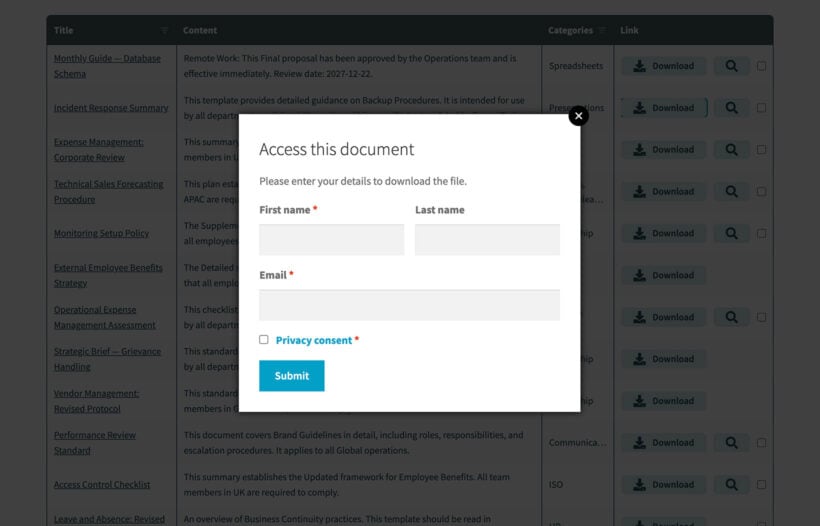
For example, if you create gated downloads with Document Library Pro then most of your document library will be public and crawlable. People will only be asked to enter their email address when they click their first 'Download' button.
Gate only your most valuable content. Keep everything else free to build trust and search visibility first.
Katie KeithFounder & CEO
What content should I gate?
Not everything deserves a gate. The content behind your form needs to justify the effort of filling it in. If someone can find the same information with a quick Google search, they won't bother.
Here are scenarios where WordPress gated content makes sense:
- Lead magnets - Whitepapers, templates, toolkits, and eBooks that solve a specific problem. These work well for building email lists because they offer immediate, practical value.
- Client deliverables - Campaign reports, project files, or members-only resources that require privacy.
- Premium content - Exclusive guides, video courses, or research reports for paid subscribers.
What this looks like in practice depends on your site. For example, an ecommerce shop might gate product care guides behind an email form. A marketing agency could share campaign reports with clients through a password-protected portal. And a consultant might offer a free industry report in exchange for email signup.
The key is the value exchange. Readers are willing to share their contact details if the gated asset genuinely helps them solve a problem or reach a goal. With so much content freely available online, people are increasingly selective about what justifies sharing their information. You need to earn it!
Find your best gating opportunities
Most guides on WordPress gated content won't tell you that you don't need to guess which topics to gate. Instead, your existing analytics will tell you.
To get the data, open Google Search Console and identify your highest-traffic pages. These are the topics your audience already cares about. Now create gated extensions of this content that go deeper. For example, if your top-performing blog post covers "how to organize project files," create a downloadable project file template as a gated content upgrade on that same page. Add this to your site's document library.
This approach works because you're meeting people where they already are, not asking them to care about something new.
How to create WordPress gated content
There are three main ways to gate content on a WordPress site. Each one suits a different situation:
- Gate documents with email capture using Document Library Pro.
- Create members-only sections using Password Protected Categories.
- Explore alternative gating approaches for specific scenarios like partial article locks or full membership sites.
Let's look at each method.
Method 1: Gate documents using email capture with Document Library Pro
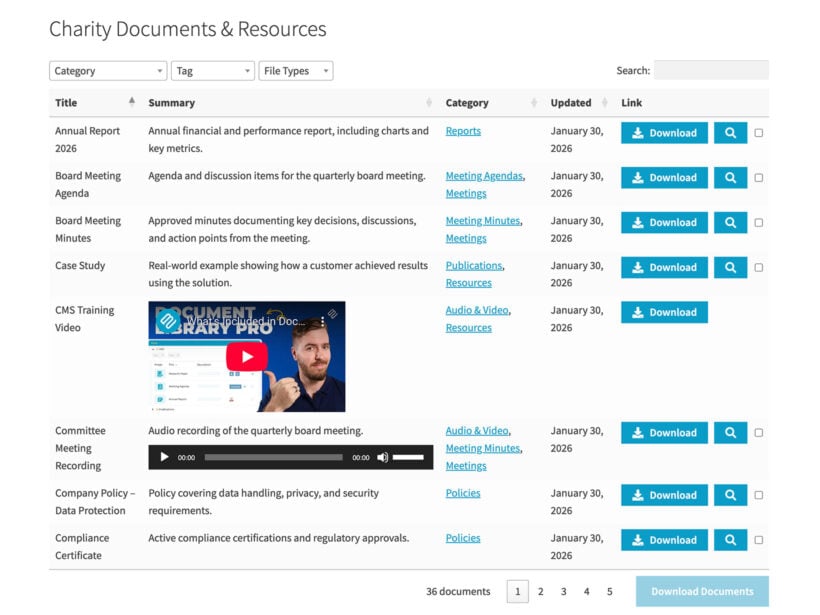
If documents or other resources are your primary gated content (think PDFs, templates, guides, and toolkits), Document Library Pro is the cleanest way to handle this. It combines document management with built-in access control, so you don't need to piece together multiple plugins.
Here's how to set up email gating for a document:
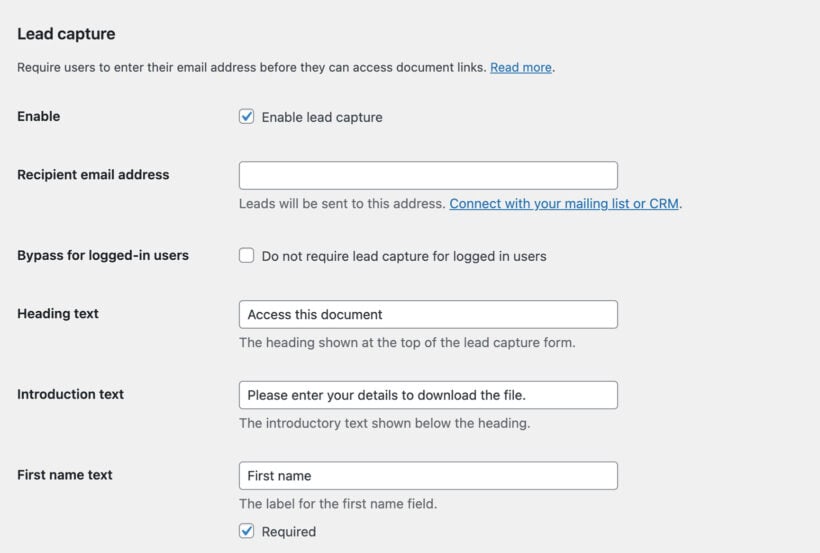
- Install Document Library Pro (Advanced plan) and activate your license key.
- Go to Documents → Settings and enable lead capture.
- Customize the lead capture form as needed to control which information you wish to collect and set the wording.
- Go to Documents → Add New and create your gated document.
- In the "File" section, upload the file or enter the URL of an externally hosted document.
To test, visit the page on your site called "Document Library" from an Incognito browser where you're not logged in. Visitors will see the document listing in your library, but they'll need to enter their email before downloading the file. Click the Download button to trigger the gated content signup form.
This will send an email to your chosen email address. You can then save the email address as needed, or alternatively you can integrate with your CRM or mailing list provider such as Salesforce or Mailchimp.
When to use Document Library Pro for gated content
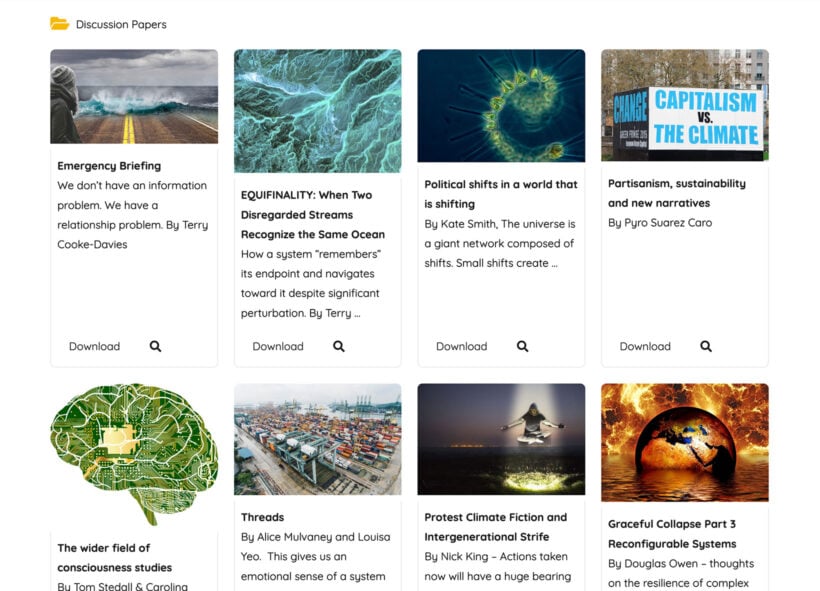
Use this method when:
- You want to grow your email list with valuable downloads.
- You need professional presentation with search and filtering.
- You need version control or expiry dates on documents.
- You're building a client portal or resource hub.
- You want to track download counts to measure engagement.
Gate access to documents by user, role, or password
Document Library Pro goes beyond email capture. It also lets you restrict access to documents based on user role, individual user accounts, or password-protected groups. This is all built directly into the plugin and gives you even more fine-grained control.
For each document or category, you can give access to different people. These features make it a solid choice for client portals, internal document libraries, intranets, or any situation where different people need different levels of access.
Additional features
You can set automatic expiry dates so documents become inaccessible after a certain period. You can also track download analytics to see which files get the most attention.
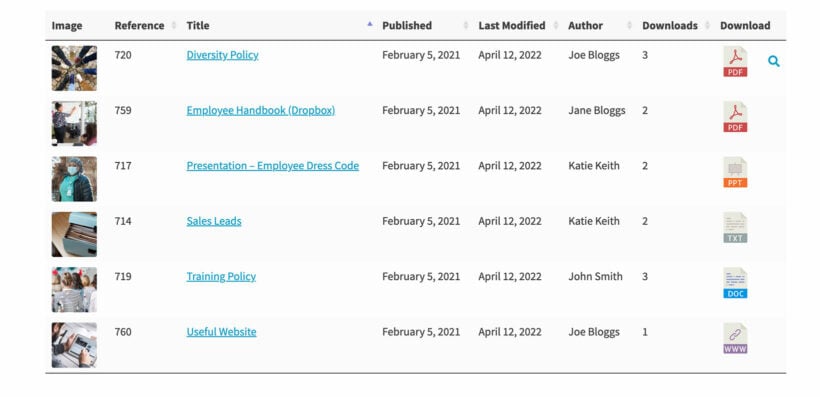
Learn more about download manager plugins in our guide, including how to create one from scratch.
Method 2: Create members-only sections with Password Protected Categories
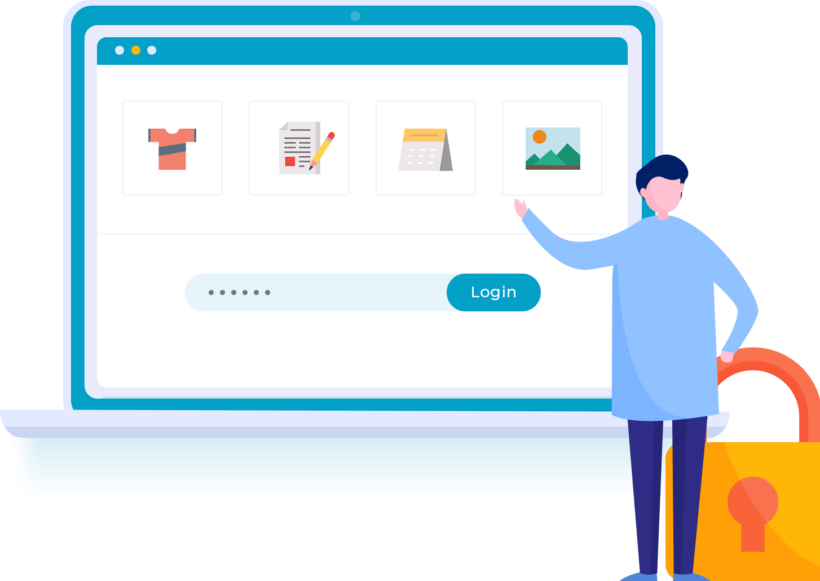
Sometimes you don't need email capture at all. You just need to lock entire sections of your WordPress site so only specific people can access them. That's what Password Protected Categories does.
This plugin works at the category level and is ideal for people who want to protect pages, posts or custom post types instead of downloads. Protect a category with a password or user role, and every post within that category automatically inherits the same protection. No need to lock individual pages one by one.
Setting it up takes just a few minutes:
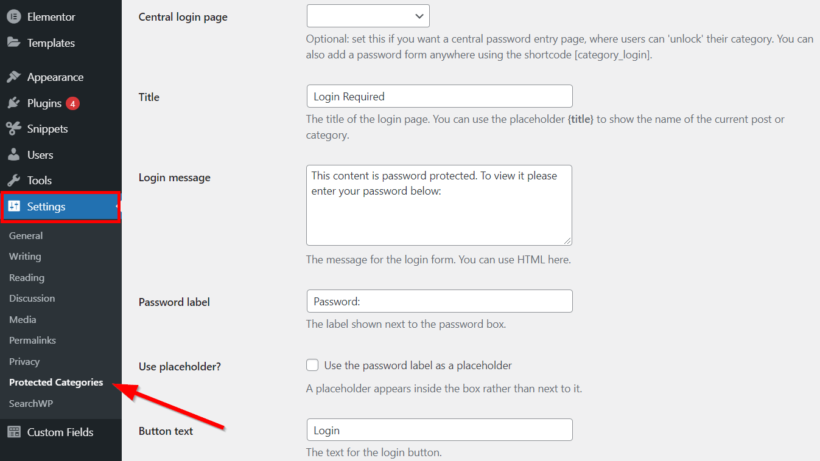
- Install Password Protected Categories and activate it.
- Go to Posts → Categories (or the categories page for any custom post type).
- Edit the category you want to protect.
- Scroll to the 'Visibility' section and choose 'Protected'.
- Set a password, or restrict by user role or individual user.
- Save. All posts in that category are now gated.
When to use Password Protected Categories for gated content
This method of WordPress gated content works well for:
- Client portals - Create one category per client and share the password with them.
- Employee intranets - Gate HR documents and internal resources by user role.
- Member communities - Restrict paid member resources to subscribers.
- Educational sites - Organize course materials by category and control access by role.
Choose Password Protected Categories when you need section-level access control, when passwords or user roles work better than email capture, or when you're building portals without lead generation as a goal.
Method 3: Other gating methods for specific scenarios
When Document Library Pro Advanced and Password Protected Categories don't quite fit, these alternatives handle more niche WordPress gated content scenarios.
- Popup Maker for popup-based content gatingTrigger an opt-in popup when visitors click a download link or scroll to a specific point in your content. Embed a form from your email marketing service or favorite form plugin, and deliver the gated asset after submission. It's flexible, works with most form builders, and is used on over 600,000 WordPress sites.
- Contact Form 7 Gated Content for single file gatingHides a download button until visitors submit a Contact Form 7 form. It remembers repeat visitors so they don't have to fill in the form again. Simple and free, but limited to one file at a time.
- Before And After for gating pages and postsGates files, pages, or posts behind form completion. It integrates with Contact Form 7 and Gravity Forms. Shared links also require form completion, so people can't bypass the gate.
These single-file solutions work for basic needs, but they lack Document Library Pro's organization, search, filtering, and professional presentation.
For more complex scenarios:
- Paid Memberships Pro for paid membershipsHandles payment processing through Stripe and PayPal, subscriptions, and content restriction. Best for full membership sites with courses and forums. Note that Document Library Pro integrates with Paid Memberships Pro, so you can restrict documents by membership level.
- Restrict Content Pro for subscription-focused sitesFocuses on subscription management with visibility control and discount codes. A solid option if subscriptions are your primary business model.
For more content restriction plugin recommendations, have a look at our comprehensive plugin guide.
Best practices for WordPress gated content
Whichever gating method you choose, these practices will help you get better results.
Keep forms short. Two to three fields is plenty. Name and email (plus privacy consent depending on your location) are usually enough. Every extra field you add reduces completions.
Write value-focused headlines. "Get the Complete SEO Checklist" converts better than "Download Our Resource." Tell people exactly what they'll get and why it's worth their email address.
Add social proof. Download counts, testimonials, or authority indicators like "Used by 10,000+ marketers" reassure visitors that your gated content is worth their time.
Make CTA buttons specific. "Get My Template" outperforms "Submit" every time. Action-oriented language tells visitors what happens next.
Track your downloads. Use download tracking to measure which gated content performs best. This tells you what your audience values most, which helps you create more of it.
Avoid aggressive tactics. Immediate pop-ups, excessive form fields, or unclear value propositions damage conversions. Give visitors time to see the value before asking them to commit.
Balance discoverability with protection
One of the biggest concerns with WordPress gated content is SEO impact. Here's how to handle it.
Create public landing pages that describe the benefits of your gated content. Include testimonials, value propositions, and enough detail that search engines can index these pages for relevant keywords. The assets themselves stay protected, but the pages promoting them rank freely.
For partial article locks, make sure the preview section (the first 20-30%) contains meaningful, rankable content. Don't tease with fluff, as search engines need substance to work with.
As a general rule: index your public library pages, category archives, and landing pages. Don't directly index individual gated assets like files, full articles, or members-only content.
This is easy with Document Library Pro because the lead capture form only restricts the actual file downloads. Everything else remains publicly available.
Start gating content with confidence
Choosing the right WordPress gated content approach comes down to what you're trying to achieve:
- Want to grow your email list with valuable downloads? Document Library Pro gives you email capture, professional document presentation, and built-in access control.
- Need to share confidential content with specific groups? Password Protected Categories locks entire sections by password or user role.
- Want to preview articles before requiring signup? OptinMonster's content lock feature handles partial gating smoothly.
Whatever you choose, remember the trust-first principle. Gate only your highest-value content while keeping most material freely accessible. That balance builds the authority and goodwill that makes people want to hand over their email address.
Ready to get started? Get Document Library Pro today for professional document gating with email capture, access control, and built-in SEO optimization.