WooCommerce Product Options 2.6: Quantity pickers, cart links, and smart price controls


Discover what's new in WooCommerce Product Options which includes adding quantity pickers to your product add-ons, preconfigured cart links, and more.
WooCommerce Product Options version 2.6 is a big step forward for stores selling configurable products.
This release focuses on three things store owners regularly struggle with: letting customers choose quantities per option, sharing ready-made product configurations, and controlling how prices are displayed without confusing shoppers. The result is smoother ordering for customers and less manual work for you.
Quantity pickers for multi-choice product add-ons
Until now, each option was limited to a simple "selected" or "not selected" state. In version 2.6, each choice can have its own quantity picker.

This allows customers to select exactly how many units they want for each option, with prices updating automatically. Instead of ticking multiple checkboxes or adding the same product repeatedly, customers can build their order in a single step.
Quantity pickers also work for options without a price. Even if an option is free, the selected quantity is stored with the cart item and order, making fulfilment clearer and reducing mistakes.
Quantity fields for WooCommerce product add-ons are particularly useful for food boxes, bundles, wholesale orders, and any store that needs quantity control at option level rather than product level.
How to set it up
In the WordPress admin, we have added several new controls so that you can add and customize the quantity pickers for your product add-ons. Just go to Products → Product Options, add or edit an options group, and enable the quantity pickers under 'Choice type':
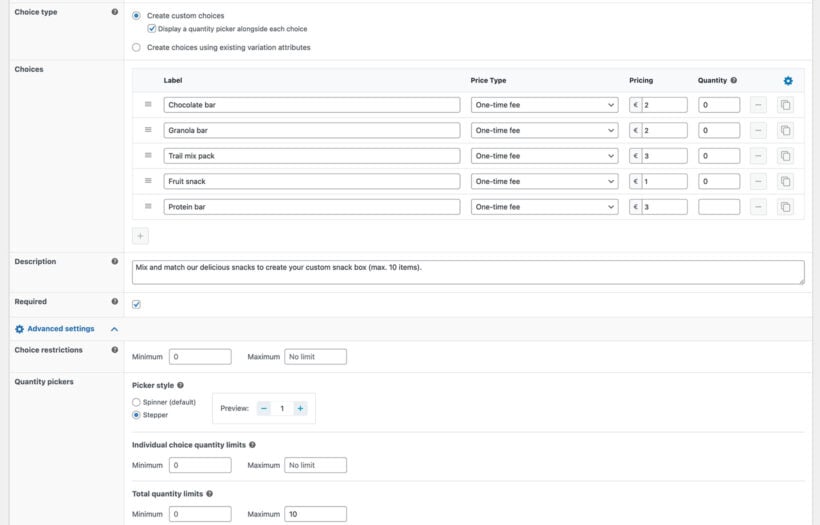
When you do this, several additional options appear:
- Set a default quantities per choice.
- Choose between two front-end styles - spinner or plus-minus stepper.
- Optional limits per choice and across the entire option group.
Shareable checkout links
WooCommerce Product Options 2.6 introduces shareable checkout links that recreate a fully configured cart for the customer, complete with pre-selected product add-ons.
Instead of asking customers to configure a complex product themselves, you can do it once and send them a link. The link rebuilds the cart exactly as you created it and takes the customer straight to checkout.
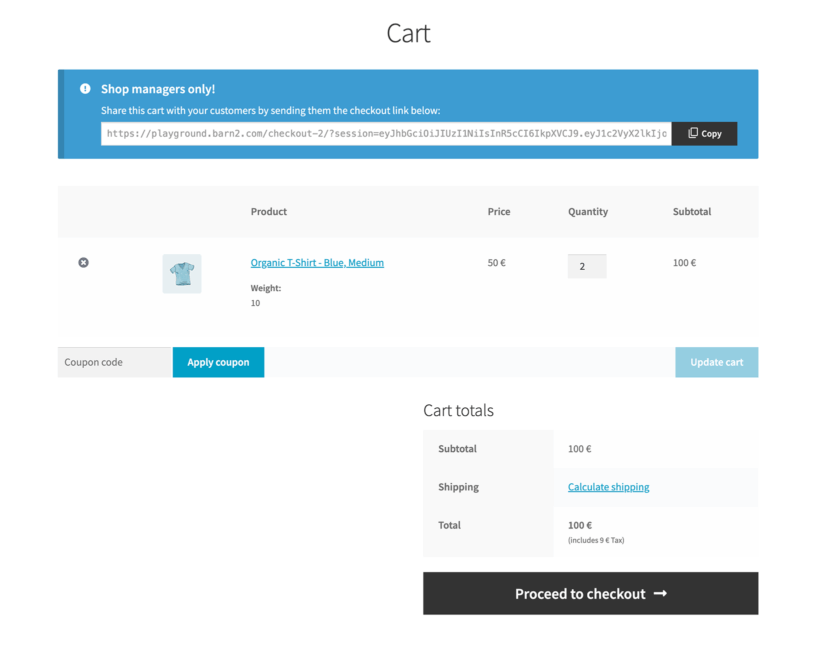
Shareable checkout links include everything you configured on the product page:
- Products and variations.
- Selected product options.
- Option quantities.
- Applied coupons.
This is ideal for sending quotes, support-assisted orders, B2B sales, or any store where orders are often pre-defined rather than self-configured.
How to set it up
- Log into your WooCommerce store as an Administrator or Store Manager.
- Visit a product page that contains product options.
- Select the options/variations/quantities that you wish to create a link to, and add the product to the cart.
- At the top of the WooCommerce cart page, you will see a box containing your shareable link. (This is hidden from customers.)
- Copy the link and send it to the customer, publish it in a blog post, include it in your email marketing, or whatever you like.
- When a customer clicks on the link, it will take them to the checkout page containing the product with the selected options, variations and quantities.
Flexible price display and hidden option prices
Version 2.6 adds much more control over how prices are shown, both for the main product price and for individual options.
Price display options for option groups
Option groups now include a dedicated price display setting that controls how the main product price appears on the product page.
You can now:
- Hide the main product price completely.
- Add a prefix such as “Starting from”.
- Add a suffix such as “per unit” or “per square meter”.
Price display settings can be used even without adding options to a group, making it easier to control price messaging independently.
When multiple option groups apply, clear priority rules decide which settings are used. Prefixes and suffixes can also be combined across groups, giving you fine-grained control without custom code.
These options are especially useful for custom-priced products where a base price alone would be misleading.
Hide option prices without changing totals
Individual options now include a setting to hide prices. You'll find this in the advanced settings for each option.
When enabled:
- Option prices are hidden on the product page.
- Prices are also hidden in the cart, checkout, and order screens.
- Option costs are still included in the total automatically.
This works well for bundled pricing, premium products, or any situation where showing a detailed price breakdown would add noise rather than clarity.
Role-based restrictions for option groups
Option groups can now be restricted by user role, alongside existing product and category rules.
This allows you to show different options to different customer types without duplicating products or option groups. For example, wholesale-only options can be shown only to logged-in wholesale customers, while retail customers see a simpler product page.
Role-based restrictions are particularly useful for B2B stores, membership sites, and mixed retail and wholesale setups.
Get WooCommerce Product Options 2.6
WooCommerce Product Options 2.6 is available now.
Existing customers can read the full changelog and update directly from the WordPress dashboard. New customers can purchase the plugin as usual, and All Access Pass customers automatically have access to this release.
Documentation and support are available if you need help using any of the new features.