Streamline your Shopify to Google Sheets data management


This guide covers five methods to connect Shopify to Google Sheets, from free manual exports to automated two-way sync tools, helping you choose the right approach for your store's needs.
Getting your Shopify data into Google Sheets sounds straightforward until you actually try it.
- Formulas break during imports.
- Automation tools cost more than expected.
- Two-way sync remains frustratingly elusive for most solutions.
Here's what nobody tells you upfront. Every Shopify to Google Sheets method forces you to choose two benefits from three options: automatic sync, two-way editing, or minimal cost. There's always a compromise.
But maybe you've been looking at this the wrong way. Is "how to get data into Google Sheets?" even the right question? Perhaps a better one is "how to efficiently edit Shopify products in a spreadsheet format?" This opens up options for bulk editing in Shopify and can make your life a whole lot easier 💡
Keep reading to discover all the options for syncing from Shopify to Google Sheets, and for editing products in a spreadsheet more generally.
Method 1: Manual CSV exports
Manual CSV export is the simplest way to get Shopify data into Google Sheets. This method involves downloading product or order data from Shopify as a CSV file, then opening it in Google Sheets.
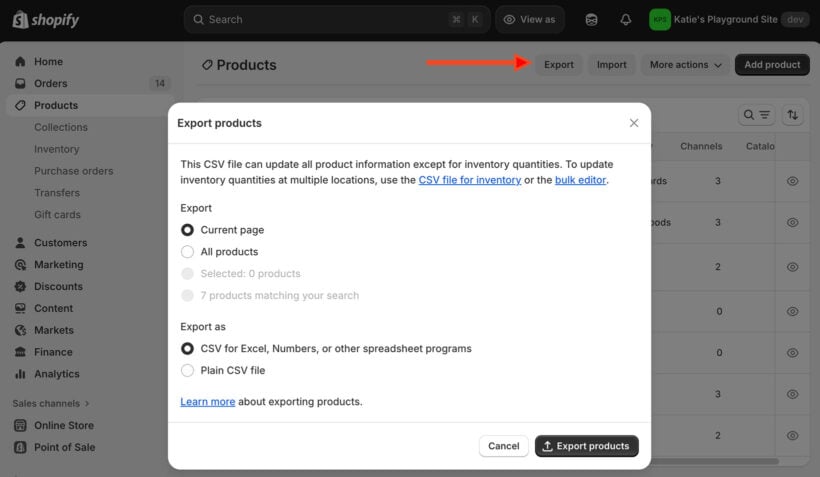
The problem with CSV imports isn't the first export. It's every update after that.
Say you download your products from Shopify and open the CSV in Google Sheets. You add formulas in extra columns for markup calculations, VLOOKUPs to reference supplier data, or conditional formatting to flag low stock. Everything works great.
Then next week, you need fresh data. You export again from Shopify and import the new CSV. Now those formulas are gone, overwritten by raw values.
For example, your =C2*1.15 markup calculation becomes a static 45.99. Your VLOOKUP references are destroyed.
This is the fundamental limitation of CSV-to-Google-Sheets workflows. Every refresh risks wiping out the analysis layer you've built on top of the raw data.
When manual CSV still makes sense:
- One-time data migrations where you don't need ongoing formulas.
- Monthly financial reports that work with static numbers.
- Backup exports before making major catalog changes.
- Small catalogs under 100 products that are quick to manage.
Formula protection strategies:
If you must use CSV imports, you can work around the formula problem. Keep your formulas in separate columns that never get overwritten. Use IMPORTRANGE to reference data in a separate "import sheet" where raw data lands. Create a template sheet with protected formula ranges.
Once you're exporting more than once a week or managing over 500 products, the time cost exceeds any savings from avoiding paid tools. I find that's the breaking point where manual Shopify to Google Sheets workflows start costing more than they save.
Method 2: Using Shopify Flow
Shopify Flow is a free automation tool included with most Shopify plans. It can add new data rows to Google Sheets automatically when certain events happen in your store.
The key limitation: Flow only appends new rows. It cannot update existing data or read anything back from your spreadsheet.
What Flow can do
- Trigger on events like new orders, product updates, or customer signups.
- Add new rows to a Google Sheet when those events occur.
What Flow can't do
- Update existing rows with changed data.
- Sync edits from Google Sheets back to Shopify.
Getting started with Flow
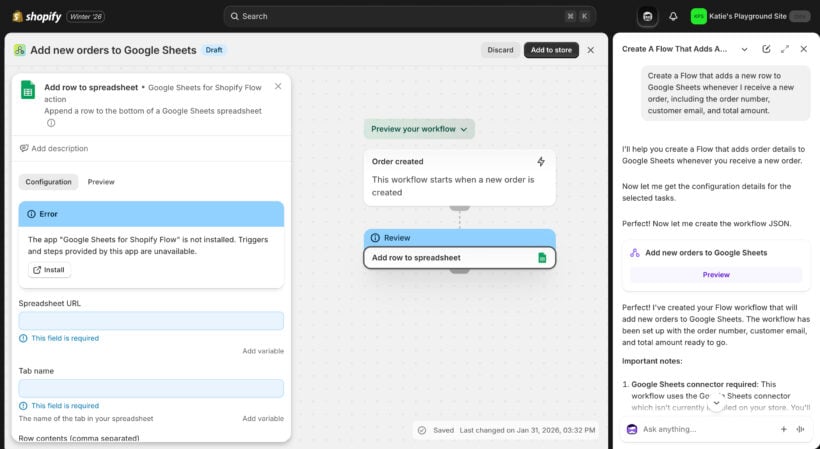
The easiest way to set up a Flow workflow is through Shopify's AI assistant, Sidekick. Follow these steps:
- In the Shopify admin, go to Apps → Flow.
- Create "New workflow".
- In the Sidekick AI field, enter a prompt like: "Create a Flow that adds a new row to Google Sheets whenever I receive a new order, including the order number, customer email, and total amount."
- Sidekick will build the workflow for you and walk you through connecting your Google account.
Good use cases for Flow
Using Flow to connect Shopify to Google Sheets is useful for tasks such as:
- Order tracking sheets that just need new orders appended daily.
- Customer signup logs for email campaign planning.
- Inventory alerts when stock hits certain thresholds.
However, Flow won't help if you need to bulk edit product prices, update inventory levels, or manage descriptions in a spreadsheet format. It hits its ceiling rhe moment you need to update existing data or sync edits back to Shopify. For those tasks, you need a tool like Setary that supports two-way data sync.
Method 3: Third-party connectors for one-way automation
You can link Shopify to Google Sheets using apps like Coefficient, Coupler.io, or SyncWith for automated data exports. These tools are typically one-directional, pulling data from Shopify into Sheets on a schedule.
However, here's the one-way connector reality: tools like these all promise automated exports, but they're remarkably similar in what they actually deliver. They tend to offer:
- Scheduled exports.
- Multiple data source connections beyond just Shopify, including Google Sheets.
- Clean interface with preset templates for common data types.
- HOWEVER, they cannot push changes back to Shopify.
Pros and cons of one-way Google Sync
All these tools excel at getting data out of Shopify. However, none can push edits back. This makes them excellent for exporting Shopify data to third party systems for order management purposes, and useless for bulk editing or inventory management via Google Sheets.
For example, you can create beautiful dashboards in Google Sheets. You can run complex analyses on your sales data. You can generate automated weekly reports. However, you cannot edit a product price in Google Sheets and sync it back to your store.
When one-way sync is enough
Depending on why you want to connect Shopify to Google Sheets, a one-way sync might meet your needs. This is useful for:
- Weekly performance reports for stakeholders.
- Inventory snapshots for purchasing decisions.
- Customer segmentation analysis for marketing.
- Financial reconciliation with your accounting system.
However, the moment you think "I wish I could edit this in Sheets and have it update Shopify", you need a different solution.
Method 4: Two-way Google Sheets sync
You can edit Shopify products in Google Sheets and sync back using specialized apps like Mirach, FlexSync, or eCommix. However, features and reliability vary significantly between providers.
Multiple tools claim true two-way sync, but let's examine what that actually means. Mirach Google Sheets Sync is among the most established options in this category.
How Mirach works
- Export specific product data to Google Sheets.
- Edit using all Google Sheets features and formulas.
- Review changes before importing back to Shopify.
- Supports mass editing and team sharing.
Mirach, like FlexSync and eCommix, does provide two-way sync technically. You can edit in Sheets and push back to Shopify. Unfortunately, though, every tool in this category struggles with the same challenges.
Universal two-way sync challenges
- Conflict resolution when multiple people edit simultaneously.
- Maintaining data integrity during sync cycles.
- Google Sheets formula preservation during updates.
- API rate limits creating sync delays.
- Field validation mismatches between platforms.
Most tools focus on specific fields like prices, inventory, and basic details. Full product field coverage remains rare. Variant handling varies wildly in reliability. And even worse, "Sync failed" errors are common across all providers.
I highlighted Mirach because it's the most mature solution with the longest track record. However, it still demonstrates the fundamental challenge: forcing two systems that weren't designed to work together into constant communication. The Google Sheets API and Shopify's API speak different languages, and translation errors are inevitable.
Based on this, I think that the problem isn't which Google Sheets to Shopify tool you choose. Instead, the problem is the whole idea of trying to use Google Sheets for something it wasn't designed for. Google Sheets excels at collaboration and analysis. It wasn't built to serve as a product database with constant two-way synchronization requirements.
And that brings us to Method 5!
Method 5: Direct spreadsheet editing (the alternative approach)
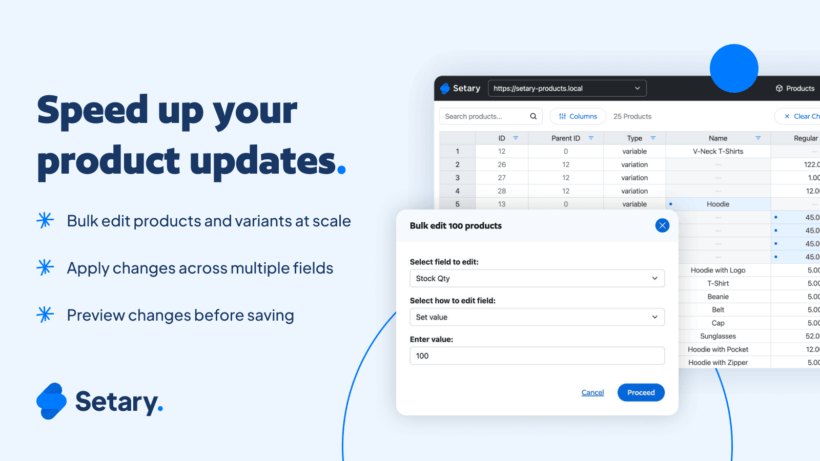
Here's a question worth asking: do you specifically need Google Sheets, or do you just want spreadsheet-style editing for your products?
Instead of syncing with Google Sheets, Setary provides its own powerful spreadsheet interface that connects directly to your Shopify store via API. It's a cloud-based spreadsheet editor (similar to Excel or Google Sheets) that doesn't require any sync with Google at all. Instead, it provides a dedicated spreadsheet interface hosted on Setary's servers for editing your products.
How Setary differs from Google Sheets sync
- No Google account required.
- No sync delays or conflicts between platforms.
- Purpose-built for product management.
- Handles unlimited fields and variants.
- Never affects your existing Google Sheets.
Complete field coverage
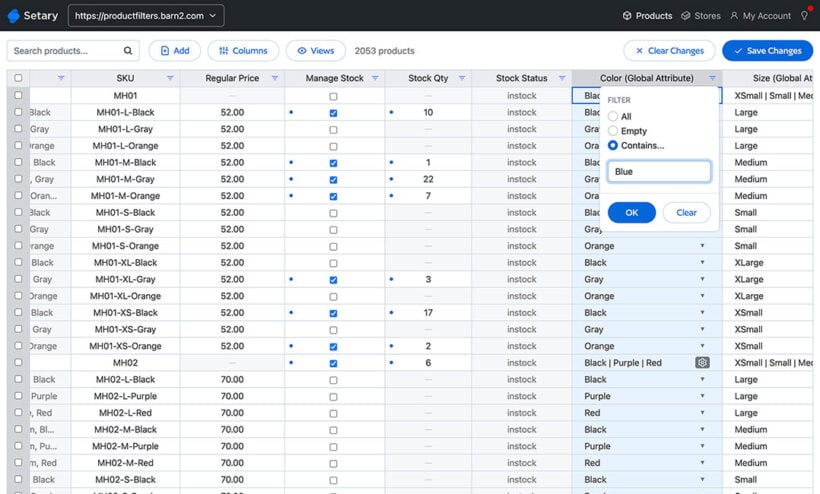
Every product field is editable in Setary and you get full variant management. Metafields and custom fields work seamlessly. Inventory across multiple locations syncs properly. You can bulk update images, SEO fields, and every other part of your Shopify product catalog.
Bulk editing capabilities
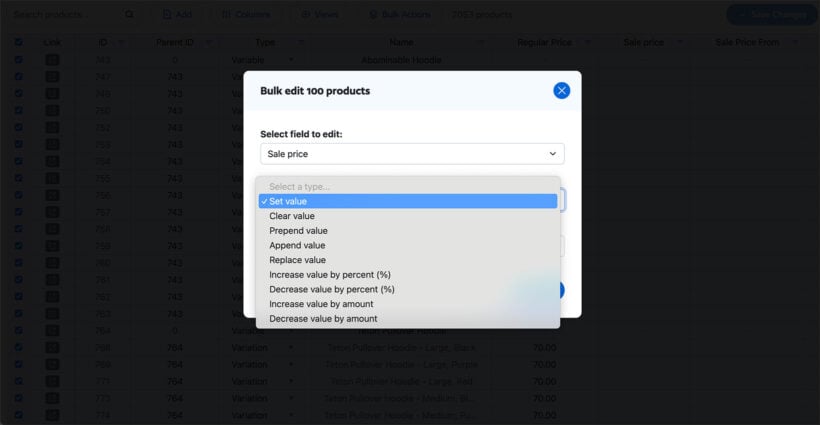
While Setary's spreadsheet editor is a good replacement for Google Sheets, is can also do much more. Its bulk edit functions let you perform quick actions on multiple products and variants at once. For example, you can:
- Change prices by percentage instantly across your entire catalog.
- Find-and-replace across all product descriptions.
- Perform AI-powered description optimization for better conversions.
- Append some extra text to all your product descriptions.
- Undo any bulk change if something goes wrong.
Who chooses Setary over Google Sheets sync?
Many types of merchant benefit from using Setary instead of syncing Google Sheets to Shopify. This includes:
- Stores with complex product catalogs and many variants.
- Teams tired of dealing with sync failures.
- Merchants who don't actually need Google's collaboration features.
- Anyone hitting Google Sheets' cell limits.
- Businesses wanting dedicated ecommerce tools.
While you lose Google Sheets' familiar sharing and collaboration features, you gain purpose-built ecommerce tools that just work. There are no more "sync failed" messages, and no formula errors. You won't get any more Google authorization expirations that break your workflow at the worst possible moment.
I'd say that if you're trying to force Google Sheets to be a product management system through complex formulas and scripts, you're probably better served by a tool designed for exactly that purpose.
Choose the right approach for your needs
As with anything, there's no one-size-fits-all approach when choosing how to sync Shopify with third party systems. Make a decision based on what you're actually trying to accomplish with your Shopify to Google Sheets connection.
If you need simple order tracking: Start with Shopify Flow. It's free, built into your plan, and handles append-only logging well. Most stores can set this up in under 30 minutes.
If you need automated reports in Google Sheets: Try Coupler or SyncWith. These one-way export tools work reliably for reporting and analysis dashboards. They're worth the monthly cost for consistent automated reporting.
If you must edit products in actual Google Sheets: Test FlexSync or Mirach for two-way sync. Verify reliability with your specific catalog before committing, and run a small test batch first.
If you want spreadsheet-style editing without Google Sheets limitations: Consider Setary's dedicated cloud editor. It skips the sync problems entirely.
Ask yourself: "Am I married to Google Sheets specifically, or do I just want efficient bulk editing?" Your answer determines which approach will save you the most time and headaches in the long run.
Spreadsheet editing without the sync problems
Many merchants think they need Google Sheets integration when what they actually need is efficient spreadsheet-style editing. If you're forcing Google Sheets to be a product management system through complex formulas and workarounds, a purpose-built tool might serve you better. Sometimes the best solution isn't the one you originally searched for.
The question isn't "What's the best Shopify to Google Sheets tool?" It's "Do I need Google Sheets specifically, or just an efficient way to bulk edit products like a spreadsheet?" Answer that honestly, and your tool choice becomes obvious.
Sign up for a Setary free trial to experience what purpose-built spreadsheet editing for ecommerce actually feels like.
2 Comments
I appreciate the information you shared.
You're very welcome! I'm glad you found the information helpful.