How to build a limited time offer in Shopify

Discover the easy way to build a limited time offer in Shopify that starts on schedule, applies the right discount automatically, and stops without you lifting a finger.
Running a flash sale or seasonal clearance sounds simple enough. You set a discount, pick a date, and rake in the profits. But anyone who's tried running multiple Shopify limited time offers at once knows the reality is messier. Discounts overlap, the wrong rule fires, and suddenly your margins take a hit you didn't plan for.
Luckily, you can avoid all of that with the right setup. Whether you're using Shopify's built-in discount tools for a simple sale or a dedicated app for more flexibility, there's a clear path to limited time offers that run themselves. In this article, I'll walk you through the full setup process: configuring your first time-bound discount, adding countdown timers to communicate urgency, and preventing conflicts when multiple promotions overlap. We'll cover two methods: using native Shopify and the Barn2 Bundles & Bulk Discounts app.
What is a limited time offer in Shopify?
A limited time offer is a marketing promotion with special pricing that's only valid for a set duration. It uses automatic start and end dates to create urgency.
In Shopify, this means setting up a discount that activates at a specific time and expires without manual intervention. The scarcity and deadline push customers toward faster purchase decisions. That's why limited time offers consistently outperform evergreen promotions (as well as avoiding the legal pitfalls of permanent sales).
Here are some common examples that work well as a Shopify limited time offer:
- Product launch countdown pricing, such as 20% off for the first 48 hours.
- Holiday campaign windows for Black Friday, Cyber Monday, or Boxing Day.
- Back-in-stock alerts paired with limited time pricing to drive quick conversions.
- Bundle promotions that expire after a set period.
- Pre-order discounts before an official product release.
- Store anniversary or milestone celebrations with exclusive savings.
This article focuses on the practical side of things. Specifically, I'll be sharing how to create limited time offers that activate and expire automatically in Shopify. I won't be covering broader promotional strategy in depth, so instead I'll point you toward best practices for getting the most out of each campaign.
Method 1: Set up a limited time offer using Shopify
Shopify's native discount system can handle straightforward limited time offers. If you need a single promotion with a clear start and end date, this is the fastest way to get it done. Alternatively, skip ahead to Method 2 for a faster way to create different promotions on different products.
Here's how to set up a time-bound discount in Shopify:
- Navigate to Discounts → Create discount and choose your discount type.
- Select between percentage off, fixed amount off, or free shipping.
- Set the discount value (e.g. 20% off or $10 off).
- Choose between an automatic discount (applies at cart without codes) or a discount code (customer enters it at checkout).
- Pick which products the discount applies to: either collections or your entire store.
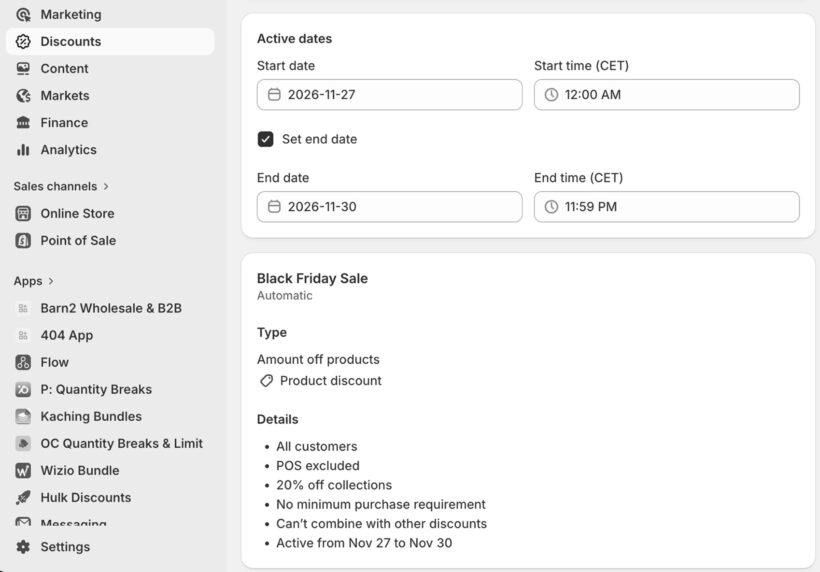
- Schedule the start date and time, and the end date and time. This is the critical step for any limited time offer, as it defines exactly when your promotion goes live and when it stops.
- Save and test the discount in your storefront before launch.
Pro tips
Automatic discounts tend to convert better since customers don't need to remember or enter a code. They reduce friction at checkout and can increase completion rates. However, automatic discounts can't be combined with other discount codes at checkout, which matters if you already run loyalty or referral programs. Discount codes give you more control over distribution but add an extra step for the customer.
This native approach works best for single limited time offers with simple eligibility, like one collection, one time window, and no overlapping campaigns. However, once you need multiple concurrent promotions or more granular control, it's time to look at a dedicated app.
Method 2: Create multiple limited time offers with Barn2
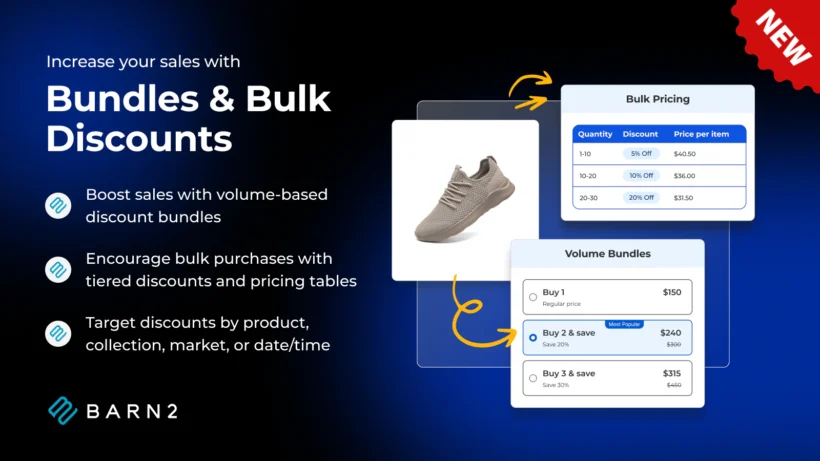
When you need several time-bound offers running at once, or quantity-based discounts with automatic scheduling, Barn2 Bundles & Bulk Discounts avoids the constraints of Shopify's native system.
It brings several advantages over creating time limited offers in Shopify itself:
- There's no 25-discount limit. This is essential during peak sales periods when you might want a flash sale on one collection, a volume bundle on another, and a storewide tier running in the background, all at the same time.
- You can create time limited offers for specific products (not just entire collections).
- It focuses specifically on quantity-based pricing, which allows you to run time limited offers without necessarily reducing your average order value. Customers only get the discount by buying more from you, which can have a huge impact on revenue compared to flat discounts.
- The app displays eye-catching volume bundles and pricing tables on your product pages so customers can see exactly how much they can save by buying more:
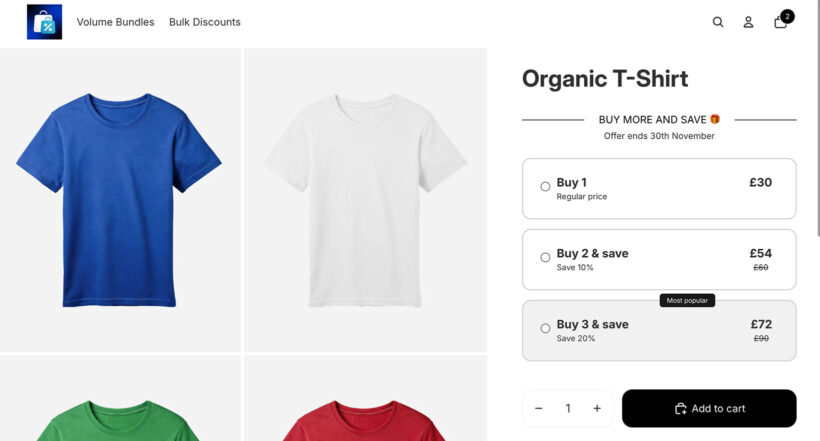
Here's what the app lets you do for limited time offers
As you can see, there are lots of reasons to schedule sales using Barn2 Bundles & Bulk Discounts instead of native Shopify. You can use the app to:
- Create unlimited volume bundles, BOGO deals, and bulk discount rules, all with scheduled start and end dates.
- Set up mix-and-match bundles for flexible promotions like "Buy any 3 shirts, get 20% off."
- Run time-bound BOGO offers such as "Buy one get one 50% off, this weekend only."
- Configure quantity breaks and tiered pricing like "Buy 2 save 10%, buy 3 save 20%."
How to create time limited offers in Shopify
To set up a discount with a scheduled start and end date:
- Install the Barn2 Bundles & Bulk Discounts app from your Shopify dashboard.
- Click 'Create New Discount'.
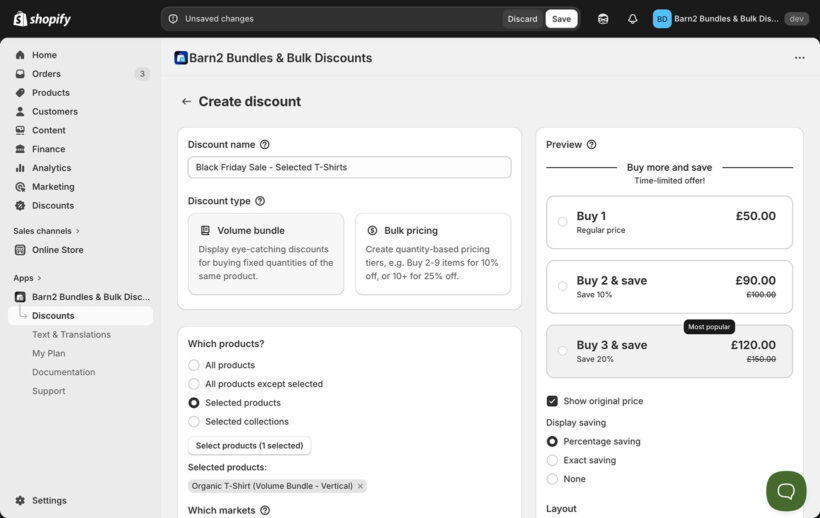
- Choose your discount type (volume bundle or bulk pricing), select the products or collections it applies to, then set your quantity tiers and pricing.
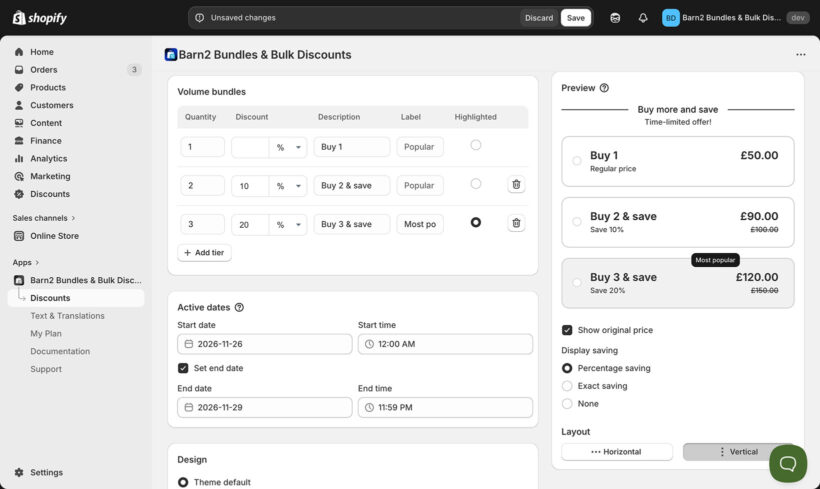
- Add a start and end date to make it a limited time offer, preview how it looks on the product page, and publish.
Super easy to use with a clean interface and clear step-by-step setup. Adding discounts is simple, and the live preview is a great touch. Perfect for non-technical users as well. Highly recommended!
Perfect Black TeesShopify App Store Review
Prevent discount conflicts with prioritization
When multiple limited time offers overlap, you need conflict control. Without it, the wrong discount might apply or customers could receive unintended combinations that eat into your margins.
I'll explain this with a scenario that catches many merchants off guard: you're running a 48-hour flash sale on winter apparel at 20% off, but you also have an ongoing "Buy 5+, save 15%" bulk tier across the store. A customer buys six winter jackets during the flash sale. Which discount applies? Without prioritization, you're leaving it to chance.
Barn2's drag-and-drop prioritization solves this. You simply reorder your discount rules in the app's dashboard, and higher-priority rules take precedence when conflicts occur. Here's how it works in practice:
- Open the discount rules dashboard in the Barn2 app.
- Drag rules to set their priority. Top rules override lower rules when a product qualifies for multiple discounts.
- When a conflict occurs, the app automatically applies only the highest-priority discount.
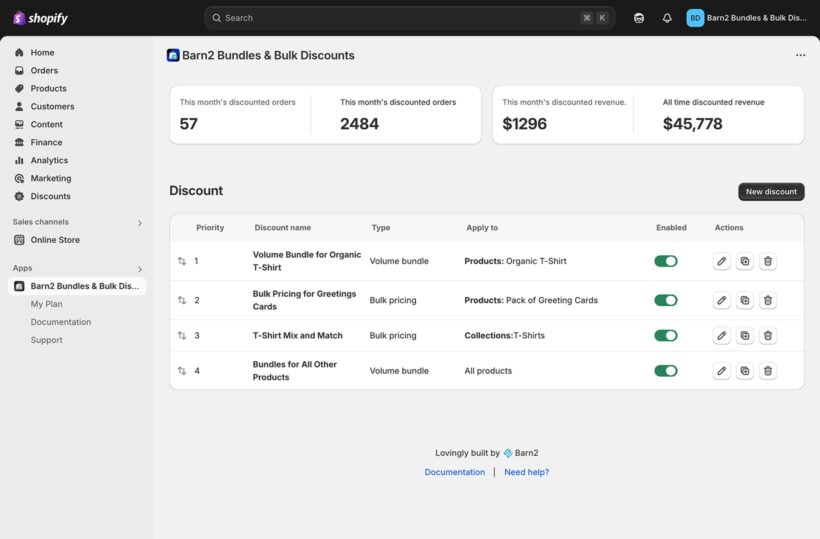
So in the winter apparel example, you'd place the 48-hour flash sale above the bulk tier. During the flash sale window, customers get 20% off. After the sale expires, the bulk tier automatically kicks back in. No manual switching required.
This kind of control matters more than you might expect. I've seen merchants accidentally stack discounts during busy periods because they forgot an old rule was still active. Prioritization prevents that entirely.
One more thing to keep in mind: Shopify's native automatic discounts can't combine with discount codes at checkout. If you're running both types simultaneously, test your checkout flow carefully.
Add visual urgency to communicate your limited time offer
Setting up the discount logic is only half the job. You also need to tell customers the offer is time-sensitive. Visual urgency elements like countdown timers, banners, and badges encourage faster purchase decisions by making the deadline visible.
First, don't forget that Barn2 Bundles & Bulk Discounts will automatically display details of the offer on your product pages. When you create the discount, simply edit the text to add urgency (including emojis if you like!) like this:
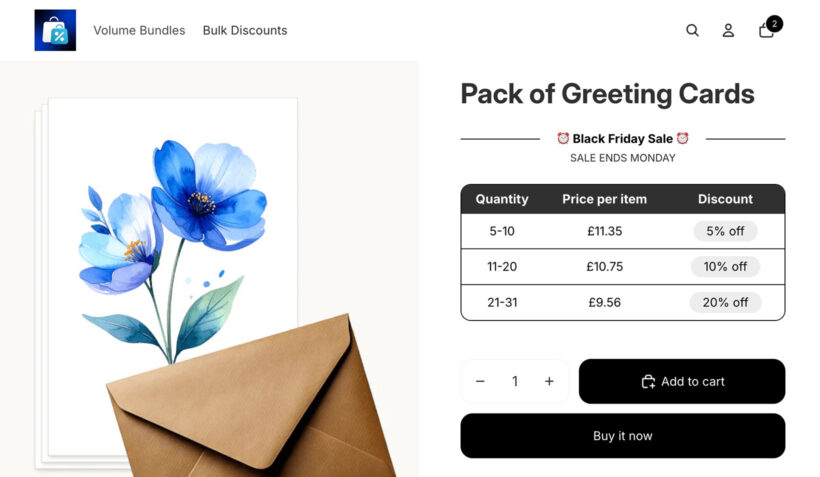
In addition to this, you might want to add storewide notices and countdowns to draw attention to the time limited offer even more.
:An important distinction: Visual urgency tools (except for the ones built into the Barn2 Bundles & Bulk Discounts app) are separate from your discount logic. Remember to set identical end dates in both places.
Theme-native announcement bars
Most Shopify themes include built-in announcement bars that work well for communicating a limited time offer. You can add messaging like "Flash Sale: 20% Off Ends Tonight at Midnight" and link directly to your sale collection.
The limitation is that announcement bars require manual activation and deactivation unless your theme supports scheduled visibility. For a weekend flash sale, that might mean setting an alarm to update your banner.
Countdown timer apps
Shopify doesn't include native countdown timers, so you'll need a third-party app. Hextom: Countdown Timer Bar is a popular choice that offers one-time, recurring, and scheduled timers with targeting options for specific pages or customer segments.
Whatever timer app you choose, always verify that the timer's end time matches your discount's scheduled expiration. These are independent systems, and a timer that shows "2 hours left" while the discount already expired creates a frustrating customer experience and damages trust.
Additional visual elements
Beyond timers and banners, consider these to reinforce your limited time offer:
- Product or collection badges like "Sale Ends Friday" added through theme customization or badge apps.
- Cart-level urgency notifications such as "Complete your order in 15 minutes to receive this discount."
The key with all of these is consistency. Your announcement bar, timer, product badges, and email campaigns should all communicate the same deadline. Mixed messaging confuses customers and undermines the urgency you're trying to create.
Best practices for setting up your limited time offer
Getting the technical setup right is important, but so is the strategy behind your offer. A poorly targeted limited time offer can train customers to wait for sales or erode margins on products that would have sold at full price. Here are the practices I'd recommend before launching any Shopify limited time offer.
Target strategically
- Apply your limited time offer to end-of-season inventory, discontinued items, or slow-moving stock where a discount makes financial sense.
- Exclude products with thin margins from your promotion. Not every product should be discounted.
- Enable mix-and-match for volume bundles to give customers flexibility in how they take advantage of the deal.
Test before launching
- Preview your discounts to verify calculations and confirm how they display on product pages.
- Test the full checkout flow to make sure automatic discounts apply correctly.
- Double-check that your start and end times account for time zones, especially if you sell through Shopify Markets.
- Test on mobile devices. Most customers shop on their phones, so confirm that pricing tables, timers, and checkout all work on small screens.
Sync your visual elements
- Verify that countdown timers match your discount's actual expiration time. Remember, they're separate systems.
- Keep urgency messaging consistent across announcement bars, timers, email campaigns, and social media posts.
- Check that pricing tables and timers remain visible and readable on mobile without covering important content.
Launch your Shopify limited time offer today 🚨
You now have everything you need to build a limited time offer in Shopify that runs on autopilot. Set the dates, choose your discount type, add visual urgency, and let the system handle activation and expiration.
For simple, single promotions, Shopify's native discount tools do the job well. When you need product-specific offers, want to take advantage of volume-based discounts, hit the 25-discount limit, or want to display your offers more prominently on the front end, Bundles & Bulk Discounts gives you everything you need. It has unlimited rules, eye-catching pricing tables, drag-and-drop prioritization, and automatic scheduling to keep everything running smoothly. No more late-night alarm clocks to manually toggle discounts on and off 🛌
Get started with Bundles & Bulk Discounts today and build your first Shopify limited time offer in just a few minutes.