Time-saving methods to bulk edit Shopify metafields


Need to update hundreds of product metafields before your next launch? This guide covers every method to bulk edit Shopify metafields, from native tools to spreadsheet-style apps that turn hours of work into minutes.
Updating Shopify metafields one product at a time is painfully slow. I've watched store owners spend entire weekends clicking through products to add care instructions or warranty details before a major launch. Manual editing isn't just tedious. It's also risky, since one wrong click can wipe out data you spent months building.
Can you bulk edit metafields in Shopify? Yes, you can. Shopify's native bulk editor handles basic tasks, but it has significant gaps. The good news is that several methods exist to speed things up. I'll guide you through native tools, their limitations, and better alternatives like Setary for stores with larger catalogs.
Understanding Shopify metafields
Shopify metafields are custom data fields that store information beyond standard product details. They extend your products with data that Shopify doesn't include by default. Think of them as extra containers for any information your store needs.
Common metafield examples include care instructions, materials lists, warranty information, and size charts. You might also store technical specifications, country of origin, or custom SEO data. Essentially, any product detail that doesn't fit Shopify's standard fields lives in a metafield.

Why does bulk editing Shopify metafields matter so much? Three reasons stand out:
- First, metafields drive better SEO by adding rich, searchable content to product pages.
- Second, they power advanced filtering so customers find products faster.
- Third, time-critical launches demand rapid updates. When your autumn line goes live next week, you need every product's metafields populated correctly.
Shopify's native bulk editing capabilities and limitations
What Shopify's bulk editor can do
Shopify's built-in bulk editor is a spreadsheet-like tool for editing multiple products at once. You can access the bulk editor by selecting multiple products from your Products page and clicking 'Edit products'.
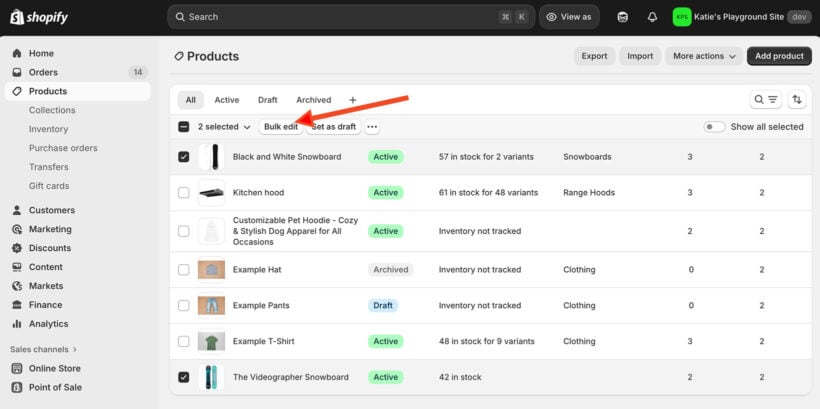
The native editor handles basic product fields well. You can update titles, prices, SKUs, tags, vendors, and inventory levels across hundreds of products simultaneously. Adding metafield columns lets you view and edit custom values alongside standard data.

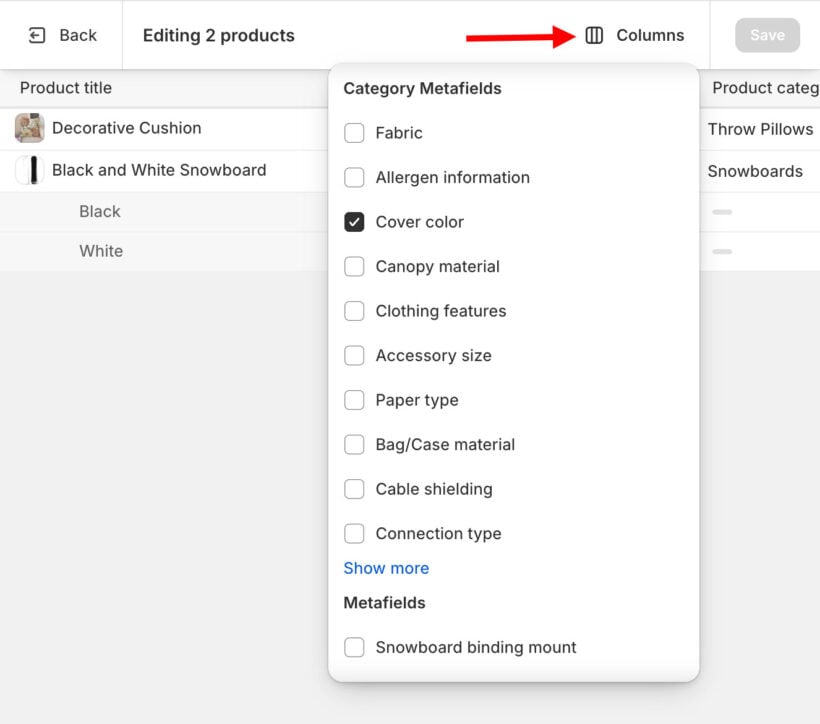
To make custom metafields appear as columns, click the 'Columns' button in the bulk editor. Scroll through the list to find your metafield definitions under their namespace. Check the box next to each metafield you want to display. Note that metafields must be properly defined in Settings → Metafields and metaobjects before they appear here.
Browser tip: Chrome and Firefox work most reliably. Some merchants report glitches with Edge.
For single products, adding values to list-type metafields works smoothly. If a product has "Rough" in a texture metafield, typing "Dry" preserves both values as "Rough, Dry". The editor also supports dropdown selections for predefined values. When you finish editing, clicking 'Save' applies all changes at once.
The critical append vs replace problem
Here's where things get frustrating. You can add values to individual products without data loss, but there's no way to add a value to multiple products while preserving their unique existing data. This single limitation makes Shopify bulk edit metafields tasks unexpectedly difficult.
The drag-fill trap catches many store owners off guard. Dragging a cell's corner down (like in Excel) completely replaces values instead of adding to them. Drag Product A's "Rough, Dry" value to Product B, and Product B's original "Normal" value disappears entirely.
The real-world impact is brutal. Say you need to add "machine washable" to 800 products, each with different existing care instructions. With native tools, that means clicking into each product individually. That's 800 manual entries taking hours of work.
Data loss risk looms over every session. One accidental drag-fill can wipe out months of unique product data across hundreds of items. I find this limitation frustrating because there's no undo button once you save.
Other native editor limitations
Beyond the append problem, several other restrictions slow you down. You must add metafield columns one by one through the Columns menu. No find-and-replace exists for metafield values. Mathematical operations and conditional logic (if-then rules) simply aren't supported.
Performance becomes an issue quickly. Browser lag kicks in around 50 products, with slow scrolling and delayed cell responses. You can't save column configurations for repeated use. Worse, there's no preview of changes before committing them to your live store. For larger bulk editing jobs in Shopify, you'll need a different solution.
Why CSV imports fail for metafield editing
Many store owners assume CSV imports will solve their Shopify bulk edit metafields challenges. Unfortunately, Shopify's standard product CSV doesn't include metafields by default. This limitation forces complex workarounds that often create more problems than they solve.
The metafield column problem
Each metafield adds another column to your export. Twenty metafields mean twenty extra columns to manage. Column naming requires exact format precision (metafield.namespace.key). A single typo breaks the entire import.
But the biggest headache is that blank cells act as delete commands, not "skip" instructions. If you leave one cell empty by accident then that metafield gets erased 😬
Data type corruption and loss
CSV imports struggle with complex data types. JSON objects become simple strings, losing their structure entirely. A properly formatted {"color": "blue", "size": "large"} object becomes useless plain text after import. Lists demand perfect formatting. ["cotton", "linen"] works, but ["cotton", "linen"] with extra spaces might fail silently. You won't know what broke until after the import finishes.
No conditional logic or validation
The append problem persists with CSV imports too. There's still no way to add values without replacing entire fields. Conditional updates (if X, then Y) remain impossible. One misconfigured import can overwrite thousands of products in seconds. For complex import needs, dedicated tools provide much safer workflows.
How to bulk edit product metafields with Setary
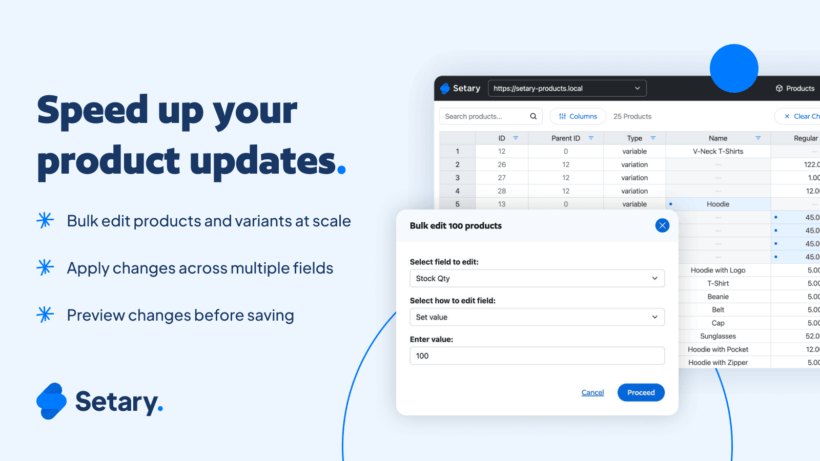
For large catalogs or complex bulk editing tasks, third-party apps like Setary work more efficiently. They save significant time and help ensure accuracy across thousands of products.
What makes Setary different
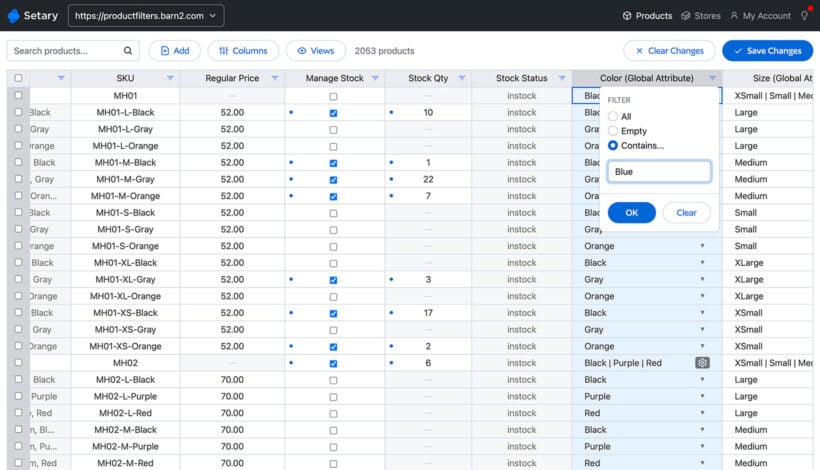
Setary is a cloud-based spreadsheet editor that connects directly to Shopify through the Admin API. There are no CSV exports to manage and no files to upload.
The Excel-like interface displays products, variants, and metafields as editable cells. The cell-level control feels familiar if you've used spreadsheets before.
In addition the spreadsheet editor, the bulk actions allow you to perform tasks even faster. This includes actions that aren't available in Shopify core, such as bulk append operations, find-and-replace, mathematical operations, and conditional updates. That way, you can add values to hundreds of metafields without replacing existing data.
When you're managing thousands of products, every minute saved on data entry adds up. The right tools turn catalog management from a burden into a competitive advantage.
Katie KeithBarn2 Founder & CEO
Setting up Setary
Getting started with Setary takes just a few minutes. Install the app from the Shopify App Store and authorize the connection to your store. Setary syncs your entire product catalog automatically, including all metafield definitions.
The dashboard loads with your products displayed in a familiar spreadsheet layout. Each product occupies a single row, with columns for every field Setary can access. No CSV exports, no file management, and no format conversion headaches. Your product data and metafields appear exactly as it exists in Shopify.
Setting up your metafield columns
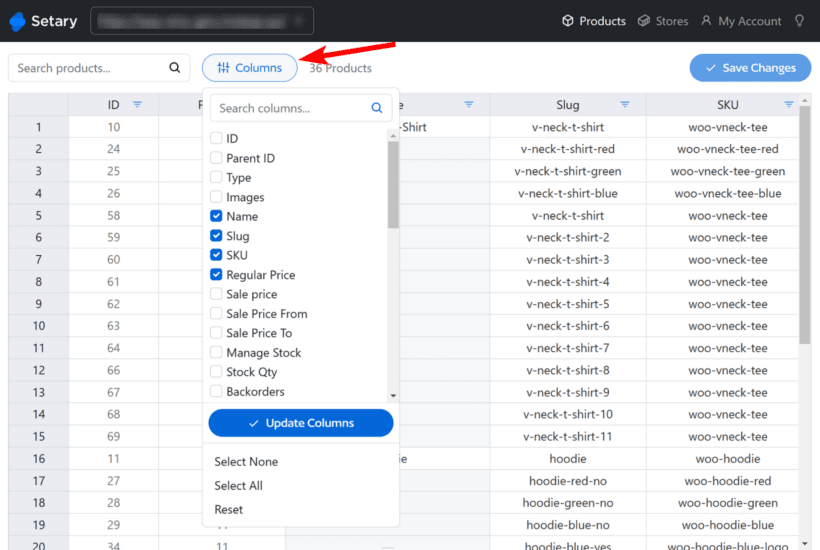
The column manager organizes all available metafields by namespace and key. This makes finding specific fields easy, even in stores with dozens of custom metafields. Check any metafield in the column selector and it appears instantly as a new column.
Drag columns to arrange them logically. I like to keep frequently edited metafields near product identifiers for faster navigation. The column search feature helps you to locate specific metafields quickly when your list grows long.
I recommend creating different sets of columns for different scenarios and saving them as 'View' for quick access. Load a pre-saved view next time to save having to customize the columns for different types of bulk edit. For example, you might want to group SEO-related metafields together, or create a view specifically for inventory attributes.
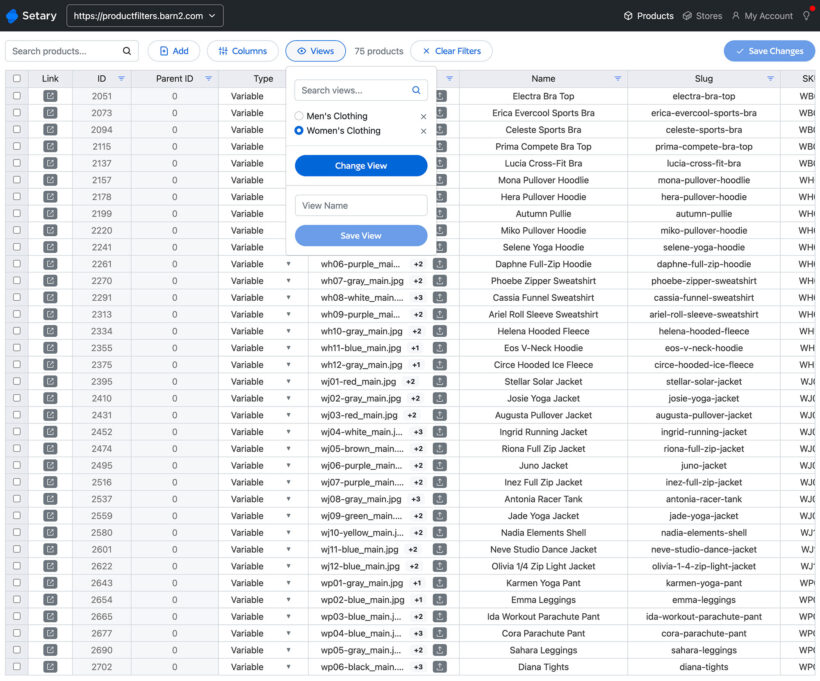
Bulk editing operations step-by-step
Setary offers multiple ways to Shopify bulk edit metafields. Here are the key features available:
- Single-cell edits - Click any cell and type to update. Changes auto-save immediately.
- Multi-select bulk updates - Drag to select multiple cells, then type once to populate all selected cells.
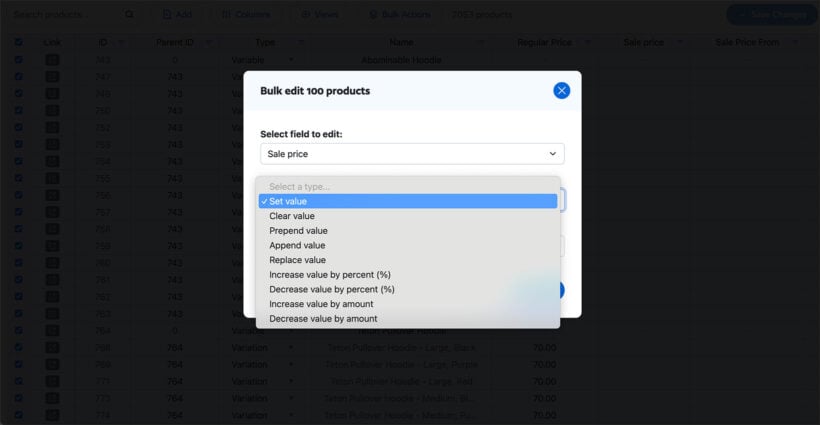
- Copy-paste from Excel - Paste existing spreadsheet data directly into Setary without reformatting.
- Find and replace - Update values across your entire catalog. Change "organic cotton" to "certified organic cotton" everywhere at once.
- Append to lists - Add new values to list-type metafields without replacing existing data. This solves the native editor's biggest limitation.
- Mathematical operations - Apply percentage changes to numeric metafields with a few clicks.
- Filter then edit - Show specific product subsets, then apply bulk changes only to filtered results.
- Keyboard shortcuts - Use Ctrl+C, Ctrl+V, and Ctrl+Z for familiar copy, paste, and undo operations.
- Create new products and variants - Quickly add rows to the spreadsheet, or duplicate existing rows to create new items.
How Setary manages variant-level metafields
Variant metafields often cause confusion with native Shopify bylk editing. In Setary, each variant displays as its own row. This makes variant-specific metafields as straightforward to edit as product-level fields.
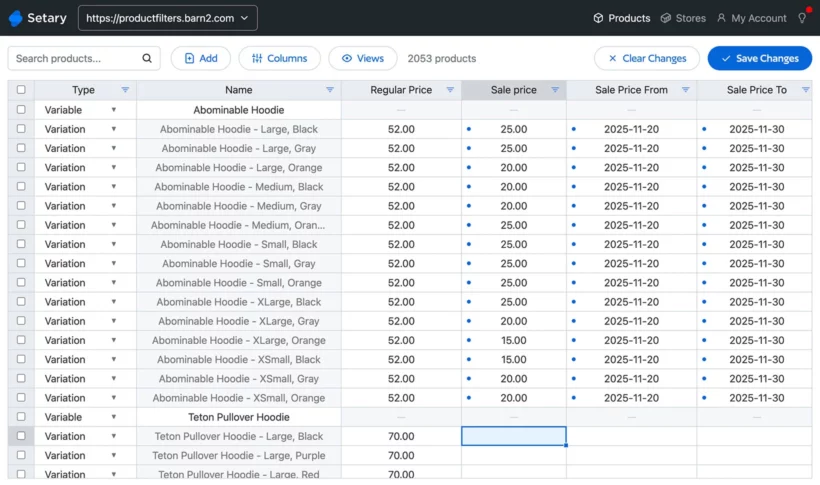
A product with five variants appears as five consecutive rows. Parent product information repeats for context, so you always know which product you're editing. However, bulk variant updates happen without affecting parent product data.
Filters help target specific variants across your entire catalog. For example, do you need to update size charts for all "Large" variants? Just filter by that attribute, and then apply your changes.
Best practices before bulk editing metafields
Before making large-scale changes, take a few precautions to protect your data. Export a backup of your current metafield values first. Shopify maintains a 30-day object history for individual products, but recovering hundreds of products manually takes forever.
Test your changes on a small batch first. Select five or ten products and apply your intended edits. Verify the results look correct before scaling up to your full catalog. This catches formatting errors and logic mistakes early.
When using any bulk editing tool, work during low-traffic hours when possible. Large API operations can briefly affect store performance. Schedule major updates for early morning or late evening to minimize customer impact.
However, bear in mind that Setary lets you preview your changes in the spreadsheet before applying them to your live site. Use this to check the bulk metafield editors carefully to reduce the risk.
Take control of your Shopify metafields today with Setary
Shopify's native bulk editor works for small updates but lacks advanced capabilities. Adding new metafield values requires manual entry for each product, turning bulk operations into hours of repetitive clicking. The append vs replace problem alone makes large-scale metafield management impractical with native tools.
Setary provides spreadsheet simplicity with bulk actions and API safety. You get real bulk editing power including true append operations, find-and-replace, and unlimited product edits. What previously took a full day now takes a fraction of the time.
Don't let metafield management slow down your next product launch. Start your 7-day free trial with Setary today and experience how simple Shopify bulk edit metafields tasks can be.