SharePoint end of life timeline and migration options


Every SharePoint end of life deadline through July 2026, in one place. This guide covers the full timeline, what happens when support ends, and the migration options that make sense for your team and budget.
Microsoft is retiring support for multiple SharePoint products on overlapping deadlines in 2026. Most organizations know about the July 14 server deadline. Fewer tracked the April 2 cutoff for workflows and authentication, which hit almost three months earlier.
This article covers every confirmed SharePoint end of life date. It also explains the specific risks of running unsupported, how to assess your environment, and the realistic migration paths available.
I find that most organizations are aware of the July server deadline but have not mapped its full impact. Multiple components are retiring at once: workflows, forms, authentication services, and the design tools used to build them. That combination creates a wider blast radius than a single product reaching end of life.
One important clarification before we get into it. SharePoint Online is not ending. The cloud version continues to receive updates and remains part of Microsoft 365. The deadlines covered here affect on-premises server versions and several legacy components.
I'll also help you think through what you actually need to replace SharePoint with, given that most organizations only use a tiny fraction of its features. For example, you might be able to save a huge amount of time and money simply by using your existing WordPress website for document management:
SharePoint end of life timeline
Here is the full timeline of confirmed SharePoint end of life dates. All dates are published on Microsoft's official Lifecycle pages. No extension options are available for any of these deadlines.
April 2, 2026
Microsoft has already removed the SharePoint 2013 workflow engine from existing Microsoft 365 tenants. This was a hard stop, not a gradual phase-out. Existing workflows because raw XML files that can now only be viewed, not run.
Azure Access Control Service (ACS) authentication also retired on this date. Any custom solutions or add-ins that rely on ACS stopped working immediately.
The SharePoint Add-In model retired for SharePoint Online on the same date. Organizations cannot request an extension.
July 14, 2026
SharePoint Server 2016 reaches the end of extended support. Microsoft will stop providing security patches, bug fixes, and technical support.
SharePoint Server 2019 reaches end of extended support on the same date. The impact is identical to Server 2016.
InfoPath 2013 client reaches the end of extended support. InfoPath Forms Services will be removed from SharePoint Online. Forms will no longer open, submit, or publish in SharePoint Online lists, libraries, or content types.
InfoPath Forms Services support also ends for SharePoint Server 2016, 2019, and Subscription Edition.
SharePoint Designer 2013 reaches end of support. Microsoft will not provide any further updates or fixes.
October 1, 2026
The SharePoint Migration Assessment Tool (SMAT) reaches its own end of support. Microsoft recommends using the SharePoint Migration Tool (SPMT) scan feature instead.
December 31, 2026
Office Online Server retires. Organizations running Office Online Server on-premises will need to transition to Office for the web through Microsoft 365.
What "end of support" actually means
The servers will not shut down on July 14, 2026. SharePoint 2016 and 2019 will continue to run. However, running them after this date carries real and increasing risk.
Security patches stop
Microsoft will not release patches for newly discovered vulnerabilities. On-premises servers become exposed to known exploits with no vendor-provided fix. This risk grows over time as new vulnerabilities are discovered. For organizations with internet-facing SharePoint servers, the risk is especially high. Remove those servers from the public internet or place them behind strict web application firewalls before the deadline arrives.
Technical support ends
Microsoft will not offer paid or free support after the deadline. Your IT team handles every issue alone. Microsoft's Q&A forums may still accept questions, but official support is off the table.
Compliance risk increases
Organizations under HIPAA, GDPR, SOC 2, or similar regulations face audit complications. Running unsupported software often triggers formal risk exceptions. Auditors and cyber insurers may require compensating controls or a time-bound retirement plan. The longer you run unsupported software, the more expensive those controls become. Some organizations find that the cost of maintaining compliance on unsupported infrastructure exceeds the cost of migrating.
Legacy workflows break on April 2
SharePoint 2013 workflows and add-ins that depend on ACS authentication will stop functioning on April 2, 2026. This affects SharePoint Online only (on-premises workflows continue until the server reaches end of support). However, the April 2 date has no extension option. If you have workflows running in Microsoft 365, they will break.
InfoPath forms stop working
After July 14, 2026, InfoPath forms will no longer open or submit in SharePoint Online. On-premises forms may continue to load. However, they will not receive fixes, and future SharePoint updates could cause unexpected behavior.
Integration with modern tools degrades
Unsupported SharePoint versions cannot keep pace with browser updates, operating system changes, and Microsoft 365 evolution. Expect increasing compatibility issues the longer you wait.
Is SharePoint being discontinued?
No. SharePoint is not being discontinued.
SharePoint Online remains fully supported as part of Microsoft 365. Microsoft continues to release feature updates, security patches, and compliance tools for the cloud version.
What is ending is support for the on-premises server versions (2016 and 2019) and several legacy components. These include SharePoint 2013 workflows, InfoPath, SharePoint Designer, and ACS authentication.
Microsoft also offers SharePoint Server Subscription Edition (SPSE) for organizations that need to stay on-premises. SPSE follows a modern lifecycle policy with no fixed retirement date. It receives regular feature updates and security patches.
So the platform itself is not going away. The older on-premises versions are.
How to assess your SharePoint environment before migrating
Before choosing a migration path, you need to know exactly what you have. A proper assessment prevents surprises during migration and helps you prioritize.
Start with an inventory
Map every SharePoint version running in your environment. Create a list of custom workflows, add-ins, InfoPath forms, and third-party integrations. If a system communicates with SharePoint, include it in the scope. Pay special attention to workflows and forms, since these have the earliest deadlines and require the most work to rebuild.
Use Microsoft's assessment tools
Microsoft provides several free tools to help with this process.
- SharePoint Migration Assessment Tool (SMAT)A command-line tool that scans SharePoint Server 2010, 2013, and 2016 farms. It identifies content that could cause problems during migration to SharePoint Online. Note that SMAT itself reaches end of support on October 1, 2026.
- SharePoint Migration Tool (SPMT)A free migration tool for moving content from on-premises SharePoint to SharePoint Online. It supports Server 2013, 2016, and 2019. SPMT also handles workflow migration from SharePoint Designer 2013 to Power Automate.
- Microsoft 365 Assessment ToolScans your Microsoft 365 tenant for SharePoint 2013 workflow and InfoPath Forms usage. It generates Power BI reports showing which sites, lists, and content types are affected.
Classify by business impact
Group your sites and customizations into tiers based on how critical they are. Focus migration efforts on the sites where failure would stop the business. Archival content and rarely accessed material can wait.
I find that most organizations discover more legacy dependencies than they expected during this step. Running the assessment early gives you time to plan properly.
Plan your timeline
Enterprise-scale migrations typically take 6 to 18 months. The timeline depends on data volume, number of custom solutions, and organizational complexity. Smaller environments can finish in weeks.
Either way, starting the assessment now is worth it. The April 2 deadline for workflows and ACS comes first. The July 14 server deadline follows shortly after.
SharePoint migration options
There are four main paths forward. The right one depends on your technical requirements, budget, and what you actually use SharePoint for.
Migrate to SharePoint Online
This is the most common path for organizations already using Microsoft 365. SharePoint Online is a fully managed cloud service. Microsoft handles security updates, infrastructure, and feature releases.
This option works well for organizations that already pay for Microsoft 365 licenses. It also suits teams that want to stop managing on-premises servers.
However, custom solutions built on add-ins, ACS, or classic workflows need rebuilding. You will need to convert these using SharePoint Framework (SPFx) or Power Automate. InfoPath forms require migration to Power Apps, Power Automate, or Microsoft Forms.
Data sovereignty requirements may limit cloud adoption for some industries. Check your regulatory obligations before committing.
Use Microsoft's SPMT for the content migration itself. SPMT is free and supports direct migration from Server 2013, 2016, and 2019. For complex environments with significant customization, consider a third-party tool like ShareGate or Metalogix, or hire a migration consultant. These tools offer features like automated permission mapping, scheduling, and detailed reporting that SPMT does not provide.
Upgrade to SharePoint Server Subscription Edition
SPSE is the option for organizations that need to stay on-premises. It follows a modern lifecycle policy. There is no fixed end date. Microsoft delivers feature updates twice per year along with regular security patches.
This path creates the least disruption if your main constraint is keeping SharePoint Server on-premises. The upgrade uses a database-attach method from Server 2016 or 2019. You set up a new SPSE farm, copy your databases over, and attach them to the new environment.
However, SPSE does not automatically modernize your environment. Custom workflows, legacy pages, and complex permission structures all carry forward. You still need a plan to reduce customization debt over time. Upgrading to SPSE keeps you supported, but it does not solve the underlying problem of aging architecture.
Hybrid approach
A hybrid setup combines on-premises SharePoint (SPSE) with SharePoint Online. You keep sensitive or regulated data on-premises while moving other content to the cloud.
This works well for organizations that want a gradual transition. It lets you migrate in phases rather than doing a single large cutover. You can start with low-risk content and move critical systems last.
Replace SharePoint with a purpose-built alternative
Not every organization needs a full SharePoint migration. Many teams inherited SharePoint because it came bundled with their Microsoft 365 subscription. Over time, they ended up using only a fraction of its features.
SharePoint is a broad platform. It handles intranets, collaboration, workflow automation, and document management all in one. But if you only use one of those capabilities, paying for (and migrating) the whole platform does not make sense.
If your primary use case is document storage and retrieval, a dedicated tool may be a better fit. It can also be significantly cheaper.
For a full breakdown of alternatives across every SharePoint use case, see our SharePoint alternatives comparison.
When a full SharePoint migration is more than you need
A meaningful share of SharePoint's installed base uses it for one thing: storing and sharing documents. Policies, procedures, forms, publications, internal resources. If that describes your organization, a full migration to SharePoint Online or SPSE may be overkill.
Migrating to SharePoint Online means ongoing per-user licensing costs. For an organization that just needs 200 people to access 50 policy documents, that adds up fast. A WordPress document library is a simpler path forward for teams with this use case - especially if you already use WordPress for your website, as you can simply add a (public or private) document library to it. It avoids the complexity and cost of a platform-level migration.
Document Library Pro is a WordPress plugin that creates searchable, filterable document libraries. It supports any file type. You can even link to files that are still stored on SharePoint, Google Drive, Dropbox, or OneDrive. That means you can start using it alongside your current SharePoint environment and move files at your own pace.
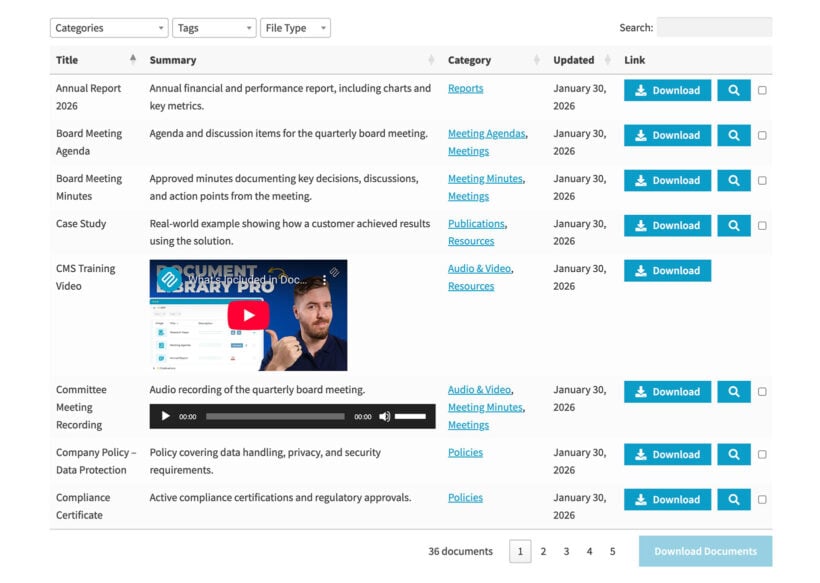
Here is what makes Document Library Pro a practical option for teams leaving SharePoint:
- No per-user licensing. Pricing starts at $149/year per site, with unlimited users.
- No Microsoft 365 dependency. Runs on any WordPress site.
- Flexible file storage. Store files in the WordPress Media Library or link to external locations.
- Built-in search and filters. Visitors can find documents using instant search, category filters, and sortable columns.
- Access controls. Restrict document access by user role, specific users, or password.
Of course, Document Library Pro is designed specifically for document libraries and resource sharing. If you rely on SharePoint for complex workflows or enterprise collaboration, you will need one of the other migration paths.
For a side-by-side feature breakdown, see our detailed WordPress vs SharePoint comparison. You can also read our guide on setting up document management in WordPress.
Next steps
The July 14, 2026 deadline is fixed. The April 2 workflow and ACS cutoff comes even sooner. Neither has an extension option.
The right migration path depends on what you actually use SharePoint for. For organizations deeply embedded in the Microsoft ecosystem, SharePoint Online or SPSE is the natural next step. For teams that mainly need a document library, WordPress with Document Library Pro is a faster and cheaper option. It sidesteps a full platform migration entirely.
Whatever path you choose, start with the assessment. Run Microsoft's tools, inventory your dependencies, and classify your sites by business impact. The organizations that plan early pay less and disrupt less than those forced into a last-minute migration.