WordPress vs. SharePoint: Decoding the features

Comparing SharePoint vs WordPress for your organization's intranet or document library? This guide covers costs, features, security, and when each platform makes sense, including how to build a SharePoint-style document library in WordPress for a fraction of the price.
When you're setting up an intranet or document library for your organization, SharePoint and WordPress tend to be the main contenders. It's not a quick decision, because the platform you choose affects multiple people across your organization, and you're likely to stick with it for years.
In this article, I'll cover:
- A clear comparison of SharePoint vs WordPress across cost, flexibility, security, and ease of use.
- Why many organizations are migrating from SharePoint to WordPress.
- How to use the Document Library Pro plugin to build a searchable, access-controlled document library on WordPress.
- Honest advice on which platform is right for your situation.
What is an intranet?
An intranet is a private internal network that helps organizations share information, resources, and tools with staff. It sits behind a secure login, so only authorized people can access it. Intranets can be reached from any device with an internet connection, with no software required on the user's side.
Most intranets include a document library for sharing resources across the organization, internal news or blogs, and tools such as staff directories. The specific features depend on the organization's size and purpose.
SharePoint vs WordPress: Platform definitions
SharePoint is an enterprise content management platform developed by Microsoft, designed primarily for large organizations needing internal collaboration and document management.
WordPress is an open source content management system that powers over 40% of all websites globally. It can be used to build almost any type of website, including a private intranet or document library.
These are fundamentally different tools. SharePoint is an enterprise platform built around the Microsoft ecosystem. WordPress is a flexible, open-source system that anyone can set up and extend. Despite the differences, both are legitimate options for building an intranet, and the right choice depends on your organization's specific needs.
Head-to-head comparison: SharePoint vs WordPress
| Feature | SharePoint | WordPress |
|---|---|---|
| Primary use | Enterprise intranet and document management | Flexible CMS for any website type, including intranets |
| Hosting | Microsoft cloud (Online) or on-premises server | Any web hosting provider |
| Ease of use | Steep learning curve; typically requires IT support | Non-technical staff can manage content with minimal training |
| Cost | Microsoft 365 licensing plus significant setup/consultant costs | Free core software; hosting, domain, and plugins typically under $200/year |
| Customization | Limited without a SharePoint developer | Thousands of themes and plugins; fully customizable |
| Source code | Proprietary (Microsoft) | Open source |
| Microsoft 365 integration | Native integration with Teams, OneDrive, Outlook | Can link to files stored in SharePoint, OneDrive, Google Drive via plugins |
| Security | Enterprise-grade; managed by Microsoft | Depends on hosting and plugin choices; manageable with good setup |
SharePoint pros and cons
SharePoint is a well-built platform designed around the needs of large enterprises. Once properly configured, it's robust, stable, and backed by Microsoft support.
SharePoint strengths:
- Native integration with Microsoft 365 (Teams, OneDrive, Outlook, Power Automate).
- Enterprise-grade security managed by Microsoft infrastructure.
- Designed for large-scale internal collaboration.
- Meets strict compliance requirements in regulated industries.
SharePoint disadvantages:
- High setup costs and recurring per-user licensing fees.
- Steep learning curve for content editors and administrators.
- Requires IT expertise for setup, customization, and ongoing maintenance.
- Proprietary software: limited control without a SharePoint developer.
- Microsoft ecosystem lock-in: your documents live on Microsoft infrastructure.
SharePoint is also proprietary software, meaning your developer doesn't have access to the source code. Customizations are limited to what Microsoft permits. Some organizations also weigh the ethical considerations of proprietary vs. open source platforms when making this decision.
WordPress pros and cons
WordPress is the world's most popular CMS, with a market share of over 40%. It powers everything from small blogs to large organizational intranets.
WordPress strengths:
- Free and open source core software.
- Thousands of plugins and themes for virtually any use case.
- Non-technical staff can manage content without developer help.
- You own your data and aren't locked into any vendor.
- 100% customizable with full access to the source code.
- Large community of developers and support resources.
WordPress considerations:
- Security depends on your hosting quality and plugin choices, so it requires active management.
- Site maintenance (updates, backups, security) falls on the site owner or their developer.
WordPress is more comparable to SharePoint Online than to on-premises SharePoint, because it's cloud-based, requires no software installation for end users, and works from any browser on any device.
If you already use WordPress for your main website, adding an intranet or document library to your existing site is far more efficient than starting from scratch with a separate platform. If you're new to WordPress, guides like WP Beginner's setup tutorial make it easy to get started.
Cost comparison: SharePoint vs WordPress
SharePoint requires Microsoft 365 licensing, which means a recurring fee per user. Beyond the software itself, Microsoft recommends budgeting at least 8x the software cost for successful deployment, and that's before paying for SharePoint consultants to customize anything. If you cancel your subscription, you lose access to everything hosted there.
WordPress core software is completely free. A typical WordPress intranet costs hosting (around $5-30 per month), a domain name, and any plugins you need. Adding a searchable document library with Document Library Pro is an additional annual cost, though it's a fraction of what you'd spend on SharePoint licensing and consultants. Document Library Pro also offers a 15% discount for registered nonprofits and charities. And if your organization already has a WordPress website, you're paying hosting costs anyway, so adding an intranet or document library doesn't necessarily add much to the bill.
Even if you hire a developer to build something custom, WordPress developers typically charge considerably less per hour than SharePoint specialists.
Why a WordPress intranet with document library is a strong SharePoint alternative
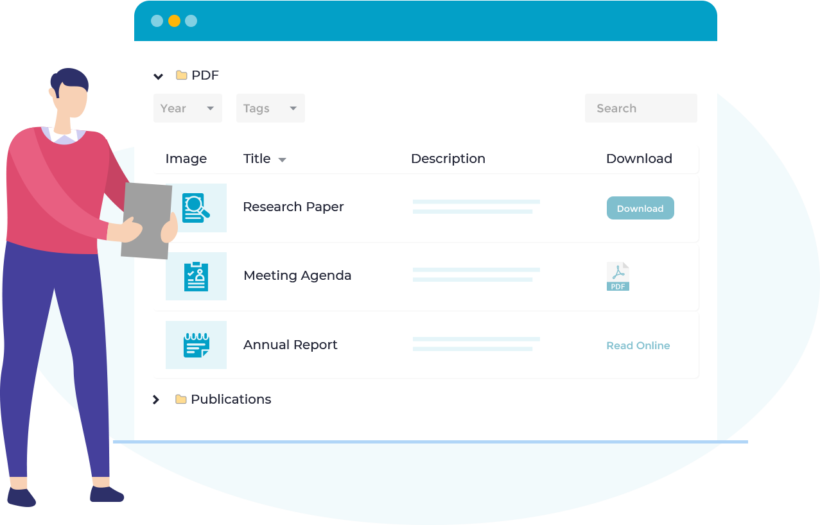
Let's look at each of the main areas where organizations compare SharePoint vs WordPress, and how a WordPress-based approach holds up.
If you already have a WordPress site, you can add a document library or intranet area to it easily. Alternatively, you can use WordPress to build a dedicated intranet site from scratch.
Intranet
WordPress is a solid platform for building any type of intranet. You can use it with Advanced Access Manager to control who can access each part of your website.
Here are some common setups:
- Use WordPress for your main company website with a private intranet area for staff. SharePoint keeps intranet and public site separate by design.
- Create a 100% private intranet using a plugin like Password Protected, useful when you don't want any public-facing pages.
- Create separate areas for departments or teams using the free User Role Editor plugin alongside Advanced Access Manager. Or use WordPress multisite to create websites within websites.
- Add different types of content alongside your document library: internal blogs, forums, knowledge bases, or a staff directory.
Document management system or document library
Organizations use a document management system or document library to store and share resources, whether internal guidance, public-facing policies, or both. You can use WordPress with the Document Library Pro plugin to list unlimited documents in a searchable, filterable library.
Document Library Pro comes in two plans:
- Essentials - ideal for nonprofits, small businesses, and other organizations that need a public-facing library of resources, policies, or publications.
- Advanced - designed for healthcare organizations, councils, membership associations, and any organization that needs access control, document versioning, expiry dates, or lead capture before access.
The plugin is used by organizations across healthcare, local government, membership bodies, and nonprofits. A parish council might use it to publish agendas, meeting minutes, and finance reports, organized by committee and date. A healthcare body might list clinical guidance and practice standards, with AJAX instant search so staff can locate the right resource quickly. A membership association might restrict standards documents and governance materials to logged-in members by tier.
AJAX instant search and filters
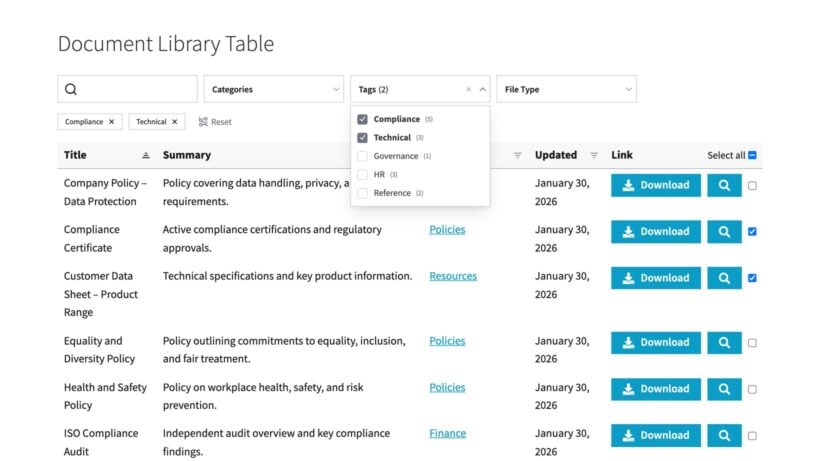
Document Library Pro adds an instant AJAX-powered keyword search box above each library, which updates results as you type without reloading the page. This is a significant improvement over SharePoint's grid-based document search, where results can feel slow and difficult to navigate.
Users can also filter documents using dropdowns for categories, tags, and any custom data you add. For example, a nonprofit sharing toolkits, guides, and annual reports could add filters by topic or year so beneficiaries and volunteers can narrow results quickly.
Appearance and usability
Documents are listed in a table layout, making it easy to see specific information about each resource at a glance. You have full control over which columns appear: title, excerpt, author, date, file type, category, tags, and more.
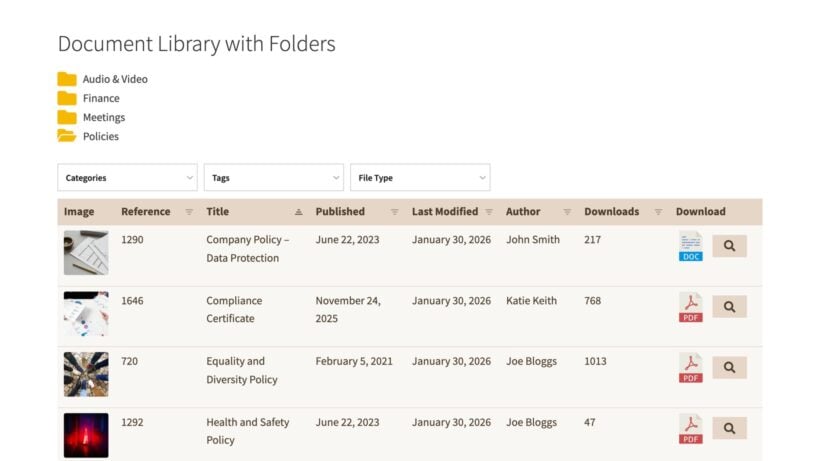
You can list documents in:
- One long table.
- Multiple tables on different pages.
- Automatically structured into collapsible folders, organized by category.
This gives you considerably more layout flexibility than SharePoint's grid-based document library.
Supported formats
Document Library Pro supports all document formats, including PDFs, Word documents, Excel spreadsheets, images, and multimedia files. Each document can link to a file, a page on your site, or an external URL. This includes audio and video content, which is useful for organizations sharing training materials, recordings of committee meetings, or multimedia guidance. For more on using WordPress for video resources, see our guide to the best video WordPress plugins.
Security and access control
This is an area where Document Library Pro holds its own against SharePoint's much-cited security advantages. WordPress security depends on your hosting and plugin choices. A well-maintained WordPress site with a reputable host is secure, but it does require active management rather than delegating everything to Microsoft.
For document-level access control, Document Library Pro Advanced offers four restriction types:
- Password protection - restrict a document or category with a password; no WordPress account needed.
- User role restrictions - control access by WordPress user role, ideal for membership associations restricting standards and resources to members.
- Individual user restrictions - grant access to specific named users only.
- Author-only access - only the document's author can view or edit it.
I find this particularly valuable for organizations where governance matters: a council publishing consultation documents to specific committees, or a healthcare body restricting certain clinical guidance to practitioners only. These controls mean you can achieve fine-grained access management without enterprise-level infrastructure or per-user licensing fees.
Document expiry is another feature that has no equivalent in the standard SharePoint offering: documents can be set to automatically disappear from the library after a set date. This is useful for healthcare organizations where outdated clinical guidance should never remain visible, or councils with time-limited consultation documents.
Document Library Pro also tracks per-document access counts, with Google Analytics available for deeper reporting. This helps organizations demonstrate resource usage to boards and committees, which is a useful accountability feature for nonprofits and public bodies.
We built Document Library Pro specifically for organizations that need their resources to be findable, governed, and trustworthy. Version control, access control, and document expiry aren't just features. They're how you avoid the risk of the wrong document reaching the wrong person.
Katie KeithFounder & CEO
Version control
Document Library Pro has built-in version control. The Advanced plan lets admins replace a file while keeping the same stable URL, so any external links pointing to a document remain valid after an update. Previous versions are retained and can be restored or deleted by an admin. For councils that publish documents with stable public URLs, or healthcare organizations maintaining current policy versions, this directly answers one of SharePoint's named advantages for advanced file versioning.
Read our complete guide on version control in WordPress.
Microsoft 365 integration: a closer look
SharePoint's native integration with Microsoft 365 (Teams, OneDrive, Outlook, and Power Automate) is a genuine advantage for organizations already embedded in that ecosystem, and I wouldn't downplay it.
That said, Document Library Pro doesn't require organizations to migrate away from Microsoft storage to use a professional WordPress document library. You can link documents directly to files stored on SharePoint, OneDrive, Google Drive, or Dropbox, and the library surfaces them on your WordPress site without moving anything. Document Library Pro also supports automatic document sync with Google Drive and Dropbox via automation tools like Zapier, so your library stays current as files are updated in your cloud storage.
The practical implication is that organizations already using Microsoft 365 for internal file storage can use Document Library Pro as the professional, public-facing document layer, combining both platforms rather than choosing between them.
Staff document submission
Document Library Pro includes a front-end document submission form, allowing staff to add resources without needing access to the WordPress admin. Submissions can either go straight to the library or be held for moderation before publishing.
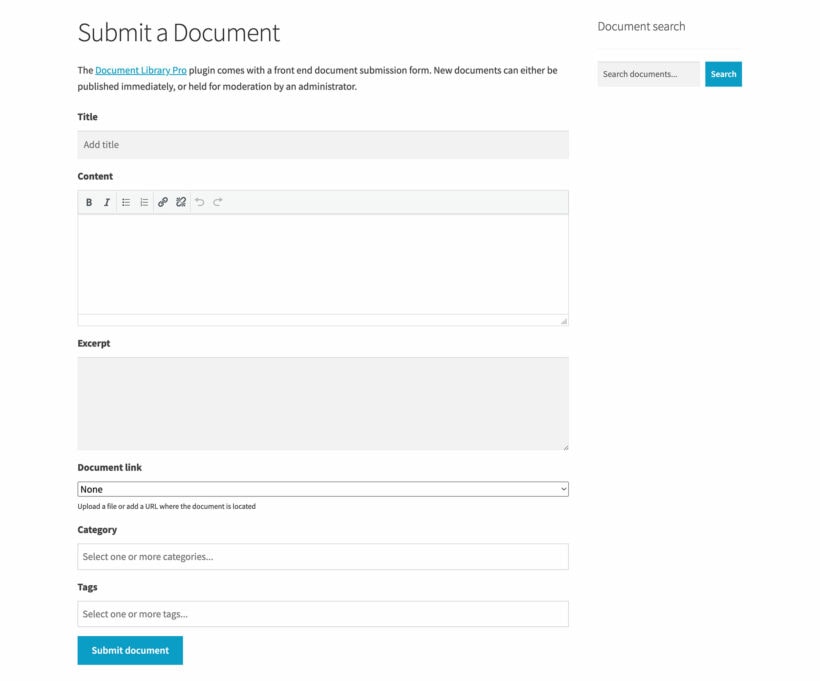
For organizations that need front-end editing, you can use WordPress with the WP Sheet Editor plugin to let specific user roles edit document information directly without going through the admin dashboard.
Alternatively, you can allow users to submit documents to the library from the front end, without needing any WordPress admin access.
Access from any device
WordPress creates responsive websites that work from any device and any web browser. There's nothing to install on the user's side. For a private intranet, the plugins mentioned above let you make access available to users outside your local network while keeping the content secure.
Customization and scalability
With SharePoint, you need a SharePoint developer to customize the interface. With WordPress, you can install from thousands of off-the-shelf themes and update your logo, colors, and typography yourself. If you need something fully custom, a WordPress developer can build it.
A WordPress document library solution scales with your organization without increasing costs. SharePoint's subscription pricing means costs rise as your team grows. With WordPress, adding more users doesn't add to your bill.
Why organizations migrate from SharePoint to WordPress
This is a question I get asked fairly often, so it's worth addressing directly. Organizations move from SharePoint to WordPress for a few consistent reasons:
- Cost pressure - enterprise licensing and consultant fees become hard to justify, particularly for nonprofits, councils, and smaller healthcare organizations where budgets are constrained.
- Complexity - SharePoint requires IT expertise to manage day-to-day. WordPress can be managed by communications staff or a web administrator without developer involvement.
- Data ownership - SharePoint hosts documents on Microsoft's infrastructure. WordPress gives you full ownership of your data and the ability to move hosts at any time.
- Consolidation - organizations already using WordPress for their public website often prefer to manage their document library in the same platform rather than maintaining two separate systems.
Can WordPress and SharePoint work together?
Yes, and this is worth knowing if your organization already uses Microsoft 365 internally. Many organizations use SharePoint for internal team collaboration while using WordPress for their public-facing website and document library. The two don't need to be in competition.
Document Library Pro is designed to work alongside SharePoint, not instead of it. You can link documents in your WordPress library directly to files stored in SharePoint or OneDrive, displaying them to your website visitors without migrating a single file. This makes Document Library Pro the WordPress-native document layer that sits alongside an existing SharePoint setup rather than replacing it.
How to set up a SharePoint intranet alternative with WordPress
Lots of people turn to WordPress as a SharePoint alternative or replacement for their intranet and private document library. These tutorials provide an excellent starting point:
- WordPress intranet: how to create one for your organization
- Complete guide to creating a WordPress document library
SharePoint vs WordPress: Which should you choose?
Neither platform is universally better. The right choice depends on your organization's size, budget, and technical setup.
Choose SharePoint if:
- Your organization is deeply embedded in Microsoft 365 and needs native Teams, OneDrive, and Outlook integration.
- You have strict enterprise compliance or data sovereignty requirements that mandate Microsoft infrastructure.
- You have dedicated IT resource and budget to support setup, customization, and ongoing maintenance.
Choose WordPress + Document Library Pro if:
- You need a professional, searchable document library on an existing or new WordPress site.
- You're a nonprofit, council, healthcare body, or membership association that needs structured, findable resources without enterprise overhead.
- Cost and ease of management are priorities, and you don't have dedicated IT staff for a SharePoint deployment.
- You want full ownership of your data and the flexibility to customize your setup without a specialist consultant.
In my experience, most small-to-medium organizations (particularly nonprofits, membership bodies, and local authorities) are significantly better served by WordPress with Document Library Pro than by SharePoint. The cost difference alone is substantial, and the day-to-day management is considerably simpler.
And if you are not committed to WordPress at all, Document Library Pro also comes as a cloud version that runs on any website, so you can build the same searchable library and embed it wherever your organization's site lives.
- Easy to use, no technical skills or knowledge needed.
- Affordable annual pricing, with a 15% nonprofit discount available.
- Supports any file type: PDFs, Word documents, audio, video, and more.
- Access control, document expiry, and version control included in Advanced.
- Love it or your money back!
FAQ: SharePoint and WordPress
Is SharePoint going away or being phased out in 2026?
SharePoint as a platform is not being discontinued. However, two significant end-of-support dates apply in 2026. SharePoint Server 2016 and 2019 both reach end of extended support on July 14, 2026. After that date, Microsoft will no longer provide security patches, bug fixes, or technical support for those on-premises versions. Additionally, the SharePoint Add-In model and SharePoint 2013 workflows retire on April 2, 2026, meaning customizations or workflows built on those systems will stop functioning.
Organizations still running SharePoint 2016 or 2019 on-premises should plan to migrate to SharePoint Online or SharePoint Server Subscription Edition. See the official Microsoft end-of-support page for full details.
Is SharePoint similar to WordPress?
SharePoint and WordPress are both content management platforms, but they serve very different purposes. SharePoint is an enterprise platform designed for internal collaboration and document management within the Microsoft ecosystem. WordPress is an open source CMS designed for building any type of website, including public sites, intranets, and document libraries. Both can host a document library, but SharePoint requires Microsoft licensing and technical expertise, while WordPress is free and can be managed by non-technical staff.
Is SharePoint a viable option for a public-facing marketing website?
Generally, no. SharePoint is designed for internal use and doesn't have the design flexibility, plugin ecosystem, or SEO tooling that WordPress offers for public websites. Organizations that want a polished public site with a clear brand identity are almost always better served by WordPress, with SharePoint used only for internal systems where required.
How steep is the learning curve for SharePoint vs WordPress for content editors?
SharePoint has a significantly steeper learning curve for everyday content editors. Managing pages, uploading documents, and adjusting permissions typically requires IT involvement or training. WordPress, by contrast, is designed for non-technical users. Most communications staff can learn to add and manage documents, update pages, and handle basic admin tasks with minimal training. This is one of the most practical differences in the SharePoint vs WordPress comparison for organizations without large IT teams.
What specific SharePoint features or versions are reaching end of support in 2026?
The main 2026 milestones are:
- April 2, 2026: SharePoint 2013 workflows retire for all Microsoft 365 and SharePoint Online tenants. The SharePoint Add-In model also retires on this date.
- July 14, 2026: SharePoint Server 2016 and 2019 reach end of extended support. Microsoft will no longer provide security updates or paid technical support after this date.
For organizations on SharePoint Online (cloud), the platform itself continues to receive updates under Microsoft's Modern Lifecycle Policy. The retirements above primarily affect on-premises deployments and older customization models. Check the Microsoft lifecycle page for the latest information.
2 Comments
Hi Maria,
Thank you for the knowledgeable information.
I have an intranet site hosted inhouse, planning to hosted outside my office premises, this site should be access by only staff, it should not available to public, do you have any idea and tips how to do?
Hi Fab, thanks for your comment.
To do this, you can use Advanced Access Manager or a free plugins like Password Protected.
Let us know if you have more questions. Cheers!