WordPress PDF search: How to search inside your PDFs


WordPress PDF search lets visitors type a phrase and find the right PDF, even when the file's title gives nothing away. I'll show you how to search the text inside your PDF files, and what to do about scanned documents.
Upload a 40-page report to WordPress and the built-in search will never find a phrase buried on page 12. You can add PDFs to the Media Library, but there's no way to create a WordPress PDF search in the front end.
Document Library Pro reads the text inside the files you upload. A search for "drainage" then returns every PDF that mentions drainage anywhere in it. I'll cover how the indexing works, which file types it can read, and why a scanned PDF never turns up in the results.
What is WordPress PDF search?
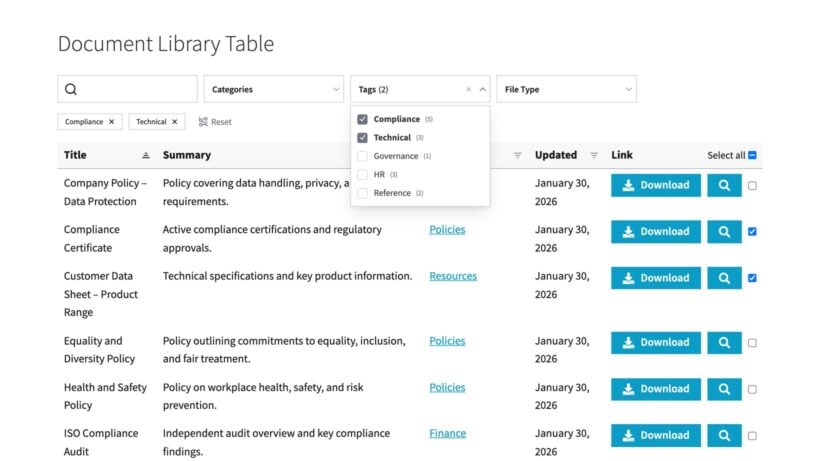
WordPress PDF search lets visitors search a library of PDF files on your site and find the right document fast. It works in two layers:
- The first layer is the library plugin itself. Document Library Pro lists your PDFs in a searchable table or grid and searches each file's title, description, and custom fields.
- The second layer reads the words inside the PDFs themselves.
You get both from the one plugin - a pile of uploaded files becomes a searchable front-end library.
If your website runs on a platform other than WordPress, you can build the same searchable PDF library with our cloud version, which works on any site.
Why can't WordPress search inside PDF files?
The built-in WordPress search isn't capable of reading the content of PDF files. It matches the words on the page around a file, never the words in the file itself.
When PDFs are uploaded to the WordPress media library, there's no way for users to view PDFs in the front end. They're mixed up with all your other files (images, videos, etc.) and are only accessible for people with access to the WordPress dashboard.
With a PDF library plugin, you can use extra fields to label your PDFs. Using this data, your users can then search, sort and filter the PDF library to find what they want.
For example, you can create custom taxonomies so that users can filter by category, topic etc. You can also use custom fields to store specific information about each PDF such as file size or a unique reference code.
However, labels alone don't help when a library holds hundreds of PDFs with similar titles. In our own analysis of 41 live libraries, PDFs are by far the most common file type. A search box appears inside the library on 82% of those sites.
You see this most on old newsletters, research collections and years of searchable council minutes. A single set of minutes covers planning, drainage and the budget. The title gives you only the date.
The PDF archive on a council website grows every month. Under the Accounts and Audit Regulations 2015, minutes stay online for at least five years and six is recommended, which is several hundred PDFs for a parish council that meets monthly.
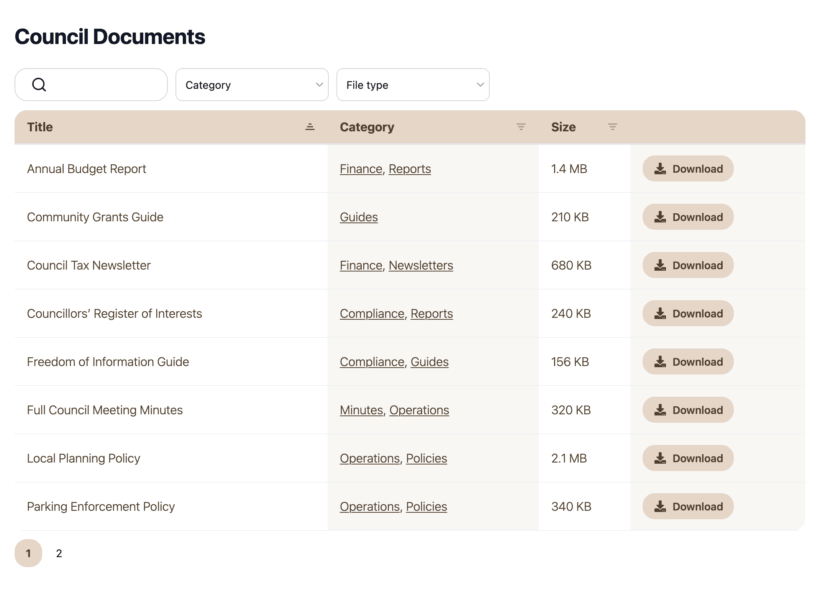
Repeated filenames cause the same trouble. In one education charity's library, documents with identical names were spread across different categories, so a visitor's search matched several files without telling them which was which. A search box that reads only the titles is fine until the titles stop describing what's in the file.
In fact, more than 1 in 10 employees spend over four hours a week looking for internal work documents. A searchable WordPress PDF library on an internal company website is a great way to solve that problem.
How to search PDF content in WordPress
Document Library Pro reads the text inside PDF, Word, Excel, PowerPoint and OpenDocument files and adds it to the library's search index. There's nothing to switch on: Just upload a PDF file and the plugin reads it in the background.
For years, we told customers to buy the SearchWP plugin alongside Document Library Pro because so many of them needed the search box to find text inside PDFs. We decided it wasn't good enough to expect people to buy a second plugin for something this basic. Searching inside documents was the most requested Document Library Pro feature. As a result, we launched it in 2026 so that the plugin now offers native PDF search.
Note: Your searchable PDF index will work for PDFs stored in the WordPress Media Library, but not externally hosted PDFs.
How to make the contents of PDF files searchable in WordPress
- Install Document Library Pro and create your PDF library. Our guide to choosing a WordPress PDF library plugin walks through the layouts, filters and folder options in full.
- Add your files. There are 4 easy ways to upload PDFs to WordPress, from adding them one at a time via Documents → Add New to importing hundreds from a CSV file. The full instructions cover every method.
- Let the plugin index the files. It reads each PDF in the background, in batches, and stores the text.
- Check the indexing is working. Go to Tools → Site Health → Info and open the Document Library Pro section. 'File content indexing' tells you whether the feature is ready, and 'Failed file parses' counts the files that couldn't be read.
- Search your library on the front end. Type a phrase that appears inside one of your PDFs rather than in its title, and the matching file should come back.
A visitor's search queries that stored text rather than opening your files. As a result, search stays fast on a library of thousands of PDFs.
Add a standalone WordPress PDF search box
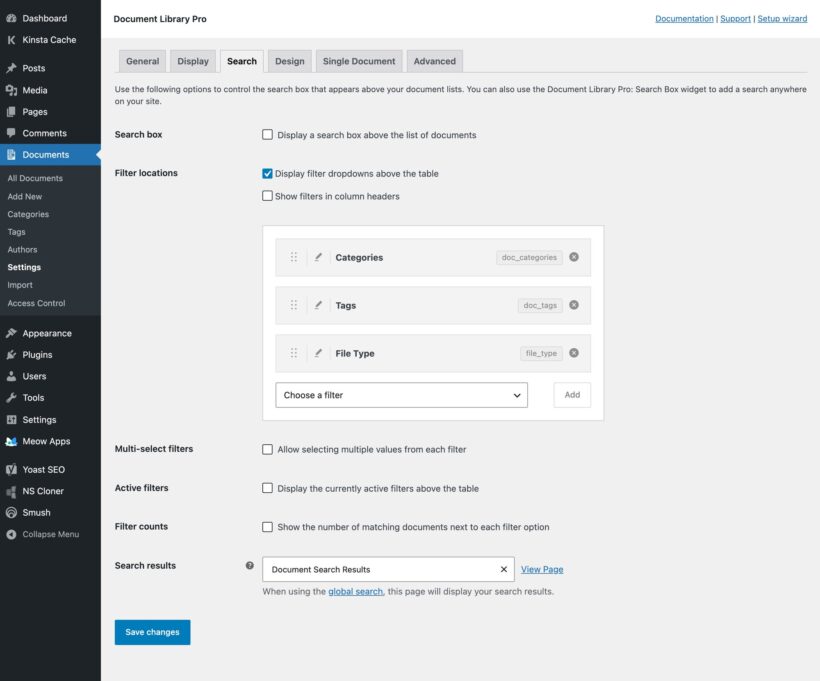
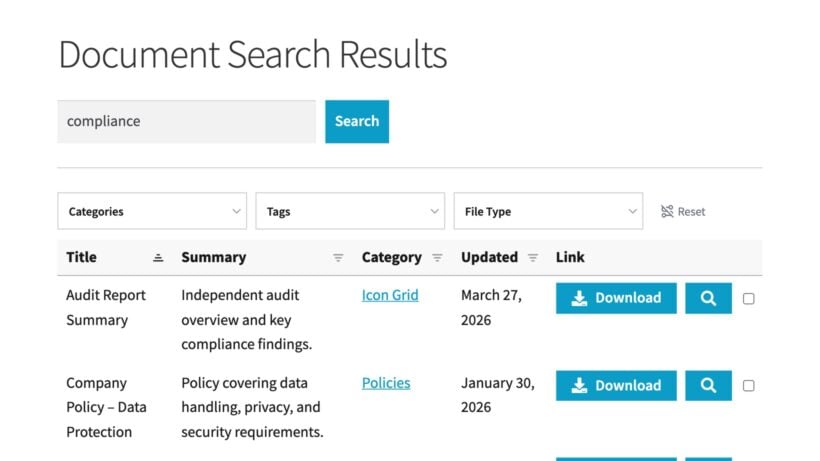
You can also add a standalone WordPress PDF search box by inserting the 'Document Library Pro: Search Box' widget or adding the [doc_search] shortcode 💡. Add this custom search form anywhere on your site, such as the homepage. The results appear in a PDF library.
Which file types can be searched?
Document Library Pro reads the text inside these formats:
- PDFpdf.
- Worddocx, docm, dotx and dotm.
- Excelxlsx, xlsm, xltx, xltm and xlam.
- PowerPointpptx, pptm, ppsx, ppsm, potx, potm, ppam, sldx and sldm.
- OpenDocumentodt, ods, odp, odg, odc, odb and odf.
The older binary Office formats (doc, xls and ppt) aren't supported. If you have those, re-save them in the modern equivalent. Images, audio and video are still listed and downloadable, and searchable by their own fields. They simply have no text for the plugin to read.
Why won't my scanned PDF turn up in search?
The plugin reads the text layer of a file. A PDF that's really a photograph or a scan of a page has no text layer, so there's nothing to index. Reading one would need optical character recognition, which Document Library Pro doesn't perform.
If you publish scanned PDFs, you're also breaking an accessibility rule. The Public Sector Bodies Accessibility Regulations 2018 apply to every UK council, whatever its size. A council's PDFs need searchable text rather than flat scans. If you're digitizing an archive, run the scans through OCR software before you upload them.
Password-protected and encrypted files can't be read either. Nor can files you link to by URL instead of uploading.
The limits of WordPress PDF search
The search index recognizes whole words. Here's how a visitor's query is treated:
- Partial words match from the startSearching for pol finds "policy", "policies" and "polling". It won't match the middle or end of a word, so quality doesn't find "Equality".
- Several words must all matchSearching for meeting agenda returns only the PDFs matching both words, rather than everything matching either one.
- Quotation marks and operators aren't supportedQuotes don't force an exact phrase, a minus sign doesn't exclude a word, and a plus sign stops the search returning anything.
- Accents are interchangeableA search for "Zurich" also matches "Zürich", with nothing to enable.
- Reference codes surviveNumbers, dates and hyphenated codes are indexed as whole units, so a PDF carrying the reference "HR-2026-014" can be found by searching for it.
Going beyond the built-in WordPress PDF search
The built-in search covers what most PDF libraries need. If you want finer control, use Document Library Pro with SearchWP, which is still fully compatible with it. SearchWP adds five things on top of the built-in PDF search:
- Query syntax, so a visitor can search for an exact phrase in quotation marks or exclude a term.
- Relevance weighting, so a match in the title counts for more than a match on page 30.
- Search analytics showing what your visitors are looking for.
- Synonyms and stemming, so that "invoices" also matches "invoicing".
- Text from scanned documents, which SearchWP can extract using a third-party service.
If your visitors type a word and expect to find the files containing it, the built-in search is enough. If they expect to search the way they search Google, with phrases in quotation marks and terms excluded, add SearchWP. We chose not to rebuild that query syntax ourselves, because very few PDF libraries need it.
Frequently asked questions
How do I search a PDF in WordPress?
WordPress search doesn't read the contents of PDF files on its own. To let visitors search your PDFs, list them with a PDF library plugin so the title, description, and custom fields are searchable. Document Library Pro also reads the words inside each uploaded file. Visitors type a term into the library search box and see every matching PDF.
How do I make a PDF searchable in WordPress?
First make sure the PDF holds real text rather than a scanned image, since a scan has no text to index. Upload the file to the WordPress Media Library and add it to your PDF library. Document Library Pro then reads the file contents in the background. The PDF's text becomes searchable from the library search box.
What's the best way to add PDF search to WordPress?
For most sites, one PDF library plugin covers it. Document Library Pro publishes your PDFs in a searchable table or grid and reads the contents of each file. You get browsing and full-text search without custom development. Nonprofits, healthcare organizations, government bodies and membership associations use it for policy and resource libraries.
Is there a free way to search PDFs in WordPress?
The built-in WordPress search is free but can't read PDF contents. It only matches the text on the page around a file. Some free plugins index PDF text on small sites, though they often slow down as the library grows. For a library that stays fast and searches both the labels and the file contents, a dedicated PDF library plugin is the more reliable route.
Can I search PDFs in an Elementor gallery?
Yes. Keep Document Library Pro as the plugin that stores, indexes and organizes the PDFs, then add the library to an Elementor-designed page. Visitors can search, browse and download the files from there. For the full no-code setup, follow our guide to create an Elementor PDF gallery.
Create a searchable PDF library today!
If your PDFs hold information nobody can find, better labeling won't fix it. Get Document Library Pro and let visitors search the words inside the files themselves.
- Your visitors find the right PDF by typing a phrase from inside it.
- You save the cost of a second search plugin.
- A library of thousands of PDFs stays fast to search.
- People who don't know the keyword can narrow the library by category or tag instead.
- Love it or your money back!
For more on how the index works, read our documentation on searching the library, which covers the file types and what to check when a PDF you know is there refuses to come up.